
Home
Account setting
Staff
Lists
Forms
Templates (HTML emails/SMS messages)
Sending messages by SMS and email
Classes, events, attendance and Zoom
Automation
Create a birthday invitation and automation
Communication
Microsite
E-Commerce
Networks, Federations and Franchises
How to guides
Personal information and electronic message laws in Canada and the USA
Get support
Terms and conditions
https://activitymessenger.com/
10410 Waverly, Montréal, H3L 2W4
Terms and conditions

Select a required membership by participant age
When one class includes participants from different membership age categories, a Multiple Classes question can automatically add the correct required membership from the participant's date of birth. The customer does not have to choose between memberships.
For example, the same gymnastics class can add a junior membership for participants aged 3–4 and a recreational membership for participants aged 5–18.
# Before you begin
- Create every membership that the class may require.
- Add an active Age or Date of birth dynamic pricing rule to each membership. The rule determines which participants are eligible for that membership.
- Make the age ranges cover every participant who can register. Avoid overlapping ranges unless you intentionally want the first configured matching membership to win.
- Use a payment form with a Multiple Classes question.
To learn how to add an age rule to a membership, see Dynamic pricing for classes and memberships.
# Configure the Multiple Classes question
- Go to Forms, open the payment form, and select the Form tab.
- Open the menu for the Multiple Classes question and select Edit.
- Under Class rules, select Modify for the rule that applies to the classes.
- Under Participant rules, enable Membership.
- Configure one of these membership charging options:
- Enable Charge the participant for the membership if he doesn't have it, then select at least two memberships.
- Enable Add one membership when participant has none of those memberships, then select at least two memberships under Or propose these memberships.
- Enable Select the membership based on participant age.
- Enable Date of birth and make it Required.
- Save the class rule, and then save the Multiple Classes question.
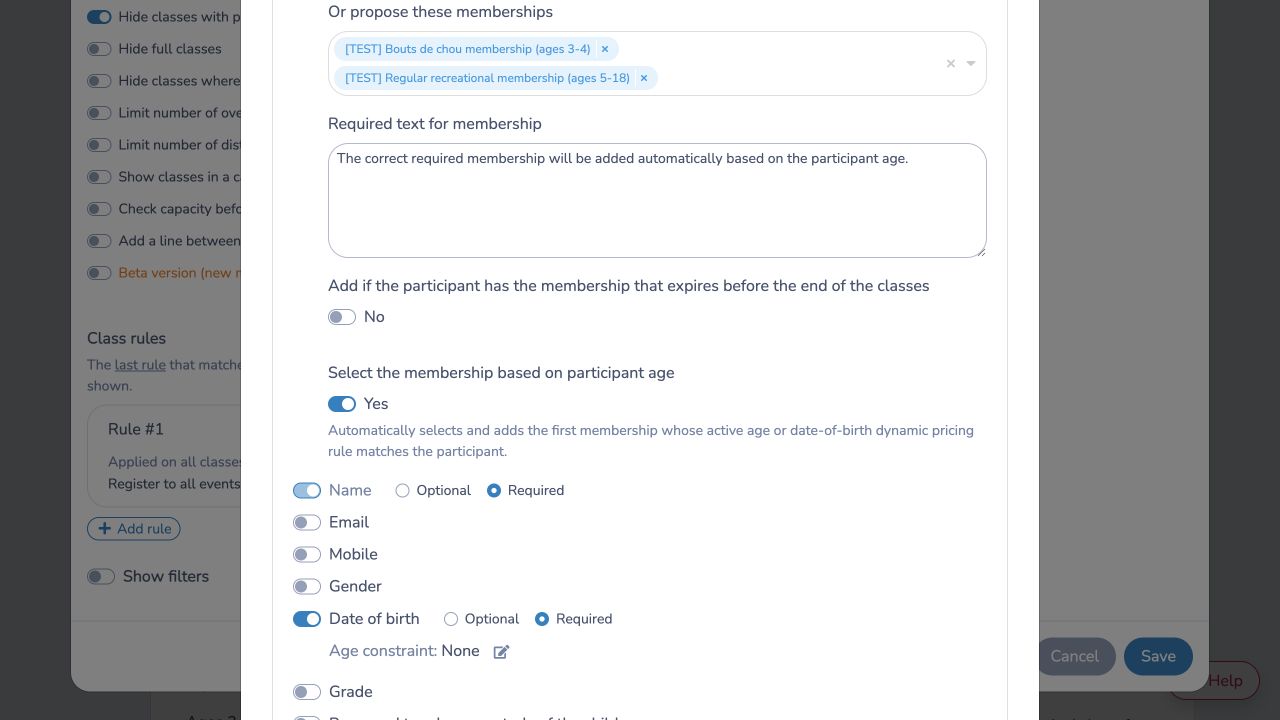
The age-selection setting appears only when Membership is enabled and the selected charging option contains at least two candidate memberships.
# What the customer experiences
The membership choice is hidden from the customer. When the form is submitted, Activity Messenger:
- Calculates the participant's age from their date of birth.
- Checks the candidate memberships in the order shown in the rule.
- Selects the first membership with an active Age or Date of birth dynamic pricing rule that matches the participant.
- Applies the existing membership check and adds the selected membership to the invoice only when required.
If the participant already has the selected membership, the normal membership requirement prevents a duplicate charge.
# Example
Suppose a gymnastics class accepts participants aged 3–5 and has these two candidate memberships:
- Junior membership: an active age rule for ages 3–4.
- Recreational membership: an active age rule for ages 5–18.
A 3-year-old receives the Junior membership. A 5-year-old receives the Recreational membership. The parent never sees a membership dropdown.
# Important behavior
- Only active Age and Date of birth dynamic pricing rules are used to select a membership. Gender and other dynamic pricing criteria do not select the required membership.
- Candidate memberships are checked in their configured order. If more than one membership matches, the first matching membership is selected.
- Require the participant's date of birth and configure complete age coverage. If the date of birth is missing or no membership matches, the age selector cannot narrow the candidates and the existing membership requirement behavior applies.
- The setting is optional and off by default. Existing Multiple Classes questions continue to behave as before until an administrator enables it.
- The membership's own dynamic pricing still determines its price, taxes, and ledger code after it has been selected.
- Changes affect membership invoice items created by later form submissions; they do not change existing invoices.