Activity Messenger Help Center
Understand clients, forms and recipient lists
Choose your audience before writing a message. You can contact people from the record you are working on, or build a reusable list when you need to reach the same kind of group again.
Understand the three records
| Record | What it is for | Example |
|---|---|---|
| Client account | Keeping a client’s account information and related activity together | A parent’s account with family registrations |
| Form response | Recording information submitted through a form | A registration, waiver or survey response |
| Recipient list | Gathering contacts for communication | Participants registered for selected classes |
These records are related, but they are not interchangeable. A person can appear in several forms or lists. Creating a list does not by itself collect a new registration or obtain consent.
A recipient needs usable contact details for the channel you choose. A child’s registration may use a parent’s email or mobile number. Inspect both the participant context and the actual contact information before sending.
Start from the audience you already have
| You need to contact… | Start here |
|---|---|
| People who answered a form | Open the form’s respondents and select the intended responses |
| Participants in a class or occurrence | Open the relevant class or attendance list and review its selection |
| Clients about their accounts | Use the client records |
| A reusable combination of groups | Build a recipient list or master list |
| Contacts in a spreadsheet | Create an Excel/CSV upload list and review the imported fields |
| Newsletter subscribers | Use a subscriber form and its audience |
| Yourself for a first test | Choose Myself in the message composer |
Do not create an extra mailing list solely because you want to message a class or form. The contextual message action can already carry the audience into the composer. Recheck the resulting selection: a filter, selected rows and a complete list can represent different groups.
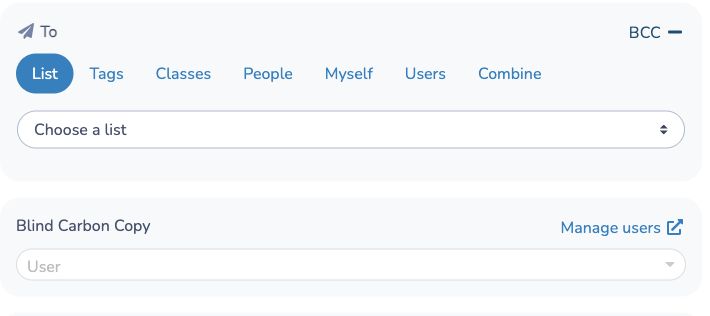
Choose a list source
Use the source that matches where the information is maintained:
- Excel or CSV for contacts you import. Map the correct email, mobile and optional second-contact fields.
- Class registrations for an audience tied to selected classes and filters.
- A master list to combine lists and apply its supported exclusions.
- A subscriber form to collect newsletter signups.
- Integration lists for Amilia, Sport-plus or Uplifter.
Give reusable lists a name that explains their purpose, such as “Saturday swim classes — current session.” A list based on registrations or an integration can change as its source changes; an uploaded file is not automatically connected to your original spreadsheet. Use the list’s available refresh/import actions and inspect the result.
Check the audience before sending
- Confirm the source, filters and selected rows.
- Inspect contact details, including any second parent or contact you want to include.
- Check valid-recipient counts for the chosen channels. A total row count is not a delivery guarantee.
- Classify the message correctly and respect unsubscribe settings.
- Preview placeholders using the relevant context, especially when several registrations share a parent’s contact details.
Do not rely on duplicate prevention as a substitute for reviewing your audience. Registrations, participant-specific content and selected channels can affect how communications are prepared. Starting another send is also a separate operation.
Use tags and unsubscribe management to organize communications. Use Merge duplicate client accounts or Archive and restore clients for client-record maintenance; these are different tasks from selecting a message audience.
Settings reference
These are the choices this guide describes. A list has no other setting at creation: its contents come from the source you pick.
| Setting | Where | Default | Effect |
|---|---|---|---|
| Name | Lists › New list | Empty | The name of the list. Give a reusable list a name that explains its purpose. |
| Description for internal use (not shown to customers). | Lists › New list, opened with Show | Hidden and empty | An internal note about the list. It is never shown to your customers. |
| Type: Upload | Lists › New list | None selected | A list from an Excel or CSV file you upload, with columns you map. |
| Type: Class/event participants | Lists › New list | None selected | A list of participants registered to one or many Activity Messenger classes or events. |
| Type: Tagged clients | Lists › New list | None selected | A filtered list built from the tags on your clients. |
| Type: Participants by skills | Lists › New list | None selected | A participant list based on one or more skills or levels. See Students and skills. |
| Type: Master list | Lists › New list | None selected | Combines several lists or forms into one by adding and removing their recipients or respondents. |
| Import from external system | Lists › New list, link under the types | Not shown | Reveals Amilia programs, Amilia memberships, Amilia multipass, iClassPro, Uplifter and Sport-plus. |
| To: Myself | Message composer | Depends on where you open the composer | Sends the message only to you, for a first test. |
| Blind Carbon Copy | Message composer, opened from the copy control | Hidden, no one selected | Adds the users you choose, or a guest you add, as blind copies of the message. It is separate from the audience. |
Common questions
Do I need to create a list to message the people in a class or form? No. Start the message from the class, the attendance list or the form's respondents and the audience is carried into the composer. Create a list only when you want to reach the same group again. Always recheck the selection, because a filter, selected rows and a complete list can be different groups. See Start from the audience you already have.
What participant filters are available for a class/event participant list? You can filter participants by age (children, adults or an age range), birthday month and gender. First select the classes or events that define the participant list; that class/event selection is not a filter for participants’ other registrations. Registration date is not one of the participant filters in this list. See Class registrations.
What is the difference between a client account, a form response and a recipient list? A client account keeps one client's information and activity together, a form response is what someone submitted in a form, and a recipient list gathers contacts for communication. A person can appear in several of each. See Understand the three records.
Does creating a list register people or give me their consent? No. A list only gathers contacts; it does not collect a registration or permission to message them. Respect unsubscribes and classify each message correctly. See Check the audience before sending and List management and unsubscribes.
Does a list update when its source changes? A list based on class registrations or on an integration can change as its source changes. An uploaded Excel or CSV list is not connected to your original spreadsheet, so import the file again to update it. See Choose a list source and Building a list of recipients from an Excel or CSV uploaded file.
Why is the number of recipients different from the number of rows? A row count is not a delivery guarantee. Check the valid-recipient counts for the channels you chose, because a recipient needs a usable email address or mobile number for each. A child's registration may use a parent's contact details, so look at both the participant and the contact information. See Check the audience before sending.
How can I test a message before it goes to everyone? In the message composer, choose Myself as the audience and send it to yourself first. Preview the placeholders with the relevant context too. See Send your first email or SMS.
Can I get a copy of a message sent to a list? Yes, use the Blind Carbon Copy control in the composer to add users from your organization, or a guest you add there. It is a separate control from the audience. See Message sending options.
Next step
Send your first email or SMS. For a newsletter, you can then follow the template guide.