Activity Messenger Help Center
Create and edit message templates
Build a reusable message template when the layout matters: a newsletter, onboarding email or announcement with images and buttons. The template holds the content and design; you choose recipients and timing when sending it.
Create the template
Open Communications › Templates and click Create, or click the blue + on the Templates list. The page is titled New message template. My templates, at the top right, returns to your list.
The introduction reads Choose a template, then make it your own in the editor. You can change the text, images and links. Click Create from scratch, under that introduction, to start with an empty design. For a short text-only notice, a quick message may be simpler.
Template library is subtitled Find a starting point for your next message. The language toggle offers French, English and All, with English selected by default. Search templates filters the cards, as does a category: All, Newsletters, Registration, Gymnastics, Sports facilities, Camps, Parties, Classes and workshops, Forms and surveys, Client account or Seasonal and events. A counter shows N templates found.
Each card shows a thumbnail, the title, the category and a short description. A card may also show Recommended and a language badge. The first sample, Community newsletter, is marked Recommended. Wording in square brackets, such as [Activity name], is sample text for you to replace.
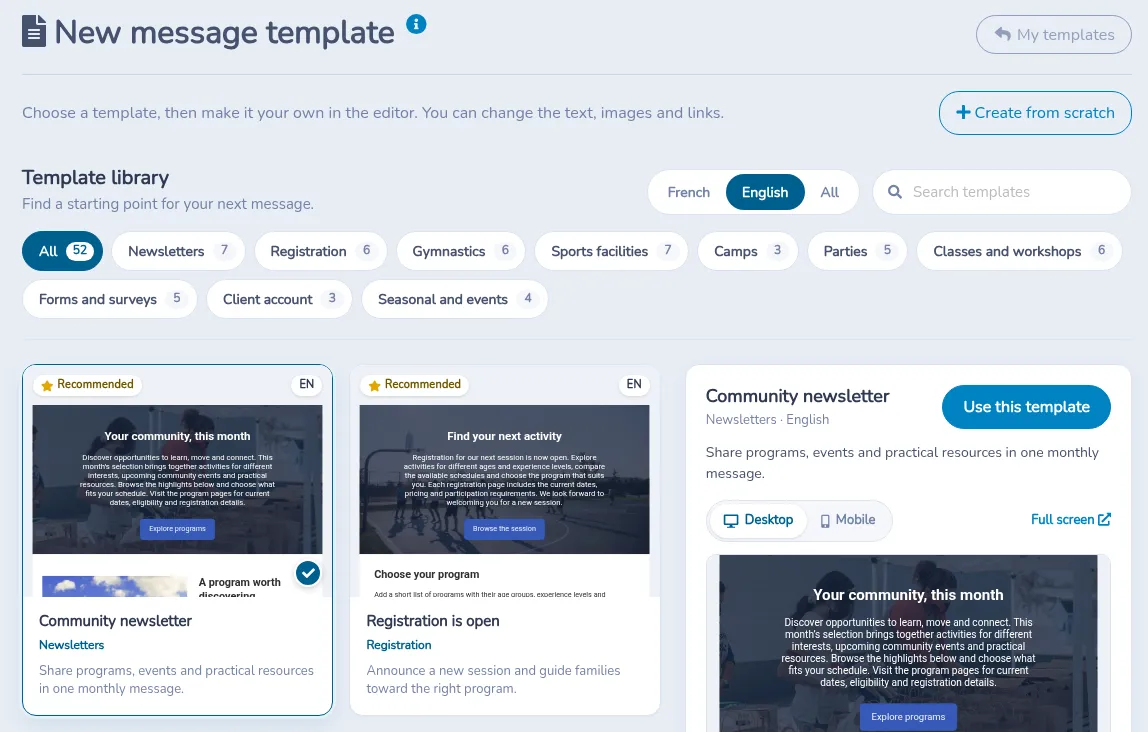
Select a card to open its preview: the title, the category and language, and the description. The Desktop and Mobile switch changes that preview. Full screen opens a larger preview. The page says The preview is optional. You can create a template as soon as you select a sample. Click Use this template to create your template from that sample.
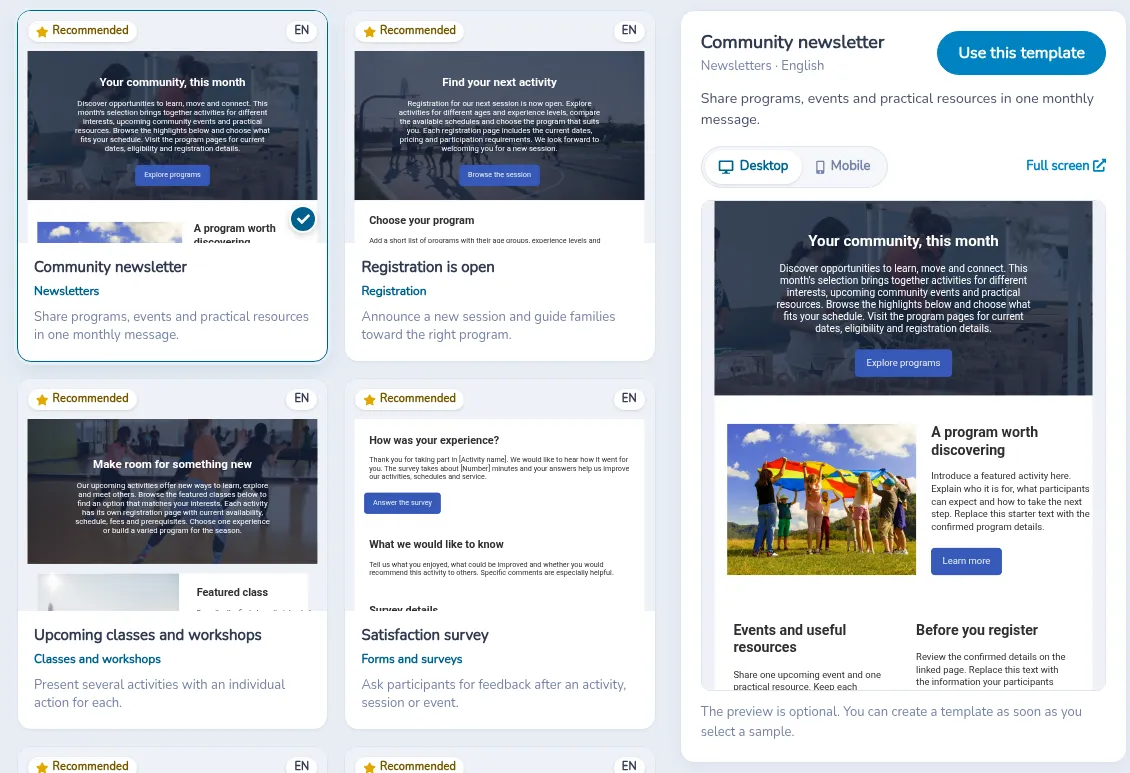
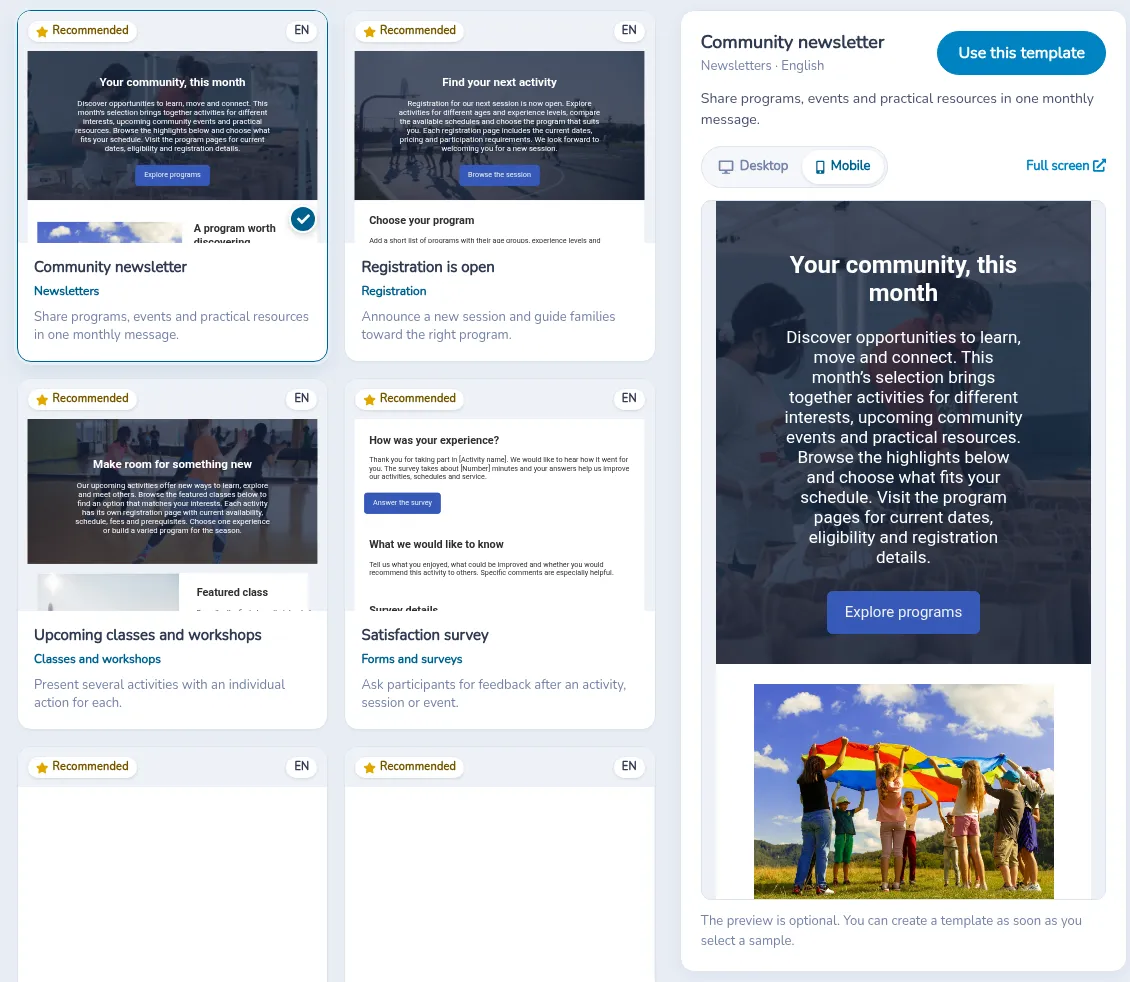
Switch the preview to Mobile to see the narrow layout.
Build the layout
A template is a vertical sequence of blocks between a header and footer. Add a block with +, open its editing control, duplicate reusable arrangements and drag blocks into order. Check that edits have saved before leaving.
| Block or content | Use |
|---|---|
| Full-width image | A main visual |
| Text or a button | Explanation and the next action |
| Image/text combinations | A visual beside its description |
| Two columns | Related content side by side |
| Spacer | Breathing room between sections |
| Video | A linked or embedded video presentation |
| Zoom | Meeting information |
| Certificate | A personalized document |
Choose the blocks available in your editor rather than relying on a fixed number of types. Review how columns stack on narrow screens.
Header, footer and images
Review the organization logo, website link, contact details and supported footer links. Do not remove required identification or preference controls merely to shorten the design. Header and footer appearance also depends on organization branding.
Upload an image or choose one from your media library, Canva or the available image sources. Use a clear image suited to the block’s shape: a wide image usually works better for a full-width banner, while a square or landscape image may suit an image beside text. Check the image in the block preview and the complete newsletter. In the image block editor, use Copy (crop/resize) to make a cropped or resized copy for that layout; the original media-library image remains available. You can also use ⋮ → Duplicate & crop/resize on a media-library image. These options are not available for SVG images. There is no single required pixel size for every block, so choose proportions according to the design and review the result rather than relying on one universal dimension.
Text, placeholders and buttons
Use headings, short paragraphs and meaningful button labels. Insert placeholders using the picker and test them with a representative audience. A form-derived placeholder needs the corresponding response context.
A button can lead to a form, document or web page. Check the destination, access requirements and language. Review any AI-generated copy or translation before use.
Preview, reuse and publish
Preview desktop and mobile layouts. Test names, empty values, long text and links using suitable test recipients. Two-column content switches to a single column at narrower screen widths. Email clients can render a layout differently from the browser preview.
Duplicate a template when you want a new reusable version. Publishing a web link and sending a message are separate actions: review the content for public visibility before publishing. Do not publish personalized or sensitive test data.
Send the template
Creating or editing a template is separate from composing a communication. After saving the template, open it from the template page and choose Send to open a new message with that template selected, or start a new message and select the template there. In the message, choose recipients, channel and the correct communication type. Templates can support operational or marketing content; the layout does not determine consent. By SMS, the template is shared through a link to its web version.
For a class-wide send, everyone in the selected audience receives the same template content. The photos are not automatically personalized by child. If each family should receive only photos of their own child, prepare separate, appropriately targeted communications rather than sending one shared message to the whole class.
Review any template-refresh and list-refresh options for a scheduled send rather than assuming every later edit will be applied automatically. See sending options, placeholders and message tracking.
Settings reference
| Setting | Where | Default | Effect |
|---|---|---|---|
| Template library | Communications › Templates › Create, page New message template | Language English | Lists samples. Filter with French, English or All, Search templates, and a category: All, Newsletters, Registration, Gymnastics, Sports facilities, Camps, Parties, Classes and workshops, Forms and surveys, Client account, Seasonal and events. |
| Use this template | Preview panel, after you select a card | Not applicable | Creates your template from that sample. The Desktop and Mobile switch changes the preview. Full screen opens a larger preview. The preview is optional. |
| Create from scratch | Under the introduction on New message template | Not applicable | Starts a template with no sample. |
| My templates | Top right of New message template | Not applicable | Returns to your template list. |
| Show header with organization logo | Template editor, right panel | On | Shows your logo at the top of the email. Turn off to use your own image in a block instead. |
| Use full width logo | Template editor, right panel, only when a full-width logo exists | Off | Uses your full-width logo in the header. |
| Add a new block (+) | Template editor, between blocks and below the last block | Not applicable | Opens Choose a block type: Popular, Text and actions, Images and video, Layouts, Specialized. Blocks can be edited, duplicated, deleted and dragged into order. |
| Image alternate text / Photo credit / caption / Image link | Image block editor | Empty | Alt text for accessibility, a caption under the image (maximum 200 characters) and a link opened when the image is clicked. SVG images keep their size and skip cropping (maximum 1 MB). |
| Copy (crop/resize) | Image block editor | Not applicable | Makes a cropped or resized copy for this layout. The original image stays in your media library. |
| Color options › Button | Template editor, right panel | The button color from Organization settings › Branding | Color of the buttons in this template. |
| Color options › Background | Template editor, right panel | White | Background color of the content area. |
| Color options › Margin | Template editor, right panel | Default (white) | Define a color sets the color around the email body. |
| Dark mode | Template editor, right panel, Color options | Automatic (recommended) | Automatic, Try dark mode colors (with Dark background and Dark text) or Try to keep light colors (limited support). The recipient's email app decides and many, including Gmail, may ignore or alter these settings. |
| Test placeholders | Template editor, right panel, when blocks contain placeholders | Off | Shows the blocks with real values from a list you choose. |
| Preview | Template page | Not applicable | Shows the Smartphone (one column) and Desktop/tablet layouts. |
| Send a Test Email | Template page, ⋮ menu | Not applicable | Sends the template to the users you select, or to guests you add by email. |
| Publish | Template page | Not published | Creates a public web page with a shareable link. Later edits appear on that page. |
| Duplicate | Template page, ⋮ menu | Not applicable | Creates a copy named Copy of (the template name), in this organization or another one you manage. |
| Pin / Lock / Archive | Template page, ⋮ menu | Off | Pin keeps the template at hand in the Communications menu. Lock prevents edits until it is unlocked. Archive removes it from the active list; Restore brings it back. |
| Send | Template page | Not applicable | Opens a new message with this template already selected. |
Common questions
How do I send a test of the template? Open the template, click the ⋮ menu and choose Send a Test Email, then pick who receives it. The test goes only to the users or guests you select. Check it in the email app your clients use. See Preview, reuse and publish.
Does my SMS look like the template? No. Clients who receive an SMS get your short text and a link to the web version of the template. Only email shows the full design. See Send the template.
What size should my images be? There is no single required pixel size. Choose proportions that fit the block (a wide image for a full-width banner, a square or landscape image beside text) and use Copy (crop/resize) to adjust a copy. See Header, footer and images.
Why does the template look different in Outlook or Gmail? Email apps render layouts differently, and the preview is a close guide, not a guarantee. On a phone the two-column blocks collapse to one column. Dark mode is decided by the recipient's app. See Preview, reuse and publish.
Can I change the logo in the header? The header logo comes from Organization settings › Branding and changes every template. To use something else in one template, turn off Show header with organization logo and add your own image block. See Header, footer and images.
If I edit a template, do scheduled messages change? It depends on Freeze the message in the Schedule window, which is on by default: a frozen scheduled message keeps the template as it was. Turn it off to use the newest version. See Send the template and Recipients and sending options.
I published a template as a web page. What happens if I edit it? Your changes appear on the published page. For a weekly newsletter, duplicate the previous template instead of overwriting it. See Preview, reuse and publish.
Can I get a template back after archiving it? Yes. Open the archived template and choose Restore in the ⋮ menu. See Preview, reuse and publish.