Activity Messenger Help Center
Membership
A membership is the definition or offer configured for clients, including its duration, price, benefits, and optional card or coupon rules. A member is the record issued to a person when the membership is purchased or manually assigned. The member record has its own activation and expiration dates, status, and related details; it is not the membership definition itself. Memberships can be used for a season pass, recurring subscription, permanent credential, member pricing, booking access, or a multi-visit coupon pass.
Membership cards identify members; they do not replace class registration or attendance tracking. To scan class participants, register them in the class and use the attendance participant-barcode view to select a date and class, then print the barcodes. Attendance scanning must be enabled for your organization.
Before you begin
Owners and administrators can create and modify memberships. From the main menu, go to E-Commerce → Memberships.
There are two related records:
- A membership is the definition offered to clients: duration, price, benefits, card, coupon rules, and communications.
- A member is an issued instance created by a purchase or manual assignment. It has its own activation and expiration dates, status, invoice, coupon balance, and card.
Changing a membership definition affects future issuance. Open an existing member when you need to change that person's dates, status, notes, or coupon balance.
Choose Membership or Coupon pass
Open the + menu on the Memberships page:
- Choose Membership for a fixed season, rolling duration, subscription, permanent credential, member price, or booking benefit.
- Choose Coupon pass for a multi-visit card. It presets Non-expiring, turns on the membership card, and turns on Standard coupons.
- If Amilia is connected, Import brings in available external membership definitions.
The Coupon pass preset intentionally leaves Allow access outside classes and bookings off. It also selects standard coupons rather than access-control coupons.
Configure the Information tab
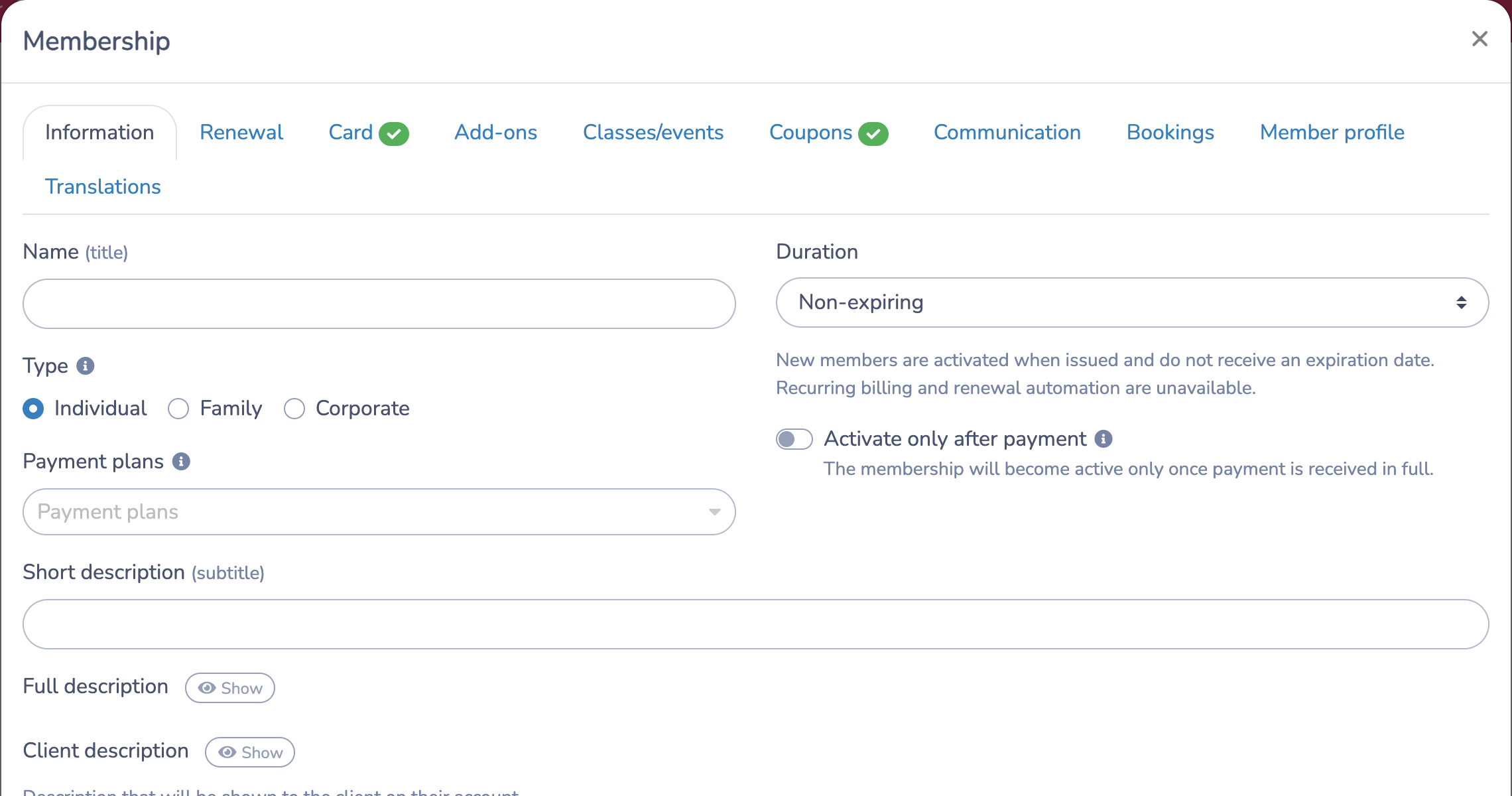
Enter the name and select the membership type:
- Individual belongs to one person.
- Family can cover members of the same family account.
- Corporate can cover members associated with the corporation.
Choose the duration that matches the service:
- Days or Months creates a rolling period from each member's activation.
- Fixed gives every member the same start and end dates, such as a season from September through May.
- Non-expiring is a duration type on the membership definition. When issued with this type, a member record is activated when issued and its expiration date is left empty by this setting. The membership type and the issued member's dates/status are distinct; check the member record for that person's actual dates and status.
Non-expiring memberships are one-time purchases. Recurring billing and renewal automation are unavailable. You can still offer an ordinary financing or installment plan.
Use Activate only after payment when the member should remain pending until the invoice is paid in full. A configured future start date still prevents early activation.
Complete the price, taxes, ledger code, descriptions, and image. You can also configure participant-based dynamic pricing and prices that begin on a future activation date.
Charge a membership non-resident fee
Configure the fee on the membership when the same resident pricing should follow that membership wherever it is sold or automatically required.
- Create or open the membership and stay on Information.
- Enable Membership non-resident fee.
- Enter the fee name and amount.
- Under Zip/Postal codes, enter the resident codes, one per line. You can enter a complete code or a prefix, such as the first three characters of a Canadian postal code.
- Choose the taxes and ledger code, and decide whether the fee is Discount eligible.
- Save the membership.
Activity Messenger charges the fixed fee when the participant's postal code does not begin with one of the configured resident codes. It checks the participant first and can fall back to the account owner's postal code. No fee is added when no usable postal code is available. The fee appears as a separate invoice item linked to the membership.
The setting applies in these workflows:
- A Class or Multiple classes participant rule that automatically adds this required membership uses the membership's fee.
- A standalone Membership question uses Membership setting (default) unless the form explicitly overrides it. Choose None to disable the membership fee for that question, or Fee to use a form-specific fee instead. The form-specific fee replaces the membership setting; the two membership fees are not added together.
- A non-resident fee configured on the class is separate. If both the class and its required membership have applicable fees, both appear as separate invoice items.
If Membership setting (default) is selected but the membership has no non-resident fee, no membership fee is added. An existing Membership question that was saved with None continues to disable the membership setting until you change it.
Prorate a fixed-period membership
Use a prorated price when every member shares the same end date, but clients may join after the period begins. For example, an annual membership may run from July 1 to June 30 even when a client purchases it later in the year.
- Create or open the membership and set Duration to Fixed.
- Enter the common start and end dates and the full price, then save the membership.
- Add the membership to a payment form.
- On the form's Form tab, edit the Membership question.
- Enable Pro-rata price, save the question, and preview the form.
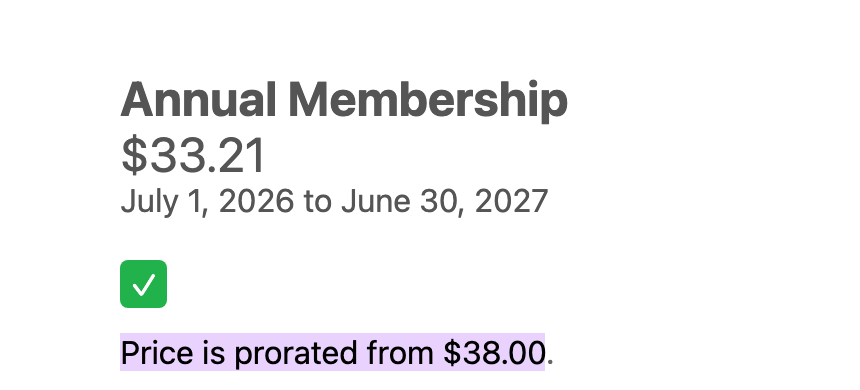
Activity Messenger calculates the amount before taxes with this formula:
prorated price = full price × remaining calendar days ÷ total calendar days
The purchase day and the membership end date are both included. A purchase before or on the fixed start date is charged the full price. After the start date, the price decreases daily until the end date.
The Pro-rata price setting belongs to the Membership question in that payment form. Enable it separately in every form where the prorated price should be offered. It does not change the price stored on the membership.
For a $38 membership from July 1 to June 30 in a 365-day period, a purchase on July 3 is $37.79 before taxes: $38 × 363 remaining days ÷ 365 total days. A purchase on September 9 is $30.71 before taxes. When renewal automation is enabled, renewal follows the issued member's June 30 expiration date and charges the full applicable membership price; the original prorated reduction is not carried into the renewal.
Recurring billing versus renewal
These options solve different needs:
- Recurring billing continues the same rolling subscription. Configure the billing interval, billing day, number of cycles, prorating, forced start/end dates, pause behavior, and whether the client may cancel.
- Renewal automation prepares a new membership period near the end of a finite membership. It can send a confirmation email, use a contract form, and optionally collect payment for the renewal.
Do not configure both workflows for the same purpose. Renewal is unavailable for a recurring or non-expiring membership.
When renewal is enabled, review the lead time and simulator before running it. Renewal can generate future invoices and member records, so save and verify the settings before using Check and run now.
Create a standard coupon pass
A standard coupon is redeemed against selected classes, class tags, booking packages, or products.
- Choose + Coupon pass.
- Enter the name and price on Information.
- Open Coupons and set Number of coupons to create.
- Keep Standard coupons active.
- Select at least one eligible class, class tag, package, or product. The membership cannot be saved without an eligible resource.
- Optionally configure the coupon's expiry in days, client cancellation/refund window, automatic checkout application, drop-in-only restriction, or admin-only redemption.
- Review the Card tab and save the membership.
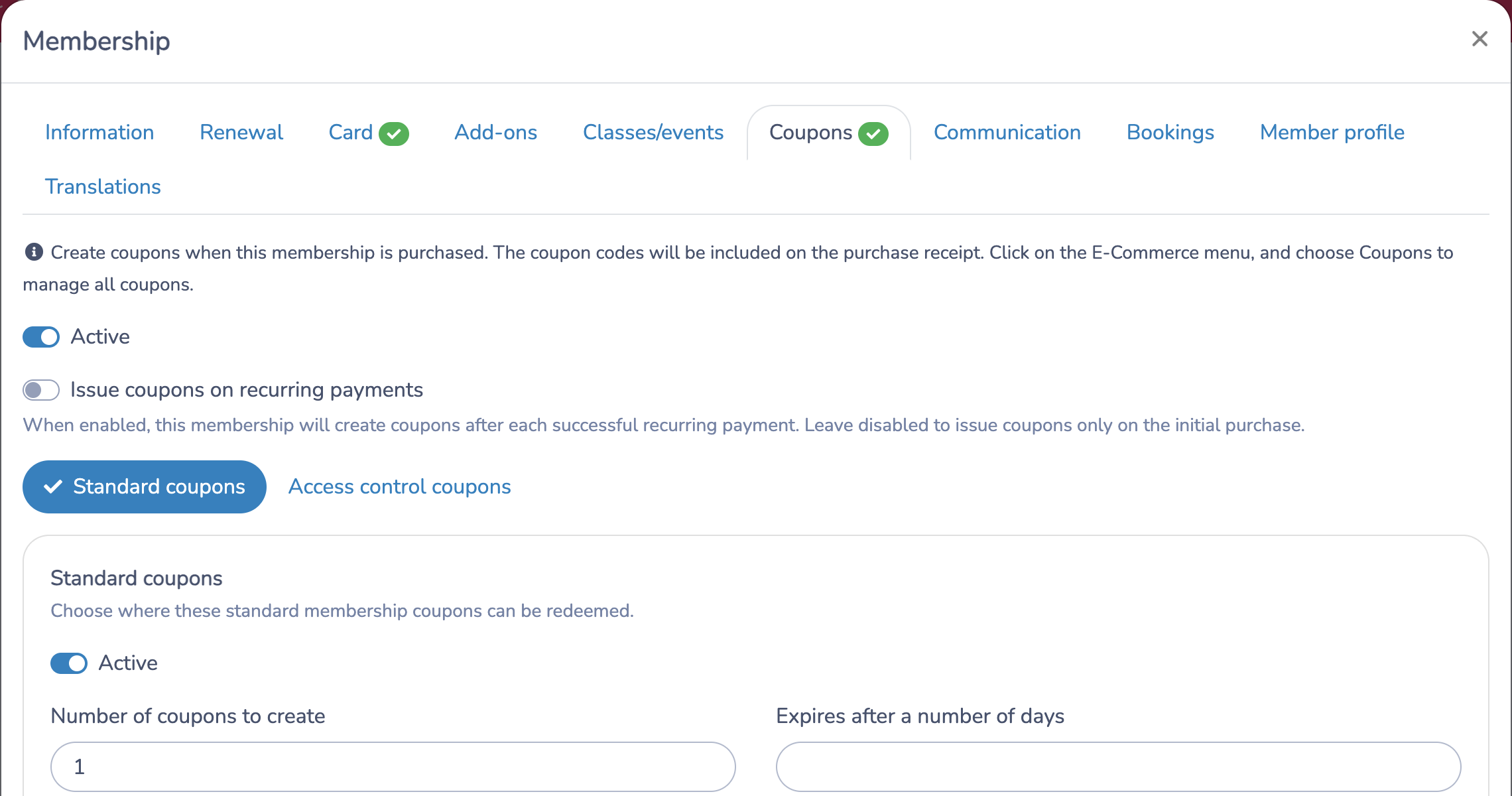
The membership expiration and coupon expiration are separate. A non-expiring membership may issue coupons that expire after a configured number of days.
By default, coupons are issued on the initial purchase. Enable Issue coupons on recurring payments only when every successful recurring payment should create another set. This option controls coupons issued by the membership; it is not needed just because clients use a promo code.
Membership-issued coupons and promo codes are separate features. If you do not want this membership to issue coupons, leave its coupon-creation setting off. A promo code discount is configured separately in E-Commerce → Promo codes.
When reviewing a promo code's Audience, distinguish the selected audience from the Open list link used to view that list. A selected list name (for example, Little Royal Club) means eligibility is restricted to that audience list; the Open list link itself does not make the promo code open to everyone. Check the selected list shown in the field and ensure it contains the intended eligible clients.
Use access-control coupons
Choose Access control coupons when one coupon should be consumed by a successful access-control scan.
Configure the number of coupons, optional coupon expiration, admin-only redemption, and the access schedule. This coupon type does not require an eligible class, package, or product because its resource is the access-control workflow.
Keep the distinction clear:
- Standard coupons are normally applied during checkout or redeemed by an administrator.
- Access-control coupons are consumed by a successful scan.
- Allow access outside classes and bookings grants general access based on the membership itself; it is not required for an access-control coupon.
Configure membership cards and wallets
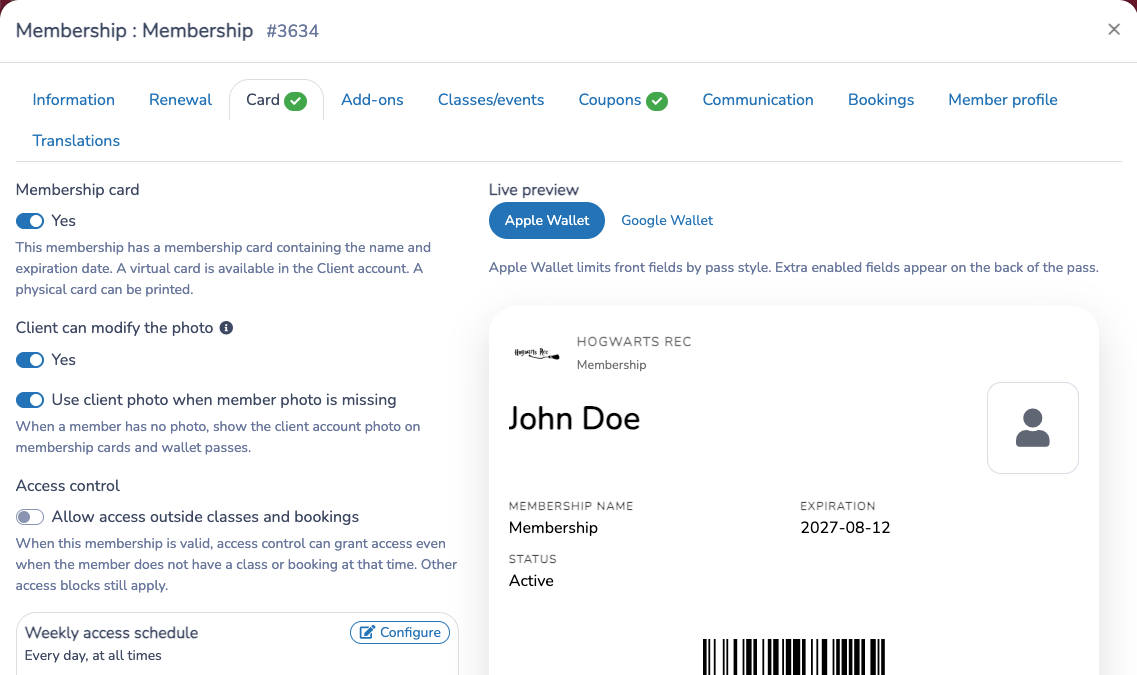
Turn on Membership card to give members:
- A virtual card in the Client account.
- Apple Wallet and Google Wallet passes.
- A printable physical card.
The Card tab also controls whether the client can change the photo, whether the card can use a client profile photo when the member has no photo, the wallet template, general access outside classes/bookings, the weekly access schedule, and whether access control should ignore the membership. To create the wallet template, see Apple Wallet and Google Wallet passes.
Enabling a card does not grant access by itself. Leave Allow access outside classes and bookings off when access should come only from a linked class, booking, or access-control coupon.
Use client profile photos on membership cards
When Use client photo when member photo is missing is enabled, Activity Messenger fills an empty member photo on membership cards and wallet passes from the client profile when possible.
The photo source follows this order:
- The member's own photo.
- A matching account member or child photo from the client profile.
- The client or account-owner photo, only when the member is not matched to a separate account member.
- The default placeholder icon.
For family memberships, the best match is the account member's student ID. If a student ID is not available, Activity Messenger only uses a profile member photo when the name and email match. This helps avoid showing the wrong child photo. When a member is matched to a separate account member but that person has no photo, the card shows the placeholder instead of falling back to the account-owner photo.
In the member window, administrators see a note when the preview is using a client profile photo instead of the member's own photo. The member record is not changed; the client profile photo is only used for display on cards and wallet passes.
For an issued member, physical and wallet cards reflect the current status, activation/expiration dates, and remaining coupon count. A non-expiring card displays No expiration and does not receive an artificial wallet expiration date.
Link classes, events, and bookings
Use Classes/events to link specific classes or class tags.
For each link, you can:
- Require a valid membership to register.
- Offer a member price without making the membership mandatory.
- Add issued members to class attendance.
- Carry participants over when configured.
Eligibility is checked against the issued member's active interval. A member with no expiration remains time-eligible for future events, but their status and other access rules still apply.
Use Bookings to link booking packages unlocked or discounted by the membership.
Sell a membership during class registration
A class registration form can add a membership as part of the class purchase. This is useful when a participant must become a member to register, or when you want to offer a membership and the class in one checkout. You do not need to add a separate Membership question for this workflow.
- Create the membership, then link it to the class from the membership's Classes/events tab or the class's Memberships tab. Configure whether the membership is required and, if applicable, enter the member price for the class.
- Open the registration form and edit its Class or Multiple classes question. For Multiple classes, open Class rules and select Modify for the applicable rule before configuring Participant rules.
- Under Participant rules, enable Different participant, then enable Membership. This is required in the current class-question editor, even when the adult registering is also the participant. Leaving Different participant off hides Membership and its participant-level rules.
- To charge for a specific membership when the participant does not already have it, enable Charge the participant for the membership if he doesn't have it and select the accepted membership or memberships.
- Alternatively, enable Add one membership when participant has none of those memberships. Select the memberships that already satisfy the rule, then choose the membership to add. You can offer several memberships and let the client choose one.
- If a membership bought in this checkout should immediately unlock the linked class price, open the class question's pricing rules, enable Apply linked membership rules and prices, then enable Apply member price when membership is purchased on this form.
- Save and preview the form with resident and non-resident postal codes. Verify the membership choice, class price, separate membership fee when applicable, participant, and checkout total.
Every option of the Class question, including the membership rules above, is listed under Class in Form question reference.
When the adult registering is also the participant
Different participant does not mean that the participant must be a child or another person. In this editor, it also opens the participant information and membership-rule settings. Keep it enabled to configure these rules. The participant may be the account owner/respondent: select that adult when offered, or enter the same adult’s details in the participant fields. Verify that the membership is assigned to the intended person in the preview.
For automatic addition, enable Membership, enable Charge the participant for the membership if he doesn't have it, and select the required membership. Do not turn Different participant off afterward expecting the same configuration controls to remain available.
This setting can expose participant fields or a participant selector on the client form. It does not promise a checkout with no participant selection. If you need that experience, have the separate class/membership-link setup checked for your form before relying on it to add and charge the membership automatically; linking a class and membership alone is not a verified substitute for these participant rules.
The class and membership are added as separate items on the same invoice, and the membership is issued to the participant collected by the class question. Activity Messenger does not bill an accepted membership again when the participant already has it. Enable the option that checks whether the membership expires before the class when an otherwise-current membership must remain valid through the class dates.
When the required membership has Membership non-resident fee enabled, this participant-rule workflow evaluates that setting automatically. A class non-resident fee remains independent, so configuring both can add two clearly separated fee items: one for the class and one for the membership.
This class-purchase workflow is different from adding a standalone Membership question to the form. Use the standalone question when clients should simply choose and buy memberships; use the class question's participant rules when the membership purchase depends on registration for that class.
Configure membership add-ons
Use Add-ons for optional items or entitlements sold with a membership, such as a locker rental or towel service.
- Open the membership and select Add-ons.
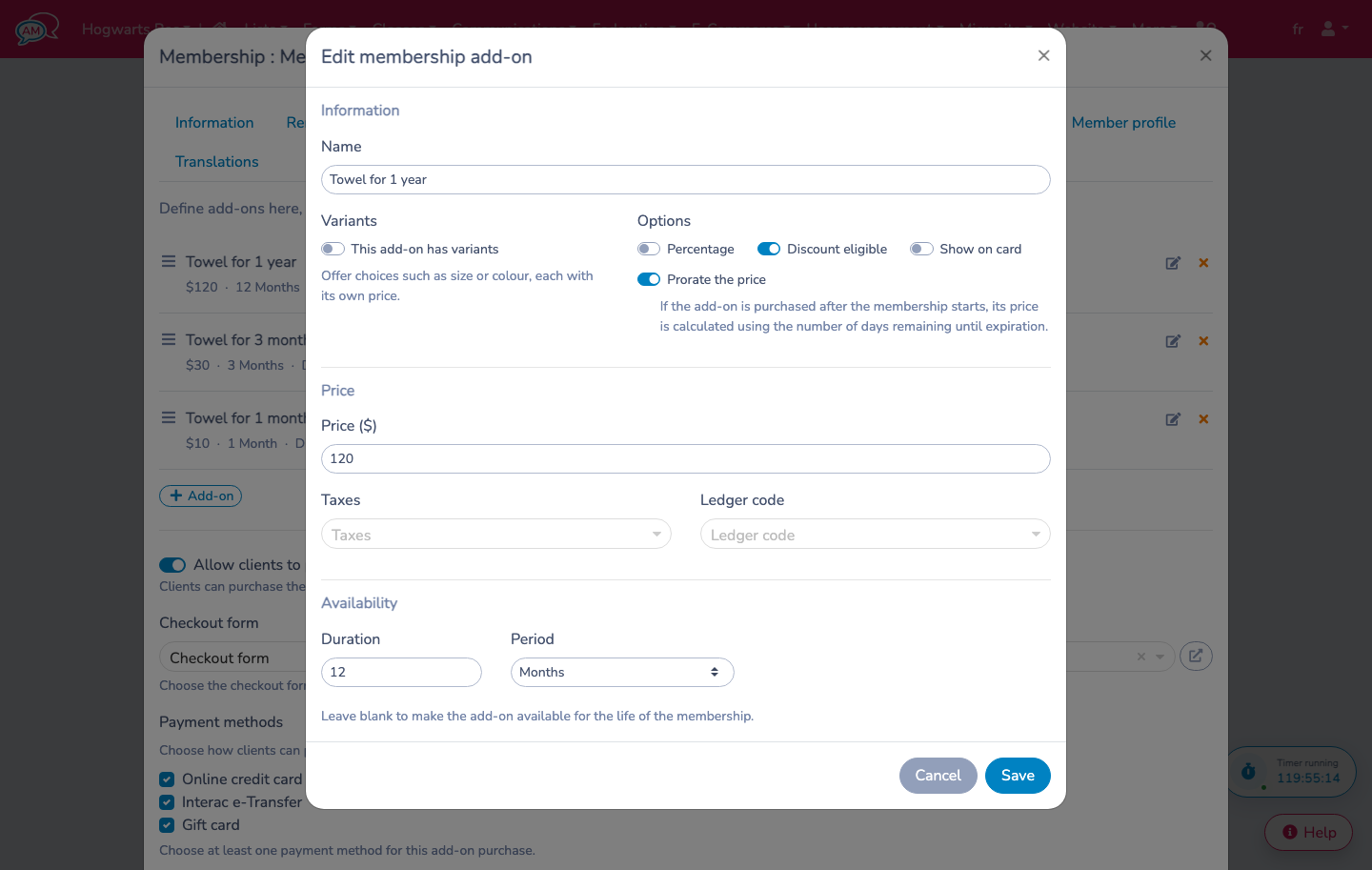
- Select + Add-on, then enter its name.
- Turn on This add-on has variants when the client must choose one option, such as a small or large towel. Give each variant its own price and optionally select a default. Leave variants off to use one price for the add-on.
- Enter a fixed price, or enable Percentage to calculate the add-on from the membership invoice-item price.
- Enable Prorate the price when a later purchase should cost only the amount corresponding to the remaining membership period.
- Choose whether discounts apply and whether the add-on appears on the membership card, then select the taxes and ledger code.
- Under Availability, enter a duration in days, months, or years. Leave the duration blank when the add-on should remain available for the life of the membership.
- Save the add-on, then save the membership.
The Membership question's own options on a form, including its Add-ons switch, are listed under Membership in Form question reference.
Prorate an add-on purchased later
When Prorate the price is enabled and the purchase occurs after the membership starts, Activity Messenger calculates the amount before taxes with this formula:
regular add-on price × remaining membership days ÷ total membership days
The first and last membership days are included. A purchase before the membership starts, or on its first day, keeps the full price. The result is rounded to cents before taxes are calculated. For a percentage-based add-on, Activity Messenger first calculates the percentage of the membership invoice-item price, then prorates that result. A variant uses its own price before proration.
The proration always uses the membership's activation and expiration dates. If the add-on has a shorter duration, its entitlement follows that duration, but its price is still based on the time remaining in the membership. Add-ons chosen during the original membership checkout keep their normal configured price; proration applies to a later administrative or client-account purchase.
Let clients purchase add-ons
On the membership's Add-ons tab, enable Allow clients to purchase add-ons, choose the checkout form, and select at least one supported one-time payment method. If several card gateways are available, select the gateway to use, then save the membership.
An eligible client can open Memberships in their account, select Purchase add-ons beside the applicable member, choose a variant when required, and continue to checkout. This action is available only while the membership is active and eligible. It is hidden before activation, after expiration, when the underlying purchase is unavailable or cancelled, and when a membership configured to activate after payment still has a balance.
An active add-on cannot be purchased again. A dated add-on becomes available again after its entitlement expires. If the client already has an unfinished cart, Activity Messenger asks for confirmation before replacing it with the add-on purchase.
Add an add-on from an invoice
Open an invoice containing the membership purchase and select Item → Membership add-on. Choose the membership, add-on, and variant when applicable, review the calculated price, taxes, and ledger code, then select Add. When proration applies, the choice displays the crossed-out regular price and the prorated amount, which also fills the Price field.
The add-on period begins on the later of the member's activation date and the add-on purchase date. Activity Messenger calculates the expiration in the organization's timezone and stores the dates on the purchased invoice item. Changing the add-on definition affects future purchases only; it does not change an add-on already purchased.
Add-ons can also be offered through a membership question on a payment form. Active add-ons appear in the Member window and the client account's Memberships tab. When Show on card is enabled, they also appear on membership cards and wallet passes.
An add-on remains in invoice history after it expires, but it disappears from active member views, cards, and filters. The same add-on can be purchased again after expiration. Renewing or replacing a membership does not automatically issue it again.
Configure membership communications
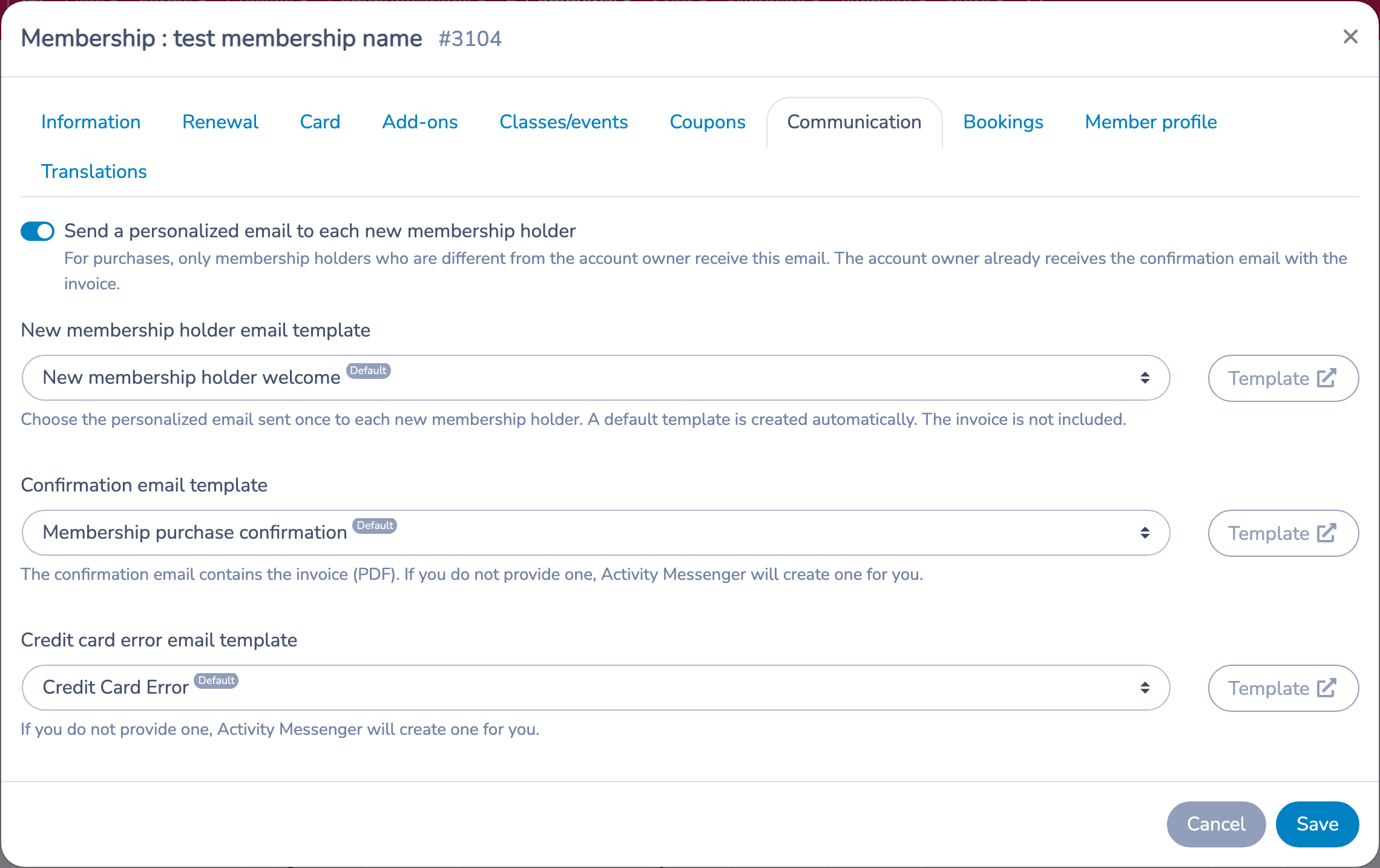
Use Communication to choose the email templates associated with this Activity Messenger membership.
The personalized holder email is an optional setting for each membership and is off by default. Enable it only when every additional holder should be contacted directly. Leave it off when the account owner is expected to communicate with the other participants, such as a parent managing children's memberships, a company coordinating employee onboarding internally, a gift that should remain a surprise, or a preliminary/imported record that should not trigger a notification.
- Turn on Send a personalized email to each new membership holder to send onboarding instructions directly to each additional membership holder. Choose the New membership holder email template, or use the default template Activity Messenger creates automatically. You can open the selected template to add personalized merge fields, instructions, links, and next steps.
- For a purchase, the account owner receives the purchase-confirmation email with the PDF invoice. Each membership holder who is different from the account owner receives the personalized holder email once, without the invoice. This works when one invoice contains memberships for several different people; it is one message per additional holder, not one message per invoice.
- When an administrator manually creates a member from the membership list, Send the personalized email to this member is selected by default when this feature is enabled. Turn it off for a correction or administrative addition that should not notify the member. The template link beside the option shows which email will be sent.
- Confirmation email template is the message sent to confirm the purchase. Its PDF invoice is attached. When you create a membership without selecting a template, Activity Messenger creates a default membership-purchase confirmation template.
- Credit card error email template is the message used when an automated card payment fails. Activity Messenger can create a default credit-card-error template when none is selected while creating the membership.
- After selecting a template, use Template to open and edit it in a new browser tab.
The selected templates are stored on the membership. Changing a selection affects later messages; it does not alter messages already sent.

Configure the member profile
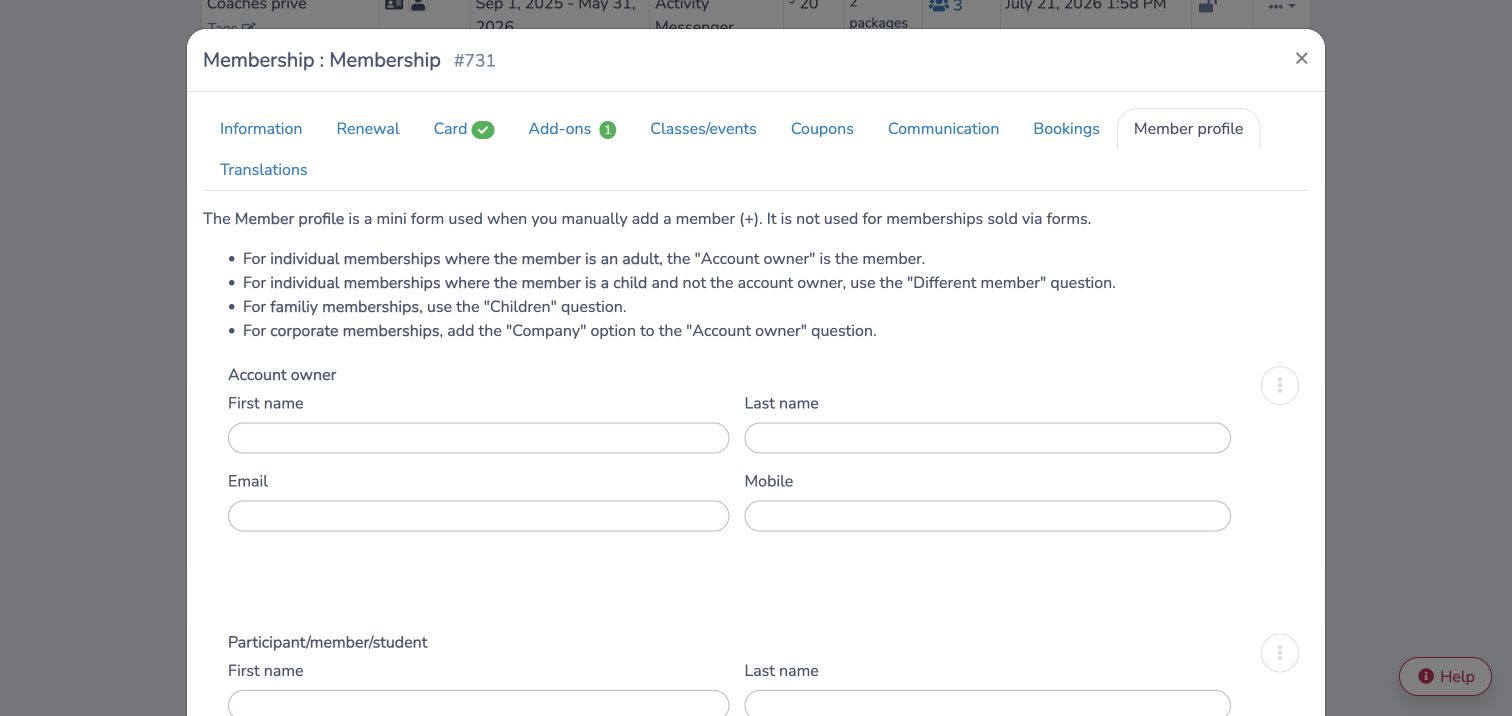
The Member profile is the mini form administrators complete when they manually add a member with + from the membership's member list. It is separate from a payment form: a membership sold through a form uses that payment form's questions instead.
Design the profile around who owns the account and who receives the membership:
- For an individual adult membership, Account owner can also be the member.
- For an individual child membership, add Different member so the account owner and member can be different people.
- For a family membership, use Children to collect the covered family members.
- For a corporate membership, enable the company field on Account owner.
Add, edit, reorder, or remove profile questions to collect the information administrators need when creating or updating a member. A new Activity Messenger membership starts with an Account owner question. Saving the membership creates or updates its dedicated profile form, and duplicating the membership copies those questions into a separate profile form.
When an administrator opens an existing member, Activity Messenger uses the same profile definition to display and update the member's saved answers.
Configure translations
Use Translations to provide the client-facing membership content in the organization's other language.
Sell or manually issue a membership
Memberships can be:
- Added to a payment or registration form and purchased on an invoice.
- Assigned manually from the membership's member list.
- Assigned through supported affiliation or external-membership workflows.
The issued member receives an activation date in the organization's timezone. A finite membership also receives an expiration date. A non-expiring member receives no expiration date.
Manage members
Select the member count in the Memberships table to open the member list. You can search and filter by status or date, add a member, message filtered or selected members, print Letter or CR80 cards, and export to Excel. To limit a promo code to the holders of one membership, see How promo codes work.
Open an individual member to manage:
- Status, member number, notes, and photo.
- Activation and expiration dates.
- Assigned add-ons.
- Coupon balance.
An administrator may set or clear the expiration of an issued non-expiring member. The expiration cannot be cleared when the membership definition has a finite duration.
Understand validity and access
A member is time-valid on or after activation and, when an expiration exists, through the expiration date inclusively. An empty expiration is an open-ended interval.
Time validity is only one check. Access, registration, and card status can still be affected by:
- Pending, suspended, cancelled, or archived status.
- The membership definition being archived.
- An unpaid balance or failed payment gate.
- A required current class or booking.
- The membership or coupon access schedule.
- Do not use this membership at access control.
For access-control troubleshooting, review the scan result and E-Commerce → Reports → Access Control Logs. Coupon balances are recorded in the access log when applicable.
Maintain the membership list safely
- Use Duplicate for a new season or variation, then verify dates, price, renewal/recurring settings, linked resources, coupons, and templates.
- Use the lock to prevent other administrators from editing, duplicating, or archiving the definition.
- Archive historical definitions instead of deleting financial history. Use the Archived filter to review or restore them.
- Pin frequent memberships, organize them with tags, and use the reorder tool to control their order.
- Before publishing a purchase form, test one purchase or manual assignment. Verify the invoice, member dates and status, coupon count, card/wallet preview, class or booking eligibility, and access-control behavior.
Settings reference
Open E-Commerce › Memberships, then open a membership. Unless the Where column says otherwise, each setting belongs to that membership and affects members issued after you save it.
| Setting | Where | Default | Effect |
|---|---|---|---|
| Type | Memberships › membership › Information | Individual | Choose Individual, Family or Corporate. An individual membership can only be used by one person; a family or corporate membership can be shared by the members of the family or corporation. |
| Duration | Memberships › membership › Information | Months, 1 month | Choose Days, Months, Fixed or Non-expiring. Days and Months give each member a rolling period from activation (1, 12 or a number you enter); Fixed gives every member the same dates; Non-expiring leaves the expiration date empty. |
| Duration Range | Memberships › membership › Information, when Duration is Fixed | Today to 12 months later | The start and end dates shared by every member. |
| Payment plans | Memberships › membership › Information, only when Payment plans are available for your organization and Force recurrence is off | None | Attaches a payment plan to the price of the membership. |
| Force recurrence | Memberships › membership › Information, when Duration is Days or Months | Off | Repeats the membership every period and generates an invoice each time. Not available with Non-expiring. |
| Billing day | Memberships › membership › Information, when Force recurrence is on and Duration is Months | Empty | Day of the month (1 to 30) on which to invoice the client. A prorated invoice is generated for the first period. Leave empty to avoid this. |
| Do not apply pro rata | Same place as Billing day | Off | When on, the first invoice uses the regular membership price instead of a prorated amount. |
| Force the number of cycles | Same place as Billing day | Off | Expires the membership after the number of recurrences you enter. |
| Force start date | Memberships › membership › Information, when Duration is Days or Months | Off | Starts the membership on a Specific date or a Number of days after purchase (0 starts it on the purchase date). |
| Force the date even if it has passed | Under Force start date, Specific date only | Off | Keeps the forced start date even when it is already in the past. |
| Force end date | Memberships › membership › Information, when Force recurrence is on | Off | Ends the recurrence on the date you choose. |
| Pause recurring | Memberships › membership › Information, when Force recurrence is on | Off | Skips the automatic recurring charge for this membership while it is on. |
| Allow client to cancel recurring membership | Memberships › membership › Information, when Force recurrence is on | Off | Lets the client cancel the recurrence from their account. You can choose which administrators are notified and by which channel. |
| Enable cancellation form | Memberships › membership › Information | Off | Shows Cancel membership in the client account and opens the Cancellation form you select. Opening the form does not cancel the membership or stop recurring billing, and the form replaces direct recurring cancellation. |
| Activate only after payment | Memberships › membership › Information | Off | The member stays pending until the invoice is paid in full. A configured future start date still prevents earlier activation. |
| Displayed price | Memberships › membership › Information | Empty | The price of the membership before taxes. |
| Taxes / Ledger code | Memberships › membership › Information | Your default taxes; no ledger code | Taxes added to the price and the ledger code used for accounting. |
| Dynamic pricing | Memberships › membership › Information | None | Prices based on the number of participants, set up with its own rules. |
| Activation date pricing | Memberships › membership › Information | None | A price that replaces the Displayed price when a membership starts on or after the date you enter. |
| Activate renewal | Memberships › membership › Renewal | No | Prepares a renewal for finite memberships near their end. Not available for non-expiring memberships, and recurring payments must be disabled first. |
| Number of days before renewal notice | Memberships › membership › Renewal, when renewal is on | 30 | Purchases that expire on or before today plus this number of days are eligible. Renewed members are created as pending until the contract is signed and any required payment is accepted. |
| Renewal Contract form | Memberships › membership › Renewal, when renewal is on | None | The form the client signs to renew. Check and run now asks you to choose and save a contract form first. |
| Renewal confirmation email template | Memberships › membership › Renewal, when renewal is on | None | Email sent to confirm the renewal. |
| Renewal payment | Memberships › membership › Renewal, when renewal is on | No | Requires the client to choose or complete payment after accepting the renewal contract. Payment options sets which methods are offered. |
| Membership card | Memberships › membership › Card | No (Yes with the Coupon pass preset) | Gives members a virtual card in the client account, wallet passes and a printable physical card. It does not grant access by itself. |
| Client can modify the photo | Memberships › membership › Card, when Membership card is on and the card shows a photo | No | Lets the client upload or change their photo from their account. |
| Use client photo when member photo is missing | Memberships › membership › Card, when Membership card is on and the card shows a photo | Off | Shows the client account photo on cards and wallet passes when the member has no photo. |
| Wallet template | Memberships › membership › Card, when Membership card is on | None selected | The template used for Apple Wallet and Google Wallet passes. |
| Allow access outside classes and bookings | Memberships › membership › Card, only when your organization uses access control | Off | While the membership is valid, access control can grant access even without a class or booking at that time. Other access blocks still apply. |
| Weekly access schedule | Memberships › membership › Card, only when your organization uses access control | No schedule set | Configure optionally limits access without a class or booking to specific dates, days and times. |
| Do not use this membership at access control | Memberships › membership › Card, only when your organization uses access control | Off | Access control ignores the membership completely: it neither grants access nor counts as a valid membership. |
| Coupons (Active / Disabled) | Memberships › membership › Coupons | Disabled | Creates coupons when the membership is purchased. Choose Standard coupons or Access control coupons. |
| Issue coupons on recurring payments | Memberships › membership › Coupons, when coupons are active | Off | Creates another set of coupons after each successful recurring payment. When off, coupons are issued only on the initial purchase. |
| Number of coupons to create | Memberships › membership › Coupons | 1 | How many coupons each purchase creates. |
| Expires after a number of days | Memberships › membership › Coupons | Empty (no expiry) | Coupons can no longer be redeemed after this number of days. Leave empty or 0 so they do not expire. This is separate from the membership's own expiration. |
| Allow client to cancel their coupon | Memberships › membership › Coupons › Standard coupons | No | Lets the client cancel a coupon. Number of hours before to allow a cancellation (24 when you turn this on) sets the cutoff; 0 or empty allows it at any time. The coupon is credited, not refunded. |
| Admin-only redeemable | Memberships › membership › Coupons | Off | Only an administrator can redeem the coupon manually. It is not applied automatically at checkout or at access control. |
| Automatically apply at checkout | Memberships › membership › Coupons › Standard coupons | Yes | Applies eligible coupons during checkout, including coupons generated in the same registration. Unavailable while Admin-only redeemable is on. |
| Classes, Tags, Packages, Products, Memberships (what the coupons can be redeemed for) | Memberships › membership › Coupons › Standard coupons | Nothing selected | Where the coupons can be used. At least one is required for standard coupons. |
| Allow clients to purchase add-ons | Memberships › membership › Add-ons | Off | Lets clients buy add-ons for an active member from the Memberships tab of their account. Requires a Checkout form and at least one Payment methods option. |
| Is membership required? | Memberships › membership › Classes/events | Yes | Whether a participant must be a member to register to the linked class. When No, enter a Member price instead. |
| Member price | Memberships › membership › Classes/events | Empty | The class price for members. Enter 0 if the class is free for members. |
| Carry over memberships on new added events | Memberships › membership › Classes/events, when Add member to class attendance is on | Off | Adds members to events you add later. |
| Add member to class attendance | Memberships › membership › Classes/events › Advanced options | No | Generates a registration and an invoice item, and adds participants to the attendance list for the duration of their subscription. |
| Send a personalized email to each new membership holder | Memberships › membership › Communication | Off | Sends onboarding instructions to each membership holder who differs from the account owner, once, without the invoice. |
| Confirmation email template | Memberships › membership › Communication | Created automatically if none is selected | Email sent to confirm a purchase, with the PDF invoice attached. |
| Credit card error email template | Memberships › membership › Communication | Created automatically if none is selected | Email used when an automated card payment fails. |
| Pro-rata price | Forms › form › Form tab › Membership question, only for a Fixed membership | No | Charges new members a share of the full price based on the days remaining in the fixed period. Set it on every form where it should apply. |
Common questions
What is the difference between a membership and a member? A membership is the definition you offer (duration, price, benefits, card, coupons). A member is the record issued to a person by a purchase or a manual assignment, with its own dates, status, invoice and coupon balance. Editing the membership only affects members issued afterwards; open the member to change one person's dates or status. See Before you begin.
How do I sell a punch card or multi-visit pass? Open the + menu on the Memberships page and choose Coupon pass. It presets Non-expiring, turns on Membership card and turns on Standard coupons; you then set the number of coupons and at least one eligible class, class tag, package or product. See Choose Membership or Coupon pass and Loyalty, coupons and punch cards.
Can a non-expiring membership renew or bill every month? No. A Non-expiring membership is a one-time purchase, so Force recurrence and Activate renewal are not available for it. You can still offer a payment plan. Choose Months with Force recurrence for a subscription, or a finite duration with renewal. See Recurring billing versus renewal.
Can I charge a prorated price to clients who join late? Yes, but only for a Fixed membership. Turn on Pro-rata price on the Membership question of each payment form where you want it; the price falls day by day from the start date to the end date, and a purchase on or before the start date pays the full price. It is not a setting of the membership itself. See Prorate a fixed-period membership.
Does turning on the membership card let members into the building? No. The card is only a credential. Access comes from a linked class or booking, an access-control coupon, or Allow access outside classes and bookings, which appears only when your organization uses access control. Do not use this membership at access control makes access control ignore the membership. See Configure membership cards and wallets and Access control.
Will every person on a family or corporate membership get an email? Only if you turn on Send a personalized email to each new membership holder, which is off by default. Then each holder who differs from the account owner receives it once, without the invoice. The account owner always receives the purchase confirmation. See Configure membership communications.
Can clients buy add-ons themselves? Yes, after you turn on Allow clients to purchase add-ons on the Add-ons tab, select a Checkout form and at least one payment method. The client uses Purchase add-ons beside an active member in the Memberships tab of their account. The button is hidden before activation and after expiration. See Let clients purchase add-ons.
Does a member who already holds the membership pay again when registering for a class? No. When the class question's participant rules offer the membership, Activity Messenger does not bill an accepted membership again if the participant already has it. See Sell a membership during class registration.
Related guides
- Payment forms
- Access Control
- Client account
- Loyalty, coupons and punch cards, to manage the coupons a coupon pass issues.