Activity Messenger Help Center
Organization identity and branding
Set the contact information and visual identity your clients will see on forms, messages and other pages that use your organization's defaults.
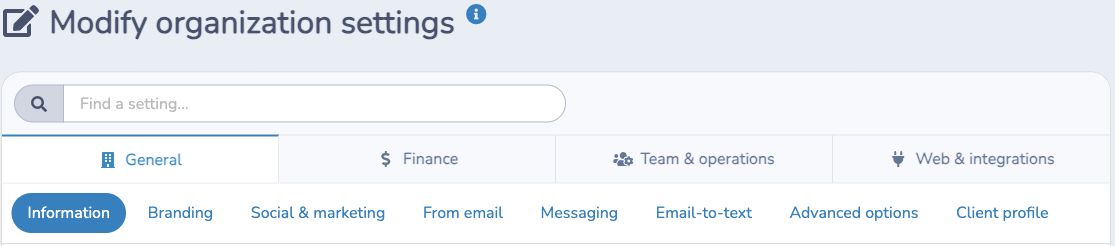
Open your settings
Open the settings menu beside your organization name and choose the organization settings. Review Information, Branding and the social settings. Access depends on your permissions. Save changes with Update.
Confirm your information
- Name and alias: use a recognizable name. The shorter alias used in SMS is limited to 20 characters.
- Language: choose English or French as the organization's default.
- Website: provide the website linked from your logo.
- Address and telephone: keep contact details used in your communications current.
- Reply-to email: choose a monitored inbox for replies; review any override when sending a message.
- Timezone: set the organization's business timezone before preparing schedules and time-based workflows.
- Category: choose the category used to suggest relevant form samples.
Apply your branding
Upload your regular logo and, if needed, a full-width logo. Choose the button color, additional brand colors and button border radius. A larger radius makes corners rounder.
Review the preview as you work, then check a representative form and email. A form or message can have its own logo/display choices, so do not assume every existing item will look identical after a default changes.
Advanced background and CSS settings affect the surfaces that use them. Change these only when you need additional styling and check the result on mobile and desktop.
Import branding from an existing website
Use this option when you want to update the organization’s branding, including the logo and the colors and button style used by emails and forms. You need access to organization branding; importing website settings also requires website editing permission.
- In Branding, select Import branding from a website.
- Choose Use this website to use the organization’s saved address, or Use another website and enter the source URL. Confirm the address before continuing.
- Review the proposed logo, colors, button corners, fonts, supported website settings and favicon. Expand All change details to compare current and proposed values.
- Check the warnings. Values that cannot be identified or imported reliably remain unchanged.
- Confirm the proposal to apply it, or reject it to keep the current settings. The branding page refreshes after a verified import.
Website design defaults are shared by the organization’s websites. Review the effect on those sites as well as a representative form and email. Importing branding does not copy page content, publish pages or change the website address.
To restore the reviewed previous settings, select Undo branding import on the applied proposal and review the new confirmation. Undo requires approval and can refuse to overwrite changes made since the import.
For a website-only setup that preserves the organization logo and email/form branding, use Import website configuration in the website setup wizard.
Add social links and review the footer
Add only the social accounts your organization uses. The social settings also offer tracking integrations. Confirm the accounts and tracking configuration with the person responsible for your website.
The email footer provides your organization's identity and contact information, social links, notification preferences and a browser-view link. Preserve those useful links when adjusting its appearance.
The footer of your forms shows your organization's name, address, telephone, website and email from Information by default. The footer is required: it identifies your organization, and your name and addresses are required by law (see email and SMS laws), so it cannot be removed from a form. Under Branding, the Footer setting lets you adjust how the footer reads; your content replaces the default text on forms, so keep your organization's name and address in it. Placeholders such as the organization name, address, telephone, URL and email are available in the editor. White-labeling is separate: it only hides the Activity Messenger logo and link. For the Activity Messenger mark on forms, see form footer branding.
Settings reference
| Setting | Where | Default | Effect |
|---|---|---|---|
| Name | Organization settings › Information | Set when the organization was created (required) | The organization name shown to clients and in footers. |
| Alias | Organization settings › Information | Set when the organization was created (required) | The short name that identifies you in SMS messages. Maximum 20 characters. |
| Language | Organization settings › Information | Set when the organization was created (required) | The organization's default language, English or French. |
| URL of your website | Organization settings › Information | Empty | The address linked from your logo. Include https://. |
| Address, City, Country, Region, Zip/Postal code | Organization settings › Information | Empty | Used in email and form footers, and Country is the default country of new address questions on forms. |
| Telephone | Organization settings › Information | Empty | Shown in footers and available as a placeholder. |
| Reply-to email | Organization settings › Information (also in Messaging) | Set when the organization was created (required) | The address that receives replies to your emails. You can override it for each message. |
| Timezone | Organization settings › Information | Set when the organization was created (required) | The business timezone used for schedules and time-based features. |
| Banner message to display to the client when they are in a different timezone. | Organization settings › Information | Empty | A message shown to clients whose device timezone differs from yours. |
| What category best describes your organization? | Organization settings › Information | Empty | Helps suggest relevant form samples. |
| Logo | Organization settings › Branding | None | Your logo in the email header, on forms and in the admin header. |
| Full width logo | Organization settings › Branding | None | An optional wide logo. Use Preview full width logo to see it. |
| Background color | Organization settings › Branding | Transparent | The color behind your logo in the admin header and in the microsite side menu. |
| Button color | Organization settings › Branding | #D9195C when none is chosen | The color of buttons in emails, forms and other pages that use your branding. |
| Button border radius (px) | Organization settings › Branding | Empty (4 px placeholder) | How round button corners are. A larger value is rounder. |
| Message template color swatches | Organization settings › Branding | One empty swatch | Extra brand colors offered in the message template color pickers. Use Add color for more. |
| Background image and CSS of forms | Organization settings › Branding, Edit | None | A background image and custom CSS for your forms. |
| Microsite CSS | Organization settings › Branding, Edit | Empty | Custom CSS for your microsite. |
| Footer | Organization settings › Branding, Edit | Year, organization name, address, telephone and a link line built from placeholders | Replaces the default footer text on forms and emails. It cannot be removed; keep your name and address in it. |
| Website builder defaults | Organization settings › Branding, Edit (only with the website module) | Not applicable | Default look for pages built with the website builder. |
| Facebook, X, Instagram, TikTok, LinkedIn, Pinterest, Vimeo, YouTube (primary and additional channels) | Organization settings › Social & marketing | Empty | Social links added to the email footer. |
| Customize social media icon colors | Organization settings › Social & marketing | Off | Off keeps each network's default color. On offers Use the organization button color or Choose a custom color. |
| E-Commerce conversion tracking | Organization settings › Social & marketing | Empty | Facebook pixel ID, Reddit pixel ID, AdWords ID and label, Google Analytics 4 ID and Google Tag Manager container ID. See Conversion tracking with GA4, Google Ads, Meta, Reddit and GTM. |
| Update | Bottom of each settings page | Not applicable | Saves the changes on that page. |
Common questions
Where do I change my logo? Open Organization settings › Branding and upload it under Logo (and, if you have one, Full width logo), then click Update. Existing forms and messages can have their own logo choices, so check a representative one. See Apply your branding.
Why does my SMS show a different name from my organization name? SMS messages identify you with the Alias, a short name of up to 20 characters, set in Organization settings › Information. Change the Alias to change what recipients see. See Confirm your information.
Can I remove the footer from my forms? No. The footer identifies your organization and is required by law. You can change its wording in the Footer setting under Branding, but keep your organization's name and address. See Add social links and review the footer.
How do I remove the Activity Messenger logo from the footer? White-labeling only hides the Activity Messenger logo and link. It is included in the Pro plan, and you ask support to enable it. It does not remove your organization's footer text. See Remove Activity Messenger branding from form footers.
Does the Reply-to email here apply to every message? It is the default. You can choose another address in Sender & Reply settings when you prepare a message. See Choosing a Reply-To email address.
Which timezone should I choose? Choose the timezone where your business operates. Schedules and time-based features use it, and clients in a different timezone can see the banner message you write. See Confirm your information.
Where do I add my Facebook pixel or Google Analytics ID? In Organization settings › Social & marketing, under E-Commerce conversion tracking. See Conversion tracking with GA4, Google Ads, Meta, Reddit and GTM.
Continue with the right settings
Set up your sender domain to use your own From address and messaging defaults to route replies. Payment connections, taxes and ledger codes are covered in financial setup. Website embedding belongs in website and microsite setup; Zoom and other services belong in connected apps. Review advanced options separately.