Activity Messenger Help Center
Client account
Give clients a single place to find their registrations, forms, invoices and available account actions. What they can view or change depends on your organization’s configuration and their records.
Each invoice/receipt they receive via email contains a link to log into their client account on your Microsite.
Your clients do not need a password. Instead, they enter their email address or mobile phone number to log in. They will receive a login code via email or SMS. They simply need to enter the 6-digit code to access their account.
Once logged in, they will have access to their class schedule, completed forms, and invoices. If they have purchased a Zoom class from you, they will also receive links to join their Zoom meeting.
Accessing the client account
Go the Microsite tab and select Client Portal.

Click on the My Account button (a unique link that you can also embed on your website).
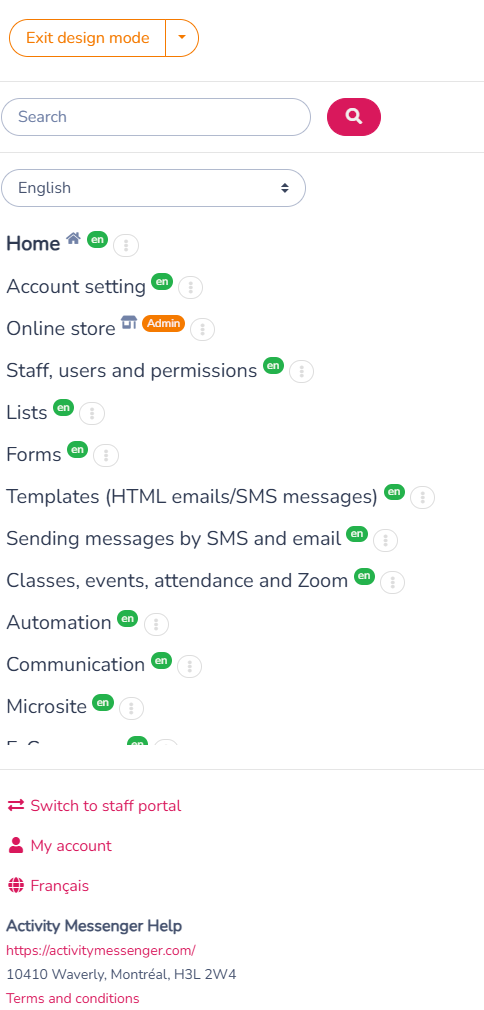
Overview of the client acount
As an administrator, you can select a client and view their acount. Here's what clients can see and manage.
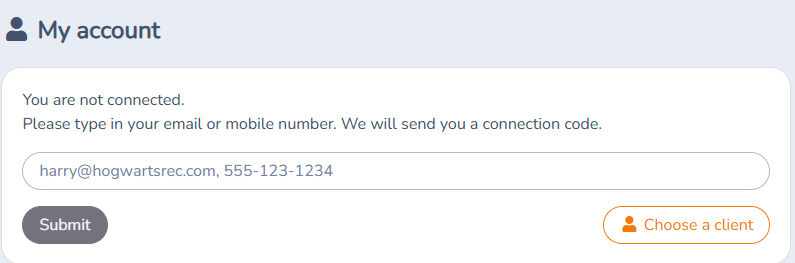
The option to select a client is only visible to administrators.
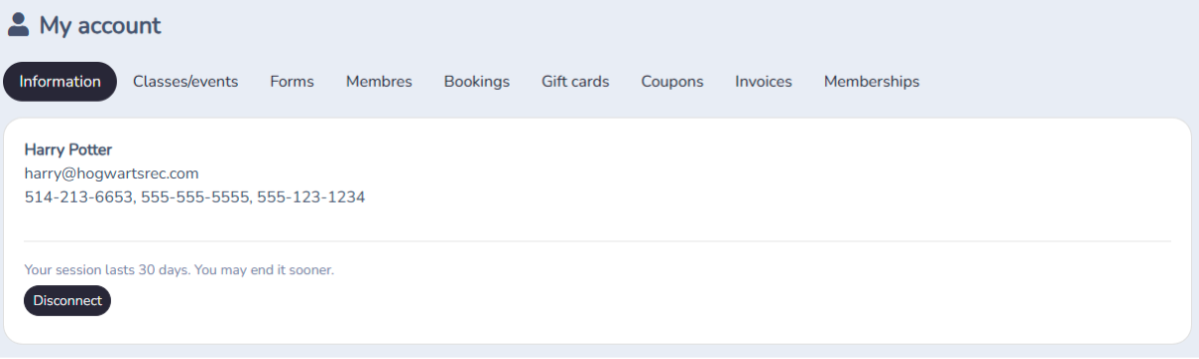
Registrations and Calendars
-
Events Tab: Displays the events the client is registered for, as well as past and upcoming activities.
-
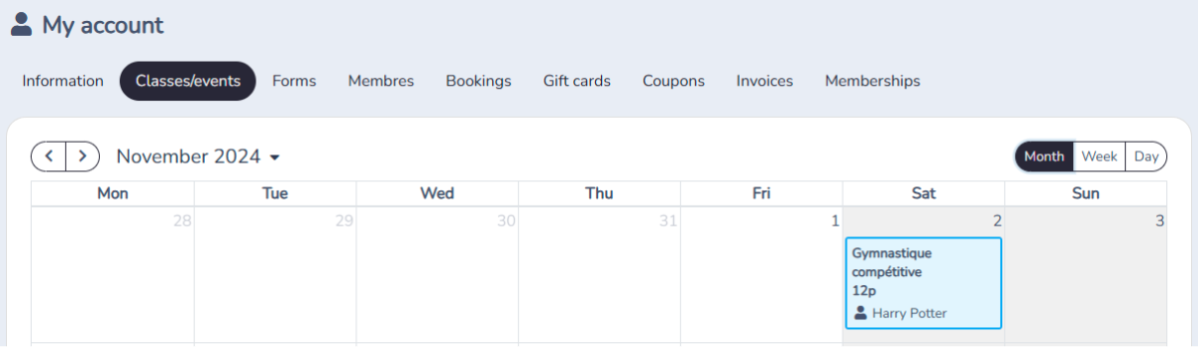
Calendar: View classes and events by day, week, or month. Includes classes for different family members.
On Activities › Classes/events/league, a signed-in client can select Sync my calendar, beside the Activity and Participants filters, and subscribe once to a private calendar of confirmed classes. Send participants Sync your classes to a personal calendar.
Forms and Reservations
- Forms: Displays all forms completed by the client, with access to PDFs of the registrations.

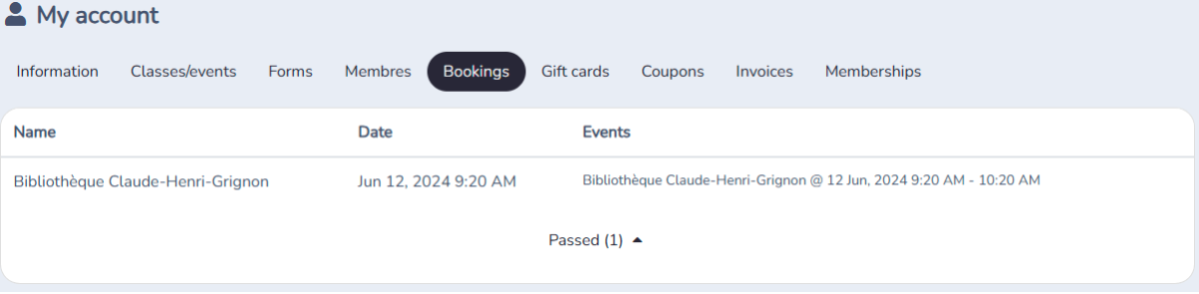
Reservations: Shows past and current reservations (e.g., room bookings).
Invoices and Subscriptions
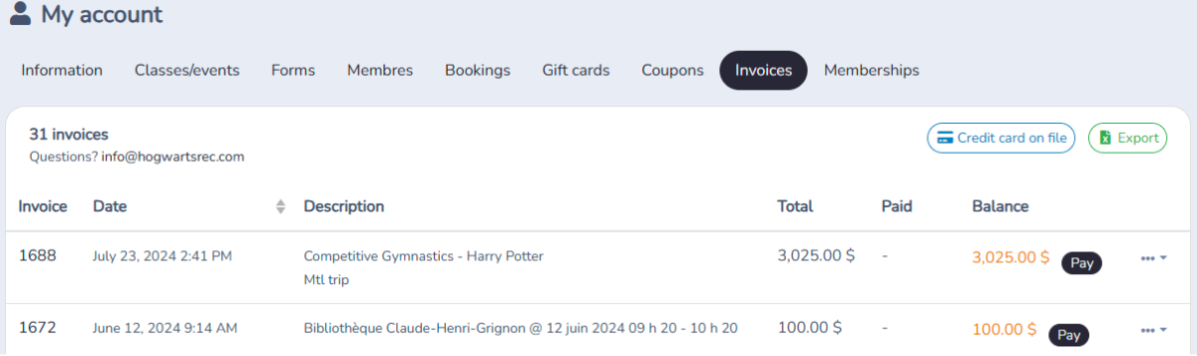
- Invoices: Displays all invoices, allows for online payment (integrated with Stripe), and enables invoice downloads.
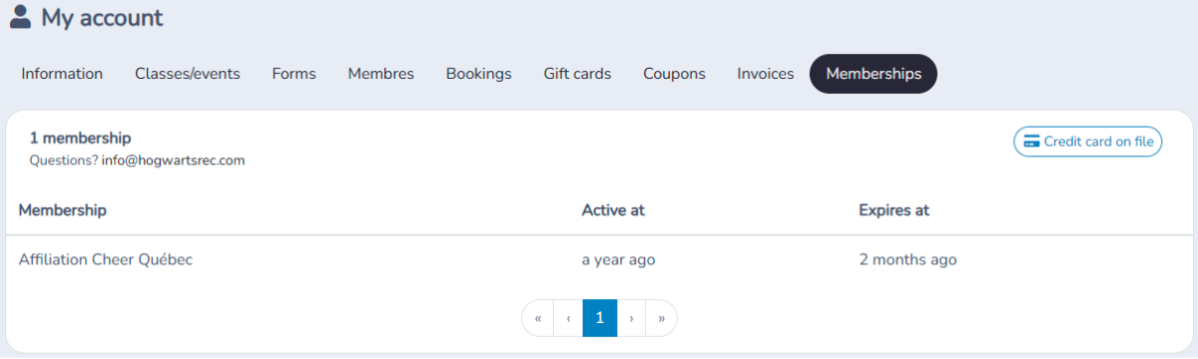
Subscriptions: Displays active subscriptions, including the activation date and expiration date. This includes monthly subscriptions, memberships, and federations.
Skills: A read-only Skills tab appears once at least one of the client's students has a skill. See Students and skills.
Review and pay outstanding invoices
In My account → Invoices, an exclamation badge means that an invoice has a balance not covered by a payment plan, or a failed payment needs attention. The same invoice can meet both conditions, so the badge does not show a count.
Use the filter buttons above the invoice list:
- Balance due shows the uncovered amount and the number of invoices with that balance, for example $86 balance due (4 invoices). This filter is selected when such invoices exist; otherwise, the list starts with all invoices.
- All invoices shows the complete list and its invoice count.
- Failed payments, when shown, isolates invoices with failed payments. Its count can overlap with the balance-due count.
Pay several invoices together
- Select Pay outstanding balance to open the review page.
- Check the included invoices and the amount due now. This amount includes eligible failed or overdue installments, while future installments stay scheduled.
- Continue to the card payment form, review any applicable fees and confirm the payment.
You do not need to ask an administrator to issue a statement first. This creates a payment request without generating a statement PDF. After a successful payment, the payment receipt shows how the single card payment was applied to the invoices.
Some invoices need separate review, for example when a payment is already being processed or a payment plan cannot be collected through this page. A notice identifies exclusions; contact the organization for help with those invoices. The payment button amount can therefore differ from the balance filter amount.
Open an issued account statement
When the organization has issued a current account statement, the Invoices tab also shows its current amount due and a PDF download. Select Review and pay statement when available to open its payment page. The PDF preserves the issued snapshot; the payment page reflects later payments on the included invoices. See Account statements.
Have someone else pay
Open the review page and copy its payment-page URL. Send that link to the person paying on your behalf, such as your spouse. They can review the included invoices and pay with their own card without signing in as you. The payment is applied to your invoices, and the payer's details are recorded separately.
Share the payment link only with someone you trust: it exposes the included invoice and contact details. It does not give access to your account or saved cards. Share the payment-page link, not your login code or an authenticated account link. A statement PDF is not required to pay.
Edit Information
Add or update a credit card on file
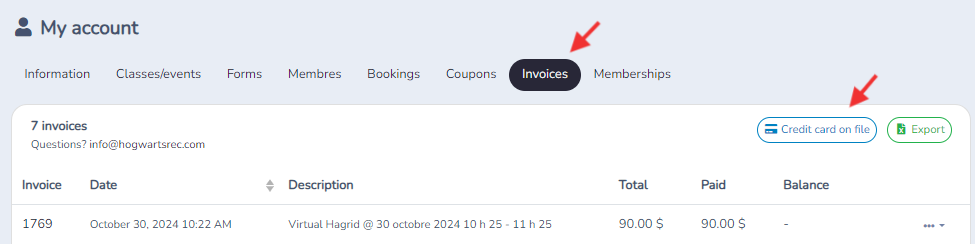
A client can add or replace a saved card from their client account; they do not need an invoice. The client signs in to My account, opens the account’s payment-method controls, and chooses Add (or Modify to replace the saved card). They then enter the card details and save. The Invoices → Credit card on file option is another route when invoices are available.
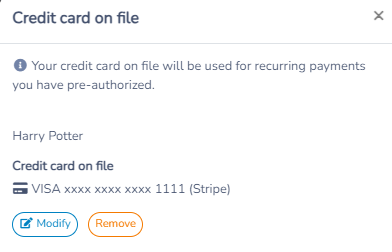
Remove a credit card on file
Clients can add or replace their card under Invoices → Credit card on file, but they cannot remove it themselves. An administrator can remove it by opening any invoice for the client, editing Payment methods on file, and selecting Remove under Stripe credit card on file. Removing the card prevents scheduled payments from being processed with it.
Create a client account manually
There is no New client button on the Client accounts page. Activity Messenger creates a client account automatically from a person's email address the first time they register, make a purchase or submit one of your forms. To create an account for someone yourself, use one of these paths:
- Fill a form on the client's behalf. Open one of your forms, for example a registration or contact form, and submit it with the client's name and email address. When the form is submitted, Activity Messenger creates the client account, or links the response to the account that already uses that email address. The client can then sign in to My account with that email address.
- Upload a list with Create client accounts. When you build a list from an Excel or CSV file, select Create client accounts in the import window. It is off by default. When it is on, the helper text reads "Create client accounts for each recipient. The client will be able to log in to their account." A recipient needs both a name and an email address to get an account. See Building a list of recipients from an Excel or CSV uploaded file.
The My account login page does not create accounts. A person who enters an email address or mobile number that isn't on file sees "No account was found matching that email or mobile". The one exception is a form whose Who can fill this form setting is Verified email: the respondent enters their name and email address, receives a 6-digit code, and their account is created when they verify it.
Once the account exists, it appears on the Client accounts page under Clients. If you no longer need it, archive the client; Activity Messenger has no action that deletes a client account.
Account profile: Journal and History
Administrators and account owners can review account activity and restore a person removed from a client's profile. These controls are in the administration interface, not the client's My account view. Open the client from Clients → Client accounts.
View the Journal
- In the client's profile window, select Actions → Journal.
- Find the operation by its date, description and administrator. You can search by operation.
- Select View changes to see the recorded before/after values and the person or record affected. Select JSON to inspect all stored details, including older entries whose fields cannot be displayed in the change table.
Restoration entries include the person responsible and the reason entered. Dates and times use your device's timezone. The Journal shows what was recorded at the time; it cannot reconstruct missing values in older entries. Automatic profile synchronization when opening the window is omitted from this list.
Restore a removed person from History
- In the account members section, select History, beside the circular arrow icon. The label of the members section may vary by organization. History appears only when there are removed people available to review.
- Find the person in Removed people and select Actions. This opens Review records; it does not immediately restore anything.
- Review the person's information at the top and the record details below. Where available, check creation and update dates, origin, submitted forms, classes and skills. If other related records are listed, use Examine this record to review them.
- Enter a Reason for restoration, select Restore this record, and confirm.
Use the registration forms and existing activity to identify the right record. The most recently created or updated record is not necessarily the original one: a manually added replacement may be newer. Any suggestion in the review window is a guide, not a guarantee. Check warnings about incomplete information or activity linked to different records before choosing.
Restoration reconnects the existing person or record to the profile. It preserves existing registrations, attendance, invoices and skills, and does not merge related records or transfer their activity. The administrator, date, reason and restored links are recorded in the account Journal and, when applicable, the linked record's journal.
Settings reference
| Setting | Where | Default | Effect |
|---|---|---|---|
| Create client accounts | Lists › Excel or CSV upload › import window | Off | Creates a client account for each imported recipient who has a name and an email address. The client can then log in to their account. |
| Who can fill this form | Form designer side panel | Anyone | With Verified email, the respondent must verify their email address with a 6-digit code before filling the form, and a client account is created for them if none exists. With Anyone, submitting the form with an email address also creates or links the client account. |
| Can connect as a client | User permission | Always on for Account Owners, administrators and attendants; set per instructor | Lets the user open a client's account view with Actions › Open client account in the client's account window. |
| Credit card on file | My account › payment-method controls; also available under Invoices when invoices exist | — | The client can add or replace a saved card without an invoice. Only an administrator can remove it, from an invoice's Payment methods on file. |
Common questions
How do I create a client account myself? There is no New client button. Fill one of your forms with the client's name and email address, or upload a list with Create client accounts selected. The account is created from the email address. See "Create a client account manually" above.
Can a client create their own account from the My account login page? No. The login page only sends a 6-digit code to an email address or mobile number that is already on file; otherwise it shows "No account was found matching that email or mobile". Clients get an account by registering, purchasing or filling one of your forms.
What happens if I fill a form with an email address that already has an account? The response is linked to that existing account instead of creating a second one. If two accounts were created for the same person, see Merge duplicate client accounts.
Does a client need a password? No. Clients sign in with their email address or mobile number and enter the 6-digit login code they receive.
Can I delete a client account? No. Activity Messenger has no delete action for client accounts. Archive the client to remove them from your default list, or anonymize the client to remove their name and phone number.
Can I see the account exactly as the client sees it? Yes. In My account, administrators can select a client, or open the client from Clients and click Actions › Open client account, which requires the Can connect as a client permission.
Can a client add their classes to Google Calendar, Outlook or Apple Calendar? Yes. On Activities › Classes/events/league, they select Sync my calendar, create a private link and subscribe once. Confirmed registrations and later changes appear when the calendar provider refreshes the feed. See Sync your classes to a personal calendar.