Activity Messenger Help Center
Link camp add-ons to class attendance and capacity
A camp add-on can register the participant in a separate class and use that class's capacity. Turn on Attendance & capacity, choose the class, and map the add-on to the camp dates the participant selected. Checkout reserves a place. When registration is completed, the participant appears on the linked class attendance for the mapped dates.
Without the switch, the add-on stays an ordinary invoice extra. It does not create a registration or an attendance row.
Before you start
The camp is a class sold with a Class/Event question, and the add-on is a class add-on on that question. See Selling classes and events. Open the camp block's three-dot menu, choose Edit, then the Add-ons section. Turn on Class, then open the form add-ons or the class add-ons, and edit the add-on card. Per date is a different setting: it records the add-on on the camp's own attendance. This guide covers a link to another class. See Offer class add-ons for specific dates.
The linked class must already exist, or you can create it from the add-on. It cannot be the camp itself.
Turn on Attendance & capacity
- Open the registration form, find the camp's Class/Event block, open its three-dot menu, and choose Edit.
- In Add-ons, turn on Class, then open the form add-ons or the class add-ons.
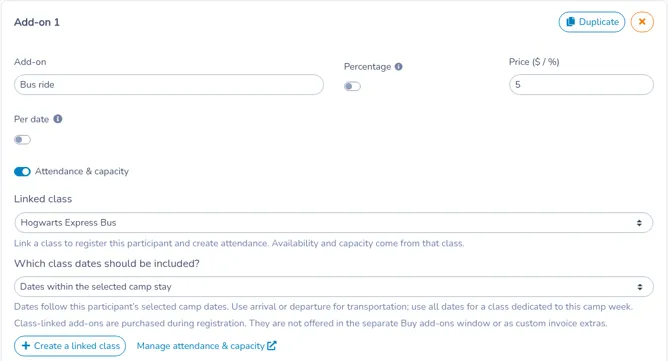
- On the add-on card, turn on Attendance & capacity.
- Under Linked class, choose the class that should hold this registration. The placeholder is No linked class — ordinary add-on. The help text reads: “Link a class to register this participant and create attendance. Availability and capacity come from that class.”
- If you choose the camp itself, the add-on shows Choose another class. An add-on cannot register into its own base class.
- To create the class from here, click Create a linked class. The class window opens with the add-on's name, a price of 0, and the camp's dates copied in. Save the class. It becomes the linked class.
- Manage attendance & capacity opens that class's attendance list in a new tab.
Remaining places are the smaller of the linked class's Maximum attendance still open and the fewest places left on the mapped dates. A checkout that has reserved this add-on counts as a taken place until the cart expires. See Selling classes and events for the class capacity settings.
Turning Attendance & capacity off clears the linked class, and the add-on is ordinary again. Turning it back on in the same add-on row restores the class and the date choice. Save while the switch is off to keep the add-on ordinary.
In the form designer, the add-on preview shows Attendance & capacity followed by the linked class name. On the registration form, the line under the add-on is the availability status below.
Which class dates are included
After a class is selected, Which class dates should be included? appears. The help text reads: “Dates follow this participant’s selected camp dates. Use arrival or departure for transportation; use all dates for a class dedicated to this camp week.”
The choice starts at Dates within the selected camp stay. The participant must have selected camp dates that match the camp. If those dates do not resolve to a camp event, the add-on is not offered.
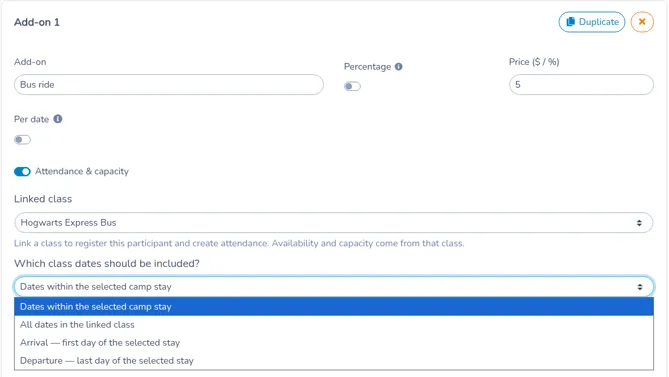
- Dates within the selected camp stay. The participant is registered on linked-class dates whose calendar day falls inside a camp date they selected. A camp date that runs past midnight includes each day from its start through its end. Days are compared in the organization's time zone.
- All dates in the linked class. The participant is registered on every date of the linked class, including dates outside the selected stay. Use this when that class exists only for this camp week.
- Arrival — first day of the selected stay. The participant is registered on linked-class dates that fall on the first day of the selected stay. That day is the start of the first selected camp date.
- Departure — last day of the selected stay. The participant is registered on linked-class dates that fall on the last day of the selected stay. That day is the end of the last selected camp date, or its start when the camp date has no end.
If the linked class has no date on those days, the add-on shows Not offered for the selected dates.
With Per date off, the mapping uses the camp dates the participant selected. The participant is registered on every mapped date, and the add-on is billed once. A participant who selects two camp dates is on the linked class for both dates and pays the add-on price once. Bus ride at $5 is a single $5 charge.
When the add-on also has Per date, the mapping uses the dates selected on the add-on, and the price is the add-on price times the number of those dates.
What people see when they register
The add-on stays unavailable until camp dates are selected and availability has been checked. The line under the add-on changes as follows.
- Before camp dates are selected: Select camp dates to see availability.
- While the check runs: Checking availability… The form cannot be submitted during the check.
- When no linked-class date matches: Not offered for the selected dates.
- When the linked class has a numeric limit and places remain: :count places remaining, with the number of places in place of
:count. - When the linked class has no numeric limit: no places line is shown, and the add-on can be selected if a matching date exists.
- When no place remains: Full. The selection is cleared and the add-on cannot be chosen.
- When the check fails: Availability could not be checked. Please try again. The form cannot be submitted until a later check succeeds.
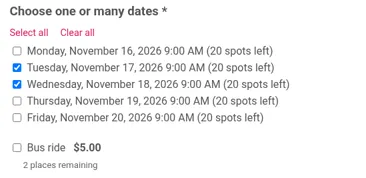
The places line uses the linked class, not the camp. Below, Tuesday, November 17 and Wednesday, November 18 are selected. Those camp dates still have spots, and Bus ride $5.00 shows 2 places remaining.
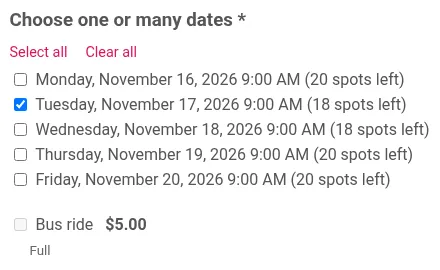
When a mapped date has no places left on the linked class, the add-on shows Full and is greyed out. Below, only Tuesday, November 17 is selected. That camp date still has spots. The bus class is already at its maximum of 2, with two participants on that date, so Bus ride shows Full.
A required add-on still has to be selected once camp dates are chosen. The message is Please select the required add-on: :name.
Capacity at checkout and before payment
Choosing the add-on reserves a place on the linked class. If the place is gone at checkout, the message is :name no longer has enough places. Please review your add-ons. At checkout, :name is the add-on name.
The same capacity is checked again before payment. That check uses the linked class name in :name no longer has enough places. Please review your add-ons. It also rejects the purchase with This add-on’s linked class or dates are no longer available. Please review your selection. when the linked class is missing or the mapped dates no longer match. If the linked class uses dynamic attendance, including category balance, those limits are checked again as well.
Where the participant appears
When the registration is completed, the participant is added to the linked class attendance for the mapped dates only. They are not added to every camp date. The account owner on the invoice is copied onto that registration. Completing the same invoice again does not add a second row for that add-on. The camp registration stays on the camp's own attendance list.
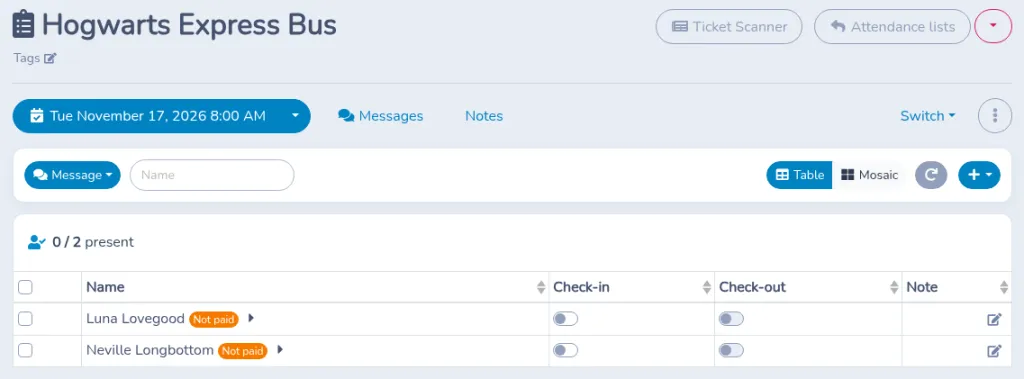
Open the linked class from Manage attendance & capacity, or from Attendance tracking. On Tuesday, November 17, Hogwarts Express Bus lists the two participants registered for that date.
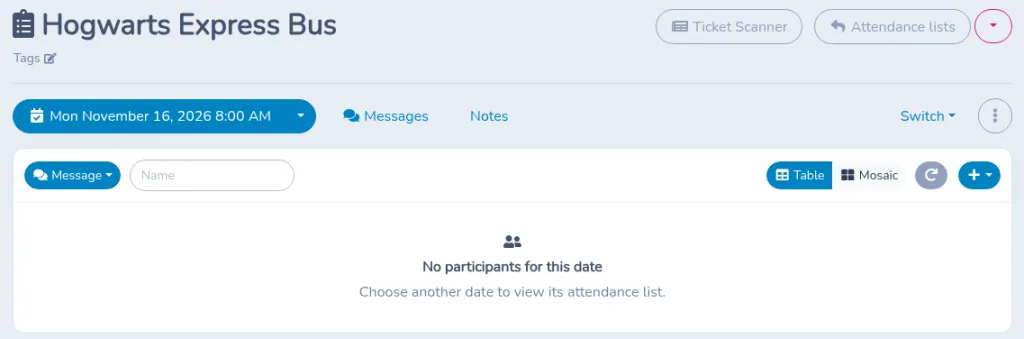
A date with nobody registered shows No participants for this date and Choose another date to view its attendance list. Monday, November 16 on the same bus class is empty.
When people are registered but the search or a filter hides them, the list shows No participants match your filters and Adjust the search or filters to see participants.
Where a linked add-on is not offered
The help under the date choice reads: “Class-linked add-ons are purchased during registration. They are not offered in the separate Buy add-ons window or as custom invoice extras.”
A standalone Buy add-ons purchase and a custom invoice extra skip any add-on that has a linked class. The add-on keeps its discount eligibility. Promo codes treat a linked add-on the same way they treat other class add-ons.