Activity Messenger Help Center
Share form results on a website or microsite
The Form results block shows submitted answers on a page. Use it in the Website builder or in the legacy microsite editor. Display format can be Custom HTML, a Form Results Table, or Analytics.
The block lists only submitted responses. A form that was started and not submitted does not appear.
Staff still review, correct, and export individual responses from Forms. This block does not replace that screen, and it has no export button. See Manage forms and submitted responses.
Add the block
Website builder
- Open the page in the Website builder.
- Select Add section, then Blocks.
- Under Form and Management, select Form results.
- Choose the form and the display settings in the sections below.
- Select Save this block. Publish the page when visitors should see it. See Edit, preview, save, and publish a website.
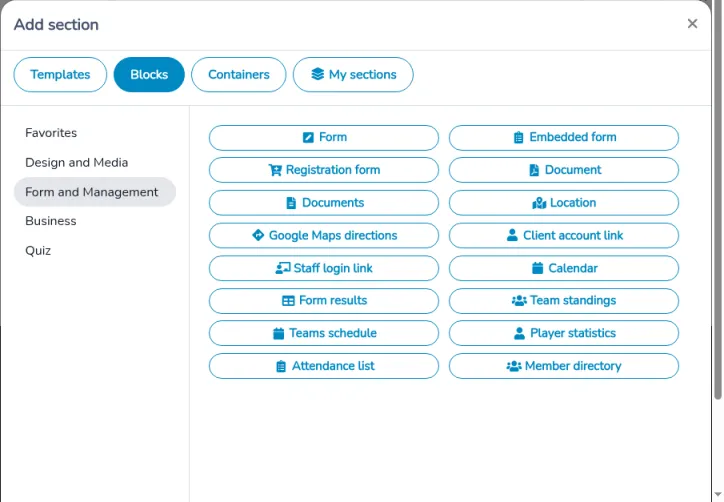
The editor shows the table or the charts from the settings currently on the block. Visitors see the saved block after the page is published.
Legacy microsite
- Open Microsite and the client portal, then turn on design mode. See Create microsite and portal pages.
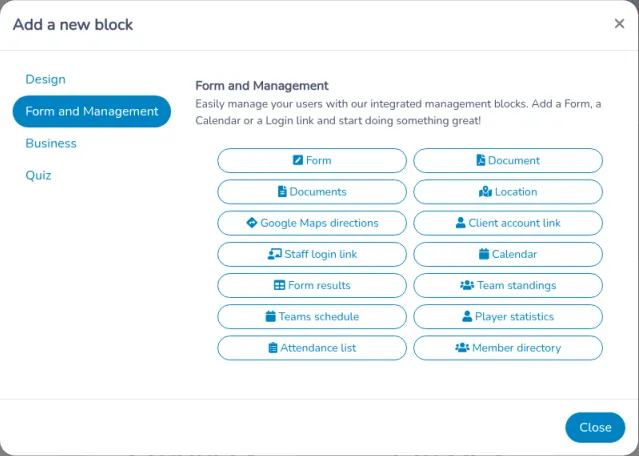
- Select +, then Form results.
- The window title is Form results. Choose the form and the settings, then Create.
- To change the block later, open it and select Save. Cancel closes the window without saving.
Choose the form and filters
Form starts at Choose a form.
Filters keep only the submitted responses you want to show. Each filter is one question equal to one value. Select Add for another filter, and remove a filter with its remove control. A date question offers In the future or In the past. For any other question, type the answer to match.
The same saved filters apply to Custom HTML, to the table, and to every chart. Changing the form resets the table to a single Respondent name column and clears the charts. It also clears the filters, except while Display format is Custom HTML. After a form change in Custom HTML, read the filters again so they still refer to questions on the new form. Select Select all fields again if you want every column from the new form.
Choose a display format
Display format offers Custom HTML, Form Results Table, and Analytics. The setting explains: “Choose Custom HTML, a read-only results table, or an analytics summary. Each format keeps its settings when you switch.”
A block saved before these formats stays on Custom HTML until you change Display format. Switching away does not delete the HTML, the columns, or the charts. Switch back and those settings are still there.
Custom HTML
Custom HTML is for a designed list of responses, with an optional window for one response.
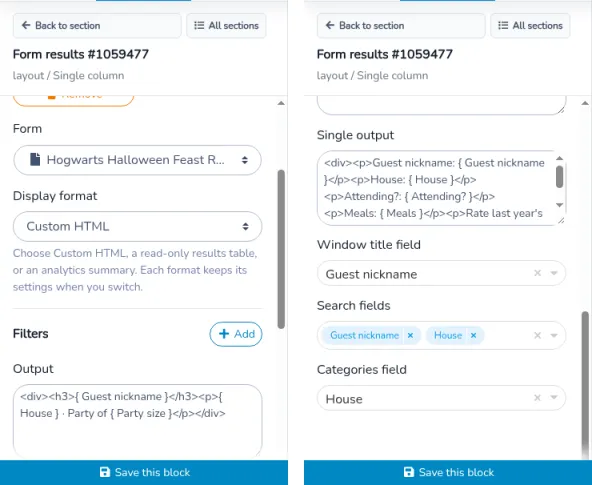
These settings appear only while Display format is Custom HTML. In the Website builder they are separate fields:
- Output is the HTML for each response in the list.
- Single output is the HTML for the detail window.
- Window title field chooses the answer used as that window’s title. None leaves the title unset.
- Search fields chooses the questions visitors can search. Leave this empty and the page has no search box.
- Categories field chooses the question whose answers become category badges. None hides the badges.
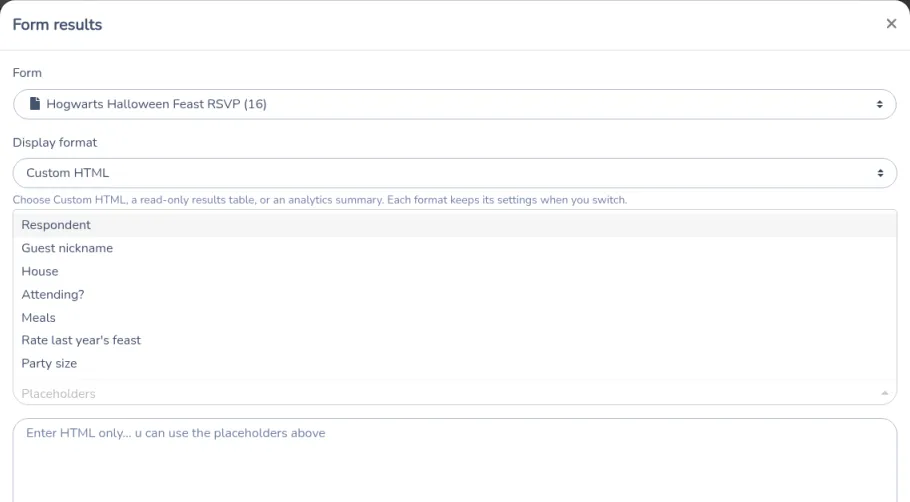
In the legacy Form results window, the same settings are tabs:
- Output. Placeholders lists the form’s questions. Choosing one inserts
{ Question label }at the cursor, with a space after{and before}. A question labeled Guest nickname is inserted as{ Guest nickname }. - Single output, including Window title field. Type the same
{ Question label }placeholders into this HTML. The placeholder list on this tab does not fill this box; use the Output tab’s Placeholders control, or type the placeholder yourself. - Options, with Search fields and Categories field.
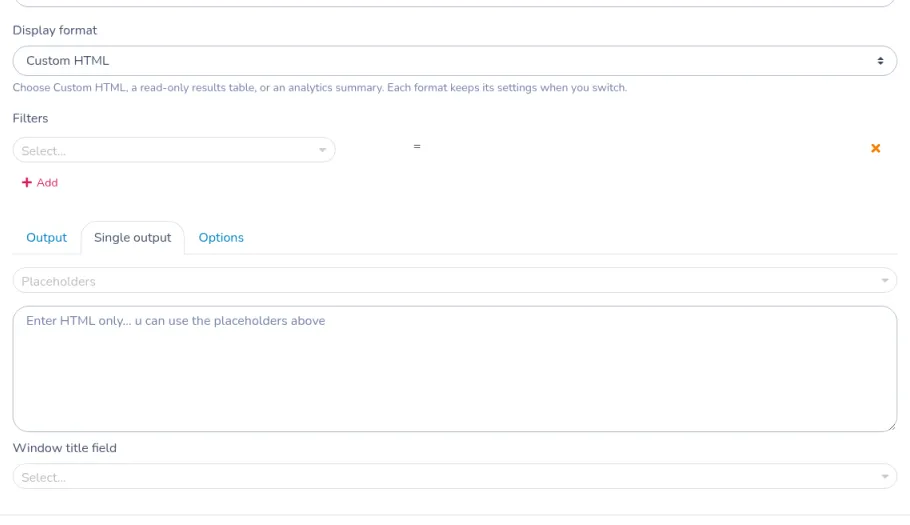
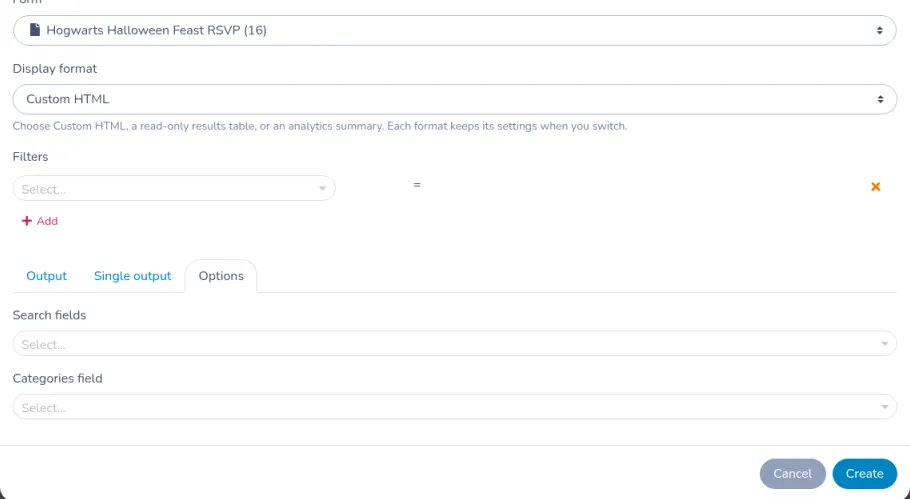
On the Website builder, type the { Question label } placeholders into Output and Single output. The words inside the braces are the question’s label.
Visitors then see:
- Keywords... and Search when at least one search field is selected. Category badges appear when a categories field is set. Selecting a badge filters the list. Selecting the same badge again shows the full filtered list.
- One Output block per submitted response. When there are more than ten, the list is split into pages of ten.
- A detail window when Single output contains HTML and the visitor selects a response. The window’s button is Close. The page address gains
post_idso that response can be opened again.
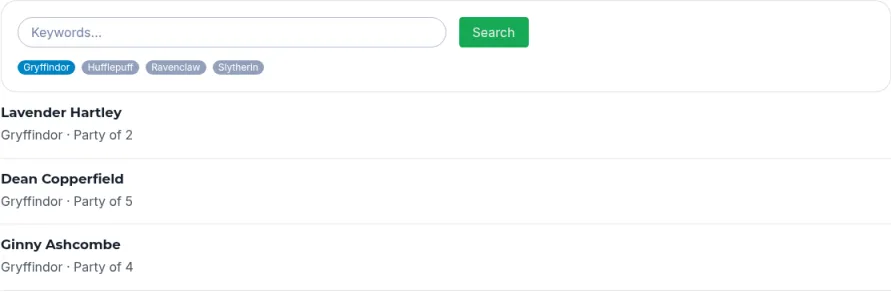
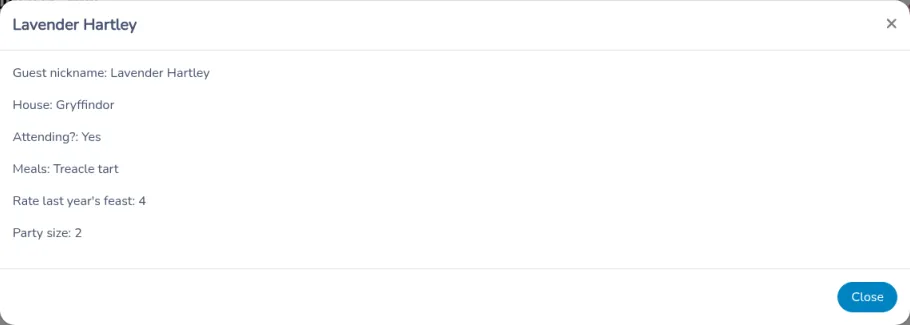
Custom HTML can print names, email addresses, and any other answer you place in the HTML. Publish only questions you intend visitors to read.
Share a table
Set Display format to Form Results Table.
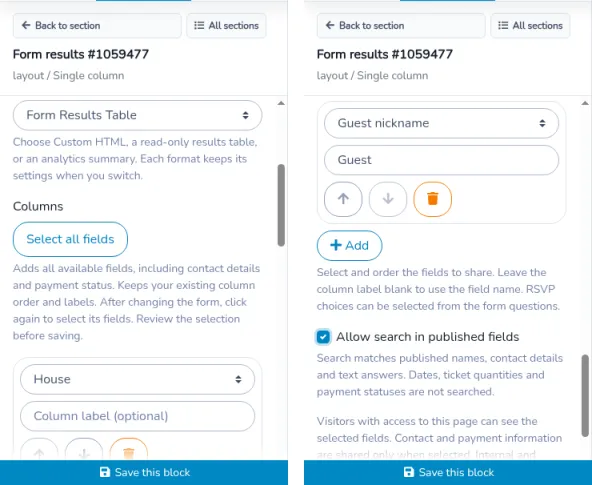
Columns explains: “Select and order the fields to share. Leave the column label blank to use the field name. RSVP choices can be selected from the form questions.”
A new table starts with Respondent name. For each column:
- Choose the field.
- Type a Column label (optional), or leave it blank to use the field name. A label can be 120 characters.
- Use Move up and Move down to set the order.
- Use Remove to drop a column.
- Select Add to append the next field that is not already a column.
Select all fields adds the available fields in one step. Its note says: “Adds all available fields, including contact details and payment status. Keeps your existing column order and labels. After changing the form, click again to select its fields. Review the selection before saving.”
The button waits until that form’s questions have loaded. It is unavailable when every available field is already selected in the current order. Fields that are no longer on the form are dropped. Custom labels and the order you already set are kept, and new fields are added after them.
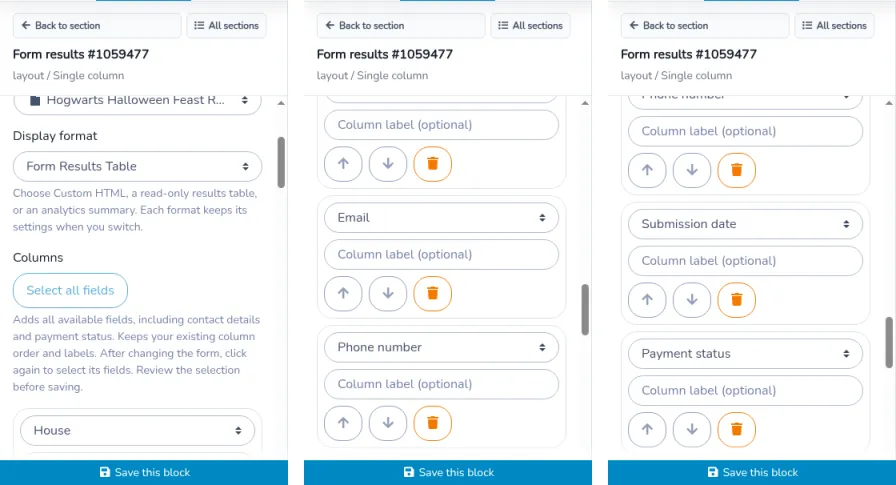
A table allows 30 columns. When the form offers more than 30 fields, you also see: “A results table supports up to 30 columns. Select all fills the available spaces; you can remove or replace columns to choose which fields to share.” Add and Select all fields stop at 30. Remove or replace a column to choose a different field.
You can select:
- Respondent name, Email, Phone number, Submission date, and Payment status;
- the answer to a text, number, radio-button, conditional-branching, dropdown, checkbox, date, rating, or description question;
- for a person, child, or account-owner question that does not collect several people: that question’s name, email, and phone as separate columns, labeled with the question name and Respondent name, Email, or Phone number;
- for a ticket question: Ticket quantity and Ticket type.
Internal, hidden, and encrypted questions are not offered. If a selected question is later hidden, encrypted, or removed, it disappears from the table.
Allow search in published fields adds a search box. The note says: “Search matches published names, contact details and text answers. Dates, ticket quantities and payment statuses are not searched.”
The privacy note says: “Visitors with access to this page can see the selected fields. Contact and payment information are shared only when selected. Internal and encrypted fields are excluded. The table is read-only and has no export button. Page access and website password settings still apply.”
On the page:
- With no remaining columns, visitors see No fields have been selected for this results table.
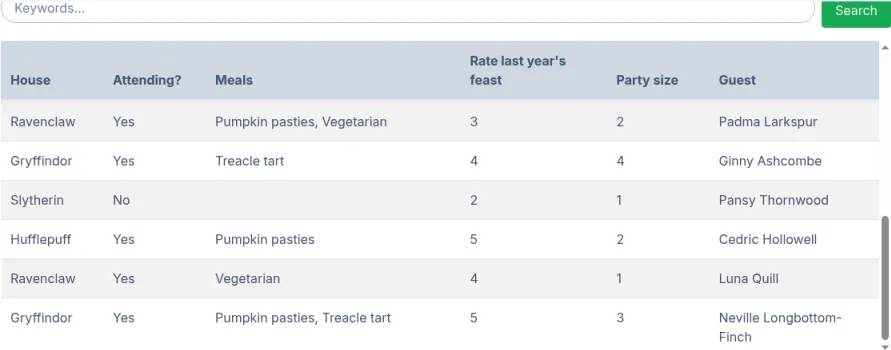
- Otherwise they see a striped table. Column headings stay visible while they scroll inside the table. On a narrow screen the table scrolls sideways.
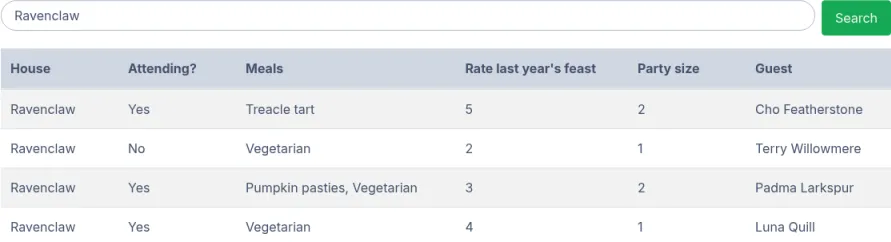
- Search, when you enabled it, is Keywords... and Search. It looks only at published name, contact, and text columns.
- Previous and Next move through 25 responses at a time. The page number is shown beside Page.
- There is no export button. Download responses from Manage forms and submitted responses.
Payment status, when that column is selected, is Paid, Not paid, Pending, Credit, or Cancelled.
Analytics
Set Display format to Analytics.
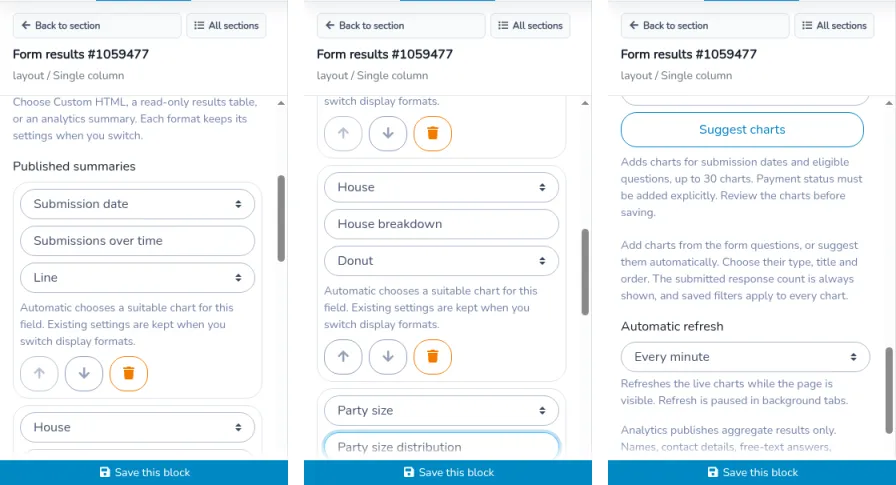
Published summaries explains: “Add charts from the form questions, or suggest them automatically. Choose their type, title and order. The submitted response count is always shown, and saved filters apply to every chart.”
For each chart:
- Select Add a chart — choose a field, or Suggest charts.
- Type a Chart title (optional), or leave it blank to use the field name. A title can be 120 characters.
- Set Chart type. Automatic picks a chart for that field and names it, for example Automatic (Horizontal bars). The note says: “Automatic chooses a suitable chart for this field. Existing settings are kept when you switch display formats.”
- Use Move up and Move down to order the charts, and the remove control to delete one.
Suggest charts explains: “Adds charts for submission dates and eligible questions, up to 30 charts. Payment status must be added explicitly. Review the charts before saving.”
You can publish 30 charts. If a saved field is no longer allowed, the editor shows: “This field is no longer available for analytics. Choose another field or remove this chart.”
| What you summarize | Automatic chart | Other chart types |
|---|---|---|
| Submission date | Line | Vertical bars |
| Radio buttons, conditional branching, or a dropdown | Horizontal bars | Vertical bars, Donut |
| Checkboxes | Horizontal bars | Vertical bars |
| A rating | Vertical bars | Horizontal bars, Average |
| A number | Histogram | Total, Average |
| Ticket quantity | Total | Average, Histogram |
| Payment status | Horizontal bars | Vertical bars, Donut |
Suggest charts adds Submission date and the eligible questions. It does not add Payment status. Names, email addresses, phone numbers, free-text answers, description questions, and person questions cannot be charted. Internal, hidden, and encrypted questions cannot be charted.
Automatic refresh explains: “Refreshes the live charts while the page is visible. Refresh is paused in background tabs.” Choose:
- On page load or manual refresh
- Every 30 seconds
- Every minute
- Every 5 minutes
The privacy note says: “Analytics publishes aggregate results only. Names, contact details, free-text answers, internal fields and encrypted fields are excluded. Unrecognized choices are grouped as Other answers. Page access and website passwords still apply.”
On the page, visitors see:
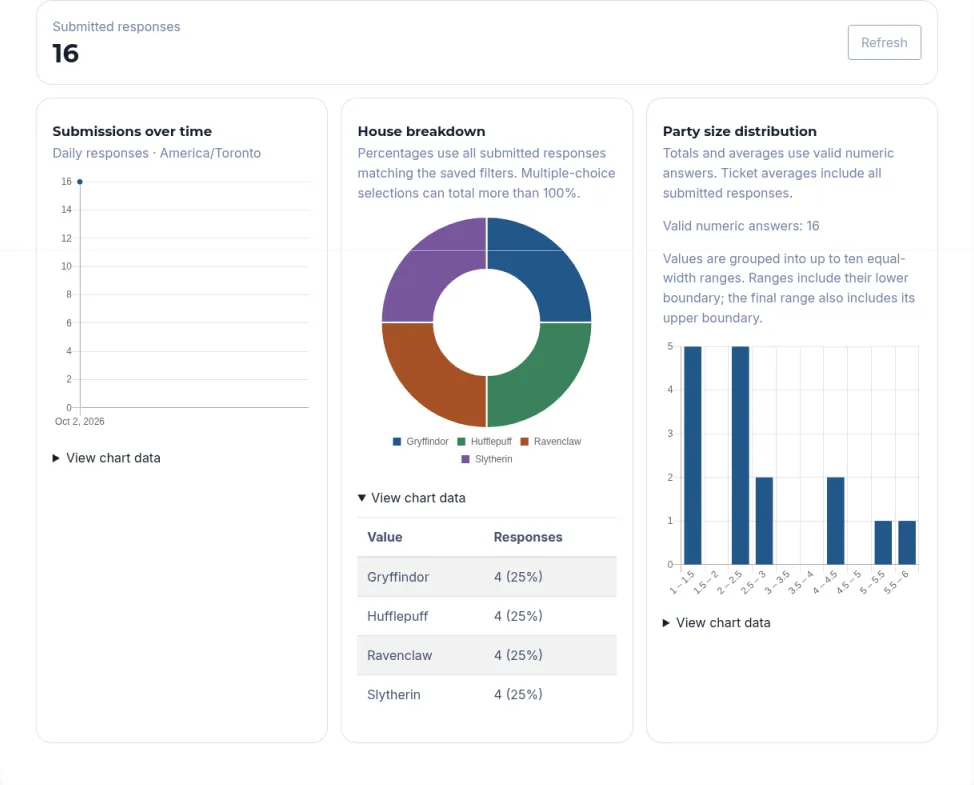
- Submitted responses with the count, and Refresh.
- Each saved chart. Total and Average show one number. The note says: “Totals and averages use valid numeric answers. Ticket averages include all submitted responses.” A number chart also shows Valid numeric answers and how many answers were numbers.
- For choice charts: “Percentages use all submitted responses matching the saved filters. Multiple-choice selections can total more than 100%.”
- Other answers for a choice that is not in the question’s list. Text typed into an Other option is not listed on its own. No answer counts responses with nothing selected.
- For Submission date, the chart is labeled Daily responses, Monthly responses, Yearly responses, Responses by decade, or Responses by century, followed by the timezone used to group the dates. A long span uses a coarser grouping.
- For a Histogram: “Values are grouped into up to ten equal-width ranges. Ranges include their lower boundary; the final range also includes its upper boundary.”
- View chart data lists each Value and its Responses count, or Answers on a numeric chart. Choice charts also show the percentage.
- No results when a chart has no counts, or when no submitted response matches the filters.
What stays private
- Internal, hidden, and encrypted questions never appear in the table or the charts, including a question that was selected and later restricted.
- Analytics publishes counts, totals, and averages. It does not publish names, email addresses, phone numbers, or free-text answers.
- The table shows only the columns you saved. Email, Phone number, and Payment status appear only when you select them. Select all fields does select contact details and payment status, so review that list before you save.
- Table search does not look through dates, ticket quantities, payment statuses, or columns you did not publish.
- The table and the charts have no export button.
- Hiding the page in navigation, or asking search engines not to index it, does not hide the responses. See Manage website pages, navigation, and SEO.
Who can open the page
Page access and a website or page password still apply. Test while signed out. Design mode and the Website builder do not show you the visitor’s password prompt.
On the Website builder, a Draft page is not public. Publish page makes the saved page available. A website password asks every visitor for the shared password. See Manage website domains, passwords, and multiple sites. Leaving a page out of the menu does not block someone who has the address.
On the legacy microsite, the page permission still applies:
- Public is open to everyone.
- Client is open to a connected client and to administrators.
- Admin is open to administrators.
- Member is open to a connected member whose valid membership is one of the memberships selected for that page, and to administrators.
- Class participants is open to a participant in the selected class.
- A page limited to a list is open to a connected client on that list.
- Hidden removes the menu link. Someone with the address can still open a public page.
- Protect page with a password must be entered before the results load. Leave design mode to test it. In design mode the password is not requested.
ImportantCheck the published page in English and French while signed out, with fictional responses. A table that includes Respondent name, Email, or Phone number shows those values to everyone who can open the page.