Activity Messenger Help Center
Payment methods
Choose the payment methods clients can use for a purchase, then decide how deposits and unpaid balances will be collected. Configure the underlying Stripe or Interac service first; the choices offered on a form, booking package or store depend on those settings.
Available Payment Methods
Offline Payment
- Allows the client to reserve online without immediate payment.
- An invoice is generated and sent, and the registration is recorded as unpaid.
- Payment tracking must be done manually.
Credit Card
- Users can pay online with a credit card.
- Option to request an initial deposit instead of the total amount.
Gift Card
- If you sell gift cards, users can pay with them.
Interac Transfer
- Users can make payments via Interac transfer.
- Refer to our specific guide to simplify and account for these transfers.
Stripe bank transfer
- Convenient for larger transactions or regular monthly payments.
- Useful for annual registrations or subscriptions.
Other Payment Methods
- You can set up a custom payment method, such as by check.
- Add specific instructions for this payment method.
Scheduled Payments
- Allows dividing an amount into multiple monthly payments.
- Configure the number of payments and amounts; scheduled attempts follow the configured dates and payment method. A scheduled attempt can fail and is not a payment guarantee.
- Choose the first payment date and whether the installment option appears before or after payment in full.
- At checkout, clients can review the amount and upcoming payment dates. You can review their scheduled payments on the invoice.
- After a schedule has been set on an invoice, use Adjust scheduled payments to edit the amounts of the scheduled payments already listed and, where available, choose their payment method. This adjustment does not let you change the number of installments. Do not rely on this dialog to delete future payments.
Configuration of Instructions and Restrictions
You can modify the instructions by adjusting the button text and personalizing the guidelines on the form. It is also possible to restrict payment options, such as prohibiting the use of gift cards for certain programs.
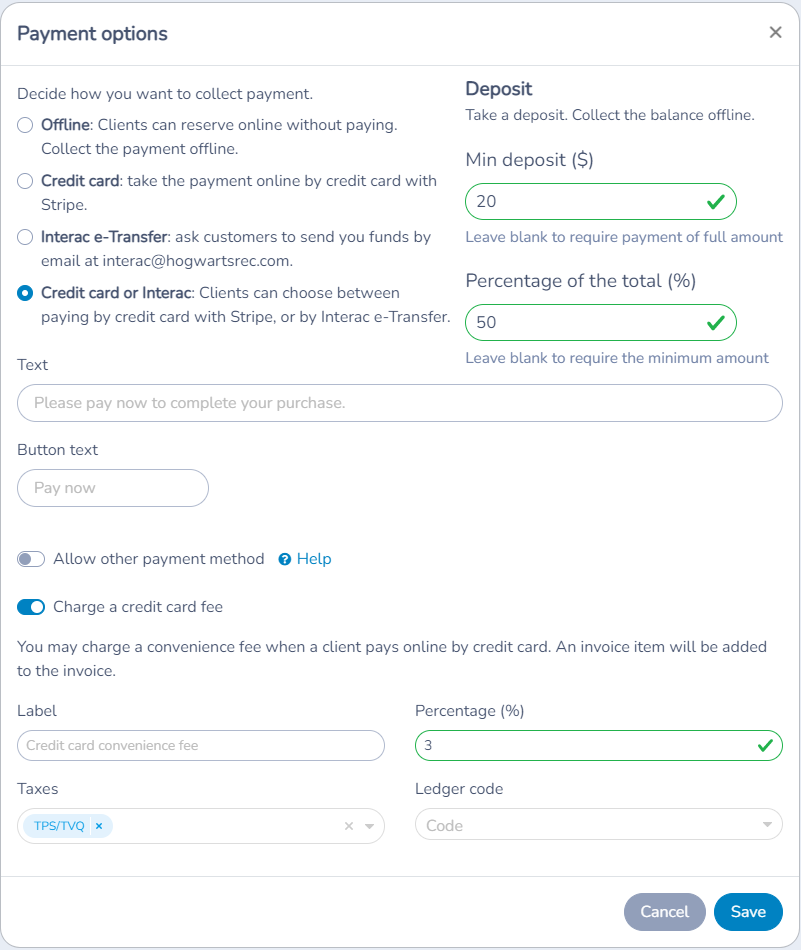
Paying by credit card via Stripe
Connect Stripe in your organization settings before offering card payments. A successful payment updates the invoice; bank payouts follow Stripe’s payout schedule. Review failed-payment notifications and follow up on any unpaid balance.
Credit card convenience fee
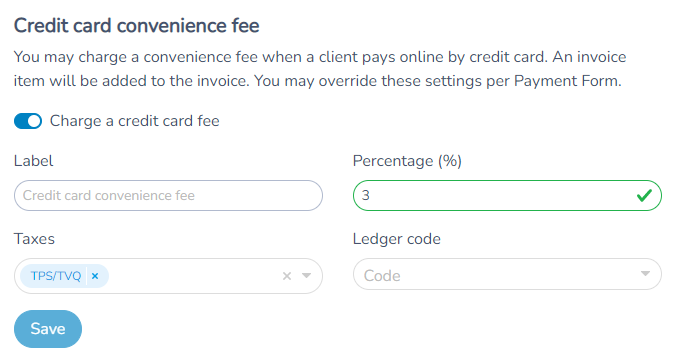
You can charge your client a credit card convenience fee to cover credit card charges. Toggle the option "Credit card convenience fee" to use that option. You label the fee as it will appear on the invoice. You must set a percentage to apply on the total amount. For example 3%.
The credit card convenience fee will get added to the client invoice when they choose to pay online with their credit card. You can apply sales taxes on that fee and assign it a ledger code to properly recognize it in your accounting system.
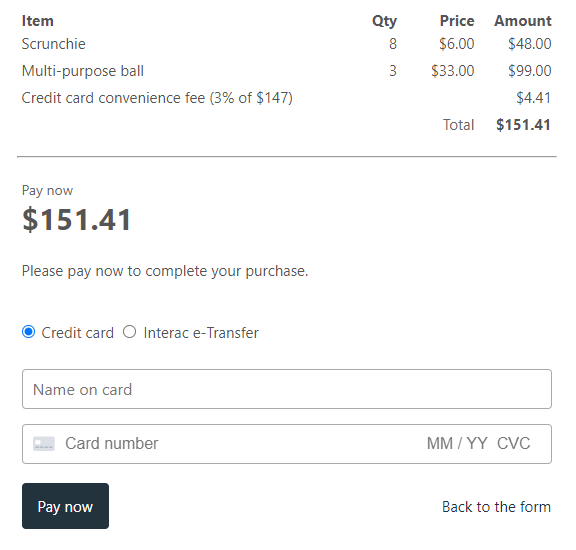
The credit card convenience fee is added on the total before exclusive sales taxes are applied. If you ask for a deposit, the fee will be added to the amount you demand.
Credit card surcharges or convenience fees may not be legal in your jurisdiction. In Canada for example, credit card convenience fees have become allowed as of October 2022 in every province except for Québec.
Interac e-Transfer
In Canada you can ask your clients to pay via an Interac e-Transfer. Activity Messenger can handle settling the payment against the invoice. Jump to the help page Interac e-Transfer to find out more.
Deposit (first payment by credit card or Interac e-Transfer)
You can ask your client to pay a first part of the invoice with the Deposit option. The balance can be paid later online or offline.
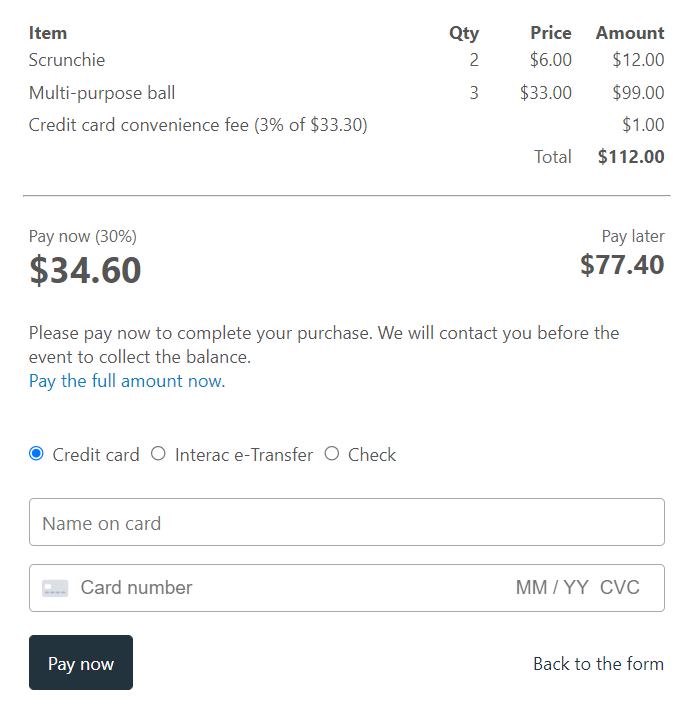
To activate this option specify the minimum amount that will be taken for the first payment (deposit). You can also specify a percentage of the total invoice. Activity Messenger will ask the client to pay the largest of either values. Note that if you have enabled the credit card convenience fee, it will also need to be paid in addition to the deposit amount.
Your client can always choose to pay the full amount instead of the deposit. They can do so by clicking on the link "Pay the full amount now".
Percentage deposits for members
Use a member payment rule on a booking package to collect a different deposit from existing members. For example, members can pay 25% at checkout while other clients follow the package’s default payment settings.
You need permission to configure booking packages, and memberships must be enabled for your organization. Member payment rules are not available on packages that ask clients to select players.
- Open E-Commerce → Booking packages and edit the package.
- Open the Payment tab, expand Advanced options, and find Member payment methods.
- Click Add, or edit an existing rule. Select the relevant Memberships and a payment method that supports deposits: credit card, Interac e-Transfer, or credit card or Interac e-Transfer. Available methods depend on your organization’s configuration.
- Set Deposit type to Percentage and enter a value from 0.01 to 100. Enter 25 for a 25% deposit.
- Leave Minimum deposit (optional) blank to collect only the percentage. Enter an amount if the booking deposit must be at least that amount.
- Save the package. Reopen it to confirm the rule, then preview a booking using an eligible member account.
The percentage applies separately to the booking and its add-ons, including taxes. For a booking total of $200 including taxes, a 25% deposit is $50. With a $75 minimum and no add-ons, the deposit is $75. Add-ons use the percentage; the minimum applies to the booking itself. Any applicable credit card fee is added separately.
The first matching member rule applies. If no rule matches, the package’s default payment settings apply. Adding a membership to the same cart does not by itself qualify the client for a member payment rule. Changes can update draft carts; finalized invoices keep their recorded deposit settings.
To return to a dollar deposit, select Fixed amount and enter the amount. To require full payment with an online method, select Fixed amount and leave Deposit blank.
NoteIf Member payment methods only shows a dollar amount and no Deposit type selector, member percentage deposits are not yet available in your version. Percentage deposits in the package’s general payment settings do not replace a member-specific deposit rule.
Other (by check, by electronic funds transfer (EFT), by PayPal, etc...)
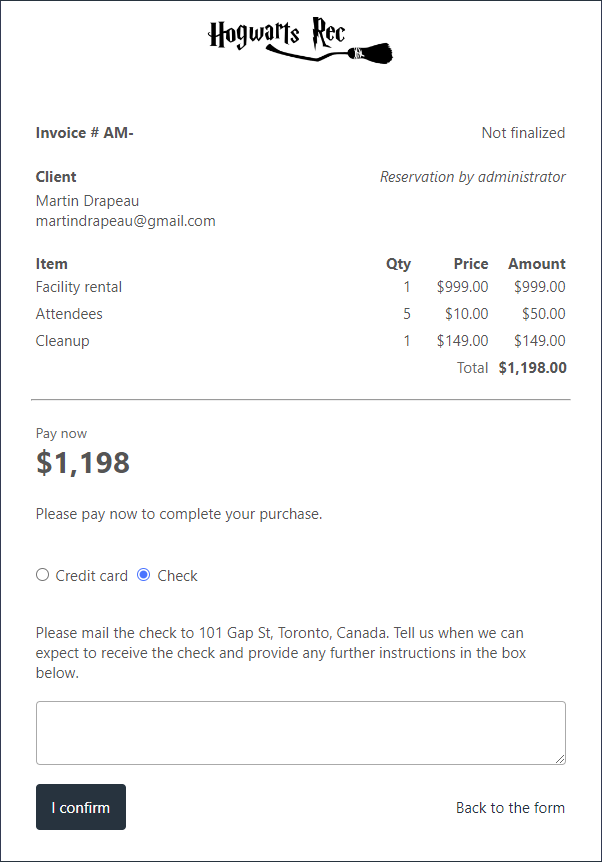
You can ask your clients to pay via PayPal, by check or by any other means by selecting the Other option. Configure the label and description appropriately. For example, here we allow paying by check.
Paying the balance of an invoice online
For unpaid or partially paid invoices, the available online balance-payment methods depend on the invoice and organization settings. From an invoice, click on the link "Client pay balance page". You will be redirected to a page where they can pay with their credit card or, if you allow it, via an Interac e-Transfer.
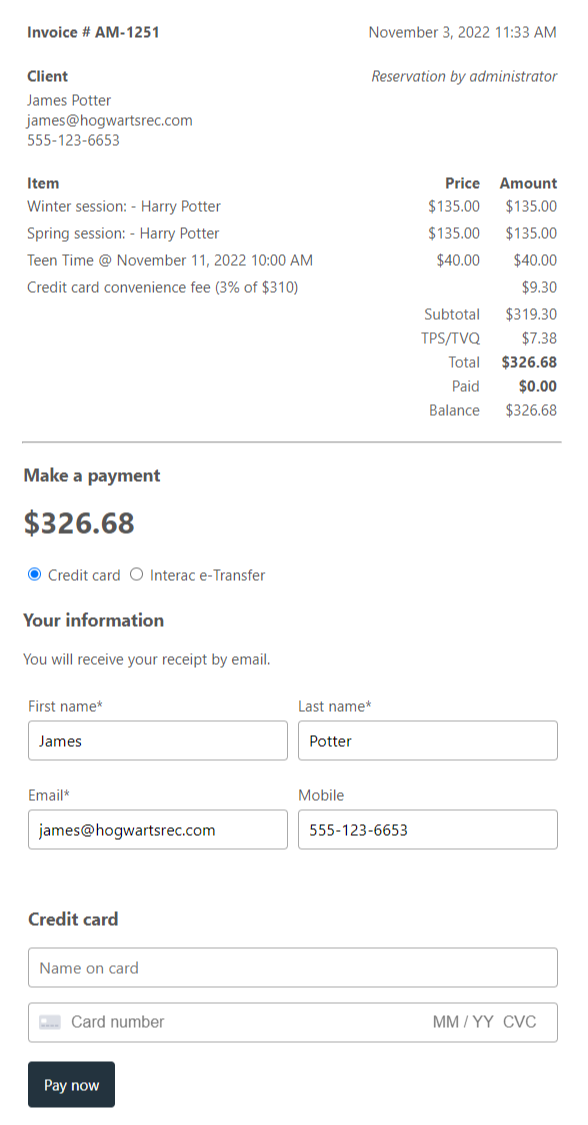
You can also send your client the invoice by email or by SMS. They will receive a link to that page.
The balance can be paid by anyone who has the link to that page. For example, a grandparent could pay for junior's summer camp or hockey season. They can type in their name and email to receive the payment receipt by email.
Add a credit card convenience fee to invoice balances
To charge a credit card convenience fee on balance payments, you must first turn on that option in the organization's fee settings.
Open your organization settings and choose Fees. Under "Credit card convenience fee", turn on "Force a credit card fee by default", then set the label, the percentage, the taxes and the ledger code. From then on, a credit card convenience fee will get added to the balance of an invoice when the client pays online by credit card. If "Never charge convenience fees" is on, no fee is charged.
Managing Invoices with Balance
Payment Link: Once an invoice has a balance, a link to a payment page is generated.
Edit Amount to Pay: Decide whether customers can modify the remaining payment amount.
Use Gift Card for Remaining Balances: An option is available for using gift cards to cover remaining payments after an initial deposit.
To return money to a client, see Refunds, credits and cancellations. Only Stripe refunds are processed online; other methods are recorded as offline refunds.
Configure the NSF fee product
In Organization settings → Finance → Payments → NSF fee, select an active, positive-price regular product and click Save. The product summary shows the amount, ledger code and taxes. Use a product without variants, add-ons, gift cards or coupons.
Admins add the fee manually from + Item → Add NSF fee on an active finalized invoice. It is available beyond AFT: with scheduled payments, choose which eligible payment should include it; without schedules, add it unassigned. Adding the fee does not retry a failed payment. See Add and manage NSF fees for adding, moving, detaching, editing and removing fees.
Settings reference
| Setting | Where | Default | Effect |
|---|---|---|---|
| Check | Organization settings › Payments › Methods of payment | Active | Turn off to hide the Check payment method everywhere. |
| Other | Organization settings › Payments › Methods of payment | Active | Turn off to hide the Other payment method everywhere. |
| Do not allow payments using other payment terminals | Organization settings › Payments › Payment method options | Off | Hides other credit or debit card terminals from the allowed methods of payment. |
| Attendants can pay a booking package later / Attendants can pay a product later | Organization settings › Payments › Microsite online store (the package option appears only with the bookings module) | Off | Lets an attendant complete a purchase for a client in the Microsite store without taking payment; the client pays later. |
| Never charge convenience fees | Organization settings › Fees › Credit card convenience fee (shown when you have an online card gateway) | Off | Hides convenience fee options everywhere and prevents them from being charged. |
| Force a credit card fee by default | Organization settings › Fees › Credit card convenience fee | Off | Applies the fee by default. Its Label, Percentage (3% to start), Taxes and Ledger code can be set there. |
| Payment type | Payment options window of a payment form (Forms › form) | Offline | One of Offline, Credit card, Interac e-Transfer (by email), Credit card or Interac e-Transfer (by email), Pre-authorized debit (AFT) or Gift card. Choices depend on the services connected to your organization. |
| Require a credit card on file when paying by Interac e-Transfer | Payment options window | Off | Keeps a backup card. It is charged if the transfer is not received, automatically when Interac auto-cancel is on, otherwise manually by an administrator. |
| Stripe bank transfer | Payment options window, when available | Off | Lets the client pay by bank transfer through Stripe. The payment is pending for up to 5 business days and then settles automatically. |
| Deposit | Payment options window | Empty, so the full amount is required | A fixed Amount or a Percentage of the invoice total (with an optional Minimum deposit). The deposit includes taxes. The balance is paid later. |
| Allow the client to set the deposit amount | Payment options window, when a deposit is set | Off | Lets the client change the deposit amount. |
| Allow the client to decide to pay later | Payment options window, when a deposit is set and the client can set it | Off | Lets the client skip the deposit and pay later. |
| Allow multiple payments (scheduled payments) | Payment options window | No | Splits the amount into Number of payments (with a Minimum amount of 10 to start), every month, week or day, from a Start date (empty starts at purchase). Needs Credit card (Stripe), Stripe bank transfer or Interac e-Transfer, and is unavailable while a deposit is set. |
| Allow other payment method | Payment options window | Off | Adds a custom method such as check. Set the Type label and an editable Description. Only for the administrator… restricts it to admins. |
| Add other fee | Payment options window | Off | Adds a fee line to the invoice for any payment method: Percentage (1% to start) or Fixed amount, with Taxes, Ledger code and Accepted promo codes. |
| Charge a credit card fee | Payment options window | Off | Adds a convenience fee (3% to start) when the client pays by card, with Label, Taxes and Ledger code. Hidden when Never charge convenience fees is on. |
| Propose this payment method first | Payment options window | Automatic | Chooses which available method is shown first. |
| Prevent payment at checkout with a gift card | Payment options window | Off | Blocks gift cards for this form, for example for certain programs. |
| Do not allow pay full amount | Payment options window | Off | Stops the customer from paying the full invoice amount instead of the scheduled payments. |
| Instructions / Button text | Payment options window | Empty (default text) | Customizes the guidance and the payment button on the form. |
| Client pay balance page › Allow client to modify the payment amount | Payment options window | On | Lets the client choose how much of the balance to pay. |
| Client pay balance page › Allow client to pay the balance of their invoice with a gift card | Payment options window | On | Lets the client use a gift card for the balance. |
Common questions
Where do I turn on the credit card convenience fee? For a form, turn on Charge a credit card fee in its Payment options window. To apply it by default, use Organization settings › Fees › Credit card convenience fee, where Force a credit card fee by default is off until you turn it on. See Credit card convenience fee.
Can I stop all convenience fees? Yes. Turn on Never charge convenience fees in Organization settings › Fees. The fee options are hidden everywhere and no convenience fee is charged. See Credit card convenience fee.
Can I combine a deposit and scheduled payments? No. The scheduled payments option is unavailable while a deposit is set: leave Deposit empty to use scheduled payments. See Scheduled payments.
What happens when a scheduled payment fails? Activity Messenger tries the card on file on each payment date and emails the client to update the card if none is on file. If the card payment fails, it does not try again; the invoice shows the error and you follow up with the client. See Scheduled payments.
Can a client pay the full amount when a deposit is requested? Yes. The client can always choose to pay the full amount instead of the deposit with the link Pay the full amount now. See Deposit.
How do I let clients pay by check or another method? Turn on Allow other payment method in the Payment options window, set the Type (for example Check) and write the instructions in Description. You can restrict it to administrators. Do not ask for card numbers there; use Stripe instead. See Other (by check, by electronic funds transfer (EFT), by PayPal, etc...).
Why can't I see Interac or pre-authorized debit as a payment type? They are offered only when the service is active for your organization: Interac e-Transfer must be activated and Pre-authorized debit (AFT) must be enabled on your account. The Payment options window shows a link to activate Stripe or Interac when one is missing. See Interac e-Transfer.
Does a gift card work to buy a gift card? No. The option to pay with a gift card is not available when buying one. See Gift cards.
Choose the next setup task
Bank debits: eligibility and processing delays
Interac settlement and unpaid invoices