Activity Messenger Help Center
Add sections, blocks, and layouts
A website page is assembled from sections. Choose a ready-made section template for a complete design, add an Activity Messenger block for platform content, or use a container when several blocks need to share a row.
Open the section library
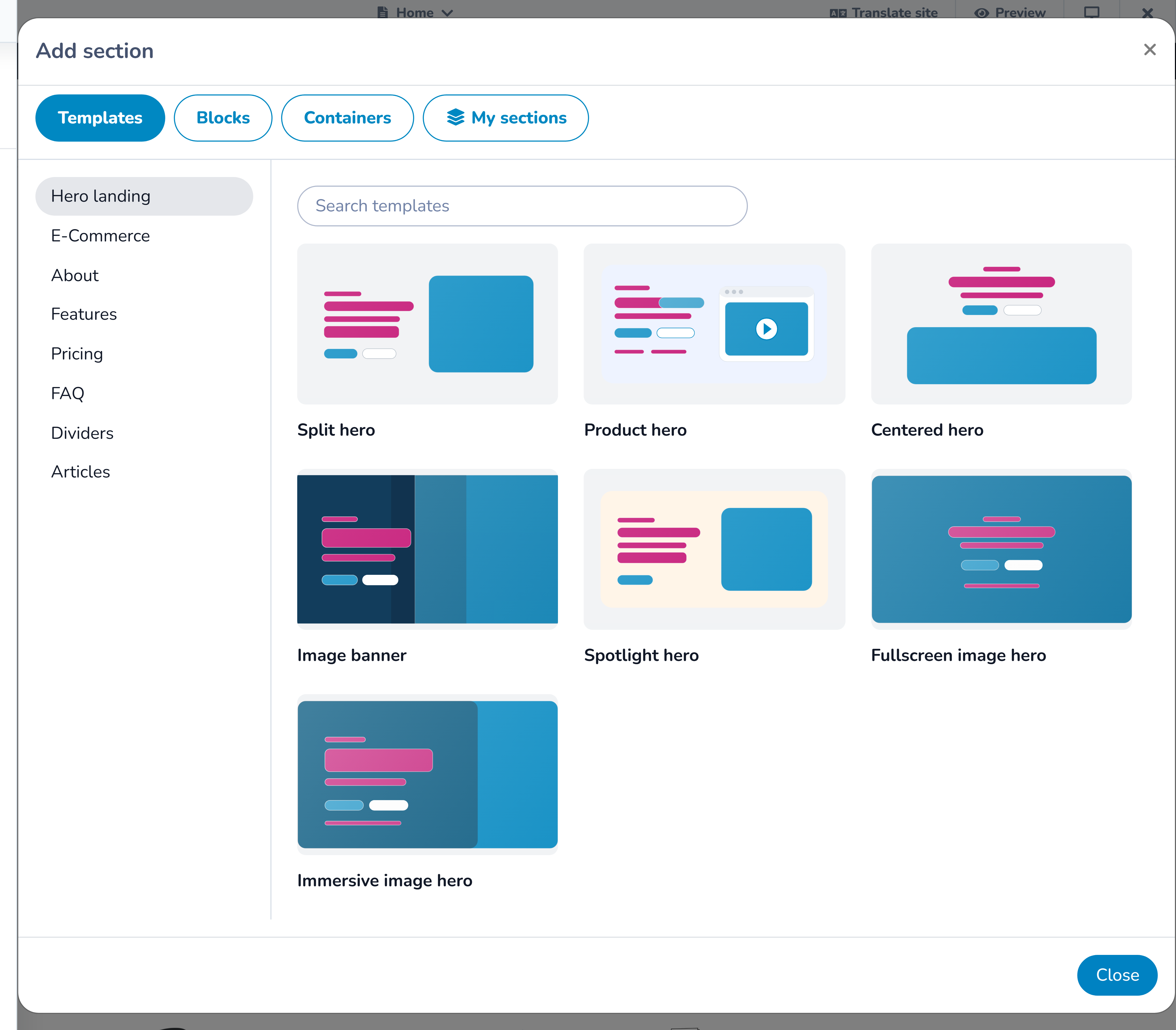
In the Website builder, select Add section on an empty page or select a plus button before or after an existing section. The library contains four tabs:
- Templates for complete, editable website sections;
- Blocks for Activity Messenger content and utilities;
- Containers for arranging one or more blocks in a custom row; and
- My sections for designs your organization has saved for reuse.
You can return to the library whenever the page needs another section.
Choose a section template
Templates combine layout, content fields, repeated items, and responsive styles. Start with the purpose of the content rather than its current appearance.
Available template groups include:
- Hero for the opening message, image, and primary action;
- About for stories, values, team members, media, or checklists;
- Features for benefits, statistics, links, reviews, schedules, calls to action, logo walls, and other promotional content;
- Pricing for plans and included features;
- FAQ for questions and answers;
- Divider for visual separation;
- Blog articles for grids, lists, or a featured article;
- Ecommerce for product or booking presentations; and
- Layouts for pre-arranged content areas.
Select a card to insert it. The library creates the section with starter content so you can see its structure immediately.
Edit a template
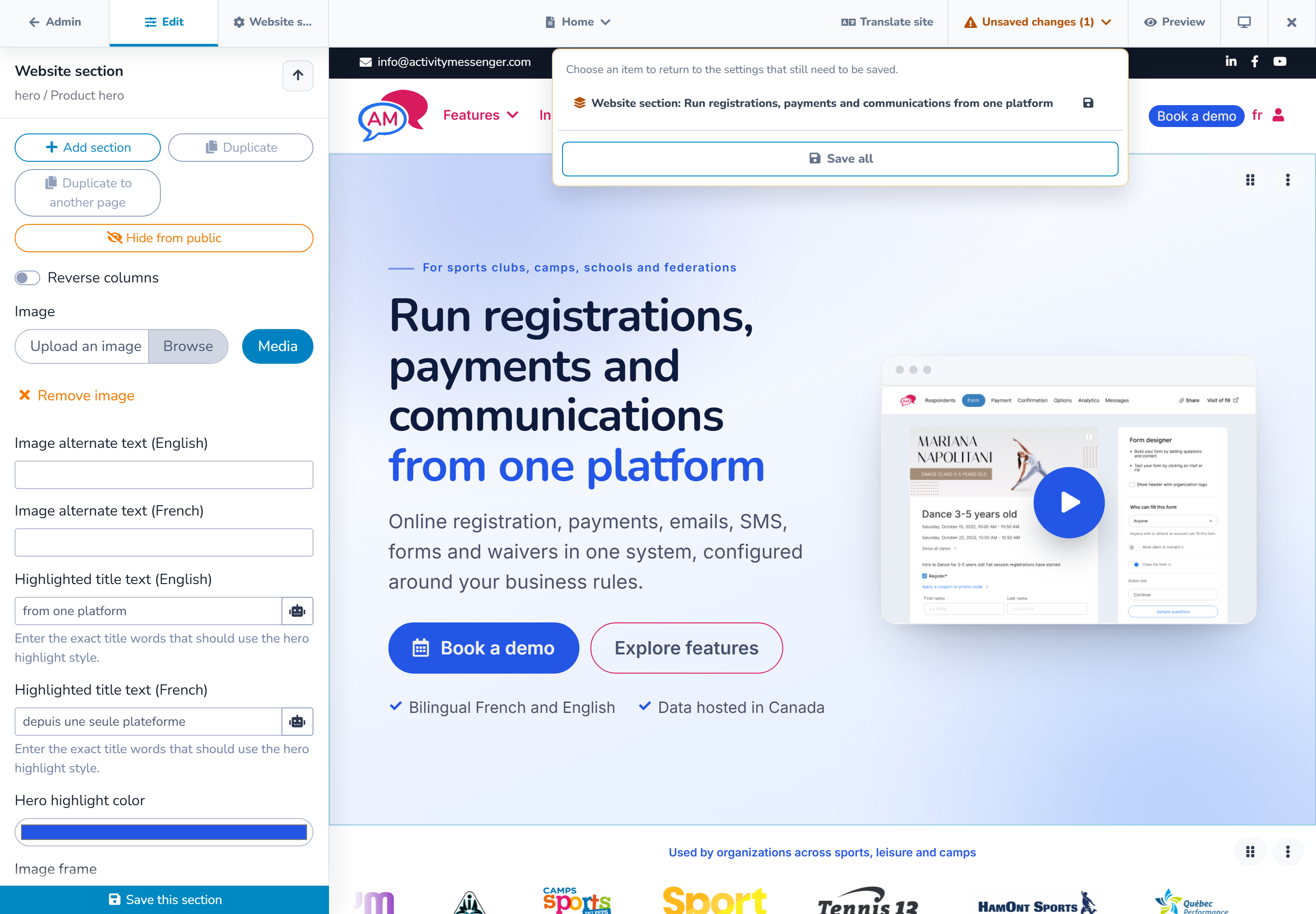
Click the new section in the preview. Its inspector can include:
- headings, body copy, labels, and buttons;
- images, video, alternative text, captions, and overlays;
- repeated items such as features, people, plans, FAQs, or schedule entries;
- background, text, accent, and button colors;
- padding, content width, corners, borders, and card styles; and
- supported entrance or hover effects.
Click visible text, images, or repeated items in the preview to open the most specific field. Use the inspector's up arrow to return to the item or section above it.
Select Save section when finished. The top bar's Unsaved changes menu confirms whether the section still needs to be saved.
Add an Activity Messenger block
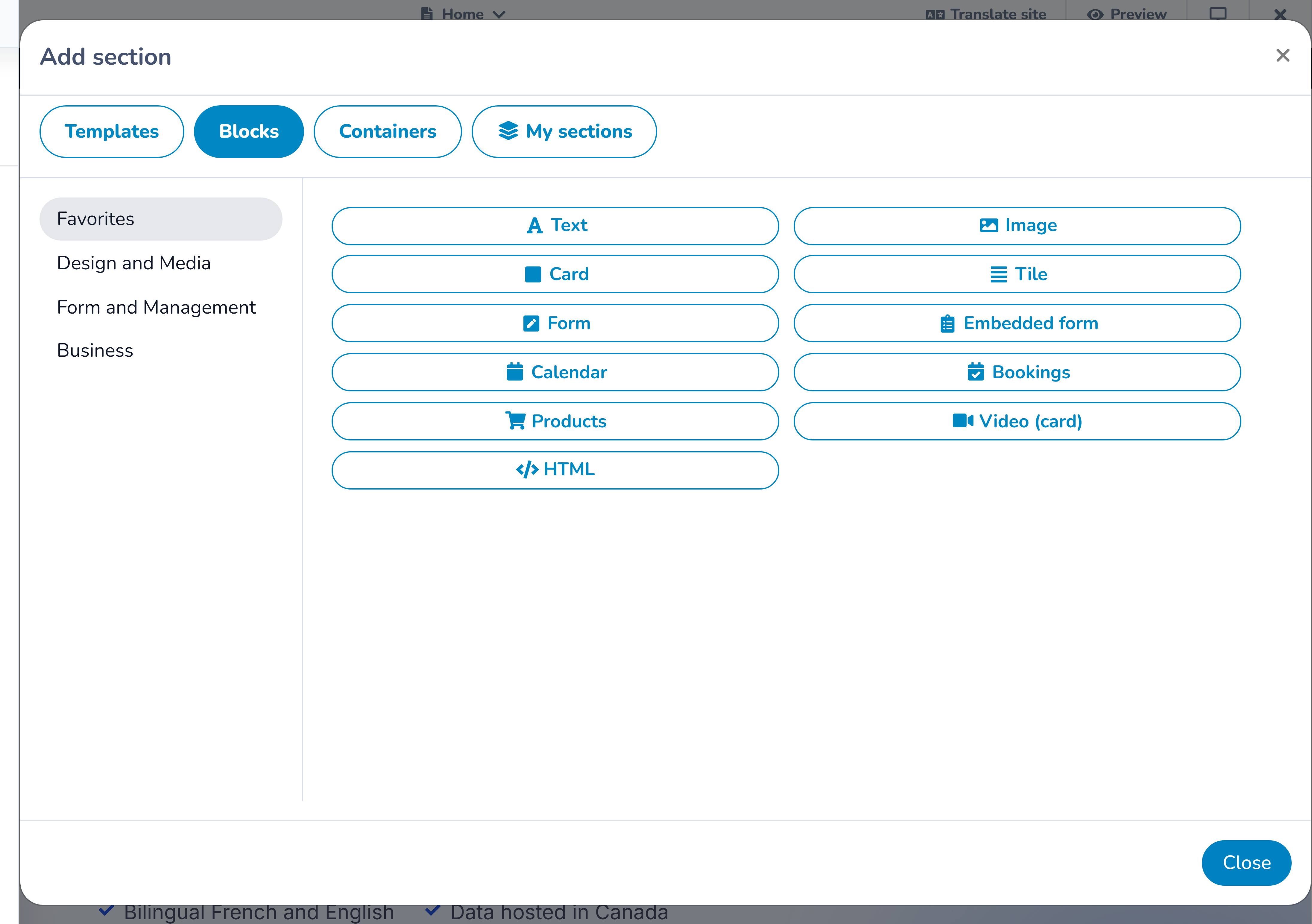
Use a block when the page should display or launch content managed elsewhere in Activity Messenger. Depending on the organization's modules, blocks can include:
- forms, documents, maps, locations, and form answers;
- calendars, registrations, bookings, products, packages, and account actions;
- member directories, teams (the Team standings, Teams schedule and Player statistics blocks are described in Teams, team builder and gamesheets), attendance, or staff and client access;
- text, cards, images, video, audio, slideshows, tables, tabs, links, search, or alerts; and
- embedded or custom HTML content.
The block library only shows choices available to the organization and the current context. If another organization has a block you do not see, compare enabled modules and permissions. Do not substitute custom HTML for a missing business feature until the module and source content have been checked.
A standalone block is useful when it should occupy its own section. Select the block, complete its source and display settings, and use Save block.
For submitted answers, add Form results and follow Share form results on a website or microsite.
Create and edit a native table
Use a Table block for a comparison, schedule or price list. Its first row supplies the column headings; the remaining rows contain the data. Edit the cells in the spreadsheet control and save the block. On a bilingual website, edit and check the English and French table values separately. Use the desktop, tablet and mobile previews to check long headings and dense rows.
You can also ask the Website assistant to create a native table, update specific cells, or convert a simple table embedded in a text block. If you want the table in its own section, ask the assistant to move it into a separate section; it can preserve the surrounding content. Review the proposed changes before approving them. Conversion accepts one plain table; merged cells, links or formatting inside cells, nested tables and multiple tables require manual editing to avoid losing content. Both English and French source tables must already exist, and table cells must contain plain text.
After an approved current-page content change is saved, the open editor updates the affected sections and inspector without reloading the page. Unrelated unsaved section edits are preserved. If the affected section has unsaved edits, save or discard those edits and refresh to display the saved assistant result. New pages, page settings and shared website settings can still navigate or reload the editor. An editor opened before an application update needs one reload to load the latest version.
Saving and quality review are separate: a saved receipt confirms persistence; a verification warning still needs review. Do not repeat a conversion solely because its saved result has a quality warning.
Change a layout without rewriting its content
Ask the Website assistant to change a native section’s layout or rearrange its existing blocks. For example: “Make the first section one column, with the current left content above the right content. Keep the formatting and links.” You can also ask it to reorder blocks or adjust their supported widths and alignment.
The assistant keeps the existing blocks, English/French content, headings, formatting, links, photos, tables and supported form connections. A layout change preserves the section’s position, visibility and styling. Review the proposed order and the desktop, tablet and mobile previews before approving. Shared sections and complex live/custom blocks can still require manual editing; the assistant should explain any unsupported change.
Investigate an earlier page change
Ask the assistant to list saved versions or compare two versions of this page. It can identify saved changes to section order, layouts, bilingual copy and tables, and whether image or link references changed. This is useful when diagnosing duplicate sections or an unexpected photo.
History tools are read-only and cover saved content. They do not include unsaved editor changes, restore a version or verify what a photo depicts. Large or unsupported content can produce a partial comparison. Any repair is a separate proposed edit using the current page and its normal approval process. Use the page’s History control when you want to review or restore a saved version manually.
Arrange blocks with a container
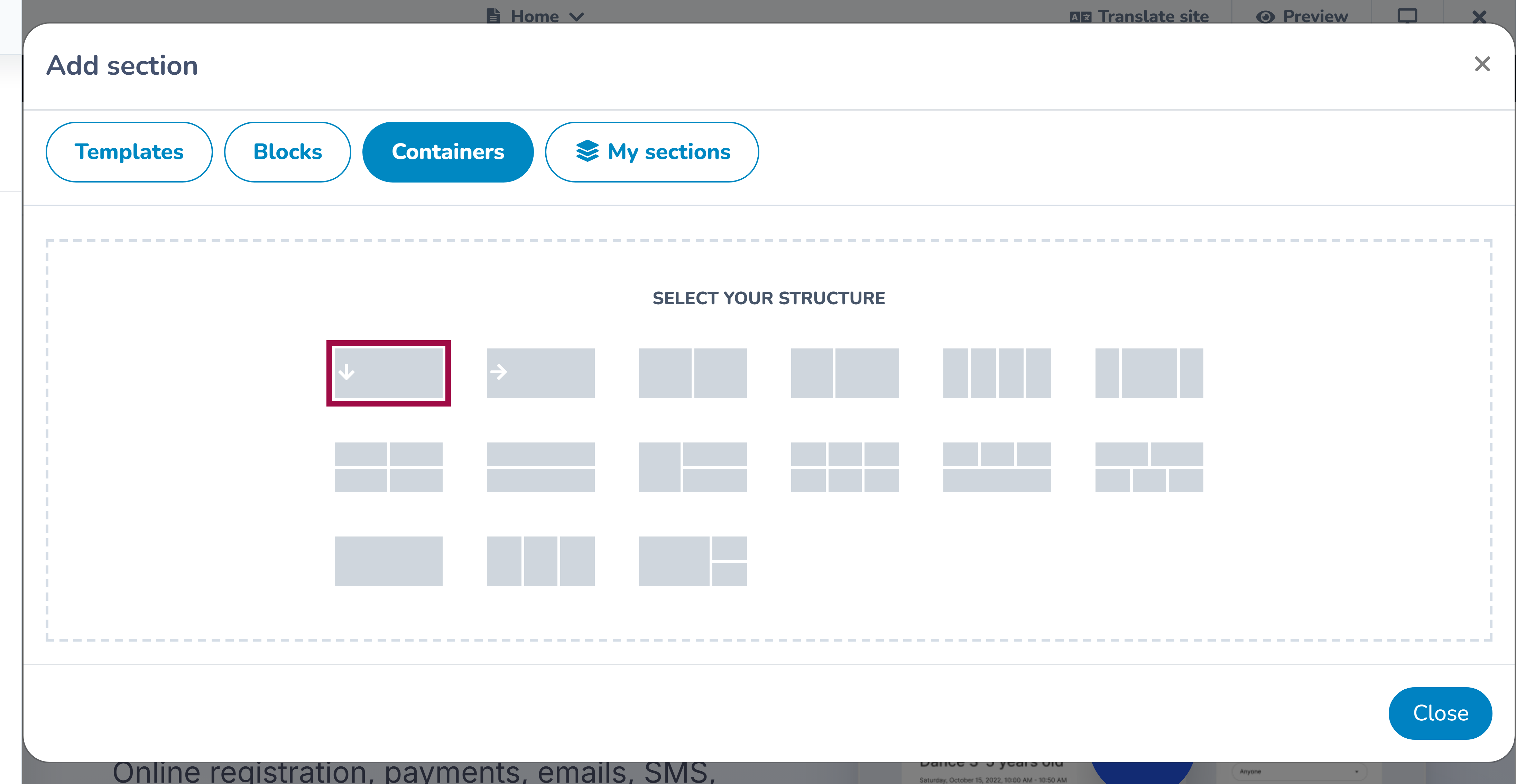
Choose a container when several blocks should appear in one section. After adding the container:
- insert a block into an empty container area;
- add the other blocks needed for the row;
- choose supported widths such as one quarter, one third, one half, two thirds, three quarters, or full width;
- adjust block alignment where available; and
- save each changed block and the section.
Some complex blocks must remain full width. If the editor expands a block or prevents an unsupported combination, keep that structure and choose a different row for the surrounding content.
Fractional widths describe the desktop layout. At smaller widths, blocks may stack to remain readable.
Adjust section settings with the assistant
Ask the Website assistant to adjust a section’s gradient background, borders, or heading display while keeping its content. For example: “Add a pale blue gradient and a blue bottom border to this section. Hide its subtitle without deleting the text.” Available controls depend on the selected section template; some editorial sections also support full-width headings.
The assistant can identify synchronized sections and read when a section’s visibility last changed. Synchronized or protected sections may require the native editor. A recorded visibility change identifies a saved event, not someone’s intent.
You can also ask it to assign a section anchor when none exists, such as products-and-prices, to create a destination like #products-and-prices. Anchors must be unique on the page. The assistant preserves existing anchors because links and styles may depend on them; use the native editor to rename one.
Review and approve the proposed settings before saving. Unchanged settings, English/French copy, blocks, images and links are preserved. These edits do not publish a draft page.
Show or hide a section
Select a section and use Show to public or Hide from public. A hidden section remains in the editor with a Hidden from public badge, but visitors do not see it.
You can also ask the Website assistant to show or hide a named section, for example: “Make Products and prices visible to the public.” The assistant can read the section’s current visibility and propose that change while preserving its content, blocks, style and position. Review and approve the proposal before it is saved. Protected or synchronized sections may still require manual editing.
Section visibility and page publication are separate. Showing a section on a draft page leaves that page unpublished. On an already published page, saving the section’s visibility changes what visitors can see. If you ask why a section was hidden, the assistant can consult saved history to identify a change and its author; that does not establish the author’s intent.
Rearrange or reuse a section
Open a section's actions to:
- drag it to a new position;
- duplicate it on the same page;
- duplicate it to another page;
- hide it from the public page;
- save it to My sections;
- detach it from a synchronized saved section; or
- remove it.
Hiding is useful for seasonal content: the section stays visible to editors with a hidden badge but is omitted from the public page. Removing deletes it from the page instead.
Use My sections when the same design should be inserted elsewhere. A saved section can be an independent copy or a synchronized section; see the reusable-sections guide before choosing.
Check the responsive result
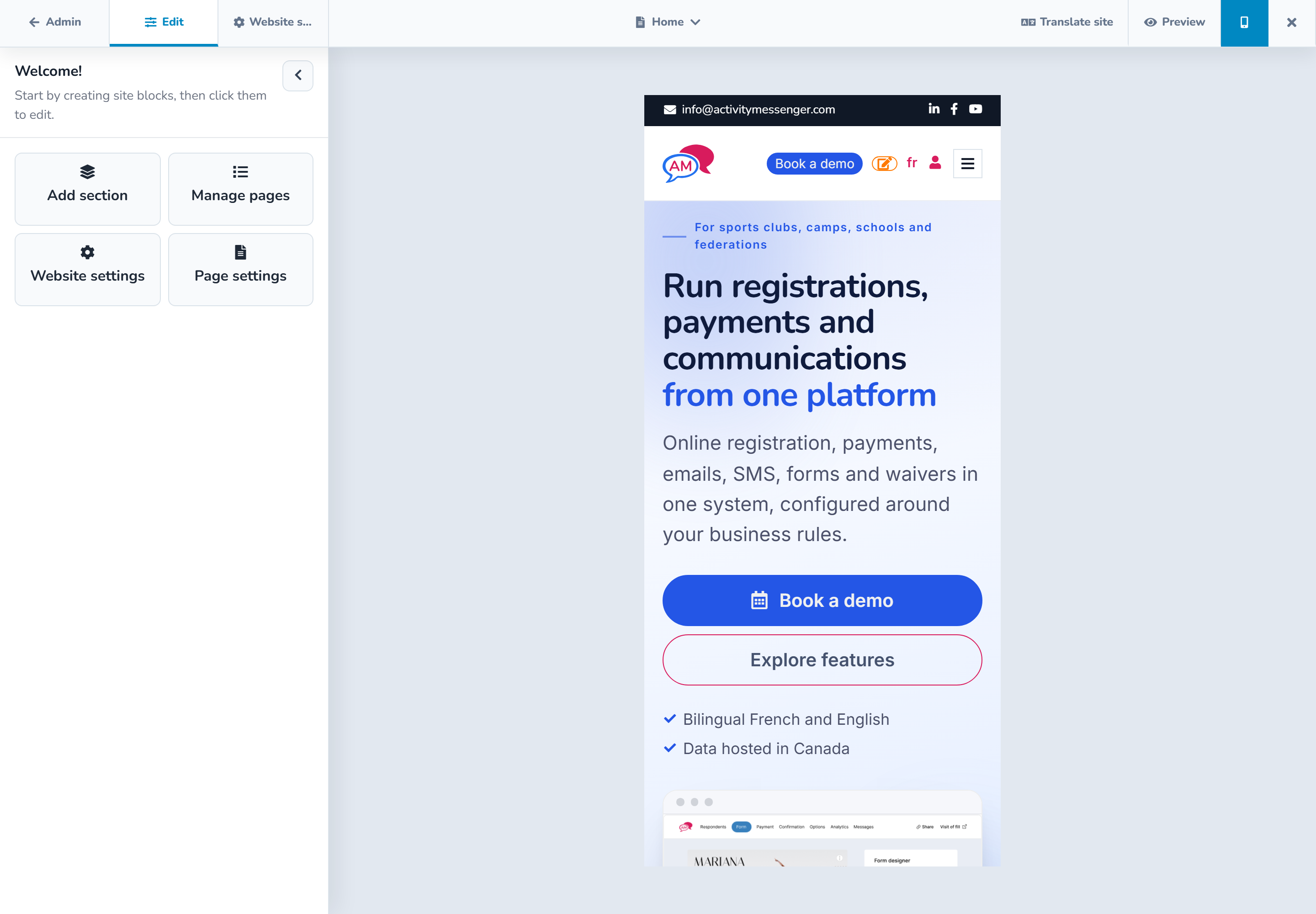
Preview the page at all three sizes in the top bar:
- desktop;
- tablet at 768 × 1024; and
- mobile at 390 × 844.
Use realistic content during review. Check particularly:
- long English and French headings;
- button wrapping and spacing;
- columns and container blocks stacking;
- image crops and alternative text;
- tables and other dense content for horizontal overflow; and
- the order in which content is read on mobile.
The separate Preview action opens the page without the editor chrome. Signed-in editors can use it for a draft page, but the page is not public until it is published.
Example
For a program page, start with a hero template, add a feature grid for the benefits, use a two-block container for a schedule and location, and finish with a form block. On mobile, confirm the schedule and location stack in a sensible order and that the form action remains easy to find.