Activity Messenger Help Center
Bookings with memberships and players
Use memberships to control who can reserve a court, then identify the players and calculate their shares according to their membership. This companion to the Bookings guide uses the Tennis package at HogwartsRec to explain the Membership, Payment and Players tabs, followed by the client experience in the Microsite.
The Players tab appears in the package editor when Player bookings is enabled for your organization. This organization-level setting—not the package type—controls whether the tab is available. If you do not see the tab, ask an administrator who manages your organization’s modules to confirm that Player bookings is enabled. The tab contains Ask the client to specify players and related player settings; that package setting controls player selection, not whether the tab appears.
Before you begin
Open E-Commerce → Booking packages, then open your package. You need administrator access to manage the package and its memberships. Configure the resource, booking duration, availability and schedule first; these are covered in the main Bookings guide.
Create the memberships under E-Commerce → Memberships and give them access to the package. For the example, the membership is named Membership Plus. Clients must use the account associated with their membership so the Microsite can recognize it.
If your booking form collects the other players through Person questions, include enough additional questions for the maximum player count. For four players, provide three additional Person questions and leave them optional in the form; the booking workflow makes the appropriate players required according to the count selected.
1. Membership: decide who can book
The Membership tab controls access to the reservation. The Players tab, described below, controls the price and conditions for the people taking part.
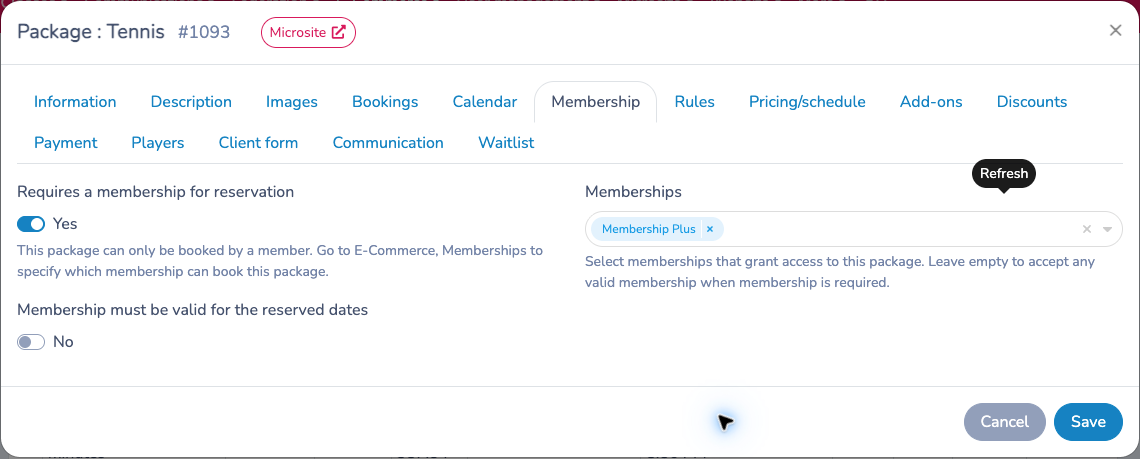
- Turn on Requires a membership for reservation to restrict booking to members.
- Select the memberships that grant access under Memberships. Tennis selects Membership Plus. When membership is required, leaving this list empty accepts any valid membership.
- Decide whether to enable Membership must be valid for the reserved dates. Enable it when the membership must cover the dates being booked. Tennis leaves this additional date requirement off.
- Save your package after configuring it.
Requiring a membership to make the reservation does not automatically make every invited player a member. You can allow a member to reserve and bring a non-member, then charge the guest according to the player rules. If every player must meet specific conditions, configure those rules and Player must meet constraints in the Players tab.
2. Payment: decide who pays and when
The Payment tab sets the payment methods and collection timing. Player pricing determines the amounts; deferred payment determines how those amounts are collected.
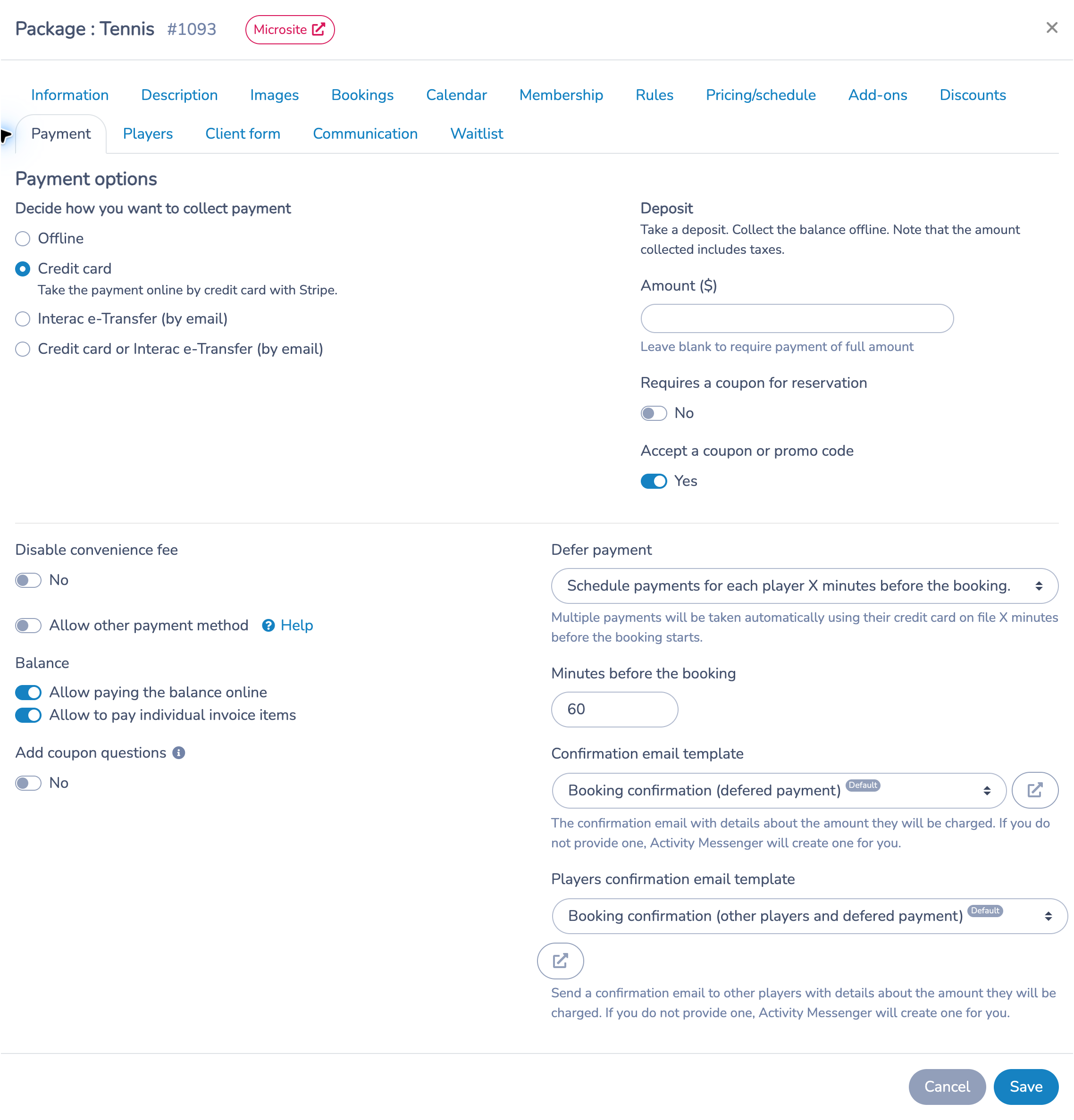
Tennis uses Credit card, leaves Deposit blank, and selects Schedule payments for each player X minutes before the booking under Defer payment, with Minutes before the booking set to 60. The checkout presents the scheduled charges for the client to review.
The deferred-payment choices let you schedule one payment or separate payments for the players, either at the end of the booking or using the before-booking option. Choose the per-player option when members should pay their own shares. This setup requires a membership-based booking package and a compatible online card payment configuration without a deposit.
For split deferred payments, the account making the booking must have a card on file. Checkout asks for one when it is missing. Review the payer and card status shown for each scheduled charge: a player entry and a separate payer are not always the same thing, particularly for people belonging to one family account.
The example also enables Allow paying of the balance online and Allow paying of individual invoice items. These let clients settle an outstanding balance or selected items online; they are separate from the choice to schedule charges for each player.
Confirmation emails and coupons
Use Confirmation email template for the person making the reservation and Players confirmation email template for the other players. These deferred-payment confirmations explain the amounts to be charged. Activity Messenger creates a default template if you do not select one. For the other package emails, reminders and staff notifications, see Set up resources and booking packages.
Tennis accepts coupons or promo codes but does not require one. A membership grants booking eligibility; a coupon applies its own discount or coverage rules. Accepting coupons does not give every guest a free visit automatically.
The available client checkout steps depend on the booking flow and its configuration. Do not assume that a client must sign in or that every booking package displays a promo-code field in a particular cart. Confirm the code-entry option in the actual booking checkout before giving step-by-step directions; the promo code must also cover the intended package and, if applicable, guest fees.
3. Players: identify participants and calculate their prices
Choose the permitted number of players
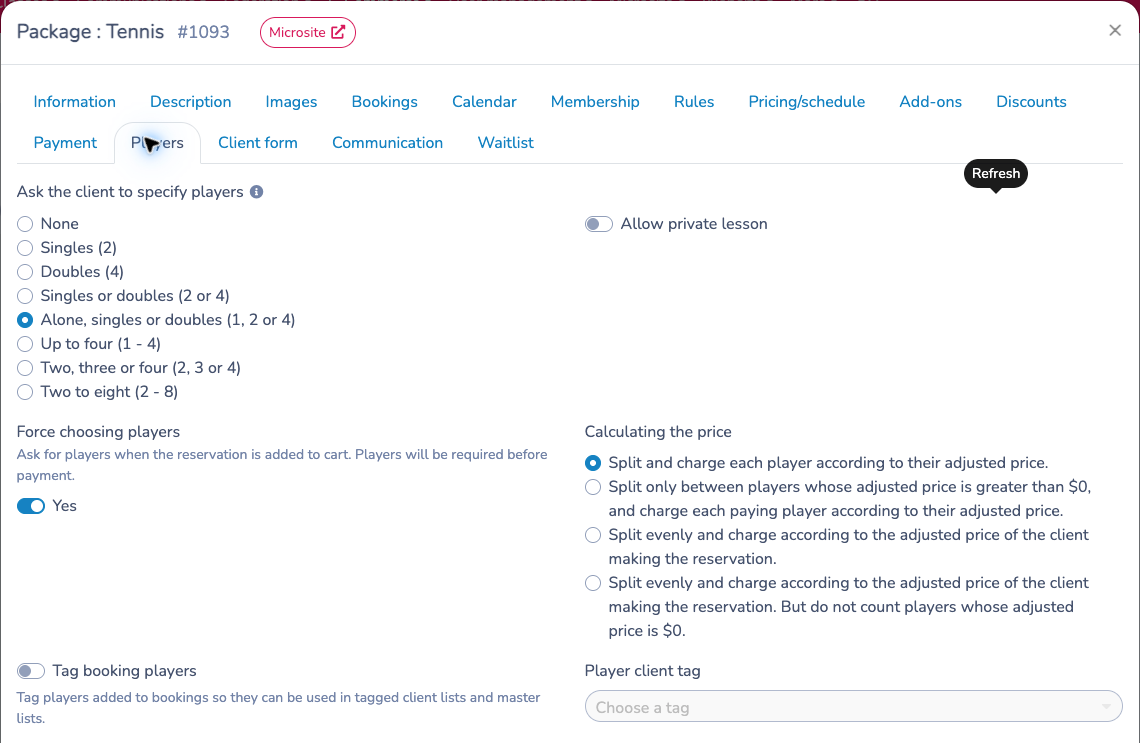
Under Ask the client to specify players, Tennis selects Alone, singles or doubles (1, 2 or 4). This allows a solo reservation, singles or doubles. It does not offer three players. Other choices support fixed singles or doubles, up to four players, and other listed ranges.
Turn on Force choosing players to collect the players when the reservation is added to the cart and require them before payment. Tennis has it enabled. Choosing a player count alone is not enough: the required people must also be identified.
Require an email address for each player
Use the package setting to require player emails for both client and administrator bookings:
- Open E-Commerce → Booking packages and choose the package.
- Open the Players tab.
- Set Require an email address for each player to Yes.
- Save the package.
This option is off by default for existing packages. When enabled, each selected player must have a valid email address when added or replaced, and before checkout. Administrators must meet the same requirement. Coaches are excluded. The package controls this requirement independently of the booking form; changing the form's required-email option is not the way to configure this rule.
Force choosing players requires the player entries before payment. Require an email address for each player requires a valid email for the players selected. Enable both if every player must be identified with an email before payment. Player must meet constraints is a separate eligibility rule: it can block players who do not meet the configured conditions, including guests. Requiring an email does not itself require a membership.
When email is optional and the player cannot be recognized as an eligible member, applicable guest pricing can apply. If a player is entered without an email and guest pricing applies, a warning explains:
Without an email address, we cannot verify this player’s membership. A guest fee will apply.
For example, a member reserving a court with another member should enter the other player's email associated with their membership and check the updated price before continuing. A name alone does not verify membership. An existing person whose membership is already recognized can still receive the member rate without an email when the option is off.
Set member and guest prices
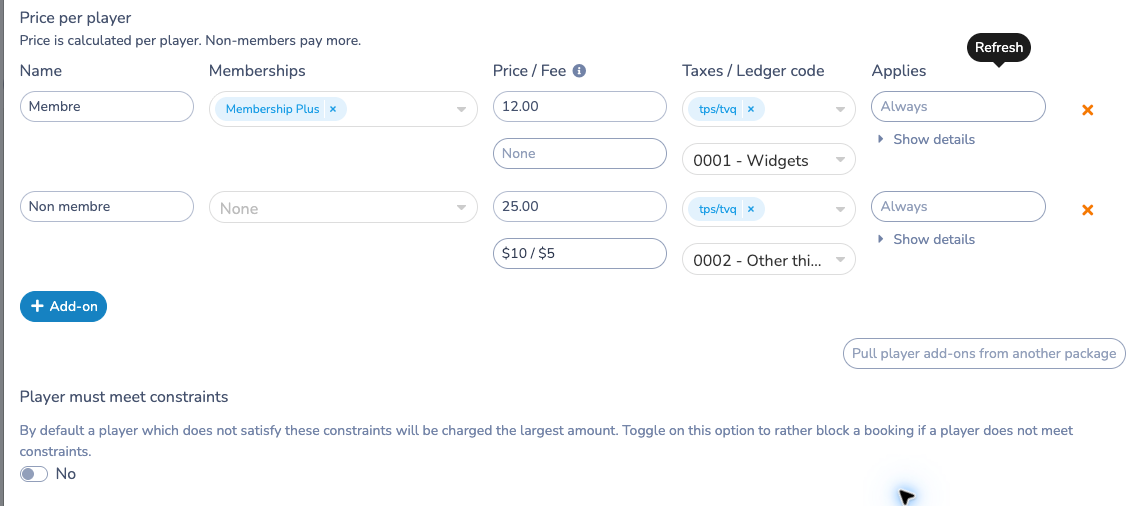
Under Price per player, add pricing rows using Add-on. For each row, set a name, the matching memberships, a price, any fee, taxes and ledger code. Applies and Show details let you review or refine when the row applies. You can also use Pull player add-ons from another package to reuse an existing setup.
The Tennis example contains these configured values:
| Player rule | Membership selection | Adjusted price | Additional fee |
|---|---|---|---|
| Member row, named “Membre” | Membership Plus | $12 | None |
| Non-member row, named “Non membre” | None | $25 | $10 standard or $5 junior |
These are the configured prices before the selected splitting rule is applied. They are not necessarily the final amount charged to each player. The general calendar price is also a starting price; the identified players, duration, fees, taxes and applicable discounts determine the cart total.
Understand the four price-splitting choices
Calculating the price offers four approaches:
- Each player's adjusted price, counting all players: divide each person's adjusted price by the player count. Tennis uses this option, so members and non-members can pay different shares.
- Each player's adjusted price, counting only paying players: exclude players whose adjusted price is $0 from the divisor. Their base share remains $0.
- The booking client's adjusted price, counting all players: use that client's adjusted price as the common basis and split it evenly.
- The booking client's adjusted price, excluding $0 players: use the booking client's price while excluding the eligible zero-price additional players from the split.
Additional fees have their own splitting setting. A $0 base share does not necessarily waive a fee.
For a one-hour singles example with one member and one adult non-member, using the displayed Tennis rules and no other adjustment:
- Member share: $12 ÷ 2 = $6.
- Non-member share: $25 ÷ 2 = $12.50, plus the unsplit $10 guest fee, for $22.50.
- Total before taxes and any payment fees: $28.50.
Do not divide the combined $12 and $25 equally between the two players. The selected option divides each person's own adjusted price. Changing the player count can therefore change the shares.
Configure guest and junior fees
Click the fee button beneath the price to open Fee. Tennis has a standard $10 non-member fee and a $5 junior fee for an age below 18. The junior rule depends on the player's age information; collect the relevant date of birth or age through the player question so the rule can be evaluated.
The fee options let you charge it as a separate invoice item, split it between players, apply it only once per day, and adjust it by booking duration. Tennis keeps the fee with the player add-on, does not split it, and adjusts it by duration. For the one-hour example above, the full adult fee is added after the base share is calculated.
Enforce conditions and organize players
Player must meet constraints is off in Tennis. With it off, a player who does not satisfy the configured conditions is charged the highest amount. Turn it on when the booking must instead be blocked if a player fails the conditions.
Tag booking players and Player client tag can tag the players for tagged client lists and master lists. Tennis leaves tagging off.
Email temporary access cards to non-member players
When your facility uses a compatible barcode reader at its gate, you can send each non-member player a personal card for their reservation. A valid scan can open the gate and record that player's attendance without a reception check-in.
- Open E-Commerce → Booking packages, select the package and open Players.
- Enable Ask the client to specify players if player selection is not already configured.
- Turn on Temporary cards for non-member players.
- Under Temporary access card email template, keep the default template or select another organization template. Use the adjacent edit button to customize it.
- Save the package and check the actual booking flow, including bookings created by an administrator from calendar availability.
Enabling temporary cards automatically enables Require an email address for each player. Clients and administrators must provide a valid email when adding or replacing a player, including during checkout. This requirement comes from the package, even if the player form otherwise leaves email optional. To make email optional again, first disable temporary cards, then change the email requirement.
The setting applies to the selected package. If administrators use a separate booking package, enable it there too. Enabling it does not automatically resend earlier confirmations.
Customize the email and card position
For an eligible non-member player, this email replaces the usual booking confirmation; it is not an additional card-only email. The default message includes who made the reservation, that person's email, the booking details and the personal access card. Players who already have an active membership keep the usual confirmation flow.
Insert {Temporary booking access card} where you want the card to appear in the template. It displays the player, reservation, a Code 128 barcode and a link to open the card. If the template has no card placeholder, the card is added at the end. The card uses a barcode without a QR code.
Each player has a different card, even when several players use the same email address. That address can receive the distinct cards together. The booking form explains that the non-member players will receive their cards at the email addresses provided after confirmation.
Present the card at the gate
The player opens the email or follows its card link and presents the barcode to the reader. For example, if a member reserves a doubles court with two non-member guests, each guest receives their own card and scans it separately to record their own attendance.
The card is valid only during the reservation, with any before/after grace periods configured for the access point. A missing photo does not block a temporary booking card, even if the access point requires one. Location, balance, failed-payment, waiver and repeat-scan checks still apply. Ordinary membership and one-time access cards keep their photo requirements. A card is not a membership and does not grant general access outside that reservation. Verify barcode reading on your installed device, including from a phone screen.
Cancelling the reservation, removing or replacing the player, or disabling temporary cards invalidates the affected card. When this option is off, the existing membership and other access rules continue to apply; non-members do not gain access automatically.
Changes after booking
The lower part of the Players tab explains when the invoice owner can add, remove or swap players from their client account. The invoice must be finalized, the booking must not be cancelled or ended, and the permitted player count must be respected.
On unpaid invoices, changing the roster recalculates the prices and scheduled payments. A replacement keeps the same player count. Changes are logged and a roster-change email goes to the owner, current players and the removed or replaced player.
Allow player changes after full payment is available only when payment is not deferred, so it is disabled in this Tennis setup. When enabled for an eligible package, paid roster changes preserve the invoice amount and add new players at $0; they do not reprice a paid booking.
4. Microsite: what the client sees
Choose a time and a member
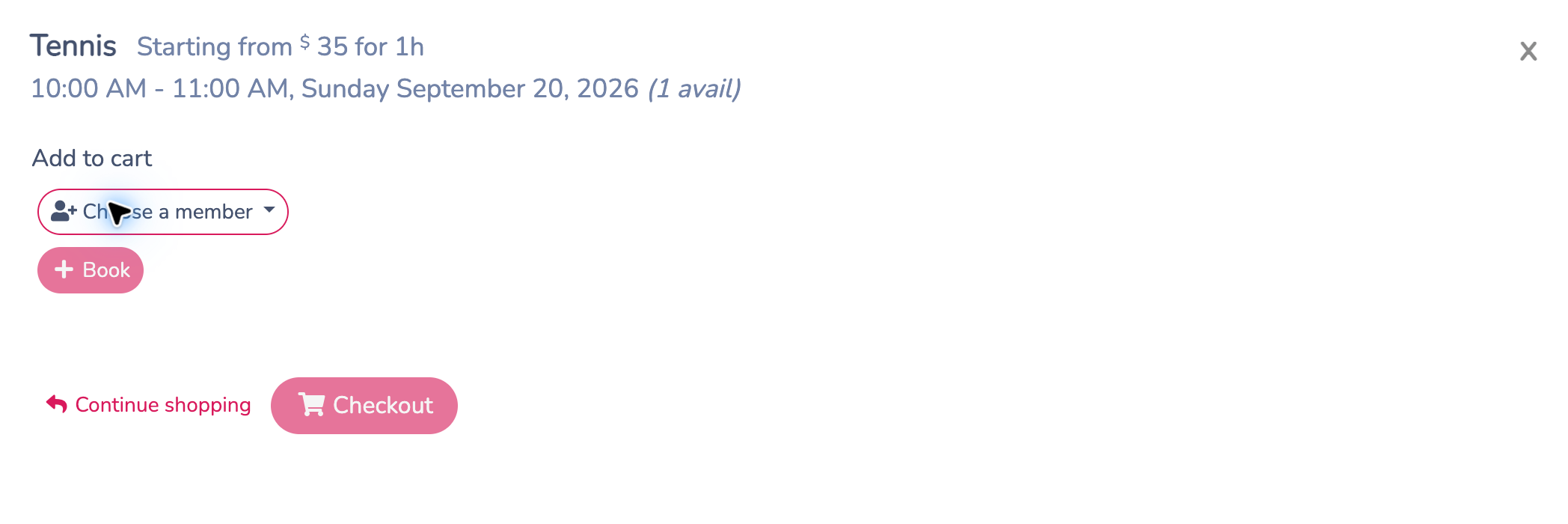
Open the package in the Microsite. The calendar shows available times, duration choices and starting prices. Select a time and review its date, start and end time before booking.
For a membership-required package, use Choose a member to select the eligible person in the signed-in account. The member selection establishes who is booking. If a person is marked No valid membership, the client cannot use that person to book this package. Check the account, accepted membership and validity requirements before trying again.
Choose the players in the cart
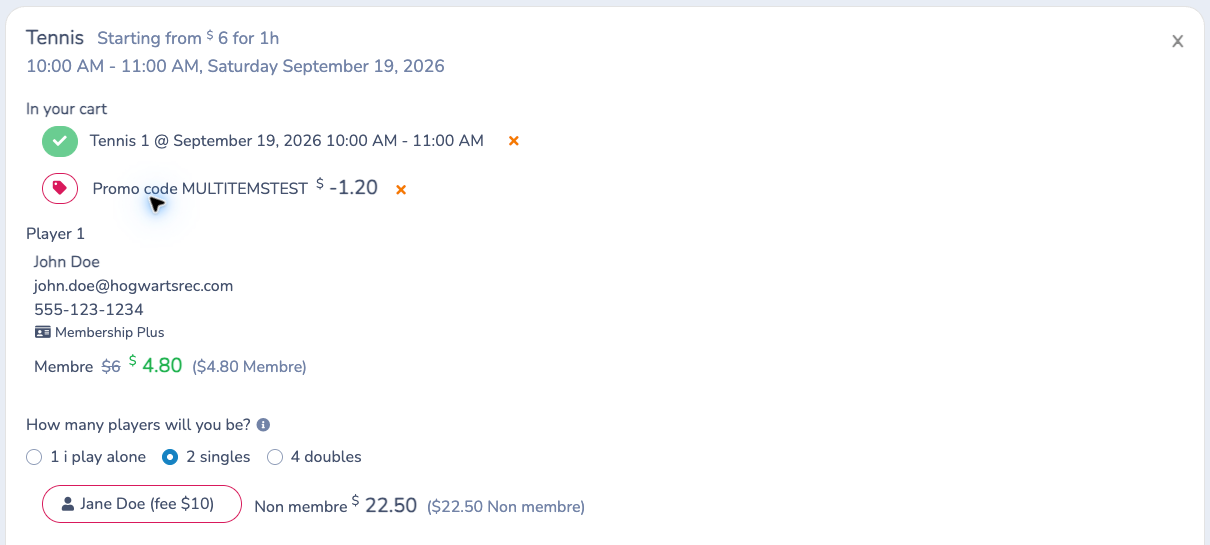
After adding an eligible reservation, review Player 1, choose the permitted format or player count, then use Choose a player for each additional player. Select an existing person or complete the player information requested by the form. Use the correct account identity and email so memberships and any eligible coupons can be recognized.
The reservation displays the players and their applicable prices. Review each person rather than assuming every player receives the booking member's rate. With forced player selection, missing required players must be completed before checkout.
Review the live cart
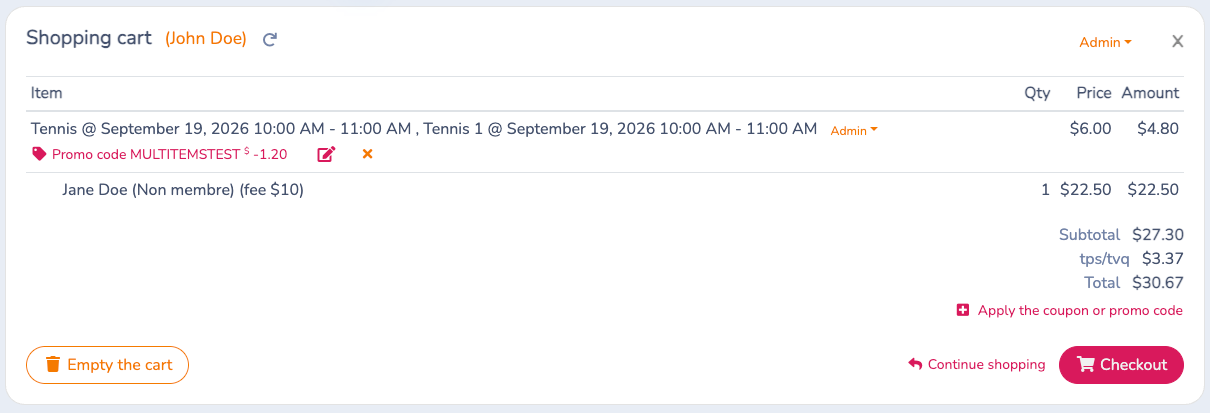
This live example has John Doe as the member and Jane Doe as the non-member for a one-hour singles booking. The MULTITEMSTEST promo code reduces John’s $6 share by $1.20 to $4.80. Jane’s $22.50 includes her $12.50 base share and $10 guest fee. The cart shows a $27.30 subtotal, $3.37 in taxes, and $30.67 total. These are example-specific discounts and taxes; your own rules determine the result.
Use the pencil beside the reservation to review the players again, or Checkout to continue through Your information to Payment. The screenshots were taken in an administrator preview of the live cart, so ordinary Admin controls also appear.
Review the payment breakdown
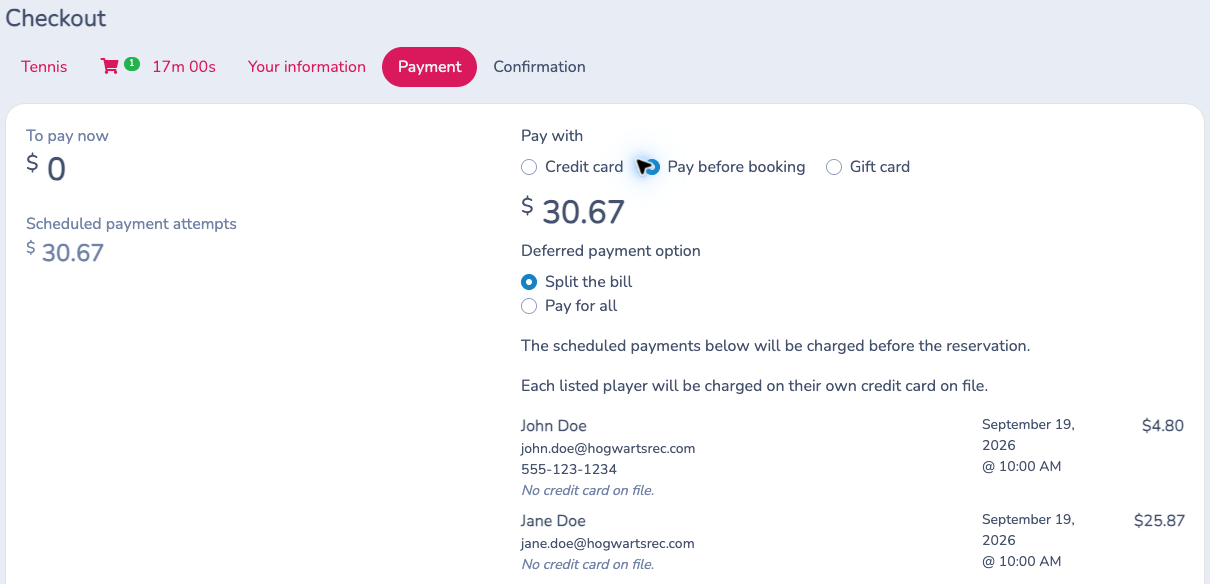
At checkout, review the booking, players, fees, taxes and total. For a split deferred-payment package, Deferred payment option offers Split the bill or Pay for all when applicable:
- Split the bill shows the scheduled charges assigned to the respective payers.
- Pay for all assigns the full deferred amount to the account making the reservation.
In the live Payment page, Pay before booking and Split the bill are selected. To pay now is $0, while Scheduled payment attempts total $30.67: $4.80 for John and $25.87 for Jane, including the tax assigned to her share. Splitting the bill preserves these different amounts; it does not divide the total in half.
Both rows show No credit card on file. The page therefore asks the booking account to add a card before it can reserve. This screenshot shows the review step, before a card is saved or the reservation is confirmed. The displayed schedule is September 19, 2026 at 10:00 AM for both payers. Use the actual date and time shown at checkout when reviewing collection timing.
For each scheduled charge, inspect the payer, amount, date and time, and card-on-file status. Follow the prompt to add a required card if one is missing. A scheduled charge is a future collection, not a completed payment. Review the displayed schedule before confirming.
Add players from an invoice as an administrator
When adding a player to a booking from an invoice, the package selector includes the booked resource name beside the package. This distinguishes bookings that use the same package at different courts or locations. Check the resource before choosing the booking.
The form shows the package's player limit. If adding a player exceeds it, Activity Messenger warns you and lets an administrator confirm the extra player. The same warning applies when an administrator creates a player booking over its limit. This exception does not raise the limit for clients booking through the Microsite.
Troubleshooting
A member cannot book: verify the signed-in account and selected person, the membership's access to the package, its validity and the package's date-validity option.
A member is charged as a guest: enter the player’s email associated with their membership, then review the matched membership and price. Check the accepted memberships and applicable pricing rules. To prevent missing emails in future bookings, enable Require an email address for each player in the package’s Players tab.
The price differs from the calendar: check the identified players, matched pricing rows, splitting choice, duration, guest or junior fees, taxes and coupons. The calendar's starting price is not a promise of the final per-player amount.
Checkout still asks for players: verify both the selected count and every required player entry. A missing or incomplete person can keep checkout blocked.
A scheduled payment shows no usable card: the relevant payer needs to add or update their card. Review the payment schedule again; membership eligibility alone does not supply a payment method.
A client cannot edit players after payment: check whether the invoice is already paid, whether payment is deferred, and whether the booking has ended or been cancelled. The paid-change option is not available with deferred payments.
A non-member did not receive a temporary card: check the actual booking package and its saved temporary-card setting, the player's email, and whether the player already has an active membership. Confirm that the booking is finalized, approved when required, and not cancelled. Review the invoice's messages and the selected template. Enabling the setting after a reservation does not resend its confirmation.
The card is refused at the gate: check the reservation time and location, configured grace periods and any payment or waiver requirement. Confirm that the player is still on the reservation and that the reader captures the complete barcode.
For resources, availability, schedules and administrator bookings, see Bookings. For membership setup, see Memberships.