Activity Messenger Help Center
Understand email and SMS communications
Use Activity Messenger to send an update to one person, contact a group, or automate a recurring follow-up. Start with the people you need to reach and the action you want them to take. Then choose the channel and message format that fit that goal.
Before your first message
You need access to the organization and permission to send messages. The lists, classes and records you can select depend on your access. Recipients also need usable contact details for the selected channel.
For a first attempt, use Communications > New message and choose Myself. This sends a real message to your own contact details without selecting a client audience. Review it before preparing a separate client send.
Choose the channel
| Channel | When to use it | What the recipient receives |
|---|---|---|
| Detailed instructions, newsletters and visual content | The email message, including its supported formatting and images | |
| SMS | A short reminder or time-sensitive update | Text, with a link when you include a hosted message or media |
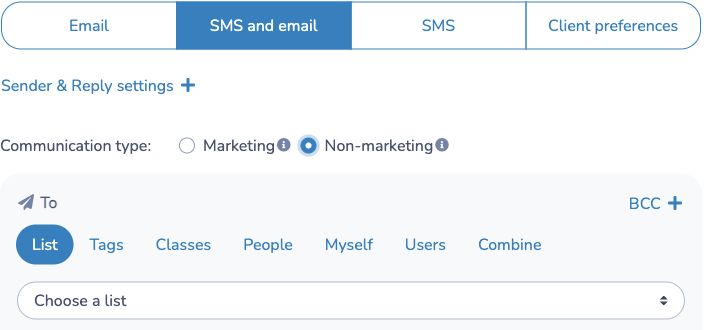
| SMS and email | You want to use both channels | Delivery through each enabled channel for which the recipient is eligible |
| Client preferences, when available | You want to follow the client’s selected channel | One selected channel; email is the default when no preference is set |
Selecting a channel does not guarantee delivery. Missing contact details, unsubscribe settings and delivery problems can prevent a message from reaching someone. Client preferences is available only when enabled for the organization.
An image does not turn a standard Activity Messenger SMS into an MMS. Email can display the image; SMS recipients open a link to view the content. See SMS, images and message length.
Choose the people, then the content
A client account is a record for a client. A recipient is a contact used for a particular list, form or communication. A class participant may be a child while the destination belongs to a parent. Check the audience and contact details rather than assuming the participant’s name identifies the person receiving the message.
Use an existing list for a reusable audience. Start from a form, class or client record when the message concerns that context. You do not always need to create a new list. Understand clients, forms and recipient lists explains how to choose.
Write a short message directly in the composer. Use a template for a branded layout or reusable visual content. Placeholders personalize a message with information available in the selected context; preview them before sending.
For example, a location change for tomorrow’s class needs a clear update to that class’s audience. A promotion for next season needs a marketing audience, a suitable subject and enough detail to explain the offer.
Classify the communication correctly
Choose Marketing for promotional messages and Non-marketing for operational messages such as a class change or an invoice follow-up.
A marketing unsubscribe and a delivery failure are different things. A person who opted out of marketing may still be eligible for an operational message, but choosing Non-marketing does not bypass every suppression or guarantee delivery. Do not use it to relabel promotional content. See List management and unsubscribes for the existing detailed guide.
Follow a simple learning path
- Choose an audience.
- Send your first email or SMS.
- Personalize with placeholders or use a template.
- Schedule a message for a chosen time, or choose an automation for a recurring trigger.
- Track sent messages and review delivery results.
If you need to change where replies go, consult the focused guides for email Reply-To and SMS sender numbers and replies.