Activity Messenger Help Center
Export journal entries to QuickBooks or Sage
Activity Messenger can turn your sales and payment data into balanced journal entries for QuickBooks or Sage. The integration is file-based: you configure your chart of accounts in Activity Messenger, preview the entries, and download a QuickBooks CSV or Sage TXT file. It does not sign in to your accounting software or synchronize changes automatically.
Before you begin
You need:
- Permission to configure your organization and view financial reports.
- The account names or numbers from your accounting chart of accounts.
- Ledger codes assigned to the items you sell. See Set up accounting and ledger codes.
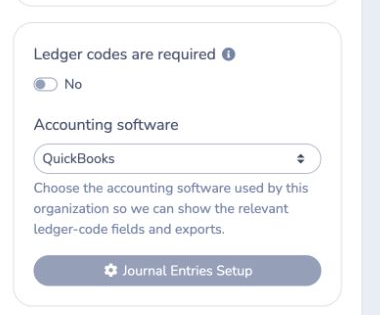
If every sold item must have a ledger code, enable Ledger codes are required.
1. Select your accounting software
- Go to E-Commerce → Ledger codes.
- Under Accounting software, select QuickBooks or Sage.
Activity Messenger then shows the corresponding account fields and download format.
2. Configure ledger codes
Create ledger codes that correspond to the accounts in your accounting software, then assign those codes to the items you sell.
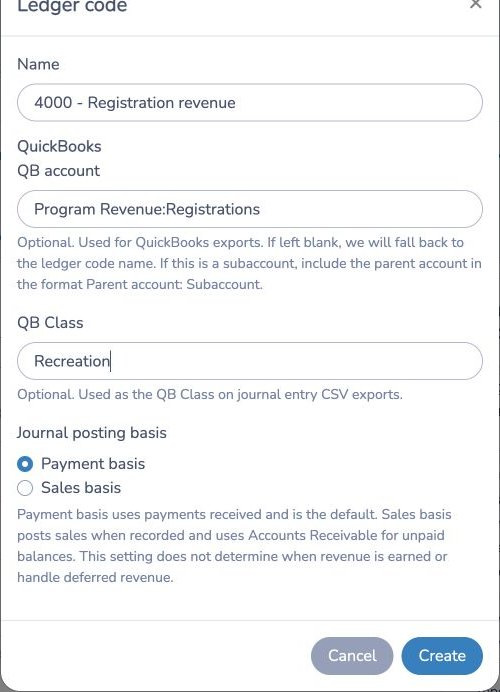
QuickBooks
For each ledger code:
- Enter a clear Name.
- Enter the QB account exactly as it appears in QuickBooks.
- If you use a subaccount, enter it as
Parent account: Subaccount. - Optionally enter a QB Class.
- Select the Journal posting basis.
If QB account is blank, the export uses the ledger-code name. QB Class is optional and appears in the Class column of the journal-entry CSV.
Sage
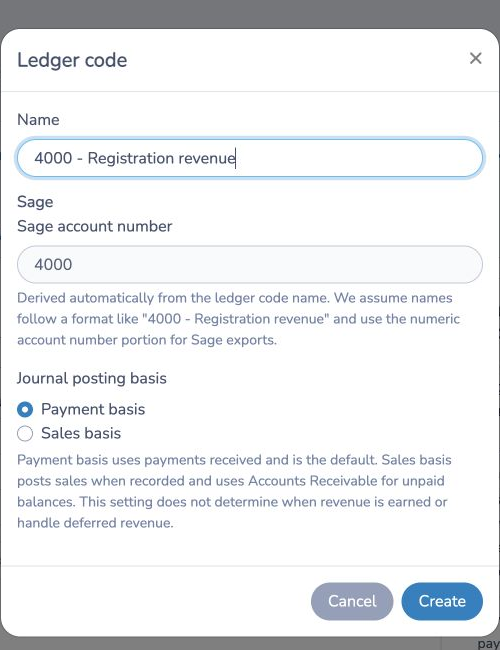
Include the Sage account number in the ledger-code name, for example 4000 - Registration revenue. Activity Messenger extracts the numeric portion and displays it under Sage account number.
3. Choose the journal posting basis
Each ledger code can use one of two posting bases:
- Payment basis is the default. It creates postings from payments received. Payment-based activity is included in Sales → Period journal entries according to the ledger code’s basis; it can also be reviewed in the Payments and Stripe Payouts reports.
- Sales basis creates postings when a sale is recorded and uses Accounts Receivable for unpaid balances. The Period journal entries report combines sales and payments according to each sold item’s ledger-code basis.
The Period journal entries report does not add a separate Stripe processing-fee line. To review Stripe fees and the net payout journal entry, use Journal entries for the relevant payout in Stripe Payouts. The posting-basis setting controls sales and payment activity; it does not mean that fees appear as a line in the period entry.
4. Configure reporting accounts
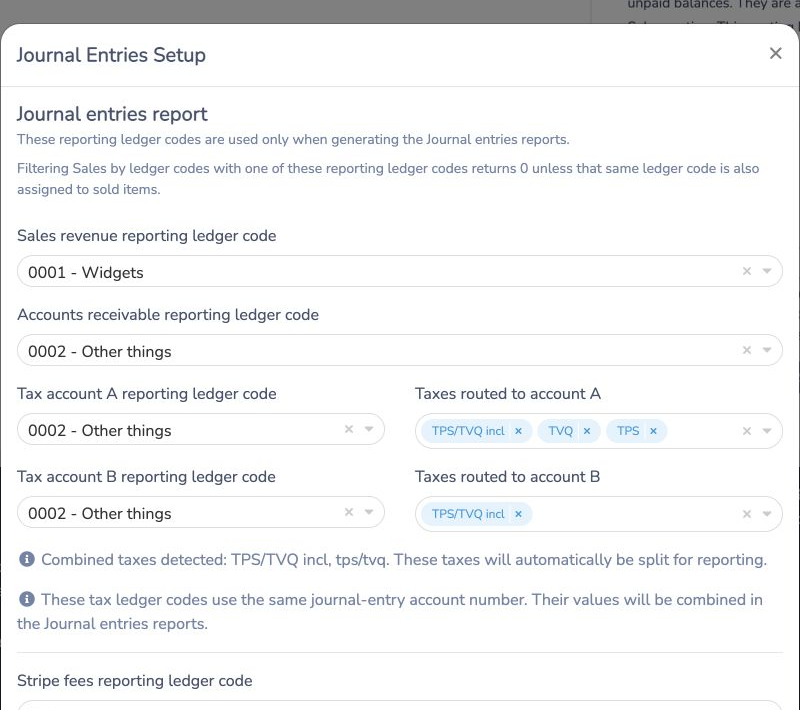
From the Ledger codes page, select Journal Entries Setup. Map the accounts needed for your reports:
- Sales revenue
- Accounts receivable
- Tax account A and the taxes routed to it
- Tax account B and the taxes routed to it
- Stripe fees
- Activity Messenger Stripe fees
- Federal and provincial taxes on Activity Messenger Stripe fees
Only configure the accounts that apply to your payment and tax setup. Combined taxes are split automatically between the configured tax accounts. Reporting accounts are used to generate journal-entry reports; they are not automatically assigned to sold items.
5. Preview and export journal entries
- Go to E-Commerce → Reports.
- Choose a date range.
- Select Journal entries from the report menu.
- Confirm that total debits and credits are balanced.
- Select QuickBooks (CSV) or Sage (TXT).
The QuickBooks file contains the journal number, date, account name, description, debits, credits, and optional class. The Sage file is a text export using the account numbers derived from your ledger codes.
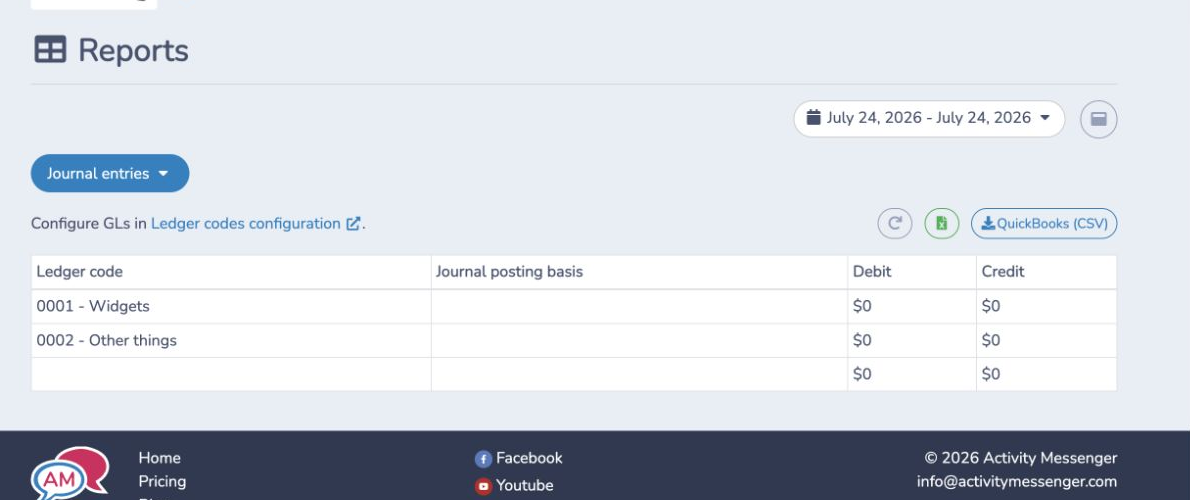
Payment-based entries can also be reviewed from the Payments report. Stripe card-payment entries are available by payout in Stripe Payouts.
Allocate revenue to Sage projects
When Task Time projects is enabled, journal previews include a Project column and Sage (TXT) includes native Sage project allocations. Configure matching project names and the applicable account allocation settings in Sage first; the export does not create Sage projects. Project names must be at most 52 characters and contain no control characters.
Revenue is separated by ledger code and project. The same account can therefore appear once for a project and again for unassigned revenue. Bank, receivable, tax and processing-fee lines remain unassigned. The split preserves the entry’s debit and credit totals.
For example, a revenue detail line and its allocation can look like this:
4000,-600.00,"Summer camp",1
"Summer camp",100.00
The 1 means that one project-allocation line follows. 100.00 allocates 100% of that already separated 600.00 revenue line to Summer camp; it is not an extra amount or additional revenue. This is the Sage 50 General Journal import format.
If a course’s ledger code is missing from a payment journal, check the transaction source and dates. Payments → Journal entries separates Cash + cheque from Credit card + debit (terminal). Stripe online card payments are in Stripe Payouts → Journal entries, grouped by payout, not by course date. Assigning a ledger code or project to a course alone does not create a payment journal line.
See Projects: hours and revenue for the related report and staff projects for booking, class and invoice assignment rules.
Example
Suppose registrations are assigned to 4000 - Registration revenue.
- In QuickBooks, you can map it to
Program Revenue:Registrationsand optionally use the classRecreation. - In Sage, Activity Messenger extracts
4000as the account number. - With Payment basis, the entry is generated when payment is received.
- With Sales basis, the sale is posted when recorded and any unpaid amount is assigned to Accounts Receivable.
Review the preview before downloading. The CSV is a journal-entry export from Activity Messenger; it does not create payment transactions in QuickBooks or import itself. Import the file into QuickBooks using the journal-entry import workflow available in your QuickBooks setup. The import records journal entries; it does not match a bank-feed deposit. Match deposits separately in QuickBooks using its bank transaction tools.
Important notes
- This is a file export, not a live two-way synchronization.
- QuickBooks account names and Sage account numbers must match your accounting chart.
- QuickBooks subaccounts must use
Parent account: Subaccount. - A blank QuickBooks account falls back to the ledger-code name.
- Sales-based unpaid balances require an Accounts Receivable reporting account.
- Missing ledger-code assignments reduce the usefulness of the exported breakdown. Requiring ledger codes helps prevent uncategorized sales.
- Always review the date range, account mappings, debit total, and credit total before importing.
FAQ
Can I export journal entries in another file format?
The journal-entry export options described in this guide are QuickBooks (CSV) and Sage (TXT). Select the format that matches your accounting software when you export the report.