Activity Messenger Help Center
Manage requests in the Waitlist module
The Waitlist module brings together requests from your registration forms. Use it to find a participant, distinguish their requests from their account owner’s information, review saved answers, identify possible duplicates and clean up old waitlists. You can still manage the queue and automations for each class.
Open the module and understand the three parts
In your organization, open Classes → Waitlist.
| Part | Purpose | Where to configure it |
|---|---|---|
| Class registration form | Offers classes, enables their waitlists and defines automation rules. | Open the source registration form and edit its class block or class rule. |
| Waitlist form | Collects contact details, the participant and your additional questions. | Form settings, at the top of the module. |
| Waitlist module | Centralizes requests, answers, follow-up and actions. | Classes → Waitlist. |
A waitlist request is not a confirmed class registration. The source form tells you where the request was made. It may be different from the common form that collects waitlist information.
Access and visible information
Your account permissions determine access. Form management is required to edit the form or remove and archive requests. Messaging requires the corresponding permission. Access to contact details, answers and class registrations also depends on your client information, class and attendance permissions.
If an action or information is missing, ask your administrator to check your permissions. Opening the module does not grant additional access to your account.
Find the right requests
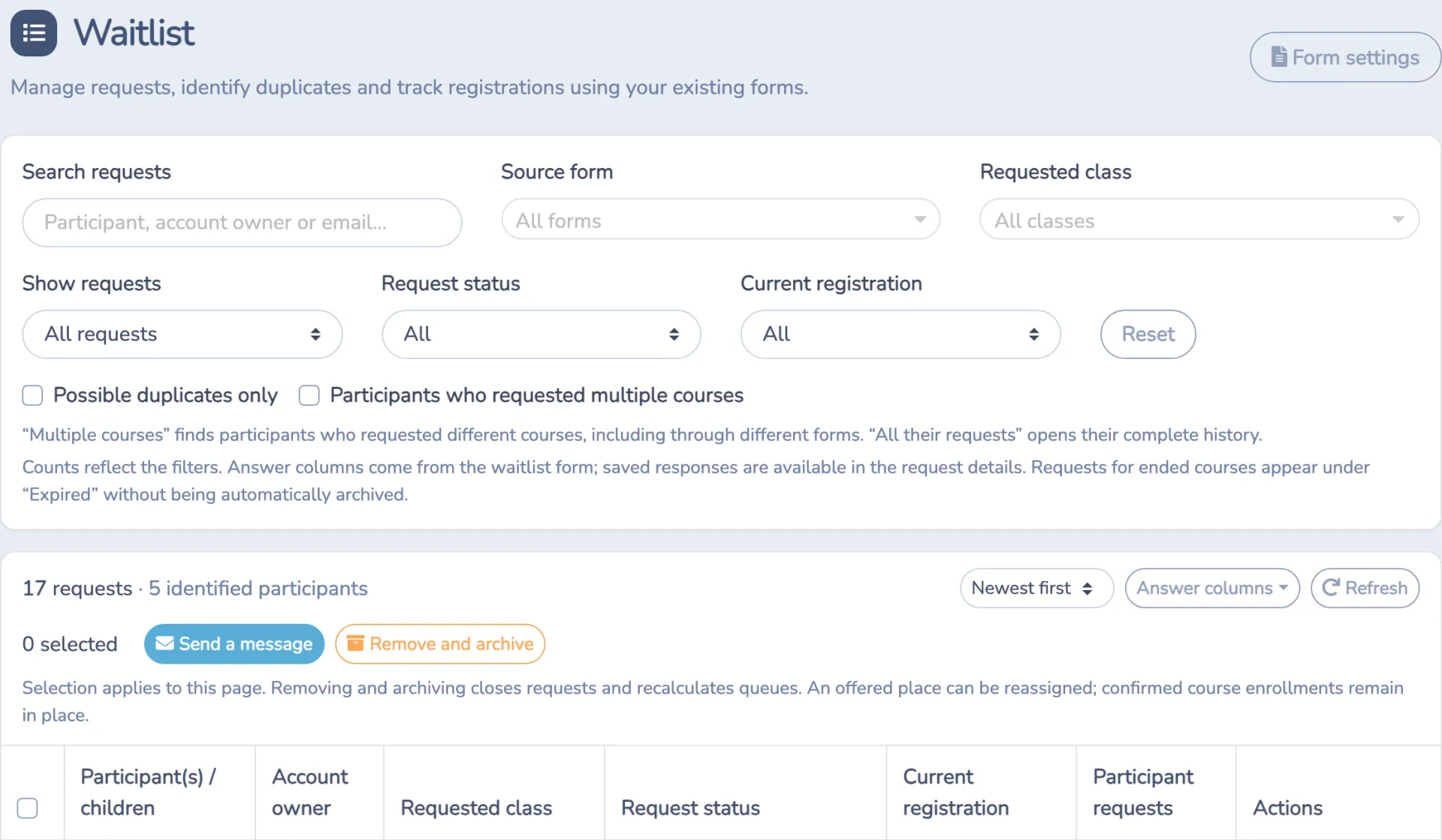
The newest requests appear first. Use the selector above the table to choose Oldest first instead. This changes the display order; it does not reorder invitation priority.
You can combine these filters:
- Search requests: participant, account owner or email.
- Source form: one or several registration forms.
- Requested class: one or several classes. Two sessions may have the same name; Ended or Deleted helps distinguish old sessions.
- Show requests: Active, Expired, Deleted or missing courses, Archived or All requests.
- Request status: invitation or archival follow-up.
- Current registration: a recognized registration in the requested class, another class, no current registration found or identity requiring review.
- Possible duplicates only: potentially repeated active requests for the same identified participant, class and occurrence or attendance rule.
- Participants who requested multiple courses: different classes requested by the same recognized person, including through different forms. This filter does not by itself mean the person is registered in those classes.
Counts reflect the applied filters. Request and identified-participant totals can differ because one person can have several requests. Unidentified people are not counted as identified participants.
Use Reset to clear filters and Refresh to reload results. Pagination offers 10, 25 or 50 requests per page. Filters, sorting and answer-column choices are retained in the view’s address. Copy it to return to the same selection; anyone opening it still needs the appropriate permissions.
Read the table and open request details
Participant(s) / children identifies the person who wants to attend. Account owner identifies the contact, such as the parent. The same parent can appear on several requests without the children being duplicates.
The table shows the requested class, source form when available, request status, current registration and related participant requests. Depending on the request, it can also show a specific occurrence, a quantity of places or the requested course’s end date.
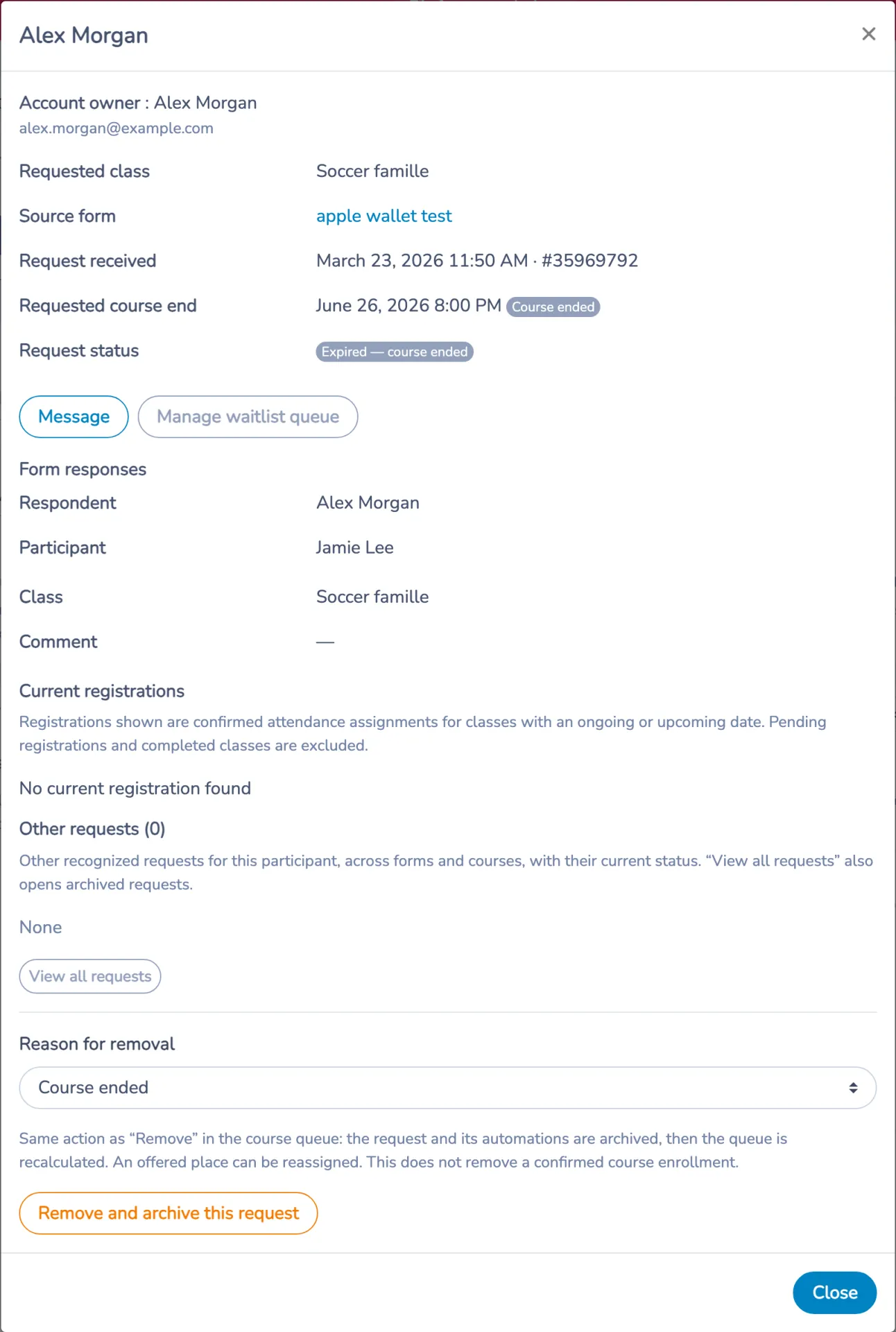
Click the participant or View details to review saved information, form responses, follow-up dates, recognized current registrations and other requests. All their requests in the table or View all requests in the details opens the participant’s history, including archived requests.
Form responses
Open Answer columns to display useful questions in the table. Saved answers remain available in request details when their columns are hidden. Changing the visible columns does not change customers’ answers.
Available columns come from the waitlist form. The module does not combine every answer from the source class registration form into each waitlist request.
Current registrations and identity review
Current registrations correspond to confirmed attendance assignments for classes with an ongoing or upcoming date. Pending registrations and fully completed classes are excluded.
Review identity does not mean “not registered.” Available information does not identify the participant with enough certainty. Review the request before removing it, especially when a parent has several children or an older request does not identify the participant.
Understand request statuses
| Request status | Meaning |
|---|---|
| Waiting | The request is waiting for processing; no current offer is recognized. |
| Invitation scheduled | An invitation is scheduled. |
| Place offered | An invitation was sent. Check its deadline in the details. |
| Registered through waitlist | An enrollment resulting from the waitlist was recognized. |
| Invitation expired | The invitation window ended. The class may still be active. |
| Expired — course ended | The requested course or occurrence has ended. |
| Inactive request — deleted course | The course was deleted. |
| Inactive request — course not found | The course linked to the request cannot be found. This does not establish that it was deleted. |
| Declined or skipped | The offer was declined or skipped. |
| Archived | The request was removed from the waitlist. |
| Automation error | Processing encountered a problem. Review the class queue and its logs. |
In a class waitlist’s ⋯ menu, Skip marks the offer as declined or ignored. It does not archive the request; Archive removes a request from the waitlist. Log opens the recorded events for that waitlist entry, including the event time and operation. Use it to review the entry’s event history; it is not specifically an automation-error report.
Request status and Current registration answer different questions. Someone may have registered another way while their waitlist request still exists. A recognized historical registration may also retain its status after the class ends or is deleted.
Review duplicates and requests for multiple classes
- Select Possible duplicates only or Participants who requested multiple courses.
- Open the details and compare the participant, class, occurrence, responses and current registration.
- Use View all requests to review history beyond the selected form or class.
- Keep useful requests and remove only those that are no longer needed.
Detection flags cases for review. It does not automatically merge or delete requests. Requests for different occurrences are not necessarily duplicates. Siblings sharing an email must not be treated as one person.
Send a message to selected people
- Apply the appropriate filters.
- Select requests on the displayed page, individually or using the table-header checkbox.
- Check the selected count and click Send a message.
- Review recipients in the composer, write the message and choose its sending options.
This prepares a message; it does not send immediately. Selection applies only to the displayed page. If several requests belong to the same account owner, review recipients before sending. To contact a complete class queue, you can also use Message all in that class’s waitlist window.
Remove and archive a request
In the details, choose a Reason for removal, click Remove and archive this request, then confirm. For several requests, select rows on the current page, click Remove and archive, then confirm.
This closes the requests and their associated automations. It does not remove confirmed class enrollments or release places occupied by already registered participants. Use class registration management to cancel a confirmed enrollment.
Clean up ended or deleted courses without restarting invitations
Removing and archiving requests for an ended or deleted course does not trigger availability invitations by email or SMS to the other people waiting. Previously scheduled invitations for those courses are also blocked when they execute. The module’s removal action does not send the removed person a removal message either.
To clean up ended courses:
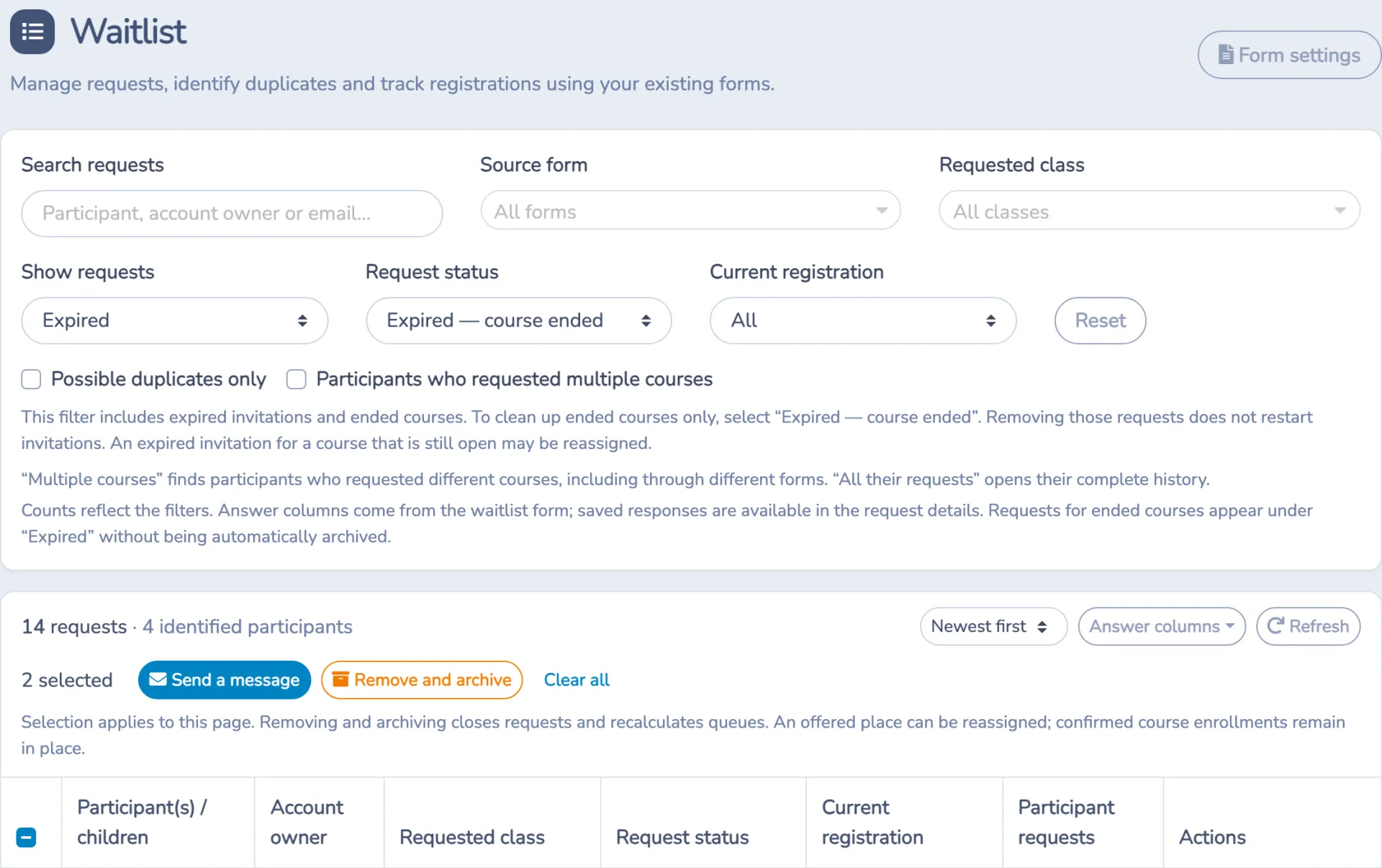
- Choose Show requests → Expired.
- Choose Request status → Expired — course ended.
- Review the class, occurrence and end date in the request details.
- Select requests on the page and click Remove and archive.
- Repeat on other pages as needed. Choose Archived or All requests to find removed requests later.
For deleted courses, choose Deleted or missing courses, then verify Deleted course or Inactive request — deleted course before archiving. Course not found is a separate case to investigate; do not treat it as confirmed deletion.
An expired invitation for an active course is different
Expired includes both expired invitations and ended courses. A status of Invitation expired alone therefore does not guarantee cleanup without further invitations. If the course is still active, removing a request can recalculate its queue and reassign an offered place to the next person, according to its automation settings.
The selected removal reason does not change course dates or disable automation. When cleaning up past sessions, check the actual status rather than only selecting “Course ended” as the reason.
Manage a class queue
Click Manage waitlist queue on a row or in request details. The existing class waitlist window opens inside the module. The request targets its source form and occurrence when they remain available. The same tool is still accessible from the Waitlist column under Classes → All classes and events.
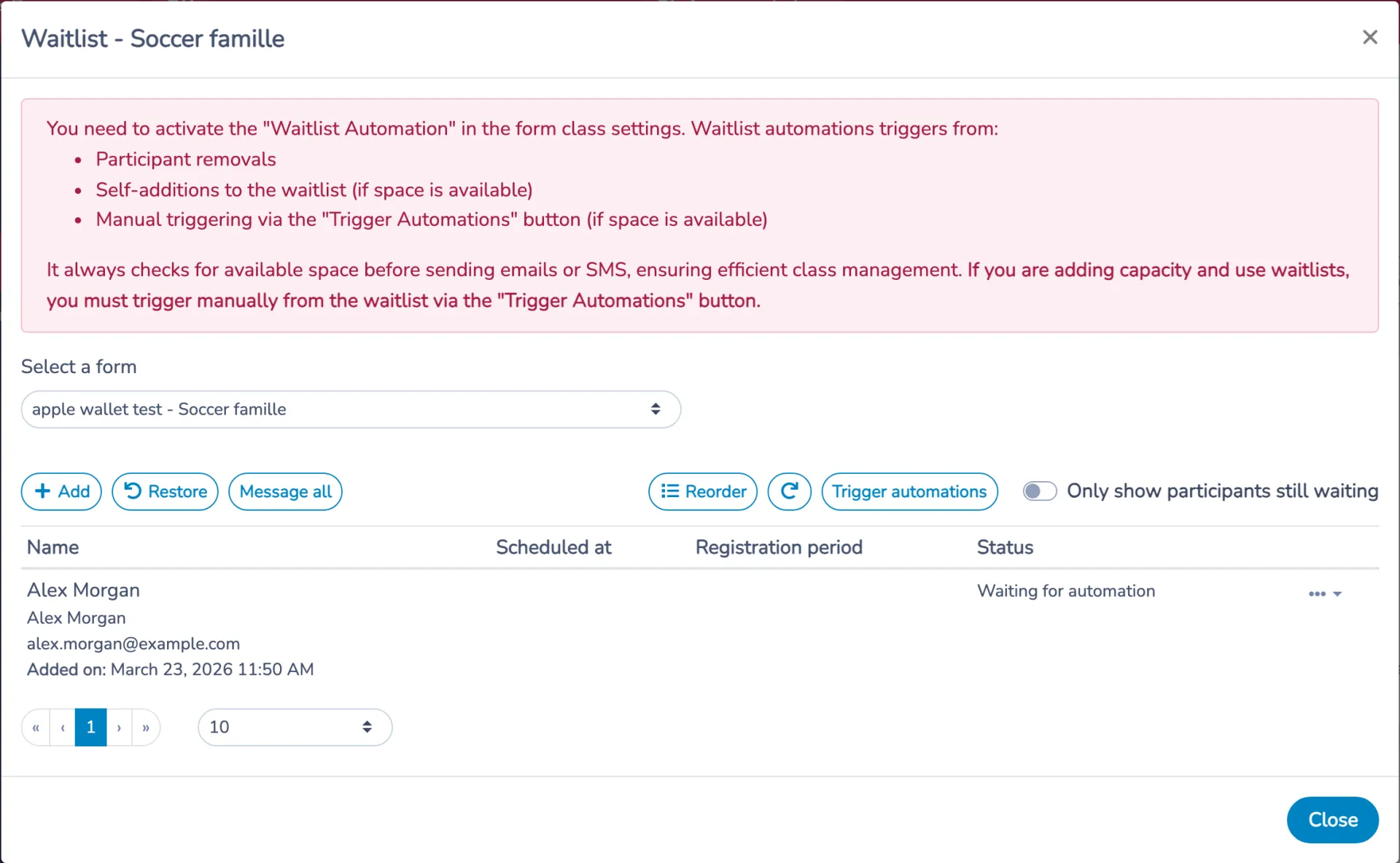
In this window, you can:
- Add a person, with an optional confirmation on addition.
- Restore a removed request when matching entries are available.
- Message all in the selected context.
- Reorder the queue. This changes priority; sorting the central table does not.
- Show only participants still waiting and review their statuses.
- Invite to register from a waiting participant’s ⋯ menu when spot reservation is enabled and automation is off. This sends a temporary offer to the chosen person after availability and eligibility checks; it does not enroll them automatically.
- Trigger automations when the class is active, automation is configured and space is available.
If you increase a class’s capacity, use the last button to start the availability check. If the original form or occurrence is unavailable, the module may prevent opening that queue. Request details and historical information remain useful for investigation. Queue management is not offered for deleted or missing courses.
Start a waitlist availability check
In the class waitlist window, click Trigger automations and confirm. This starts processing the class queue using its configured automation. Depending on the selected mode and the queue, the process can send invitations or enroll a person. Use it when a place has become available or after increasing class capacity; the class must be active, automation configured and a place available.
This is a queue-level trigger, not a control for running an automation for one chosen person. To contact one parent individually, select the relevant request in the module and use Send a message; review the recipient in the composer before sending. To message the entire queue, use Message all.
For manual invitations, configure Reserve available spots for the waitlist, the registration window and the communication template on the registration form’s class block or rule. This is supported for session registrations without attendance categories. You need permission to manage forms and send messages, in addition to waitlist access. Send a message is an ordinary communication; Invite to register creates the temporary registration offer. See manual reservation setup.
Invite a specific person now while automation is enabled
If a person’s menu shows Message and Execute now, you are viewing the class queue with automation actions. You do not need to disable automation to trigger that person’s invitation.
- Open Classes → Waitlist, then Manage waitlist queue for the relevant class.
- Check the selected form and occurrence, when applicable.
- Open the ⋯ menu on the person’s row, choose Execute now, and confirm.
With Notify in waitlist order, this action triggers that person’s invitation now instead of waiting for its scheduled time, provided a place is available and eligibility conditions are met. For example, to invite a child, use the menu on that child’s row: their contact receives the link to complete registration. This action does not automatically enroll the child or send an invitation to the entire queue.
Automation remains enabled for other people, and their next processing times are recalculated. Execute now on a row is different from Trigger automations, which starts the availability check for the class queue.
The action runs the configured mode: with Automatically enroll the next person, it may create an enrollment rather than only send an invitation. Check the mode before confirming.
Why is “Invite to register” missing? The manual invitation action is offered when automation is disabled, places are reserved for the waitlist, and the context and your permissions allow it. When automation is enabled, use Execute now on the relevant person’s row. Reserve available places for the waitlist protects places; it does not enable a manual mode and can remain enabled alongside automation.
Invitation scheduled means the invitation has not been sent yet. After a successful send, the module status becomes Place offered; the person must still complete registration.
Edit questions using Form settings
- Click Form settings at the top right of the module.
- The common waitlist form opens on its Form tab.
- In the designer, use ⋮ → Edit on a block to adjust its label, fields or required answers. Use + to add a question offered by the designer.
- Save changes in the editing windows.
- Return to the module to review requests. Use Answer columns to display an additional question in the table.
- Test from the class registration form: open its waitlist window and check which fields customers are asked to complete.
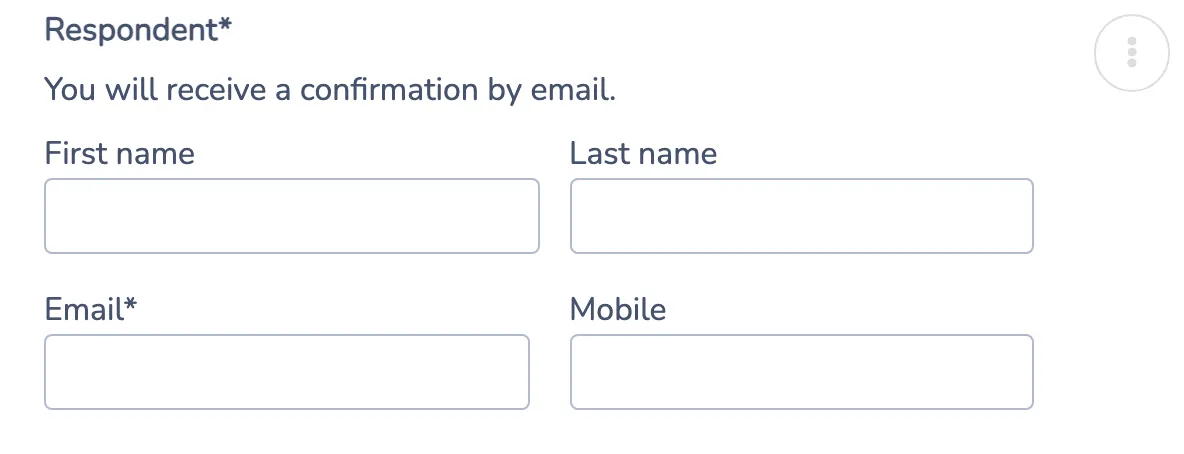
A newly created default form includes account-owner contact details, the participant, class and comment. Existing forms can be customized and may have different fields or ordering.
The Class field is hidden in the waitlist signup window and automatically filled for tracking. Customers do not need to enter the class. Requests remain automatically linked to the course; an older organization may have removed this question without losing that link. Some older descriptions may still say “Do not delete this question.”
Depending on organization settings, the public window may use the customized form or the standard window with account owner, email, mobile, participant and comment. Editing the common form does not automatically enable customized public capture for every class or organization. Check the configured mode if a new field does not appear in the public window.
The request-receipt confirmation and an invitation when space becomes available are separate communications. Class-block settings can select a particular confirmation template. For waitlist activation, per-class rules and invitation configuration, use the setup guide below.
Follow-up example
A parent submitted requests for two children. One is waiting for Monday tennis and the other for Wednesday tennis. Search the parent’s email, then check Participant(s) / children. These rows are not necessarily duplicates. If Monday tennis is an ended session, filter Expired — course ended and archive only its old requests. Keep the useful Wednesday request and manage confirmed enrollments separately.
Troubleshooting
| Situation | What to check |
|---|---|
| The class appears twice in the filter. | These may be different sessions with the same name. Check their ended/deleted label and the dates in request details. |
| No results appear. | Check form, class, scope, status and any participant filter. Use Reset. |
| The source form is unknown. | The request may come from an old workflow or manual entry, or its original question may no longer be available. |
| Someone appears already registered. | Compare participant identity, current registrations and the class rather than only the account owner’s name. |
| An answer is missing. | Check details, visible columns and permissions. Adding a question does not retroactively add answers to old requests. |
| A volume-limit error appears. | Return to active requests and contact support if the volume exceeds the view’s capacity. |