Activity Messenger Help Center
Staff operations: schedules, timesheets, time off, approvals and payroll
This guide covers how a team is run day to day: building and publishing the staff schedule, tracking hours with timesheets, the task timer and punch in/out, handling time-off requests, approving worked hours, and what payroll covers. For staff records and access, see Manage staff records and access, Staff profile and forms and Invite users and manage their access.
Several parts are optional modules. If a menu item or tab described here is missing, the module is not enabled for your organization. Contact Activity Messenger support and ask for it.
What is available and who turns it on
| Part | Needs |
|---|---|
| Staff schedule, shifts, availability, publishing | The staff schedule module, enabled by support |
| Time clock: punch in/out | The staff schedule module, then Enable Time Clock in organization settings |
| Timesheets, timer | The staff schedule module, then the Task Time switch in your organization settings |
| Task Time projects | Timesheets on, then the Task Time projects switch |
| Time-off requests | The staff schedule module, then the Time Off Requests switch |
| Worked-hour approvals | The staff schedule module, then Require staff to approve worked hours |
| Staff payroll page | The payroll module, enabled by support |
| Roles on shifts, timesheets and pay columns | Staff management, enabled by support (see Staff profile and forms) |
Without the staff schedule module, User management › Staff calendar opens the older Staff calendar instead of the staff schedule.
The switches live under Organization settings › Team & operations › Staff scheduling & management, in the Staff features section. They appear only once the staff schedule module is on, and you need permission to manage the organization. Turning the staff schedule module off also turns off timesheets, projects and time-off requests.
For a newly enabled staff schedule, Task Time starts off. Organizations that had timesheets before keep them on.
Create and assign shifts
Open User management › Staff schedule. Administrators with the Account owner, Organization owner, Human Resources or Administrator permission see the User management menu. The page has two sections: Schedule and Hours & payroll. The Schedule section has these tabs, each shown only when it applies:
- Staff availabilities: the weekly view of who is available. It opens by default.
- Schedule: classes, bookings and shifts for the week or day. You need permission to view schedules.
- Shifts: the list of shifts. Same permission.
- Time Off: shown when time-off requests are on.
Create shifts
- On the Shifts tab, click New shift. On the Schedule and Staff availabilities tabs, the Shifts button opens the same window, titled Bulk create shifts.
- To create shifts that nobody holds yet, turn on Create unassigned shifts. Otherwise choose the staff under Create shifts for selected staff.
- Optionally enter a Name. Leave it empty to use the shift type name. Choose a Shift type (a booking type) and a Description. With staff management on, choose each person's Roles.
- Choose Show shift schedule, then add the dates. Each row has a Date, a Start time and either a Duration or an End time. Switch between Start + duration and Start and end time. If the end is before the start, the shift ends the next day.
- Click + Row for one more date, or + Recurrence to repeat the shift weekly. Recurrence is weekly only: choose a start date, the weekdays and an end (a number of weeks or a date). Organization holidays are skipped.
- Click Save.
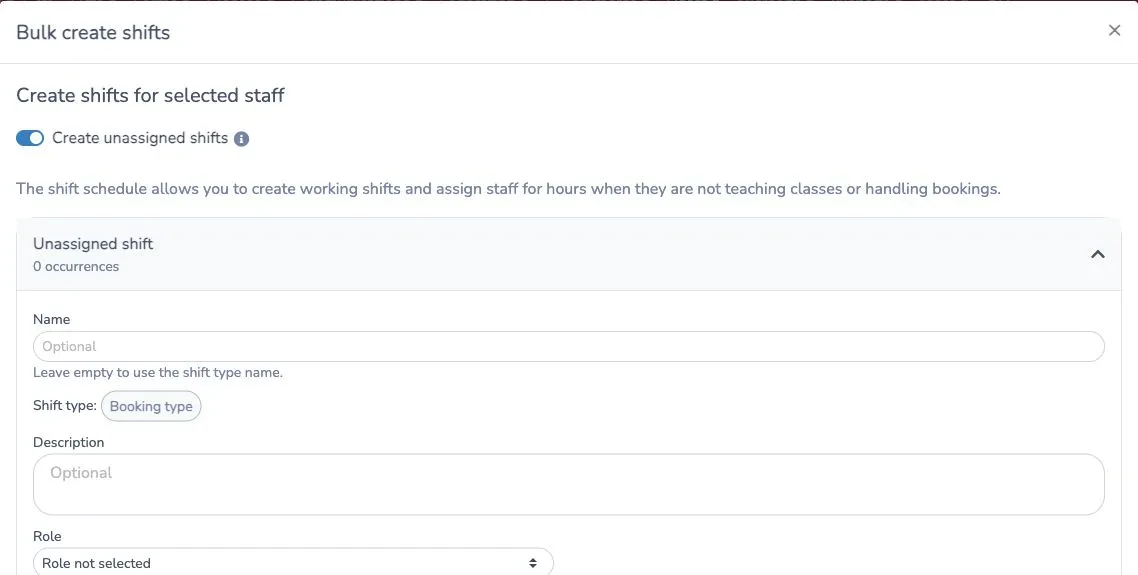
If a selected person already has another shift, a class, a booking or an unavailable period at that time, the window warns This shift conflicts with another shift, class, booking, or unavailable period. You can still save. Split shift around conflicts cuts the shift into blocks around the conflicts.
To change a shift later, open it from the Shifts tab with Manage. Name, description and booking type apply to every occurrence. You can add or remove rows, use the date and time pickers to change an occurrence, use Edit recurring patterns to change many occurrences at once, Copy the whole series to a new first date (turn on Copy assigned staff to keep the people), or choose Delete all shifts. Changes and removals are applied together when you click Save. Cancel discards them. Deleting all shifts removes every occurrence and its staff assignments.
To remove several upcoming occurrences while keeping earlier shift history, choose a date under Starting on, click Select future occurrences, then click Delete selected occurrences. You can also select individual future occurrences with their checkboxes. The date selection includes saved occurrences on or after that date, but never occurrences that have already started. Review the pending count and click Save to apply the removals with any other edits. Removing these occurrences also removes their staff assignments.
Assign staff
Click an event on the Schedule tab.
- A shift opens Edit shift. Under Staff positions choose a role and a person for each row. Use Apply changes to to update This occurrence, Selected occurrences, All occurrences, or Replace staff.
- Under Selected occurrences, select the specific shifts to change or delete, including past and future occurrences. When deleting, the selected shifts are removed together. Under All occurrences, choose Future occurrences only to preserve earlier shifts, or Past and future occurrences to change the entire series. This choice applies when saving edits or deleting shifts. The Delete button and confirmation show the number of shifts that will be removed.
- A class or booking opens Staffing. Set Number of staff needed, or add a position with a role and no person to create an open role. Open roles and missing staff show on the calendar as staff missing.
- To replace one person on selected class occurrences, choose Replace staff in Staffing. Select the person, the occurrences where they are assigned, the replacement and, when staff management is on, a role assigned to the replacement. Candidate availability and conflicts are shown for reference. This changes only that person's selected assignments; the other staff and the class defaults stay in place. The option is unavailable when no staff are assigned.
- To assign one person to many events, click Assign a staff member. Pick the person, tick the shifts, classes or bookings, and click Save assignments. Only show role-compatible events is a filter only. Administrators can assign staff to any event.
Under each person the window shows Assigned hours for the day and week, before and after saving.
For a class's recurring staffing needs, open the class and set Number of staff needed. Under default roles, select each role once and enter its Quantity: for example, one coordinator and 11 coaches for 12 required staff. You can leave positions without a default role. Changing these defaults does not replace staffing set for a particular occurrence. To apply the same requirements or preparation time to many classes, use Classes › Bulk operations › Staffing requirements or Preparation time. New class duplicates can copy the default role quantities with their other staff settings.
In the class's Resources section, each default staff resource can have its own preparation minutes Before and After, plus a default role when staff management is on. Leave a person's preparation fields blank to inherit the class-wide preparation time; entered values override it. In the Staffing window, Add to default class resources is on for a newly added person. Turn it off to assign them only to the selected occurrences. For an existing assignment, the switch reflects whether that person is already a class default; changing it adds or removes that default without changing which occurrences this save updates.
Bulk preparation-time changes update class defaults. Turn on the option to affect existing staff occurrences only when you also want to replace their before/after preparation times.
If different people cover different dates, open the class's All occurrences editor and use Assign roles to scheduled staff. Choose a role for each person already scheduled. It applies to that person's scheduled occurrences without adding them as a default class resource.
Availability and conflicts
Staff set when they can work in Recurring availability (weekly time slots between two dates) and Single events and unavailabilities (one-off Available or Not available periods with a note). Managers open a person's availability with the pencil on their row in Staff availabilities. Staff open their own from Add availabilities.
In a recurring availability grid, Duplicate copies the grid into the next non-overlapping date range. You can adjust its dates afterward. Copy to day copies one weekday's time slots to another weekday; replacing slots already on the destination day asks for confirmation.
On the Schedule tab, events carry these flags:
- Unavailable: an assigned person has no availability covering the event.
- Conflict: an assigned person has another overlapping assignment, or the event still has missing required staff or open roles.
- Unpublished: staff cannot see the event yet.
Filter with Only show conflicts, Without staff and Required staff. Only show available staff narrows the pickers when you assign.
Conflicts warn but do not stop you from assigning someone. One thing they do block: More › Send schedule stays disabled on the Schedule tab until the displayed range has no conflicts and is published.
Who can edit whose availability depends on access. A staff member with Can modify their availability schedule edits their own. Can modify other staff schedule lets a manager edit others and publish. With the user hierarchy on, an administrator can set View schedules and Edit schedules per level under Hierarchy › Access permissions, using No other staff, Staff below them, All staff or Existing permissions.
Publish the schedule and notify staff
By default, schedule changes are visible to staff immediately. To keep changes private until you are ready, use the Schedule visibility settings button on the Schedule tab.

- Choose Publish the schedule by date range.
- Choose Publish schedule or Unpublish schedule, then Apply from a date onward or a Schedule date range.
- To send the schedule at the same time, keep Send the schedule to staff when publishing, choose the staff, and tick Send schedule by sms and Send schedule by email.
- Confirm. Unpublish schedule hides the dates without deleting events.
You can also publish Class-specific publishing ranges, and publish or unpublish one event from its window with Publish event and Unpublish event. With date-range publishing, past dates stay visible and future dates stay hidden until you publish them. Staff, their calendar feed and their reminders only ever include published events. Managers see unpublished events marked Unpublished. Choosing Always publish schedule changes makes every change visible again.
To send a schedule yourself, open More › Send schedule, choose the dates and the staff, and click Send. Each person receives an SMS, an email, or both. The email has the subject Your schedule is available, a View Schedule link and, if you tick Include assigned event dates in email, the list of their published events. There is no attachment. The link opens their Schedule page.
Under Staff schedule notifications on the same settings tab you can also turn on:
- Booking reminders, Class reminders and Shift reminders, each with Send reminder before (minutes, hours or days) and email or SMS. They are off by default.
- Notify staff when their schedule changes. Off by default. Staff get one summary after Wait before sending the summary (minutes) (5 by default) with no further changes. It covers published events they were assigned to, removed from or whose time changed.
What staff see
Staff see three places.
The client portal. A staff member who is connected to the portal sees extra tabs marked Staff: Roles, Qualifications and Contracts. Under My account they also get My schedule and My worked hours. My schedule shows their own classes, bookings, shifts and availability for a week, with Edit availabilities. My worked hours shows hours for a date range. These need staff management or the staff schedule module, a staff resource for the person, and the staff to be a user of your organization. When Time Clock is enabled, the Time Clock card at the top of My schedule lets staff punch in and out. See Staff Time Clock: punch in and out for setup, location checks, automatic breaks and corrections. The portal does not include the task timer, timesheets, time-off requests or worked-hour approvals.
The Schedule page. Staff who sign in to Activity Messenger open the user menu and choose Schedule. It has these tabs: Schedule, Worked hours, Worked hours approvals (if enabled), Task Time (if on) and Time Off (if on). Staff only see their own information.
Messages. Reminders, schedule-change summaries and schedules you send, as described above.
Track time with timesheets and the timer
For arrival and departure records, use the separate Time Clock guide. The task timer below creates a submitted timesheet; punch in/out creates a Time Clock session.
Timesheets record work that is not already on a class, booking or shift, such as admin or planning time. Staff open Schedule › Task Time. Managers open User management › Staff schedule › Hours & payroll › Task Time.
Submit a timesheet
- Click Submit timesheet.
- For each row choose the Date, enter a Task (required) and a Note (optional). Choose a Project if projects are on and a Staff role if staff management is on.
- Enter the time as a duration, or turn on Enter start and end times. A duration is between 1 minute and 24 hours.
- Add or duplicate rows for more work on the same date, including multiple entries for one project. Drag the grip to put the rows in order; rows on the same date keep that order after submission. The form accepts up to 100 rows at once and shows the total time.
- Click the submit button, which shows the number of entries.
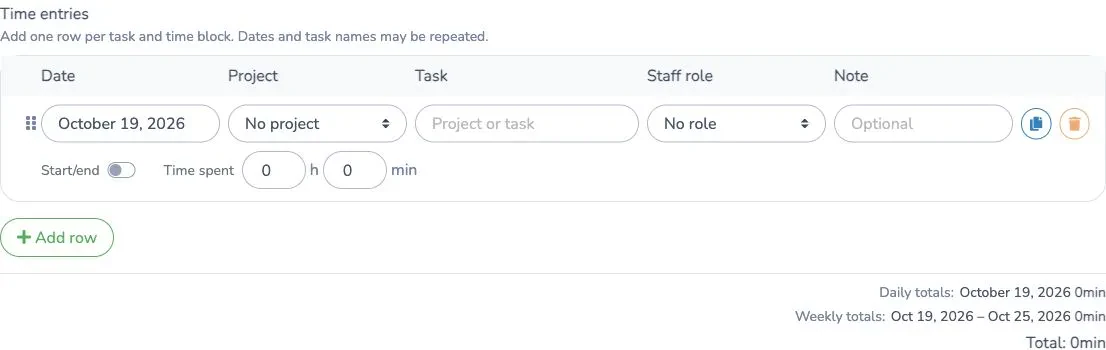
Every new or edited entry is Submitted. A manager changes it to Approved or Rejected. Staff can edit or delete their own entries until they are approved. Editing a rejected entry submits it again. Only a manager can change an approved entry, and the entry then returns to Submitted. Only approved timesheets count in worked hours and compensation reports.
A manager with permission can enter time for someone else with the staff picker, and approve with Approve, Reject, or Approve selected for many entries at once. Activity Messenger does not send a notification when an entry is submitted, approved or rejected.
On the manager page, entries are summarized by staff member. Click View details to expand one person's entries. Select individual unapproved entries or a staff group, then click Approve selected. Approved entries are hidden by default; turn on Show approved timesheets to review them. When editing a submitted timesheet, the window includes that person's other submitted entries in the selected date range, so you can update and save them together. Approved and rejected entries open one at a time.
The timer
The Time tracker card tracks one task at a time. Enter a Task, optionally a project and role, and click Start timer. The timer runs on the server, so it survives a refresh. While it runs, a Timer running indicator with the elapsed time sits at the bottom right of every page and links back to the timesheets. Show in the interface hides it on that device.
Click Stop and review to check the start time, end time and note. Resume timer continues without counting the pause. Submit time entry creates a submitted timesheet. Discard deletes the timer. After 12 hours a warning asks you to verify the times. An entry is at most 24 hours.
Projects
With Task Time projects on, staff can attach a project to an entry or the timer. It is optional. Administrators (Account owner, Organization owner, Human Resources or Administrator) click Manage projects to create, edit, archive and restore projects. Archived projects stay on old entries but cannot be chosen again. The Hours by project chart compares approved and submitted hours.
Request and approve time off
With Time Off Requests on, staff open Schedule › Time Off and click Request Time Off.
- Choose a Request Type: Vacation, Sick Leave, Personal, Unpaid Leave or Other.
- Under Days off, click each day you will be away. Each run of consecutive days becomes its own request. With a single day, keep Full day or choose start and end times.
- Optionally enter a Reason, then click Submit.
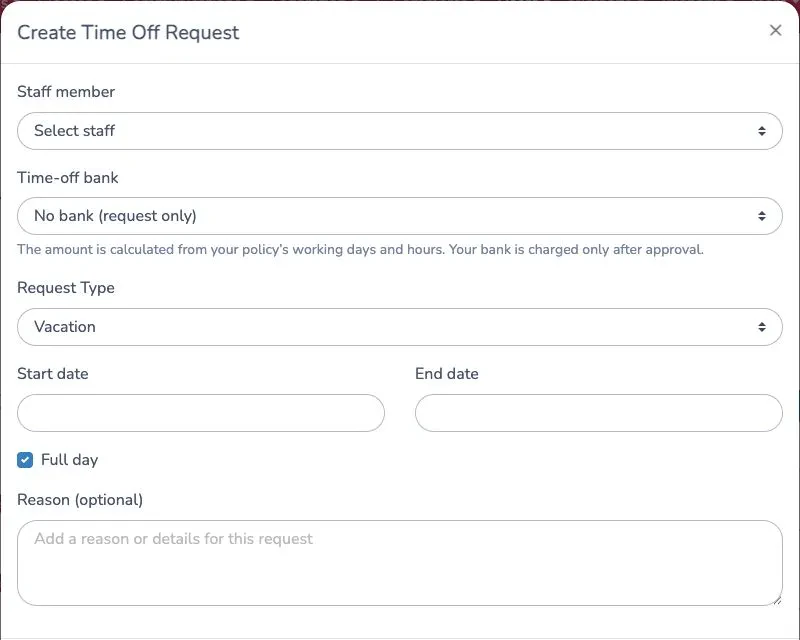
For the full procedure, including time-off banks, see Time off: requests, approvals and banks.
The request is Pending. Staff can edit it while it is pending and delete it while it is pending or denied. If the organization uses the user hierarchy, the person's manager is notified by email or SMS.
Approvers open User management › Staff schedule › Time Off. A red count on the tab shows pending requests. They can Approve or Deny (a Denial reason is required). On confirming they choose whether to Send by email (on) or Send by text message (off). An approved request can be denied or cancelled with Cancel leave.
If the person has classes, bookings or shifts in the period, approving opens the replacement window. Choose a replacement for each assignment, or click Approve without assigning. Approval adds an unavailable period to the person's availability, and denying or cancelling removes it. Who's off lists approved leave for the dates you choose.
Who can approve depends on Approve time off. Account owners, Organization owners and Human Resources users always can. Others need Can modify other staff schedule, or a hierarchy setting of Staff below them or All staff. A plain Administrator cannot approve unless one of these applies.
Worked hours and approvals
Worked hours are the hours staff are credited with in a period. They are built from classes, bookings, shifts, approved timesheets, completed and approved Time Clock sessions, and payroll adjustments. Hours from classes and bookings count when staff are checked in or assigned as a resource. Staff assigned only through a class's Permissions count if you turn on Include staff assigned through Permissions.
Managers open Reports › Financial reports › Worked hours. Click Options to choose how hours are counted:
- Staff must be in to consider worked hours
- Include preparation time
- Include staff assigned through Permissions
- Use instructor check-in/check-out times
- Only show missing roles or rates (with staff management)
Under Staff features and Worked hours report defaults in the organization settings you choose the starting values. Staff see their own hours in Schedule › Worked hours.
In Options, use Event types to choose which sources to include: classes, bookings, shifts, task time entries, Time Clock / punch in and out, and payroll adjustments. To set the starting selection for the organization, open Organization settings › Team & operations › Staff scheduling & management › Worked hours report defaults and check the Event types to include. All event types are selected initially. You can change the selection in the report or export for a particular report without changing these organization defaults. A saved report with an explicit event-type selection keeps that selection.
To preserve a report before its source records change, see Save and review worked-hours snapshots. Snapshots can be saved manually, on Excel export, or on a schedule; they do not by themselves approve hours or mark them paid.
Approve hours
Turn on Require staff to approve worked hours in the same settings tab. You choose an Approval request method (Manual, Automatic or Both, the default) and, for automatic requests, a Report frequency (Daily, Weekly, Every two weeks or Monthly), delivery day and time. Weekly on Monday at 8:00 is the default.
- For a manual request, open Hours & payroll › Worked hours approvals, click Send approval request, choose staff and a period, and click Send request. Automatic reports are created on the schedule you set.
- Each person receives an email, Please review your worked hours, and a red badge on the Worked hours approvals tab.
- Staff open the report. They click Approve worked hours, or Deny and edit, change the hours per entry, and click Submit change request.
- For a change request, a manager enters New value from admin and clicks Approve and create adjustments or Request changes again. Approving creates a payroll adjustment for each change.
Statuses are Pending, Approved, Changes requested, Changes approved and Changes required. A manager cannot approve a pending report for the staff member. Only checked-in hours are included in approval reports.
Turn on Only count approved hours in worked-hours reports to make reports and exports use only approved hours. By default, all computed hours are counted.
Payroll adjustments
Hours & payroll › Payroll adjustments holds manual additions or deductions, as hours or a flat amount, with a date and a note. They appear as Adjustment lines in worked hours.
Payroll and exports
There are two different things called payroll.
Worked hours and compensation. In Reports › Financial reports › Worked hours, click Download to Excel to export the staff hours. Choose the dates, the staff, and one tab or one tab per person. Each time you open the export, it starts with the current report’s dates, selected staff, event types and calculation options. You can change these choices for the export without changing the report. Use Visible columns to select the spreadsheet columns; role, hourly rate and pay columns are available with staff management. Choose at least one column, then prepare and download the file. This is the export to use for hours-based pay.
For an archived worked-hours report, the saved event sources and calculation options stay fixed. You can choose staff, apply the attendance-only filter, select the sheet layout, and choose which of its archived columns to export.
The Staff payroll page. With the payroll module on, User management › Staff payroll pays coaches from paid private lessons. It does not use timesheets, shifts or worked hours.
- Click +. Choose the Type (Self-employed or Employee), the From and To dates and the Funds available date.
- Open the period and click Generate from private lessons. Only fully paid lessons that are not on another payroll are included.
- Review each person's net amount. You can Move a slip to another period or Remove it with a reason.
- Set the status to Processed when done. Log shows the history.
Exports on a period are an Excel file and, for self-employed periods, an AFT bank file (a text file for automated funds transfer). Both include only slips with a bank account. Report downloads processed periods. Banking details come from the staff form chosen under Automated Funds Transfer (Canada), which the Settings button on the page opens. The AFT file needs the settings there completed. Opening the page needs payroll access (Account owner, Organization owner, Human Resources or Accountant).
Settings reference
| Setting | Where | Default | Effect |
|---|---|---|---|
| Task Time | Organization settings › Team & operations › Staff scheduling & management › Staff features | Off for a newly enabled staff schedule, on for older organizations | Lets staff submit or track time and managers review it. Hidden until the staff schedule module is on. |
| Task Time projects | Organization settings › Team & operations › Staff scheduling & management › Staff features, shown when Task Time is on | On when Task Time is on | Lets staff attach projects to time entries and shows project reporting to managers. |
| Time Off Requests | Organization settings › Team & operations › Staff scheduling & management › Staff features | Off | Lets staff request time off and managers review it. Needs the staff schedule module. |
| Always publish schedule changes | Schedule › Schedule visibility settings | On | Staff see every schedule change immediately. |
| Publish the schedule by date range | Schedule › Schedule visibility settings | Off | Future dates stay hidden from staff until published. Past dates stay visible. |
| Booking, Class and Shift reminders | Organization settings › Team & operations › Staff scheduling & management › Staff schedule notifications | Off, 1 hour before, email | Reminds staff before a booking, class or shift. Unpublished events are not sent. |
| Notify staff when their schedule changes | Organization settings › Team & operations › Staff scheduling & management › Staff schedule notifications | Off | Sends staff one summary of assignments, removals and time changes to published events. |
| Wait before sending the summary (minutes) | Organization settings › Team & operations › Staff scheduling & management › Staff schedule notifications | 5 (1 to 1440) | Time without new changes before the summary is sent. |
| Require staff to approve worked hours | Organization settings › Team & operations › Staff scheduling & management › Worked hours approvals | Off | Enables approval reports sent to staff. |
| Approval request method | Organization settings › Team & operations › Staff scheduling & management › Worked hours approvals | Both | Manual, Automatic or Both. |
| Report frequency | Organization settings › Team & operations › Staff scheduling & management › Worked hours approvals | Weekly, Monday, 8:00 | Daily, Weekly, Every two weeks or Monthly, for automatic requests. |
| Only count approved hours in worked-hours reports | Organization settings › Team & operations › Staff scheduling & management › Worked hours approvals | Off | Reports and exports use only approved hours. |
| Event types | Organization settings › Team & operations › Staff scheduling & management › Worked hours report defaults | All selected | Sets the starting event sources for worked-hours reports. Report and export selections can override it. |
| Include staff assigned through Permissions | Organization settings › Team & operations › Staff scheduling & management › Worked hours report defaults | Off | Counts scheduled class hours for staff assigned only through the class Permissions tab. |
| Staff must be in to consider worked hours | Organization settings › Team & operations › Staff scheduling & management › Worked hours report defaults | Off | Counts only hours where the person was checked in. |
| Include preparation time | Organization settings › Team & operations › Staff scheduling & management › Worked hours report defaults | On | Adds preparation minutes to class and booking hours. |
| Use instructor check-in/check-out times | Organization settings › Team & operations › Staff scheduling & management › Worked hours report defaults | Off | Uses actual check-in and check-out times instead of scheduled times. |
| Only show missing roles or rates | Organization settings › Team & operations › Staff scheduling & management › Worked hours report defaults | Off | Shows only hours that lack a role or pay rate. Needs staff management. |
| Can modify their availability schedule | A per-user permission set by an administrator | Per user | Lets a staff member edit saved availability rows. |
| Can modify other staff schedule | A per-user permission set by an administrator | Per user | Lets a manager edit others' availability, publish, and approve time off. |
| View schedules, Edit schedules | Hierarchy › Access permissions | Existing permissions | Sets which staff a level can see or edit. Needs the user hierarchy. |
Common questions
Why can't I see Staff schedule, Task Time or Time Off? They need modules that support enables, and some need a switch in your organization settings. See the table at the top. The User management menu itself is for Account owner, Organization owner, Human Resources and Administrator users.
Does a conflict stop me from assigning someone? No. Activity Messenger flags Conflict, Unavailable and Role mismatch, but you can still save. A conflict does block Send schedule on the Schedule tab.
Why can't staff see the shifts I created? Date-range publishing may be on and those dates unpublished. Check Schedule visibility settings. Events marked Unpublished are hidden from staff.
What do staff receive when I send the schedule? An SMS with a link, an email with a View Schedule link, or both. The email can list their assigned events. No file is attached.
Why do my timesheet hours not appear in worked hours? Only approved timesheets count. Open Hours & payroll › Task Time and approve the entries.
Can a manager approve worked hours for the staff member? No. The staff member approves or asks for changes. A manager then reviews a change request.
Does staff payroll use timesheets or worked hours? No. The Staff payroll page is generated from paid private lessons only. Use the worked hours Excel export for hours-based pay.
Who can see Staff payroll? The menu item needs the payroll module. Opening the page needs payroll access: Account owner, Organization owner, Human Resources or Accountant.
Can staff use the timer in the client portal? No. The timer, timesheets, time off and approvals are on the staff Schedule page after signing in to Activity Messenger.
Does an approved time-off request move the person's classes? No. The approver chooses replacements for each assignment, or approves without assigning.
Related guides
- Manage staff records and access
- Staff calendar
- Staff profile and forms
- Invite users and manage their access
- Calendar colours and views
Clock attendance with Time Clock
Time Clock records arrival, departure and breaks. Task Time records time spent on tasks. Enable Time Clock under Organization settings › Team & operations › Staff scheduling & management › Features before staff can use it. It starts disabled. Its settings appear with the feature switch.
Staff open My Account › My Schedule from the dashboard, or My Schedule in their staff account. The Time Clock card appears above the schedule with Punch in and Punch out. The punch-in facility selector lists only facilities configured for Time Clock. If none are configured, an administrator must add one before staff can punch in. Staff do not start or end breaks themselves. Managers use the Time Clock tab to review sessions, enter missing punches and correct times. Manual entry uses separate date and time controls for arrival and departure. Notes are optional for manual entries, corrections, approvals and rejections; the audit history still records the action and its author. Manual entries do not provide proof of location. Corrections are kept in the session history. A staff correction request stays provisional and is excluded from payroll until a manager approves it.
Set the permitted facilities
When adding an allowed area, choose an existing location or create a new facility with its own name and address. The existing-location picker lists locations only; staff and equipment resources cannot be used as facilities. A new facility is created as a location when you save the organization settings.
For an existing location, its saved address can be used to find the area's center automatically. You can search another address for the clocking area without changing the existing location's address. The clocking area's configured address is saved separately and restored, together with the selected location and coordinates, when you reopen it to edit.
Review the center in the map preview shown directly in the facility-area modal, then set the allowed radius in meters. A shaded circle shows the allowed area and updates when you change the center or radius. Latitude and longitude remain available under the advanced controls when you need to set the center precisely. When editing an existing area, its saved center is preserved until you choose to search again or change it.
The location policy controls what happens when someone punches in or out:
- Off: no location check is required.
- Flag for review: accept the punch, but flag missing, inaccurate or outside-area location evidence for manager review.
- Block: accept the punch only when the reported location can be verified within an allowed facility area. Staff must allow browser location access and have a sufficiently accurate reading.
Location is captured when punching; it is not continuous tracking. A browser location reading, including its accuracy, is evidence rather than a guarantee of physical presence.
Configure automatic breaks
Under Automatic breaks, choose No automatic breaks or Apply automatic break rules. Staff only punch in and out; administrators configure the rules and correct unpaid break deductions when necessary.
Give each rule a name, a duration in minutes, the elapsed session time after which it applies, and whether it is paid or unpaid. A one-time rule applies once when its threshold is reached; a repeating rule applies at each multiple of that threshold.
For example, a 30-minute unpaid lunch after five hours deducts 30 minutes when the session reaches five elapsed hours. With repetition enabled, a ten-hour session receives two 30-minute deductions. Multiple rules are cumulative. Paid breaks remain in worked hours; unpaid breaks reduce the payable session time.
The break configuration is saved with each new punch-in. Changes to the organization's rules apply to new sessions, so an open session keeps the rules it started with. Managers can correct the actual breaks before approval, including when an automatic deduction does not reflect what happened.
Review sessions and worked hours
The maximum session duration defaults to 16 elapsed hours, including breaks. A session left open reaches an automatic clock-out at that limit and requires review. A manager can correct the actual times before approval.
Only closed, approved sessions appear in Worked Hours, in the separate Clocked attendance category. Unpaid breaks are deducted. Sessions belong to the business date on which they began, including sessions ending after midnight.
Choose the payroll source carefully. With Existing hours, approved clocked attendance is added alongside classes, bookings, scheduled shifts, approved task time and payroll adjustments. These sources are added independently: if the same period appears as both a shift or task and a punch session, both can count. Choose Clocked attendance to use only approved punches and payroll adjustments for payroll hours; scheduled shifts, classes, bookings and task time then remain informational. The policy applies across the organization. Informational rows show their recorded hours, while exports distinguish recorded hours from payable hours.
The payroll-source setting applies to live reports for all dates. Changing it can change historical live totals. Saved report snapshots retain the captured values and their revision history. Time Clock approvals are separate from staff worked-hour approval requests.