Activity Messenger Help Center
Add a default fee to invoices
Activity Messenger can add an organization-wide default fee to invoices. Use it for an administrative, facility, service, or other fee that should be charged regardless of how the client pays.
This is different from a credit card convenience fee. A credit card convenience fee is tied to card payments. The default other fee is an invoice item and can apply even when the client pays by cash, cheque, Interac, or another offline method.
Before you begin
You need permission to configure payment settings for the organization. If you want the fee to report to accounting, create or choose the ledger code and taxes before saving the fee.
The credit card convenience fee settings appear only when Stripe is configured. The other fee settings are separate.
1. Open the fee settings
- Go to E-Commerce → Fees.
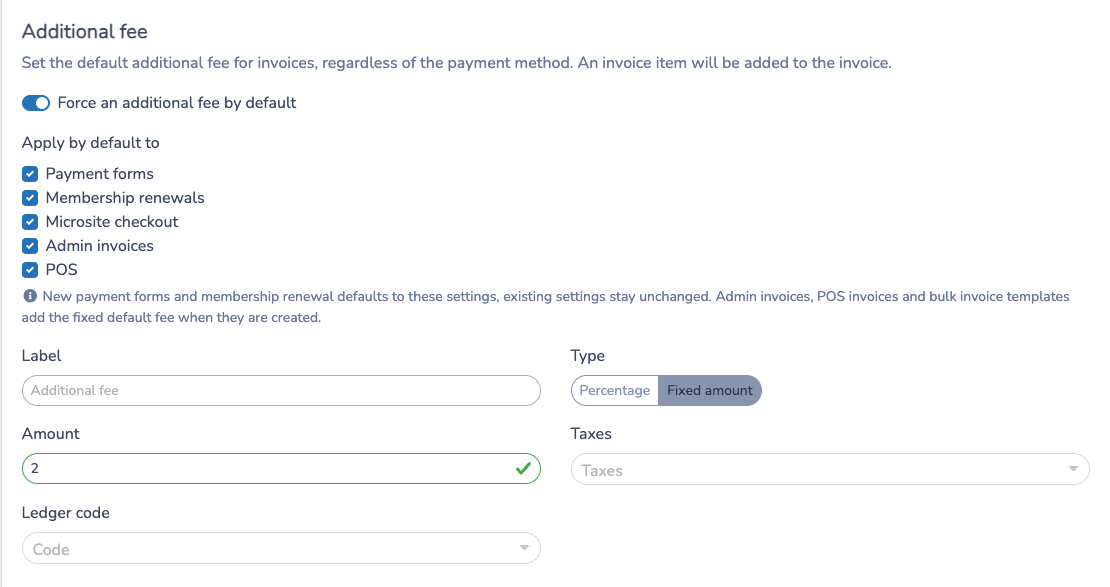
- Find the Additional fee section.
2. Configure the other fee
- Enable Force an additional fee by default.
- Enter the label clients and administrators should see on the invoice.
- Choose Percentage or Fixed amount.
- Enter the percentage or dollar amount.
- Select the taxes and ledger code, if needed.
- Save the settings.
A percentage fee is calculated from the invoice items that the fee applies to. A fixed fee uses the dollar amount you enter.
3. Choose where the fee applies by default
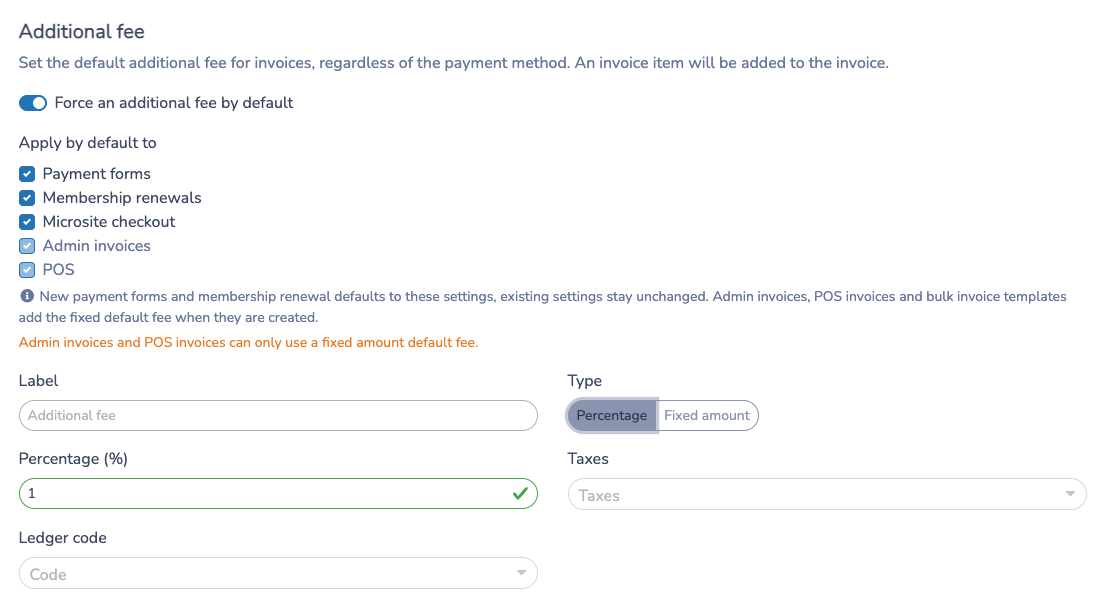
Under Apply by default to, select the workflows that should receive the organization default:
- Payment forms
- Membership renewals
- Microsite checkout
- Admin invoices
- POS
Admin invoices and POS invoices can only use a fixed amount default fee. If the other fee is set to a percentage, those two options are disabled and will not be saved.
4. What happens in each workflow
For payment forms, the organization default is used when new payment settings are created. Existing form payment settings are not overwritten. You can still open a form and adjust its payment options.
For membership renewals, the organization default is used when renewal payment settings are created. Existing renewal settings keep their saved values until you edit them.
For microsite checkout, Activity Messenger keeps the other fee synchronized as clients add, update, or remove cart items.
For admin invoices and POS invoices, a fixed default fee is added as an invoice item when the invoice is created. The item is marked with a Default fee badge so administrators can distinguish it from custom invoice items.

For multiple-client invoice templates, a draft template can include the default fee. Invoices generated from the template clone that fee item and do not add a second one.
5. Add or remove the fee on an invoice
If an invoice does not already have the default fee and the organization has a fixed default fee configured, administrators can open the invoice item dropdown and select Default fee.
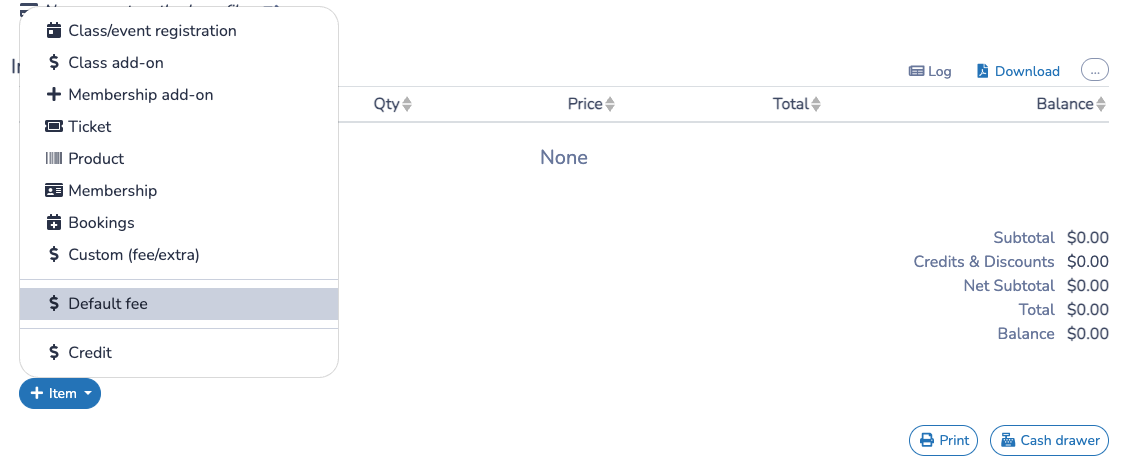
Activity Messenger prevents the same invoice from receiving the default fee twice. If the default fee item is unpaid, it can be removed from admin and POS invoices like other removable invoice items.
NSF fees after a failed payment
For an insufficient-funds fee, configure an NSF fee product in Organization settings → Finance → Payments. Then use + Item → Add NSF fee, in the same invoice-menu section as Default fee. An NSF fee is added manually and can be linked to an eligible scheduled payment; it is not an automatic default fee or a payment retry. See Add and manage NSF fees.
Example
Suppose your organization charges a $5 facility fee on front-desk and POS sales.
- Open E-Commerce → Fees.
- Enable the other fee.
- Set the label to
Facility fee. - Choose Fixed amount and enter
5.00. - Select Admin invoices and POS under Apply by default to.
- Save.
New admin invoices and POS invoices will include one $5 default fee item. If an administrator removes it by mistake, they can add it again from the invoice item dropdown as long as the invoice does not already contain the fee.
Exclude donations and tips from service fees
You can exclude donations, tips, or both from the amount used to calculate a percentage service fee. The excluded items stay on the invoice and remain part of the total payable.
Turn on the exclusions
- Open Organization settings → Finance → Fees.
- In Additional fee, find Global service fee exclusions.
- Enable Exclude donations from service fees, Exclude tips from service fees, or both.
- Click Save.
Both options are off by default. Leaving them off preserves the existing behavior. You do not need to change each form separately.
Apply by default to chooses where an organization default fee is added. Global service fee exclusions chooses which amounts are left out when a percentage service fee is calculated. The exclusions work independently of the default fee settings above them, including when an existing form has its own percentage fee.
What each option covers
- Exclude donations from service fees covers donation fields on forms and donations added through the form's payment options.
- Exclude tips from service fees covers tips added through the form's payment options.
- The options work separately. Excluding donations does not also exclude tips.
- The global rules apply to percentage fees on existing and new payment forms, membership renewals, and microsite checkout when the invoice contains donation or tip items.
Example: registration with a donation
For a $250 registration and a $50 donation, with a 5% service fee and no taxes or discounts:
| Donation exclusion | Amount used to calculate the fee | Service fee | Total payable |
|---|---|---|---|
| Off | $300 | $15 | $315 |
| On | $250 | $12.50 | $312.50 |
This example uses a donation field included before the service fee is calculated. The donation is still $50 in both cases. The service fee remains on the registration amount; enabling an exclusion does not remove all service fees.
Important behavior
- Fixed fees do not change. A fixed $5 fee stays $5 regardless of these options.
- Credit card convenience fees are separate; these options do not change their calculation.
- Changing the exclusions does not update finalized invoices. If you later edit a promo code on a finalized invoice, its fee recalculates using the exclusion rules originally applied to that invoice.
- If all items are excluded, there is no eligible amount for a percentage fee.
- When at least one exclusion is enabled, adding or removing an optional donation or tip during payment refreshes the percentage service fee using the selected exclusions. With both options off, the existing payment-step behavior is preserved: adding an optional donation or tip does not increase an already calculated service fee.
Important notes
- The default other fee applies regardless of payment method.
- A credit card convenience fee is separate and may still apply to card payments if configured.
- Admin invoice and POS defaults require a fixed amount.
- Existing payment form and membership renewal fee amounts and rates are not changed retroactively. The global donation and tip exclusions still apply when their percentage fees are calculated.
- Activity Messenger adds only one default fee item to an invoice.
- Form-linked invoices follow the payment options saved on the form, with the organization’s global exclusions applied to percentage fees.
- Remove an unpaid default fee item from the invoice if it should not be charged.