Activity Messenger Help Center
Manage website pages, navigation, and SEO
Use Manage pages to create the structure of your website, control which pages appear in navigation, publish or unpublish each page, and configure search and social-sharing information.
Open Manage pages
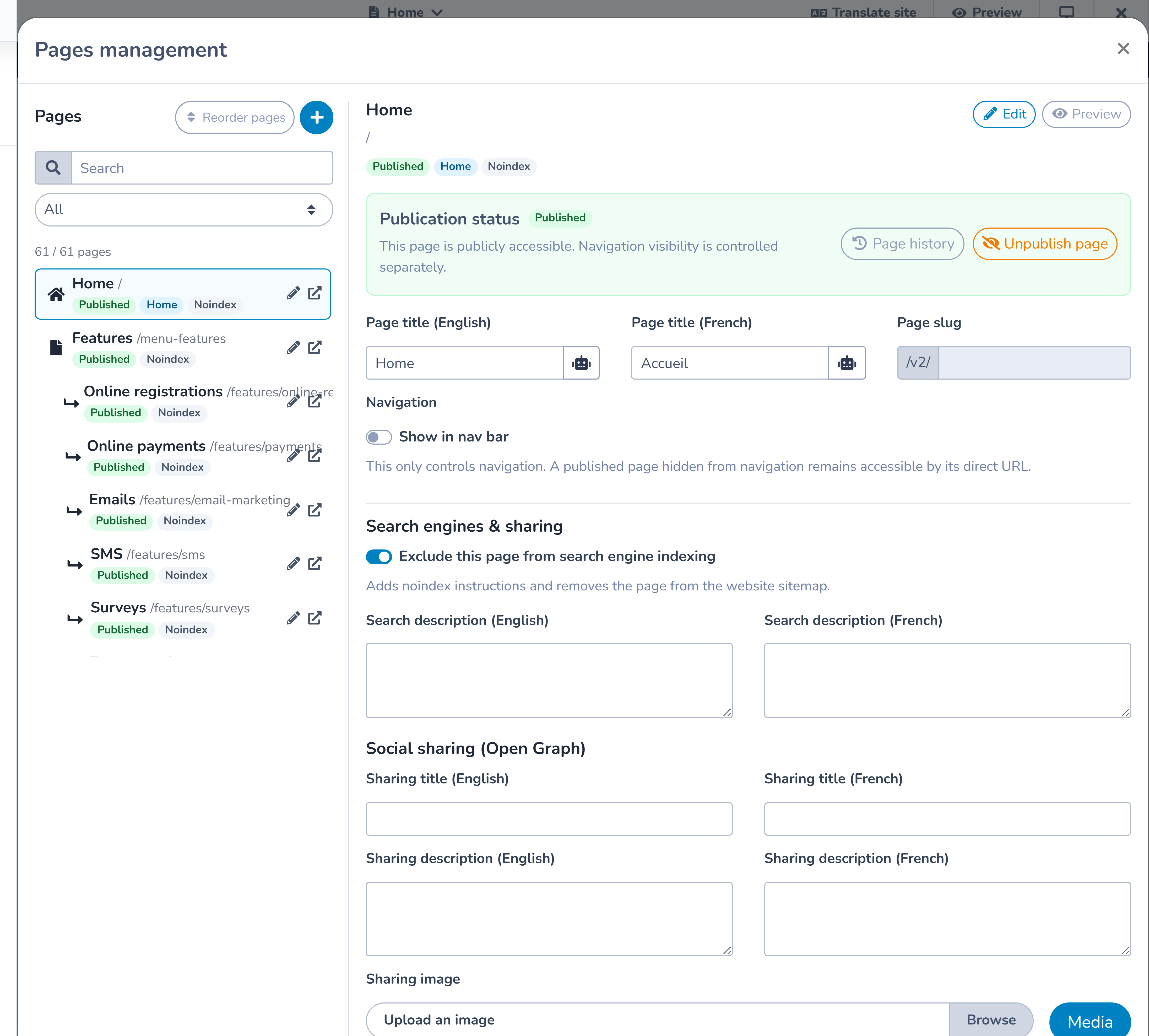
From the Website builder, open the page switcher and select Manage pages. You can also select Manage pages from the page inspector.
The page list lets you search and filter by:
- all pages;
- drafts;
- published pages;
- pages in navigation;
- pages hidden from navigation; and
- pages excluded from search engines.
Select a page to edit its settings. Use the pencil action to open it in the editor or the external-link action to preview it.
Create a page
- Open Manage pages.
- Select the plus button beside Pages.
- Enter the English and French page titles when the website is bilingual.
- Edit the page slug.
- Decide whether to show the page in navigation and whether it belongs under another page.
- Complete the SEO, social-sharing, spacing, and background settings.
- Select Save.
The slug is the page's path in its public URL. Use a short, descriptive slug with words visitors can recognize. Renaming a page URI creates a permanent redirect from its old URI. Review that redirect and update important links after a change. A bilingual website can use different English and French paths; a monolingual website exposes only its primary-language title and path fields.
Organize website navigation
Turn on Show in navigation when the page should appear in the website menu. For a regular page, choose either Top-level navigation or an eligible parent page.
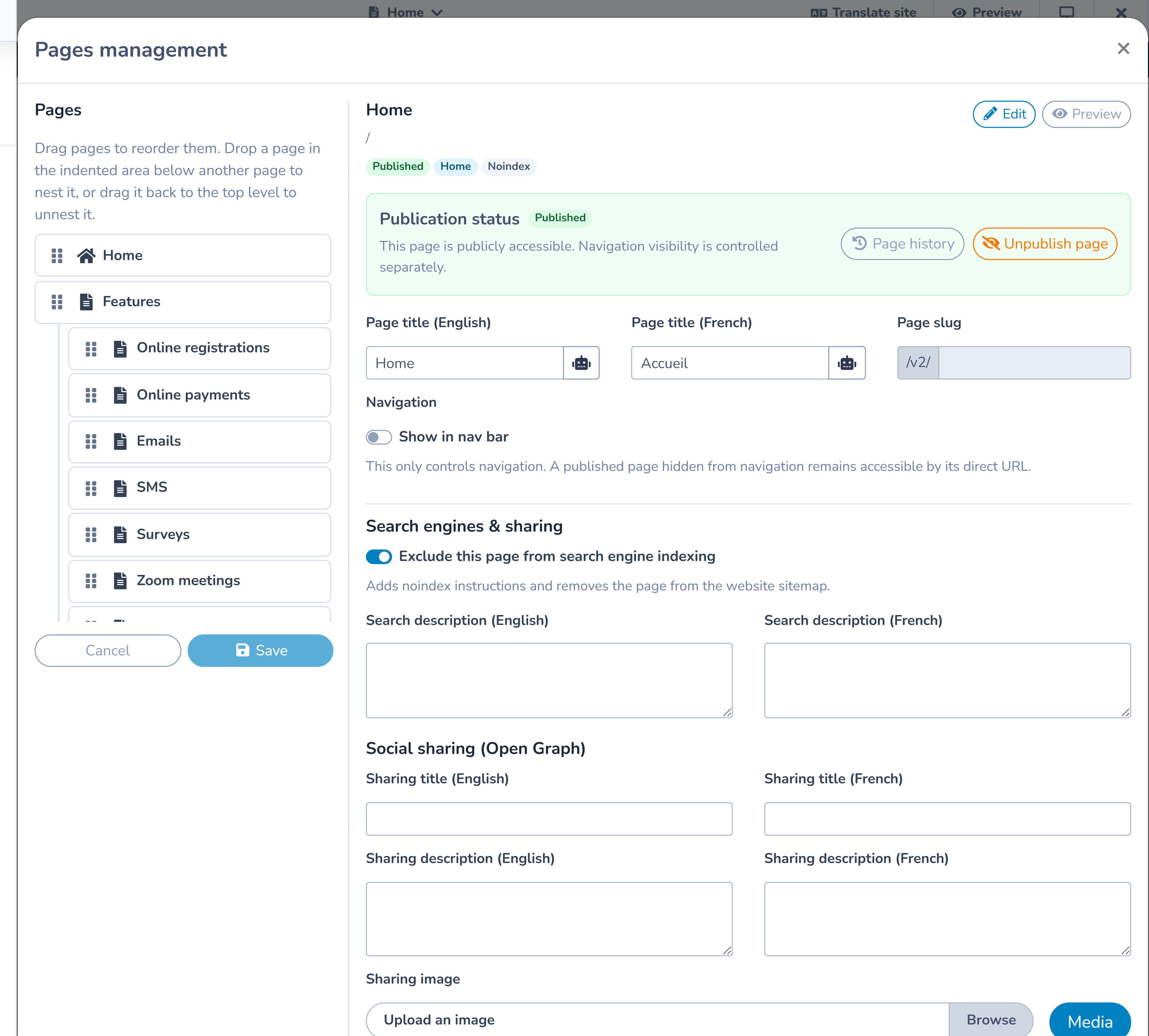
Use Reorder pages to drag pages into the intended order and place child pages under a top-level parent. Save the new order when finished.
The current navigation supports one child level. The home page cannot be used as a parent, and a child page cannot become the parent of another child.
Hidden from navigation is not private
Turning off Show in navigation removes the menu link only. If the page is published, anyone with its URL can still open it. This is useful for campaign landing pages, confirmation pages, or links sent directly to a selected audience.
Use Unpublish page when a page should not be publicly accessible.
Understand publication status
- Published means the page is publicly accessible.
- Draft means visitors cannot open it; signed-in editors can preview it.
- Show in navigation controls the menu link and does not change publication.
- Exclude from search engines controls crawler instructions and does not change publication.
From Manage pages, publishing exposes the latest saved version. Save current editor changes first. From the current page inspector, publishing saves the current editor changes and then makes the page public.
Unpublishing does not delete the page or its content. You can continue editing and republish later.
Configure search-engine information
Under SEO:
- turn on Exclude from search engines when the page should receive a
noindexinstruction; - enter a concise English meta description; and
- enter the French meta description for a bilingual site.
The site also has a global search-engine setting under Site settings. When the entire site is excluded, every page receives noindex instructions and the website sitemap is removed. Page-level settings are preserved and apply again if the site-wide option is turned off.
Noindex asks compliant search engines not to index the page. It is not an access control. Use draft status or website password protection for access restrictions.
Configure social sharing
Under Social sharing, enter a localized title and description and choose a social image. These values help control how a page appears when its link is shared on services that read Open Graph metadata.
Use an image with a clear subject and enough space to crop at different social-preview ratios. Avoid private registration or client information.
Set spacing and page background
Choose the page's Section spacing. Leave it on the website default when the page should follow the global design, or select a page-specific spacing.
The page background can be:
- a solid color;
- a gradient with start color, end color, and direction; or
- an image from the media tools.
Section backgrounds still appear on top of the page background. Preview long and short pages at desktop, tablet, and mobile widths.
Home and not-found pages
The home page represents the website root. Its slug cannot be changed in Manage pages, and it cannot be deleted.
The not-found (404) page is used when a visitor requests an address that does not exist. It:
- is always publicly available;
- is always hidden from navigation;
- is always excluded from search engines;
- cannot be unpublished;
- cannot be deleted; and
- has a fixed path.
You can still edit its page content and design. Include a clear explanation and a link back to the home page or another useful page.
Review Site health
Open Site health in the Website builder toolbar, or open Website → Manage websites, select the website’s ellipsis menu, then Site health. You need permission to edit the website.
The summary identifies unresolved paths, missing descriptions or duplicate search titles, and titles that need translation. Select a summary to filter the compact Pages table. It shows titles, URI paths, keywords, publication status, Indexing permission, sitemap inclusion and expandable SEO details. Bilingual versions stay together; monolingual sites show only their configured language. The filtered page count remains visible.
Indexing permission reports whether your settings allow indexing, not whether Google has actually indexed the page. Open Edit SEO settings from the page’s details to review page exclusions and metadata. The dialog opens above Site health, so you can return to the table when finished.
To allow indexing, open Website settings → General & publishing → Search engines, turn off Exclude from search engines, and save. Also check the page’s own exclusion, publication and password protection. Demo plans normally prevent indexing even when these switches allow it. Only a super admin can enable Allow indexing despite the Demo plan (super admin) for a website; other restrictions still apply. Ask Activity Messenger support if this restriction needs review.
Download lists and open the sitemap
The Excel icon is the last action on Pages, 301 redirects and Not found 404. Exports include all matching results, not just the current table page. Page exports use one row per enabled language. The 404 export follows the ignored-path and configured-redirect filters.
Select View XML sitemap to open the sitemap for this website’s public domain. It is generated automatically from eligible published pages and blog articles in enabled languages; you do not upload or regenerate it manually. Excluded or protected content and the system 404 page are not included. A sitemap helps search engines discover URLs but does not guarantee indexing.
Add a permanent redirect
- Open 301 redirects and select Add redirect.
- Enter the old path and choose the destination.
- Save the redirect after checking both addresses.
For a page on the same website, use its URI, such as /programs/, rather than an editor or preview hostname. External destinations use an HTTPS URL. Manage redirects remains available to edit, remove or test rules. Existing rules and conflicts are checked before saving.
Resolve missing paths
Not found 404 groups logged public requests from the past 30 days by path, with request counts, last occurrence and the latest referrer. Counts include automated traffic; they are not unique visitors.
- Select Resolve beside a path, or select several paths on the current table page and review the selection.
- Review the suggested pages. Suggestions are never applied automatically.
- Use the searchable page picker to find a published page or blog article by title, URI, description or keywords.
- Choose a destination or select Keep as 404 when no redirect is appropriate.
- Review the mappings, then save the selected permanent 301 redirects.
For example, redirect /old-programs/ to /programs/ when it is the replacement page. Do not redirect an unrelated scanner request to the homepage merely to remove an alert. Ignore hides a path from alerts without changing its 404 response. Use Show ignored paths to restore an alert, or Show paths with redirects to review resolved paths. A potentially truncated logged address requires manual review.
Review blocked bot paths
Select Blocked bot paths in Not found 404 to inspect the shared catalogue of known scanner paths, including retired WordPress paths and PHP filenames. Matching requests receive a blank 404 early and are excluded from the report and its Excel export. The catalogue is maintained by Activity Messenger and can expand over time; this modal is for review, not editing rules. Other missing pages still use the normal 404 page.
Example structure
A recreation organization could use:
- Home;
- Programs, with Children and Adults as child pages;
- Schedule;
- About us; and
- a published Summer campaign page hidden from navigation and shared only through email and social posts.
The campaign page remains public at its direct URL. After the campaign, unpublish it rather than relying on navigation visibility.
Important behaviour
- Page titles and paths follow the website’s enabled languages. Stored titles in the inactive language are preserved when you save a monolingual page.
- A published page hidden from navigation is still public.
- Noindex is not privacy or password protection.
- The site-wide noindex setting takes precedence while it is enabled.
- Deleting a regular page removes it from the active website. Use page history for recoverable content changes, but do not treat deletion as an archive workflow.
- Restoring an older page version can fail if its old slug is now used by another page.