Activity Messenger Help Center
Saving, pre-filling, gating and closing a form
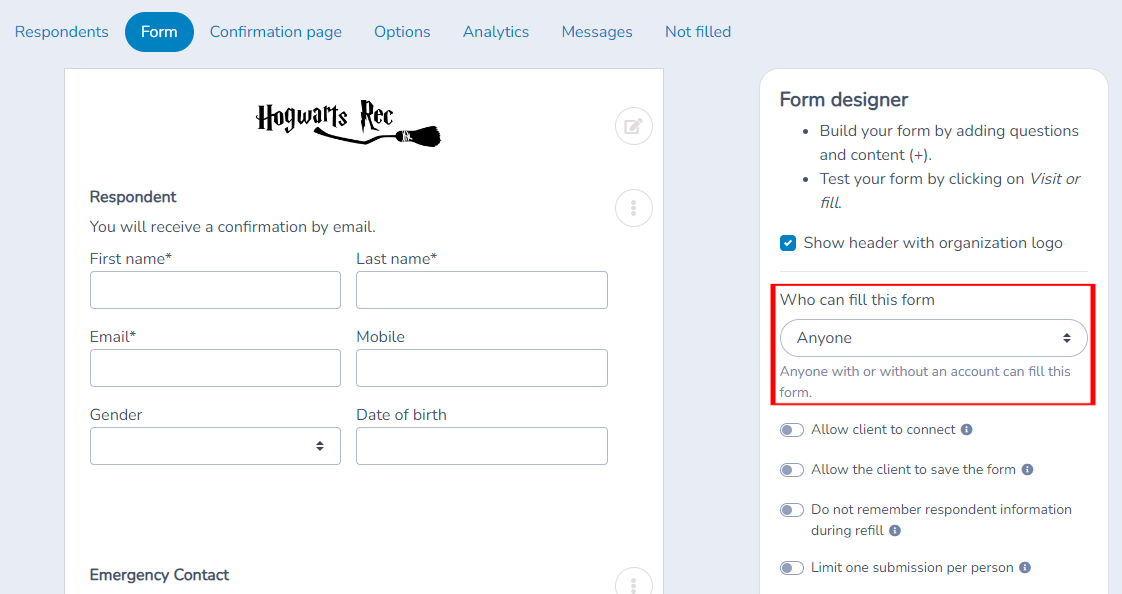
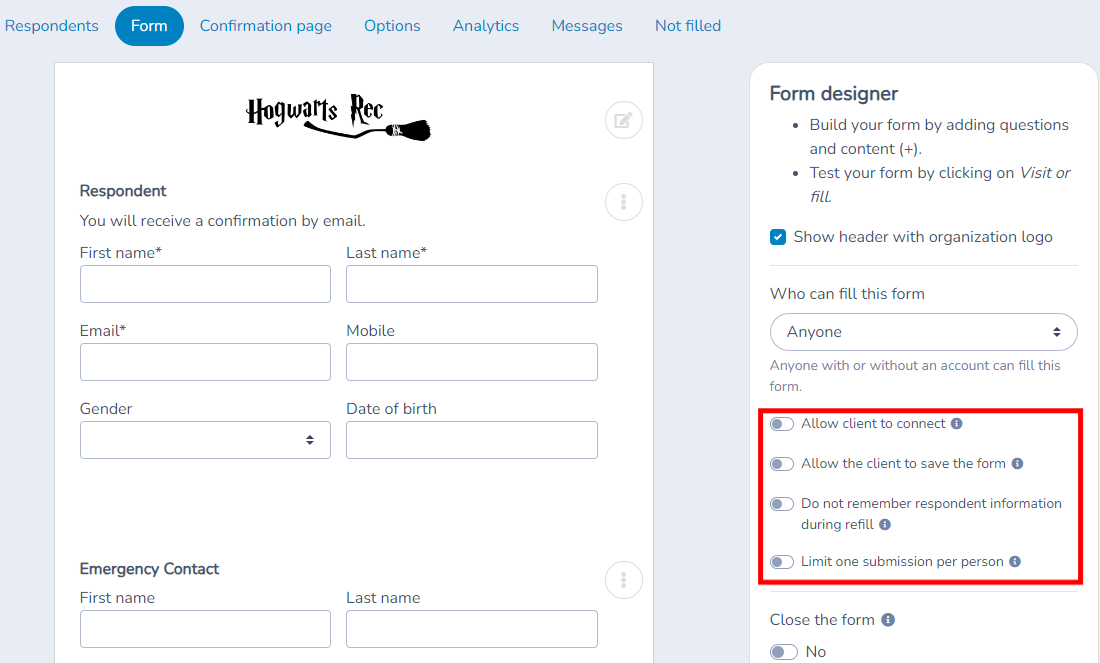
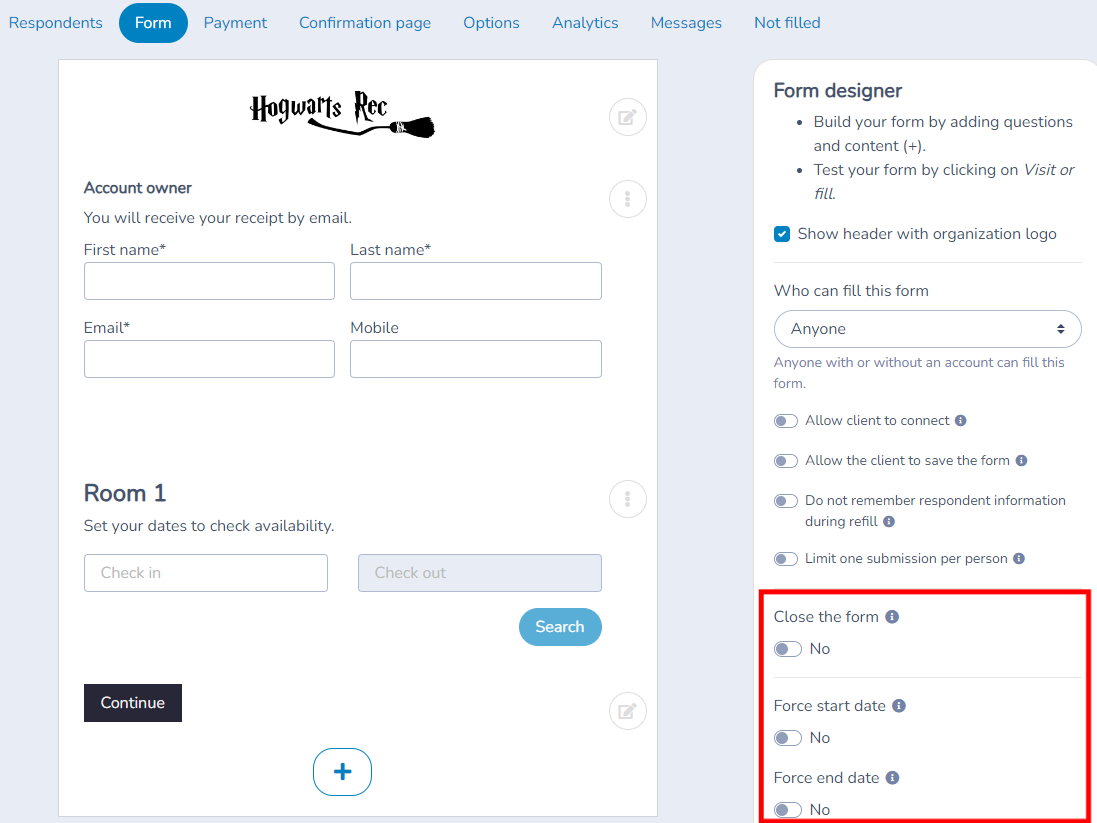
If you have very long forms, you can allow clients to save their work mid-way. You can also block guests from filling in forms and only allow returning clients. You can allow clients to connect to their account to pre-fill common questions. Finally, you can close a form when it is no longer used. Those options are available in the form designer's side panel:
Restrict a form to people on a specific list
Yes. You can restrict submissions to a selected recipient list. For example, a camp medical form can accept submissions only when the account-owner email belongs to a list representing that camp’s registrants. Sending the link only to those families is useful, but the form’s own List rule is what checks eligibility at submission.
- Open the form and select the Form tab.
- In the form designer’s side panel, find Who can fill this form and choose List.
- Select the recipient list that represents the eligible camp or class registrants. Do not leave the list selection empty. Confirm that the intended list is available in the selector; if it is not, create or maintain an appropriate recipient list first.
- Make sure the form collects the account owner/respondent’s email address and requires it. For a child’s medical form, the parent filling it out must use an email present in the selected list; the child’s name or class alone is not the check.
- Use Modify message to customize the message for people who are not authorized. For example: “This form is reserved for registered camp families. Please use the email address associated with your registration.”
- Wait for the settings to save. Before sharing the form, check the selected list and verify the final submission with one eligible email and one email outside the list, using non-sensitive test information.
Sending to a class waitlist does not require a new mailing list
To send a survey or message, open the class waitlist and use Message all. Activity Messenger prepares a one-time recipient list automatically; no manual mailing-list creation is needed for that send. Check the selected form/event and enable Only show participants still waiting when that is the intended audience. See Message a class waitlist.
This does not apply the form's List access restriction. The generated one-time list is excluded from the access-rule selector. For restricted submissions, reuse a suitable persistent list available in that selector, or create and maintain one specifically for eligibility. Sending the link and checking eligibility are separate operations.
What the restriction checks
At final submission, Activity Messenger checks the account-owner email against the selected list. If the email is not on the list, the submission is rejected with the access message. This is an email-based eligibility check, not a check of a child’s name, class choice or medical answers, and it does not by itself prove ownership of the entered email address.
The restriction does not promise to hide the form’s questions from someone who opens its link. Saving an unfinished form for later is separate from final submission. Keep the selected list accurate as camp registrations change, and check any Schedule changes settings that may change who can fill the form later. Selecting Client only limits the form to existing clients; it does not select the families registered in one particular camp.
Advanced Features
Allow the client to log in: Enable clients to log in and pre-fill the form with information from their account.
Do not remember the respondent next time: If the form is filled out on a kiosk and multiple respondents will use the same device.
Submission limitation: Limit the number of submissions per person. Useful for surveys to avoid multiple responses.
Allow the client to save the form: If your form is very long, you can allow the respondent to save their work and resume later.
How "Limit one submission per person" works
The limit is not tied to the form link, the browser, the device or the respondent's name. When someone submits the form, Activity Messenger looks for an earlier submission of this form that used the same account-owner email address. If one exists, the new submission is refused with the message "You have already filled this form. You cannot fill it again."
- If the account-owner email is left blank or is not collected on the form, the check is not applied and the person can submit again. Make the email question required if you need the limit to apply.
- A person who enters a different email address is treated as a different person and is not blocked.
- Saving an unfinished form for later is not counted as a submission; only the final submission is checked.
- The setting saves automatically a moment after you toggle it; there is no separate publish step. Wait for the settings to save, then test the link with the same email twice.
Saving a form to fill in later
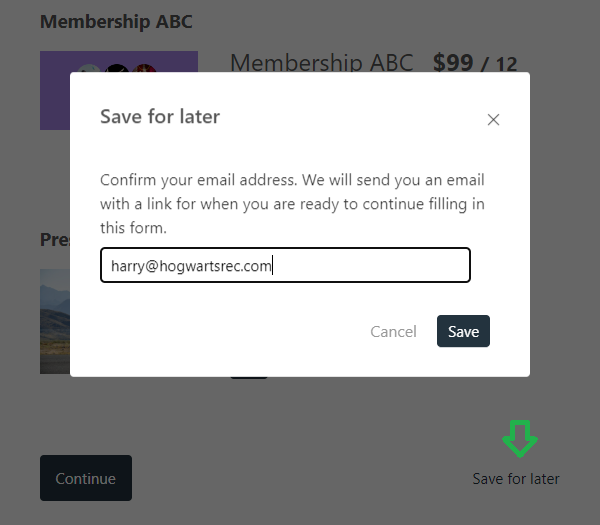
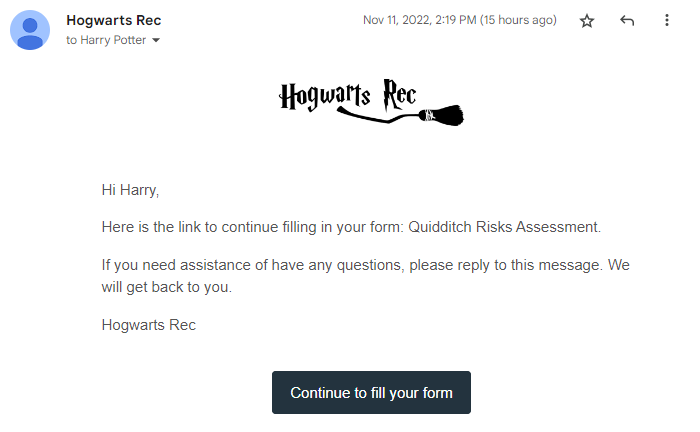
If your form is very long, you can allow the client to save their work in order to come back later to complete the form. Toggle the option "Allow the client to save the form". Visit the form and scroll to the Submit button. Next to it is a link the client can use to save the form for later. That will open a popup asking them to confirm their email address. Activity Messenger will send them an email with a link to recover the form.
You can personalize the email the client receives. Click on Communications and choose option All templates. Find the Default template called "Link to your saved form". Adapt it to your needs.
Gating your form
Force a Start/End Date: Set specific dates for the opening and closing of the form. Example: opening on June 15 and closing on June 30.
Form Closure: Close the form on a specific date or whenever you want, thus preventing any new submissions.
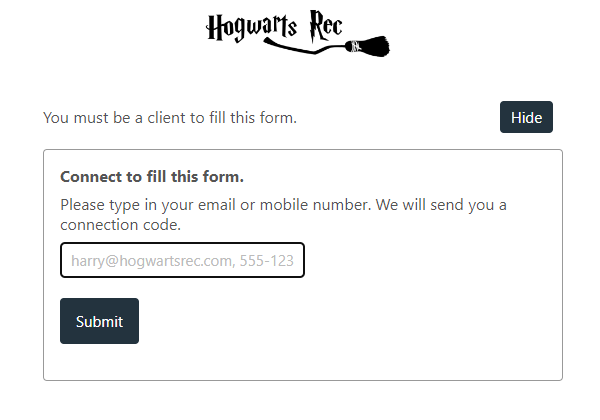
You can however gate your form to only allow returning clients. When that option is set, Activity Messenger will invite the client to connect to their account.
The client can connect using their email address or mobile phone number. Activity Messenger will send them a 6-digit code to let them in.
Pre-filling common questions
Once the client is connected, Activity Messenger will pre-fill these questions for them: account owner, other parent, contacts and participant. Activity Messenger will use their previous answers to pre-fill those questions.
Allowing clients to connect
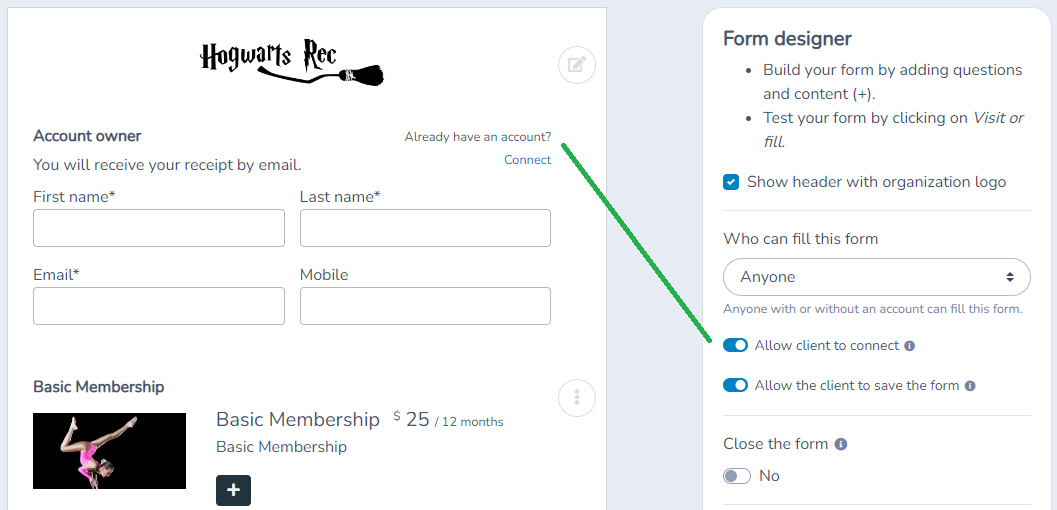
If you want guests to fill in the form yet allow returning clients to connect and benefit from question pre-filling, toggle the option "Allow clients to connect". A connection link will appear next to the account owner question. The session will last 30 days. The client can disconnect from their account at anytime.
Closing a form
You can close a form that is on longer relevant by toggling that option. The form will remain visible however submissions will no longer be possible.
Settings reference
All settings below are in the Form designer panel at the side of the form. They save automatically a moment after you change them. You only see them if your permissions let you edit forms.
| Setting | Where | Default | Effect |
|---|---|---|---|
| Who can fill this form | Forms › Manage forms › form › Form tab › Form designer panel | Anyone | Chooses who can submit: Anyone (with or without an account), Client (a returning client who connects with their email or mobile phone), Member (a person with an active membership), List (only people on a recipient list), Password, Verified email (a 6-digit code is emailed to prove the address), Zip/Postal code (only listed codes) or Staff (only users of your organization, never clients). |
| Limit to specific memberships | Same place, when Who can fill this form is Member | Empty (all members) | Only members holding one of the selected memberships can fill the form. |
| List | Same place, when Who can fill this form is List | None selected (required) | The recipient list that decides eligibility. The person must use the same email address as on the list. See Restrict a form to people on a specific list. |
| Password | Same place, when Who can fill this form is Password | Empty (required) | The password people must enter to open the form. The access message cannot be edited for this choice. |
| Zip/Postal codes | Same place, when Who can fill this form is Zip/Postal code | None | One code per line. Partial codes (the first 3 characters) are accepted. The account owner question must require the zip or postal code or the address. |
| Modify message | Same place, when Who can fill this form is not Anyone | Default message (for example "You must be a client to fill this form.") | Replaces the message shown to people who are not allowed to fill the form. Leave it blank for the default. |
| Schedule changes | Same place | No scheduled change | Adds future dates at which Who can fill this form changes automatically. The date and time use your device timezone. While changes are scheduled, the label reads Who can currently fill this form. |
| Allow client to connect | Same place | On for forms created from scratch | Adds a connection link next to the account owner question so a returning client can sign in and have common questions pre-filled. The session lasts 30 days. Not shown when Who can fill this form is Client, Member, Verified email or Zip/Postal code. |
| Allow the client to save the form | Same place | Off | Adds a link near the Submit button. The respondent enters an email address and receives a unique link to finish later. The email uses the template Link to your saved form. |
| Allow the client to print or save as PDF | Same place | Off | Adds a button at the top of the form to print or save the whole form as a PDF before submitting. Page breaks are ignored. |
| Show form expiration countdown | Same place | Copied from your organization setting when the form is created (off unless you turned it on) | Shows a countdown before the form page expires. When on, Show countdown ... minutes before expiration sets when it appears. Left blank, it uses 10 minutes. |
| Do not remember respondent information during refill | Same place | Off | Clears the form after each use so the next person on a shared device, such as a kiosk, does not see earlier answers. |
| Limit one submission per person | Same place | Off | Refuses a second final submission with the same account owner email address. Not applied when the email is blank. See How "Limit one submission per person" works. |
| Allow submission from suspended or pending members | Same place | Off | By default, suspended members and members pending approval cannot submit forms. Turn on to let them submit this form. |
| Prevent clients with invoice balance from submitting the form | Same place | Off | Blocks a client who has an unpaid invoice balance from submitting. |
| Requires client waiver | Same place | None selected | Clients must complete the selected client waivers before submitting. Use Write a custom message to change the wording shown. See Manage client waivers. |
| Close the form | Same place | No | When Yes, the form remains visible but cannot be submitted. A closed form shows "This form is closed. We no longer accept submissions." unless you write your own message. |
| Force start date | Same place | No | When Yes, set a date and time. Before it, the form can be viewed but not submitted. Modify message changes the text shown. Hidden while the form is closed. |
| Force end date | Same place | No | When Yes, set a date and time. After it, the form can be viewed but not submitted. Modify message changes the text shown. Hidden while the form is closed. |
Common questions
Who can I allow to fill a form? Use Who can fill this form: Anyone (the default), Client, Member, List, Password, Verified email, Zip/Postal code or Staff. Each choice shows a short explanation under the field. See Restrict a form to people on a specific list.
Can I limit a form to the families of one camp or class? Yes, with a recipient list. Choose List, select the list and require the account owner email on the form. Activity Messenger checks that email against the list when the form is submitted. Client only means any existing client, so it does not target one camp. See Restrict a form to people on a specific list.
Can someone submit the same form twice? Yes unless you turn on Limit one submission per person. The check uses the account owner email address, so someone who types a different address is not blocked, and a form without an email question is not limited. See How "Limit one submission per person" works.
How do I let people finish a long form later? Turn on Allow the client to save the form. A save link appears next to the Submit button and the respondent receives an email with a link to continue. You can edit that email in the template Link to your saved form. See Saving a form to fill in later.
What is the difference between Close the form and Force end date? Close the form stops submissions immediately and until you set it back to No. Force end date stops them automatically at the date and time you choose, and Force start date opens them automatically. In both cases the form stays visible. See Gating your form and Closing a form.
Why can a member not submit a members-only form? Member requires an active membership. Suspended members and members pending approval are refused unless you turn on Allow submission from suspended or pending members. If the form should be limited to certain memberships, fill Limit to specific memberships.
Can I change the message people see when they cannot fill the form? Yes. Click Modify message under Who can fill this form. It does not apply to the Password choice, which always shows that a password is required. Forms with Schedule changes can have a different message for each change.
Why can I not see these settings? The panel needs permission to edit forms, and the form must not be locked or read-only for you. Otherwise you only see a preview, with the message that you do not have sufficient permission to modify the form. Ask an owner to change your permissions or to make the change. See Invite users and manage their access.