Activity Messenger Help Center
Class reminder
Schedule one or more reminders or follow-ups for each occurrence of a class or event. Use this workflow for recurring sessions; use Activity start or Activity end when you only want to contact participants around the first or last class.
For imported Amilia or Excel/CSV audiences, check that occurrence dates are available. Activity Messenger class sources use their scheduled occurrences.
Configure multiple reminders in a class or event
You can manage the full message sequence directly in the class or event's Reminders tab, without creating a separate automated task for each message.
- Open the class or event settings, then select Reminders.
- In the first numbered reminder card, select Yes. Set Number of days, choose Before or After, and set Send time.
- Click Configure the message, enter that reminder's message and save the message configuration.
- Click Add reminder to add another card. Configure its own schedule and message. Repeat for each additional reminder.
- Check the example showing the activity date and the scheduled send date and time, then click Save in the class or event settings.
Number of days is relative to the activity date; 0 means the same day. Send time is a fixed time of day, such as 6:00 PM, rather than a number of hours before or after the activity. The information icon beside the number of days explains the existing sending limits.
For example, configure a first reminder 1 day Before at 6:00 PM with practical information, then a second reminder 1 day After at 12:00 PM with a link to a feedback survey. For a recurring class, these settings apply to each occurrence.
You can edit each card, set it to No to disable it, or click Remove to remove that reminder, then save the class or event. The other reminders remain configured. Existing reminders retain their saved day offset, send time and message when you leave them unchanged.
The procedure below remains available for reminders managed through Communications › Automations, including imported and combined lists.
Create the automation
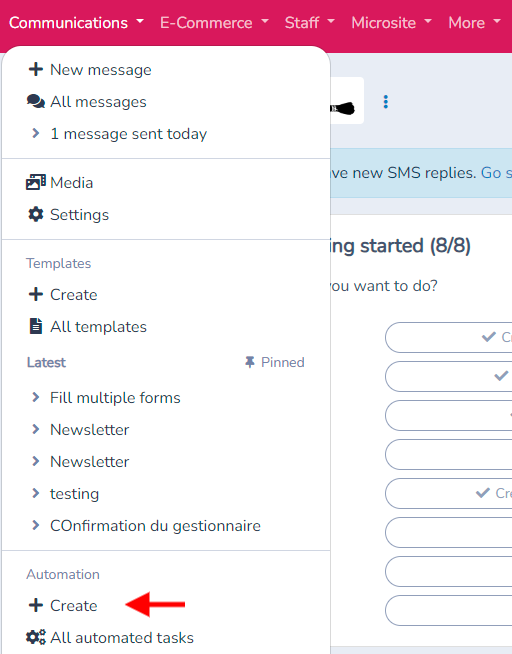
Go to the Communication section in the main menu and select Create in the automation section.
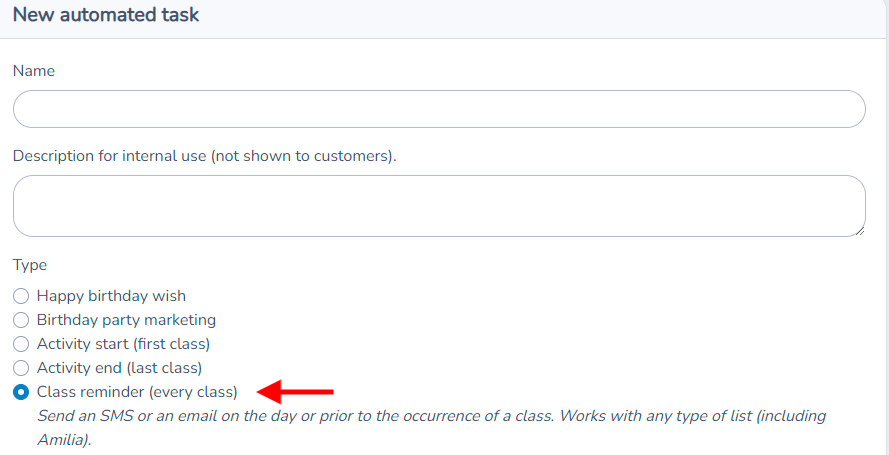
In the automation options, choose "Class reminder (every class)."
This allows you to schedule reminders for each course session, not just at the beginning of the session, but for every occurrence in the calendar.
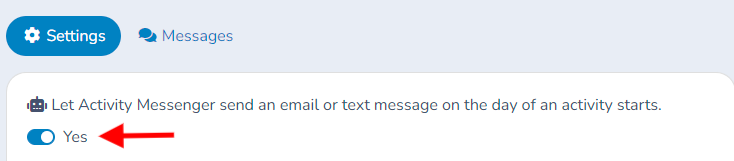
Click on Create to start setting up the automation, then click the button to change the response to "Yes" to activate the bot.
Define When the Message Should Be Sent For example, set it to send on the day of the class at 2 PM.
You can schedule the reminder to be sent for each session of a weekly or monthly course, depending on your needs.
Select the Course, Form, or List Choose the course, form, or list to which the automation will apply.
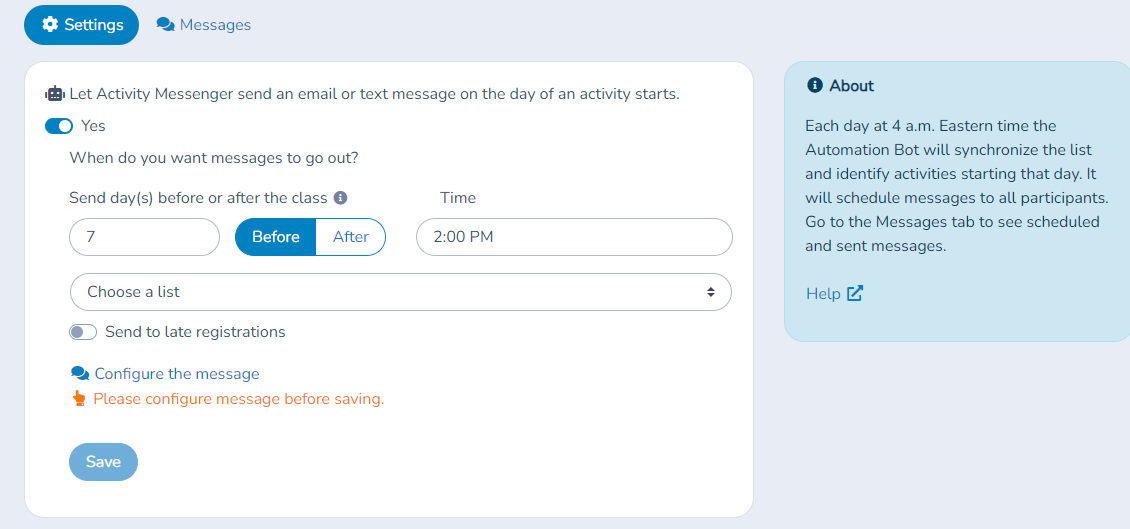
Finally, configure the message and save the automation.
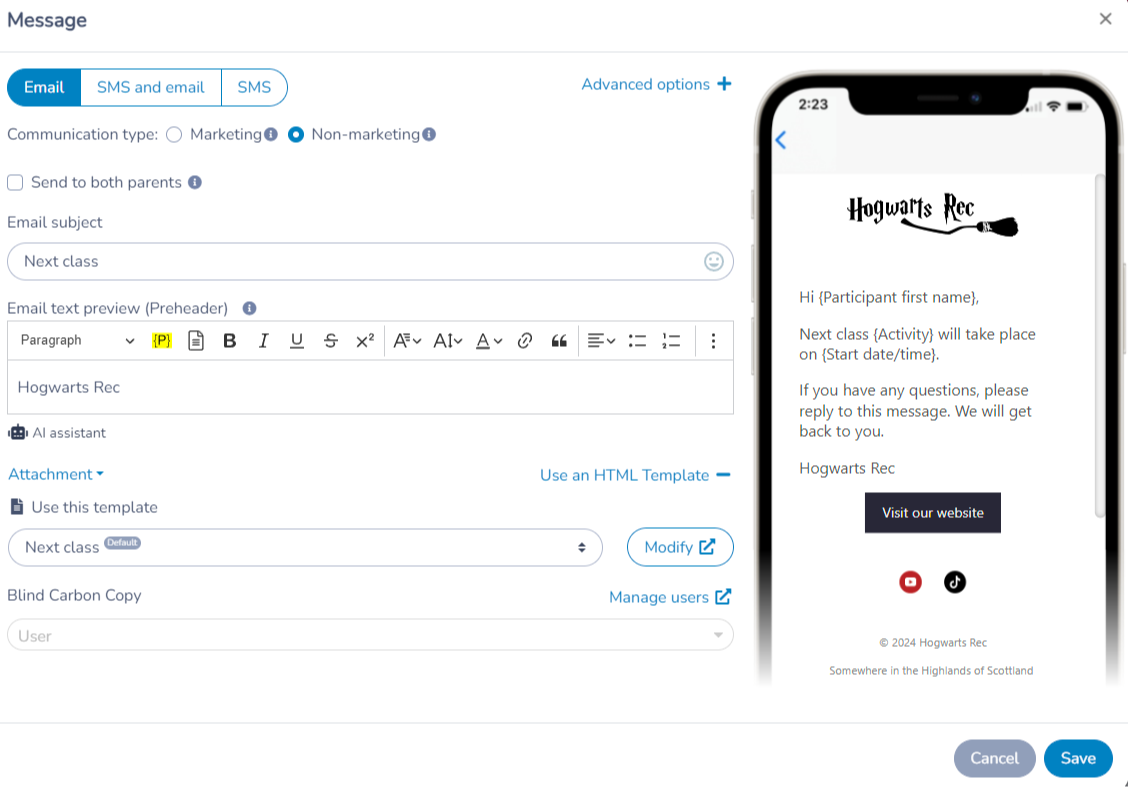
Tasks of the "Class reminder (every class)" type work with all list types, including combined lists. Activity Messenger will ignore recipients who are not registered for an activity.
At the bottom of the screen, use the simulator to select a day and preview the participants eligible for a class reminder on that day, along with their scheduling status. Use the date picker or the arrow buttons to change the day, and refresh the results if needed. The table does not display or validate the rendered message or its links. Check a Teams or other meeting link separately in the message configuration.
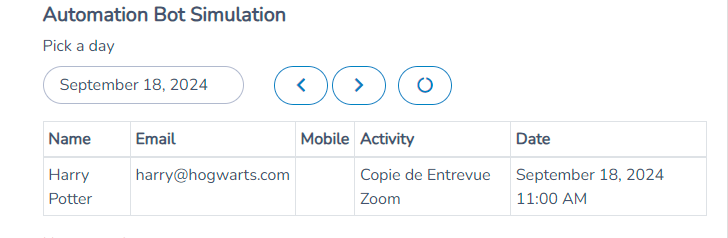
The Schedule now button is a separate action, not part of the preview. Selecting it schedules recipients for the chosen day; do not click it unless you intend to schedule them.
Message template for course reminders
A default template is created by Activity Messenger. It includes merge fields for the participant's first name, the name of the activity (course), and the date and time. You can modify this template or create a new one.
Add specific information such as:
- The link to a Zoom or Teams session for online courses.
- Relevant details like the start date, time, etc.
Save the message configuration.
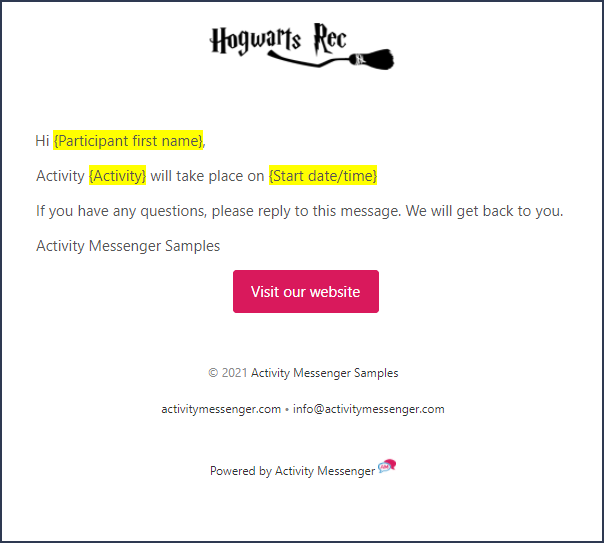
Attaching a waiver
You can attach a form or waiver (i.e. a liability waiver) to the message, requesting the participant to fill it in before each class.
Click on Configure the message. Below left, click on Attachment and Attach a form/waiver. Select the form you have previously created. Activity Messenger will add a button with a link to the form. Read the docs on forms and waivers to learn more.
Send follow-ups after the class
In addition to reminders before the class, you can schedule the sending of a message after each session.
For example, send a satisfaction survey or a form to complete the day after the class at noon.
You can also schedule the sending of assignments or other post-session documents.
Finalize the automation
Once the automation is configured, it will account for all the dates and occurrences of the course you have created on the platform.
The system will automatically send emails or SMS before each session according to the settings you have defined.
View sent messages
Activity Messenger keeps a log of all sent messages. Go to the Messages tab of the automated task to find the list of emails and texts that have been sent.
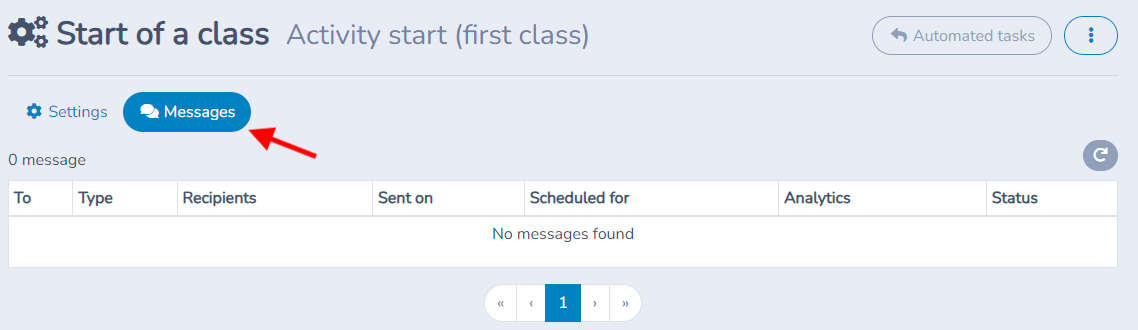
Messages that are still scheduled can be opened from this tab and cancelled with the Cancel button; this removes that individual message. Changing the selected course or deactivating the automation (switch it to No) only affects what is scheduled in the future. It does not remove messages that were already sent: for those, the Messages tab is mostly a log. See Scheduling messages.
Check attendance and timing
For Activity Messenger classes, the reminder follows scheduled occurrences and their eligible participants. Source lists and imported occurrence dates must be current. Apply attendance or registration filters deliberately and review the simulation for a real occurrence. A scheduled class-reminder audience can be refreshed at dispatch; the earlier preview is not a permanent snapshot.
Settings reference
| Setting | Where | Default | Effect |
|---|---|---|---|
| Type: Class reminder (every class) | Communications › Automations › Create | None selected | Creates the automation and a default class reminder message template. |
| Let Activity Messenger send an email or text message on each day of a recurring class. (Yes / No) | The automation's Settings tab | No | Yes turns the automation on. |
| Class, list or form | Settings tab | None (required) | The class, or the list (including a combined list), whose participants receive the reminder. |
| Send day(s) before or after the event | Settings tab | 0, which means the day of the class | Use Before for reminders and After for follow-ups. The on-screen note says reminders can only be sent at most one hour before, and follow-ups at least one hour after. |
| Time | Settings tab | 2:00 PM when none is saved | The time of day the message goes out, in 15-minute steps. |
| Use participant contact information | Settings tab | Off | Off uses the account owner's email and mobile; on uses the participant's own. |
| Ensure participant was present (checked-in) | Settings tab | Off | Only participants checked in to at least one occurrence receive the message. |
| Ensure participant was marked absent | Settings tab | Off | Only participants explicitly marked absent receive it. Participants who were not checked in are not treated as absent. |
| Use a filled form filter | Settings tab | Off | Chooses a form, then Send to participants who have filled out the form or Send to participants who have NOT filled out the form. Form was filled on the same day the message is sent narrows it further. |
| Configure the message | Settings tab | Default class reminder template (email) | Opens the Message window for the channel, subject and content. The message must be configured before saving. |
| Attachment › Attach a form (waiver) | In the Message window | None | Adds a button with a link to the form. |
| Pick a day | Automation Bot Simulation, bottom of Settings | Today | Lists the participants eligible that day and their scheduling status. The rendered message and its links are not shown. |
| Schedule now | Automation Bot Simulation | Shown only when people qualify and nothing is scheduled that day | Schedules the recipients for the chosen day immediately. |
| Messages tab | The automation page | All | Lists scheduled and sent messages. Filters: All, Today and not sent, Not sent. |
| Class attendance notice | Settings tab, only when the automation belongs to a class | Not applicable | The automation is controlled by the class attendance list; changes are best made there. |
Common questions
Can I configure more than one reminder for the same class? Yes. Open the class or event's Reminders tab and click Add reminder. Each card has its own message, day offset and send time. See Configure multiple reminders in a class or event.
How do I send a reminder the day before at 6 p.m.? On the Settings tab, set Send day(s) before or after the event to 1 and Before, set Time to 6:00 PM, then click Save. Use the simulation to check a real occurrence. See Create the automation.
Can I send a follow-up after the class? Yes. Choose After with the number of days (0 for the same day) and set the time, for example a satisfaction survey the day after at noon. Follow-ups can only be sent at least one hour after. See Send follow-ups after the class.
What is the difference between a class reminder and Activity start? A class reminder runs for every occurrence of the class. Activity start and Activity end send once, around the first or last class. See Choose and understand automations.
Who receives the reminder, the parent or the participant? By default the account owner's contact details. Turn on Use participant contact information to use the participant's own email and mobile instead. See Create the automation.
Can I send only to people who have not filled the waiver? Yes. Turn on Use a filled form filter, pick the form and choose Send to participants who have NOT filled out the form. Also attach the form to the message so the button is included. See Attaching a waiver.
Can I send only to people who attended, or were absent? Yes, with Ensure participant was present (checked-in) or Ensure participant was marked absent. Attendance must be recorded first: a participant who was never checked in is not treated as absent. See Check attendance and timing.
A message shows Scheduled but not sent. What do I do? Open the Messages tab, open the scheduled message and click Send now. You can also cancel an individual scheduled message from the same place. See View sent messages.
Does the simulation check my Zoom or Teams link? No. It lists the eligible participants only. Check the link in Configure the message. See Create the automation.