Activity Messenger Help Center
How promo codes work
Promo codes let you offer a fixed-amount or percentage discount on eligible classes, products, memberships, packages, or resources. You choose who can use the code, when it is valid, how often it can be redeemed, and which items qualify.
This guide covers standard promo codes. If the discount depends on buying a second or additional item in the same transaction, see Promo codes for multiple purchases (multi-items).
Before you begin
You need to be an administrator or account owner with permission to manage promo codes.
The payment or registration form must also accept promo codes for the item being sold. Creating a promo code does not automatically add a promo-code field to every form.
Create a promo code
- Go to E-Commerce → Promo codes.
- Click +, then choose Promo code. Do not choose Promo code on multi items for a standard code.
- Enter a Promo code name (for internal tracking).
- Enter the customer-facing Code. For example,
SUMMER10. - Choose Amount or Percentage, then enter the discount.
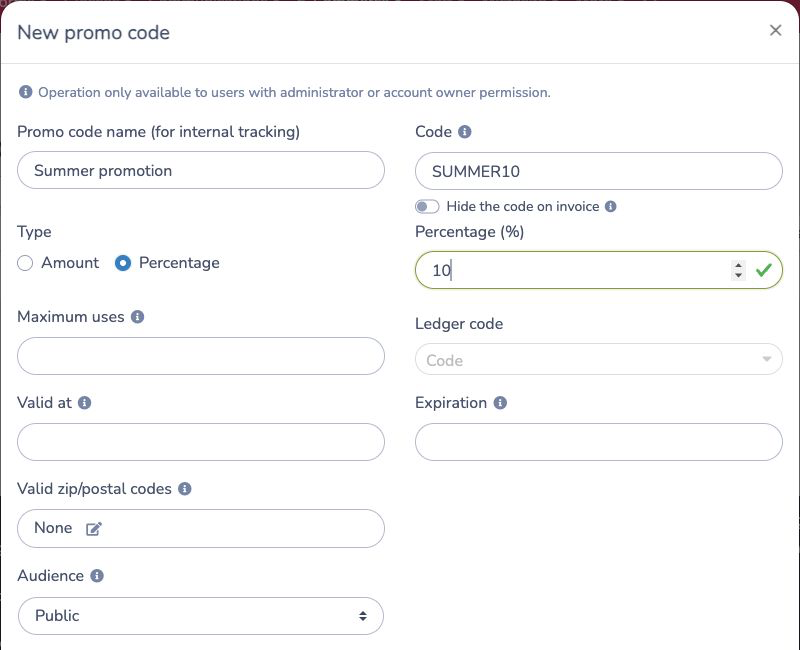
The internal name helps administrators identify the promotion. Customers enter the code itself. Once a client has used a code, the code cannot be changed.
Share a discount with multiple clients
A coupon that has already been redeemed cannot be used again; Activity Messenger rejects it as already used. To offer the same discount to multiple clients, use a promo code instead. Set Maximum uses to limit the total redemptions, and choose a recipient list under Audience if the code should be restricted to certain clients.
If each client should receive a different, unique code with the same settings, use the Import many promo codes section below. Batch import is part of this guide; it is not a separate Help article.
Import many promo codes
Use the bulk importer when you already have a list of unique codes and want them all to use the same discount and eligibility settings.
- Go to E-Commerce → Promo codes.
- Click +, then choose Import promo codes.
- Under Promo codes to import, choose a CSV or TXT file or paste the codes directly. You can enter one code per line or separate values with commas, semicolons, or tabs.
- Enter the shared internal name, discount, dates, maximum uses, audience, eligible items, and advanced rules.
- Review the unique-code count, click Import [number] promo code(s), and confirm the import.
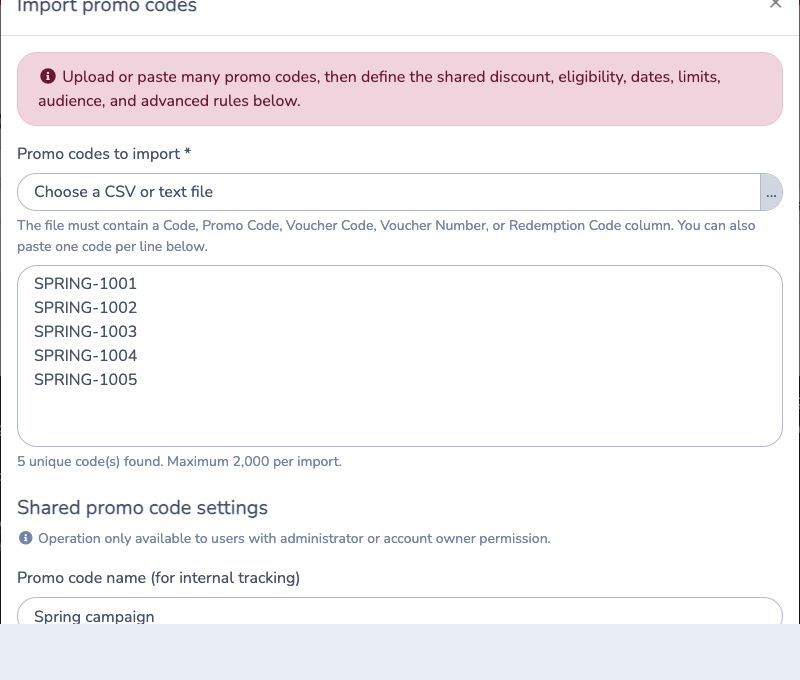
For a multi-column file, use a recognized heading such as Code, Promo Code, Voucher Code, Voucher Number, or Redemption Code. Rename the code column to Promo Code when the source file uses another heading.
Activity Messenger trims spaces and converts codes to uppercase. A single import can contain up to 2,000 codes. Every imported value becomes an independent promo code; it is not a coupon and is not assigned to a customer.
The import is all-or-nothing. If the list contains a duplicate or any value already exists as an active or archived promo code or coupon, no new code is kept. Correct the list and import it again.
The shared Maximum uses setting applies separately to every imported code. For example, importing 500 codes with Maximum uses = 1 creates 500 promo codes that can each be used once.
Set dates, usage limits, and audience
The following settings are optional:
- Valid at sets the first date on which the code can be used.
- Expiration sets the end of the promotion.
- Maximum uses limits the total number of clients who can redeem the code. Leave it empty for no overall limit.
- Ledger code assigns the discount for accounting and reporting.
- Hide the code on invoice prevents the code itself from appearing on the client's invoice.
- Valid zip/postal codes limits redemption to the postal codes you enter.
Under Audience, choose how the code is distributed:
- Leave the audience as Public when any eligible client may enter the code.
- Select a recipient list to restrict the promo code to clients in that list. Choosing a list always narrows eligibility: the editor then shows "This promo code is limited to clients in the selected list. Eligible clients must enter the code manually." A client who is not on the list sees "This promo code is limited to a client list and cannot be used by this client."
- The Open list link that appears under the selected list opens that list's page in a new tab so you can review who is on it. It is a shortcut to the list, not an "open audience" option, and clicking it does not change who can use the code.
- To limit a code to the holders of one membership, select that membership's list. Activity Messenger creates a list of type Membership for each membership, with the membership's name.
- With a restricted promo-code audience, leave Auto-apply off when eligible clients should enter the code themselves.
- Turn on Auto-apply when eligible clients on the selected list should receive the promo-code discount automatically. This setting applies to audience-restricted promo codes; it is not an automatic coupon application setting. An automatically applied audience code cannot also be entered manually.
Control how often a client can use the code
By default, the discount applies to the eligible items on one invoice and the same client cannot redeem it again on another completed invoice.
Use the settings under Limitation when you need different behavior:
- Turn on Limit the client to use the promo code on only the first eligible item of the invoice to discount only one eligible item.
- Turn on Allow the client to use the promo code multiple times when the same client may redeem it on more than one invoice.
These client limits are separate from Maximum uses, which controls overall redemptions across all clients.
Choose eligible items
Under Applies to, choose Any item of a type or select only the specific items that qualify. Depending on the features enabled for your organization, you can configure:
- Classes and events, including class tags and session or drop-in eligibility.
- Packages.
- Products and product variants.
- Memberships.
- Resources.
- Eligible add-ons.
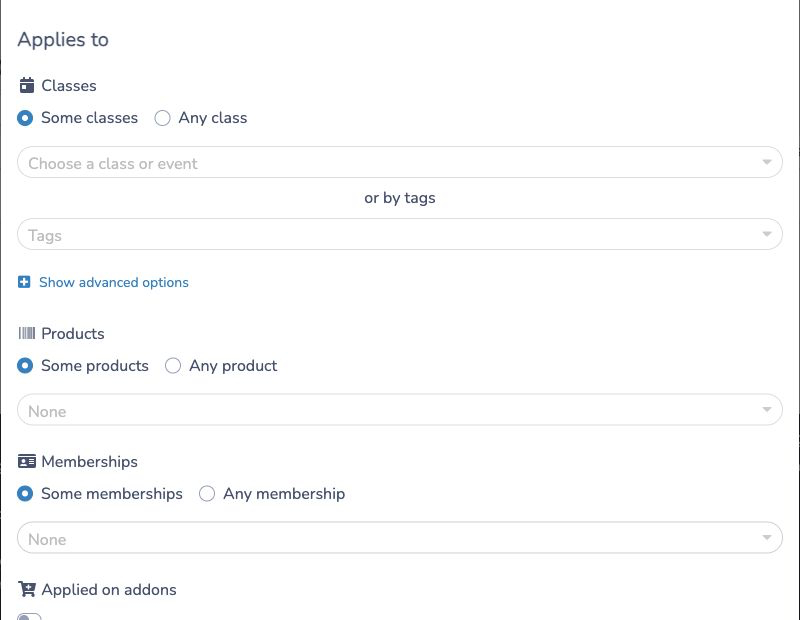
A code is rejected when the client tries to apply it to an item that is not eligible.
Conditions summary
| Condition | Where it is set | Exact label |
|---|---|---|
| Minimum purchase amount | Not available. A standard promo code has no minimum invoice or cart amount. | None |
| Minimum number of items | Multi-items (advanced) section of the promo code | Minimum number of items (see the multi-item guide) |
| Eligible items | Applies to section of the promo code | Any class / Some classes, Any package / Some packages, Any product / Some products, Any membership / Some memberships, Any resource / Some resources, Applied on addons |
| Dates | Promo code header | Valid at, Expiration, and Restrict by schedule for classes and bookings |
| Overall usage limit | Promo code header | Maximum uses |
| Usage limits per client | Limitation section of the promo code | Limit the client to use the promo code on only the first eligible item of the invoice, Allow the client to use the promo code multiple times |
| Client eligibility | Audience of the promo code | Public or a selected list, with Auto-apply |
| Membership requirement | Audience of the promo code, by selecting a list of type Membership | The membership's list name |
| Postal code | Promo code header | Valid zip/postal codes |
There is no separate "members only" switch on a promo code. Select the membership's list under Audience instead. The package setting Requires a membership for reservation restricts who can book the package; it does not discount the price.
Allow the code in a form
Open the payment or registration form that sells the eligible item, then edit the relevant E-Commerce question:
- For a class, event, product, membership, or ticket question, enable Accept a coupon or promo code to show the code entry on the form.
- For an Invoice items or resource question, select the promo codes that the question accepts.
The Accept a coupon or promo code setting enables code entry on that form; it is not a setting to apply coupons automatically. Automatic application described under Audience is for eligible promo codes restricted to a recipient list.
If clients should enter a code only after submitting the form, turn off Accept a coupon or promo code on the relevant E-Commerce question. Then, in the form's payment options, leave Prevent applying coupon or promo code at checkout turned off. The form question controls the field on the form; the payment option controls whether a client can enter a code at checkout on an unfinalized invoice with a balance due. Turning on the payment option prevents promo-code entry at checkout.
Save the question and payment options, then test the form and checkout before sharing the promotion.
Coupons and promo codes in a form
The form setting Accept a coupon or promo code allows code entry on the relevant class, event, product, membership, or ticket question. The same field can accept a coupon or a promo code; the two are not the same discount type. Coupons are single-use vouchers; see Loyalty, coupons and punch cards.
To register with a coupon, open the payment or registration form, choose the class or activity, enter the coupon in the code field, and click Apply. The coupon must be valid for the selected class. A redeemed coupon cannot be used again. If you have a promo code instead, follow the promo-code rules in this guide; automatic application is available for an eligible promo code restricted to a recipient list, not as a general coupon checkout setting.
At registration or checkout, the client opens the promo-code field, enters the code, and applies it. Activity Messenger verifies:
- The start and expiration dates.
- The overall and per-client usage limits.
- Audience eligibility.
- Postal-code eligibility, when configured.
- Whether the item accepts the code and is included under Applies to.
If every condition is met, the discount is applied to the eligible invoice item or items. Otherwise, the client sees a message explaining why the code cannot be used.
Promo codes on bookings and packages
Bookings made from your website or microsite go through the cart, not through a registration form. There is no "sign in, then enter a code" step: a client does not need an account to enter a public promo code. The code field is part of the cart.
Prepare the promo code and the package
- In the promo code, under Applies to, choose Any package or Some packages and select the packages. For resource bookings, choose Any resource or Some resources. A package that is not selected is excluded; the client sees "Promo code not redeemable for this package."
- Choose the Booking package coverage: Booking package only (default), Guest fees only, or Booking package + guest fees. Guest fees are the additional player surcharges.
- Open E-Commerce → Booking packages, edit the package, and open the Payment tab. Leave Accept a coupon or promo code on (it is on by default for a new package). When it is off, the code is refused for that package.
- On the same tab, turn on Add coupon questions to show the code control directly on the reservation line in the cart. Leave it off to offer the code only in the cart's Apply the coupon or promo code field.
The code is applied to the package price. Add-on fees are included only when Applied on addons is turned on. See Set up resources and booking packages for the package editor.
What the client does
- The client picks the package and time slot on the booking page. The reservation is added to the cart.
- When Add coupon questions is on for the package, the reservation line shows a coupon button and the text Apply a coupon or promo code. The client clicks it, types the code in the Code field, and submits it with the arrow button. The discount appears on that reservation line. When the client is not connected, the line can also show "Have coupons in your account?" with a Connect button; that part is for coupons stored in a client account, not for promo codes.
- Otherwise, or for a code that covers the whole cart, the client opens the Cart step of checkout and clicks Apply the coupon or promo code. The Promo code field appears; the client types the code and submits it. This link is shown when at least one package or product in the cart has Accept a coupon or promo code turned on.
- The client continues to Your information and Payment. The invoice lists the discount under the item with the label Promo code, unless Hide the code on invoice is on.
The organization setting Display promo code field by default (organization settings, Advanced options) shows the cart field expanded instead of behind the link.
Enter a multi-item promo code in the cart's Apply the coupon or promo code field, not on the reservation line; the reservation line only accepts standard promo codes and coupons.
Audience-restricted codes on bookings
A code limited to a list is checked against the client on the cart. A client who is not identified yet, or who is not on the list, sees "This promo code is limited to a client list and cannot be used by this client." With Auto-apply on, the discount is added automatically when the checkout page loads for an eligible client; the client cannot type the code.
For packages that ask for players, the option Apply only to players in the audience appears under Packages once a list is selected. When it is on, the discount applies only to the base price of each player who is on the list. When it is off, the discount applies to all players as soon as the booking client is eligible. Add-on fees are not included either way.
Example
Create a public code named Summer promotion with the customer code
SUMMER10:
- Set the type to Percentage and the value to 10%.
- Set an expiration date at the end of the registration period.
- Choose the eligible summer classes under Applies to.
- Enable promo codes in the class question of the registration form.
A client who enters SUMMER10 before the expiration date receives 10% off the
eligible class. Unlisted classes and other item types keep their regular price.
Track and manage promo codes
The Promo codes table shows each code's audience, discount, eligible item types, uses, maximum uses, expiration, and last update.
- Click a code in the table to copy it.
- Open a row and select Usage to review completed invoices where the code was applied.
- Use the table filters to find public, audience-restricted, amount, percentage, or archived codes.
- Archive a code when it should no longer be offered. Archived codes can be viewed with the archived filter and restored when needed.
Standard promo codes compared with multi-item promo codes
A standard promo code answers: “Which eligible items receive this discount?”
A multi-item promo code adds purchase-count rules such as:
- Apply a discount only when at least two items are purchased.
- Discount the second or another specific item.
- Apply the discount to pairs of items.
- Require the same participant or distinct participants.
For those rules, use Promo codes for multiple purchases (multi-items).
Settings reference
| Setting | Where | Default | Effect |
|---|---|---|---|
| Audience | E-Commerce › Promo codes › promo code › Audience | Public | Public lets any eligible client enter the code. Selecting a list limits the code to clients on that list. |
| Open list | E-Commerce › Promo codes › promo code › under the selected Audience list | Shown once a list is selected | Opens the selected list's page in a new tab. It does not change eligibility and is not an "open audience". |
| Auto-apply | E-Commerce › Promo codes › promo code › Audience (shown once a list is selected) | Off | Applies the discount automatically to eligible clients on the list. The code can no longer be entered manually. |
| Apply only to players in the audience | E-Commerce › Promo codes › promo code › Applies to › Packages (shown once a list is selected and the code applies to any package or a selected package asks for players) | Off | Discounts only the base price of players who are on the list, instead of all players when the booking client is eligible. |
| Maximum uses | E-Commerce › Promo codes › promo code | Empty (no limit) | Total number of clients who can use the code. |
| Valid at / Expiration | E-Commerce › Promo codes › promo code | Empty | First and last dates on which the code is accepted. |
| Limit the client to use the promo code on only the first eligible item of the invoice | E-Commerce › Promo codes › promo code › Limitation | Off | Discounts only the first eligible item of an invoice instead of every eligible item. |
| Allow the client to use the promo code multiple times | E-Commerce › Promo codes › promo code › Limitation | Off | Lets the same client use the code on more than one invoice. |
| Packages | E-Commerce › Promo codes › promo code › Applies to | Some packages, none selected | Which booking packages accept the code. A package that is not selected is excluded. |
| Booking package coverage | E-Commerce › Promo codes › promo code › Applies to › Packages | Booking package only | Whether the discount covers the booking price, the guest fees (player surcharges), or both. |
| Resources | E-Commerce › Promo codes › promo code › Applies to | Some resources, none selected | Which resources accept the code on resource bookings. |
| Hide the code on invoice | E-Commerce › Promo codes › promo code | Off | Shows the discount on the invoice without the code itself. |
| Accept a coupon or promo code | E-Commerce › Booking packages › package › Payment | Yes | Allows a coupon or promo code on this package in the cart. When off, every code is refused for the package. |
| Add coupon questions | E-Commerce › Booking packages › package › Payment | No | Shows the Apply a coupon or promo code control on the reservation line in the cart. |
| Requires a membership for reservation | E-Commerce › Booking packages › package › Payment (organizations with memberships) | No | Restricts booking to members. It is not a discount condition. |
| Display promo code field by default | Organization settings › Advanced options | Off | Shows the cart's Promo code field expanded instead of behind the Apply the coupon or promo code link. |
| Prevent applying coupon or promo code at checkout | Form › payment options | Off | Removes the code field from the checkout page of an unfinalized invoice created by that form. |
Common questions
How does a member use a promo code when booking? The member books the package on the booking page; the reservation goes into the cart. If the package has Add coupon questions on, the member clicks Apply a coupon or promo code on the reservation line, types the code in Code, and submits it. Otherwise the member opens the Cart step of checkout, clicks Apply the coupon or promo code, and types the code in Promo code. See Promo codes on bookings and packages.
Does a client need to sign in to use a promo code on a booking? No for a public code: the cart accepts it without an account. A code limited to a list is checked against the client identified on the cart, so the client must be recognized (for example by connecting) before the code is accepted. The Connect button under "Have coupons in your account?" is for coupons stored in an account, not for promo codes.
Can I limit a code to one membership's holders? Yes. Under Audience, select the list of type Membership that carries the membership's name; Activity Messenger maintains that list for each membership. Leave Auto-apply off if members should type the code, or turn it on to apply it automatically at checkout. There is no separate "members only" switch on a promo code. See Set dates, usage limits, and audience.
What does the "Open list" link do? It opens the selected audience list in a new tab so you can review its members. It does not make the code public and does not change who is eligible.
Can I add conditions to a promo code? Yes: eligible items under Applies to, Valid at and Expiration, Restrict by schedule, Maximum uses, the two Limitation switches, Valid zip/postal codes, and the Audience list. A minimum purchase amount is not available; a minimum number of items exists only on a multi-item promo code. See Conditions summary.
Can I exclude a package from a promo code? Yes. Choose Some packages under Applies to and leave the package unselected, or turn off Accept a coupon or promo code in that package's Payment tab to refuse every code on it.
Why does my code not apply at checkout? The most common reasons are: the package or product is not under Applies to; the package has Accept a coupon or promo code off; the code is outside Valid at and Expiration; Maximum uses is reached; the client already used it and Allow the client to use the promo code multiple times is off; the client is not on the Audience list; Auto-apply is on, so the code cannot be typed; the form has Prevent applying coupon or promo code at checkout on; or a multi-item code was typed on the reservation line instead of the cart field. The message shown to the client names the reason.