Activity Messenger Help Center
Set up a website and open the Website builder
The Website builder lets you create a responsive public site using your Activity Messenger pages, forms, registrations, bookings, products, blog posts, and media. Start by choosing the site-wide defaults that will keep the website consistent, then continue to the visual builder.
Before you start
Your organization must have the Website module enabled. You also need permission to edit the website. Organization managers can manage websites, domains, and access settings; website editors can open the builder and edit its content.
The Website builder is different from the legacy Microsite / Client Portal editor. Use the Website menu for the new builder.
Open the setup screen
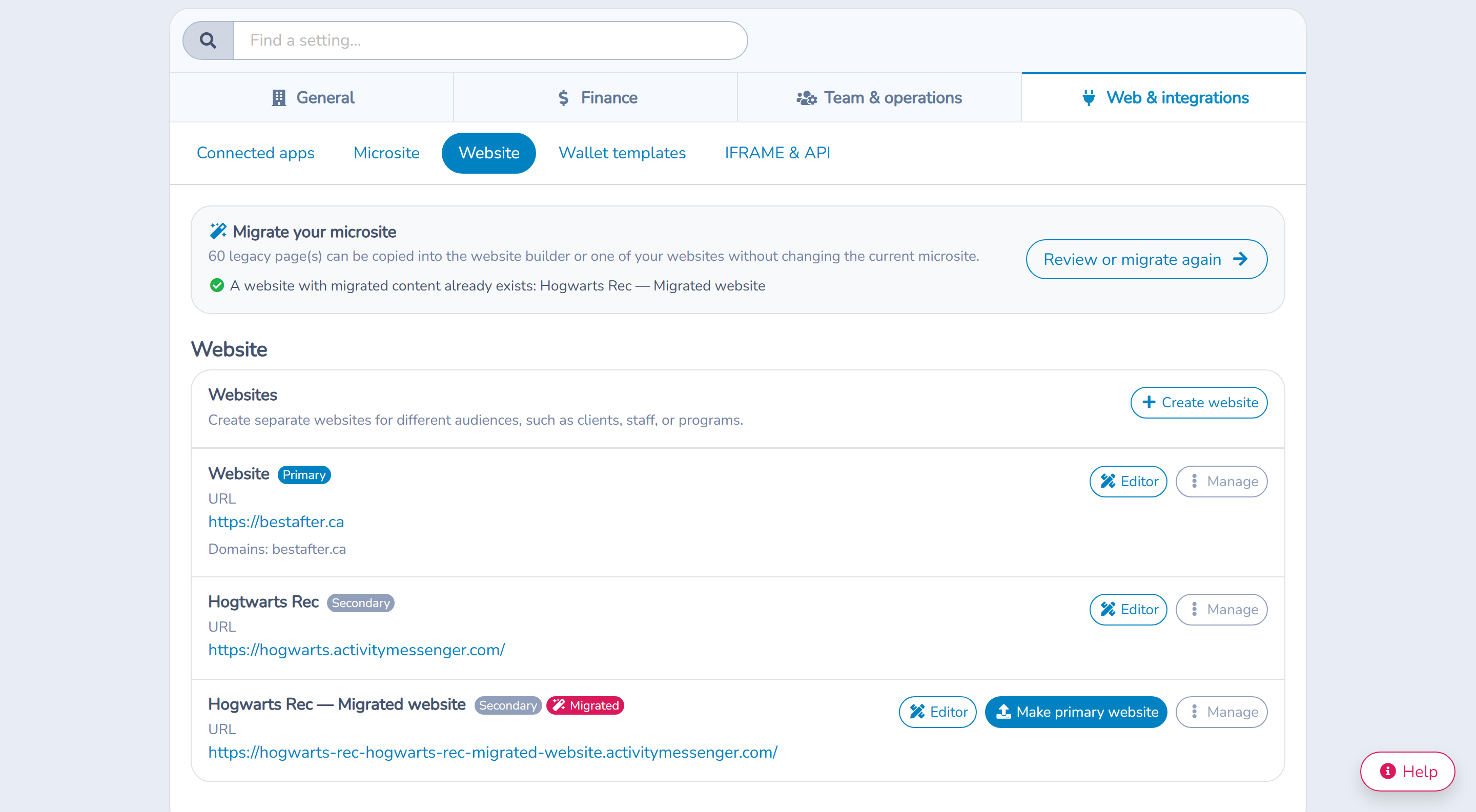
- Open Website in the main navigation.
- Select Manage websites if you need to choose between multiple sites.
- Find the website you want to configure.
- Select Setup wizard, or select Editor and then Set up your Website if setup is not complete.
For a newly created website, Activity Messenger opens the setup screen automatically. This is a four-step configurator; the builder’s website settings remain available separately. Editor in Manage websites opens in a new tab.
Staff who can access messages see Create a tracked QR code under each website in the Website menu. On Manage websites, Generate QR code opens a modal for that site without leaving the management screen. See Track and manage QR codes.
Import configuration from an existing website
You can use an existing public website as a starting point instead of choosing every supported setting manually. This option requires branding and website editing permissions.
- Select Import website configuration on the setup screen.
- The AI Assistant offers the organization’s saved website. Choose Use this website or Use another website to enter a different URL. A recent setup conversation is reused when available.
- Review the proposed fonts, colors, button shape, navigation, spacing, supported effects, language settings and favicon. Expand All change details to compare the values.
- Confirm the proposal to apply it, or reject it to keep the current configuration. The setup page refreshes after a verified import.
This website-only import preserves the organization logo, email/form branding and message color swatches. Website design defaults are shared across all websites in the organization; navigation, language, spacing, effects and favicon apply to the selected website. Review the shared defaults before confirming.
The importer proposes supported settings only. Missing or unclear evidence leaves existing values unchanged, and warnings identify assets or styles that could not be imported. A clearly French-only source can propose French with bilingual mode off; French and English language alternatives can propose bilingual mode on. Review these choices before approval. Importing does not translate or migrate page content, publish pages or change the website address.
To restore the reviewed previous configuration and favicon, select Undo website configuration import on the applied proposal. Review and approve the restoration; undo refuses to overwrite subsequent changes. For help with the remaining setup choices, use Help in the center of the bottom wizard bar.
To import the organization logo and branding used by emails/forms as well, use the separate branding import.
Choose the website basics
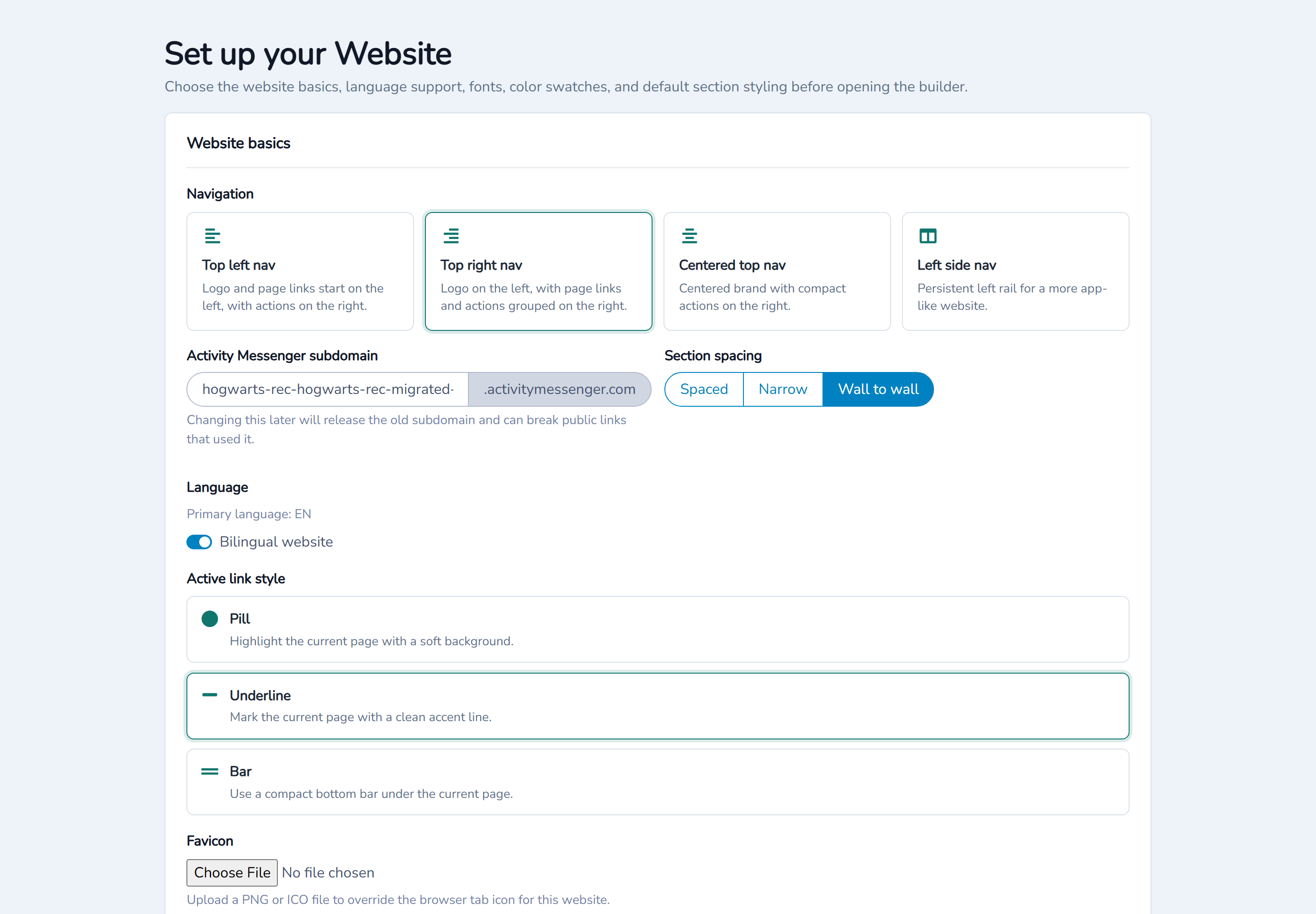
Navigation
Choose the navigation that best matches the site:
- Top left nav places the logo and page links on the left and actions on the right.
- Top right nav places the logo on the left and groups page links and actions on the right.
- Centered top nav centers the brand and keeps compact actions on the right.
- Left side nav uses a persistent left rail for a more portal-like website.
You can change the navigation later under Site settings.
Subdomain
Enter the Activity Messenger subdomain visitors will use. For example, entering programs creates an address similar to programs.activitymessenger.com using the host shown on screen.
Choose the subdomain carefully. Changing it later releases the old subdomain and can break links, bookmarks, QR codes, and messages that use the old address.
Section spacing
Choose the default spacing between sections:
- Spaced separates sections clearly.
- Narrow uses a more compact gap.
- Wall to wall joins sections without an outer gap.
Individual pages can override the website default.
Language
The website’s configured primary language takes precedence; otherwise the organization’s language is used. Turn on Bilingual to create English and French content. Bilingual mode adds both language fields throughout the builder and can show a language switch in the header.
Active link style
Choose how the current page appears in navigation: Pill, Underline, or Bar.
Favicon
Optionally upload a PNG or ICO favicon. This image appears in the browser tab for this website. You can later remove the custom favicon and return to the default icon.
Set typography and brand colors
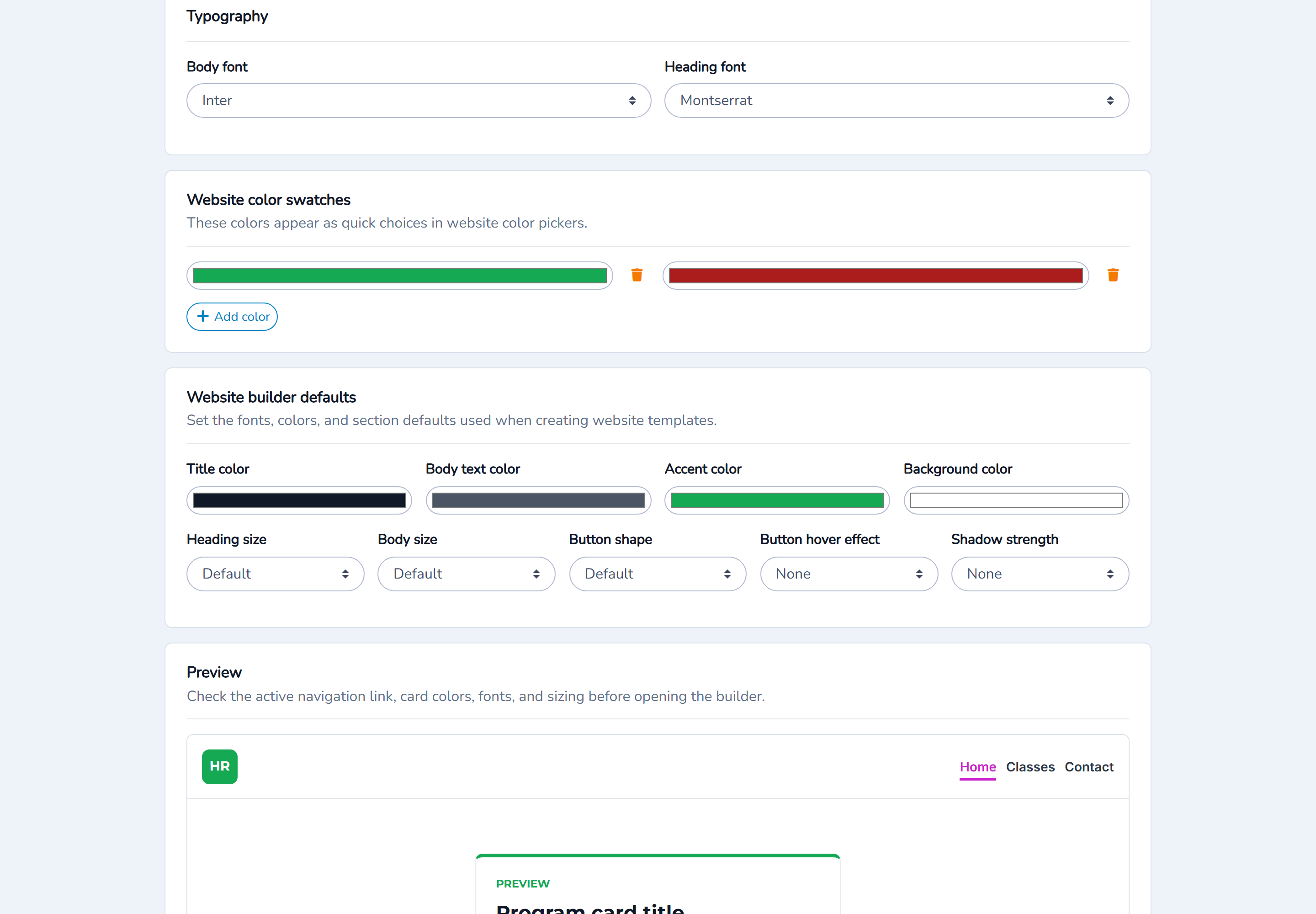
Choose a Body font family for paragraphs and controls and a Display font family for headings.
If you select a custom font, enter the CSS font-family value. You may also provide an external font stylesheet URL, such as a trusted Google Fonts stylesheet. Confirm that you are allowed to load the external font and that it remains readable on mobile devices.
Under Website color swatches, add the colors your editors should reuse. These swatches become quick choices in website color pickers. You can keep up to 24 unique colors.
Choose the default section style
Website defaults give new and existing sections a consistent starting point. Configure:
- title color;
- body text color;
- accent color;
- background color;
- heading size;
- body size;
- button shape;
- button hover effect; and
- card shadow strength.
These are defaults, not permanent locks. An editor can override supported values on an individual section. When a section uses the site default, changing the site default updates its appearance without editing that section again.
Use the on-screen preview to check the navigation, fonts, colors, button, and card style together.
Continue to the builder
Select Continue to builder. Activity Messenger saves the website settings, turns on design mode, and opens the visual editor.
Once the builder opens:
- add or edit the home-page sections;
- create the other pages and navigation structure;
- preview desktop, tablet, and mobile layouts;
- complete both languages if the website is bilingual; and
- publish each page when it is ready.
Example
A community program website could use Top right nav, the subdomain programs, Spaced sections, bilingual mode, and a rounded button style. Its brand blue and accent orange can be saved as swatches. Editors can then create landing-page sections with those defaults and override only a special campaign section when needed.
Important behaviour
- Setup choices can be changed later under Site settings.
- A website's primary language controls the source language used by Translate site.
- Turning on bilingual mode does not translate existing content automatically. Review and complete both languages.
- Section defaults apply only where the section has not set its own override.
- External font URLs contact another service when the site loads. Use only trusted, permitted sources.
- Changing a public subdomain can break existing links.