Activity Messenger Help Center
Archive and restore clients
Archive a client to remove them from your default client list without deleting anything. Archiving only changes where the client appears on the Client accounts page. Their account, records, communications, billing and registrations stay exactly as they are, and you can restore the client at any time.
Use archiving to tidy up your client list, for example for families who no longer attend but whose history you want to keep.
Can I delete a client?
No. Activity Messenger has no action that permanently deletes a client account: there is no Delete client button on the Client accounts page or in the client's account window, and the client's invoices, registrations and history stay linked to their account. Choose the operation that matches what you want to do:
- Archive: hide the client from the default client list and change nothing else. This is how you "delete" a client from your list without banning them. See Archive a client below.
- Restore: bring an archived client back to the default list. See Restore a client below.
- Anonymize: remove the client's name and phone number from the account and its related records, for a privacy request or spam. The email address stays and the account is not deleted. Account Owner only. See Anonymize a client.
- Ban: add the client to your banned clients list so that your ban rules block their forms and bookings. Their records are kept. In the client's account window, click Actions, then Ban client. See Block clients from registration.
- Merge: combine two accounts that belong to the same person into one. See Merge duplicate client accounts.
- Unsubscribe: stop sending messages to someone without changing their account. See List management and unsubscribes.
If you have a legal deletion request that anonymization doesn't satisfy, contact Activity Messenger support.
Before you start
You need Administrator or Account Owner access to the organization. Users with other access levels, such as Instructor, Attendant or Point of sale, don't see the archive option.
Some accounts can't be archived:
- clients who are also staff members;
- the No client account used for sales that aren't linked to a client;
- anonymized clients.
An unpaid balance, an active membership or scheduled payments don't prevent archiving. They simply continue as usual.
What archiving changes
To see your clients, click Clients in the main menu. The Client accounts page opens with the client filter set to All.
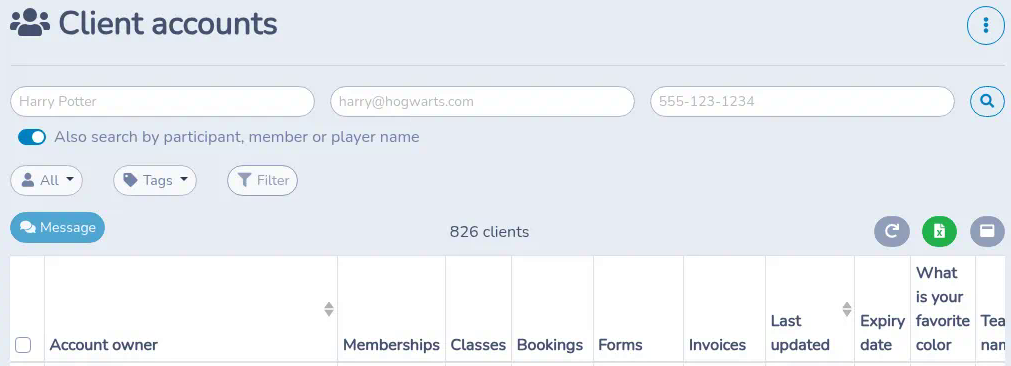
After you archive a client:
- They no longer appear on the Client accounts page, whichever client filter you choose, except Archived.
- Searching the Client accounts page doesn't return them unless you first select the Archived filter.
- The Excel export from the Client accounts page follows the selected filter, so archived clients are only exported when the Archived filter is selected.
What archiving doesn't change
Archiving is not a deletion and doesn't restrict the client's access. After you archive a client:
- they can still sign in to their account and register;
- they still receive communications, including messages sent to lists they belong to;
- their invoices, payments, memberships and registrations are kept and continue as usual, including scheduled payments;
- all their records and history are kept.
The client stays archived until an administrator restores them. Signing in, registering or paying doesn't restore them automatically.
If you want to stop sending messages to someone, archiving isn't the right tool. See List management and unsubscribes. If you have two accounts for the same person, see Merge duplicate client accounts. If your goal is to remove identifying details instead, see Anonymize a client; anonymization removes some personal details but retains the account email and does not delete the client account.
Archive a client
- Click Clients in the main menu.
- Find the client and click their row to open their account.
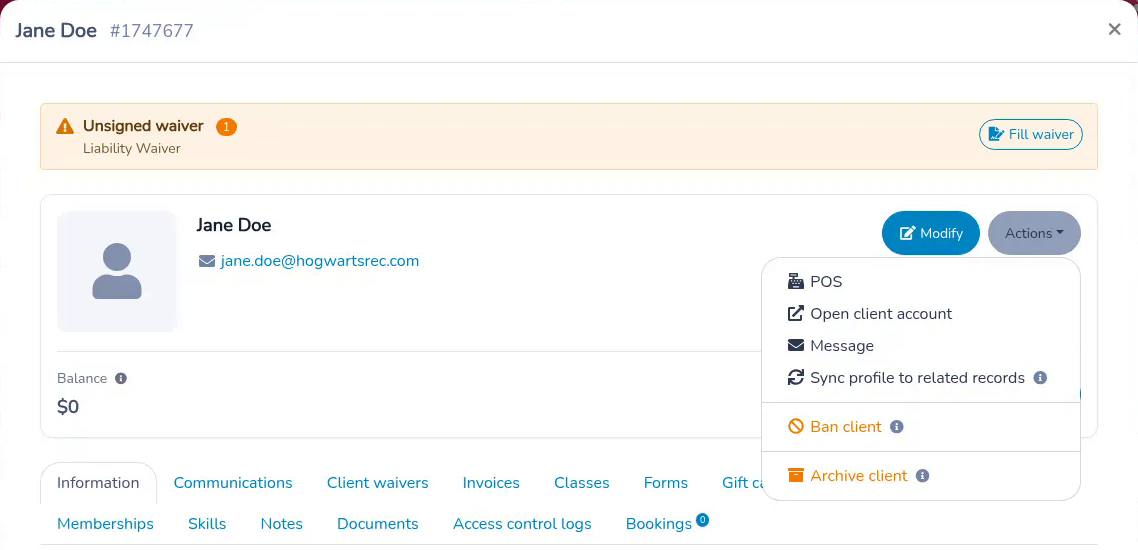
- Click Actions, next to Modify, then click Archive client at the bottom of the menu. Hover over the ⓘ icon beside it for a short reminder of what archiving does.
- Read the confirmation message and click Archive client. Click Cancel to keep the client in your list.
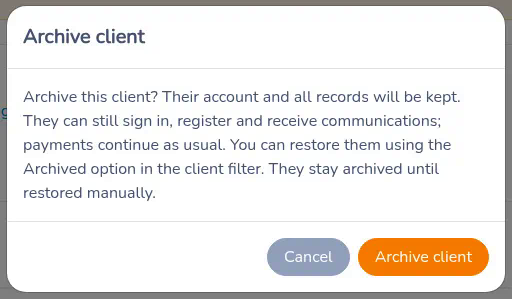
The account window closes and the client no longer appears in your default client list.
View archived clients
- Click Clients in the main menu.
- Click the client filter above the list. It shows All by default.
- Select Archived, the last option.
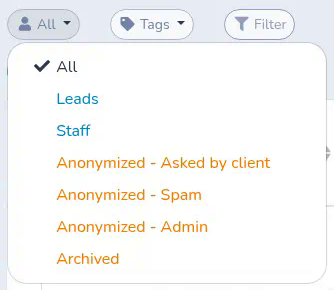
The filter now reads Archived and the list shows only archived clients. Each one has an Archived badge above their name. You can search this list as usual.
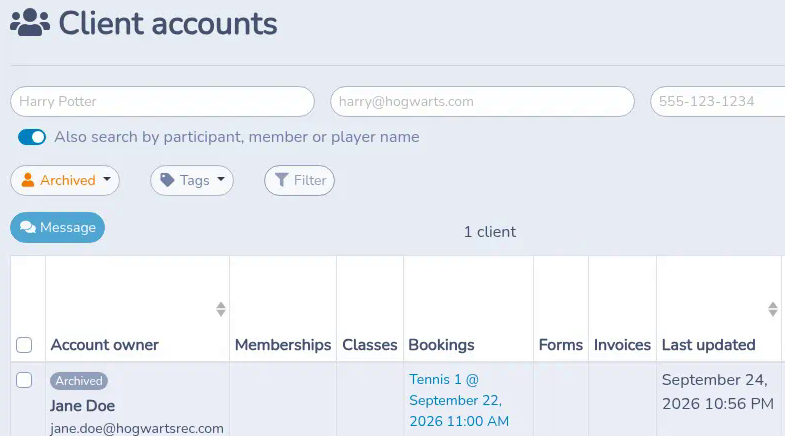
To return to your regular list, open the client filter again and select All.
When you open an archived client's account, a grey Archived notice at the top reminds you that the client is hidden from the default list and that their account access, communications, billing and registrations are unchanged.
Restore a client
- On the Client accounts page, select the Archived filter.
- Click the client's row to open their account.
- Click Actions, then Restore client.
- Click Restore client to confirm.
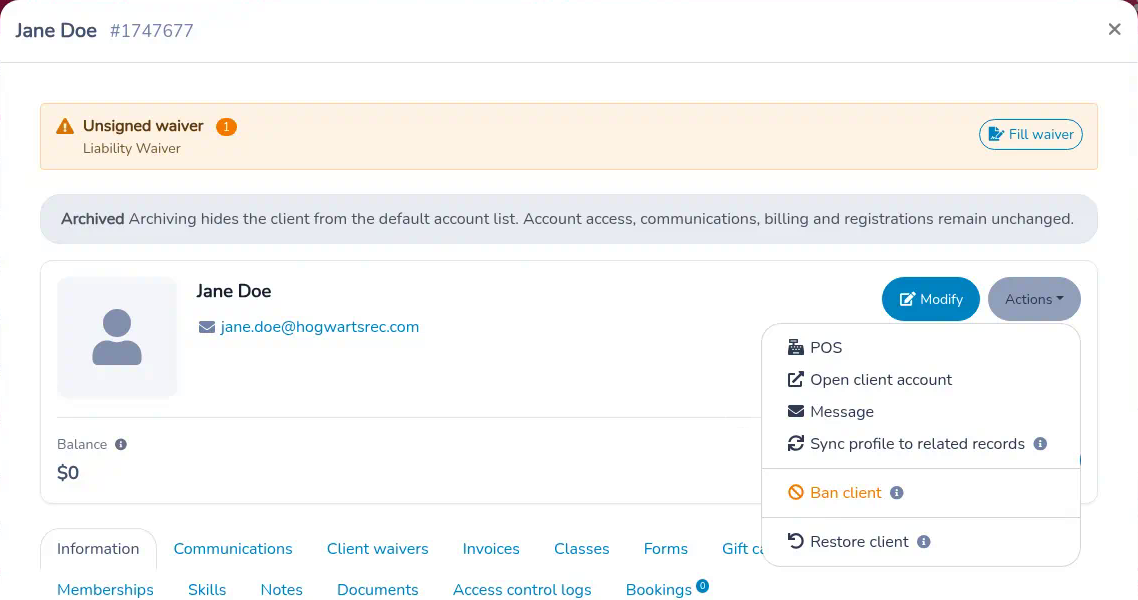
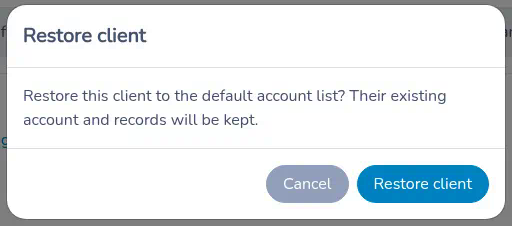
The client returns to your default client list. Their account and records are kept.
Archived clients, members and invoices
Archiving a client is separate from other "archived" items in Activity Messenger. Archived invoices on the Invoices page and archived members in membership lists are managed separately, and archiving a client doesn't archive their invoices or memberships.
Settings reference
| Setting | Where | Default | Effect |
|---|---|---|---|
| Client filter | Clients › Client accounts, above the list | All | Selecting Archived shows only archived clients. Any other choice, including Clients, Leads, Staff and the Anonymized options, shows active clients only. The search and the Excel export follow the selected filter. |
| Archive client | Client account window › Actions, last item | Not archived | Hides the client from the default client list. Account access, communications, billing and registrations stay unchanged. Available to Administrators and Account Owners; not available for staff, the No client account or anonymized clients. |
| Restore client | Client account window › Actions, for an archived client | — | Returns the client to the default client list. The account and records are kept. |
| Ban client | Client account window › Actions | Not banned | Adds the client to your banned clients list, or applies the tag configured for that list, so your ban rules block the forms and bookings they cover. Existing records are kept. Administrators and Account Owners only. |
Common questions
Can I permanently delete a client? No. There is no delete action for client accounts in Activity Messenger. Archive the client to remove them from your list, or anonymize them to remove their name and phone number while keeping the account. See "Can I delete a client?" above.
How do I delete a client without banning them? Archive them: open the client from Clients, click Actions, then Archive client. They disappear from the default list but keep their access and records. Banning is a separate action that only applies if you also want to block their forms and bookings.
Does archiving stop emails, payments or registrations? No. An archived client can still sign in, register and receive communications, and scheduled payments continue. To stop messages, use unsubscribes instead; to block registrations, use the banned clients list.
What is the difference between archiving and anonymizing? Archiving only hides the client and is reversible with Restore client. Anonymizing removes the client's name and phone number from the account and related records, keeps the email address, and has no undo button in the interface. See Anonymize a client.
Can I archive several clients at once? No. Archive client is available only in a single client's account window; there is no bulk archive or restore.
Why don't I see Archive client? You need Administrator or Account Owner access, and the option isn't shown for staff clients, the No client account or anonymized clients.