Activity Messenger Help Center
Sell products and track inventory
Use products to sell merchandise, equipment, rentals, vouchers, or other items through Activity Messenger. You can sell products from payment forms, the microsite, POS, and admin invoices, then use inventory reports to know what is available to sell, what is physically in stock, and what still needs to be picked up or returned.
Before You Begin
You need permission to manage products. If your organization uses accounting reports, create the needed taxes and ledger codes before creating products.
Decide whether each product needs inventory tracking. Some products, such as a digital item or an unlimited service, may not need a quantity limit. Physical merchandise usually does.
1. Create Or Edit A Product
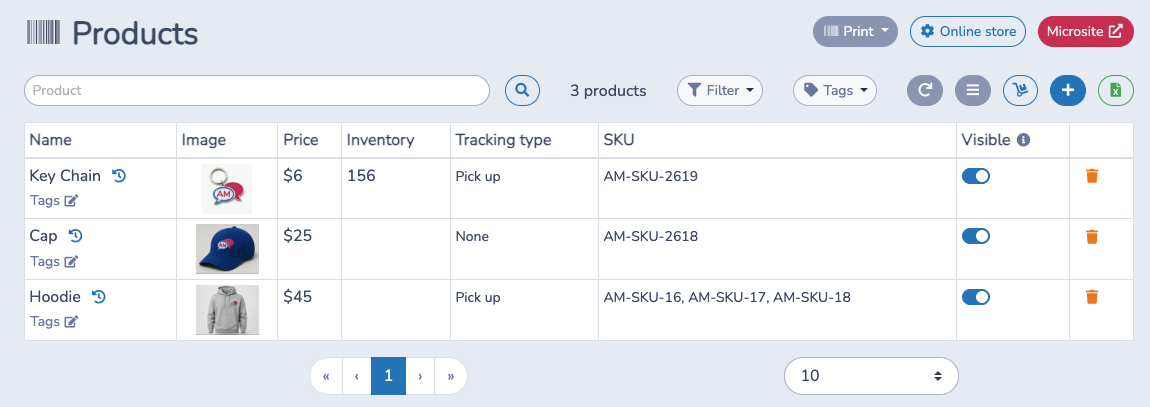
- Go to E-Commerce > Products.
- Click + to create a product, or click an existing product to edit it.
- Enter the product name, description, price, taxes, ledger code, SKU, and image.
- Use Visible to decide whether the product appears in your online store.
- Use tags to organize products and make them easier to filter in reports and sales workflows.
- Save the product.
Products can be sold on their own or alongside classes, memberships, booking packages, and other invoice items.
2. Add Variants When Needed
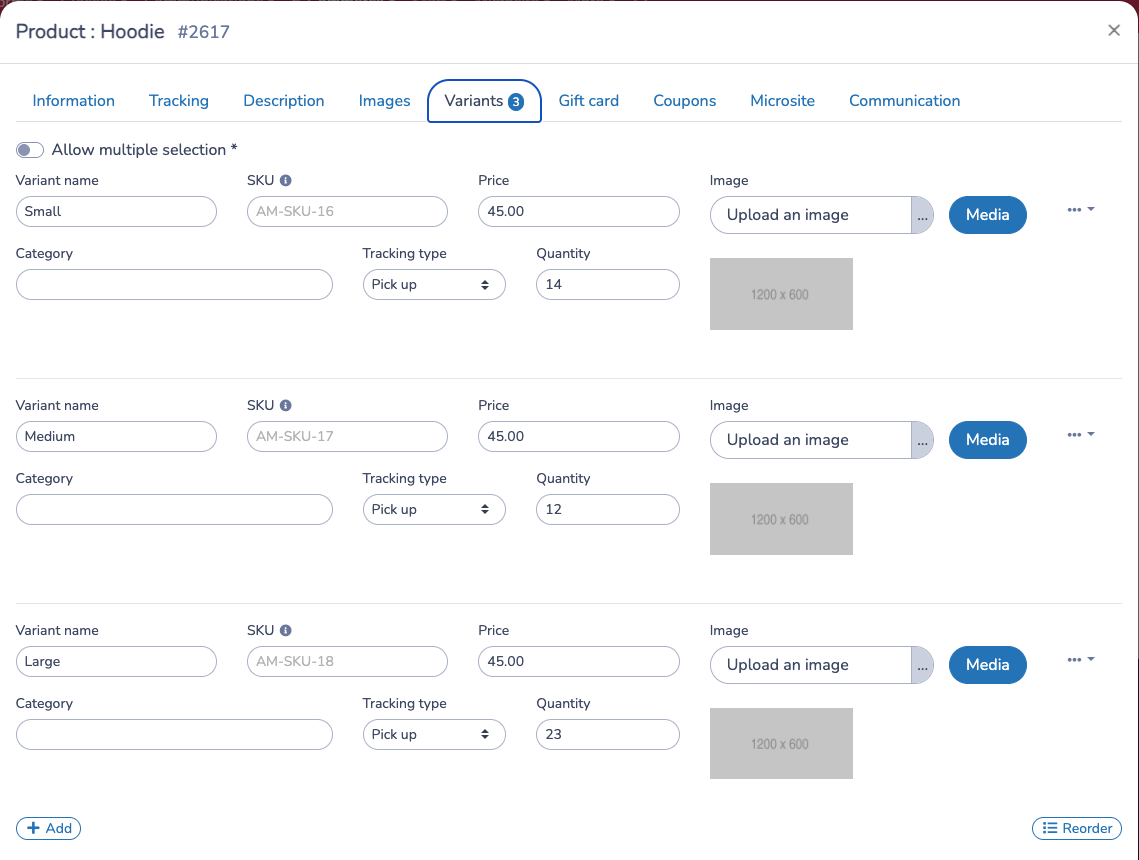
Use variants when one product has choices such as size, colour, level, or style. Each variant can have its own name, image, category, SKU, and price.
If each variant has its own stock, open the product's Tracking tab and enable Track inventory per variant. Each variant then has its own tracking type and quantity. If you leave this off, variants share the product's main inventory quantity.
Select multiple variants at once: staff only
This option lets staff check several variants of the same product in the same window instead of choosing just one. It applies to the point of sale (POS) and when adding a product to an admin invoice.
- Go to E-Commerce > Products and open a product with variants.
- On the Variants tab, enable Allow multiple variants to be selected at once (staff only), then click Save.
- Open the add-product window from an admin invoice or a POS shortcut that displays the product options.
- Check the variants to add. Click a variant again to uncheck it.
- Enter the quantity, then add the selected variants.
The entered quantity applies to each selected variant, and each variant is added as a separate invoice item with its own price. For example, checking Small and Large with a quantity of 2 adds 2 Small and 2 Large, for a total of 4 products. For different quantities, add the variants separately. When the option is off, staff choose one variant at a time.
Example: selling extras
An Extras product has Egg, Tomato and Onions variants, each with its own price. In the POS or when adding a product to an admin invoice, staff can check Egg and Tomato in the same window. Each selected extra becomes a separate item. A quantity of 2 adds 2 of each extra. These extras are not automatically linked to another product.
On the Variants tab, click See a usage example below the setting to show this example; click again to hide it.
This option does not change the online store or forms. Clients continue to choose one variant at a time. In the store, select a variant and click + to add it to the cart before selecting another. On forms, set the quantity for each variant in turn.
This setting does not link separate products or create a personalization field, such as a name to print on the back of a shirt.
3. Choose The Inventory Tracking Type
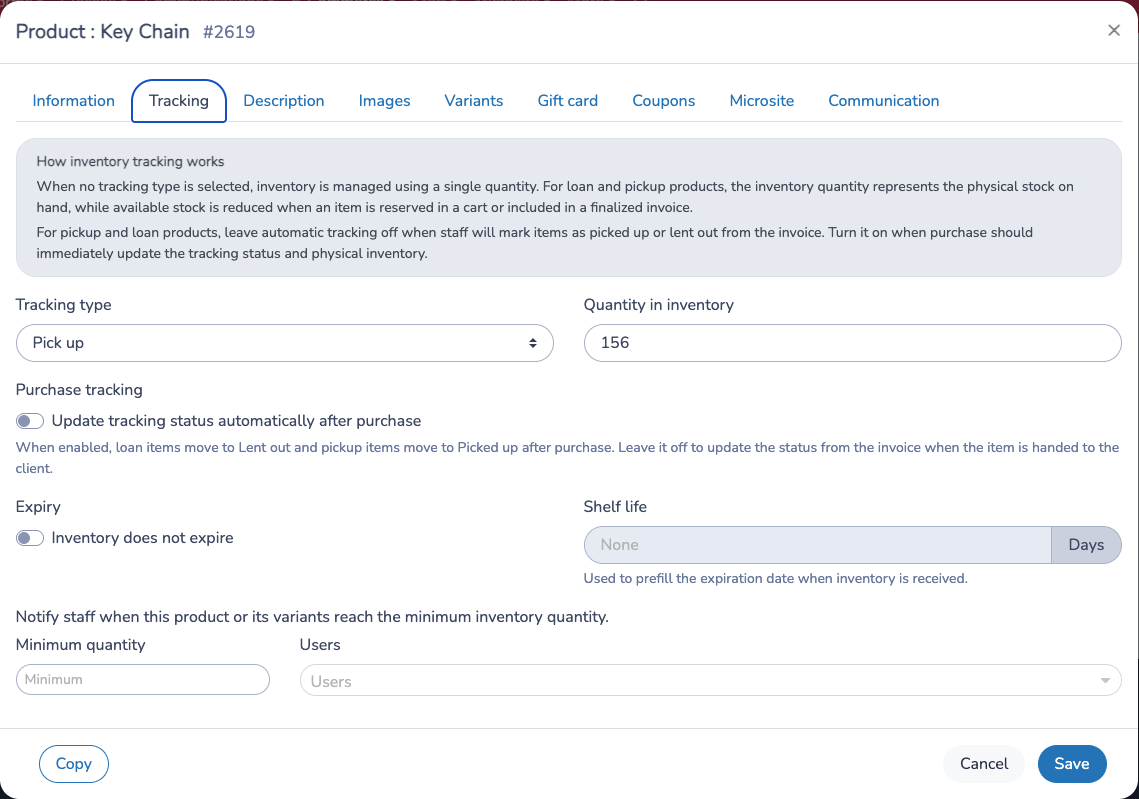
Open the product's Tracking tab and choose a tracking type.
No tracking type means Activity Messenger does not use pickup or loan statuses for the product. The product also does not have separate available and physical quantities. Activity Messenger does not check the quantity when a purchase is made, so the product can be bought even if the quantity is zero or below (the product screen shows a warning). A numeric quantity can still mark the product as out of stock in the Online Store. Leave the quantity empty, or choose Pick up or Loan, depending on whether you want the quantity to be checked.
Pick up is for products that are purchased first and handed to the client later, such as merchandise picked up at the front desk.
Loan is for products that leave your physical inventory temporarily and are expected to come back, such as loaned equipment.
For pickup and loan products, the inventory quantity represents the physical stock on hand. The available quantity can be lower because Activity Messenger reserves stock when a client adds the item to a cart or when an invoice is finalized.
4. Understand Available And Physical Quantity
For products with no tracking type, there is only one quantity.
For pickup and loan products, Activity Messenger separates two ideas:
- Physical stock is what is actually on hand.
- Available to sell is what can still be sold after reservations are taken into account.
Example: you have 15 hoodies in the shop. A client buys one for pickup. You still physically have 15 hoodies, but only 14 are available to sell because one is reserved for that client. When staff marks the item as picked up or delivered, physical stock becomes 14.
5. Decide Whether To Update Tracking Automatically
In the product's Tracking tab, use Update tracking status automatically after purchase when purchase/finalization means the item has already been handed to the client.
When this option is enabled:
- Loan products move to Lent out after purchase.
- Pickup products move to Picked up after purchase.
- Physical inventory is updated immediately.
Leave it off when staff should update the item later from the invoice or from the fulfillment report. This is usually best when clients buy online and pick up later.
This setting is on the product. If the product tracks inventory per variant, it also applies to variant purchases.
6. Sell Products
Products can be added to payment forms, sold on the microsite, sold through POS, or added to admin invoices.
For tracked pickup and loan products, Activity Messenger checks available quantity before clients can buy. Adding a product to a cart reserves available stock. Removing it from the cart, cancelling the invoice item, or reversing the sale releases or reapplies inventory according to what happened to that item.
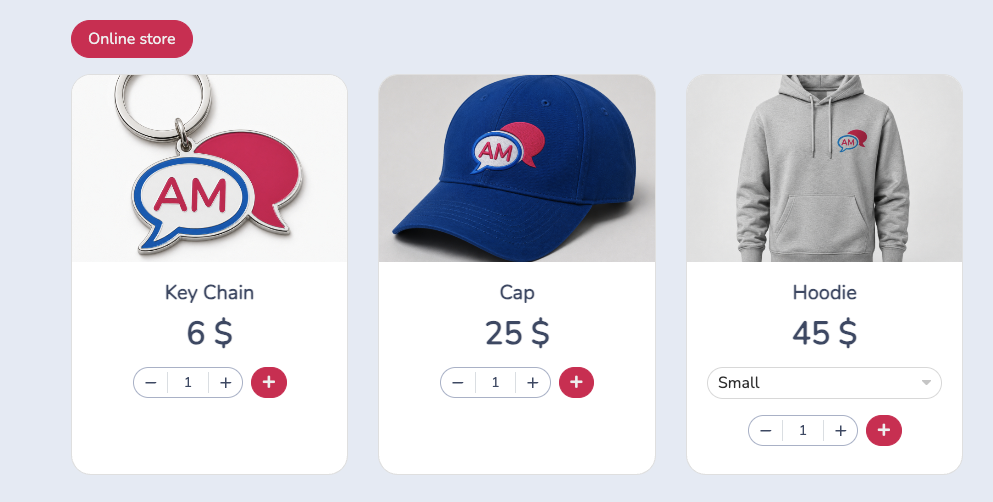
On the microsite, clients see product cards with price, quantity controls, and an add-to-cart button. When a selected product or variant is out of stock, the add action is disabled. Variants can also show an out-of-stock label in the selector.
In a payment form, clients see the products selected by the administrator in the Products question. If the question is configured to show inventory, Activity Messenger can display the available quantity. Tracked products and variants that are out of stock cannot be selected.
7. Update Product Status From An Invoice
You can also manage product tracking from an invoice.
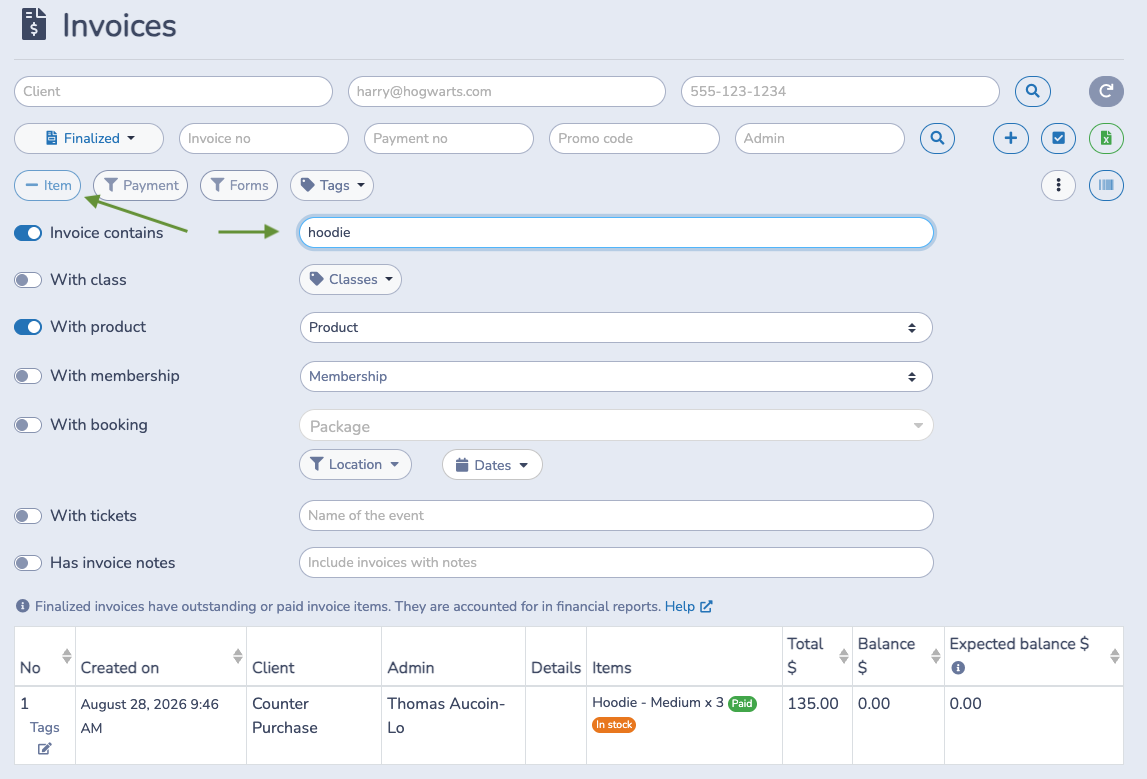
Go to E-Commerce > Invoices and use the item or product filters to find invoices that contain a product. The invoice list shows product items and their current payment and tracking status, so it can be useful when you are helping one client at a time.
Open the invoice to see the purchased products. For pickup and loan products, use the tracking status action beside the product line to mark the item picked up, delivered, lent out, returned, or back in stock.
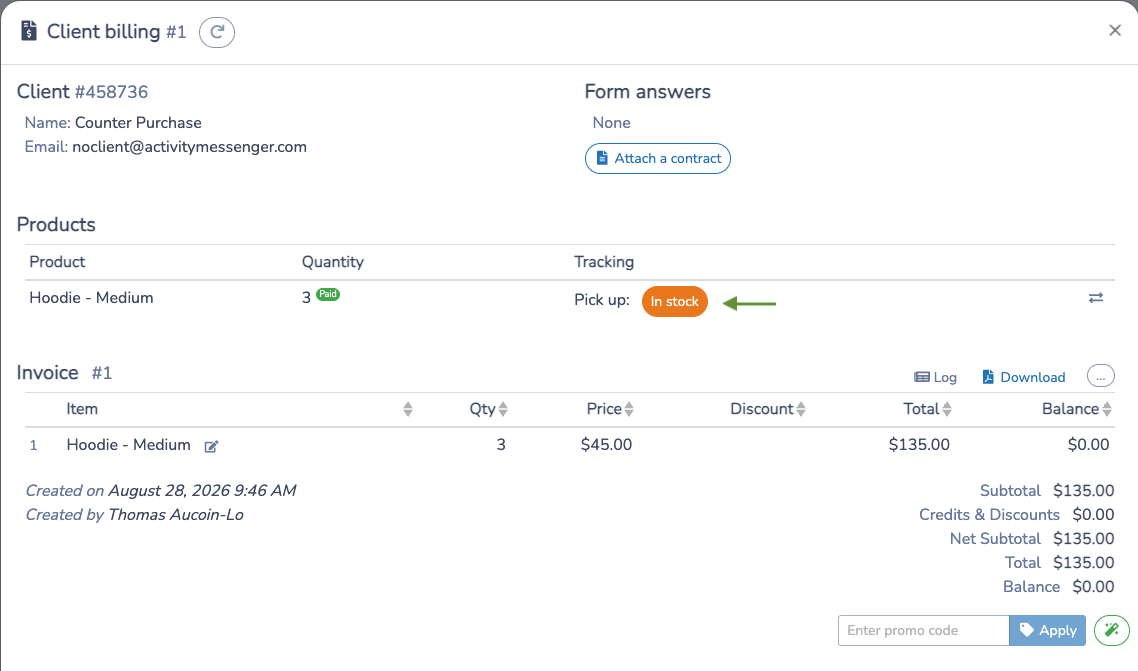
Invoice status changes and fulfillment report status changes use the same inventory rules. If the status change affects physical stock, Activity Messenger records the matching movement in Inventory history.
8. Use The Inventory Report
Go to E-Commerce > Inventory and open Inventory report.
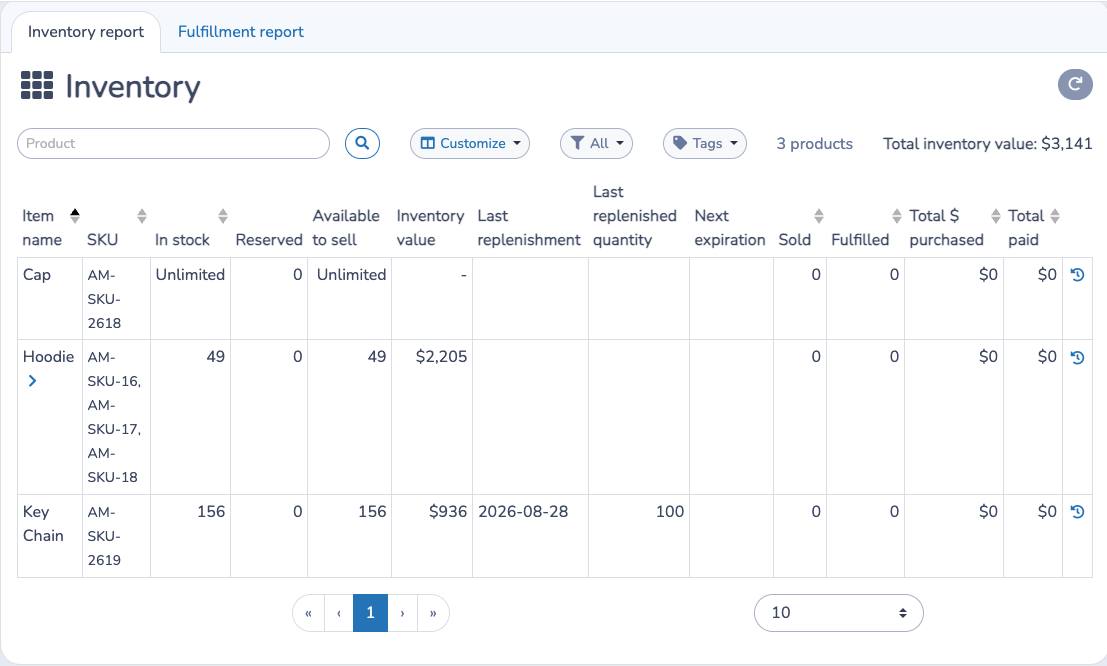
Use this report to review products and variants by stock, available quantity, inventory value, low stock warnings, replenishment details, sold quantity, fulfilled quantity, paid totals, and discount loss. You can search by product, filter by product tag, and filter by item type.
Important: Fulfilled in this report is a status-based total from invoice items. It is not the same thing as physical inventory balance.
Click the history button beside a product or variant to open Inventory history.
9. Receive Inventory
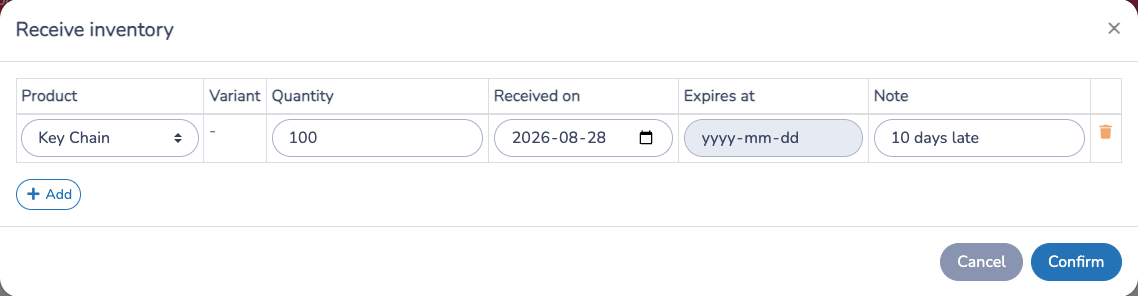
Go to E-Commerce > Products and click Receive inventory when new stock arrives. Use this instead of editing the quantity directly when you want an audit trail.
In the receive-inventory window, add one row for each product or variant you are receiving. Each row includes:
- Product.
- Variant, when the product tracks inventory per variant.
- Quantity received.
- Received date.
- Expiration date, when the product uses expiring inventory.
- Internal note.
You can add multiple rows before saving. Each saved row creates a dated inventory lot, increases the product or variant's physical stock, and records a Replenishment movement in Inventory history.
If the product has Inventory expires enabled and a shelf life in days, Activity Messenger can suggest the expiration date from the received date. You can adjust it before saving.
When physical stock later leaves inventory, Activity Messenger uses the available lots in expiration order first, then received date. This helps older or expiring stock be consumed before newer stock.
For products with variants, receive stock against the variant when inventory is tracked per variant. If variants share the product inventory, receive the stock against the product instead.
10. Use Inventory History
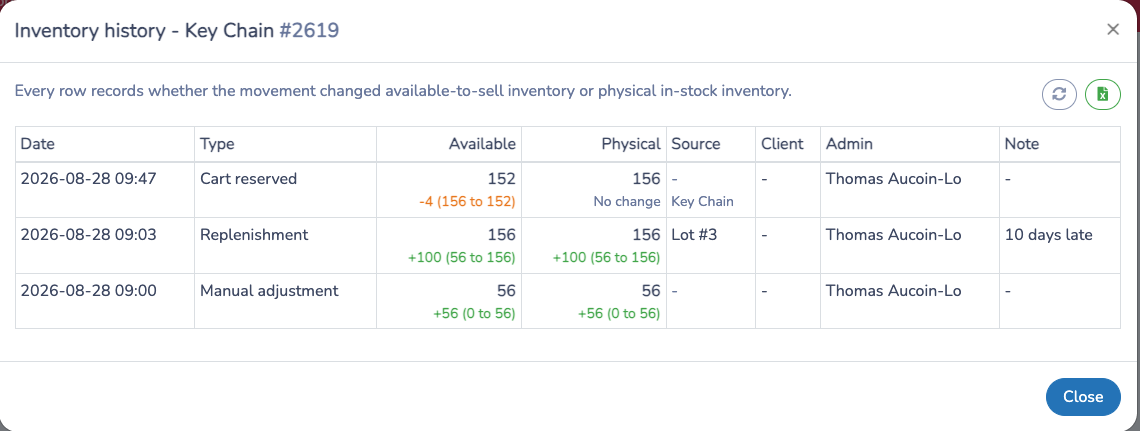
Inventory history is the audit trail for a product or variant. Each row explains what changed, when it happened, who or what caused it, and the balance before and after the movement.
History separates:
- Available balance: sellable stock after reservations.
- Physical balance: stock physically on hand.
Common movement types include cart reserved, cart released, sale, cancellation, cancellation reversed, exchange, loan out, loan returned, fulfilled, fulfillment returned, replenishment, and manual adjustment.
Use Inventory history when a product count does not match what staff expected. It is the best place to audit missing sales, cancellations, exchanges, returns, loans, pickups, and manual changes.
11. Use The Fulfillment Report
Go to E-Commerce > Inventory and open Fulfillment report.
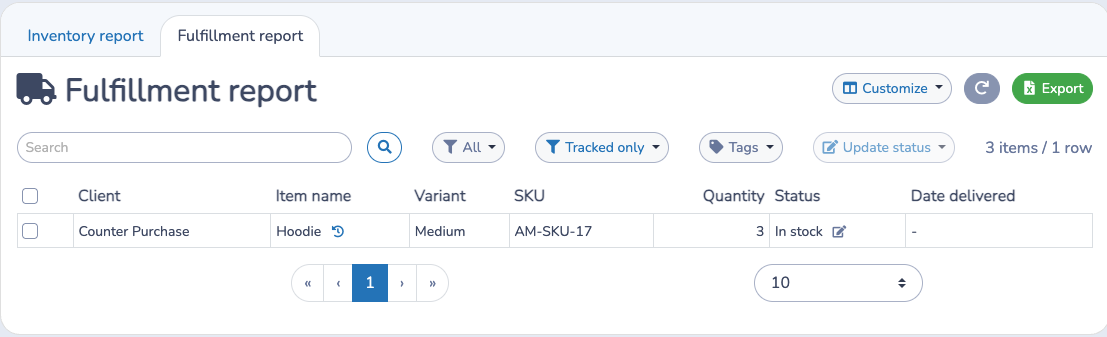
The fulfillment report is the operational list of product invoice items that need pickup, delivery, loan tracking, or return tracking. It shows one row per product invoice item from finalized, non-cancelled invoices.
You can:
- Search by client, product, SKU, product ID, or invoice item ID.
- Filter by tracking status.
- Filter by tracking type, including loan, pickup, no tracking, or all tracked items.
- Filter by product tags.
- Export selected columns.
- Select one or more rows and update their tracking status.
When you update a pickup item to Picked up or Delivered, Activity Messenger records a physical fulfillment movement. When you move it back to stock, it records a fulfillment return if that item had been physically fulfilled.
When you update a loan item to Lent out, Activity Messenger records a loan out movement. When the item is returned, it records a loan return.
The history button in the fulfillment report opens the product or variant's Inventory history so you can compare the operational status with the audit trail.
Fulfillment Report Vs. Inventory History
The fulfillment report answers: Who bought which product, and what is the current pickup or loan status?
Inventory history answers: Why did available or physical quantity change, and which invoice, item, admin, or replenishment caused it?
Use the fulfillment report for day-to-day work. Use inventory history for reconciliation.
Example
You sell 15 hoodies for pickup.
- Set the product tracking type to Pick up.
- Leave Update tracking status automatically after purchase off, because clients will pick up later.
- A client buys one hoodie online.
- Available quantity changes from 15 to 14.
- Physical quantity stays at 15.
- Staff opens the invoice or fulfillment report and marks the item Picked up.
- Physical quantity changes from 15 to 14.
- Inventory history shows both the reservation and the pickup movement tied to the invoice item.
Important Notes
- Use no tracking type when a product does not need pickup or loan status tracking. Leave the quantity empty when it should not be limited by inventory.
- Use Pick up when sold items are reserved before they leave your physical stock.
- Use Loan when items are expected to return.
- Use automatic tracking only when purchase/finalization should immediately count as picked up or lent out.
- For variants, choose whether inventory is shared at the product level or tracked per variant before entering quantities.
- Historical movements created before detailed inventory history was enabled may not show the same available and physical balance detail as newer rows.
- Use Inventory history before making manual adjustments, so the adjustment can correct the real mismatch instead of hiding it.
Settings reference
| Setting | Where | Default | Effect |
|---|---|---|---|
| Name | E-Commerce › Products › product › Information tab | Empty (required) | The product title shown to clients. |
| Short description | Information tab | Empty | A subtitle shown with the product. |
| SKU | Information tab | Empty; Activity Messenger assigns one (AM-SKU-…) when left empty | A barcode or reference. Scan a barcode into the field with a reader. With variants, each variant has its own SKU. |
| Displayed price | Information tab | Empty | The price shown to clients. With variants, each variant has its own price. |
| Taxes | Information tab | Your organization's default taxes for a new product | Taxes applied to the product. |
| Tags | Information tab | None | Groups products for filters, reports and the Online Store categories. |
| Ledger code | Information tab | None | The accounting code for sales of this product. |
| Allow administrators to change the price? | Information tab | No | Lets an administrator or attendant change the price and taxes before adding the product to the cart. |
| Visible | Information tab | Yes | Shows the product in the Online Store. |
| Only display this product when it is in stock | Information tab | Off | Hides the product automatically when no stock is available and shows it again after restocking. Products with variants stay visible while at least one variant is available. A product you hid manually stays hidden. |
| Track inventory per variant | Tracking tab, products with variants | On | On: each variant has its own tracking type and quantity. Off: variants only change the name and price, and inventory is tracked on the product. |
| Tracking type | Tracking tab | None | None, Pick up or Loan. With None, the product screen warns that the product can be bought even when the quantity is zero or below. Leave the quantity empty for no limit. |
| Quantity in inventory | Tracking tab | Empty (no tracking) | The stock on hand. For Pick up and Loan products this is physical stock; available stock can be lower because of reservations. |
| Update tracking status automatically after purchase | Tracking tab, Pick up and Loan only | Off | On: Loan items become Lent out and Pick up items become Picked up at purchase. Off: staff update the status later. |
| Inventory expires / Shelf life | Tracking tab | Inventory does not expire; shelf life empty | When on, the shelf life in days prefills the expiration date when inventory is received. |
| Minimum quantity and Users | Tracking tab | Empty | Notifies the chosen users when the product or its variants reach the minimum quantity. |
| Marketing description and Details (inclusions and exclusions). | Description tab | Empty | The long description and the details shown for the product. |
| Image 1, 2 and 3 | Images tab | None | Up to three product images. |
| Variants: Variant name, SKU, Price, Category | Variants tab | None | Choices such as size or colour. Use Add to create one and Reorder to sort them. |
| Allow multiple variants to be selected at once (staff only) | Variants tab, once a variant exists | Off | Staff can select several variants at once on admin invoices and POS. Online stores and product forms always keep a single variant picker. |
| Gift card | Gift card tab, only when gift cards are enabled | Off | Makes a purchase of this product generate a gift card. See Gift cards. |
| Coupons | Coupons tab | Disabled | Creates coupons when the product is purchased; the codes appear on the receipt. |
| Accept a coupon or promo code / Pre-apply promo code | Microsite tab | No / None | Whether a promo code can be used for this product, and which one is applied automatically. |
| Custom payment | Microsite tab | No | Uses payment settings specific to this product instead of the defaults. |
| Client form | Microsite tab | None, so the default checkout form is used | The checkout form shown before payment when this product is bought. |
| Confirmation email template / Cancellation email template | Communication tab | None, so the template from Online Store settings is used | The emails sent after a purchase or a refund of this product. |
| Notify staff following a self-serve purchase | Communication tab | No one | Sends a message to the chosen users when a client buys this product. |
| Receive inventory | E-Commerce › Products | Not applicable | Adds a dated inventory lot with an audit trail. Use it instead of editing the quantity. |
| Inventory report / Fulfillment report | E-Commerce › Inventory | Inventory report tab first | The Inventory report lists stock by product and variant; the Fulfillment report lists product invoice items awaiting pickup, delivery, loan or return. |
Common questions
What is the difference between Visible and Only display this product when it is in stock? Visible is your manual on/off switch for the Online Store. Only display this product when it is in stock hides the product by itself when stock runs out and shows it again after restocking, but never shows a product you hid manually. See 1. Create Or Edit A Product.
Can I sell a product without tracking stock? Yes. Leave Tracking type on None and Quantity in inventory empty. The product screen warns that with no tracking type the product can be purchased even when the quantity is zero or below, so choose Pick up or Loan if Activity Messenger should check the available quantity before a client can buy. See 3. Choose The Inventory Tracking Type.
Why is available stock lower than physical stock? For Pick up and Loan products, stock is reserved when a client adds the item to a cart or an invoice is finalized, so available stock can be lower than what is on the shelf. Physical stock drops when the item is marked picked up or lent out. See 4. Understand Available And Physical Quantity.
Should I turn on Update tracking status automatically after purchase? Only when handing over the item happens at the time of purchase. For online orders picked up later, leave it off and mark the item Picked up from the invoice or the Fulfillment report. See 5. Decide Whether To Update Tracking Automatically.
Can I give each size its own stock? Yes. Add the sizes as variants and keep Track inventory per variant on; each variant then has its own tracking type and quantity. Turn it off if sizes share one stock. See 2. Add Variants When Needed.
How do I record new stock? Use Receive inventory on the Products page rather than editing the quantity. Each row creates a dated lot and a Replenishment movement in the inventory history. See 9. Receive Inventory.
Can I get an alert when stock is low? Yes. On the Tracking tab, set Minimum quantity and choose the Users to notify. See 3. Choose The Inventory Tracking Type.
Can a client buy two different sizes in one order? Yes, one variant at a time. In the store, the client selects a variant and clicks + to add it to the cart before selecting another; on product forms, they set the quantity for each variant in turn. Selecting several variants at once is for staff on admin invoices and POS. See 6. Sell Products.