Activity Messenger Help Center
Bulk operation
Use bulk operations when the same change must apply to several classes or events. Filter the list and confirm your selection before applying a shared change.
Performing bulk operations allows you to edit multiple classes at the same time, which is very useful for updating information on multiple classes simultaneously.
Access to classes
In the menu at the top, click Classes then select All Classes & Events.

Locate the vertical three dotted line.
Click on these dots to access bulk operations options.
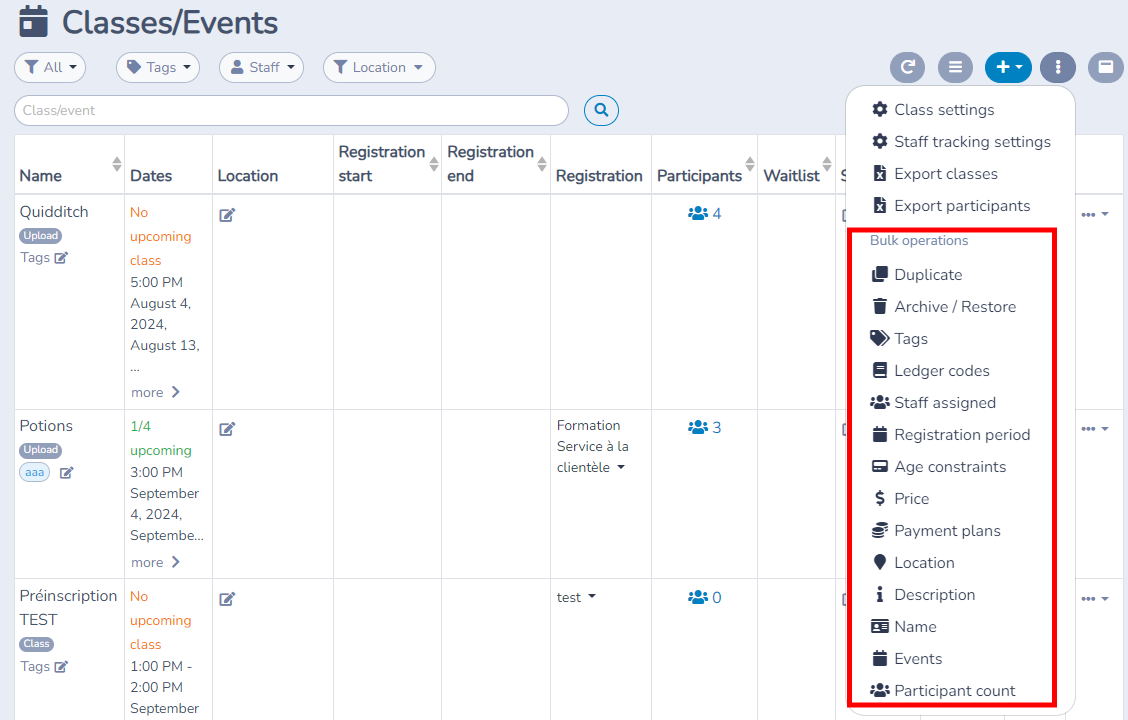
Duplicate
Select this option to create copies of multiple classes.
You can edit labels, dates, descriptions, etc. This option can be used to recreate the same classes for a following year, for example.
Once you have made the changes, save them to apply the changes to all selected classes.
In the bulk Duplicate window, select the classes, then review the copy options before confirming. Copy occurrences is on by default. To move each class's schedule while keeping its occurrence pattern, choose a new starting date under the occurrence options and preview the copied occurrences. Turn Copy occurrences off to create copies without schedules.
Use Add tags and Remove tags to change tags on the copies. Both lists start empty, so leaving them empty keeps each class's tags. Under Other copy options, choose assigned staff, assigned locations, assigned equipment and staff settings separately. All four start on. If your organization has staff scheduling, Staff schedule publication starts Unpublished; select Published only when the copied schedule is ready for staff.
Use Override fields for shared changes such as a name, price or registration period. Inspect the results after duplicating, since some class settings may need to be completed on each copy. For the single-class controls, see Duplicate a class or an event.
Archive and restore
You can archive or restore multiple classes past or upcoming classes.
Tags
Customize tags to organize your lessons.
Add, remove or edit tags in bulk as needed.
Ledger codes
Assign ledger codes to multiple classes simultaneously.
Add or remove ledger codes based on financial tracking requirements.
Assigned staff
Manage mass access permissions for staff.
Assign people to multiple classes in one go.
Registration period
Set registration dates for multiple classes at once.
Customize the registration period according to your organization's needs.
Change duration
Use Change duration to correct the duration of occurrences across several classes or teams, including games imported from Excel.
- Open Classes › All Classes & Events, then ⋮ › Bulk operations › Change duration.
- Filter by tags and select the classes or teams to update. For a league, include both teams in each game so their schedules stay consistent.
- Set Duration to the required length. It starts at 45 minutes and accepts values from 1 minute to 48 hours.
- Choose From date. It starts at today and includes the whole selected day, using your device's local date.
- Review the selected classes, duration and date, then apply the change.
The action changes the end time of each selected occurrence starting on or after From date. It keeps start times, existing games, results and standings. Occurrences before that date are preserved, and occurrences already using the chosen duration are skipped. After the update, a message reports how many occurrences changed.
For example, if an imported season has 60-minute games that should last 45 minutes, select its teams, set Duration to 45 minutes, and choose the first date still requiring correction. You can keep previously played games and games already corrected manually without replacing the schedule.
Capacity per location
Use Staffing and resources → Capacity per location to enable or disable automatic capacity for several classes. The Associated locations column lists default locations and those reserved for ongoing or upcoming occurrences.
Filter with Reserved locations, select one or more locations, then check the classes to update. Enter a common number of places per location and add exceptions for locations with a different capacity. Click Apply and confirm the replacement of existing values.
The location filter selects classes; the operation applies to all their default and ongoing/upcoming reserved locations. Date filters do not limit the recalculation to those dates. Completed occurrences and existing registrations are preserved.
For setup steps, examples and disabling the option, see Adjust class capacity to reserved locations.
Other possible modifications
Edit other details like price, location, class name and description in bulk.
Completed/save
Once all changes are made, be sure to save your changes to apply them.
Settings reference
| Setting | Where | Default | Effect |
|---|---|---|---|
| Copy occurrences | Classes › All Classes & Events › Bulk operations › Duplicate | On | Copies each selected class's schedule; off makes copies without occurrences. |
| Add tags / Remove tags | Bulk Duplicate window | Empty | Adds or removes chosen tags on the copies; empty lists leave tags unchanged. |
| Copy assigned staff / locations / equipment | Bulk Duplicate window › Other copy options | On for each | Copies each assignment type independently. |
| Copy staff settings | Bulk Duplicate window › Other copy options | On | Copies staffing requirements and applicable pay settings. |
| Staff schedule publication | Bulk Duplicate window › Other copy options | Unpublished | Controls staff schedule visibility when the module is available. |
Common questions
Can I copy several classes without carrying over staff assignments? Yes. In Other copy options, turn off Copy assigned staff while leaving the other copy options as needed.
What happens if I leave Add tags and Remove tags empty? Each copied class keeps its original tags. Choose tags in those lists only when you want to change them.