Activity Messenger Help Center
Publish and claim open shifts
An administrator can mark scheduled class dates, existing bookings and standalone shifts as Make available for staff pickup. Employees can then claim available staffing positions from My Schedule, without completing a form.
A claim assigns the signed-in employee to the existing occurrence. It does not register a participant, use a customer's place or create another customer booking. Guest registrations, RSVPs and waivers do not fill staff positions.
Prepare the staffing positions
- Create and save the class dates, booking or standalone shift.
- Open Make available for staff pickup and set Total staff needed in that window. This total includes employees already assigned manually or through pickup. For example, three staff needed with one person already assigned leaves two positions to claim.
- Set the total for the selected class or standalone-shift occurrences. For a booking, the total applies to all its scheduled slots; selecting dates for pickup controls which slots employees can claim. Standalone shifts can require several employees. Once all positions are filled, nobody else can claim that occurrence.
If a booking contains several dates or time slots, each scheduled slot is listed separately. You can open selected booking dates for pickup and let employees claim only those dates; choosing a slot does not assign them to every date in the booking.
For a standalone occurrence split into several work intervals, each staffing position covers all of those intervals. The listed intervals show the actual work times, and an employee who claims a position receives every interval together. The gap between intervals is not additional work time.
The pickup window saves Total staff needed, the pickup switch, the claim mode and the date-selection mode together. You do not need to save the staff count in another form first. Save changes to the underlying event dates and times before configuring pickup. Lowering the total does not remove existing assignments; the total cannot be lower than the number already assigned.
For background on creating schedules and assigning staff, see Staff operations.
Open dates for pickup
Open Make available for staff pickup, or Manage staff pickup when it is already enabled, from the saved schedule you want to offer:
- Class: use the class schedule’s staffing or resource settings, including the editor for an individual class reservation.
- Booking: open the saved booking’s details or its reservation/resource editor.
- Shift: open the saved shift or shift-series management window. When choosing an existing shift series for assignment, pickup settings apply to that saved series.
Create and save a new booking or shift before configuring its pickup settings. When copying a shift series, finish saving the copy, then open that saved result; the source series is not the copy. Creation and copy windows show a disabled pickup control with a save-first instruction.
Pickup settings use the saved schedule. If a pickup control asks you to save pending schedule or resource changes first, save or discard those changes before continuing. Pickup does not silently save pending assignment choices or edits in another window. Pattern changes must be applied and saved in their parent schedule first.
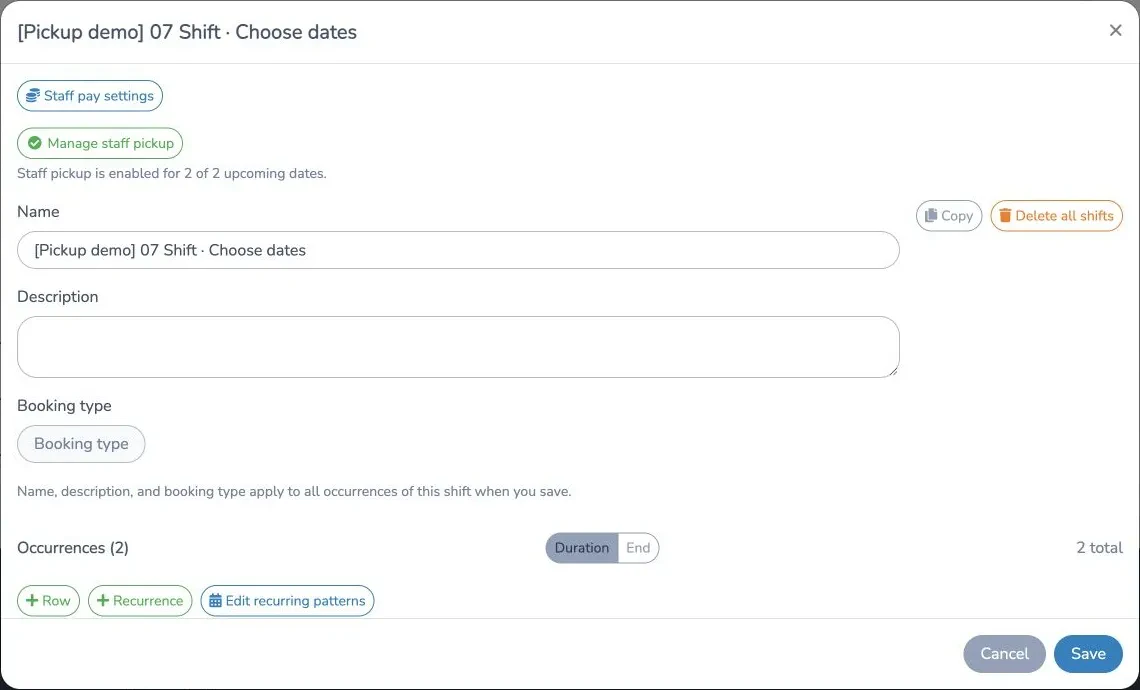
- Review Total staff needed, then turn on Make available for staff pickup.
- Choose how employees claim dates:
- Employees choose individual occurrences: employees can select one date or several dates.
- Employees must claim all published occurrences: an employee must take the complete published set together.
- Choose which dates to offer:
- Selected dates only: select the future dates individually. This is a fixed set of dates.
- All occurrences, including new ones: automatically include upcoming occurrences added later to the same class, booking or shift series. This option is available only when employees choose individual occurrences.
- Click Save to save the total staffing requirement and pickup settings together.
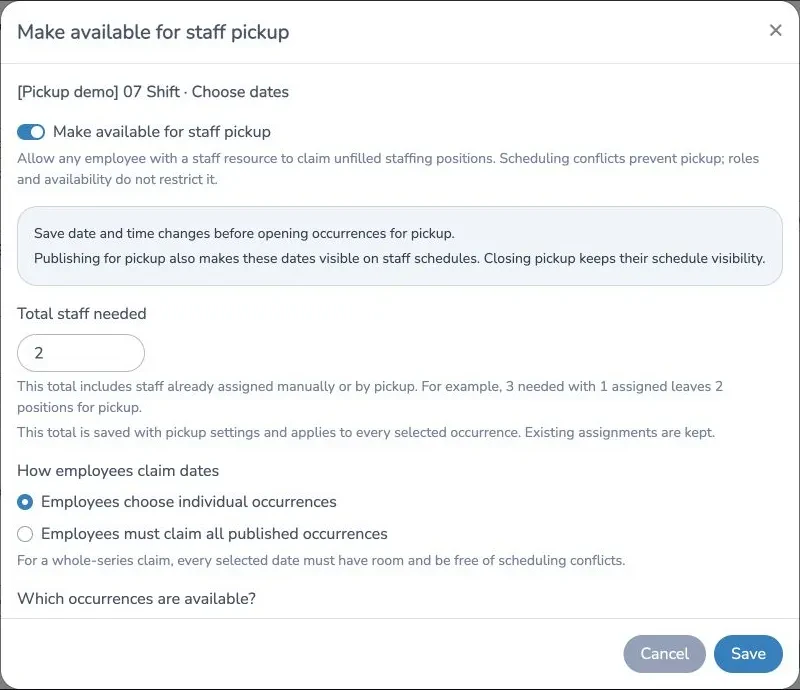
After saving, the button changes to Manage staff pickup with a check mark. The status below it shows how many upcoming dates are included and whether new dates are included automatically. With selected occurrences, it also identifies dates that are still excluded. If you open a particular occurrence that is excluded, its status says so.
The current dates included when you save are also published to staff schedules. With automatic inclusion, dates added later appear in the open-shift list; their claimed assignments become visible in staff schedules when the claim succeeds. Publishing a schedule through the ordinary visibility settings alone does not open it for pickup.
ImportantSelected dates only and whole-series claims use a fixed set of dates. Newly added dates join pickup automatically only with All occurrences, including new ones in individual-occurrence mode. For a fixed set, return to Manage staff pickup, review the complete selection and save again to include new dates. Saving a new selection replaces the previous selection for that class, booking or shift series.
With automatic inclusion, Total staff needed is the default for new class or standalone-shift occurrences that do not already have their own staffing total. An occurrence’s existing total takes precedence. A booking continues to use its common total across all slots. Manually assigned staff count toward the applicable total, so three staff needed with one assigned still leaves only two pickup positions. A full occurrence cannot be claimed.
Automatic inclusion never requires an employee to take dates added later. If you require the whole series instead, save an explicit set of dates for that series.
Claim dates from My Schedule
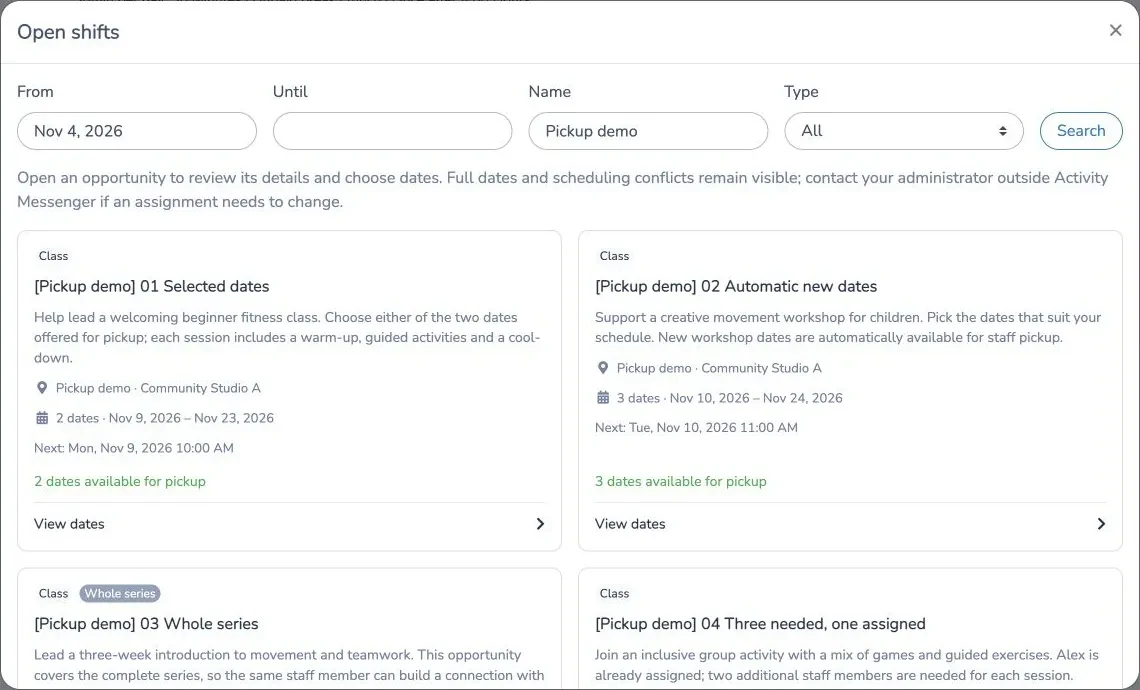
- Open your schedule and click View open shifts. The button is also available from the staff account's schedule.
- Filter by From, Until, Name or Type, then click Search.
- Browse the opportunity cards. Each card identifies the class, booking or shift and shows its description and location when provided.
- Click an opportunity or View dates to review its details in a separate window. Review the dates, start and end times, duration, location, available positions and any conflicts, then select the dates you want to work.
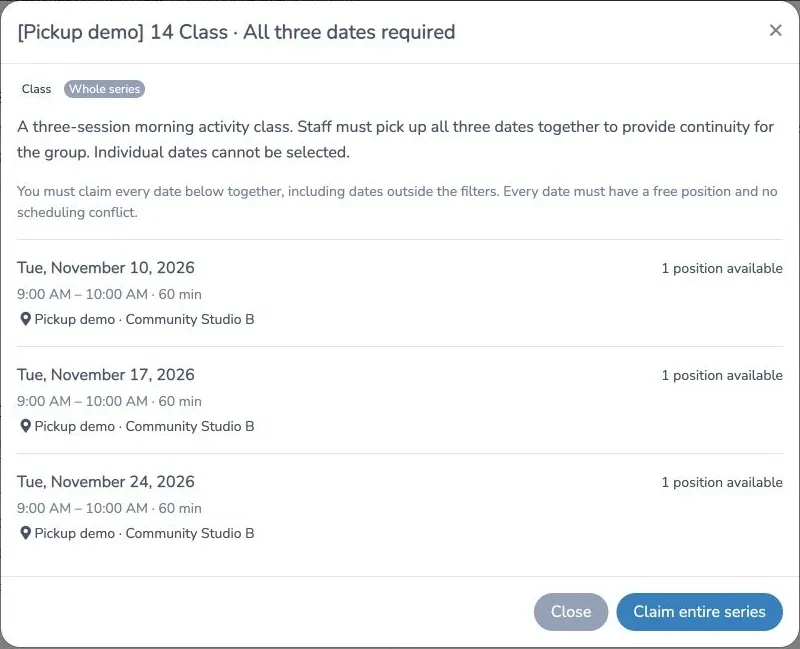
- Click Claim selected dates, or click Claim entire series when the administrator requires the whole set.
- Confirm the claim. Successful assignments appear in your schedule and the administrator's staffing view.
For a whole-series opportunity, review every date shown, including dates outside your search filters. Every date must still have an available position and be free of scheduling conflicts. A series claim succeeds for the entire set or assigns nothing.
Eligibility and conflicts
Any authenticated employee with a staff resource linked to their account can claim published positions. Roles, qualifications and availability entries do not restrict pickup.
The list shows active future occurrences that an administrator has made available for pickup. Closed, cancelled and past occurrences are excluded. Full offers and offers with a scheduling conflict remain visible so you can review their details, but you cannot claim a full or conflicting date.
An overlapping staff assignment blocks a claim and displays a conflict message. If you would like an assignment to a full date, or can rearrange an existing assignment to resolve a conflict, contact your administrator. The administrator must review the staffing or schedule change; employees cannot override a full position or a conflict themselves.
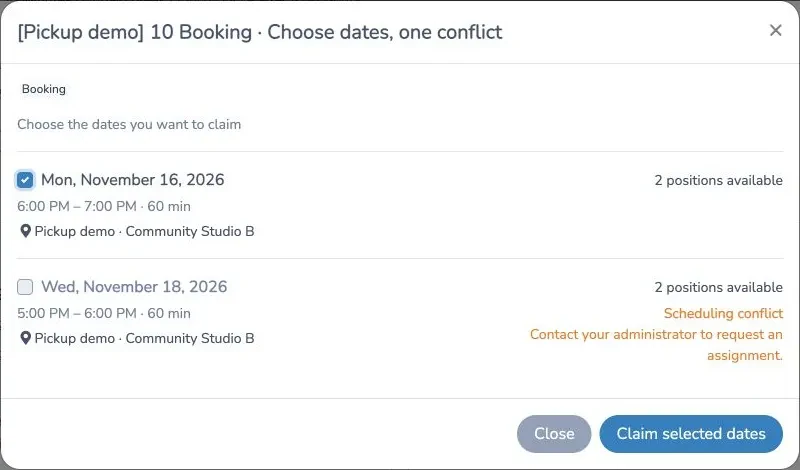
Positions are checked again when you confirm. If another employee has taken the last position since you opened the list, your claim will not succeed. Refresh the list and choose another opportunity.
Claiming one class date changes only that occurrence. It does not make you a default staff resource for the class or assign you to other dates, unless you explicitly claim those dates together.
Close pickup or change an assignment
To stop accepting claims, reopen Manage staff pickup, turn the switch off and save. This closes pickup for the current dates and prevents later dates from becoming available automatically, without removing existing assignments or hiding their published schedule dates.
Employees cannot release a claimed shift from the pickup window. Ask an administrator to change or remove an assignment. To change event dates or cancel an event, use the normal class, booking or shift controls. After changing a published set, review its pickup settings before inviting employees to claim it again.