Activity Messenger Help Center
Organize lists and content with tags
With regular use of the platform, you accumulate a large number of lists in your account. Here’s how to manage them effectively.
Go to the Lists section and click on All Lists to have access to all of them.

Assigning Tags
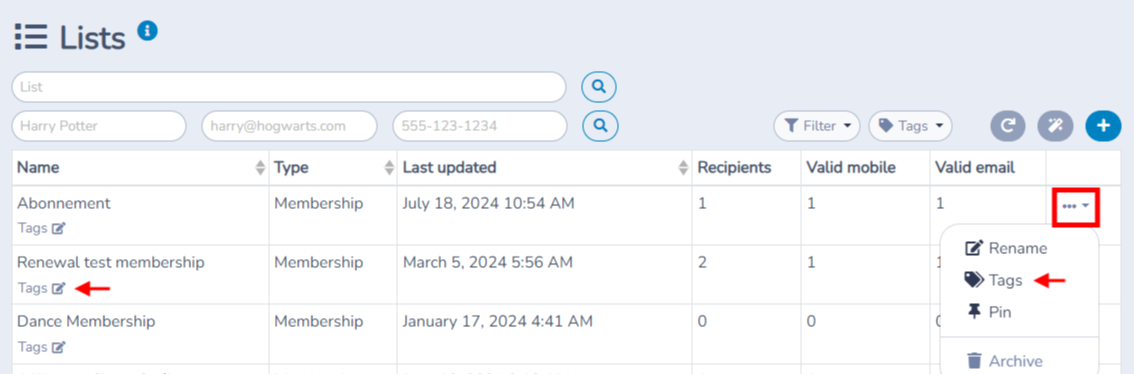
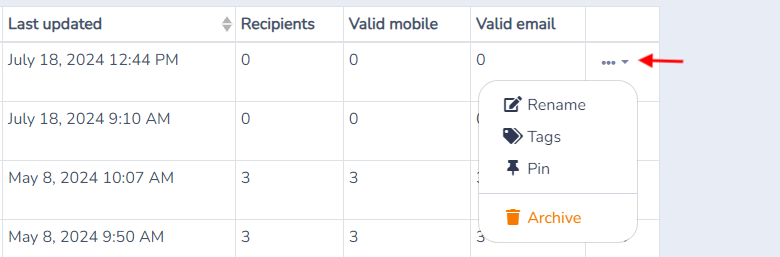
Click on Tags under the list name or select the Tags option from the menu to the right of the chosen list. A window will allow you to assign, create, and rename tags.
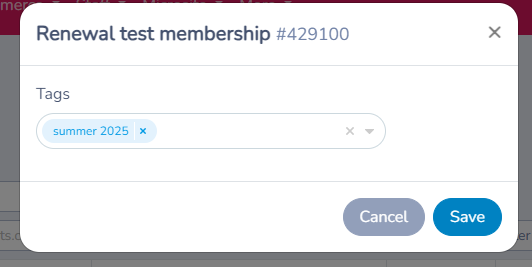
Tags help organize lists, forms, and templates.
For example, you can create the tag "Summer 2025" and assign it to all lists for that season.
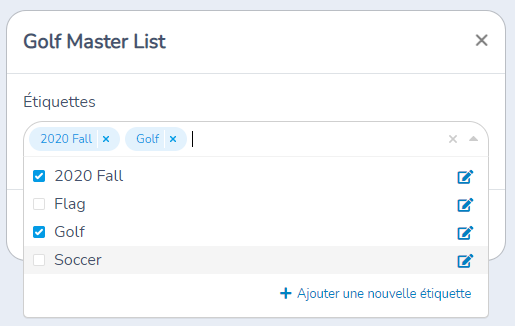
You can also tag forms based on the type of sport or activity, such as "Soccer" or "Golf". Then, you can filter to display only items with a specific tag.
Assigning tags
Click on the item menu and select the Tags option. A popup opens allowing you to assign, create and even rename tags.
Filtering by tag
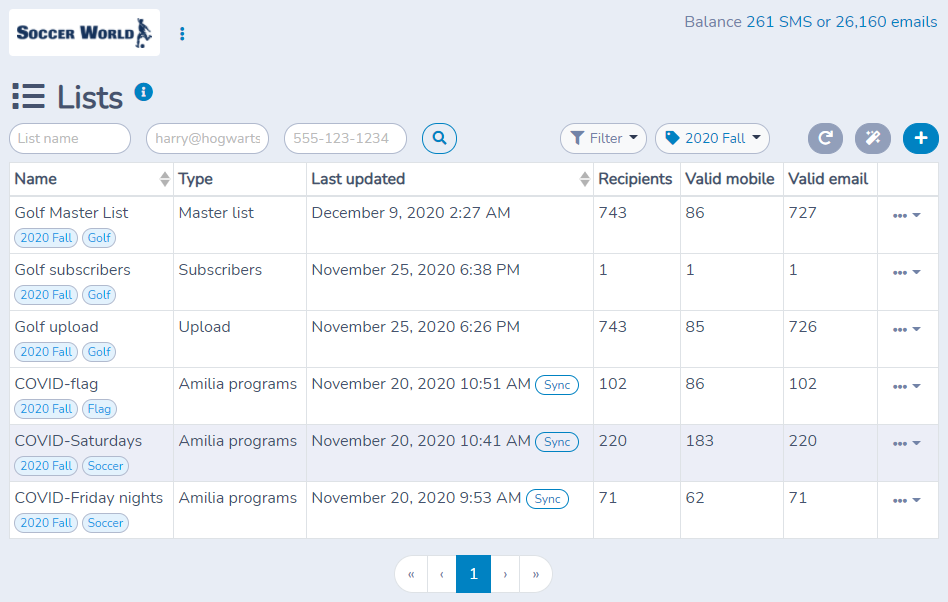
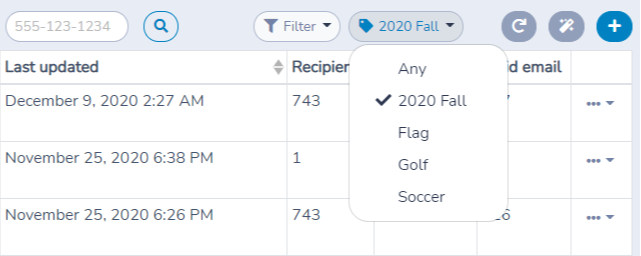
Click on the Tags filter dropdown to limit the number of items displayed.
By clicking on the options of a list, you can also rename it, add or remove participants, pin it to the top of all lists, or archive it if you don't want to use it at the moment. Archived lists can be unarchived later if needed.
Best practice: Tagging by season and by sport

We recommend you organize by season and by sport/type of activity. This will allow you to easily find items season after season. For example, create tags "2020 Fall", "Golf", "Flag" and "Soccer". Make sure to assign the season first and then the sport. The order in which you set tags is respected. This allows you to create a folder-like structure.
Tags organize content; they do not change consent or unsubscribe status. See unsubscribe management.
Settings reference
| Setting | Where | Default | Effect |
|---|---|---|---|
| Tags (assigning) | Lists › All Lists › Tags under the list name, or the ... menu to the right of the list › Tags. Forms, templates and classes have the same Tags option on the item. | No tags | Opens the window where you choose, create and rename tags. Click Save to apply your selection to that one item. |
| Tags field in the window | Tags window | The item's current tags | Pick one or more existing tags. Saving replaces the item's tags with exactly what is selected, so removing a tag here removes it from this item only. |
| Create | Bottom of the tag menu in the Tags window, or press Enter after typing a name | Not applicable | Opens a window with a required Name field (pre-filled with what you typed). Click Create. If a tag with that name already exists, that tag is reused instead of a duplicate. |
| Modify (pencil icon) | Next to each tag in the tag menu of the Tags window | Not applicable | Opens a window with the Name field; click Save. The tag is renamed everywhere it is used. A name already in use is refused with "A tag with that name already exists". |
| Tags filter | Top of the Lists, Forms, Templates and Classes pages | No filter (Any is selected) | Limits the page to items carrying the chosen tags. On Templates you choose a single tag. |
| AND / OR / NOT | Tags filter on Lists, Forms and Classes | OR | AND: is tagged with all selected. OR: is tagged with any of the selected. NOT: is not tagged with the selected. |
| No tag | Tags filter on Lists, Forms and Classes | Off | Shows only items that have no tag. |
| Pin (thumbtack icon) | Next to a tag in the Tags filter, for administrator-level staff | Not pinned | Keeps the tag at the top of the filter menu on that page type (lists, forms or classes). Other tags are listed alphabetically. |
| Manage | Tags filter on Lists, Forms and Classes, for administrator-level staff | Not applicable | Opens the Manage: tags window to add, edit, archive and restore tags. Use the All / Archived switch to see archived tags. The page reloads when you click Close. |
| Archive (tag) | Manage window › menu on a tag | Not archived | Removes the tag from the tag menus after a confirmation. Archived tags can be brought back with Restore. |
Common questions
How do I add a tag to a list, form or template? Open the item's ... menu and choose Tags, or click Tags under the name, then pick or create tags and click Save. See Assigning tags.
Why does a new tag not appear in the Tags filter? The filter on a page only lists tags that are already used by at least one item of that kind (for example, at least one list on the Lists page). Assign the tag to an item first, and it appears in the filter. See Filtering by tag.
Can I filter by more than one tag? Yes on the Lists, Forms and Classes pages. Select several tags, then choose AND, OR or NOT; OR is selected by default. The Templates filter accepts only one tag at a time.
If I rename a tag, does it change everywhere? Yes. A tag is one record shared by every item that uses it, so renaming it in the Tags window updates all of them. You cannot rename a tag to a name that already exists. To tag another item with the same name, select the existing tag instead of creating a copy.
Can I delete a tag? Not permanently. Administrator-level staff can archive a tag from Manage in the Tags filter, and restore it later from the Archived view. Other staff do not see the Manage button.
Do tags control who receives my messages or who is unsubscribed? No. Tags only organize lists, forms, templates and other content; they do not change consent or unsubscribe status. See Manage unsubscribes and communication preferences. Customer-facing communication tags that clients choose in My preferences are a separate setting managed in Organization settings › Messaging, limited to 50 tags.
How should I name my tags? Use one tag for the season and one for the sport or activity, and assign the season first. See Best practice: Tagging by season and by sport.