Activity Messenger Help Center
Duplicate a class or an event
Duplicate an existing activity when its setup is a useful starting point for a new one. Review the copied dates, capacity and linked settings before offering the new activity to clients.
Duplicating a class provides a quick method to replicate a class without having to start from scratch. You will only have to replace the existing information with that of your new class.
In the menu at the top, click Classes then select All Classes & Events.

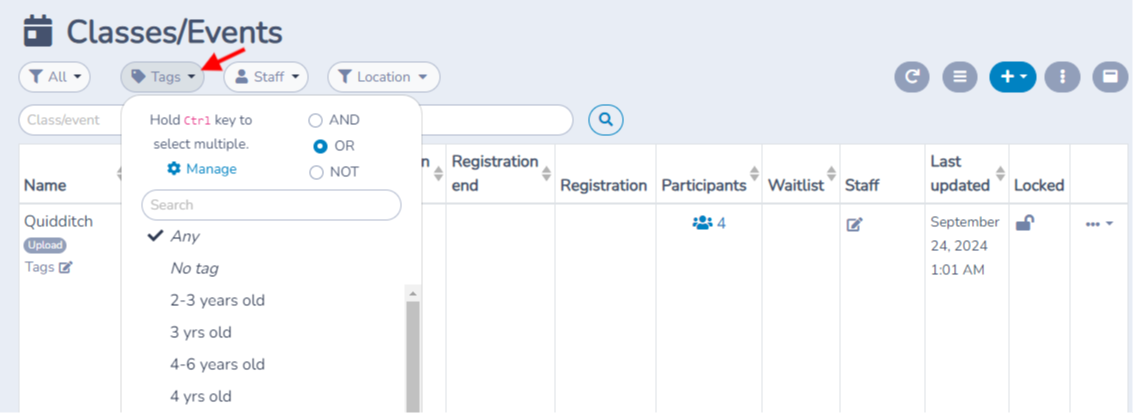
Use the search bar to find the class you want to duplicate by typing its name.
You can also filter class by status (active or archived) or by tags.
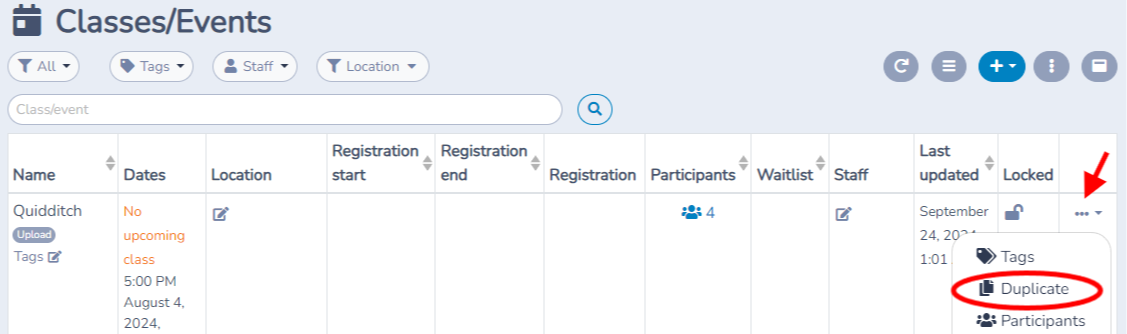
Once you find the class, click the (...) to its right and select Duplicate to open the copy settings.
Customizing the copy
Review the name, dates and other copy settings in the Duplicate window before creating the class. You can edit the resulting class afterward if more changes are needed.
In the Duplicate window, enter the copy's name and review its Tags. Within the same organization, the copy starts with the original tags; you can change the selection before duplicating. If you copy to another organization, choose whether to keep the original tags or select tags in the destination organization.
Copy occurrences is on by default. Turn it off to make a copy without a schedule or occurrences. To move the schedule, turn on Change the first occurrence, enter the new date and time, then use Preview and edit copied occurrences to check and adjust the copied dates before duplicating. Leave that switch off to keep the original occurrence dates.
Open Other copy options to choose independently whether to copy assigned staff, assigned locations, assigned equipment and staff settings. All four start on. Staff settings include required staff counts, preparation time and role requirements; organizations with staff management or scheduling can also copy class staff pay settings. Assigned staff, locations and equipment are separate choices, so you can keep the location without carrying over last season's staff.
If the destination organization has staff scheduling, choose Published or Unpublished under Staff schedule publication. Copies start Unpublished, giving you time to check the staff schedule before staff can see it.
Validation and registration
Once you have made the changes, be sure to save them to finalize the class duplication. Open the duplicate class to ensure that all information has been copied correctly.
For example, when preparing next season's class, keep Copy occurrences on, move the first date, and preview the resulting schedule. Leave Copy assigned locations on but turn off Copy assigned staff if staffing will change. Review the new class and its occurrences after duplication; some settings may need to be completed on the copy.
Settings reference
| Setting | Where | Default | Effect |
|---|---|---|---|
| Copy occurrences | Classes › All Classes & Events › class menu › Duplicate | On | Copies the schedule and occurrences; off creates a class without them. |
| Change the first occurrence | Duplicate window | Off | Lets you shift and preview the copied occurrence dates. |
| Copy assigned staff / locations / equipment | Duplicate window › Other copy options | On for each | Copies each type of occurrence assignment independently. |
| Copy staff settings | Duplicate window › Other copy options | On | Copies staffing requirements and applicable pay settings. |
| Staff schedule publication | Duplicate window › Other copy options | Unpublished | Controls whether the copied class is visible in the staff schedule when that module is available. |
Common questions
Can I move all copied dates without rebuilding the schedule? Yes. Keep Copy occurrences on, turn on Change the first occurrence, and preview the copied occurrences before you duplicate.
Can I keep the location but assign different staff later? Yes. In Other copy options, keep Copy assigned locations on and turn Copy assigned staff off.