Activity Messenger Help Center
Staff Time Clock: punch in and out
Use Time Clock to record when staff start and finish work. Staff choose a facility, punch in and punch out; managers review the completed sessions before they appear in worked hours. Task Time tracks tasks separately. For schedules, task entries and worked-hour approvals, see Staff operations.
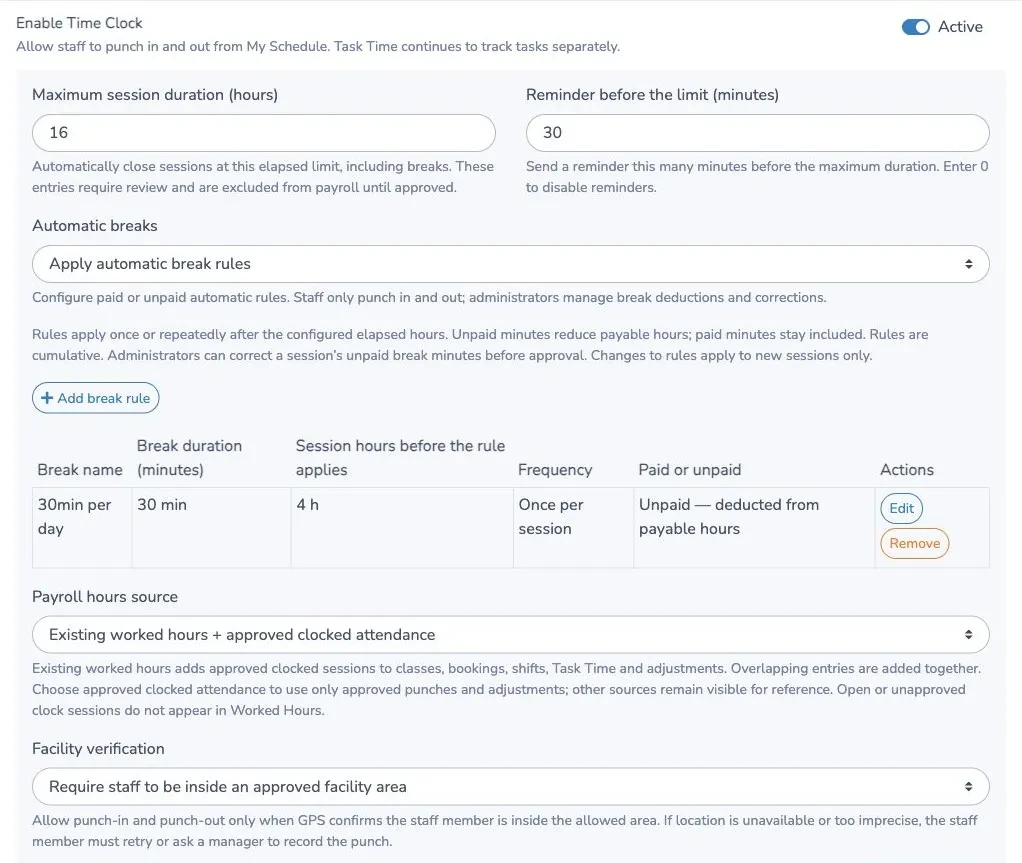
Enable Time Clock
You need the staff schedule module and permission to manage the organization. Open Organization settings › Team & operations › Staff scheduling & management. Under Staff features, turn on Enable Time Clock.
- Set Maximum session duration (hours), from 1 to 48 hours. A session still open at that limit closes automatically and needs manager review.
- Set Reminder before the limit (minutes). Enter 0 to disable it; otherwise choose a delay shorter than the maximum session duration.
- Choose automatic breaks, the payroll hours source and facility verification, as described below.
- Add at least one facility area, even if location verification is off.
- Save the organization settings.
Close active sessions before disabling Time Clock or changing the location policy or facility areas.
Configure facilities and location verification
Under Facility areas, click Add facility area. Choose Use an existing location or Create a new facility. For a new facility, enter its name; it is created when you save the organization settings.
Use the saved address or enter an address for the clocking area, then click Find address. Check the map center and the Radius (meters) before saving. The allowed radius is 10 to 10,000 meters. A custom clocking address does not change an existing location’s saved address. Advanced settings let you enter coordinates manually.
Choose a Facility verification policy:
| Policy | What happens |
|---|---|
| Do not check staff location | Staff can punch from anywhere. The device’s location is not requested. They still select a configured facility. |
| Check location and flag exceptions for review | The punch is accepted if staff are outside the area, GPS is imprecise, location is unavailable or permission is denied. The session needs manager review. |
| Require staff to be inside an approved facility area | Both punch-in and punch-out require GPS to confirm the person is inside the allowed area. If location is unavailable, denied or too imprecise, retry or ask a manager to record the punch. |
Allow room for the building and GPS uncertainty when setting the radius. Being near the center is not enough if the device cannot provide an accurate position.
Location is requested only when punching in or out, never continuously. The punch waits for the browser’s location permission response and the location result or failure before applying the policy. Allowing access does not guarantee a usable GPS result; the device may still be unable to locate you accurately.
Punch in and out
Staff signed in to Activity Messenger open the user menu and choose My schedule. The Time Clock card appears above the calendar when enabled. Staff connected to the client portal can also use the card from their schedule.
- Choose your Facility.
- Click Punch in. If your browser asks for location access, respond and wait for the action to finish.
- Check that the card shows Working and your start time.
- When finished, click Punch out. Respond to the location request if it appears.
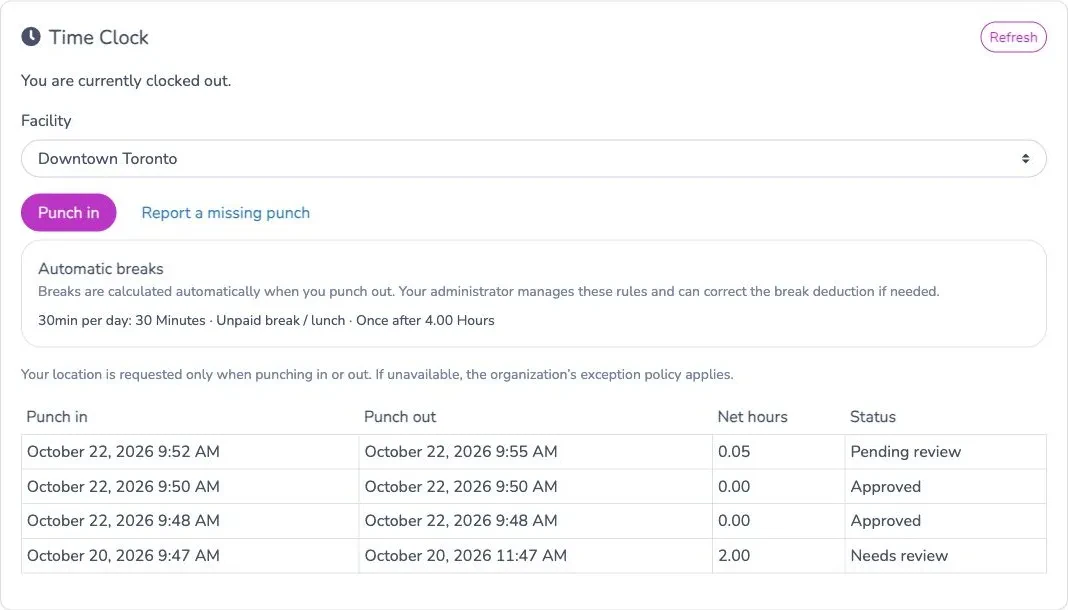
The card shows recent completed sessions, net hours and review status. If there is no facility to choose, ask an administrator to configure one. If you cannot complete a punch, report the missing time rather than assuming it was recorded.
Apply automatic breaks
In the organization’s Time Clock settings, Automatic breaks offers No automatic breaks or Apply automatic break rules. Staff only punch in and out; administrators configure the deductions.
Click Add break rule and enter a name, a break duration, the session hours before it applies, whether it applies once or every interval, and whether it is paid or unpaid.
For example, a 30-minute unpaid break once after 5 hours deducts 30 minutes from a session of 5 hours or more. A repeating rule at 5 hours applies again at 10 hours, 15 hours, and so on. The elapsed time includes breaks. Rules are cumulative: several applicable rules add together.
Breaks are calculated when staff punch out. Unpaid minutes reduce payable hours; paid minutes stay included. The staff card shows the automatic rules and the completed session’s break totals. Rule changes apply to new sessions; a session already started keeps its original rules. A manager can correct its unpaid break minutes before approval.
Report a missing punch
On the Time Clock card, click Report a missing punch. Enter the start date and time, the end date and time if work has finished, and an optional note. Leave the end empty for a session still in progress, then save.
If a session is active, the request corrects that session; otherwise it creates a new request. This form does not let you choose an older completed session. The request goes to manager review. Staff do not set unpaid break deductions in this form. A correction to an active session keeps its break policy. Manual entries and corrections do not verify the device’s location.
Review and approve attendance
Managers open User management › Staff schedule › Hours & payroll › Time Clock. Access depends on the organization’s staff permissions: viewing, editing and approving attendance use the corresponding Task Time permissions and staff scope.
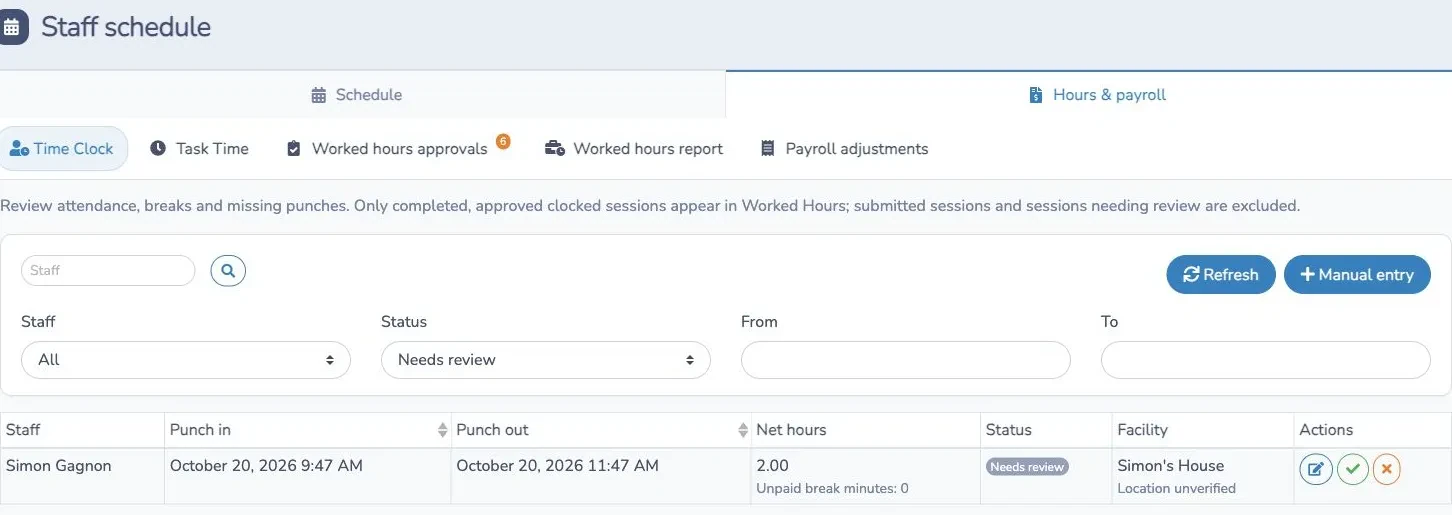
Filter by staff, status or dates. Open a session to review its times, unpaid break minutes and change history. With edit permission, use Manual entry to add missing time or edit a session; choose a staff role when staff management is enabled. Enter past times without overlapping another non-rejected attendance session. Manual changes return the session to Needs review, including changes to a previously approved session.
Use the checkmark to approve a completed session or the cross to reject it. You can add an optional note to the review. An active session cannot be approved; automatically closed sessions must also be reviewed. Overlapping attendance sessions must be resolved before approval.
Only completed, approved clocked sessions appear in Worked hours. Open, submitted, rejected and unreviewed sessions are excluded. This manager approval is separate from the optional process where staff approve their worked-hours reports.
Choose what counts toward pay and export hours
The Time Clock setting Payroll hours source has two choices:
- Existing worked hours + approved clocked attendance adds approved clocked sessions to classes, bookings, shifts, Task Time and adjustments. Overlapping sources are added together, so review the selection to avoid counting the same work twice.
- Approved clocked attendance counts approved punches and adjustments for payroll. Other sources remain visible for reference and do not count toward payroll.
In Reports › Financial reports › Worked hours, use Options › Event types to include the sources you need. Time clock / Punch in/out is one source. Under the organization’s Worked hours report defaults, the Event types checkboxes set the starting selection; all types are selected initially. Report or export selections can override it, and saved reports retain an explicit selection.
Download to Excel starts with the current report’s dates, staff, event types and calculation options. You can override them for the export and use Visible columns to select the spreadsheet columns. Select at least one column, prepare the file and download it. For more about exports and archived reports, see Staff operations.