Activity Messenger Help Center
Navigation, menu and quick shortcuts
Use the vertical menu to move between tools, keep frequent destinations in quick shortcuts and find a feature without opening each submenu. You can personalize your navigation even when your organization uses a different menu by default.
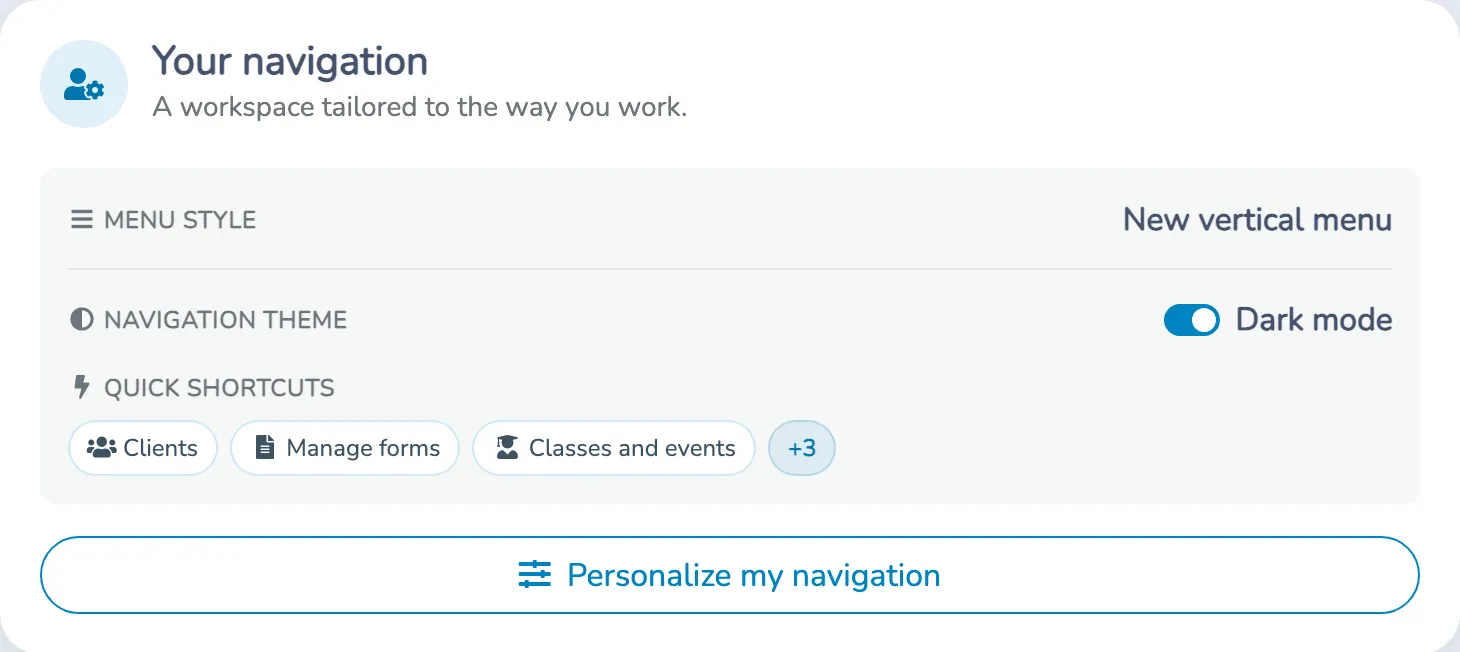
Where to find your navigation preferences
- Select the organization you want to work in.
- Open Dashboard.
- Find the Your navigation card. Depending on your dashboard, it may be farther down the page or included in your welcome panel.
- Click Personalize my navigation.
You do not need to change organization settings to personalize your own navigation. Available tools and shortcuts still depend on your permissions and the organization's enabled features.
Choose the vertical or classic menu
Under Menu style, choose one of the following, then click Save:
| Choice | Result |
|---|---|
| Organization choice (…) | Follow the organization's menu setting, including later changes to that default. |
| New vertical menu | Use the sidebar for your account in this organization. |
| Classic horizontal menu | Keep the horizontal menu for your account in this organization. |
Your personal menu choice takes precedence over the organization's default. It does not change colleagues' menus. If you belong to several organizations, set your menu and shortcuts separately in each one.
If the main menu has moved and you want to restore the classic horizontal menu, choose Classic horizontal menu under Menu style, then click Save. To use the vertical sidebar instead, choose New vertical menu. This preference switches between the two menu configurations; it is not a control for dragging the menu to a particular screen edge. If you specifically need the menu at the top, select Classic horizontal menu and check whether that layout meets your needs.
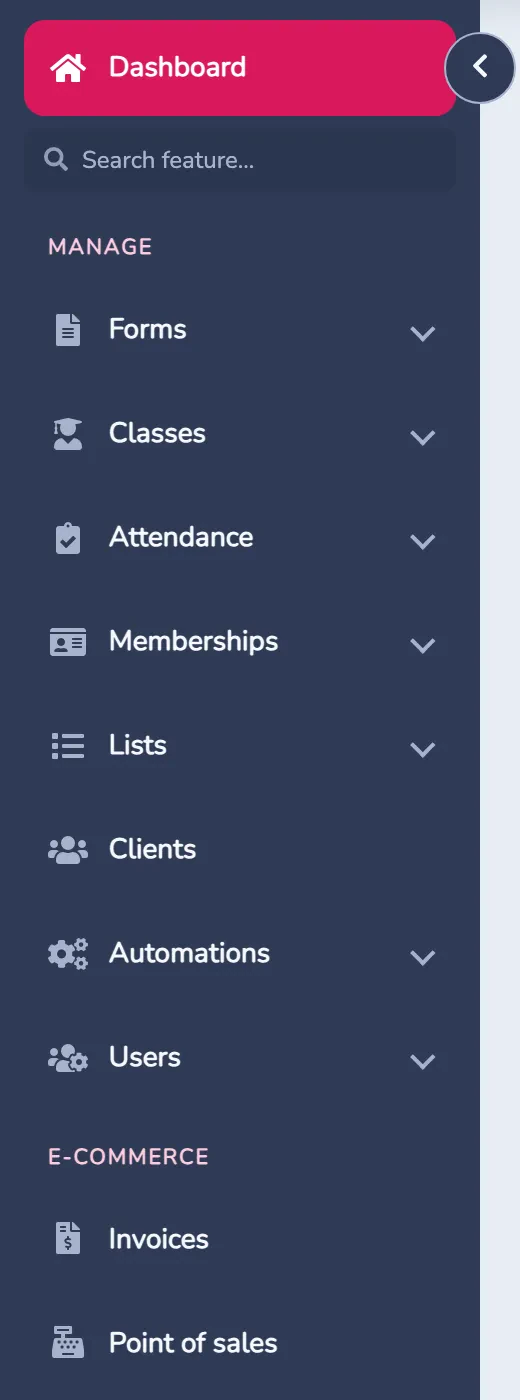
With the vertical menu active, use the arrow to collapse or expand the sidebar. On a phone, open the menu with the hamburger button. The vertical menu also provides feature search and quick shortcuts.
Personalize your quick shortcuts
Quick shortcuts appear above the page content when the vertical menu is active and shortcuts are selected.
- In Dashboard → Your navigation → Personalize my navigation, turn off Use organization defaults to make your own selection.
- Choose up to six destinations in Shortcut 1 through Shortcut 6. Their positions determine the order in the bar.
- Choose None for positions you do not need. The same destination cannot occupy two positions.
- Click Save.
For example, someone who manages registrations might choose forms, classes, clients and invoices. Another colleague can keep a different selection. Selecting no shortcuts leaves your bar empty; it does not restore the organization's choices.
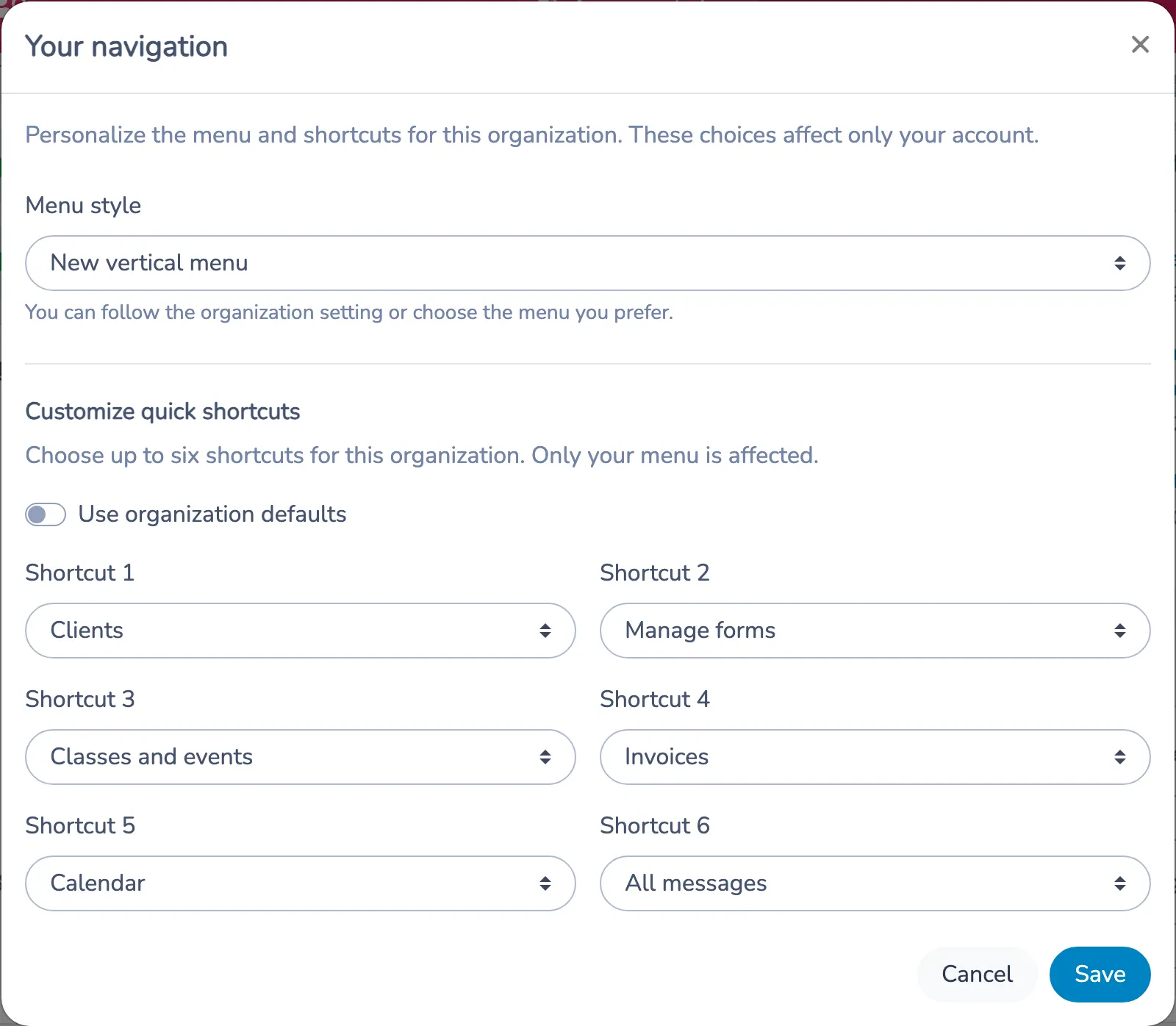
When the shortcut bar is visible, its gear button, Customize quick shortcuts, opens a shorter dialog for changing the same personal shortcuts. To return to the shared defaults, choose Use organization defaults and save. If no bar is visible, use the dashboard card.
The pin button in the header hides or shows the bar without deleting your choices. This display preference is remembered in that browser. Shortcuts configured for the vertical menu do not appear while you use the classic menu.

Search for a feature
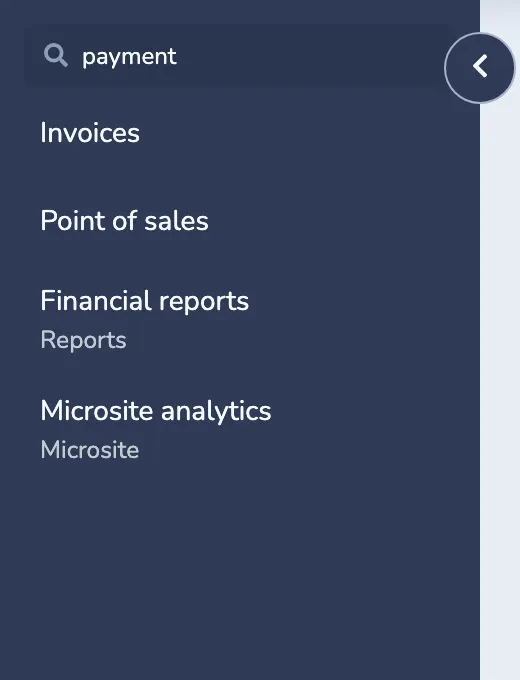
- In the vertical menu, find Search feature… immediately below Dashboard. If the sidebar is collapsed, click the magnifying glass first.
- Type a feature name or keyword, such as payment, forms or calendar.
- Click a result to open it. Clear the field to show the complete menu again.
Search ignores case and accents and recognizes French and English keywords. Results include the available menu destinations and submenus; it searches navigation, not individual client records, invoices or form responses. Search does not grant additional permissions.
You can also use the down and up arrows to move through results, Enter in the field to open the first result, and Escape to clear the search.
Change the navigation theme
In Dashboard → Your navigation, turn Dark mode on or off. The change is saved immediately for your user account. Unlike the menu and shortcut choices, the theme is an account preference shared across your organizations. It does not change the organization's branding.
Set defaults for the organization
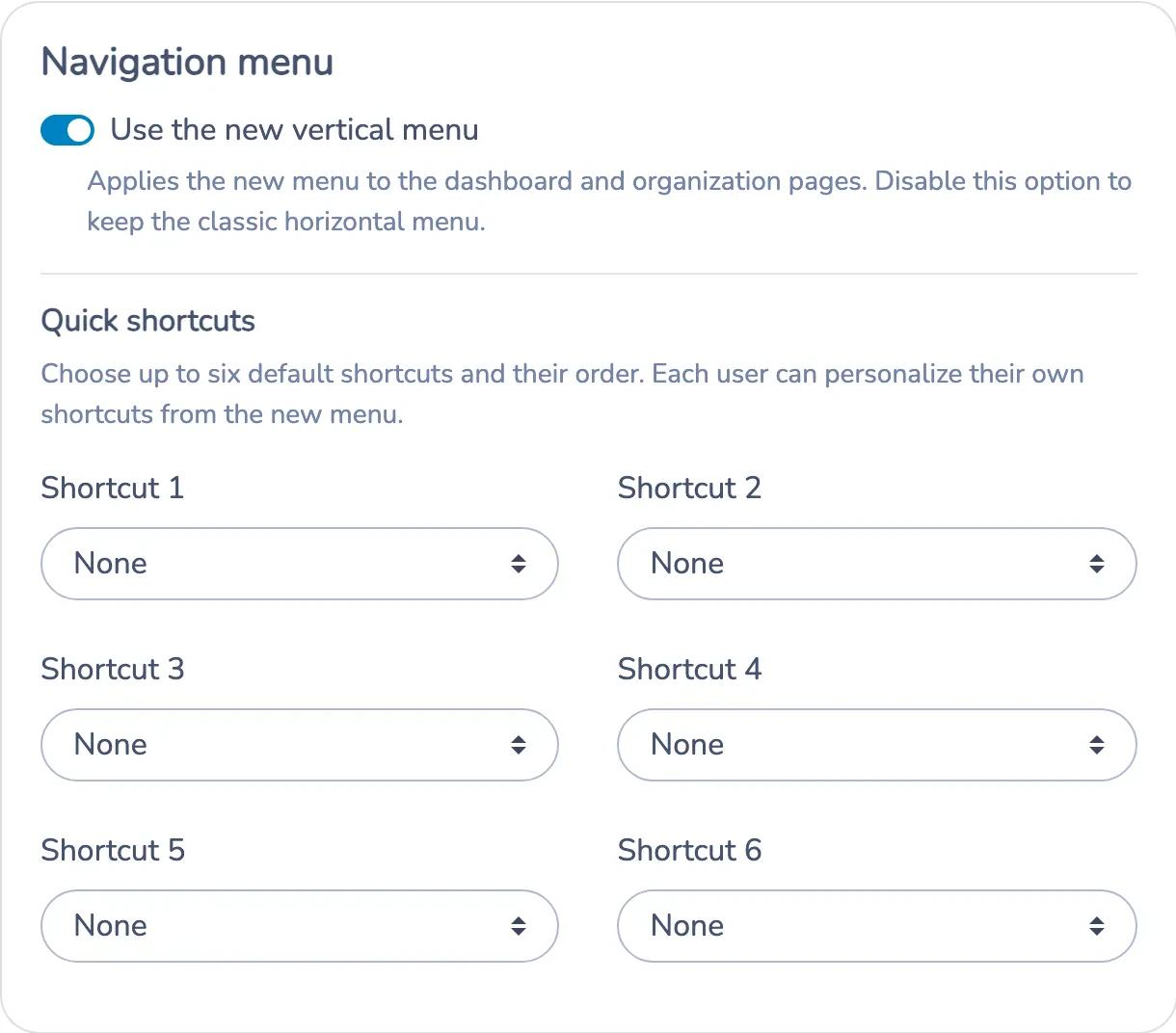
With permission to edit organization settings, open your account menu, then Organization settings → Advanced options → Navigation menu.
- Enable or disable Use the new vertical menu.
- Under Quick shortcuts, choose up to six default destinations and their order.
- Click Update.
These are shared defaults. Users who follow the organization setting receive its menu choice; users who follow organization shortcut defaults receive the available default shortcuts. A personal override remains in effect until that person chooses the organization default again. Each person sees only the destinations their permissions allow.