Activity Messenger Help Center
AI customer support on your website
AI customer support is a chat on your public website. Visitors can ask about activities, schedules, registration and My Account. The assistant searches public website content, open public forms and activities, public products and memberships, and newsletters you have explicitly shared. Save the settings, then open Preview to try the chat. The editor canvas leaves the chat hidden. For the editor and Preview, see Edit, preview, save, and publish a website.
When visitors see the chat
The chat appears only when all of the following are true:
- Enable AI customer support is on. The feature stays off until you turn it on.
- The website is public and has no site password.
- When a visitor needs your team has a valid destination.
A contact form that is closed, password-protected or limited to certain people is not a valid destination, and the chat stays hidden. An email destination has to be a valid address. A contact page has to be an https:// address or a path that starts with /.
Turn it on
- Open Website, then Manage websites, then Editor.
- Open Website settings.
- Select AI customer support.
- Turn on Enable AI customer support.
- Choose how visitors reach your team.
- Select Save site settings.
- Open Preview and try the chat on that tab.
The tab describes the feature: “Your AI front desk for activities, registration and My Account. Save your settings, then open Preview to try the chat.”
Chat color includes Match the website's accent color. The help reads: “Used for the chat button, the visitor’s messages and the chat’s buttons. The icon switches between black and white automatically for contrast.”
Offer visitors a conversation starter
This switch stays off until you turn it on. Its help text reads: “After a delay, open a compact chat with a greeting and quick replies taken from the current page (a small bubble on phones). It appears at most once per visit and stays hidden for 3 days after a visitor closes it.”
With the switch on, two more options appear:
- Show greeting after offers 5 seconds, 10 seconds, 15 seconds, 30 seconds or 60 seconds. The default is 10 seconds.
- Include a time-of-day greeting. Its help text reads: “Uses your organization’s timezone. No visitor location or personal information is used.” Before noon the greeting is Good morning! From noon until 6 p.m. it is Good afternoon! After 6 p.m. it is Good evening! With the checkbox off, the greeting is Hi!
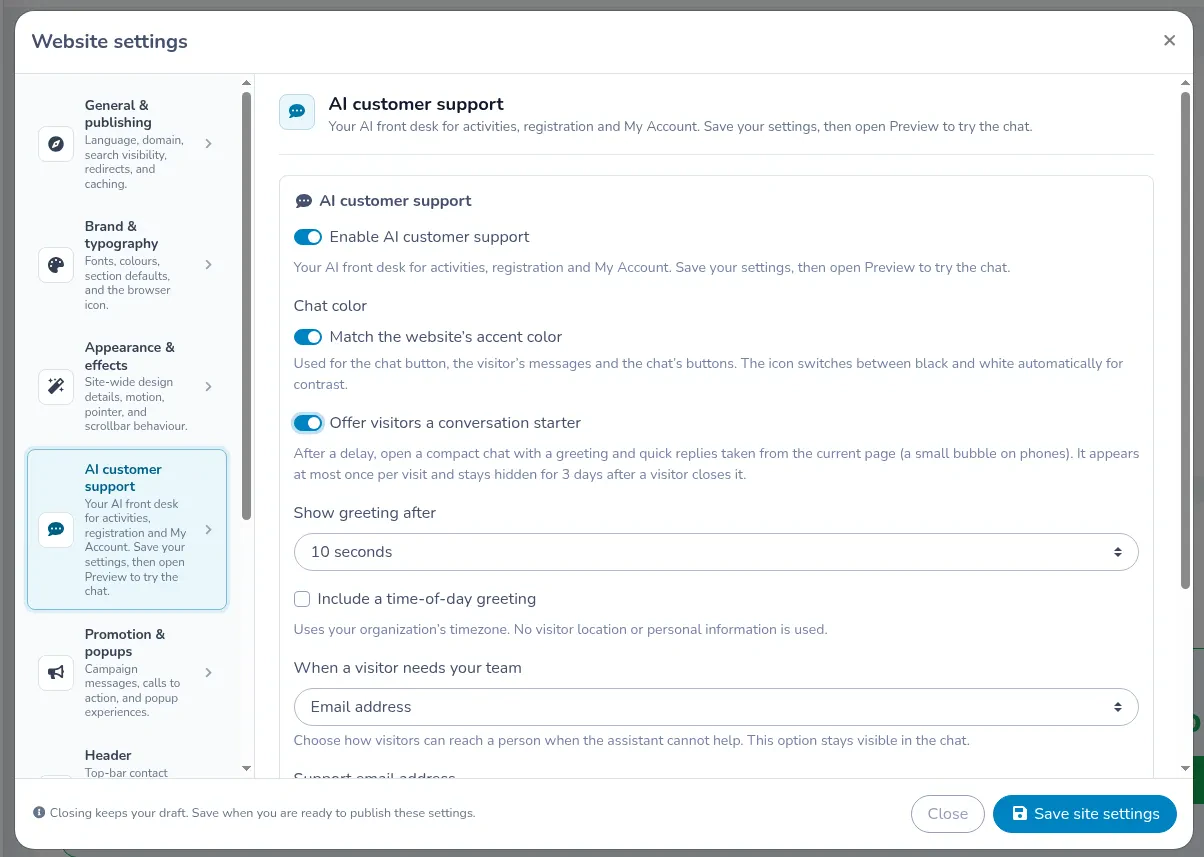
On a computer, the compact chat opens after the delay. With Include a time-of-day greeting off, it starts with Hi! On the home page in Preview, the message reads Hi! Have a question about Home? and the quick replies taken from that page are Quidditch and Broom Flying Lessons. Choosing one sends “I’m interested in: [topic]”. On a phone, the visitor sees the small bubble described above until they tap it. A page without those linked cards offers the same three starter questions as the welcome screen.
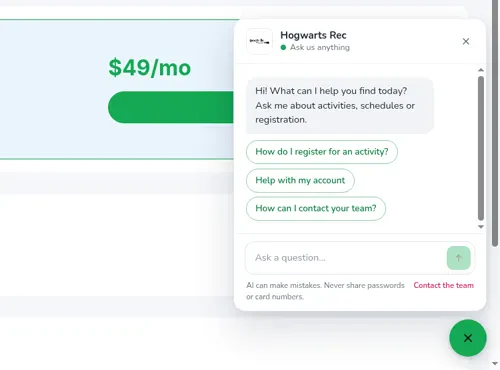
When a visitor needs your team
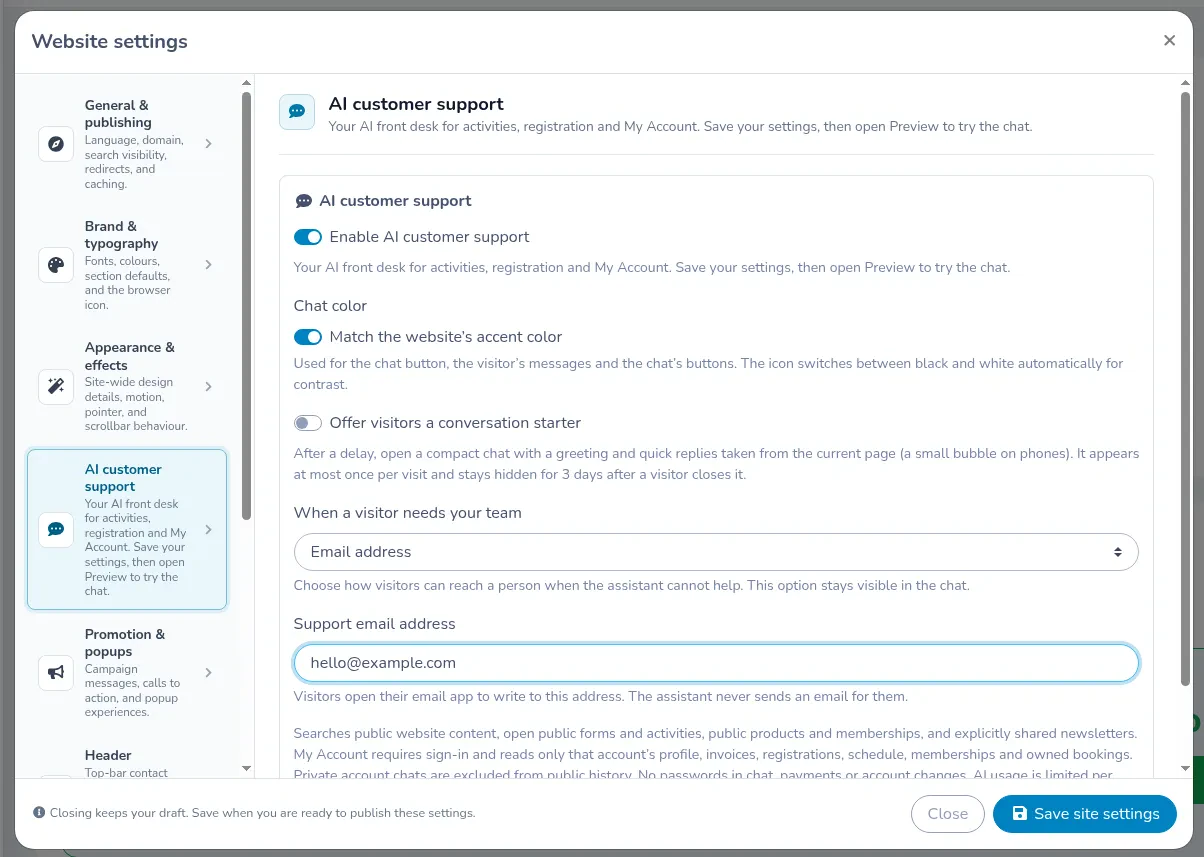
The menu help reads: “Choose how visitors can reach a person when the assistant cannot help. This option stays visible in the chat.”
Email address is the starting choice when you have not saved another destination. Support email address is the address visitors open in their own email app. The help reads: “Visitors open their email app to write to this address. The assistant never sends an email for them.”
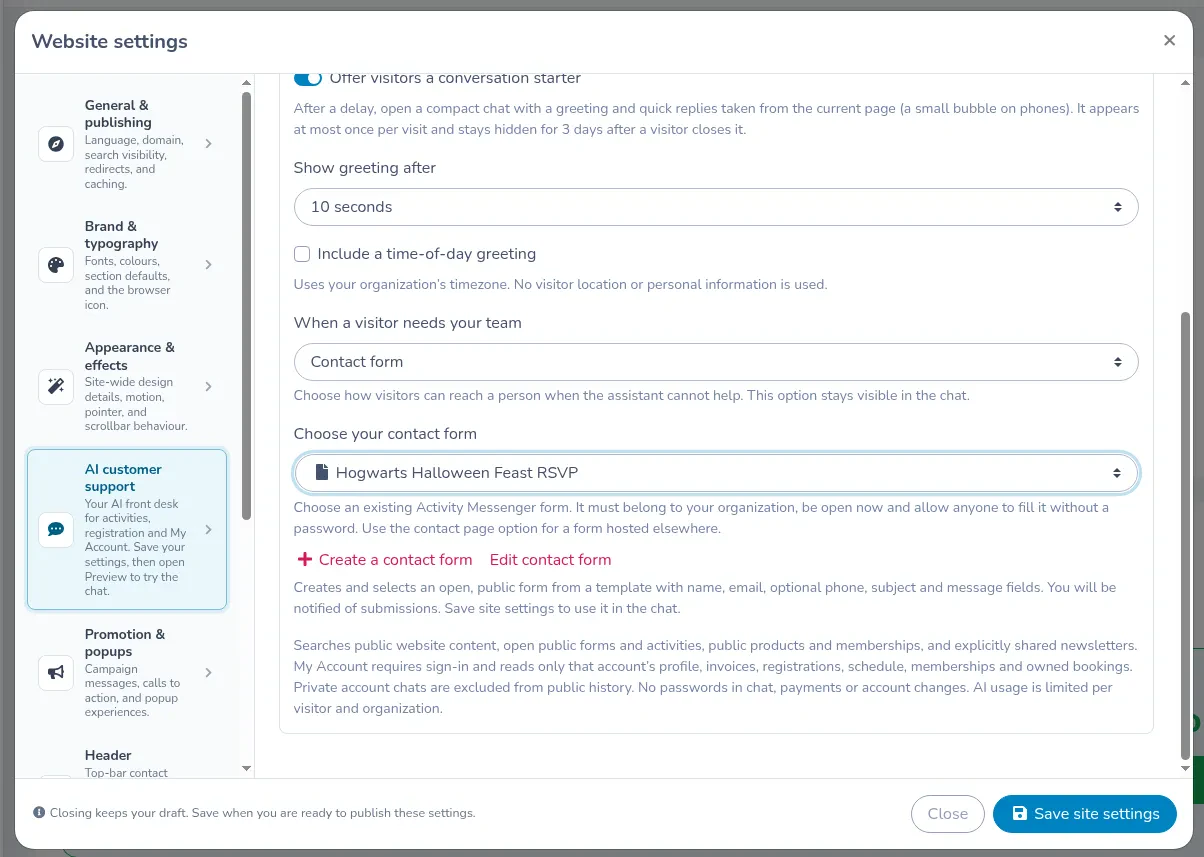
Contact form adds Choose your contact form. The form has to belong to your organization, be open now, and allow anyone to fill it without a password. The list in this example has Hogwarts Halloween Feast RSVP selected. Create a contact form builds and selects an open public form named Contact us. Its description is “Send us your question and our team will get back to you.” The fields are name, email, optional phone, required Subject and required Your message. You are notified of submissions. The help reads: “Creates and selects an open, public form from a template with name, email, optional phone, subject and message fields. You will be notified of submissions. Save site settings to use it in the chat.” Edit contact form opens /organization/{id}/form/{formId} in a new tab.
Contact page or external form adds Contact page or form address. Paste an https:// link or a path that starts with /.
The bottom of the panel repeats the limits note quoted under Limits.
What visitors see
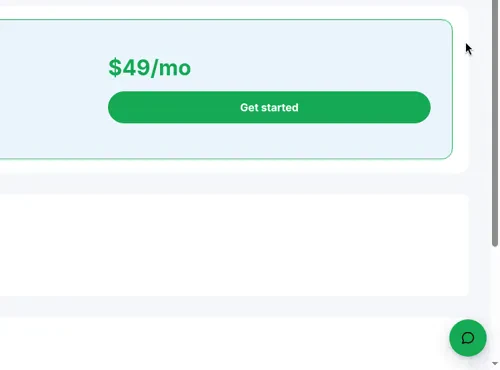
A round button sits at the bottom right. Its tooltip is Chat with us. The button uses the color from Chat color.
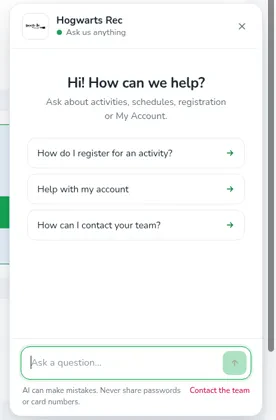
The header shows the organization name and Ask us anything. Close chat closes the panel. The welcome screen says Hi! How can we help? and “Ask about activities, schedules, registration or My Account.” It offers three starters:
- How do I register for an activity?
- Help with my account
- How can I contact your team?
The privacy line reads “AI can make mistakes. Never share passwords or card numbers.” A small Contact the team link sits beside it and opens the email, form or page you saved.
After the visitor sends a message, New conversation starts again.
The chat follows the language of the page. An answer can include up to six source cards. Each card opens in a new tab. For a broad question, the assistant lists the activities it can verify from the public site, and it may then ask one of these:
- How old is the person who would take part? Please share only their age, not their date of birth.
- Which days or times would work for you?
- Which season or time of year are you interested in?
When the assistant cannot verify an answer, it says: “I don’t have enough verified information to answer that. Please use the contact link below, or leave your details and the team will follow up.” On a public question it can also show Have the team reach out, with “Leave your details and someone from the team will get back to you.” The fields are Name and Email or phone. The buttons are Send to the team and Not now. After a successful send, the card says “Thanks, [name]!” and “Your details are with the team. They’ll get back to you soon.” The card stays hidden for account questions. Not now keeps it hidden until the visitor chooses New conversation.
If the visitor sends questions too quickly, the chat says “Please wait [seconds] seconds before trying again.” At the organization’s usage limit it says: “The assistant has reached the organization’s usage limit. Please try again later or contact the team.” While another request is still running it says: “The assistant is processing another request. Please try again in a few seconds.”
Answers from My Account
Help with my account, or any question that needs personal details, switches the status line to My Account. The account heading is Let’s look at your account.
A signed-out visitor sees: “Log in securely to look up your account information. Your question will continue automatically after login.” Log in to connect your account opens the usual sign-in window. The password or login code belongs on that window. After sign-in, the original question continues.
The assistant can then read only that account:
- the displayed profile
- finalized invoices the account owns (a visitor can name one, such as Invoice AM-1234)
- class registrations
- upcoming registered classes through one year, in the organization’s timezone
- membership names, recorded dates and status
- bookings attached to that owner’s finalized invoices from six months onward
It cannot take a payment or change the account. It does not receive payment credentials, medical fields, attendance notes, internal notes or another payer’s invoice details. Signing out or switching accounts clears the earlier private answers in the chat. Those private chats stay out of Website AI chat.
Staff who can choose a client see Choose a client in the chat header. It opens the existing client picker.
Where follow-up requests arrive
Contact the team opens the destination you saved. The assistant does not send that message for the visitor.
Have the team reach out delivers the same request in two places, and a contact form adds a third:
- An email with the subject New website lead: [name]. The introduction reads: “A visitor asked your team to follow up from the AI customer support chat on your website.” When Email address is the saved method, the message goes to the support address. Otherwise it goes to the organization email, and if that address is missing, to the reply-to email. The message includes the name, email or phone, language, page and the public transcript. When the visitor left an email, replies go to that address. An organization can receive 50 of these emails a day.
- A person on the list Website chat contacts. The description reads: “Visitors requesting a follow-up through the website chat. This is not a newsletter subscription list.” The list is created with the first submission. The importer removes duplicate contacts. On Website AI chat, the card lists Name, Email and Phone, newest first, 25 at a time. Open contact list opens the list. Create contact list appears when no list exists yet. With no contacts yet, the card says: “No contacts collected yet. Visitors who submit the chat follow-up form will appear here.”
- With Contact form selected, the visitor fills that form. The response arrives with your other form submissions. The generated Contact us form notifies the person who created it.
Website AI chat
Open Website AI chat from Website, E-Commerce or Reports. The address is /organization/{id}/website-chat-history. You need permission to manage the organization.
Analytics uses Period: Last 7 days, Last 30 days or Last 90 days. Last 30 days is the default. The help reads: “The 7, 30 or 90 day period applies only to statistics. The conversation list searches all saved history.” The totals are:
- Conversations
- Questions
- Answered, with “[answered] answered · [unanswered] sent to your team”
- Leads, with “[rate] of conversations · [offers] forms shown”
- My Account lookups, with “[logins] asked to sign in”
- Questions per day
With no chats in the period, the chart area says: “No chats yet for this period. Statistics start counting from today.” The contacts card shows Create contact list when no list exists yet.
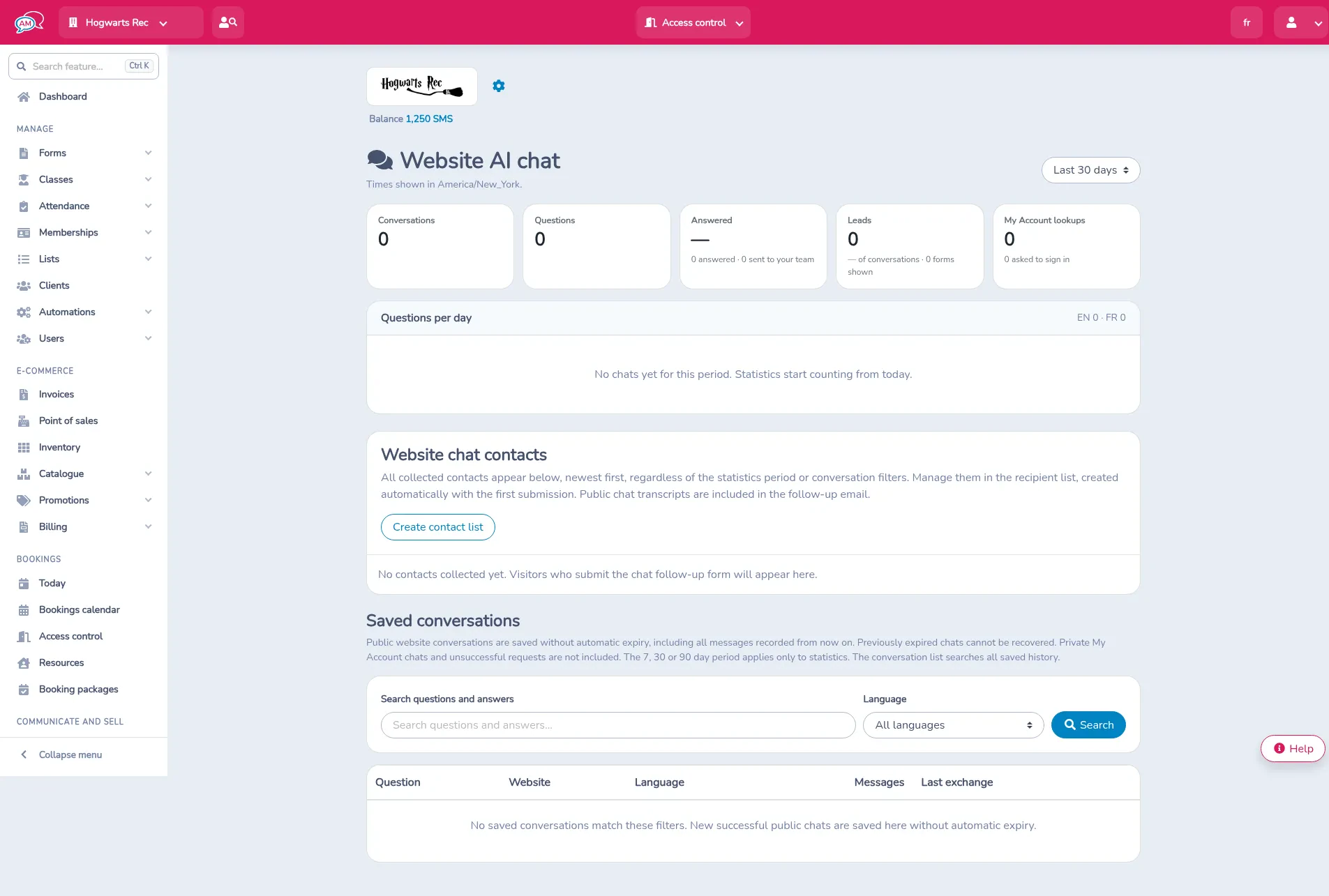
Saved conversations can be searched with Search questions and answers and filtered by Language (All languages, English or French). Use Search to apply the filters and Clear filters to reset them. The columns are Question, Website, Language, Messages and Last exchange. Read conversation opens the transcript. Each turn is marked Visitor or Assistant. The page says “Times shown in [timezone].”
Public conversations are saved without automatic expiry, including every message recorded from now on. Chats that had already expired cannot be recovered. Private My Account chats and unsuccessful requests stay out of this list. With nothing saved, the table says: “No saved conversations match these filters. New successful public chats are saved here without automatic expiry.”
The longer privacy note in the chat says conversations expire after 30 minutes of inactivity. That timer ends the live conversation the assistant is using, which also keeps at most 12 successful turns. Saved public history on this page remains.
Limits
The settings panel states: “Searches public website content, open public forms and activities, public products and memberships, and explicitly shared newsletters. My Account requires sign-in and reads only that account’s profile, invoices, registrations, schedule, memberships and owned bookings. Private account chats are excluded from public history. No passwords in chat, payments or account changes. AI usage is limited per visitor and organization.”
A visitor can send about 6 questions a minute. The follow-up card allows 3 submissions every 10 minutes. The organization can make 60 assistant calls an hour and 200 a day, and can receive 50 follow-up emails a day. A question can be up to 1,000 characters. The live conversation keeps at most 12 successful turns and ends after 30 minutes of inactivity.