Activity Messenger Help Center
Access Control
Let clients check in with a membership card at a configured access point, then review the resulting access records. Access eligibility and attendance depend on the memberships, classes and access-point rules; attendance is not governed by a universal one-hour window. The class start/end times and the access point’s before/after grace periods determine the attendance window.
Before you begin
Open E-Commerce → Access Control. Configure the memberships and access points before using a station. If the module is unavailable, contact support. Reports are available under E-Commerce → Reports → Access Control Logs.
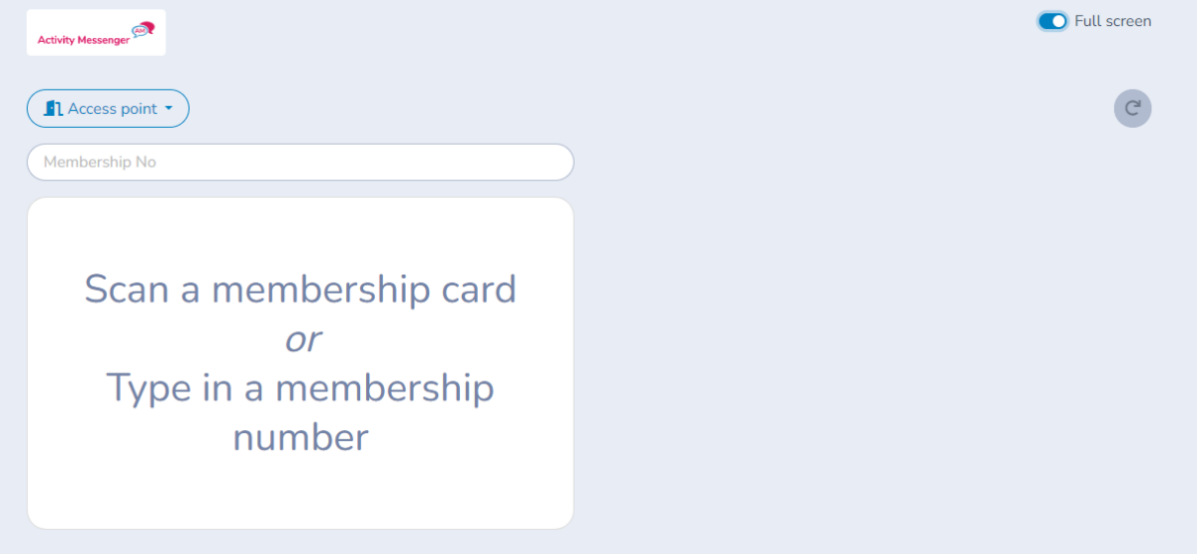
Test access
The default screen allows you to test scan membership cards. Nothing will get logged.
Activity Messenger access control devices
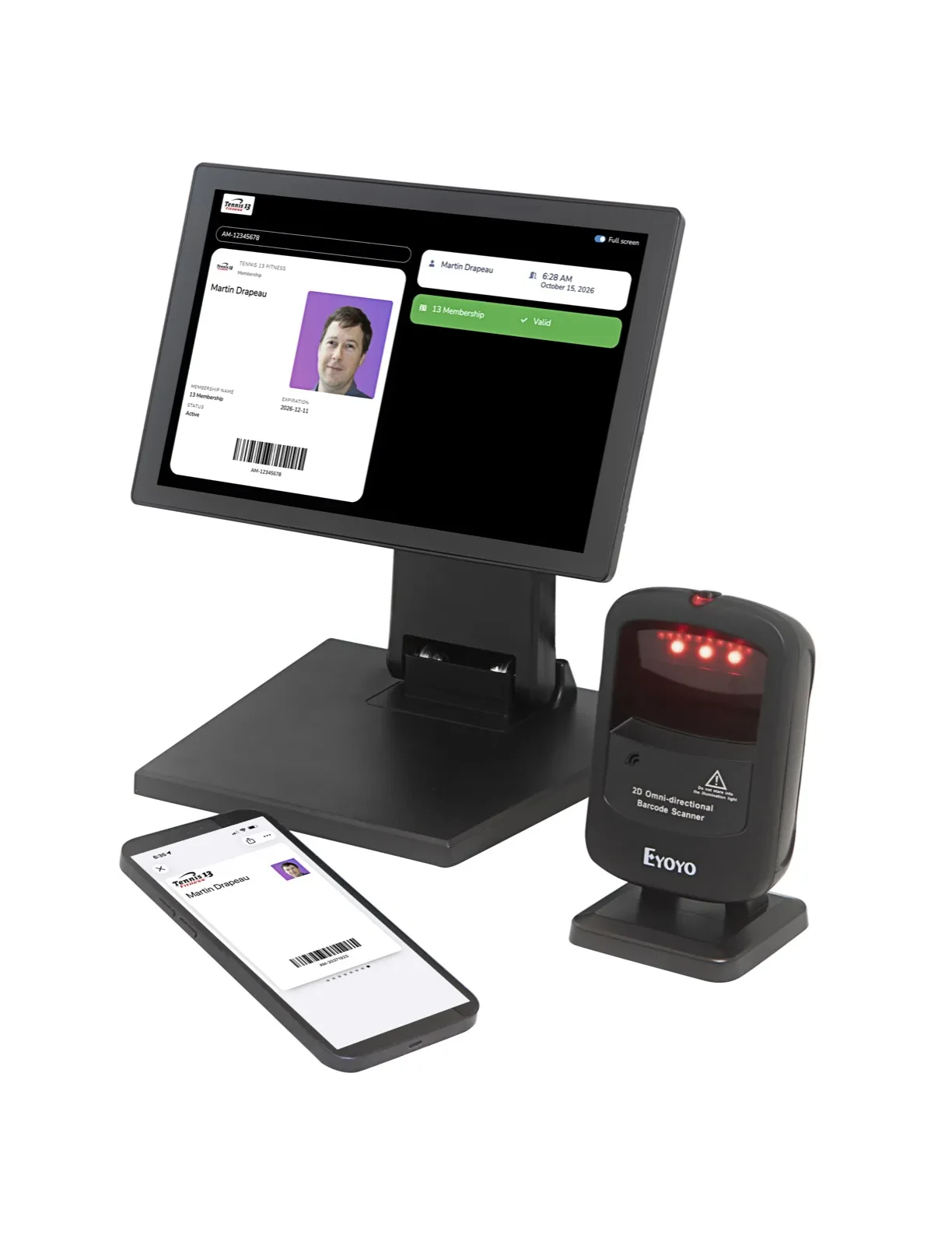
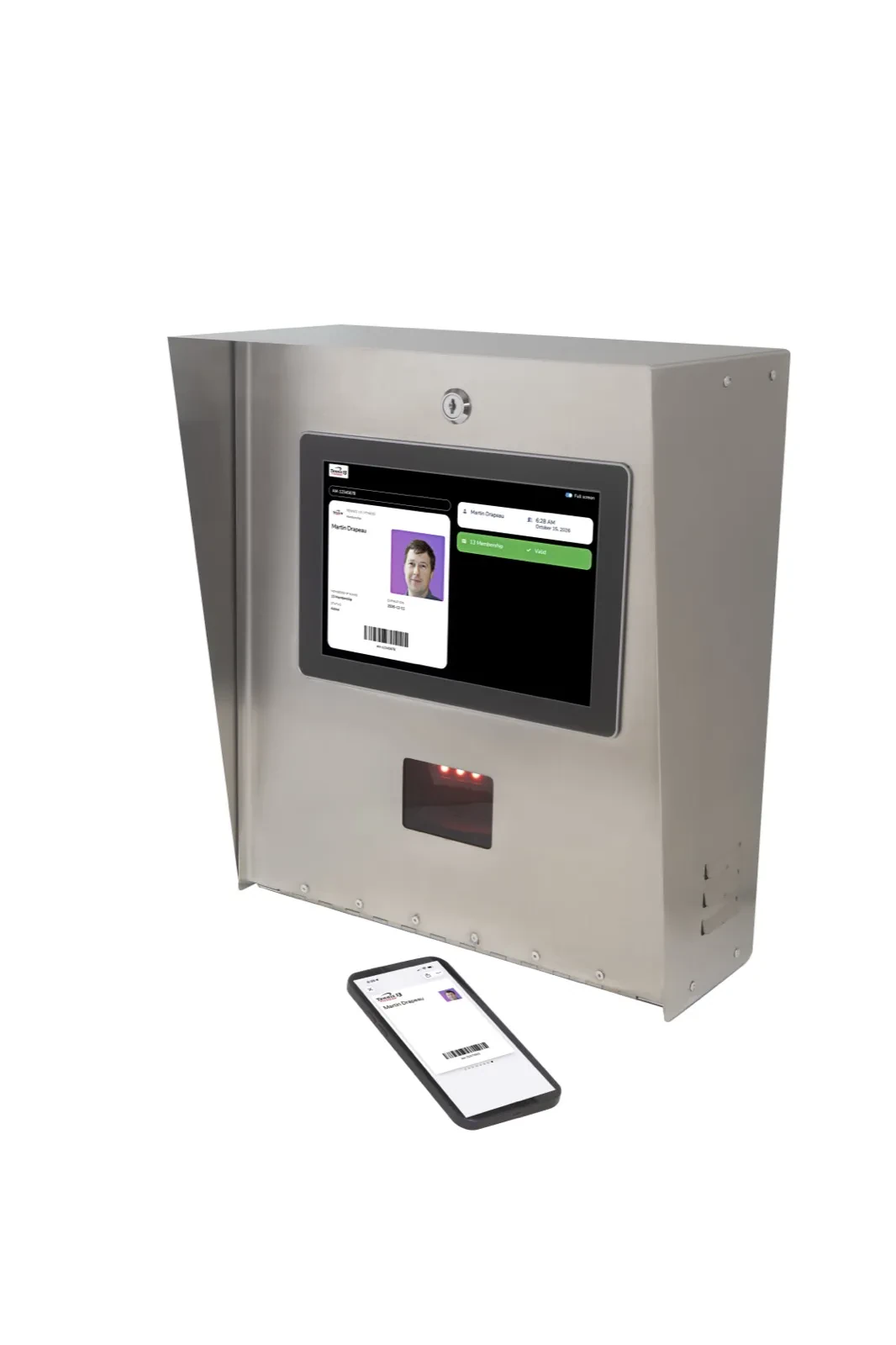
Activity Messenger fabricates and sells two access control models: indoor and outdoor. Both ship pre-configured: just connect and go. Contact support@activitymessenger.com to inquire about availability and the right model for your organization.
Indoor model
Outdoor model
Access points
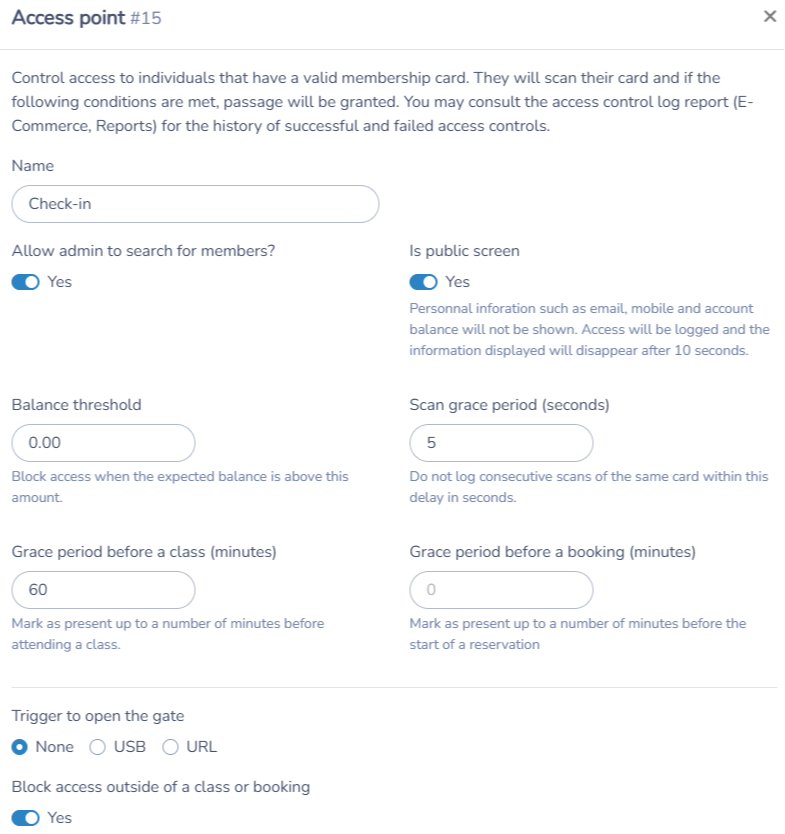
You may define multiple access points at different locations for example. Each access point can be configured with different settings. You can even configure an access point to open a gate. Contact us to help you configure that.
An owner or administrator can create an access point from the Access point dropdown using the + action. To change an existing point, select it and click the gear button. Give each entrance a clear name, choose its options, then save.
Access-point options
| Option | What it does |
|---|---|
| Allow admin to search for members? | Lets staff look up a member instead of scanning their card. |
| Is public screen | Hides personal details such as email, phone number and account balance on a screen visible to visitors. The displayed scan information clears after 10 seconds. |
| Self-serve check-in | Creates a link visitors can use to search their name, select their profile and check in while personal details remain hidden. Save the access point first to obtain its link. |
| Show other valid memberships | Displays the person’s other currently valid memberships after a scan. |
| Block access without a photo | Refuses access when the scanned membership has no associated photo. |
| Block access when a required waiver is missing | Choose Waivers required by registration forms to check the member’s registration form and current class, event or booking registrations. Or choose A specific waiver for everyone and select an enabled client waiver; every otherwise valid scan at this access point then requires it. |
| Balance threshold | Blocks access when the client’s expected account balance is greater than this amount. For example, a threshold of $20 allows a $20 expected balance but blocks a $25 balance. Failed payments are checked separately. |
| Scan grace period (seconds) | Prevents a repeated scan of the same card at this access point from being accepted again within the specified delay. This also protects against consuming another coupon on an immediate repeat scan. |
| Grace period before/after a class (minutes) | Extends the eligible check-in window before the class starts and after it ends. Eligible scans can record class attendance. |
| Grace period before/after a booking (minutes) | Extends the eligible check-in window before the booking starts and after it ends. Eligible scans can record arrival for the booking. |
| Block access outside of a class or booking | Requires an eligible class or booking unless a valid membership entitlement permits access outside those activities, including eligible access-control coupons. Membership access schedules still apply. |
| Trigger to open the gate and Trigger on successful scan | Select the integration used by the door or turnstile and whether a successful scan triggers it. Connection-specific options appear for the selected integration, such as a trigger URL, relay delay, gate number or opening direction. Contact support to configure the integration for your hardware. |
| Play sound when access is granted/blocked | Enables separate audio feedback for successful and refused scans. Use the play buttons to preview the sounds. |
The before/after grace periods extend the activity window; they do not grant unrestricted access for the rest of the day. For example, a 6–7 p.m. class with 15 minutes before and 10 minutes after has a 5:45–7:10 p.m. check-in window. Membership schedules use the organization’s timezone.
To configure client waivers, see Manage client waivers. The selected mode applies only to this access point. A specific waiver applies even to members who registered before it was selected; previously completed waivers still count.
Scanning to gain access
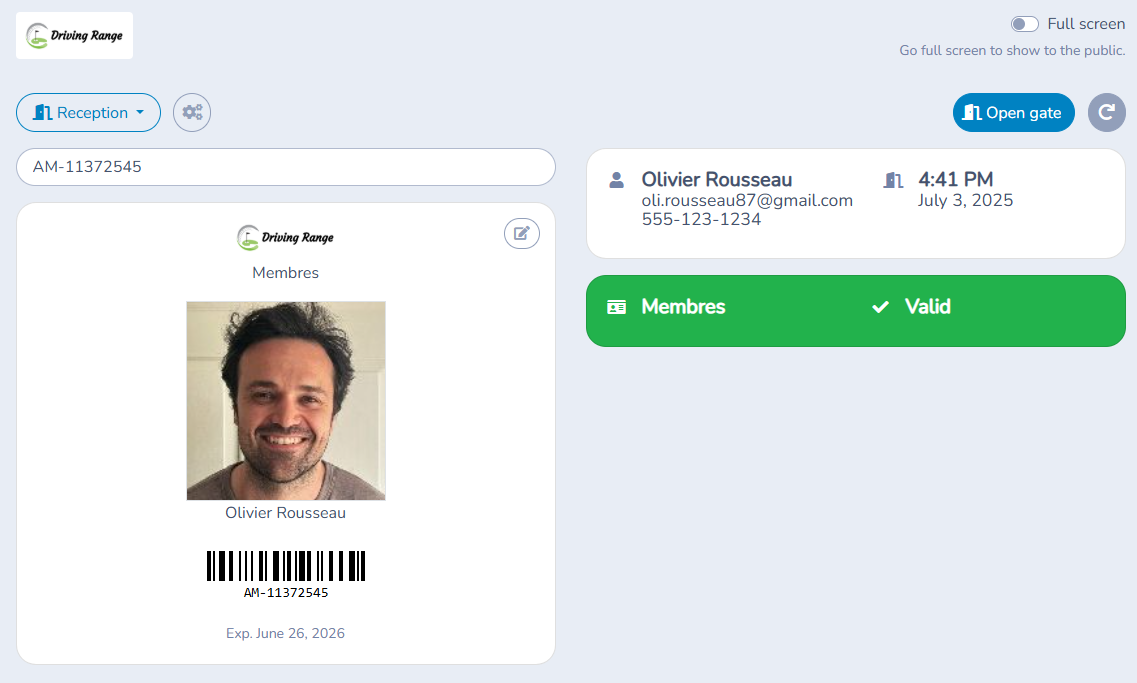
The client/member can scan their card from their phone in Apple Wallet or Google Wallet, from their Client account, or from a printed version provided by the organization. Activity Messenger will find them and display their photo, their membership and any class or booking they have that day. Depending on the rules you have configured, the system will grant them access or not. For eligible class check-ins within the configured attendance window, the system records attendance.
Why access may be blocked
Check the result displayed after the scan. A card identifies the person; it does not guarantee access. The system considers their valid memberships and the access point’s rules.
| Result or condition | What to check |
|---|---|
| Member not found | Confirm that the person is in the correct organization and is presenting the right card or number. |
| No valid membership | Check whether the membership has not started yet, has expired, is suspended or is pending. Memberships excluded from access control cannot grant access. If a membership only becomes active when paid, check its unpaid invoice as well. |
| Failed payment | Review the client’s failed payments. Raising the balance threshold does not remove this separate check. |
| Balance above the threshold | Review the expected account balance and the threshold configured for this access point. |
| Missing photo | Add a membership photo when Block access without a photo is enabled. |
| Required waiver missing | An orange alert says that a required waiver has not been completed. Complete the waiver through the usual form link, then scan again. A refused scan does not mark class attendance or open the gate. |
| Outside the allowed schedule | Check the membership’s allowed days, hours and date range. A valid class or booking can still provide an eligible access entitlement. |
| No eligible class or booking / too early / activity has ended | Check the activity date, registration or booking, and the before/after grace periods. This can block access when the point requires an activity and no other entitlement permits entry. A timing warning on one activity does not necessarily block access if another valid entitlement applies. |
| No eligible access-control coupons | Check the coupon type, assigned member, expiration, remaining entries and allowed schedule. Used, expired or admin-only coupons cannot be consumed automatically at a scanner. |
| Card already scanned | Wait until the scan grace period has elapsed. A one-time attendance pass already accepted at that access point cannot be used again there. |
Use Access monitor or the Access Control Logs report to investigate the result. A successful validation and a door opening are separate: if the card is accepted but the door does not open, check Trigger on successful scan and the device/relay connection.
Coupons and access control
Use Access control coupons for a membership that includes a limited number of entries, such as a 10-visit pass. These are different from Standard coupons used to book or purchase selected classes, packages or products.
Configure entry coupons
- Edit the membership and open its Coupons tab. Enable coupons, then select and enable Access control coupons.
- Set the Number of coupons to create and Expires after a number of days.
- Configure the Weekly access schedule if entries are limited to certain days or hours. Without a weekly schedule restriction, eligible access-control coupons can authorize access outside classes and bookings.
- Leave Admin-only redeemable off if the scanner should consume coupons automatically. When enabled, these coupons require administrator redemption and are not eligible for automatic scan redemption.
- If appropriate for a recurring membership, enable Issue coupons on recurring payments to issue coupons on those payments.
- Save the membership and use a configured access point to check a member’s access. The default test screen does not consume coupons.
What happens when a card is scanned
The member scans their membership card; they do not need to present a separate coupon code. All of the person’s valid memberships are considered, not just the card’s original membership.
- A valid class, booking or non-coupon access entitlement takes priority: no coupon is used.
- Otherwise, an eligible access-control coupon from a membership that permits entry is used: one successful scan consumes one coupon. The coupon must belong to that member and membership, be unused and unexpired, and allow automatic redemption. Any configured access schedule must permit entry.
- A blocked scan, an immediate repeat rejected by the scan grace period, or viewing an existing access record does not consume another coupon.
- When the last eligible coupon is used, that coupon membership’s expiration is updated to the current time. Future entry needs renewed coupons or another valid entitlement. Running out of coupons on one membership does not remove access granted by another valid entitlement.
The scan result shows the redeemed coupon and usage counts. Access records retain the coupon usage so administrators can review entries in Access monitor and the logs.
For example, a member with a 10-visit pass arrives during an allowed open-gym period and uses one coupon, leaving nine. If they later check in for a valid registered class within its allowed window, that class can authorize entry without using another coupon.
Monitor access as an administrator
Use Access monitor to follow access activity and review a client’s card and access result.
- Open E-Commerce → Access Control.
- Open the Access point dropdown and choose Access monitor.
- Review the recent access records. The table shows the date/time, card number, name, email and whether access was granted in the Open column. When multiple access points are configured, it also shows the access point.
- Select a row to view the associated card, photo, membership and access result below the table.
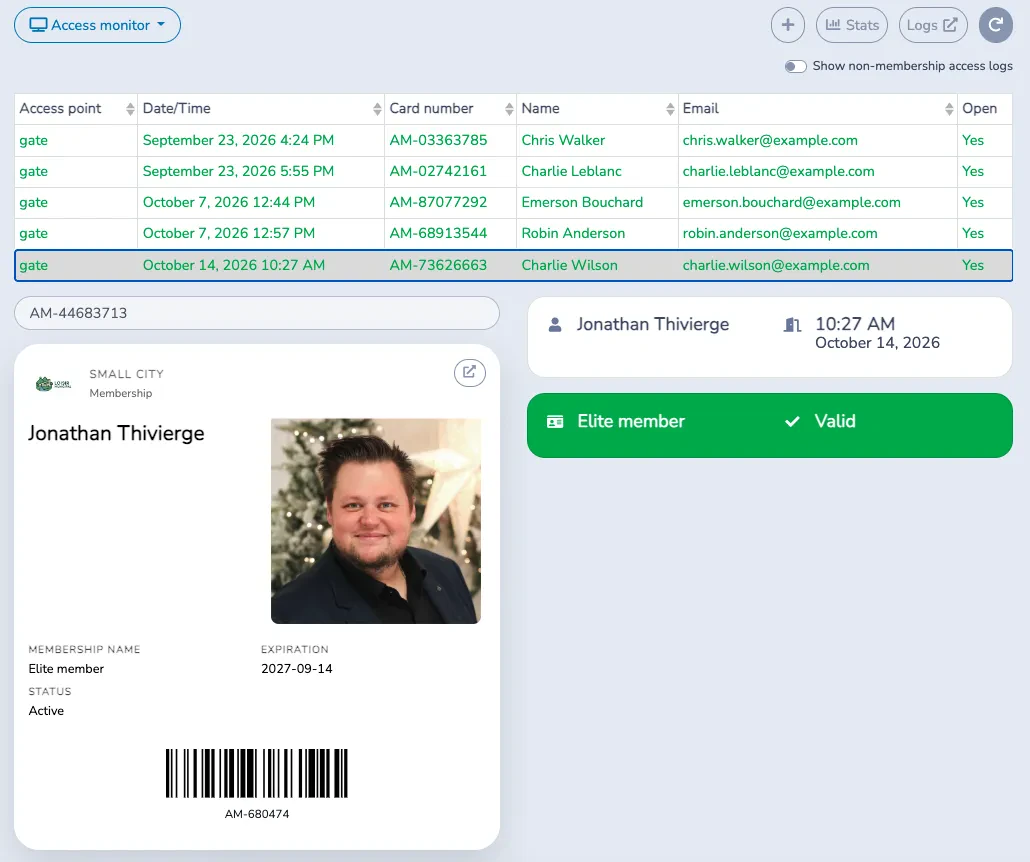
Enable Show non-membership access logs to include access records that are not associated with a membership. Use Logs to open the detailed Access Control Logs report when your permissions allow it.
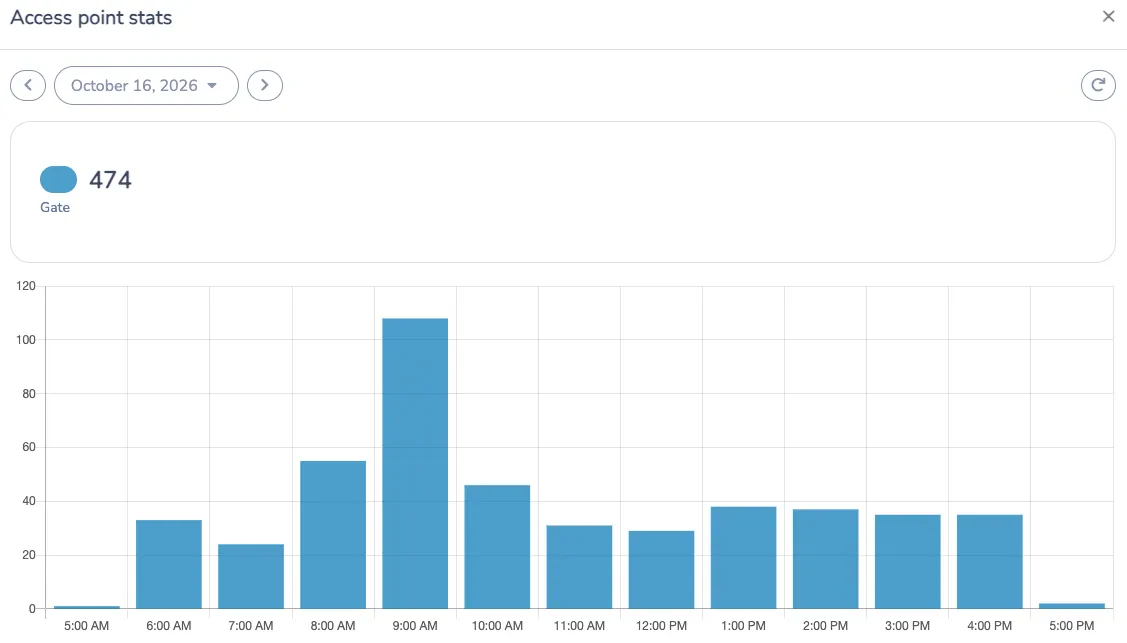
View access statistics
- From Access monitor, click Stats to open Access point stats.
- Choose a date, or use the left and right arrows to move to the previous or next day.
- Review the total granted accesses for each access point and the hourly chart to identify busy periods.
- Use the refresh button to update the statistics for the selected day.