Activity Messenger Help Center
Track and manage QR codes
Create a tracked QR code for a form, microsite page, website, video, document or external link, then compare results under Communications → QR Codes. Each code keeps one tracking link. When you later change the destination, the printed code and that link stay the same, and the opens already recorded stay on this code.
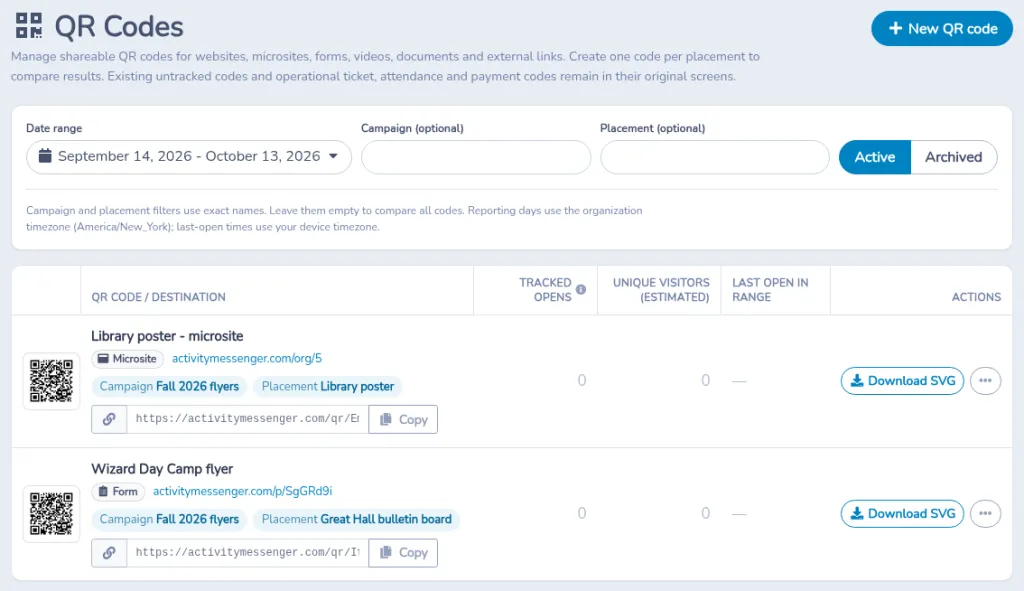
The page introduces the list with this text: “Manage shareable QR codes for websites, microsites, forms, videos, documents and external links. Create one code per placement to compare results. Existing untracked codes and operational ticket, attendance and payment codes remain in their original screens.”
Open QR Codes
Open Communications, then QR Codes. The page title is QR Codes.
The list is available to staff who can access messages. New QR code, Edit QR code, Archive and Restore are available to staff who can send messages or manage the organization. On a form, a staff member who can edit that form, or who is assigned to it, can also generate its code. On a microsite page or a website, a staff member who can edit the microsite can generate the code.
When no tracked code exists yet and your account cannot generate one, the screen says No tracked QR code has been generated yet. Ask an administrator to generate one.
Read opens for the selected dates
Date range shows a start date and an end date. It opens on today and the previous 29 days. The days included in the totals use the organization’s timezone. The time under Last open in range uses the timezone of the device showing the page.
Campaign (optional) and Placement (optional) keep only the codes whose campaign or placement matches the text exactly. Leave both empty to compare every code. Select the campaign or placement shown on a row to fill that filter.
Active shows codes that are still in use. Archived shows archived codes. The control’s accessible name is Show archived codes instead of active codes.
Under the filters, the page says: “Campaign and placement filters use exact names. Leave them empty to compare all codes. Reporting days use the organization timezone (:timezone); last-open times use your device timezone.” The timezone name replaces :timezone.
The table columns are:
- QR code / destination — the name, the destination type, the destination address, the campaign and placement when they are set, and Tracking link (select to copy).
- Tracked opens
- Unique visitors (estimated)
- Last open in range
- Actions
The destination type is Website, Microsite, Form, Video, Document or External link. A code that nobody has opened yet shows 0 in Tracked opens and Unique visitors (estimated), and a dash in Last open in range.
The information button beside Tracked opens explains the totals: “A tracked open counts when the QR tracking link is opened. Known bots are excluded. Repeat opens count; camera detections without opening the link do not. Shared tracking links also count. Unique visitors are estimated from browser sessions: changing browsers, clearing cookies or an expired session can count again. These metrics are separate from ordinary page visits, registration clicks and completed registrations. Only activity after a tracked code is created is available.”
A completed registration stays in the form’s respondents. It is a separate count from Tracked opens.
When no code matches, the table says No QR codes match these filters. Create a tracked QR code to start collecting results. The list shows 25 codes at a time, with Previous and Next. If the list cannot load or a save fails, the page says Unable to load or save QR codes. Please try again.
Create a code in QR Codes
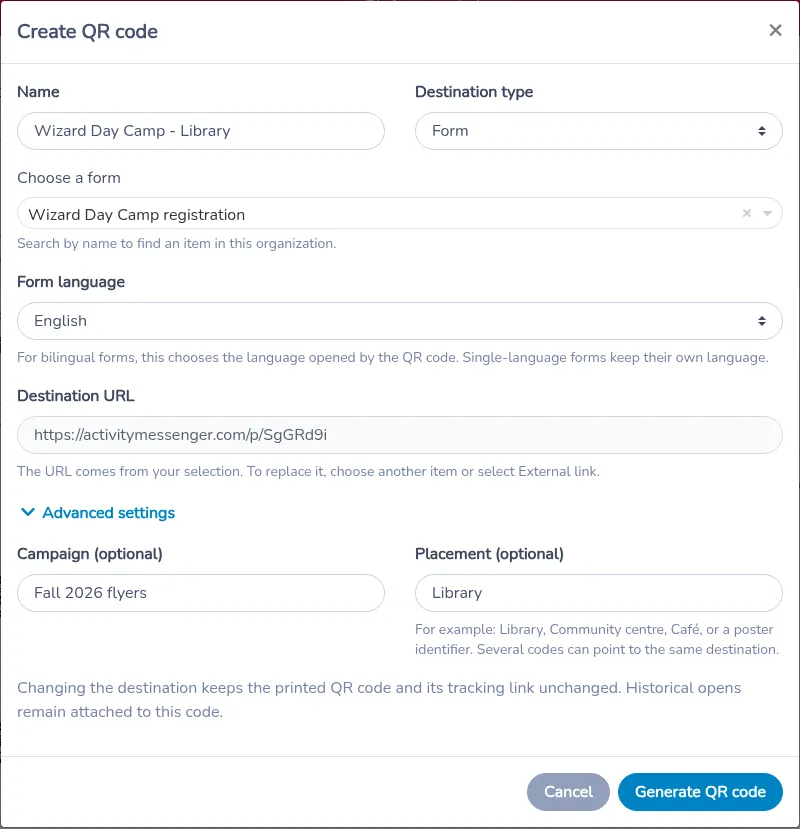
Select New QR code. The window title is Create QR code, and the confirmation button is Generate QR code.
-
Enter a Name. Choosing a destination fills the name while the name is still empty.
-
Choose a Destination type: Website, Microsite, Form, Video, Document or External link. Changing the type clears the item and the address already chosen.
-
For an item in this organization, use the selector for that type:
- Choose a form
- Choose a microsite page
- Choose a website or website page. A page in that list is labeled Website page.
- Choose a video
- Choose a document
The placeholder is Choose a destination…. The hint is Search by name to find an item in this organization. The list contains items owned by this organization. If a destination cannot load, the window says Unable to load this destination. Try again or select another item.
-
For a form, set Form language. The description reads: “For bilingual forms, this chooses the language opened by the QR code. Single-language forms keep their own language.” The choices are English and French.
-
Destination URL is filled from the selection. The field says: “The URL comes from your selection. To replace it, choose another item or select External link.” For an external link, paste the public address. The field says: “Paste the public URL of a page, form, video, document or external website. Only HTTP and HTTPS links without embedded credentials are accepted.” An address the window cannot use shows Enter a valid HTTP or HTTPS destination without credentials or a QR tracking redirect.
-
Open Advanced settings and enter Campaign (optional) and Placement (optional). The placement hint is: “For example: Library, Community centre, Café, or a poster identifier. Several codes can point to the same destination.”
-
Select Generate QR code.
The window also says: “Changing the destination keeps the printed QR code and its tracking link unchanged. Historical opens remain attached to this code.”
To change a code later, in the Actions column open the menu and select Edit. The window title is Edit QR code. Change the name, destination, campaign or placement, then select Save. Cancel closes the window. The tracking link stays the same.
Create a code from the screen you are sharing
Form
Open the form and select Share. In Share the form, the QR section is the tracked code for that form and for the language selected in the share window. The name starts as the form name. Open Advanced settings for the campaign and placement, then select Generate QR code.
The note under the fields reads: “Generate a unique tracked code and save it in QR Codes. Use a separate code for each poster placement. Copy, download, print and send will use this code.”
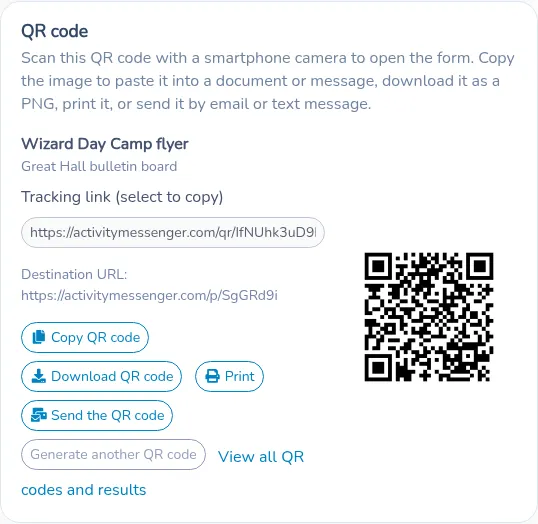
After a code exists, the window shows the latest code that is still active for that form and language: the name, the placement when one is set, Tracking link (select to copy), Destination URL and a preview. The actions are Copy QR code, Download QR code, Print and Send the QR code. Copy and download on this screen use a PNG. Download SVG is on the QR Codes list. Generate another QR code starts a separate code. View all QR codes and results opens QR Codes when your account can access messages.
Sending the image before a tracked code exists shows Generate a tracked QR code before sending it. The message includes “Open your smartphone camera and point it at this QR code to open the link.” and the tracking link. Sending is available to staff who can send messages.
The same generate screen is available from the form’s QR page. A bilingual form stores a separate latest code for English and for French.
Microsite, website, video or document
On a microsite page, the page menu includes Generate QR code. In the Microsite menu, staff who can access messages also see Create a tracked QR code for the client portal.
In the Website menu, Create a tracked QR code appears under a website for staff who can access messages. On Manage websites, Generate QR code opens a modal for that site without leaving the list. It offers the same tracked-code generation and sharing actions. The modal cannot be closed while generation is in progress.
On a document or a video, Generate QR code opens a separate page in a new tab for that file. The same label is the accessible name of the QR icon in the documents and videos tables.
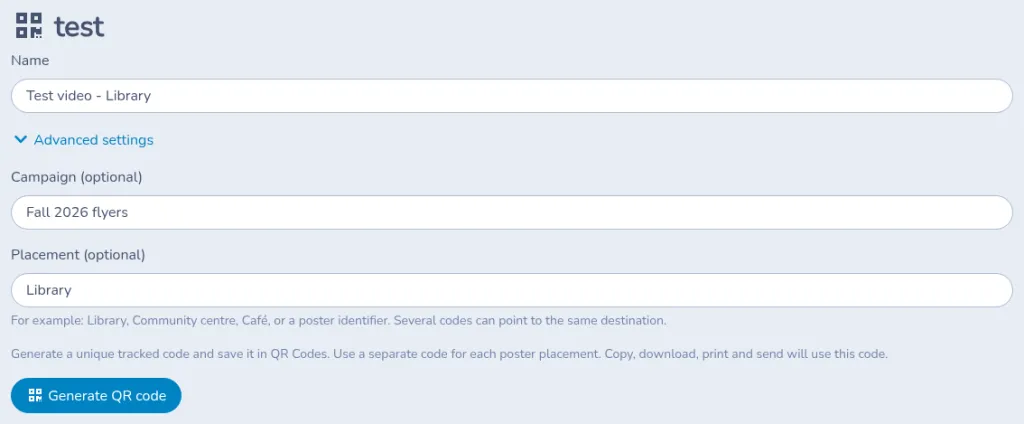
Each of these pages starts with the item’s name, Advanced settings for Campaign (optional) and Placement (optional), and Generate QR code. After you generate a code, the screen shows the latest active code for that item, with Generate another QR code and, when you can access messages, View all QR codes and results.
Print, download and archive
On QR Codes, Download SVG saves the image as an SVG file. The preview, and Print in the Actions menu, open a print page for that code.
The print page shows the name, the placement when one is set, the QR image and the tracking address. It says “To access this link, open your smartphone camera and point at this QR code.” You can change the name and the placement on that page before printing. The page says “Click on the title or paragraph to edit.” That change stays on the sheet. Print prints the page. To rename the code in QR Codes, use Edit.
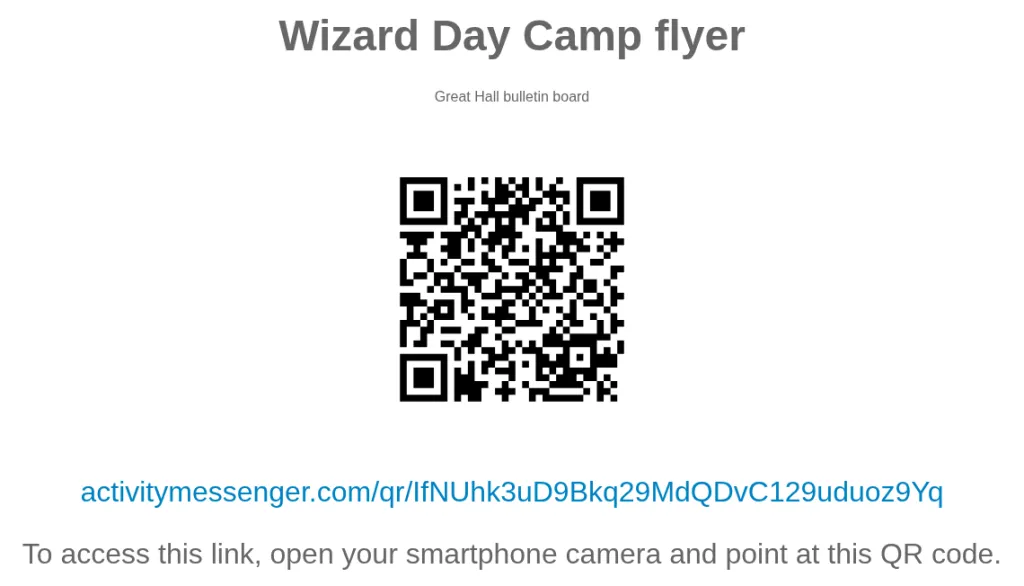
Archive asks you to confirm with this text: “Archiving removes a code from the active list but keeps its printed QR code working and continues recording opens. Restoring returns it to the active list.” Restore uses the same explanation and returns the code to the active list. An archived code’s printed image continues to open the tracking link, and new opens continue to be recorded.
Questions
The form address changed. Does the printed code still work? The tracking link stays on this code. People who scan it are sent to the destination currently saved on the code. Editing the destination in Edit QR code keeps the printed image and the tracking link. A form’s custom address can change while the tracked code continues to open that form.
Two posters use the same code. Can I tell them apart? Opens from both posters add to the same totals. Create a separate code for each placement when you want to compare locations. Several codes can point to the same destination.
Why is Unique visitors (estimated) lower than Tracked opens? Each time someone opens the tracking link, Tracked opens increases. Unique visitors (estimated) counts a browser session once. Opening the link again in that same session increases opens and leaves the visitor estimate unchanged. Another browser, cleared cookies or an expired session can count as another visitor.
A phone camera sees the code and the total stays the same. Tracked opens increases when the tracking link is opened. A camera detection that never opens the link leaves the totals unchanged.