Activity Messenger Help Center
Balance registration categories within class capacity
Keep two choices of the same participant custom field, such as Leader and Follower, within a maximum difference. The class still closes when Maximum attendance is reached. The category that gets ahead pauses at that difference and opens again as the other category catches up.
Configure the relationship once, on one of the two categories. Fixed category limits stay in place on classes that do not use this relationship.
Before you start
- On the registration form, add one required Custom field to the participant. Give it two choices, such as Leader and Follower. Use the same field label on both category rules.
- Open Classes > All classes and events, edit the class, and enter a positive Maximum attendance. Save the class.
- Clear Maximum attendance per session and Maximum attendance per event when everyone should share that one total. Those two settings create separate pools, and category balancing follows Maximum attendance.
For the class question and participant fields, see Selling classes and events.
If you open Dynamic attendance before the class has been saved, Activity Messenger shows Save the class first, then configure its registration categories.
Configure the two categories
- On the class, open Dynamic attendance.
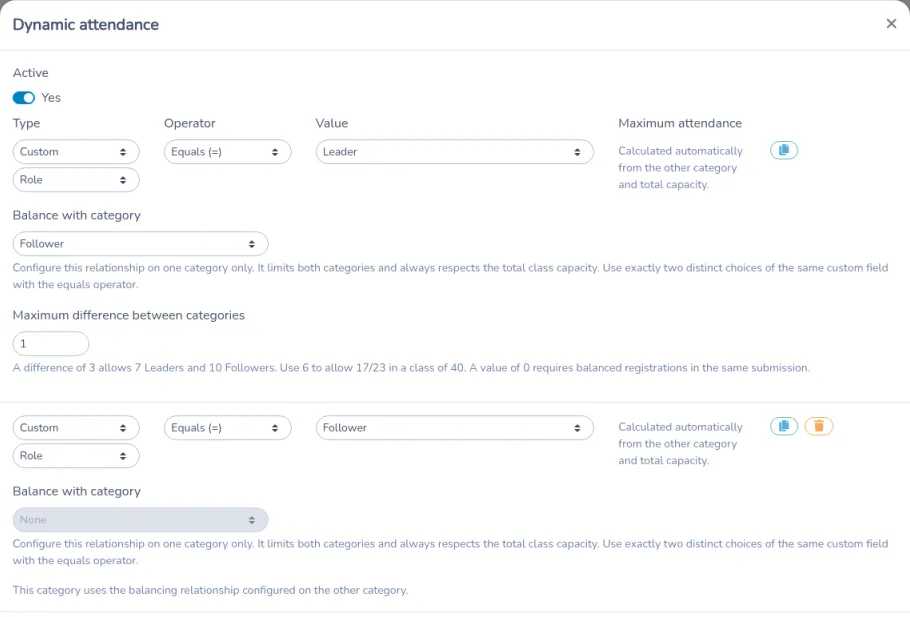
- Set Active to Yes.
- Use Add rule until the window lists exactly two rules.
- On each rule, set Type to Custom and Operator to Equals (=). Choose the same custom field, then set Value to a different choice on each rule.
- On one rule only, under Balance with category, choose the other choice. Maximum difference between categories then appears on that rule and starts at 3. Enter a whole number from 0 through the class Maximum attendance.
- Leave the other rule at None. That Balance with category control stays disabled, and the rule shows This category uses the balancing relationship configured on the other category.
- Save.
The text under Balance with category reads: “Configure this relationship on one category only. It limits both categories and always respects the total class capacity. Use exactly two distinct choices of the same custom field with the equals operator.”
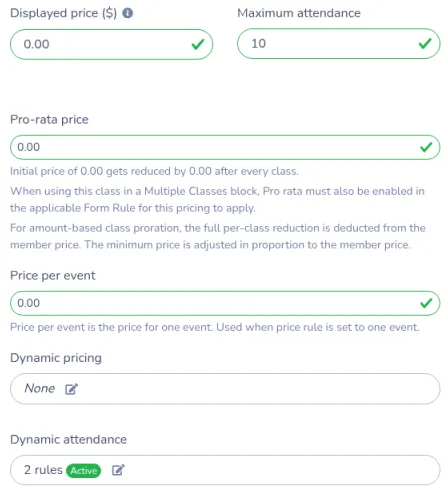
After you save, Dynamic attendance on the class shows how many rules are on and whether they are active, for example 2 rules Active.
While the relationship is saved:
- Maximum attendance on each of the two rules shows Calculated automatically from the other category and total capacity.
- Add rule, copy, and delete stay unavailable. Set Balance with category back to None before you add, copy, or remove a rule.
A category maximum you entered earlier stays stored. It applies again when Balance with category is None.
If the relationship cannot be saved, the window shows Balancing requires a positive total class capacity, exactly two distinct choices of the same custom field using equals, one relationship, and a whole-number difference from 0 to the class capacity. Lowering Maximum attendance below the saved difference produces the same message.
How places open and pause
Either category may rise only as high as the other category’s current count plus the maximum difference. It also stops when the class has no places left. Each selected date is checked on its own. When one occurrence has a maximum lower than the class Maximum attendance, that date uses the lower number.
The text under Maximum difference between categories reads: “A difference of 3 allows 7 Leaders and 10 Followers. Use 6 to allow 17/23 in a class of 40. A value of 0 requires balanced registrations in the same submission.”
In a class of 40 with a difference of 3:
| Leaders | Followers | Places still open |
|---|---|---|
| 0 | 0 | Each category can take its first 3 registrations. |
| 7 | 10 | Followers are paused. Six more Leaders can register, up to 13. |
| 8 | 10 | The Follower limit rises to 11, so one Follower place is open. |
| 10 | 7 | Leaders are paused. Followers can catch up. |
| 20 | 20 | The class is full. |
With a difference of 1 and nobody registered yet, each category shows 1 spot left. The next registration has to be the other category, so the two categories alternate.
A difference of 6 allows 17 Leaders and 23 Followers in that class of 40. A difference of 3 keeps 17 and 23 closed.
A difference of 0 accepts a submission that contains the same number of each category. One registration for a single category stays paused until the other category is included in that same submission.
Activity Messenger checks everyone in one submission together. At 7 Leaders and 10 Followers, one Leader and one Follower in the same submission are accepted and finish at 8 and 11. At 18 Leaders and 21 Followers in a class of 40, one place remains, and only a Leader can take it. A pair needs two places, so that submission is refused. After the Leader registers, the class is full.
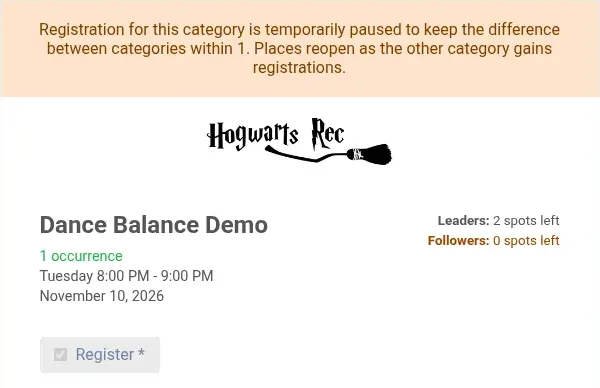
Before submitting, the form shows the places left for each category. With 2 Leaders, 3 Followers, and a difference of 1, it shows Leaders: 2 spots left and Followers: 0 spots left. Submitting the paused category shows Registration for this category is temporarily paused to keep the difference between categories within 1. Places reopen as the other category gains registrations. The number is the difference saved on the class.
When the class has no places left, the message is There are not enough places remaining within the total class capacity.
Every participant must match exactly one of the two choices. The custom field label must match the label on the rule. The answer ignores capitalization and extra spaces. A missing answer, a different field, or an answer that matches both categories shows Each participant must select exactly one of the two registration categories.
Which registrations fill a place
On each date, a place is filled by a registered participant, including someone marked Late, and by an active cart or a reservation that has not expired.
A participant marked Absent leaves the place open. A pending registration leaves the place open until it is approved. An expired cart or reservation releases its places.
A reservation that already has a category counts toward that category and the total. A reservation made before a category is chosen counts toward the total only. A cart and a reservation for the same registration count once.
The hold uses the organization’s cart time limit, including on a payment form. After that time, the person sees Your seat reservation has expired. Please select your seats again.
People who are already registered stay registered when a cancellation leaves a wider gap than the maximum difference. Later registrations can reduce that gap. Saving an existing registration, without adding another person to the category that is ahead, remains possible.
Where the same check runs
These limits apply when someone:
- submits the public form, including several participants or guests in one submission, from a Class/event question
- keeps an active cart or reservation
- finalizes an invoice
- is added on the attendance list, including a bulk add
- has a category or dates changed
- is transferred into the class, or restored to it
- has a pending registration approved
On an attendance or invoice action, the class name appears before the message.
A class question with Force pending status on registrations can accept the form first. The category check runs when the registration is approved. See Approve pending class registrations in bulk.
A waitlist offer password still has to fit the maximum difference and the places left in the class. See Waitlist.
Staff additions, edits, transfers, restores, and approvals use these same messages.