Activity Messenger Help Center
Attendance tracking
Discover how to effectively manage attendance lists in Activity Messenger, including tracking arrivals and departures, sending messages, and managing groups. Use these tools to improve communication with your participants and their parents.
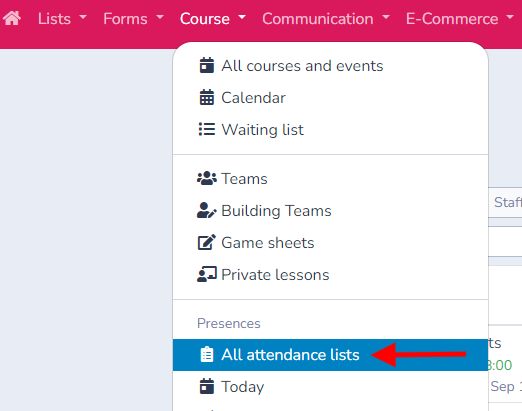
To access the attendance lists, click on Classes. Select All attendance lists, Today, or choose a "specific list."
When selecting an attendance list, you will see all the registered participants. For example, if you choose a list for Tuesday, July 2nd, you will see the registrations for that date.
If that date has no participants, the list shows No participants for this date and Choose another date to view its attendance list. If participants are registered but the search or a filter hides them, it shows No participants match your filters and Adjust the search or filters to see participants.
Each activity or class has its own attendance list. You can rename the list, grant access to your staff, assign labels to it, and archive it.
The attendance tracking tool in Activity Messenger allows your staff (coaches, teachers, and camp counselors) to take attendance using a smartphone or tablet.
Attendance lists
Arrival and Departure:
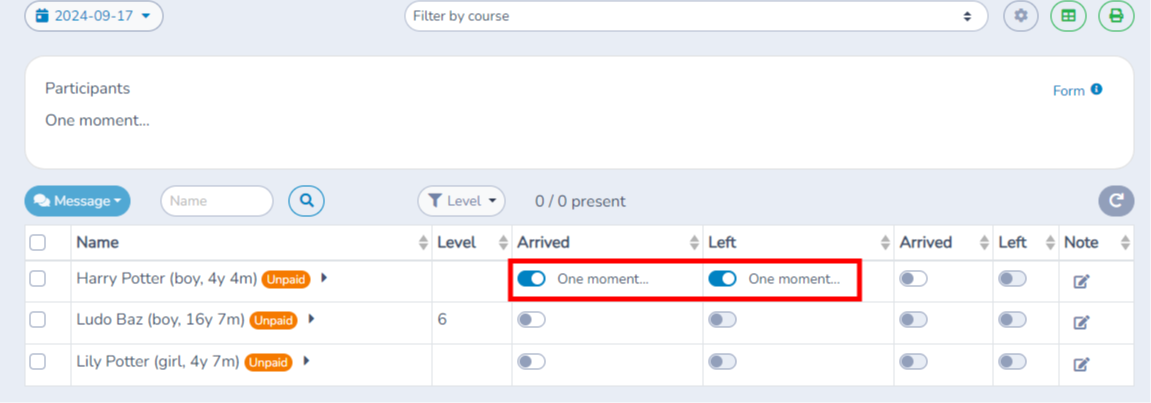
Mark the arrival and departure of participants. The arrival time will be recorded automatically. A second option for arrival and departure is available in cases where participants leave for lunch, for example.
Adjusting Times:
Click the arrival or departure button again to modify or remove the attendance.
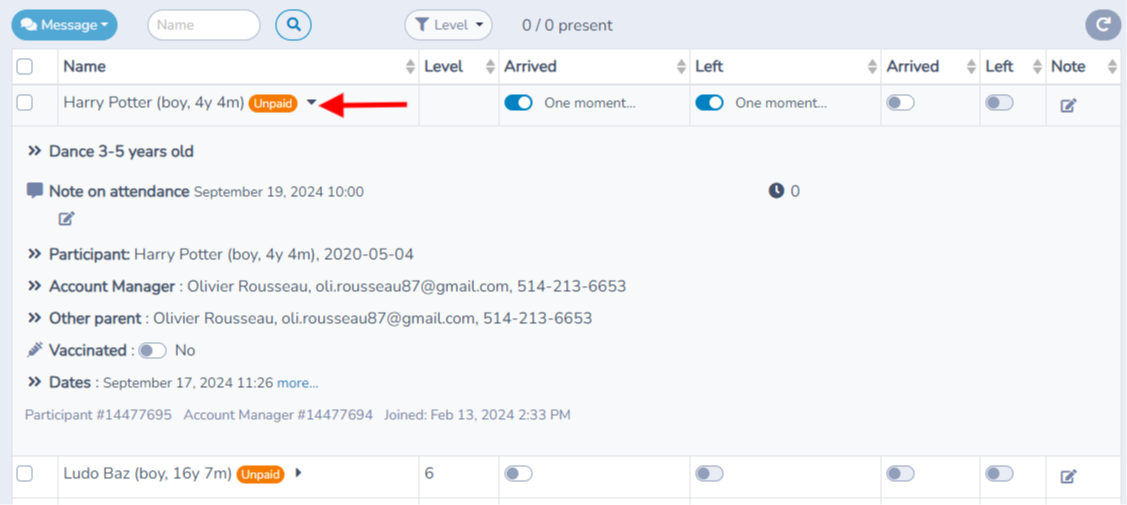
Detailed Information: Click on a participant to view additional information.
To create an invoice from the attendance list, use New invoice in the participant's + action menu in mosaic view. In table view, expand the participant's row and select New invoice beside Invoice; this action is available even when no invoice exists yet. The mosaic card itself does not show a separate New invoice button.
- Morning and evening childcare options
- Password for picking up the child
- Pairing with a friend
- Form completion
- Emergency contacts
- Medical information
- Responses to additional questions
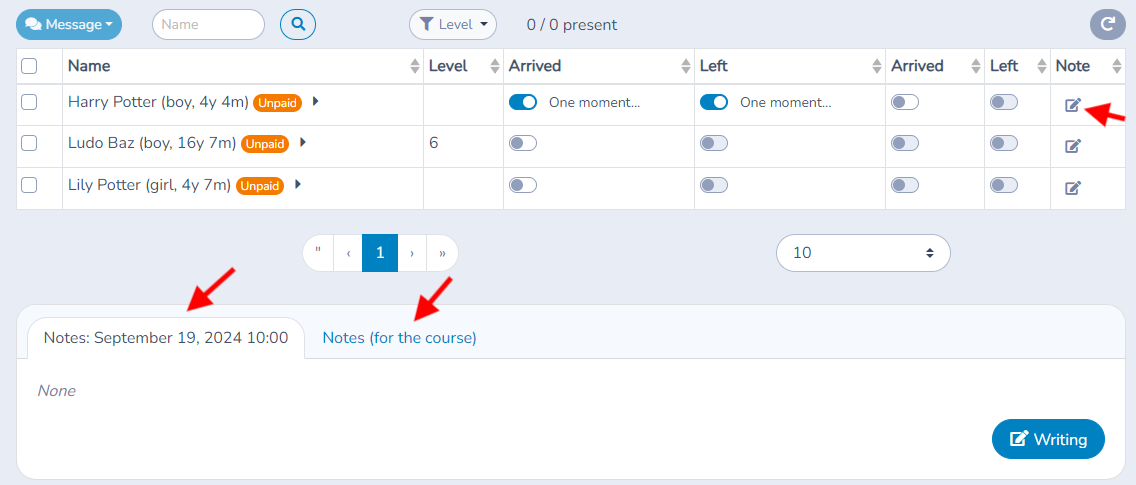
Add Notes:
- Add specific notes for a participant. These notes will only be visible for that specific day.
- Add notes for the entire class. Notes for a specific day will only be visible for that day.
- Add notes for the class. These notes will remain for the entire duration of the class or session.
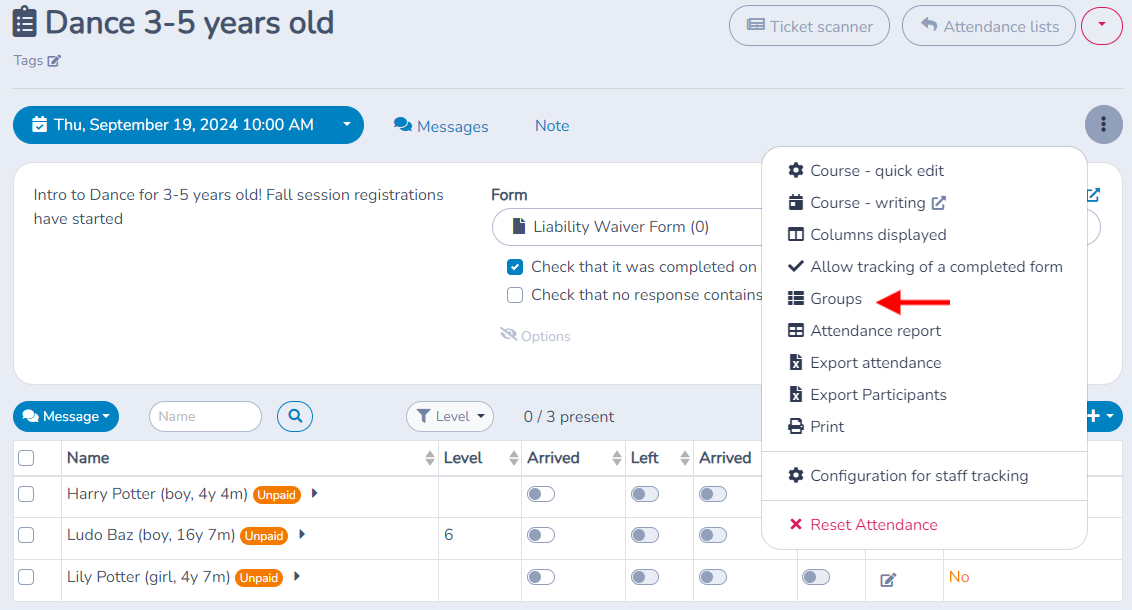
Groups and Filtering:
- Create and manage groups (e.g., beginners, advanced). Filter the list by group for easier management.
- Use the search function to quickly find a participant by their last name or first name.
Communication with Parents
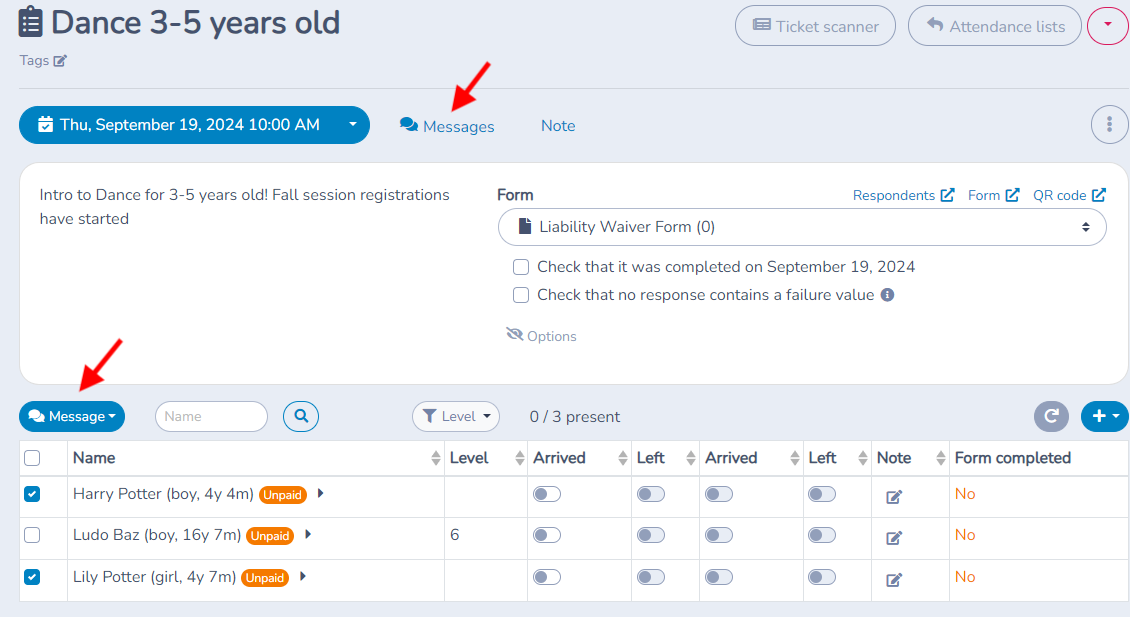
From the attendance list, send messages by email or SMS to parents. Select the relevant participants or the entire group.
Other features
Waivers and Permissions:
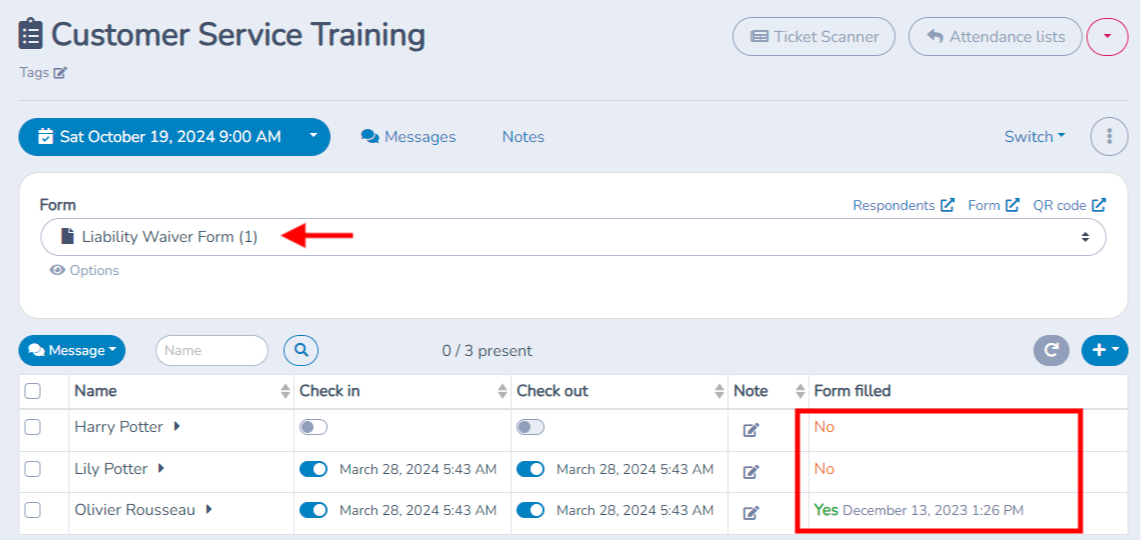
Check if the necessary waivers are completed by the participants, and share the forms with parents if needed.
Ticketing:
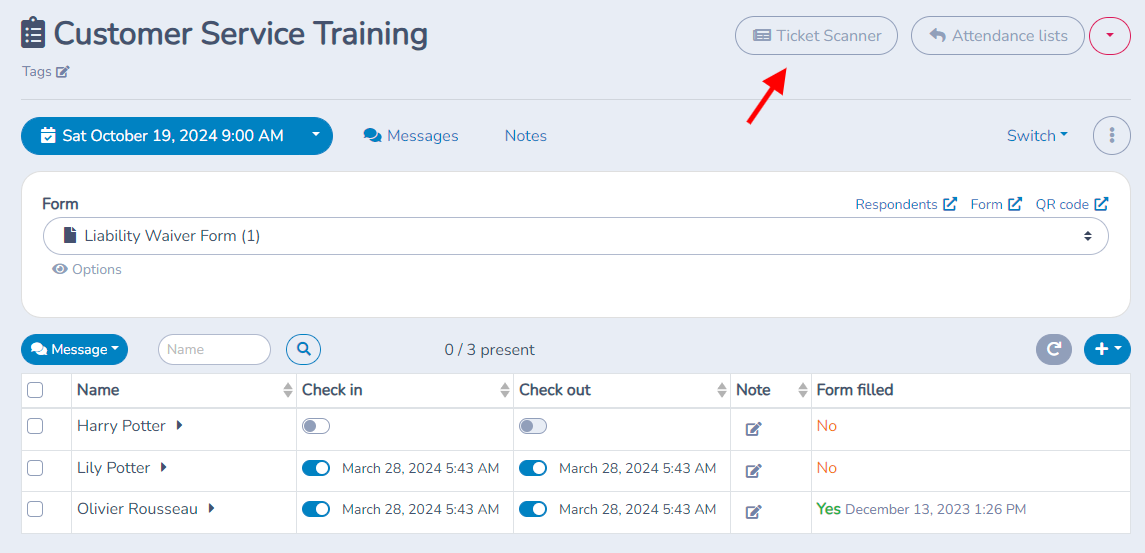
Use the ticket scanner feature to manage entries at ticketed events with Activity Messenger.
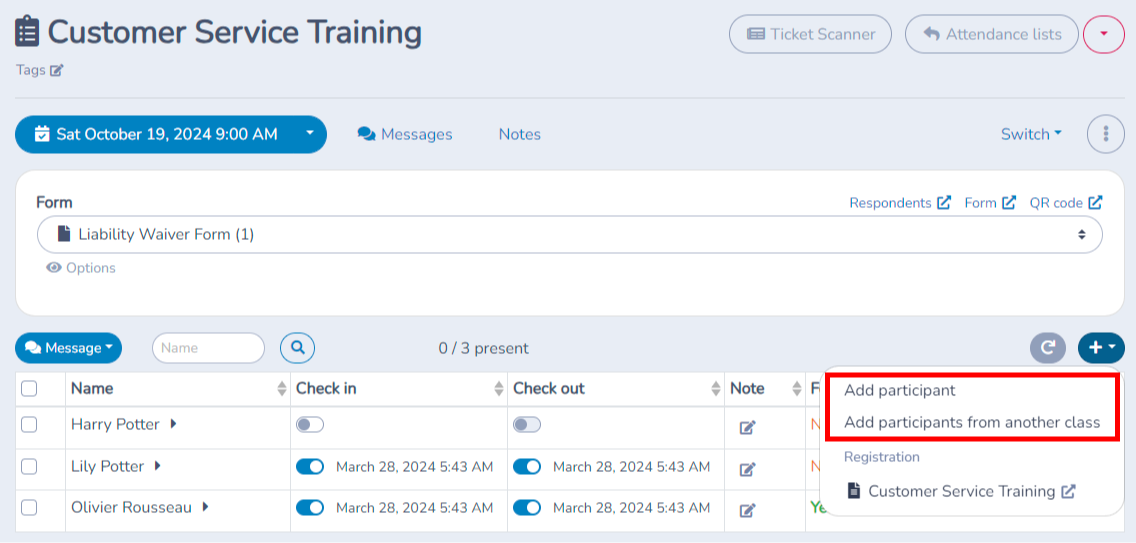
Adding Participants:
Add new participants to an attendance list, transfer participants from one class to another, and complete the necessary information.
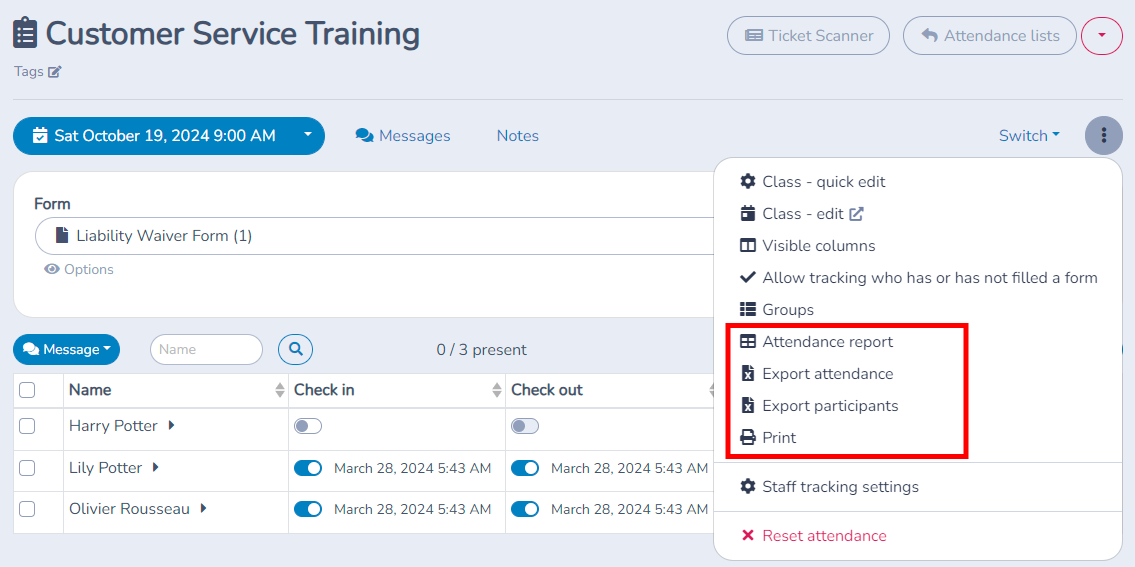
Exporting and Printing Attendance Reports:
View, export, and print attendance reports for analysis or record-keeping.
Access and permissions
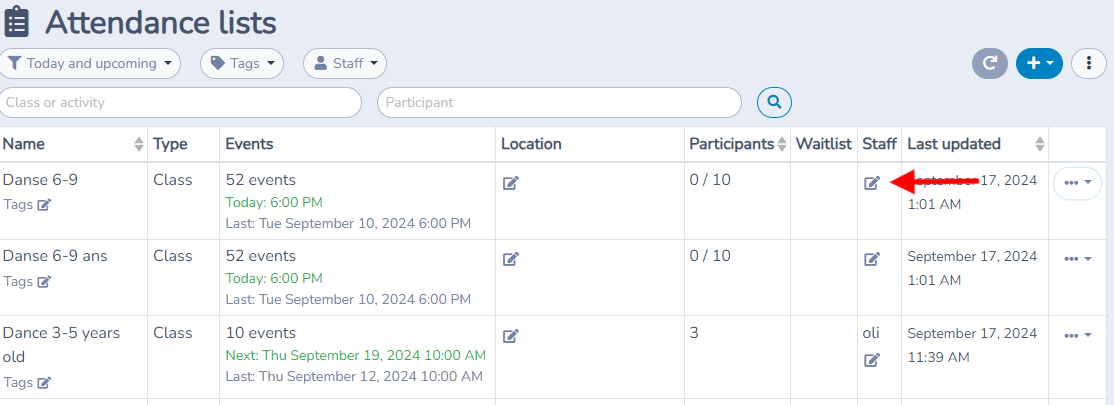
Go to the "All Attendance Lists" page to manage access.
Access Management:
Determine who has access to which attendance lists. Administrators can grant specific permissions to facilitators.
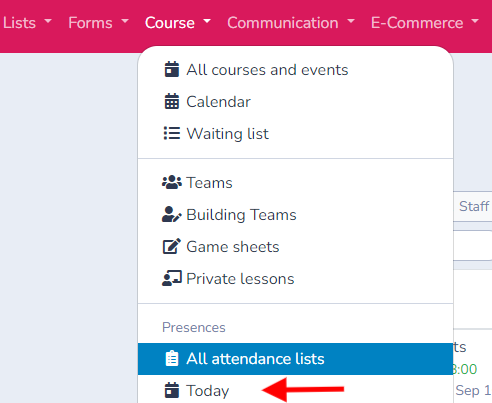
"Today" functionality
Daily Overview: The "Today" function compiles all registrations for the day. Use it for quick communications, such as canceling a class.
Import your classes from an Excel or CSV file
Click the classes menu and choose All Attendance Lists. Click (+) to import your lists. Follow the on-screen instructions.
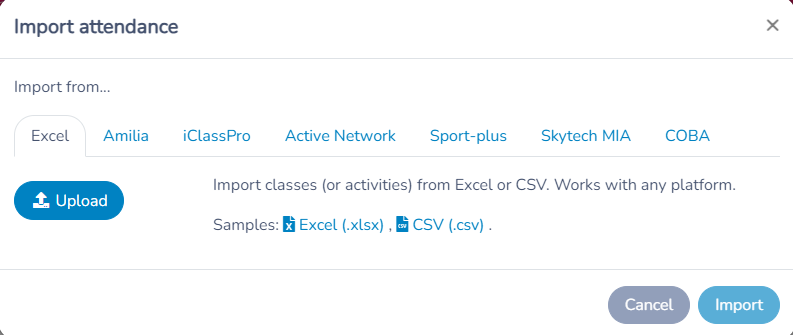
The screen uses the Excel/CSV file import engine. Consult this document to obtain the format of the files and columns. You can use the following files as examples: Excel (.xlsx) and CSV (.csv).
Import your classes from Amilia
Click the Classes menu and choose All Attendance Lists. Click (+) to import your lists. Choose the Amilia tab. You can import several activities from a schedule. Each activity will have its own list. Each list will have several sheets - one per occurrence or class date.
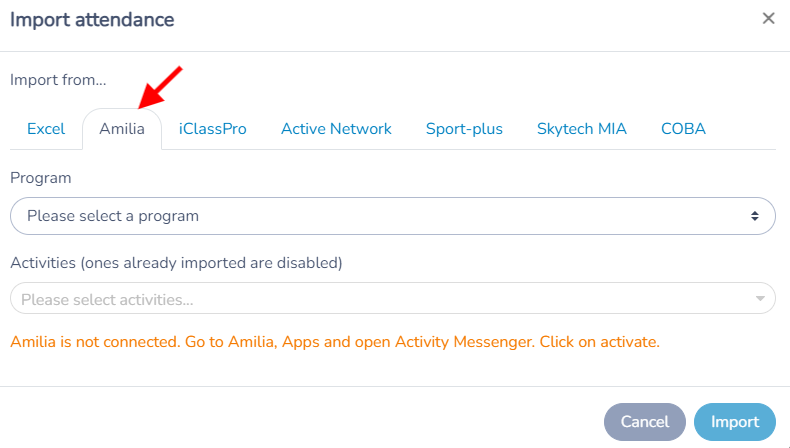
For connected Amilia lists, review synchronization and the current participant information before relying on the roster. A file import from another platform is a separate operation.
Import your classes from Active Network
Click the classes menu and choose All Attendance Lists. Click (+) to import your lists. Choose the Active Network tab. Follow the on-screen instructions.
You will import an Excel file that you exported from the Custom Report engine into Active Network. The report should contain these columns:
- Primary P/G: First name
- Primary P/G: Last name
- Primary P/G: Cell phone number
- Primary P/G: Email address
- Participant: Name
- Participant: Date of birth
- Participant: Grade
- Season name
- Session name
- Session start date
- Session start time
- Session end date
- Session end time
- Session location
Activity Messenger will deduce class dates based on the start and end date of the session. You can then delete the exception dates, just before importing.
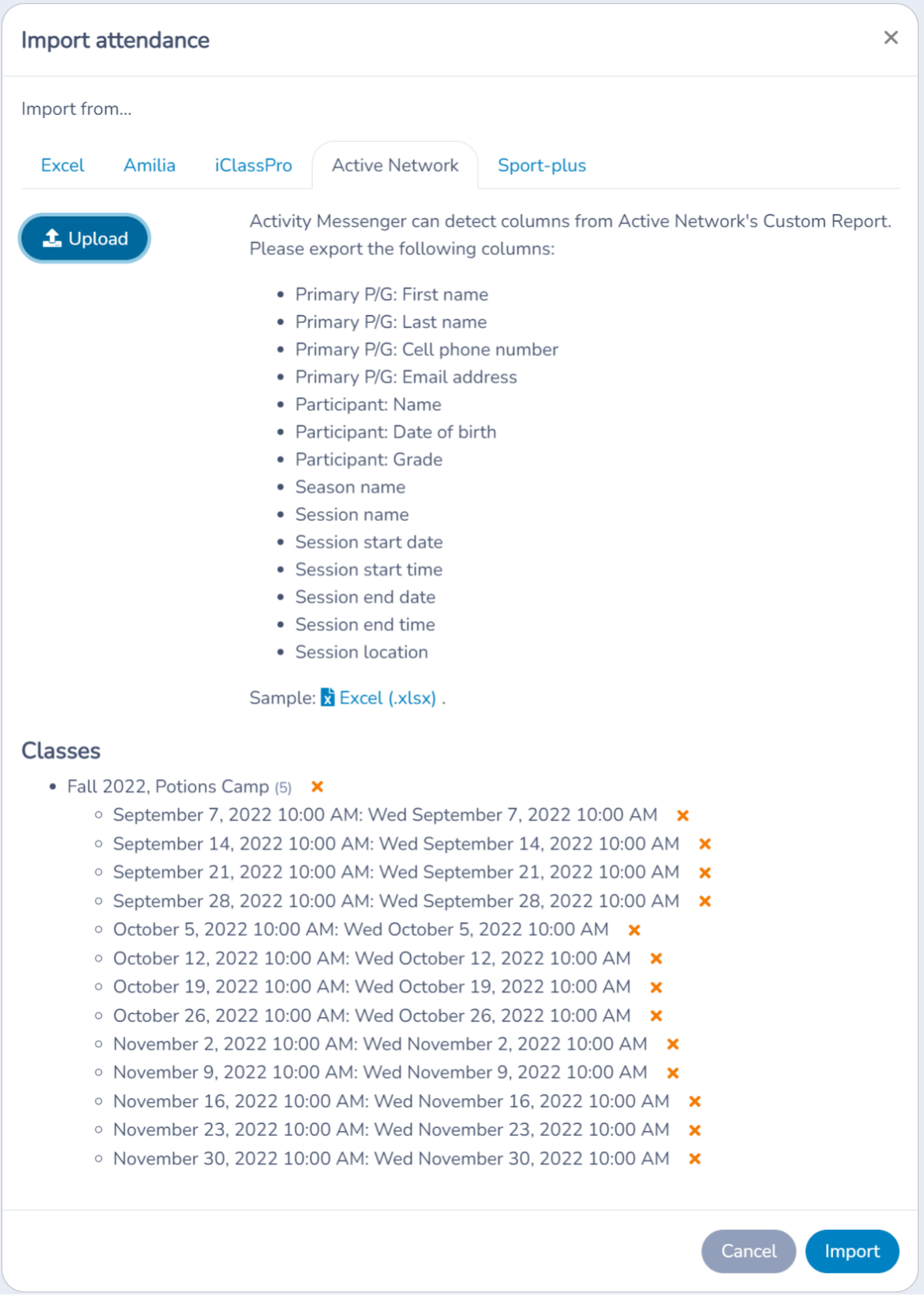
You can upload this sample Custom Report in Excel format: Excel (.xlsx).
Import your classes from iClassPro
Click the Classes menu and choose All Attendance Lists. Click (+) to import your lists. Choose the iClassPro tab. Follow the on-screen instructions.
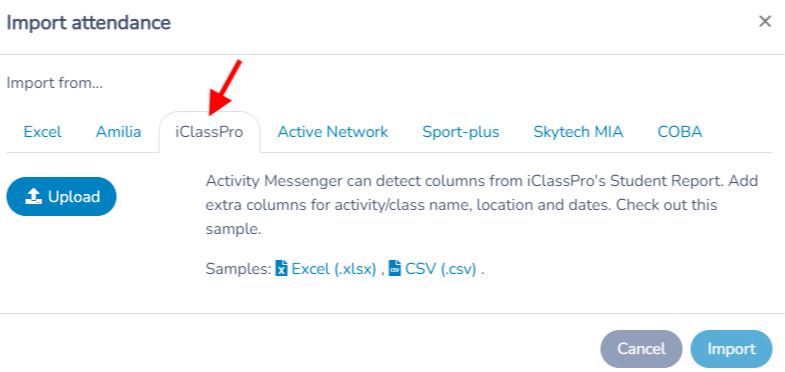
iClass-Pro import uses the Excel/CSV file import engine. Consult this documentation to obtain the format of the files and columns. You can use the following file as an example: Excel (.xlsx).
Import your Skytech MIA classes
Click the Classes menu and choose All Attendance Lists. Click (+) to import your lists. Choose the Skytech MIA tab. Follow the on-screen instructions.
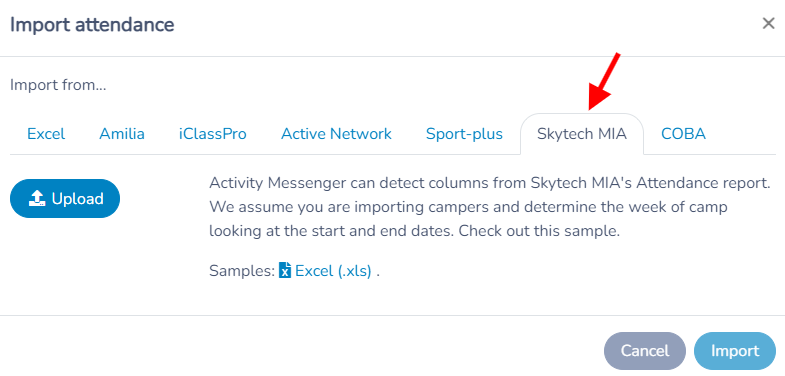
Skytech MIA import uses the Excel/CSV file import engine. Consult this documentation to obtain the format of the files and columns. You can use the following file as an example: Excel (.xlsx).
Importing attendance from Sport-plus
From the Classes menu, click on All attendance lists. Click on (+) to import attendance. Click on the Sport-plus tab. Follow instructions.
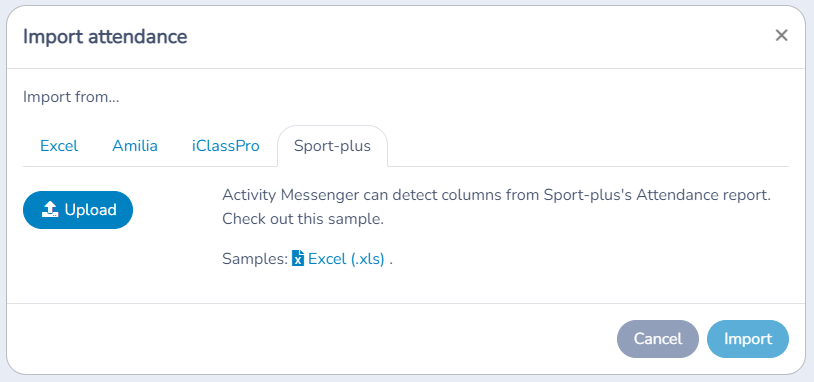
Importing from Sport-plus uses Activity Messenger's Excel/CSV import engine. Read those docs to find out supported columns. You can also download this sample to use as an example: Excel (.xlsx).
Assigning class to staff
Activity Messenger allows you to assign classes to specific staff. The permission level for coaches and camp counsellors is called Instructor. Read the permissions documentation to learn how to invite staff.
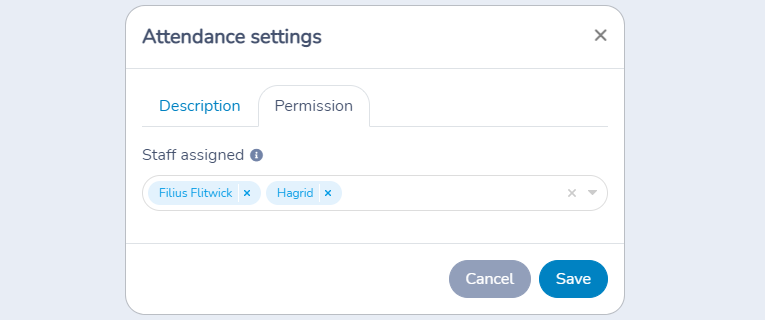
Instructors are limited to seeing classes that you assign. Click on the staff edit button. The class Settings popup appears. Select staff that can track attendance for this class.
Tracking attendance
Each attendance list has one attendance sheet per occurrence or per day. Click on a list to access the sheet of the next occurrence.
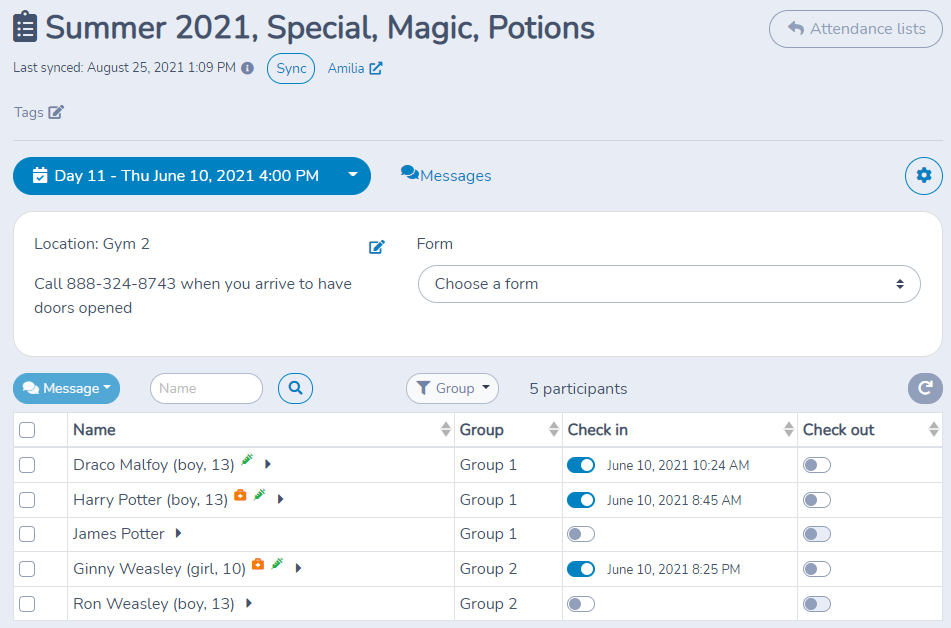
Top left is the date of the current attendance sheet. You can click on the dropdown to access other days.
The cog button allows you to provide coaches and instructions with context about the class or activity. You can also modify the assigned staff.
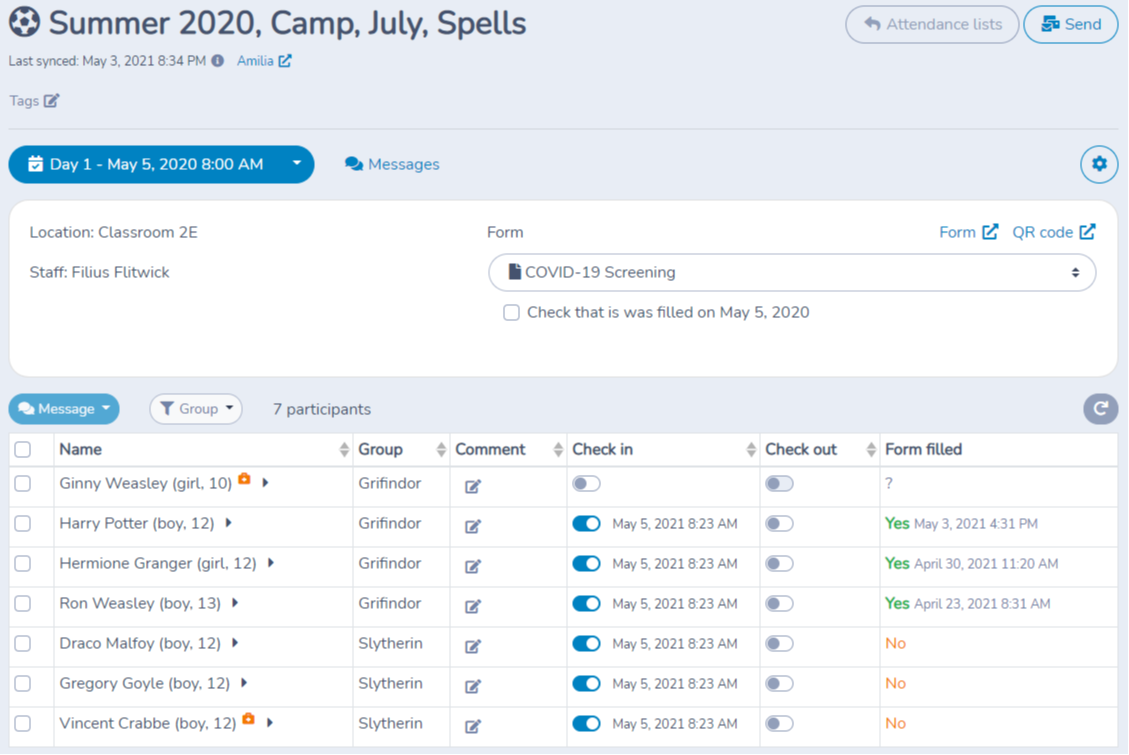

Simply click on the check-in and check-out switches to track attendance. The system will record the date and time. Use the comment field if the child temporarily leaves for lunch or for an appointment.
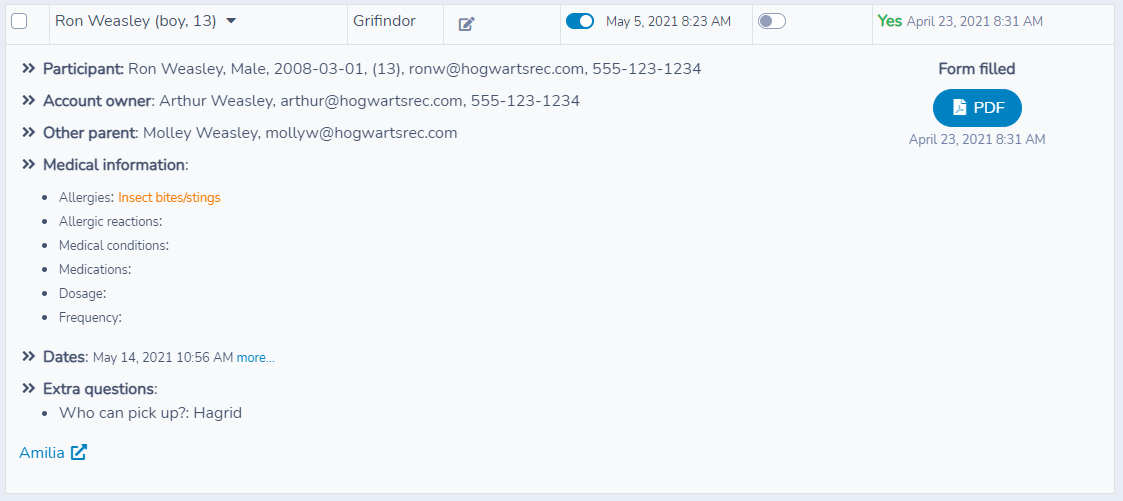
Click on a row to expand it and access a participant's information card. You will find information about the contact owner, the second parent, emergency contacts, medical information and answers to extra questions. You also have access to the filled form.
Changing the check-in or check-out date and time
If you need to modify the check-in or check-out date and time, you can do so by clicking again the toggle. A popup will give you that option. You can decide to clear the check-in or check-out time, or you can modify the date and time.
Checking that a form was filled
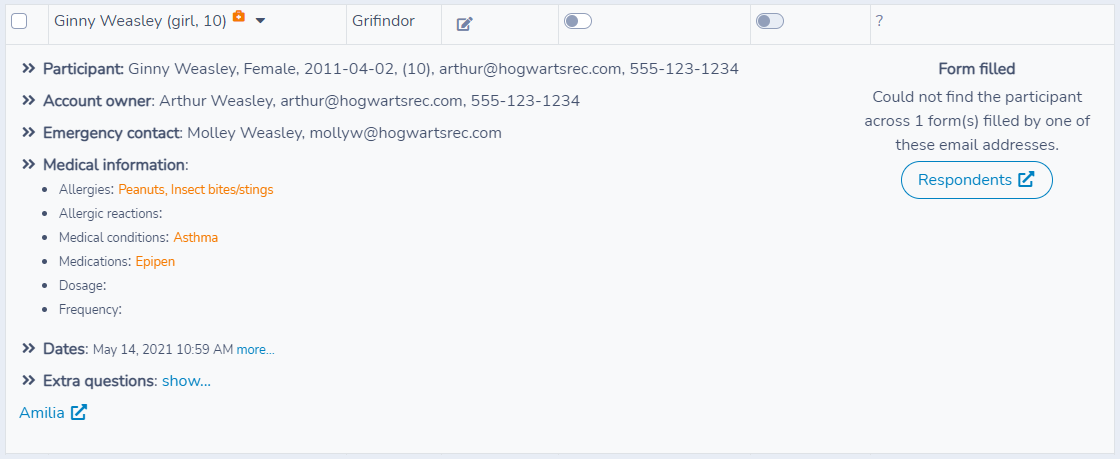
If you use Activity Messenger's forms, including waiver forms, you can select a form to check if it was filled for each participant. For example, choose a required pre-activity form. You can even ask the system to check that it was filled the day of the camp.
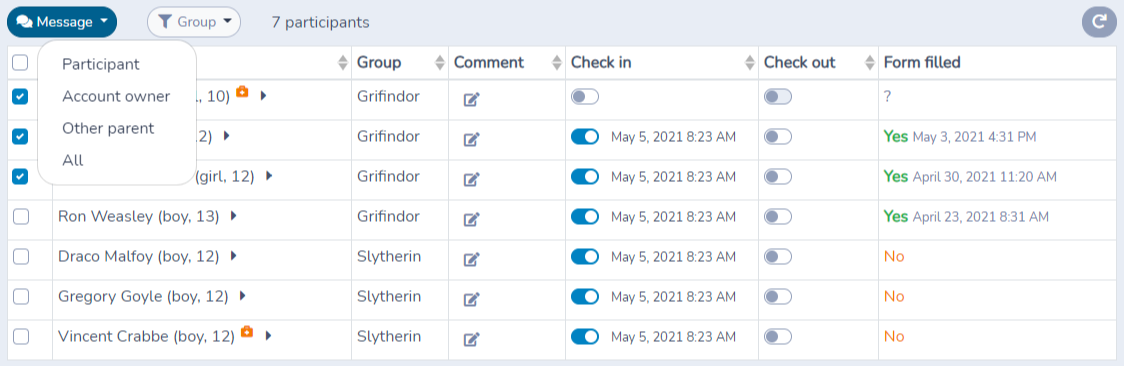
An extra column Form filled will be added indicating Yes if it was filled, or No if it was not. Activity Messenger cross references the contact emails of the participant and his/her name. This covers the situation where mom is the main email on file yet dad filled in the form with his email. As long as dad's email is also on file, Activity Messenger will find a match.
Activity Messenger will display a question mark (?) symbol when the name of the participant does not match. You can easily access the PDF to double check.
Pass or fail form questions
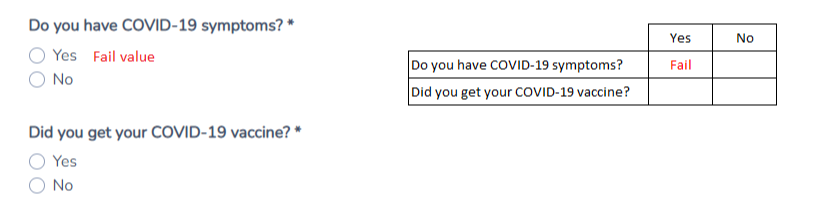
When you use pass/fail checks on a form, Activity Messenger can flag forms that have not correctly answered all questions. It will write Pass or Fail in the filled form column depending on answers provided by the respondent.
Activity Messenger will compare answers with the Fail value in the configuration of the Radio button questions. If any answer matches the Fail value criteria, the check will fail.
For example, assuming your form contains these 3 questions, you can set their respective Fail values. To ignore the answer of a question, leave it blank.
Vaccination check
If your organization uses vaccination-check flags, Activity Messenger can record that an administrator has verified a participant’s record. This is an administrative flag, not a determination of medical eligibility.
Open an attendance list and expand a participant row. Under the Medical information, there will be a toggle called Vaccinated. Turn it on when you have verified proof of vaccination. That toggle will remain active for future occurrences of the class.
Activity Messenger shows a green syringe icon next to the participant that was vaccinated. With a glimpse you can quickly spot who is and who is not vaccinated.
Tracking vaccination checks across multiple classes
By default Activity Messenger will track vaccination check per class. For example if a participant is in two classes, toggling Vaccinated in one class will not toggle in the other class.
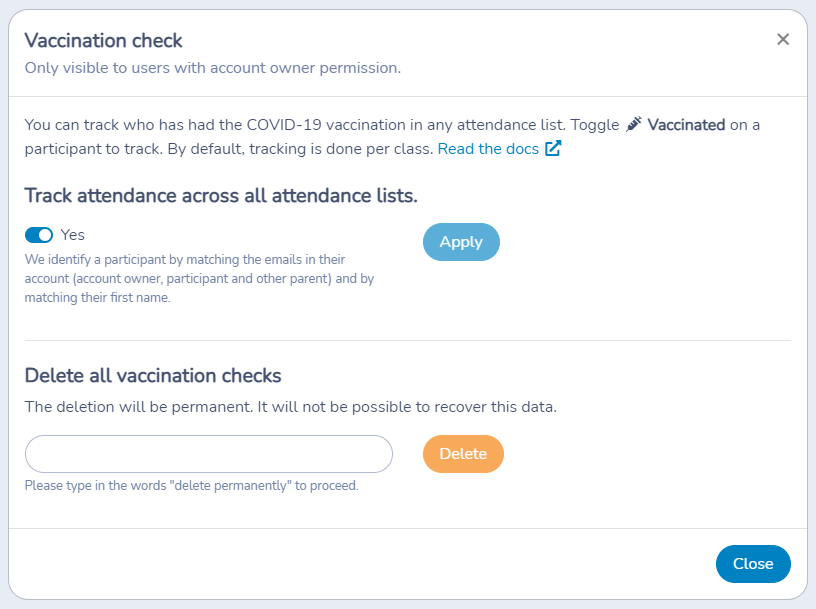
You can change the behavior to apply across all classes. From the Classes menu, choose the "Vaccination check" option. A popup will allow you to change the setting.
The Vaccination check settings popup is only access to users with permission level "Account owner".
We identify a participant by matching the emails in their account (account owner, participant and other parent) and by matching their first name.
Deleting all vaccination checks
The account owner can delete vaccination-check flags from the Vaccination check settings. This permanently removes those flags; review the scope and confirmation before using the action.
Send an email or an SMS
You can select one or multiple participants. Then click on Message to send them an email or a text message. You can decide to send the email to the account owner (main email on file), the participant (when the child has their own email) or all contacts on file.
Settings reference
Open an attendance list from Classes › All attendance lists. Most options below are in the three-dot menu (⋮) at the top right of the attendance sheet. Class - quick edit in that menu opens the class options (Options, Permission tabs). Some items only appear for users with the matching permission.
| Setting | Where | Default | Effect |
|---|---|---|---|
| Check-in, Check-out | Attendance sheet › participant row | Off | Switching one on records the current date and time. Click the switch again to open a window with Modify (change the date and time) or Clear (remove the record). |
| Track multiple check-ins and check-outs | Three-dot menu › Class - quick edit › Options | No | Uses two check-in and check-out pairs for each attendance date, for example when a participant leaves for lunch. |
| First attendance period, Second attendance period | Class - quick edit › Options (shown when multiple check-ins are on) | Empty | Names the two periods, for example Before School. |
| Allow either attendance period to be used independently | Class - quick edit › Options (shown when multiple check-ins are on) | Off | Makes the second check-in available even when the first check-in and check-out were not used. |
| Staff assigned | Class - quick edit › Permission tab (administrators only) | Empty | The users who can open this class for attendance tracking. Account owners and administrators always have access. |
| Allow tracking who has or has not filled a form | Three-dot menu, or Class - quick edit › Options | Off | Shows the form panel at the top of the sheet so you can pick a form and add a Form filled column. |
| Choose a form | Form panel at the top of the sheet | None | The form to check for each participant. |
| Check that this was filled on [date] | Form panel, under Choose a form | Off | Only counts the form as filled when it was filled on the date of the sheet. |
| Check that there are no failed answers | Form panel, under Choose a form | Off | Shows Pass or Fail based on the failed answer values configured on the form's radio button questions. |
| Notes: [date], Notes (for the class) | Notes tab on the sheet | None | The dated note is only visible for that date. The class note stays for the whole class or session. |
| Groups | Three-dot menu › Groups | No groups | Opens the window to create groups and move participants into them. |
| Auto Save | Groups window | On | Saves group changes as you make them. |
| Attendance days | Groups window | On | Shows each participant's attendance dates in the window. |
| Auto distribute groups | Groups window | Not applied until you run it | Spreads participants over a Number of groups with an optional Group name prefix. Options include Keep friends together and Balance by day. |
| Track skills | Three-dot menu | Off | Turns on skills tracking for the current view. It is a view toggle, not a class setting. See Students and skills. |
| Visible columns | Three-dot menu | Your last choice for this list, plus any organization default columns | Chooses which columns the sheet shows. |
| Vaccinated | Participant row › Medical information | Off | Marks that an administrator verified the participant's vaccination record. It stays on for later occurrences of the class. |
| Track vaccination checks across all attendance lists | Classes menu › Vaccination check (Account owner only) | No (per class) | Recognizes a participant's vaccination mark in all classes. Participants are matched by the emails on their account and by first name. Click Apply to save. |
| Delete all vaccination checks | Classes menu › Vaccination check (Account owner only) | Not applicable | Permanently removes every vaccination mark after you type the confirmation phrase. It cannot be undone. |
| Show pending registrations list | Three-dot menu | Off | Switches the sheet to the list of pending registrations. |
| Export attendance, Export participants | Three-dot menu (users with access to client contact information) | Not applicable | Exports attendance or participant information to Excel. |
| Three-dot menu | Not applicable | Prints the current sheet. |
Common questions
What if a participant leaves for lunch and comes back? Turn on Track multiple check-ins and check-outs in Class - quick edit › Options. Each date then has two check-in and check-out pairs. Name them with First attendance period and Second attendance period. See Attendance lists.
How do I fix a wrong check-in or check-out time? Click the switch again. A window offers Modify to change the date and time, or Clear to remove the record. See Changing the check-in or check-out date and time.
Can a coach see only their own classes? Yes. Give the person the Instructor permission, then select them under Staff assigned in the class's Permission tab. They only see the classes assigned to them; account owners and administrators always see everything. See Assigning class to staff and Invite users and manage their access.
Can I see who has or has not filled my evaluation form on an attendance list? Yes. Set this up for each attendance list: open the list, open its three-dot menu (⋮), and turn on Allow tracking who has or has not filled a form. You can also find this option under Class - quick edit › Options. In the form panel at the top of the sheet, choose your evaluation form. The Form filled column shows whether each participant has filled it. Applying this setting to every class with a particular tag at once needs confirmation; configure the lists individually unless you have confirmed a bulk option is available. See Checking that a form was filled and Waivers: collect consent and electronic signatures with a form.
Does the vaccination mark apply to every class? No, not by default. It is tracked per class. An Account owner can turn on Track vaccination checks across all attendance lists in Vaccination check. Activity Messenger records an administrative flag only; it does not decide medical eligibility. See Vaccination check.
Can I split participants into groups automatically? Yes. Open Groups from the three-dot menu and use Auto distribute groups with a Number of groups. Choose Keep friends together or Balance by day if needed. You can also move participants between groups by hand. See Attendance lists.
Can I print the attendance list? Yes. Open the list as a full page and use Print in the three-dot menu. The action is hidden when the list is shown inside a window. See Print an attendance list.
How do I message the parents of selected participants? Select the participants on the list, then click Message to send an email or text message. See Send an email or an SMS.