Activity Messenger Help Center
Set up resources and booking packages
Use bookings to let clients reserve a location, a member of staff or equipment for a specific time. Set up the resources, organize reservations with booking types, and offer a booking package on your Microsite. Staff can then monitor the schedule on Today and make a booking for a client from Availability.
This guide follows Book a mat, a golf practice package: one available mat for one hour, priced at $20 early in the morning or $25 later in the day, with optional buckets of golf balls. The example uses three resources named Mat 1, Mat 2 and Mat 3, and the booking type Golf.
Before you start
Bookings must be enabled for your organization. Use an administrator account with permission to access resources, configure bookings and create bookings. Access to invoices is also needed for the relevant billing operations. If a menu or action is missing, have your organization administrator check your permissions and enabled features.
The navigation below follows the E-Commerce menu. Depending on your navigation layout, Resources, Booking packages and Today may also appear directly in the booking navigation.
1. Create the resources
A resource is the actual place, person or item whose time must be reserved. A package is the offer a client purchases. Keep these separate: three independently bookable mats should be three resources, even when clients buy the same package.
- Open E-Commerce → Resources (staff, locations & equipment).
- Click + to add a resource, or click an existing resource to edit it.
- Choose its type: location, staff or equipment. Give it a clear name. In this example, the mats are location resources named Mat 1, Mat 2 and Mat 3.
- Configure a parent location or blocking relationships when resources share space. A parent/overlap relationship prevents conflicting reservations; Block locations identifies other resources that become unavailable when this resource is used.
- Save the resource. In the resource list, use the tag controls to assign Golf to all three mats.
Tags help staff work with a useful group of resources. The Golf resource tag filters the Today page; the Golf booking type introduced below classifies bookings. They serve different purposes even though their names match.
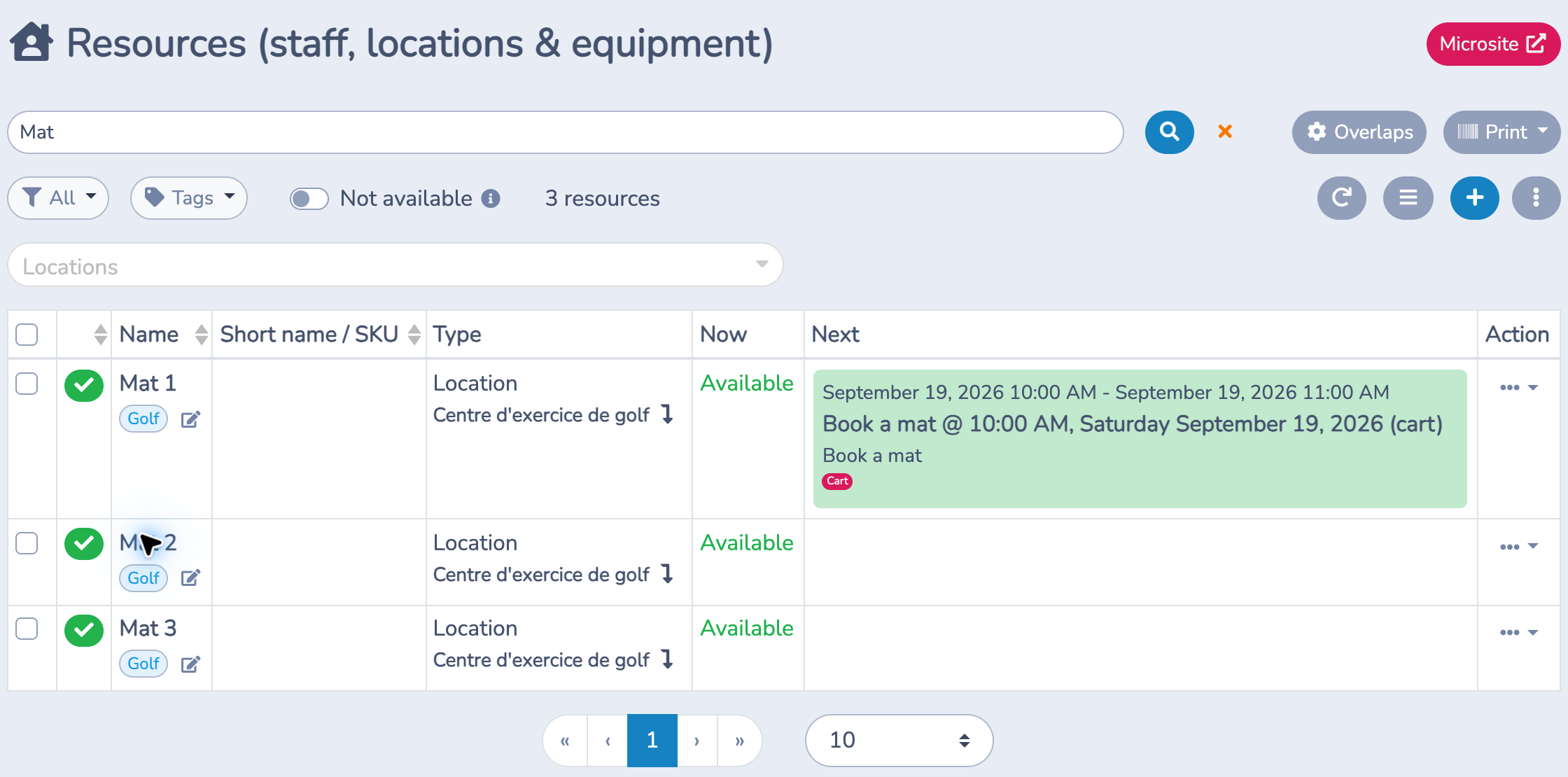
The resource list shows Now and Next, helping staff identify current use and the next reservation. Resource setup alone does not create an online offer or define its selling price: those belong to the package.
2. Configure a booking type
A booking type gives reservations a category and a calendar color. For this example, use Golf.
- Open the organization settings gear beside the organization logo and choose Booking types.
- Click +, or open an existing type.
- Enter a Name, choose a Color, and optionally add a Description.
- Review the availability options, then create or save the type.
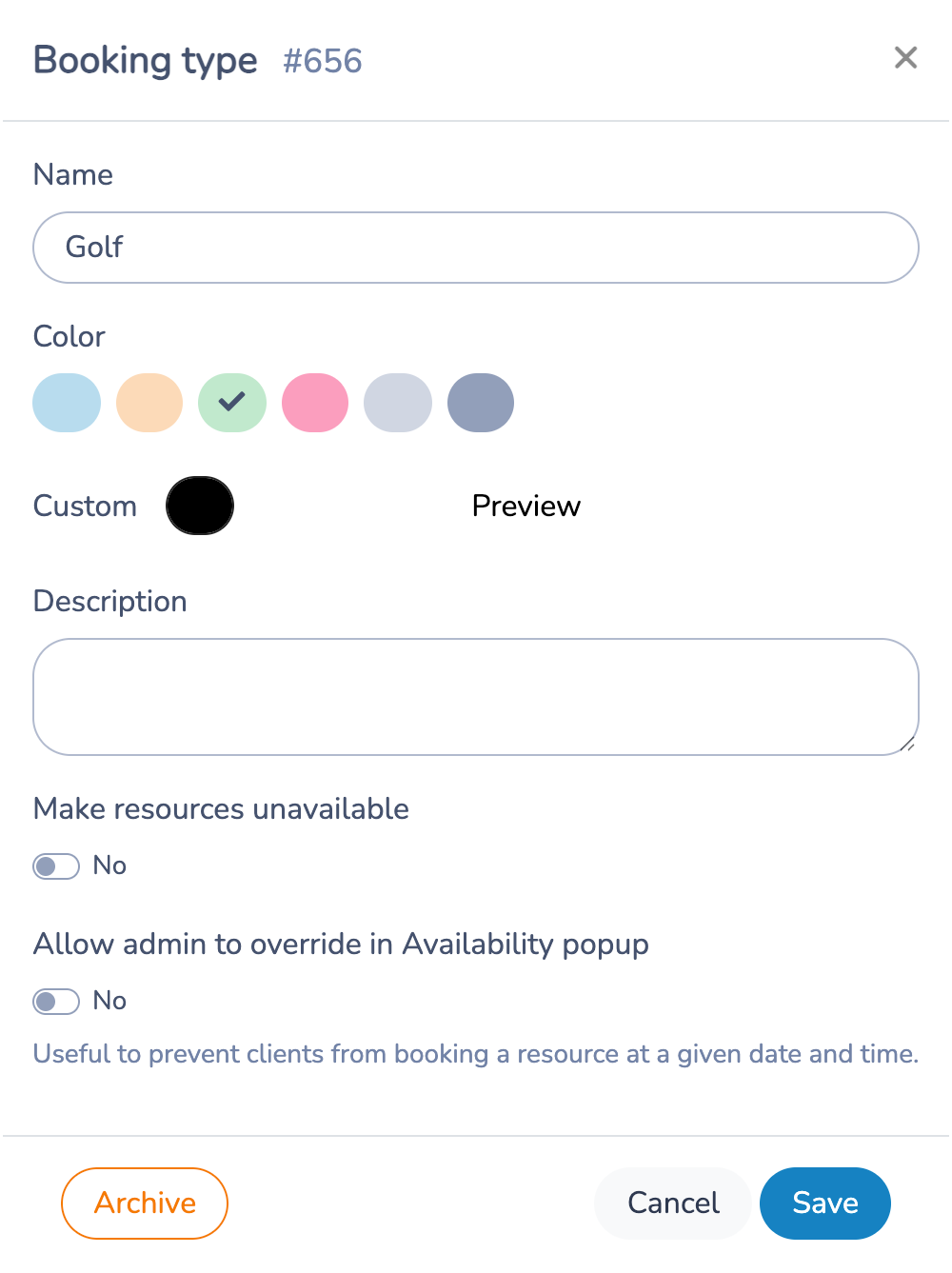
When available, Make resources unavailable is intended for bookings that make resources unavailable and hide them from calendars. Allow admin to override in Availability popup lets an administrator override bookings of this type through Availability, for example when a slot is blocked from client booking but staff may make an exception. Leave these options off for the ordinary Golf reservations in this example.
A booking type does not define the package's price or selling hours. Select it in the package's Bookings tab to apply it to that offer.
3. Build the Book a mat package
Open E-Commerce → Booking packages, then click + or open Book a mat.
Information
In Information, enter the package name, category and short description. In this example, the category is Rentals and the offer is one hour at a golf practice mat.
Set Visible to Yes to show the package to clients in the Microsite. A hidden package can still appear in orange to administrators, so check the public view in a private browser window. Disabled prevents booking; leave it off when the offer should be available. Choose whether the default page opens the description or calendar.
To reuse a package, choose Duplicate from the package list. In the dialog, Copy membership settings includes linked memberships, booking requirements, membership rules and purchase options. When copying to another organization, only memberships with matching names are linked. Copy staff pay settings copies the package's default staff pay rule within the same organization; it appears only for an eligible booking package when you can manage staff pay. Both choices are off until selected. Review the new package before offering it to clients.
Description
Explain what the booking includes in the long description shown on the Microsite. For Book a mat, describe the one-hour practice session and explain that buckets of balls are optional extras. Choose whether to show the description on the calendar. Use the details field for additional instructions and choose whether those details appear before the invoice.
Images
Add up to three images to illustrate the offer. A photo of the mats helps clients recognize what they are reserving. If your organization has a site plan, use the site-plan option to help clients locate the resource.
Bookings
In Bookings:
- Add Mat 1, Mat 2 and Mat 3 to the same resource row.
- Set Duration to 1h. The example has no buffer before or after.
- Leave Do not reserve off: the selected mat must actually be reserved.
- Leave Allow choosing off to assign an available mat automatically. Enable it when clients should choose a particular resource.
- Enable Show to client to display the assigned mat.
- Select the Golf booking type.
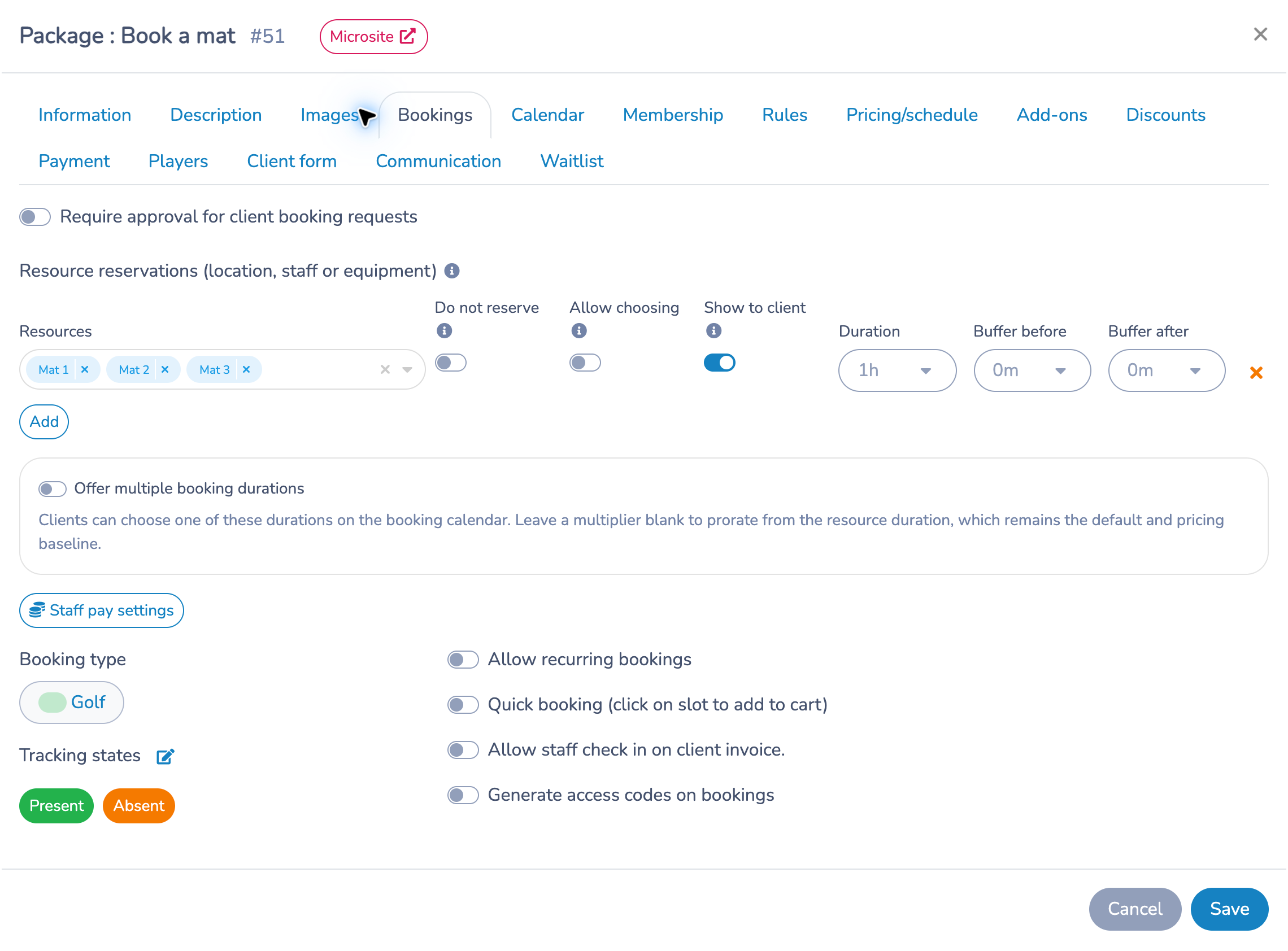
Resources in one row are alternatives: the first available resource is reserved. Separate rows are requirements: one resource must be available in every row. For example, a mat row plus a coach row requires both a mat and a coach for the booking.
The Do not reserve option changes a row into an availability check: all resources in that row must be free, but they are not reserved by that row. Use it only when that is the intended behavior.
Buffers reserve time around the appointment. Use them for setup or cleanup rather than extending the client-facing appointment. The example uses a single duration; Offer multiple booking durations is available when an offer needs a choice of lengths.
To let clients book the same booking day and time across multiple weeks, edit the package, open Bookings, and enable Allow recurring bookings. The setting's helper text says it allows clients to book multiple weeks for that booking day and time. Save the package after changing the setting.
Calendar
Control how clients browse availability on the Microsite. Choose the default calendar view, the other views clients can select, the initial date and the first day of the week. Book a mat opens a three-day view and offers two-, three- and four-day views. The minimum calendar date controls the initial date shown; it is not the advance-booking rule.
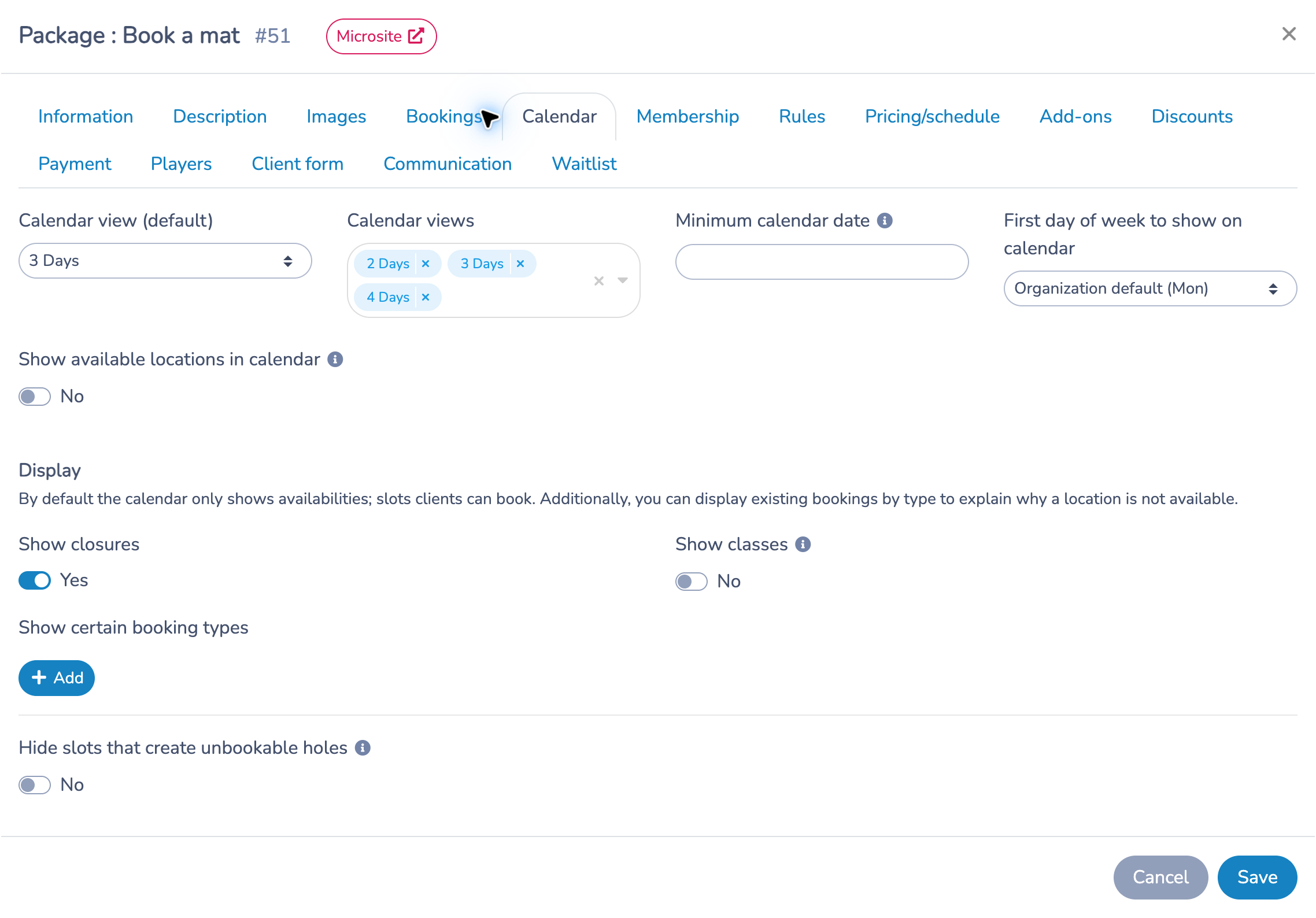
Show available locations in calendar lists resources in each availability. Use it for a small number of resources so the calendar stays readable on mobile. Under Display, show closures, available classes or selected booking types to explain occupied periods. For selected booking types, configure the displayed title, popup description and splitting interval. Hide slots that create unbookable holes hides options that would leave an unusable gap; enable it and set the gap in minutes when you want to avoid such gaps.
Membership
Use this tab when booking is restricted to members; it appears when memberships are enabled for your organization. Turn on Requires a membership for reservation and choose the memberships that grant access. Leaving the membership list empty accepts any valid membership when the requirement is enabled. The date-validity option checks that the membership covers the booking date.
When available, the membership-purchase options let clients buy a qualifying membership if they do not have one. Link memberships here before configuring membership-specific booking rules in Rules. Book a mat does not require membership in this example.
Require insurance or another additional membership
Use Additional membership required when a client must meet a separate requirement, such as holding insurance in addition to an account membership. This section is available for membership-required packages that do not ask clients to specify players.
The two membership sections check different requirements:
- The main Memberships list grants booking access when the client has any one of the accepted memberships. Offer memberships when missing offers a purchase only when the client lacks a qualifying access membership.
- Additional membership required checks for one of the additional memberships, even when the client already qualifies for access. Offer additional memberships when missing offers a purchase when this separate requirement is not met.
Putting account memberships and insurance in the main list alone does not require both: an account membership can already satisfy that list. To require an account membership and insurance, put the account memberships in the main list and the insurance memberships in the additional section. Keep the lists separate if insurance alone must not grant booking access.
To configure the additional requirement:
- Create the memberships you need under E-Commerce → Memberships, including their prices and validity periods. For single-use insurance that covers one booking day, configure a one-day membership.
- Open E-Commerce → Booking packages, edit the package and select Membership.
- Enable Requires a membership for reservation and select the account memberships that grant access in the main Memberships list.
- Enable Additional membership required. Under Memberships that satisfy this additional requirement, select the accepted insurance memberships, such as seasonal insurance, single-use insurance and a membership representing accepted renter-provided insurance. Select at least one.
- Enable Offer additional memberships when missing if clients should be able to purchase coverage during booking. Under Memberships to offer, choose the purchasable options from the accepted list. Keep a membership representing the renter's own insurance only in the accepted list when it is not for sale.
- Under Start on booking date, select the offered memberships that should begin on the reserved date, such as single-use insurance. Review each membership's validity settings; this option does not turn seasonal insurance into a one-day membership.
- Save, then open the package's Microsite and check the flow with an account that has the access membership but no valid insurance for the selected date.
For example, a court can require a renter account membership plus one of three insurance memberships: seasonal insurance, single-use insurance or accepted renter-provided insurance. Offer the first two for purchase. A renter with only the account membership must select coverage; a renter with a valid accepted insurance membership already on their account meets the additional requirement. A membership representing the renter's own insurance must be assigned to the account; this setting does not itself collect or verify an insurance document.
What clients see and how coverage is checked
Clients should sign in to the account holding their memberships. When additional coverage is missing, the booking window presents the configured purchase options. The selected membership is added to the cart with the booking. If purchasing is disabled or no purchase option is available, the client must obtain a qualifying membership before completing the booking.
- The additional membership must be valid on the booking date, even if Membership must be valid for the reserved dates is off for the main access requirement. Coverage uses the organization's calendar date, regardless of the client's device timezone.
- An expired, not-yet-valid or inactive additional membership does not satisfy the requirement for that date.
- In the same cart, the same membership covering the same dates is reused rather than charged twice, including when both sections offer it. A one-day membership does not cover a booking on another day.
- A required membership purchase cannot be removed from the cart while a booking depends on it. Removing its last dependent booking also removes that purchase. This cart behavior does not describe refunds after checkout.
- If a date change leaves the booking without valid coverage, remove the booking from the cart and add it again with coverage for the new date.
- Leave Additional membership required off to keep only the existing access requirement.
Rules
Set when clients can book and what changes they may make afterward. Book a mat currently opens sales seven days in advance and stops sales 60 minutes before the booking starts.
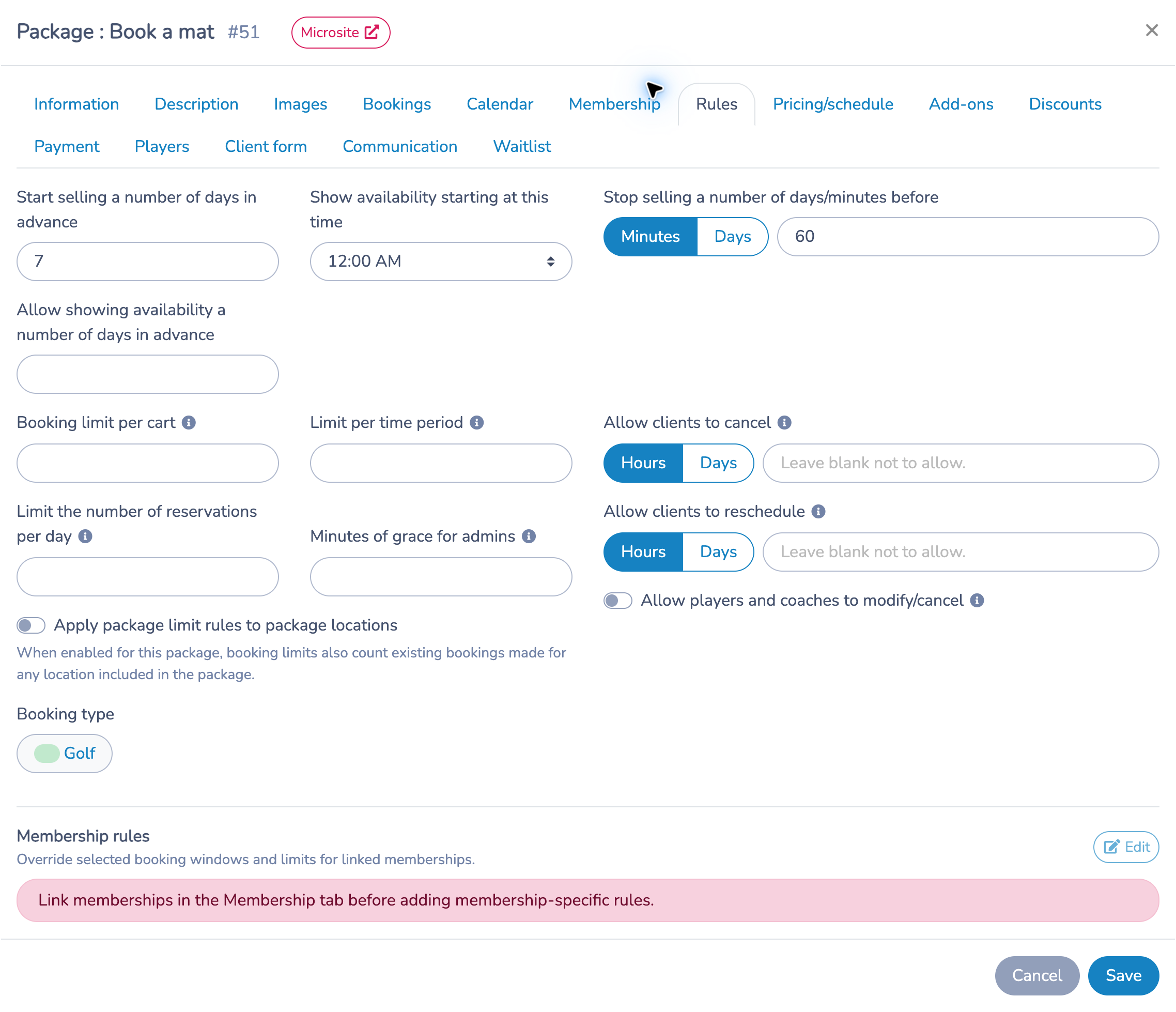
- Advance booking: set the number of days before a booking that sales open, and the release time. The separate availability-display setting can let clients see times before they can buy them.
- Client booking visibility: when Start selling a number of days in advance is set, enable Hide client bookings outside the selling window; allow admins to book any date to show upcoming bookings in the client account only once they enter that window. Owners and administrators can still see and book any future available date from the Microsite calendar; past bookings remain in the client's history. Invoices remain visible with their details.
- Sales cutoff: choose minutes or days and enter how far before the start to stop selling. Check the selected unit carefully.
- Limits: control bookings per cart, per time period and per day. The daily limit requires membership and normally works with other packages in the same category. The package-location option also counts existing bookings for resources included in this package.
- Minutes of grace for admins: allow an administrator to book shortly after a slot starts. For example, 15 minutes permits a 10 a.m. slot to be booked at 10:05 a.m.
- Cancellation and rescheduling: enter separate deadlines in hours or days. Leave the fields blank to prevent client self-service cancellation or rescheduling. A client cancellation credits the booking; it does not automatically refund the payment.
- Booking type and membership rules: review the booking classification and, where relevant, override selected windows and limits for linked memberships.
Blank values do not have the same meaning everywhere: limit fields allow no restriction, while cancellation and rescheduling fields disable those client actions. Follow the field's helper text.
Pricing/schedule
This tab combines the Displayed price, taxes and the Pricing schedules that determine offered start times and their prices. The displayed price is the package's presentation price; changing it alone does not update the prices already entered for each weekday in a schedule.
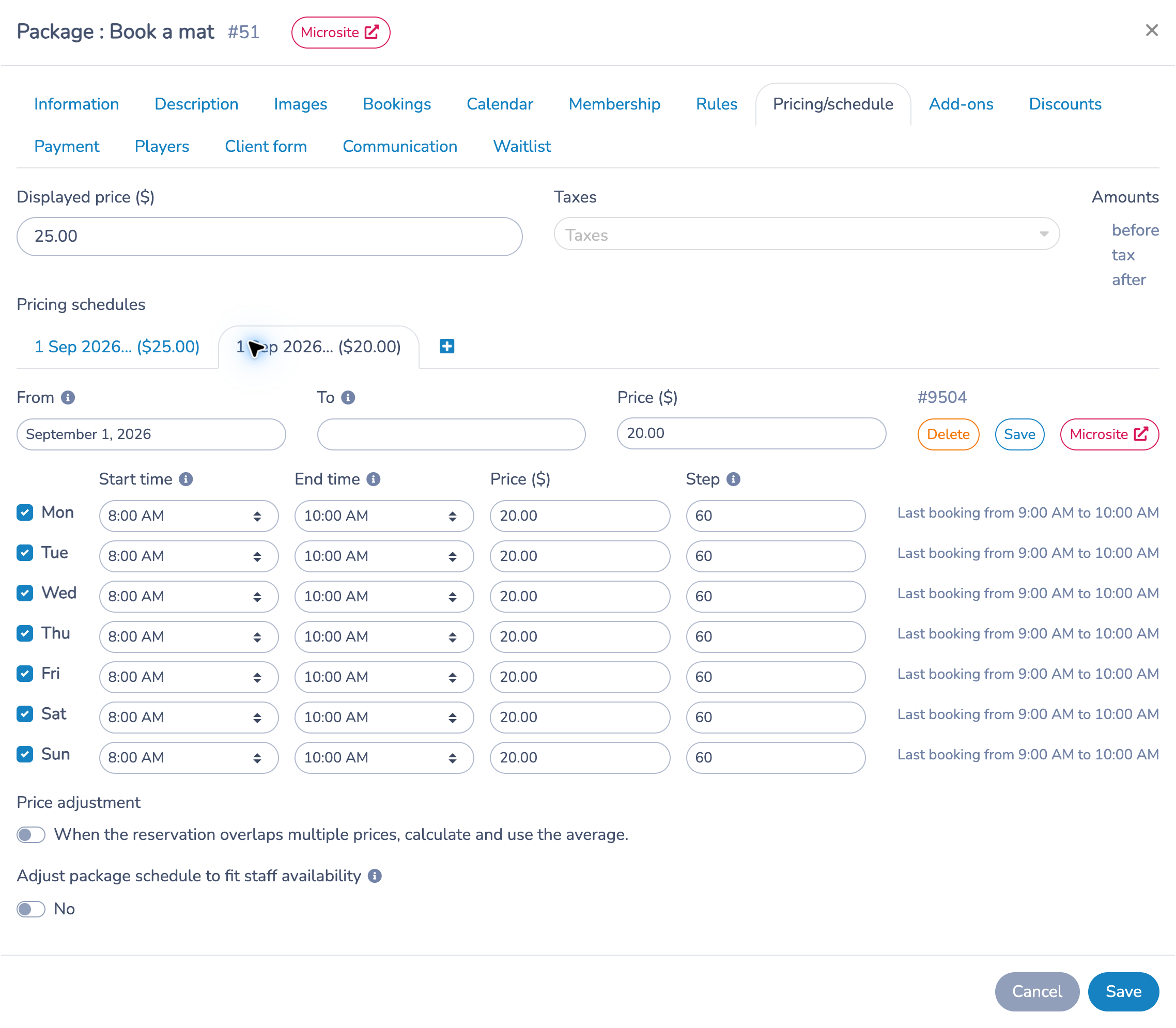
Each schedule has an effective From date, an optional To date, a price and a row for each weekday. Check the days you offer, then set their Start time, End time, Price and Step. The weekday price is the amount used for that day's start times. Check every enabled row when changing prices.
Step is the number of minutes between possible start times; Duration is configured in Bookings. The end time is an exclusive limit on start times, not a guarantee that the appointment ends at that hour. Read the “Last booking” message beside each row, especially after changing duration or step.
Final start time versus booking duration
Start times are generated from Start time at regular Step intervals, as long as each start is earlier than End time. End time therefore limits start times, but does not guarantee that the appointment ends by that time: the booking Duration is handled separately. Adjust the schedule with the appointment duration and buffers in mind.
The Last booking from … to … message beside each row shows the last generated start and the moment that booking ends with the package duration. Use it to confirm the closing time.
Example with Step 60: a 2-hour duration and an End time of 8 p.m. gives a last start of 7 p.m., so the message reads 7 p.m. to 9 p.m. To make the last booking end at 8 p.m., set the End time to 7 p.m.: the last start becomes 6 p.m. and the message reads 6 p.m. to 8 p.m. Buffers reserve time on the resource around the booking but do not change the generated start times.
When the package offers several durations. With Offer multiple booking durations (Bookings tab), every reservable resource row must use the same Duration; that value is the base duration. The schedule generates the start times for the base duration as described above. For a longer duration, Activity Messenger first finds, for each day, the moment the last base booking of that day ends (last start plus base duration), then keeps only the starts at which the longer booking also ends by that moment. A longer option therefore has fewer starts than the base, always at the beginning of the day, and shows no availability at all on a day where it cannot end by that cutoff from any start. Because the cutoff is computed day by day, an option that exceeds the base by 24 hours or more never appears, even though the editor accepts it: a base duration of 19 hours with an offered 43-hour duration shows only 19-hour slots. To sell a multi-day stay, make the long duration the Duration of its own package instead of an extra option.
In Book a mat, a 2-hour option would offer starts from 8 a.m. to 6 p.m.: the last 2-hour booking ends at 8 p.m., like the last 1-hour booking. The price of a longer duration is the slot price multiplied by the ratio between the two durations, unless the option has a Rate multiplier, which multiplies the slot price instead. The client picks the duration on the calendar; with Ask for duration before showing the calendar, the client chooses first and then sees the availability for that duration.
Example: $20 from 8 a.m. to 10 a.m.
Use multiple schedules to offer different prices within the same day, different weekday patterns, or seasonal date ranges. Keep them in the same package so they share the resources, booking rules and checkout settings.
Book a mat uses two schedules, both effective September 1, 2026, with no end date:
| Schedule | Hours | Price per one-hour booking | Step | Available starts |
|---|---|---|---|---|
| Morning | 8 a.m.–10 a.m. | $20 | 60 minutes | 8 a.m. and 9 a.m. |
| Daytime | 10 a.m.–8 p.m. | $25 | 60 minutes | 10 a.m. through 7 p.m. |
To configure this pattern:
- Keep the daytime schedule at $25, with each offered weekday set to 10 a.m.–8 p.m. and Step 60.
- Click the + beside the schedule tabs. It copies the last schedule, so review its dates and every weekday row.
- Select the new schedule. Keep the same effective dates for a daily morning rate, or choose a limited date range for a seasonal offer.
- Set its schedule price and each enabled weekday's price to $20. Set each offered day to 8 a.m.–10 a.m., with Step 60.
- Confirm that the last morning booking is 9 a.m.–10 a.m. A booking starting at 10 a.m. belongs to the $25 daytime schedule.
- Click Save, then use Microsite to check the offered times and prices. Resource availability and Rules still determine whether clients can book them.
Use adjacent time ranges for a clear morning/daytime split. If schedules generate the same start time, the more recently created schedule takes precedence for that start; a later effective date alone does not establish priority. For seasonal changes, check the date ranges and any gap warning so future days remain covered.
Price adjustment can average the applicable slot prices when a reservation spans multiple price periods. It is off in this one-hour example. Adjust package schedule to fit staff availability, when available, further limits a staff-based offer to the staff member's availability.
Add-ons
Offer extras alongside the booking. Book a mat has Small bucket ($5), Medium bucket ($10) and Large bucket ($15). Configure each add-on's price, taxes, required/optional status and quantity limits. Use the resource options when an extra also needs a resource, and conditional rules when an add-on should appear only in certain situations.
Show add-ons as checkboxes suits extras that can be selected only once; quantity, minimum and maximum are fixed to one. Keep quantity controls when clients may buy several units. Review the customer cart to confirm the extra is attached to the intended booking.
Discounts
Add a discount rule when the booking price should be reduced under specific conditions, such as a booking close to its start time or an eligible membership. Set the name, minutes-before condition, membership selection, amount or percentage, and ledger code as needed. Book a mat has no discount rule in this example. For a predictable daily morning rate, use the two pricing schedules above.
Payment
Choose how to collect payment: offline, credit card, Interac e-Transfer, or credit card or Interac, according to the methods configured for your organization. Book a mat uses credit card payment.
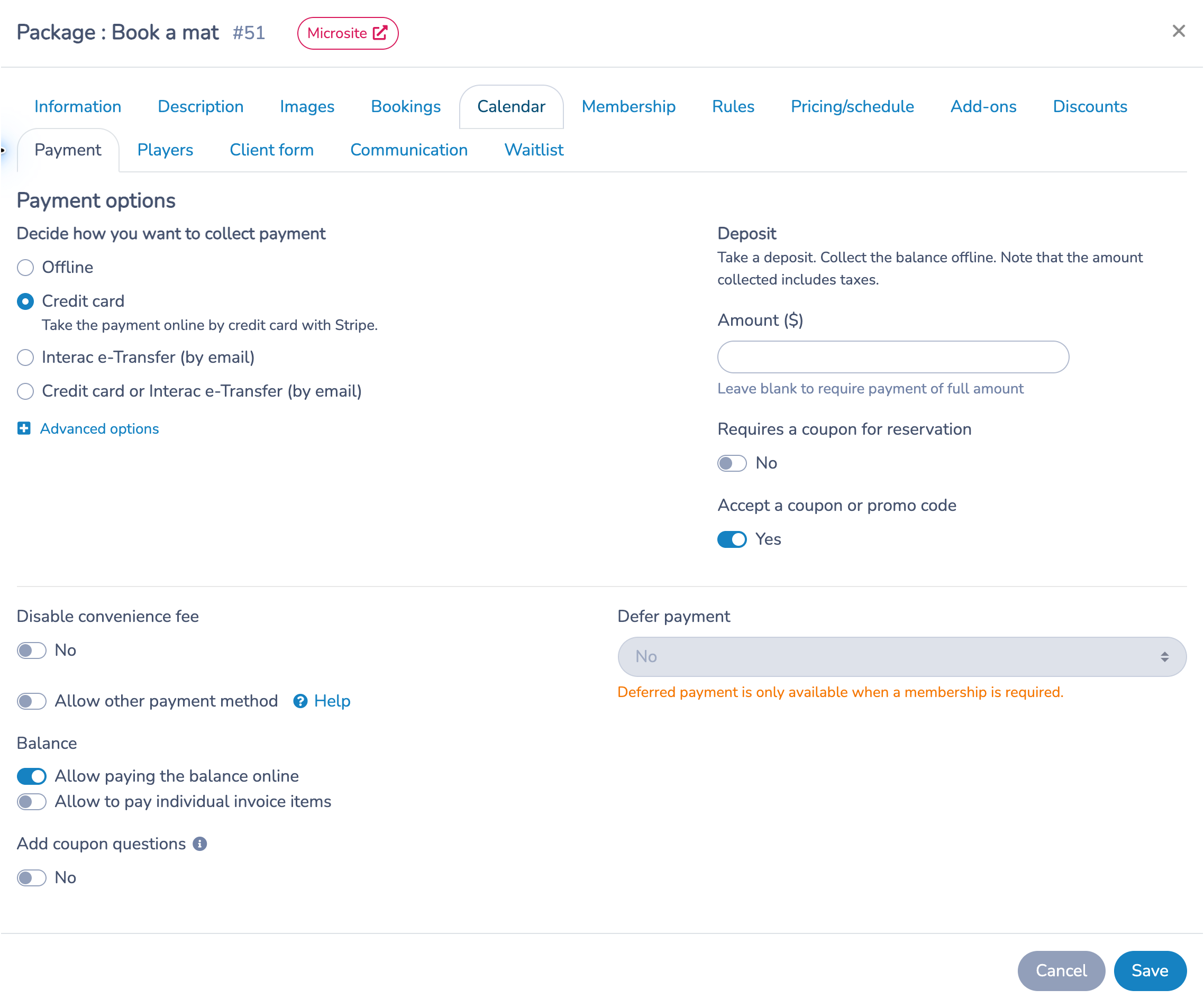
Leave Deposit blank to require the full amount, or enter the deposit to collect, including taxes, and decide how to collect the balance. Review whether coupons are required or accepted, convenience fees, other payment methods, online balance payment and payment of individual invoice items. Add payment instructions where offered so clients know how to settle an outstanding balance. To let clients enter a promo code in the cart, see How promo codes work.
Defer payment schedules collection before or at the end of the booking. It requires a membership, a supported credit-card payment option and no deposit. It is unavailable for Book a mat while membership is not required. These settings control collection; the actual booking price and taxes are set in Pricing/schedule.
Client form
Choose the checkout form clients complete before payment. If none is selected, Activity Messenger creates one for you. Use it to collect the information needed for the booking.
Can I send a contract after a booking?
Yes. For a native Activity Messenger booking package, you can associate a contract form with the reservation through the Client form tab:
- Create or prepare your contract form, including its terms and signature questions. See How to create a rental contract for form preparation.
- Open E-Commerce → Booking packages and edit the package.
- Open Client form. Under Ask the client to fill in a form after the purchase., choose the contract form.
- Save the package.
- After completing checkout, the client sees a button bearing the form's name on the Confirmation screen. Clicking it opens the form in a separate tab to complete and sign.
This setting presents the contract after purchase. Selecting it does not mean the client has signed, and it does not make signing a prerequisite for completing checkout. If acceptance must happen before the reservation is finalized, collect it in the checkout form instead and verify that workflow.
To send the contract link by email: review the package's Communication → Confirmation email template and include a link or button to the intended contract form. Verify the actual message and destination before using it with clients. Do not assume that choosing the after-purchase form automatically inserts its link into the email or attaches a signed contract PDF. Packages with deferred payments or approval workflows can use different confirmation templates; check the template used by that flow.
This is the native booking-package workflow. An Amilia facility-booking automation is not needed to associate the after-purchase form. A rental contract prepared and sent individually by an administrator is a separate workflow, covered in the rental-contract guide.
Communication
Choose confirmation and cancellation email templates. When no custom template is selected, Activity Messenger supplies one. The confirmation includes the invoice PDF; the cancellation email includes the receipt PDF.
Select the staff who should receive email or SMS after a booking, cancellation or reschedule. Choose whether staff booking emails include payment details and the invoice PDF. Configure reminder and follow-up templates before the event, on the event day, before its end or after it, with the relevant day offset and sending time. Where offered, include assigned resources in the notifications.
Save the package after reviewing the tabs, then open its Microsite link to check the customer experience.
Booking availability alerts
Booking availability alerts let clients subscribe to openings for selected booking packages. They are not a queue and do not hold a court or guarantee a reservation: every recipient still books an available time through the package calendar.
Create the subscription form
- Open Forms, create a form or edit an existing general form, and add the Booking availability alerts question.
- Enter an optional General form introduction. This text appears before the alert choices; leave it blank when the form already introduces the service.
- Turn on Send an automated availability summary if clients may receive a scheduled digest. Choose the number of days ahead, sending time, description shown on the form and message template.
- Turn on Enable manual availability alerts if administrators may announce a released or selected opening. Configure its form description and its separate message template.
- Select the booking packages offered in this question and the allowed delivery method: email, SMS, or both.
- Save the question. Saving a new question creates its linked Booking availability notification automation. The shared settings remain synchronized between the form question and the automation.
The default message template includes the Booking availability merge field. Keep that field in a customized template: it inserts the announced courts, dates and times and the booking link. The manual-alert template is separate from the scheduled-summary template.
Let clients choose what they receive
The client first chooses one or both alert types:
- Receive the daily availability summary sends the scheduled digest only when matching availability exists. The client can include every availability for the selected packages or filter the summary with the preferences below.
- Receive immediate availability alerts allows messages that an administrator sends after an opening is released or from selected free times. Enabling this option does not send anything automatically.
The client then chooses packages, all eligible courts or specific courts, weekdays, a start and end time, and the communication method allowed by the form. An empty day or time preference accepts every value in that category. These preferences always filter immediate alerts and filter the daily summary only when the client selects that summary option.
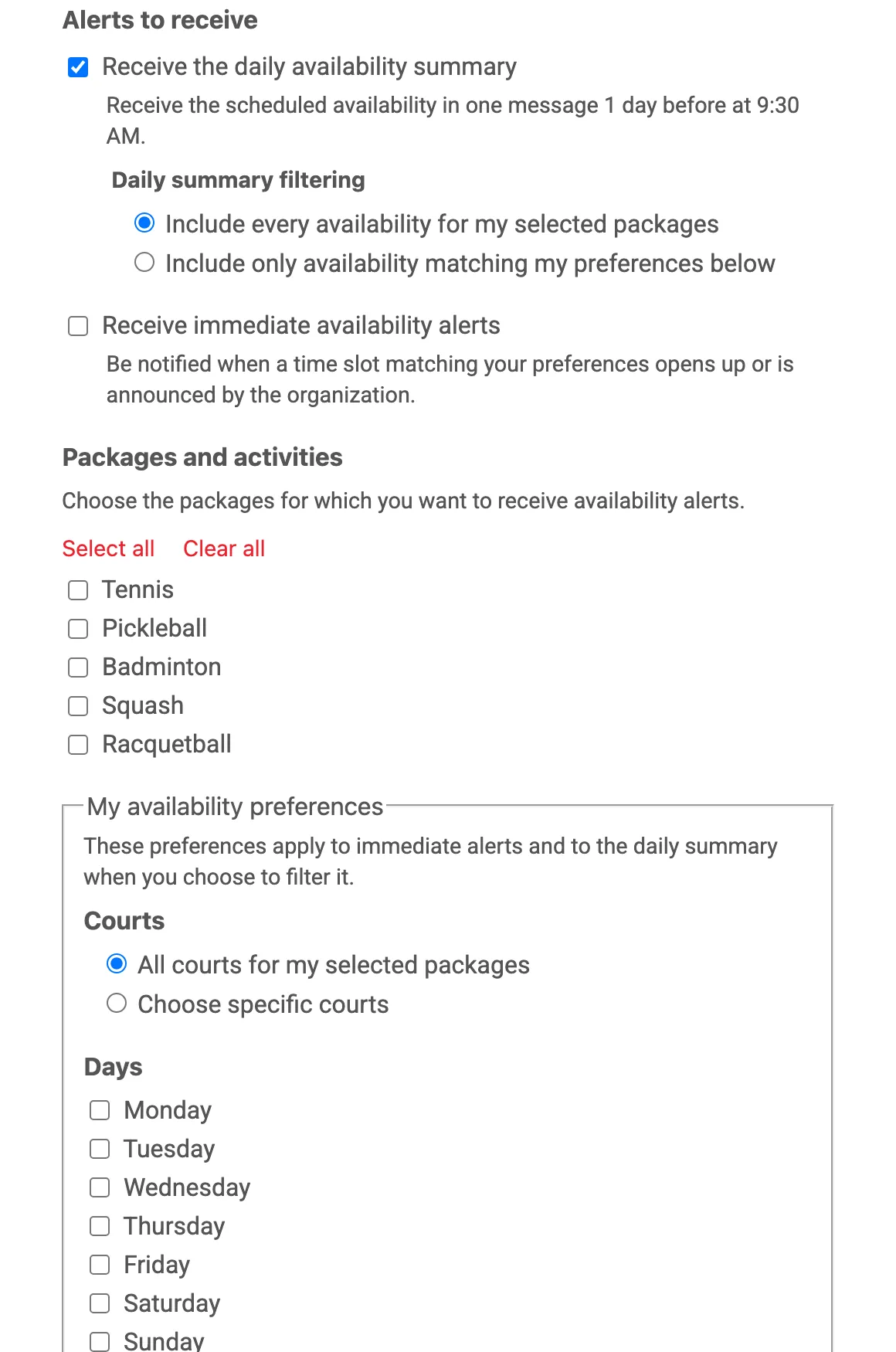
Clients can submit the shared form and later change the same choices under Client account → Preferences. Existing daily-summary subscribers and unsubscribed clients keep their current choice. They are not automatically subscribed to immediate alerts; they must enable that option themselves in the form or their client account.
Announce an available time
When manual alerts are enabled, administrators can send one from either of these workflows:
- In Today → Availability, select one or more free courts and time ranges, then click Send availability alert.
- Cancel, delete or shorten a future booking linked to an eligible package. Activity Messenger then offers the alert window for the released court and time. The cancellation does not send an alert by itself; review the window and click Send if the opening should be announced.
The window lists the announced courts and ranges and shows how many courts remain available for each complete time range. Several openings may be announced together. The recipient's link opens the corresponding package calendar with every announced opening highlighted, and the client chooses the time they want to book. Availability is checked again during booking.
Only clients who enabled immediate alerts and whose selected package, court, day, time and communication preferences match the announcement are included.
Offer a promo code with the alert
When the selected package accepts promo codes, turn on Add a promo code in the alert window and set a percentage or fixed amount and an expiration. The expiration cannot be later than the start of the first announced opening.
The code is created when the alert is sent, restricted to that alert's recipients, and applied automatically from the booking link. It is valid only for the announced packages, courts and time ranges. A code from one alert does not discount another court or time.
4. Follow the client's Microsite checkout
Use an incognito/private browser window to see the customer experience without the administrator session.
- Open Book a mat and its Calendar. Browse to an available day.
- Select a time. The example shows a one-hour slot starting at 10 a.m.
- Click Book to add the reservation to the cart. With this package's settings, an available mat is assigned automatically and its name is shown.
- Choose any optional add-ons, then click Checkout.
- In Shopping cart, review the package, date, time, assigned mat and total. Add-ons can also be selected here; choose which booking receives an add-on when the cart contains several bookings.
- Click Next, complete Your information, and continue through Payment and Confirmation as required by the checkout.
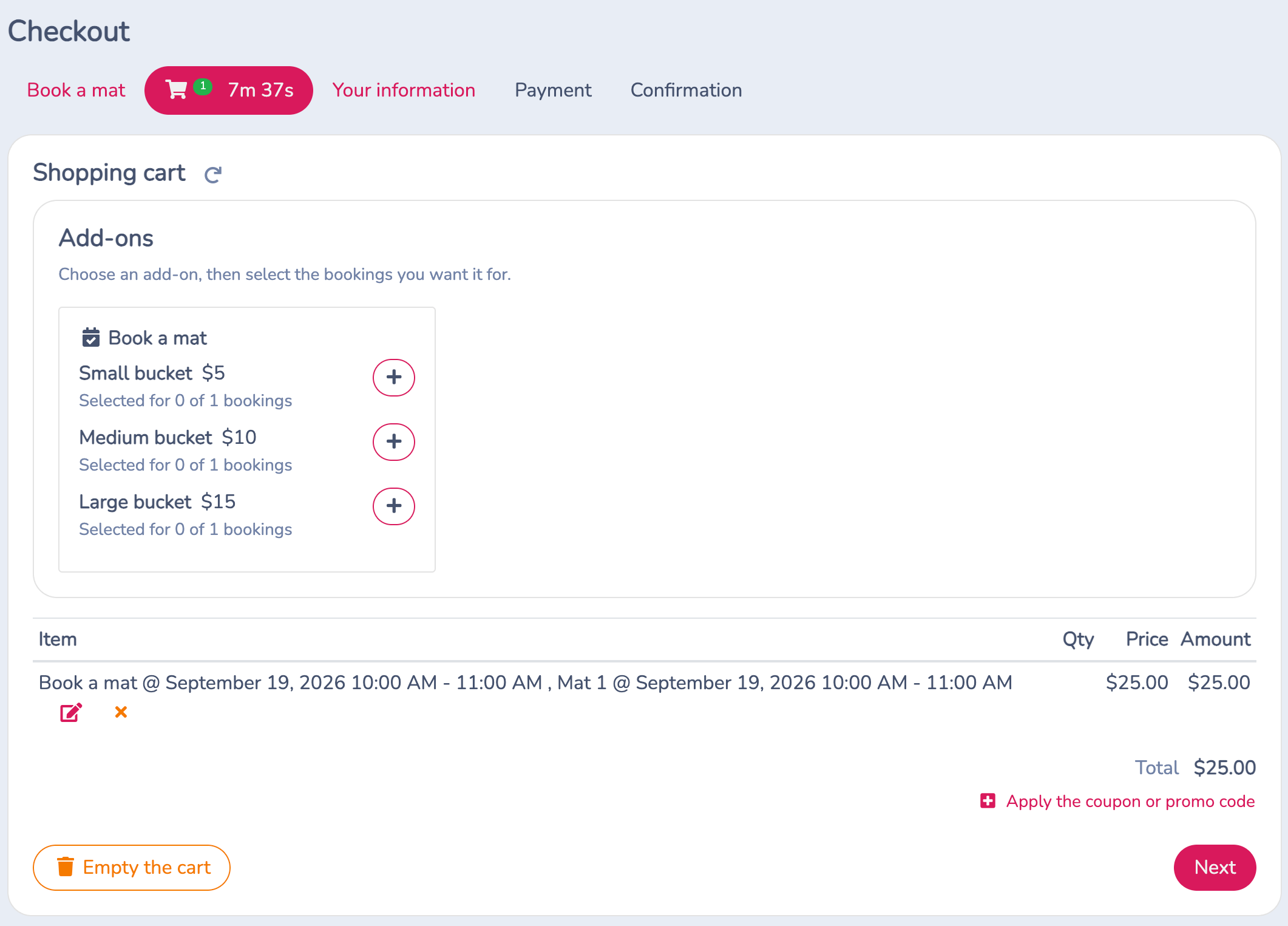
The screenshot shows the cart before payment, with no add-on selected. A cart timer indicates a temporary hold. Adding a booking to the cart is not the same as completing checkout: the client must finish the remaining steps. If the hold expires, check availability again.
Change availability for a single date
A pricing schedule describes a weekly pattern between a From date and a To date. It is the wrong tool for one exceptional day. A schedule has no single-date exception, and when two schedules cover the same date, the more recent schedule only replaces the start times it generates itself: the start times generated by the other schedule remain offered. A one-day schedule with shorter hours therefore does not remove the later start times. Use the tool that matches the situation.
Close early, or close the whole day, on one date: create a closure. On the Bookings calendar or on E-Commerce → Today, open the blue + menu and choose Closure. Enter a title, the start and end date and time, and the resources to close, then click Create. For example, to close at 2 p.m. on December 24 for a package that normally runs until 8 p.m., create a closure on the mats from December 24 at 2 p.m. to the next opening time. The closure blocks online booking on those resources for that period, including the package's buffers, and does not cancel or notify the reservations already on the calendar. Show closures (Calendar tab, on by default) only decides whether clients see the closure's title and message. The package schedule stays as it is. See Close resources with a booking closure.
Several closed dates for the whole organization: holidays. When Holidays appears under the organization settings' Advanced options, click Manage holidays and add the dates or date ranges. Booking schedules skip those dates. Holidays apply to the whole organization and to whole days, use the organization's timezone and do not repeat annually.
A staff member's day off: staff availability. When a resource row is a staff member and Adjust package schedule to fit staff availability is on in the Bookings tab, the offered starts are also limited to that person's availability schedule. Update the staff member's availability instead of the package. See Resources (locations and staff).
Different hours for a whole period: pricing schedules. For seasonal hours that apply every week during several weeks, end the current schedule with a To date and add a schedule with its own From and To dates and hours. Keep the ranges adjacent and check the gap warning. Return to this guide's Pricing/schedule section for the steps.
To confirm the result, open the package's Microsite link on the date in question. Staff can also check the resource on Today.
Package communications
Every message below is configured in the package editor under E-Commerce → Booking packages, except booking availability alerts, which are configured through a form question and its linked automation. The client messages are emails. There is no SMS confirmation setting for clients; SMS options exist only for staff notifications and for booking availability alerts.
Confirmation. After a Microsite checkout, the client receives the confirmation email with the invoice PDF, using the Communication → Confirmation email template or a template Activity Messenger creates when none is selected. When an administrator books from Availability on Today, the client receives it only when Send confirmation email to client is checked in the booking window. With Require approval for client booking requests (Bookings tab), the client receives instead the Request received email template at checkout, then the Request approved email template or the Refusal email template, from Booking approval communications in the Communication tab.
Cancellation. A cancellation sends the client the Cancellation email template with the receipt PDF; Activity Messenger creates one when none is selected.
Reminders and follow-ups. The Booking reminder block of the Communication tab holds four optional emails, each active only when a template is selected: Send an email before the event using this template with Number of days before and At this time; Send an email the day of the event using this template with At this time; Send an email before the end of the event using this template with Number of days before the end and At this time; and Send an email after the event using this template with Number of days after and At this time. The time is read in the organization's timezone. A client with several bookings receives one message, with the invoice attached. Notify assigned resources on the before and same-day reminders also sends them to the user linked to the assigned staff resource.
Staff notifications. Select the staff in Notify staff by email following a booking and Notify staff by SMS following a booking, and in the matching email and SMS lists following a cancellation and following a reschedule. Include payment and invoice details in staff notification is on by default; turn it off to hide amounts, payment details and the invoice PDF from the staff booking email. The SMS contains the booking name, the client name and a link to the invoice. With approval required, Notify staff of new requests lists the administrators who receive an email when a request needs review.
Players. Packages that ask for players have their own templates in the Communication tab: Players confirmation email template, Players cancellation email template, Players reschedule email template and Players roster change email template, sent without the invoice PDF. See Bookings with memberships and players.
Booking availability alerts. Add the Booking availability alerts question to a form. Clients can choose a scheduled summary, immediate administrator announcements, packages, courts, days, times and email or SMS. Saving the question creates its linked Booking availability notification automation. See the Booking availability alerts section above and Choose and understand automations.
No staff task. Activity Messenger does not create a task, to-do or assignment for staff after a booking, a cancellation or a reschedule. Staff learn about bookings through the notifications above and by looking at Today and the Bookings calendar.
Settings reference
| Setting | Where | Default | Effect |
|---|---|---|---|
| Start time, End time, Step | E-Commerce › Booking packages › package › Pricing/schedule › weekday row | None | Start times are generated every Step minutes from Start time while the start is earlier than End time. End time does not stop a booking from running past it. |
| Duration | Bookings tab › resource row | None | Length of the booking on that row. The Last booking message adds it to the last start. |
| Offer multiple booking durations | Bookings tab | Off | Adds duration choices on the calendar. All reservable rows must share the same Duration. A longer option is offered only at starts where it ends by the end of the day's last base-duration booking. |
| Rate multiplier | Bookings tab › Booking durations | Blank | Blank prorates the slot price by the duration ratio; a value multiplies the slot price. |
| Ask for duration before showing the calendar | Bookings tab | Off | The client chooses a duration first, then sees availability for it. |
| Adjust package schedule to fit staff availability | Bookings tab | Off | Limits the offered starts to the staff resource's availability. |
| Show closures | Calendar tab › Display | On | Draws closures on the public calendar. Closed slots are blocked either way. |
| Require approval for client booking requests | Bookings tab | Off | The booking is confirmed only after an administrator approves it; request received, approved and refusal emails apply. |
| Manage holidays | Organization settings › Advanced options › Holidays | No dates | Booking schedules skip these dates for the whole organization. Shown only when holidays are enabled for the organization. |
| Confirmation email template | Communication tab | None; one is created | Email sent to the client after checkout, with the invoice PDF. |
| Cancellation email template | Communication tab | None; one is created | Email sent to the client after a cancellation, with the receipt PDF. |
| Send confirmation email to client | Today › Availability › booking window | On when the window opens | Sends the confirmation email for an administrator booking. |
| Notify staff by email following a booking; by SMS following a booking | Communication tab | Nobody | Selected staff receive an email or SMS after each booking. |
| Include payment and invoice details in staff notification | Communication tab | On | Off hides amounts, payment details and the invoice PDF from staff booking emails. |
| Notify staff by email or SMS following a cancellation; following a reschedule | Communication tab | Nobody | Selected staff receive an email or SMS after a cancellation or a reschedule. |
| Notify staff of new requests | Communication tab › Booking approval communications | Nobody | Administrators emailed when a booking request needs review. |
| Send an email before the event using this template; Number of days before; At this time; Notify assigned resources | Communication tab › Booking reminder | None | Reminder email before the booking, at that time in the organization's timezone. |
| Send an email the day of the event using this template; At this time; Notify assigned resources | Communication tab › Booking reminder | None | Reminder email on the booking day. |
| Send an email before the end of the event using this template; Number of days before the end; At this time | Communication tab › Booking reminder | None | Email before the booking ends. |
| Send an email after the event using this template; Number of days after; At this time | Communication tab › Booking reminder | None | Follow-up email after the booking. |
| Send an automated availability summary | Booking availability alerts form question or Automations › Booking availability notification | On for an existing scheduled summary | Sends a scheduled email or SMS only when availability matches the subscriber's package and summary filtering. |
| Enable manual availability alerts | Booking availability alerts form question or linked automation | Off for existing subscribers | Adds Send availability alert after eligible cancellations and on selected free times. The administrator must confirm each send. |
Common questions
How do I close early on one date? Create a closure from the Bookings calendar or Today (blue + › Closure) on the affected resources, from the early closing time to the next opening. Leave the pricing schedule unchanged; a one-day schedule does not remove start times generated by the regular schedule. See the Change availability for a single date section above.
Why does an End time of 8 p.m. still allow a booking that ends at 9 p.m.? End time limits start times only: a start is offered while it is earlier than End time, whatever the Duration. Set End time so that the last start plus the Duration lands at closing, and read the Last booking message. See the Final start time versus booking duration section above.
Why does my longer duration offer show no availability? A longer option is offered only at starts where it ends by the moment the last base-duration booking of that day ends. An option that exceeds the base by 24 hours or more can never fit and never appears. Make the long duration the Duration of its own package.
What messages does a client receive after booking a package? The confirmation email with the invoice PDF, or the request received and approved emails when approval is required. Afterwards, only the reminders and follow-ups whose templates are selected in the Communication tab, and the cancellation email if the booking is cancelled. Clients do not receive an SMS confirmation.
Can a booking create a task for staff? No. Activity Messenger does not create staff tasks after a booking. Use Notify staff by email following a booking or Notify staff by SMS following a booking in the Communication tab, and check Today for the day's schedule.
Can clients be told when a slot frees up? Yes. Add the Booking availability alerts question to a form and enable immediate alerts. Clients must opt in to immediate alerts and choose the packages and preferences that interest them. After an eligible cancellation or from selected free times in Availability, an administrator reviews and sends the alert. See the Booking availability alerts section above.
Export the booking calendar or subscribe from an external calendar
You can export a booking report for a selected period, or subscribe to a calendar of resource reservations in Google Calendar, Outlook or Apple Calendar. Choose the subscription when you want an external calendar to retrieve changes over time.
Export a one-time booking report
In the Booking calendar, open the ⋮ menu and select Booking report. Choose the date range and booking packages, then click Export to generate a printable daily schedule. This report is a snapshot; it does not create a dynamic calendar subscription.
Subscribe to resource reservations with an iCalendar link
Use a Calendar block on a Microsite page to provide the subscription link. You need permission to edit that page. The link follows the block's configured sources and filters; it does not automatically include every reservation in the organization's administration calendar.
- Open a Microsite page in the editor and add or edit a Calendar block.
- Under Event sources, click + and choose Pull classes and reservations from resources (locations or staff).
- Select the resources under Locations. Optionally select a Booking type to restrict the reservations shown. Save the source. For example, select Mat 1, Mat 2 and Mat 3 to follow reservations for all three mats.
- Under iCalendar, enable Allow export, then save the calendar block and page.
- Open the page, click iCalendar below the calendar and copy the subscription URL. Leave the optional export dates empty for an ongoing subscription.
- In Google Calendar, Outlook or Apple Calendar, add a calendar from a URL or use the application's calendar-subscription option, then paste the link. Importing a downloaded
.icsfile once does not subscribe to future changes.
The subscription retrieves the events for the selected resources and booking type. Temporary cart holds are excluded. Without fixed export dates, the feed covers a rolling window from one month before today to three months ahead. Changes to reservations are available when the external application next refreshes the feed; that application controls its refresh schedule, so updates are not necessarily immediate.
The link lets the external application read the calendar. Continue to create and edit reservations in Activity Messenger. Before sharing the page or subscription URL, check the selected sources and displayed details, including whether booker names are shown.
If changes do not appear
Confirm that you added a subscription URL rather than importing a file. Check the calendar application's refresh settings, the resources and booking-type filter in the block, and any source or fixed-date filters in the copied URL. A one-time booking report does not refresh. Staff-specific iCalendar links are another option for an employee's own schedule; use the Microsite calendar above to group selected resource reservations.
Related guides
- Memberships, for offers restricted by membership.
- Rental contracts, when a rental also requires a contract.
- Calendar colours and views, for where booking type colours appear on the Bookings calendar, Today and the client calendar.
- Private lessons, for the coach's day list of lessons booked on a staff resource.