Activity Messenger Help Center
Anonymize a client
Activity Messenger lets an Account Owner anonymize one or multiple client accounts from Clients. This removes the client’s name and phone number; by default, the email address and mobile number are added to the unsubscribe lists, and anonymized accounts are hidden from Client accounts. Anonymization may also affect linked participants, recipients, registrations and invoices. Unlike archiving—which only hides a client from the default list and leaves the account and history unchanged—anonymization removes personal details but does not delete the account; the account email remains.
In plain words, anonymizing does: remove the client's name and phone number from the client account and from the related recipient records that use the same email address, including registrations and form answers; mark the account as anonymized with the reason you chose; hide it from the default Client accounts list; and, by default, add the email address and mobile number to the unsubscribe lists. It may also affect linked participants and invoices. Anonymizing does not: delete the client account, the invoices, the registrations or the history, and it does not remove the email address from the account. Is it reversible? Not from the interface. There is no undo button and no automatic restore; the operation is logged, and the confirmation message points you to the support form in case of error. Treat anonymization as permanent and contact Activity Messenger support right away if it was done by mistake. If you only want to remove a client from your list, archive the client instead; Activity Messenger has no action that deletes a client account.
Before you start
Only a user with Account Owner permission can anonymize client accounts. Review the account preview and confirmation carefully before proceeding. The confirmation requires a password, and the app warns that mistakes may have significant consequences.
Anonymization may also affect participants linked to the same account, other related recipients using the same email address, and linked registrations and invoices. The operation is logged. The model code allows an undo through the change log for a limited time; this is not a user-facing undo control, so don't rely on being able to reverse the action yourself.
Anonymize a client account
- Go to Clients and locate the client account.
- Select the checkbox for the client. The Anonymize account action appears for an Account Owner when at least one client is selected.
- Click Anonymize account.
- Review the before-and-after preview. Choose a reason: Asked by client, Spam, or Admin.
- Leave Add client to unsubscribes list on if you want to prevent future marketing and reminder communications to the client. It is on by default. If left on, the app adds the client’s email and mobile number to the unsubscribe lists. Turning this option off does not add them through this operation.
- Read the warning about related recipients and records. Click Anonymize, then complete the password confirmation only if the selected account and consequences are correct.
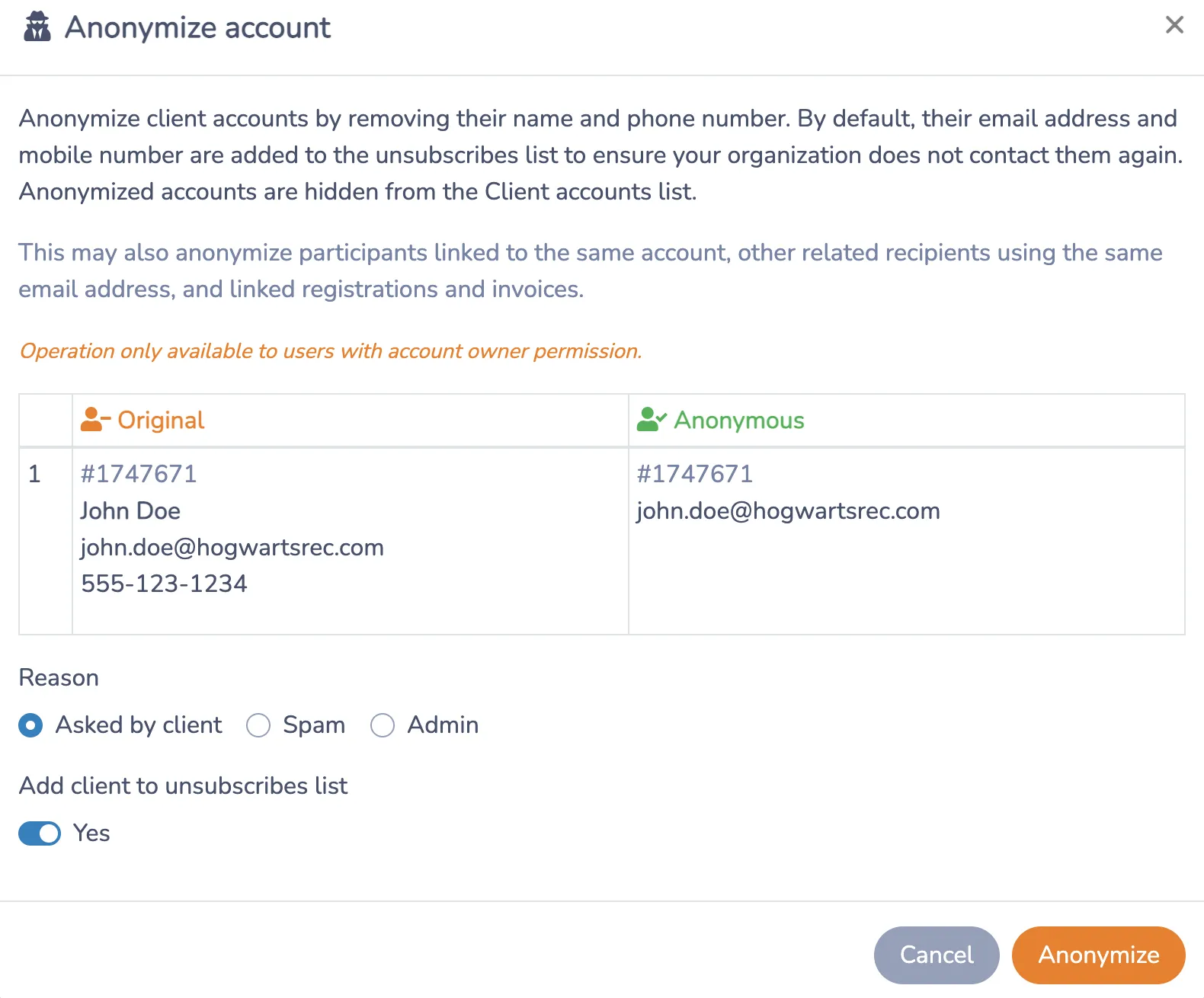
The client and recipient names and phone numbers are removed. The account email remains. Personal details such as names, phone numbers, dates of birth and gender are removed from linked recipient information and relevant form-answer data. The account is marked anonymized and hidden from the normal Client accounts view; use the client filter to select Anonymized – Asked by client, Anonymized – Spam, or Anonymized – Admin to find it.
Anonymization does not mean that the whole account, invoices, registrations, or historical records are deleted. The interface specifically warns that linked registrations and invoices may be affected; it does not promise that every copy of personal information in every record is erased. The email is deliberately retained on the client account. If you need every trace removed or have a legal-deletion request, contact Activity Messenger support rather than assuming this action does that.
Choose between anonymizing and archiving
- Archive a client when you only want to hide them from the default client list while keeping their account and history unchanged. See Archive and restore clients.
- Anonymize a client when you want to remove identifying details from the account and relevant linked data, while keeping the email address on the client record and optionally adding contact details to the unsubscribe lists.
Anonymized clients cannot be archived. Anonymizing is separate from deleting a client account, and the app does not offer a client-account deletion action here.
Settings reference
| Setting | Where | Default | Effect |
|---|---|---|---|
| Anonymize account | Clients › Client accounts, after selecting one or more clients | Hidden until a client is selected; Account Owner only | Opens the anonymization window for the selected account. The button reads Anonymize accounts when several clients are selected. It is not shown while an Anonymized filter is selected. |
| Reason | Anonymization window | Asked by client | Recorded on the account and used by the client filter to find it later: Anonymized – Asked by client, Anonymized – Spam or Anonymized – Admin. |
| Add client to unsubscribes list | Anonymization window | Yes | Adds the client's email address and mobile number to the marketing and reminders unsubscribe lists before the account is anonymized. Set to No to anonymize without adding them. |
| Client filter › Anonymized – Asked by client / Spam / Admin | Clients › Client accounts, above the list | All | Shows only the anonymized accounts with that reason. Anonymize account and Merge accounts are not available while one of these filters is selected. |
Common questions
What does anonymize mean? It removes the client's name and phone number from the account and the related records that share the same email address, hides the account from the default Client accounts list and, by default, adds the email and mobile number to the unsubscribe lists. The email address and the account itself are kept. See "In plain words" at the top of this article.
Is anonymizing the same as deleting a client? No. The account, its invoices, registrations and history remain, and only identifying details are removed. Activity Messenger has no action that deletes a client account; to remove a client from your list, archive the client.
Can I undo an anonymization? Not from the interface. There is no undo control; the operation is logged and the confirmation message points to the support form in case of error. Contact Activity Messenger support right away if an account was anonymized by mistake.
Who can anonymize a client? Only a user with Account Owner permission. The Anonymize account button appears for them once at least one client is selected in Client accounts, and the confirmation asks for their password.
Can I anonymize several clients at once? Yes. Select several rows in Client accounts and click Anonymize accounts. The preview lists every selected account before you confirm.
Where do anonymized accounts go? They are hidden from the default list. In the client filter above the list, choose Anonymized – Asked by client, Anonymized – Spam or Anonymized – Admin to see them.