Activity Messenger Help Center
Interac e-Transfer
Use Interac e-Transfer to collect client payments in Canada and reconcile them with invoices. There are two separate steps: the bank receives the transfer, then Activity Messenger records the payment against the invoice. Configure the receiving address, instructions and reconciliation before offering the method to clients. Bank processing and incomplete payment information can delay settlement.
Where do I find Interac emails to reconcile?
When Activity Messenger has received Interac e-Transfer emails that could not be reconciled automatically, an orange Interac email(s) without an invoice link with a count appears in the organization header, near the organization logo. You can find it on Dashboard, Invoices, Bookings, or Calendar. Click it to open Interac emails and review the unreconciled emails.
This link appears only when there are unreconciled, unarchived Interac emails and your administrator account has permission to reconcile Interac payments. It is not a permanent menu item. If no emails need reconciliation, the link is absent, even when some clients still have pending Interac payments.
To find pending Interac e-Transfers at any time, go to E-Commerce → Invoices, open the Payment filters, and enable both Interac e-Transfer (by email) and Pending payments. Open the relevant invoice to review and reconcile its pending payment. A pending invoice does not prove that the bank confirmation email has been received or that the funds have been deposited.
If an unreconciled email is known to exist but you cannot see the header link, ask an administrator to check your permission to reconcile Interac payments.
Setting up Interac e-Transfer
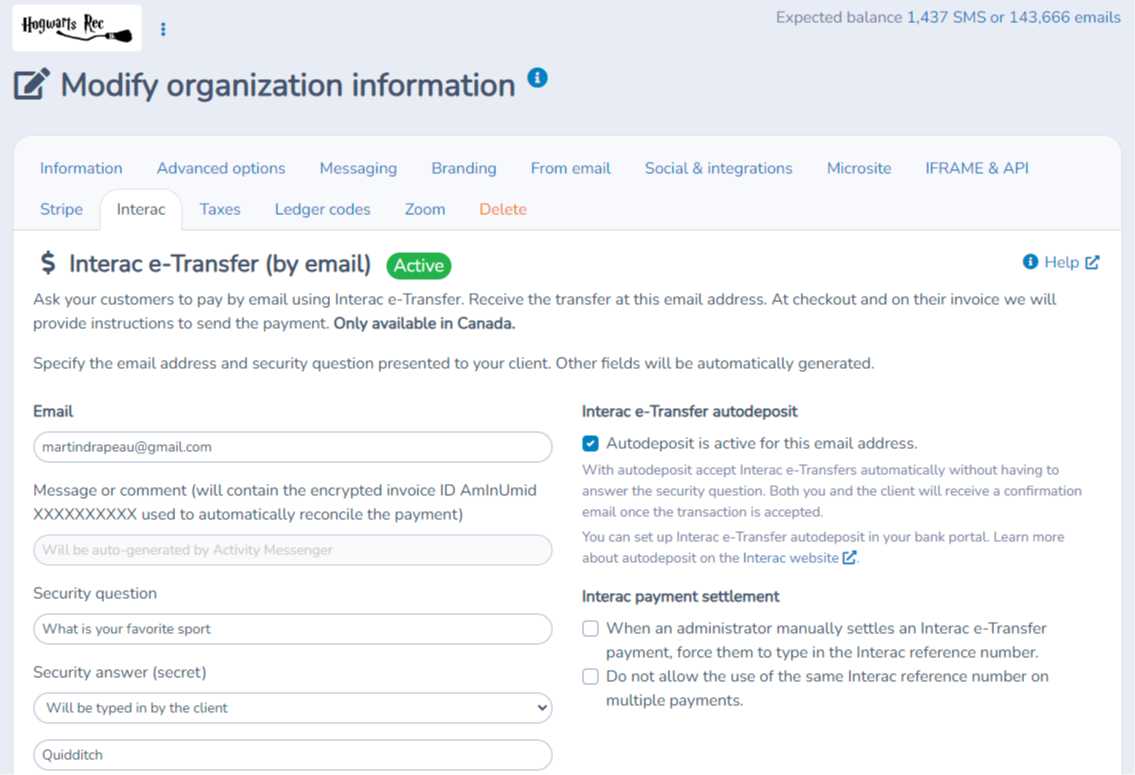
To enable payment via Interac e-Transfer in Activity Messenger, click on the menu next to your logo and select the Interac option.
Enter the email address where your clients will send the transfer.
We recommend activating automatic deposit for Interac e-Transfers through your banking app. This will prevent you from having to accept each transfer by entering the answer to the security question. Deposits will be made automatically without any intervention. Visit the Interac website to learn more about this feature and the enhanced security measures it provides.
Click on Save, and Interac e-Transfer will be available as a payment option in your payment forms.
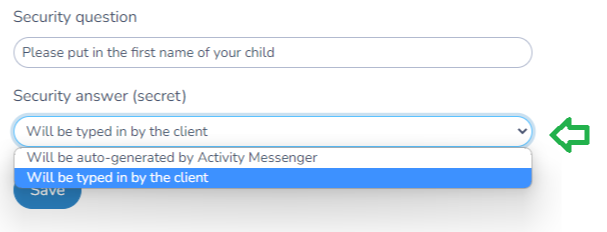
Security question and answer
By default, Activity Messenger will automatically generate the security answer. If you prefer to allow the client to enter their own answer, you can change the option here:
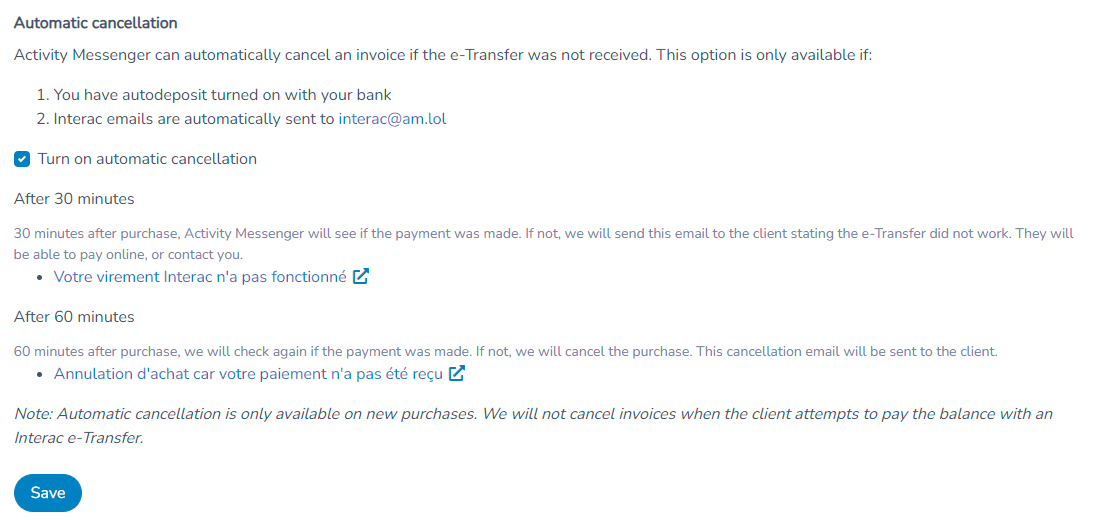
Automatic cancellation (optional)
You can activate automatic cancellation to cancel a registration if payment is not received within a specified timeframe (e.g., 60 minutes).
If you also require a backup credit card for the purchase, Activity Messenger attempts to charge that card at the deadline instead of cancelling immediately. A successful charge settles the invoice; a failed charge continues the cancellation. See Require a backup credit card below.
Notification Process:
Initial Email: A notification email will be sent to the client, encouraging them to complete their payment before cancellation.
Payment Reminder: If the payment is not received immediately, an automatic reminder email can be sent to the client, prompting them to complete their transfer.
Email Customization: You can customize the email template to include a direct link to the client's invoice, making it easier for them to access and complete the payment.
Final Cancellation Email: If the payment is still not received after the designated time (e.g., 60 minutes), and no backup-card charge succeeds, a second email will be sent to inform the client that their registration has been canceled.
Adding Interac e-Transfer to a registration form
In the registration form, go to the payment options.
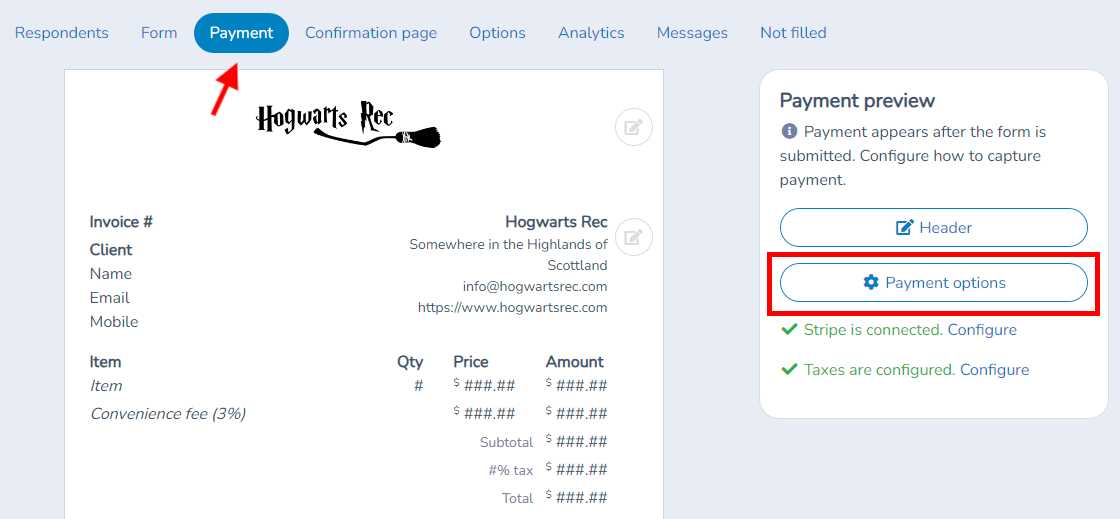
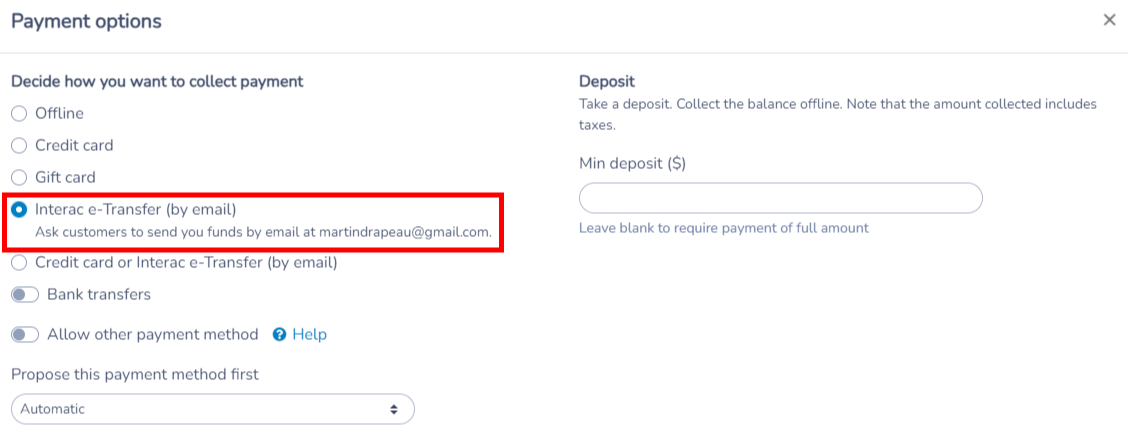
Set the default payment method to Interac e-Transfer or add it as an option alongside other payment methods like credit card.
Require a backup credit card
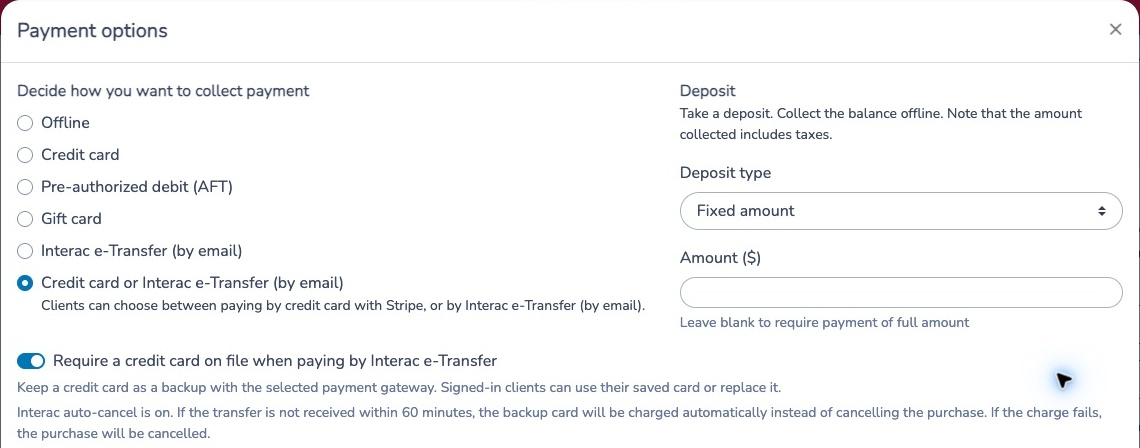
You can require clients who choose Interac e-Transfer to keep a credit card on file as a backup. This option works with Stripe and Moneris. The card is saved during checkout and is not charged at that time.
In the form’s Payment options:
- Select Interac e-Transfer (by email) or Credit card or Interac e-Transfer (by email).
- Enable Require a credit card on file when paying by Interac e-Transfer.
- Review the helper text showing your organization’s Interac auto-cancel setting, then save.
The same optional requirement is available in the payment configuration of booking packages and products for Microsite checkout. Enable it separately for the forms, packages or products that need it.
What happens if the transfer is not received?
- Interac auto-cancel is on: at the configured deadline, Activity Messenger automatically attempts to charge the backup card for the amount due. If the charge succeeds, the invoice is paid. If it fails, the purchase is cancelled.
- Interac auto-cancel is off: the card is not charged automatically. An administrator can use the card on file to settle the invoice if the transfer is not received.
If the payment gateway cannot confirm the outcome of a charge, automatic charging and cancellation pause for administrator review. Check the gateway payment before retrying or cancelling.
The time limit comes from your organization’s Interac settings; 60 minutes in these screenshots is an example. Keep bank-email forwarding and invoice reconciliation working so received transfers are recorded before the deadline.
What does the client see?
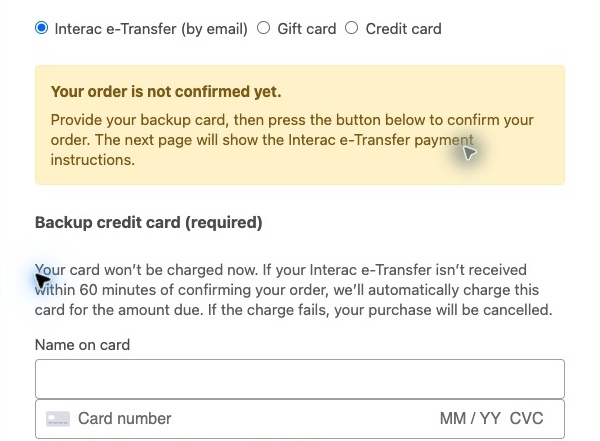
When the client selects Interac, checkout asks for a backup card and explains when it may be charged. Signed-in clients can use an eligible card already on file or replace it with a new card.
The yellow notice explains that the order is not confirmed yet. After providing the backup card, the client presses Confirm order and view payment instructions to reach the next page. Saving the card does not send the Interac transfer: the client still follows the instructions in their banking app.
Follow up on pending payments
An invoice’s pending Interac payment shows whether auto-cancel is on and the date and time of the deadline. When a backup card is attached, it explains that the card will be charged if the transfer is not received, and that a failed charge leads to cancellation.
On Payments needing attention, a Backup badge appears in Payment type for payments with a backup card. Hover over the badge to read the deadline and charging explanation. The Amount column shows the payment amount.
Client experience with Interac e-Transfer
Activity Messenger will guide your client to complete the transfer from their banking app. During their first transfer to your business, they will need to create a new recipient and enter the email address. Once the recipient is added, future transfers will be quicker and easier.
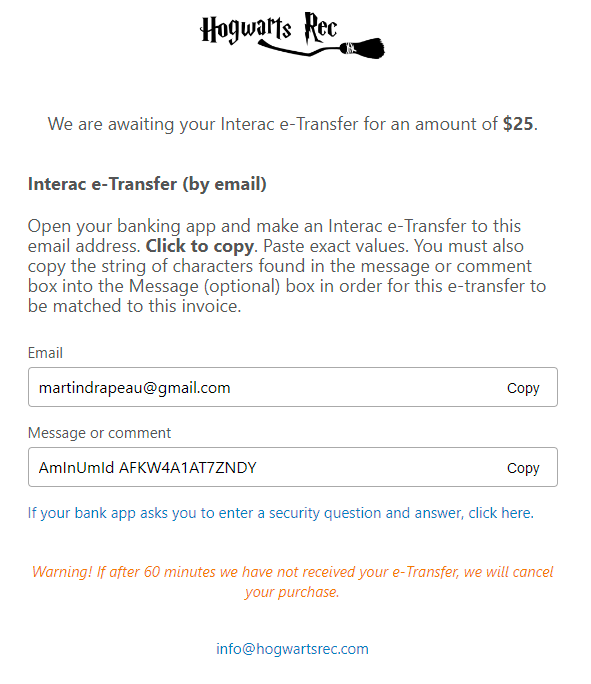
The Message or Comment field will contain the encrypted invoice identifier. This code will allow Activity Messenger to match the received transfer with the client's invoice, automatically marking the invoice as paid.
The Security Question and Security Answer fields will not be used if you have enabled automatic deposit. However, the client will still need to enter these fields in their banking app.
If you ask the client to enter the security question, the Security Question and Security Answer fields will be displayed. The client will need to input the security question in the designated field.
Activity Messenger allows the client to easily copy the values by clicking on each field. They can then paste them into their banking app.
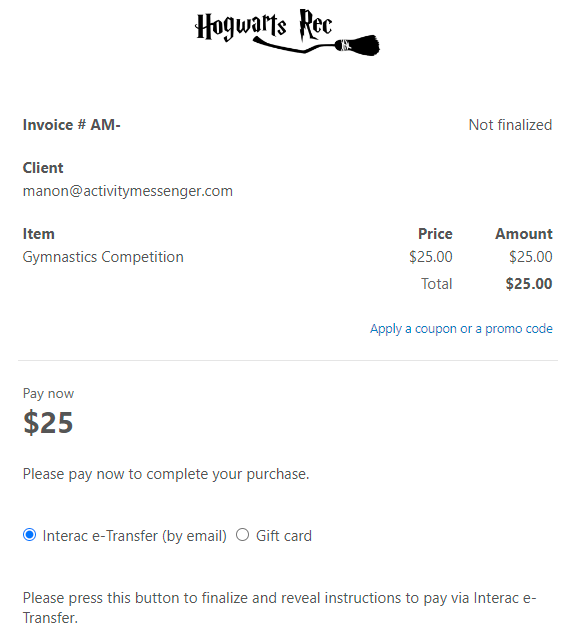
Once the client has completed the Interac e-Transfer, they can press the button to finalize the invoice. They will receive a confirmation email with the invoice attached.
Tracking Interac e-Transfer invoices
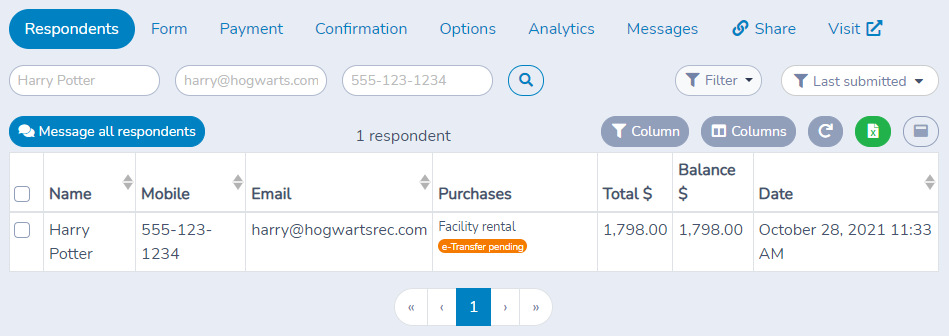
The administrator can easily track Interac e-Transfers. In the admin portal, the invoice will be marked as "Pending e-transfer". Invoices are visible under both the Respondents table of a Payment Form, or under Invoices in the E-Commerce menu.
Manually accept an e-Transfer
If you did not activate autodeposit for this email address with your bank, you will be required to type in the security question answer that was auto-generated for the invoice. You can find that by opening the invoice and by clicking on "Reveal e-Transfer instructions". The Interac e-Transfer details will be available there.
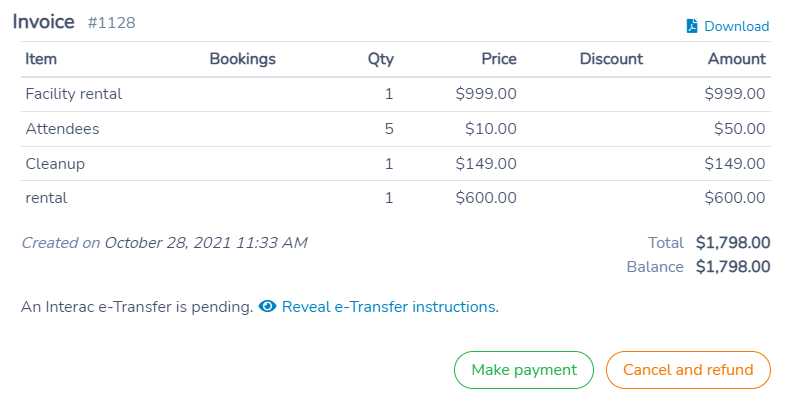
Interac payment settlement
Your bank will send you an email when the Interac e-Transfer is accepted. To mark an invoice as paid, you have two choices:
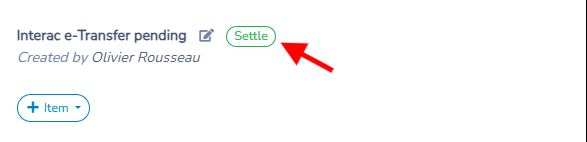
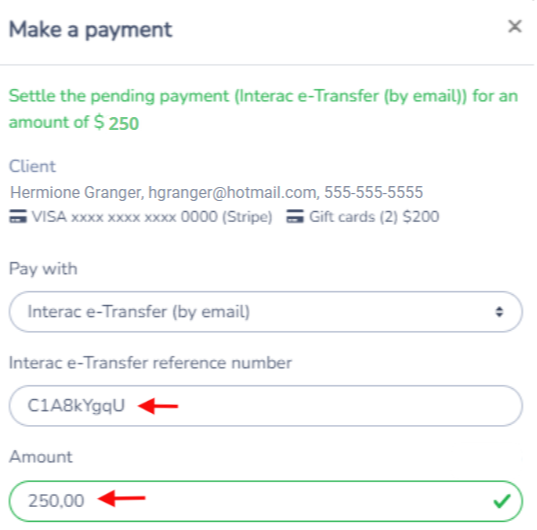
- You can open the invoice and click on Make a payment. Choose Interac and click save.
- You can forward the email to interac@am.lol. It will be settled automatically. Activity Messenger will match the encrypted invoice ID typed in by the client in the message or comment field.
Automatic payment settlement
To automatically settle an Interac e-Transfer payment against its matching invoice, forward confirmation emails you receive from your bank to interac@am.lol. You can create an automatic rule in your email client (i.e. Gmail or Outlook) to forward those emails to Activity Messenger. That way, the process is fully automatic. Most times it should only take a few minutes from purchase to payment settlement.
Interac e-Transfer fees
Activity Messenger adds a 1% process fee with a minimum of $0.50 and a maximum of $5.00 plus applicable sales taxes. That amount will be added to your monthly subscription bill. Consult the Billing page for further details.
Email Interac without an invoice
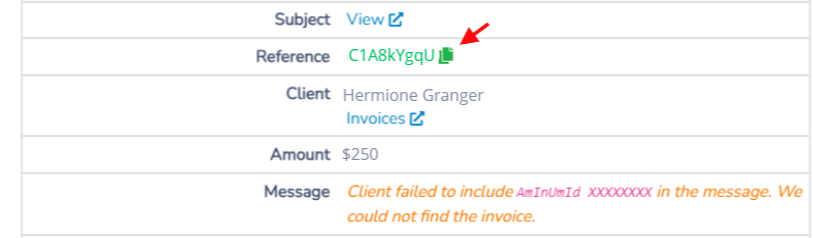
It sometimes happens that an Interac e-Transfer is not correctly associated with an invoice. This usually occurs when the client forgets to include the message "AmInUmid XXXXXXXX."
The orange Interac email(s) without an invoice link in the organization header shows the number of unreconciled emails. It appears only when there are unreconciled, unarchived emails and you have permission to reconcile Interac payments. Open Dashboard, Invoices, Bookings, or Calendar to find it.
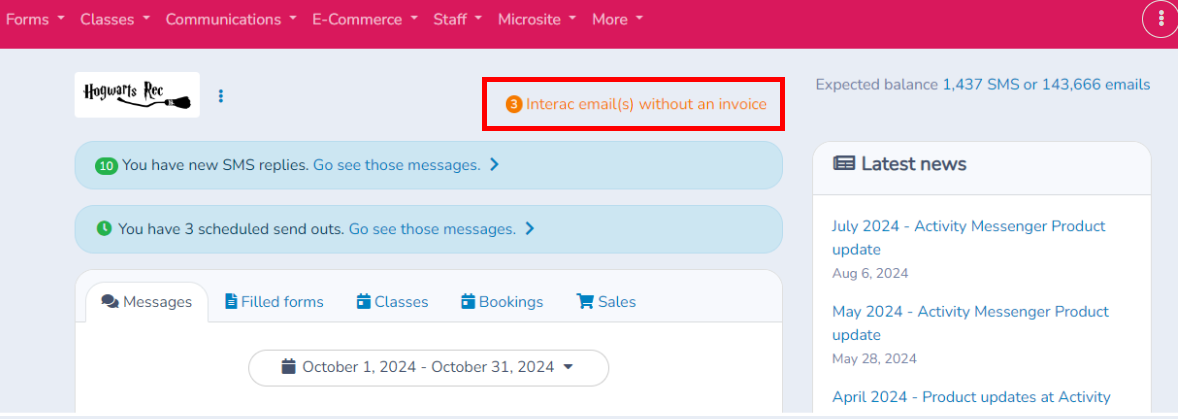
Click Interac email(s) without an invoice to open the Interac emails table. You will see that the message "AmInUmid XXXXXXXX" was not included when the client made the transfer. As a result, Activity Messenger was unable to locate the invoice.
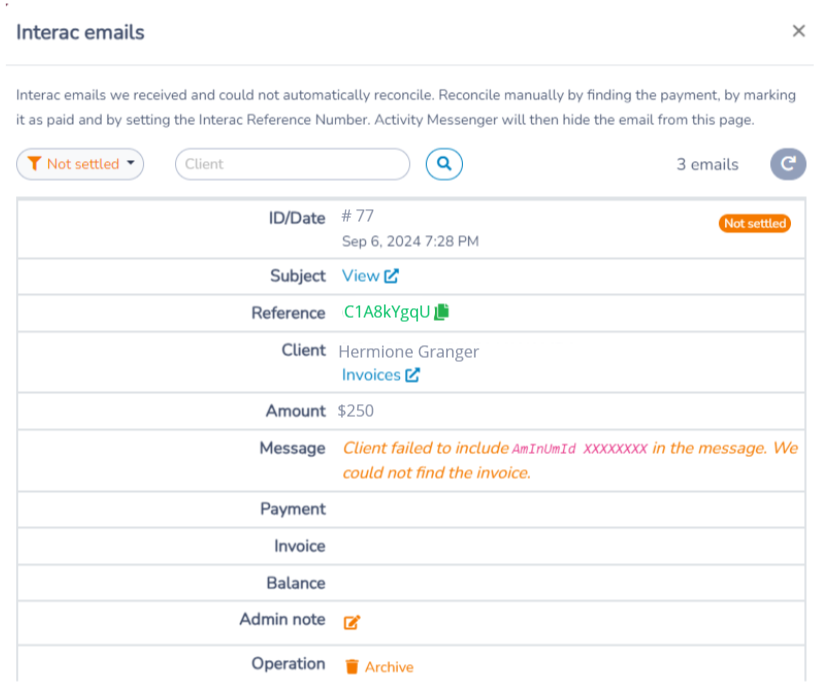
Click on View to check the Interac email.
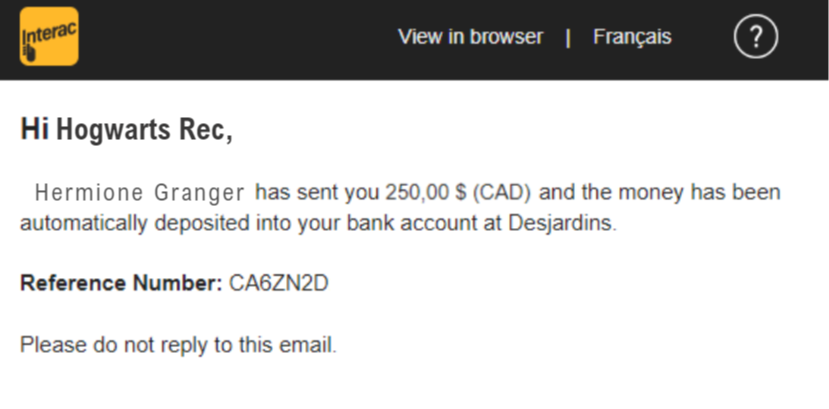
Copy the reference number.
Go to E-Commerce → Invoices, open the Payment filters, and enable Interac e-Transfer (by email) and Pending payments. Search for the client and open the matching invoice. These filters remain available even when the orange header link is absent.
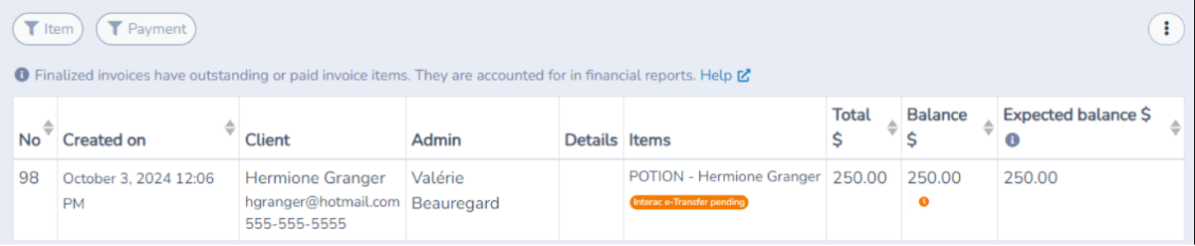
Open the invoice and reconcile the payment by copying the Interac reference number and entering the correct amount if it differs.