Embedding your Microsite using an IFRAME
You can embed your Microsite inside your website using an IFRAME. The iframe code can be obtained by clicking on the menu E-Commerce, and choosing the option API & IFRAME.
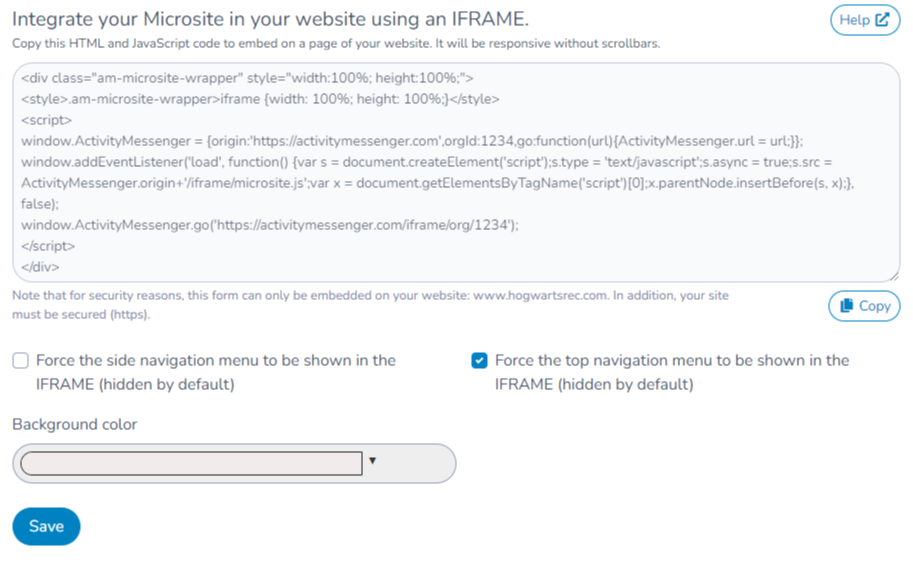
An iframed Microsite does not have the side bar navigation nor the breadcrumbs (top navigation) by default. You can toggle those options on if you like.
You may change the background color to transparent or any other color. The button color is configured in branding settings.
The iframe is fully responsive and has no scroll bars. It will adjust in width and in height to fill the container you provide. We recommend to make your website responsive as well for mobile devices.
Match the embedded experience to the host page
Review the IFRAME & API options in organization settings, including sidebar, breadcrumbs, logo and background. Use the provided embed instructions and test the actual host page on mobile; its container and scripts affect sizing. An iframe does not change access permissions. Keep shared store and navigation settings in the microsite configuration, and use the separate Website builder guides if that is your editing interface.