Activity Messenger Help Center
Class reminder
Send a reminder or follow-up for each occurrence of a class. Use this workflow for recurring sessions; use Activity start or Activity end when you only want to contact participants around the first or last class.
For imported Amilia or Excel/CSV audiences, check that occurrence dates are available. Activity Messenger class sources use their scheduled occurrences.
Create the automation
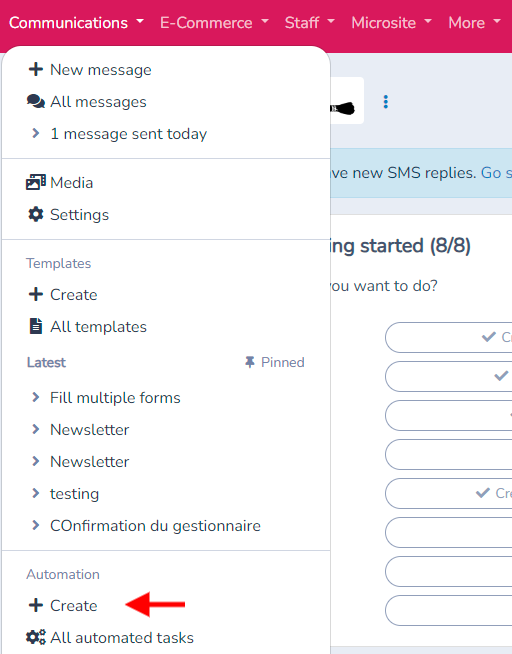
Go to the Communication section in the main menu and select Create in the automation section.
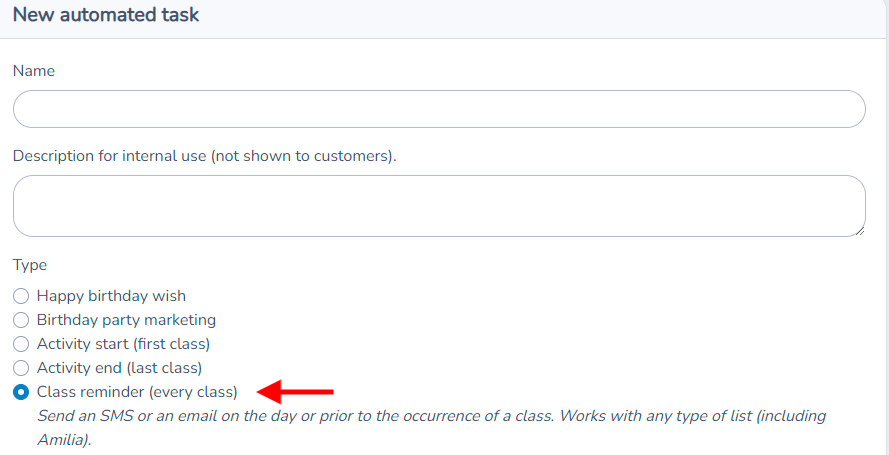
In the automation options, choose "Course Reminder or Follow-Up."
This allows you to schedule reminders for each course session, not just at the beginning of the session, but for every occurrence in the calendar.
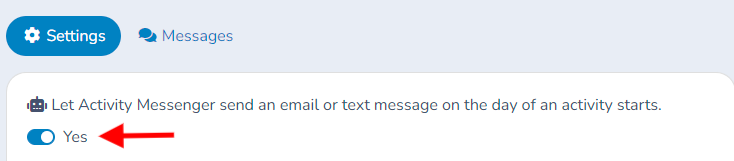
Click on Create to start setting up the automation, then click the button to change the response to "Yes" to activate the bot.
Define When the Message Should Be Sent For example, set it to send on the day of the class at 2 PM.
You can schedule the reminder to be sent for each session of a weekly or monthly course, depending on your needs.
Select the Course, Form, or List Choose the course, form, or list to which the automation will apply.
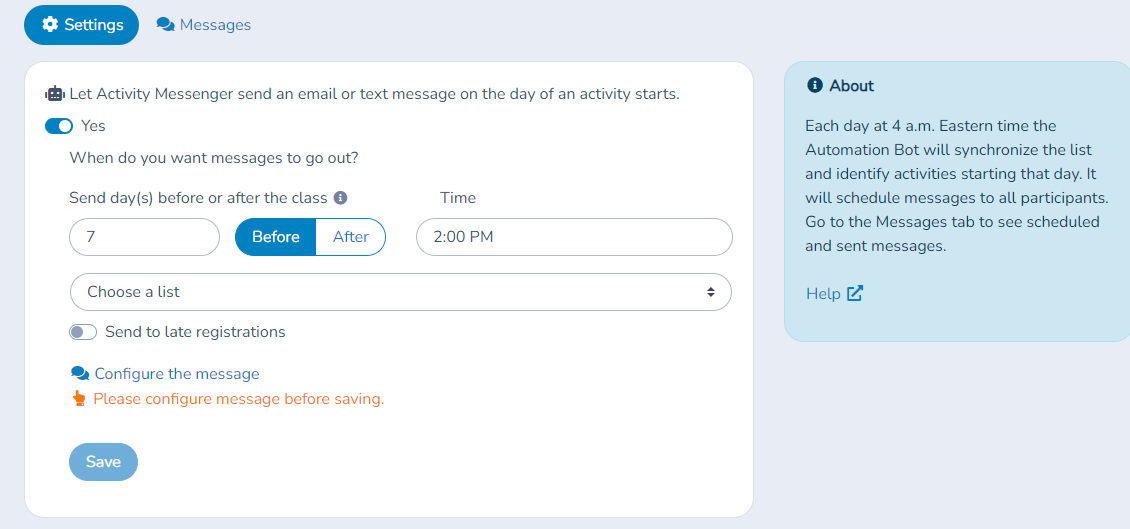
Finally, configure the message and save the automation.
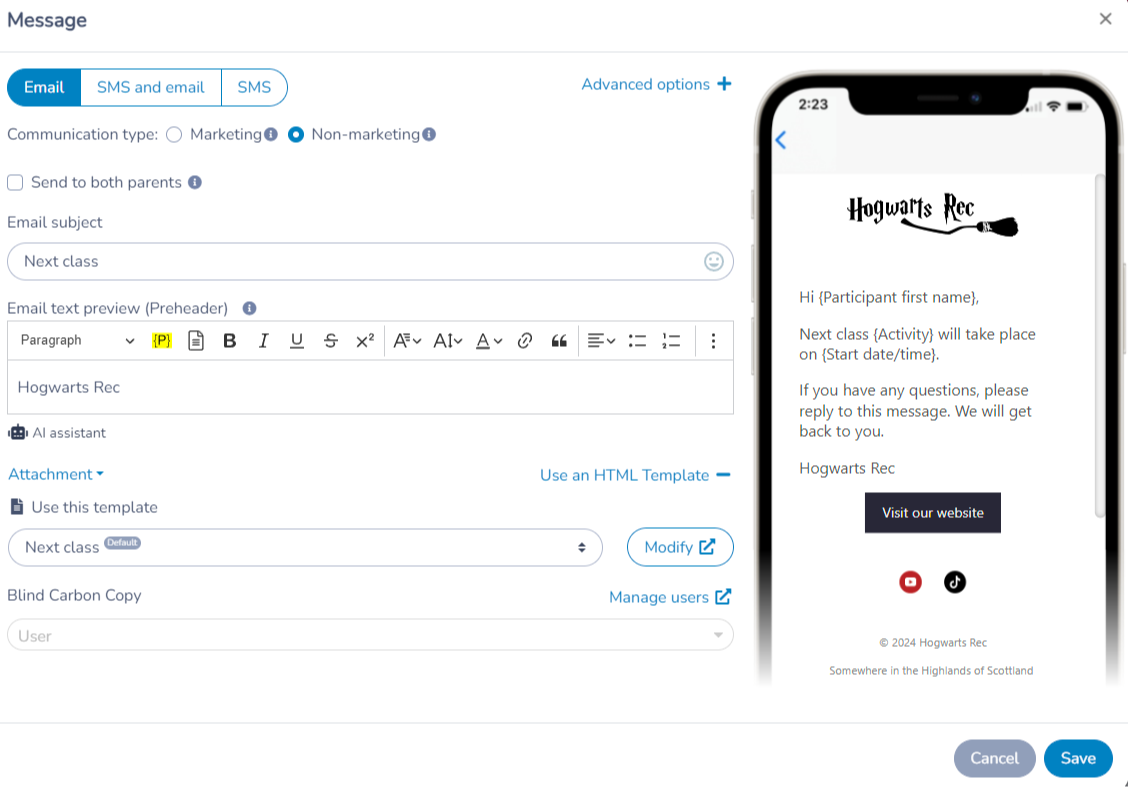
Tasks of the "Course Reminder" type work with all list types, including combined lists. Activity Messenger will ignore recipients who are not registered for an activity.
At the bottom of the screen, use the simulator to select a day and preview the participants eligible for a class reminder on that day, along with their scheduling status. Use the date picker or the arrow buttons to change the day, and refresh the results if needed. The table does not display or validate the rendered message or its links. Check a Teams or other meeting link separately in the message configuration.
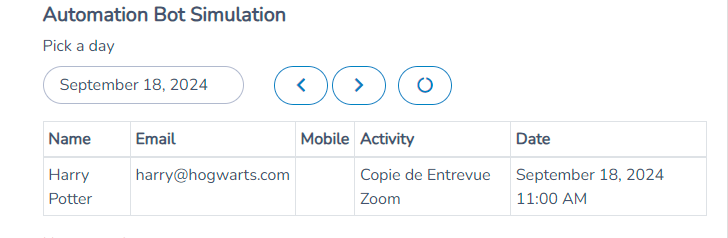
The Schedule now button is a separate action, not part of the preview. Selecting it schedules recipients for the chosen day; do not click it unless you intend to schedule them.
Message template for course reminders
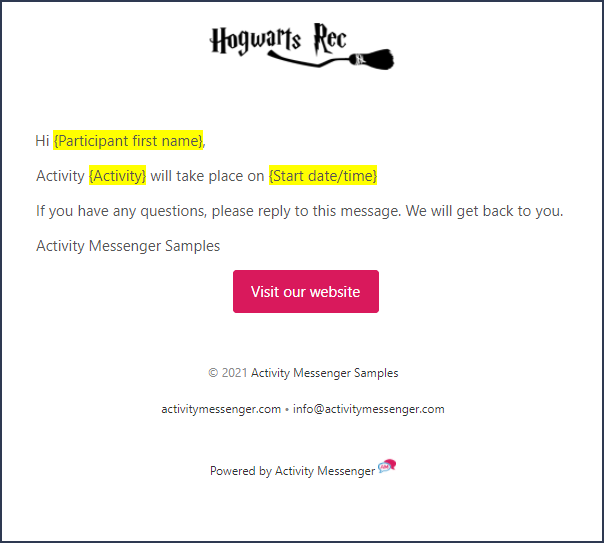
A default template is created by Activity Messenger. It includes merge fields for the participant's first name, the name of the activity (course), and the date and time. You can modify this template or create a new one.
Add specific information such as:
- The link to a Zoom or Teams session for online courses.
- Relevant details like the start date, time, etc.
Save the message configuration.
Attaching a waiver
You can attach a form or waiver (i.e. a liability waiver) to the message, requesting the participant to fill it in before each class.
Click on Configure the message. Below left, click on Attachment and Attach a form/waiver. Select the form you have previously created. Activity Messenger will add a button with a link to the form. Read the docs on forms and waivers to learn more.
Send follow-ups after the class
In addition to reminders before the class, you can schedule the sending of a message after each session.
For example, send a satisfaction survey or a form to complete the day after the class at noon.
You can also schedule the sending of assignments or other post-session documents.
Finalize the automation
Once the automation is configured, it will account for all the dates and occurrences of the course you have created on the platform.
The system will automatically send emails or SMS before each session according to the settings you have defined.
View sent messages
Activity Messenger keeps a log of all sent messages. Go to the Messages tab of the automated task to find the list of emails and texts that have been sent.
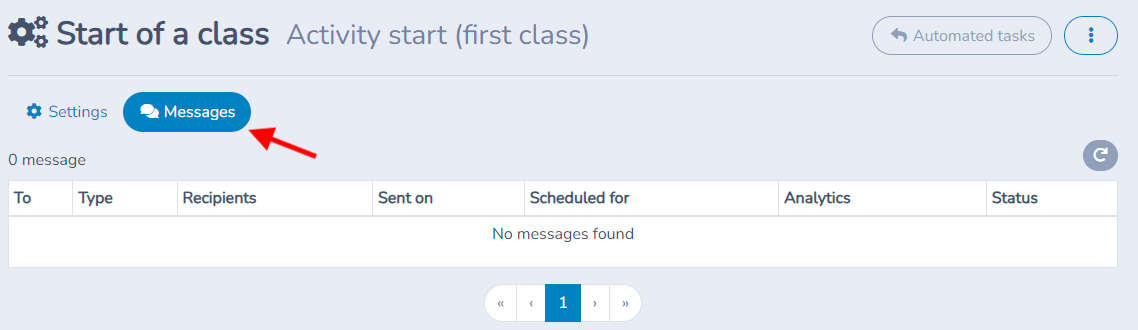
Messages that are still scheduled can be opened from this tab and cancelled with the Cancel button; this removes that individual message. Changing the selected course or deactivating the automation (click Manual) only affects what is scheduled in the future. It does not remove messages that were already sent: for those, the Messages tab is mostly a log. See Scheduling messages.
Check attendance and timing
For Activity Messenger classes, the reminder follows scheduled occurrences and their eligible participants. Source lists and imported occurrence dates must be current. Apply attendance or registration filters deliberately and review the simulation for a real occurrence. A scheduled class-reminder audience can be refreshed at dispatch; the earlier preview is not a permanent snapshot.