Activity Messenger Help Center
Scheduling messages
Schedule a message when the content and audience are ready but the delivery should happen later. For reminders that depend on a registration, birthday or membership date, use an automation instead.
You can also program a recurrence using extra dates and times. Use the "+ 1 day" or "+ 1 week" buttons.
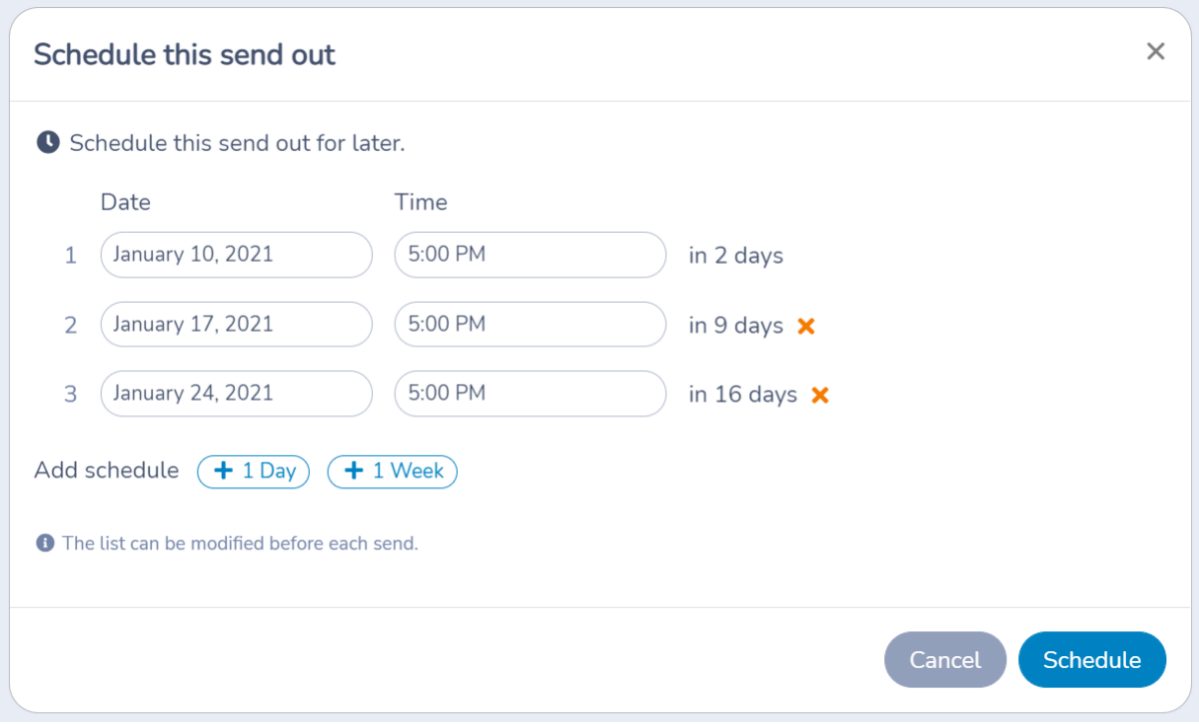
If you are sending to a list, you can update the list before the message goes out. Useful for example to include new people registering to a class, or added to a list.
If you are sending to a list of participants or members from Amilia, Activity Messenger will automatically sync the lists 30 minutes prior the send out.
If you are using a template, a copy will be frozen for the scheduled send outs. Meaning you are free to use and update the template for other messages. The scheduled messages will not be changed.
Note: You will not be charged until the message is sent.
Tracking scheduled messages
On the Messages page, scheduled messages are identified with a clock icon and the future date and time of the send out.
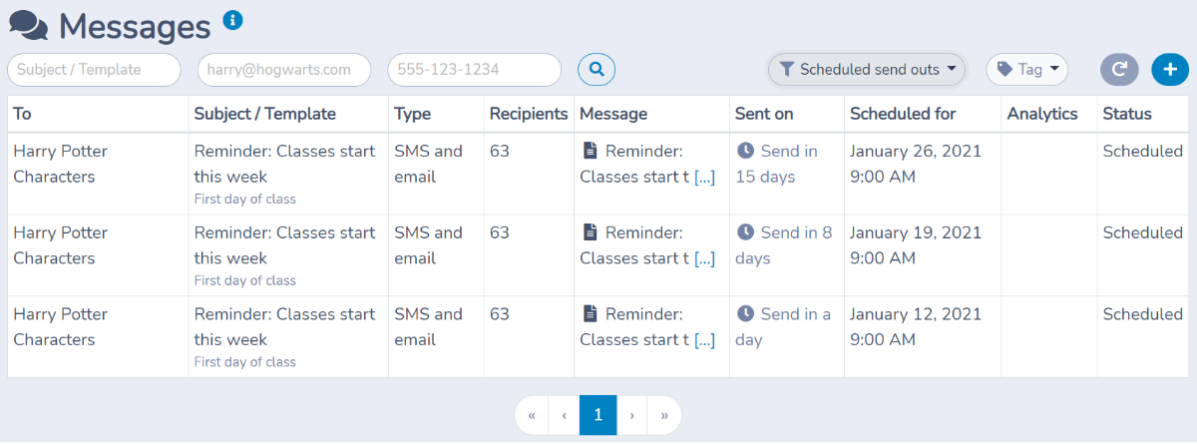
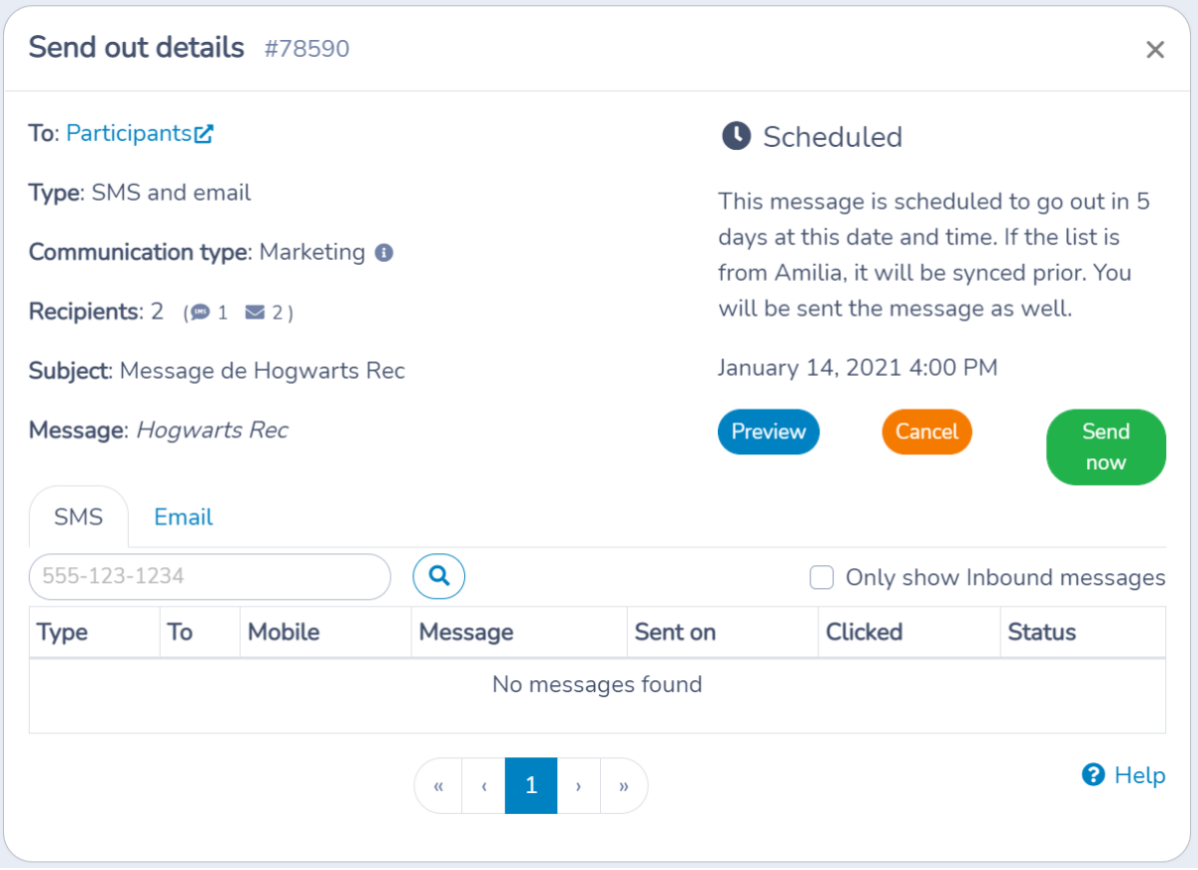
You may open the message for details. You may preview the emails, cancel the send out or send it now.
Cancelling
At any time you can click on the Cancel button to abort the send out. The message will be deleted.
This applies to an individual message that is still scheduled, including one created by an automation. You can open it from the Messages page, or from the Messages tab of the automated task, and click Cancel. A message that has already been sent cannot be cancelled; the Messages tab is mostly a log of what was sent. To stop an automation from scheduling future messages, change or deactivate the automation itself (see the guide for your automation type, for example Class reminder); this does not remove messages that were already sent.