Forward Interac confirmation emails from Outlook or Gmail
Forward deposit confirmation emails to interac@am.lol so Activity Messenger can match received Interac transfers to pending payments. This saves manual work, but forwarding an email does not guarantee a match or that the entire invoice is paid.
Before you begin
Configure Interac e-Transfer in Activity Messenger and confirm which inbox receives the bank's deposit confirmations. Enable Auto-Deposit at your bank when using that workflow. You need permission to create email rules, and your Microsoft 365 or Google Workspace administrator must allow external forwarding.
The invoice instructions contain a payment identifier beginning with AmInUmId. Ask clients to include the complete identifier. Activity Messenger can sometimes match by other payment details when the identifier is missing; do not rely on that fallback instead of giving clients the correct instructions.
1. Choose what to forward
Use a rule for Interac deposit confirmations, not a blanket rule for all incoming mail. The sources commonly use catch@payments.interac.ca and notify@payments.interac.ca; verify the sender on the confirmations your organization actually receives.
Add the body keyword AmInUmId to limit the rule to transfers carrying an Activity Messenger identifier. Copy the keyword exactly to avoid errors. With this condition, confirmations where the client omitted the identifier will not be forwarded by the rule; review those separately.
2. Create an Outlook rule
These steps describe classic Outlook. For another version, use the corresponding Inbox rules interface in Microsoft's forwarding instructions.
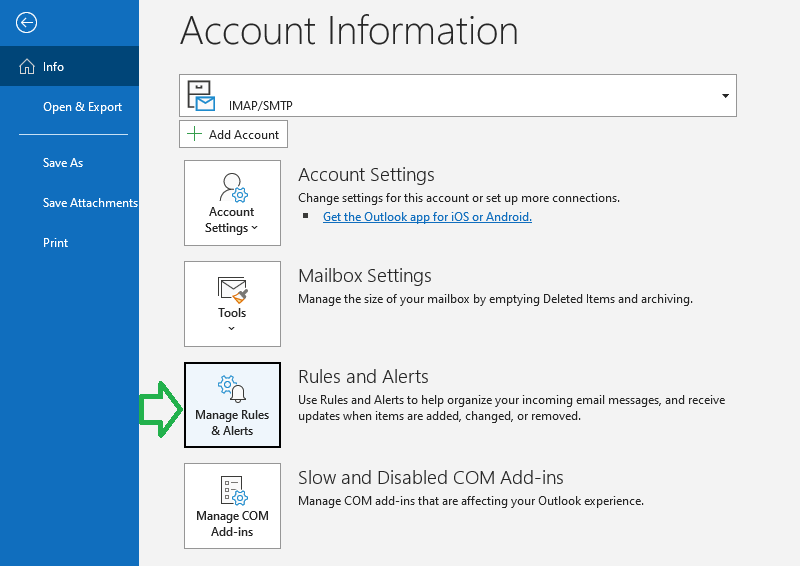
- Open File → Manage Rules & Alerts, then New Rule.
- Choose Apply rule on messages I receive.
- Add from people or public group and enter the verified Interac sender addresses.
- Add with specific words in the body and enter AmInUmId.
- Choose forward it to people or public group, then enter interac@am.lol.
- Review the conditions, finish the rule and apply it.
3. Create a Gmail filter
First add interac@am.lol as a forwarding destination in Settings → See all settings → Forwarding and POP/IMAP. Gmail requires the destination to be verified before it can be used. If verification needs access to the destination mailbox, contact Activity Messenger support; you cannot open that mailbox through your own Gmail account. Follow Google's forwarding instructions.
Then open Filters and Blocked Addresses → Create a new filter. Match the verified Interac sender addresses and put AmInUmId in Has the words. Select Forward it to, choose the verified destination and save. Keep forwarding of all incoming mail disabled; only matching confirmations should be sent.
4. Confirm the complete workflow
For the next legitimate payment received through your normal workflow, check that the confirmation reaches the inbox, the rule forwards it, and the expected payment is settled in Activity Messenger. Check the invoice balance separately, especially for partial payments. Confirm that unrelated mail was not forwarded.
If a confirmation is missing, check the rule, junk folder and administrator forwarding policy. If the email arrived but the payment is unresolved, review the Interac emails reconciliation screen and compare the amount, identifier and bank reference before settling manually. Do not mark a payment received solely because a client says they sent it.
Next steps
See Interac settlement and troubleshooting for the payment-matching workflow. Keep your original confirmation emails available for reconciliation.