Client account
Give clients a single place to find their registrations, forms, invoices and available account actions. What they can view or change depends on your organization’s configuration and their records.
Each invoice/receipt they receive via email contains a link to log into their client account on your Microsite.
Your clients do not need a password. Instead, they enter their email address or mobile phone number to log in. They will receive a login code via email or SMS. They simply need to enter the 6-digit code to access their account.
Once logged in, they will have access to their class schedule, completed forms, and invoices. If they have purchased a Zoom class from you, they will also receive links to join their Zoom meeting.
Accessing the client account
Go the Microsite tab and select Client Portal.

Click on the My Account button (a unique link that you can also embed on your website).
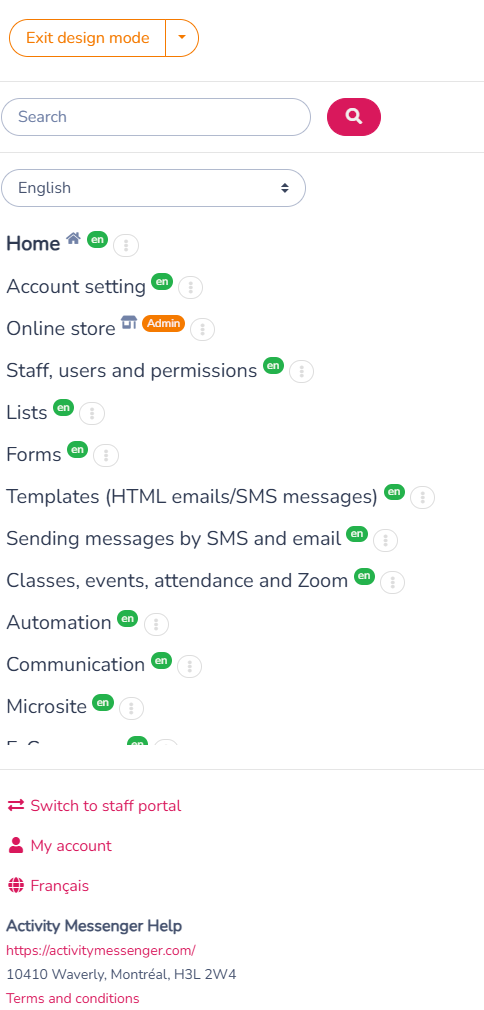
Overview of the client acount
As an administrator, you can select a client and view their acount. Here's what clients can see and manage.
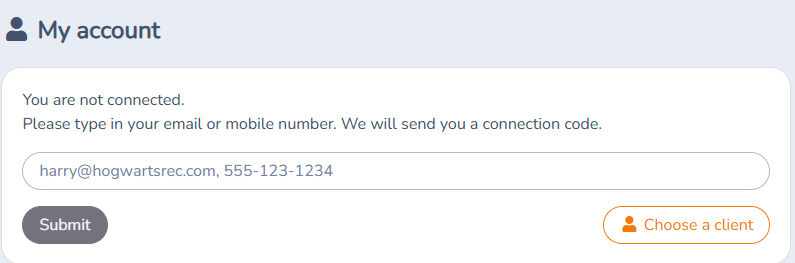
The option to select a client is only visible to administrators.
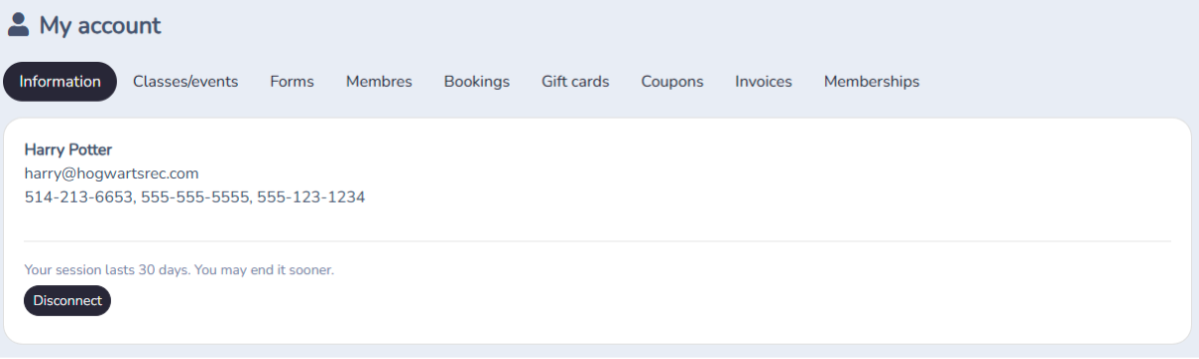
Registrations and Calendars
-
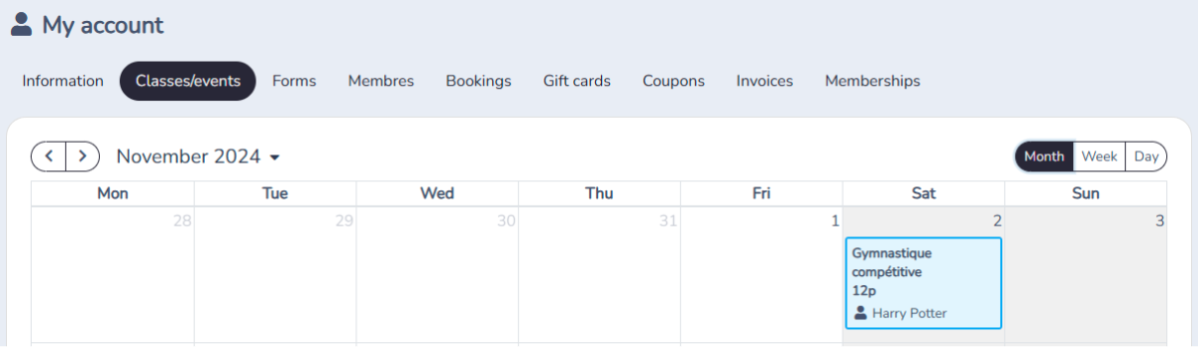
Events Tab: Displays the events the client is registered for, as well as past and upcoming activities.
-
Calendar: View classes and events by day, week, or month. Includes classes for different family members.
Forms and Reservations
- Forms: Displays all forms completed by the client, with access to PDFs of the registrations.

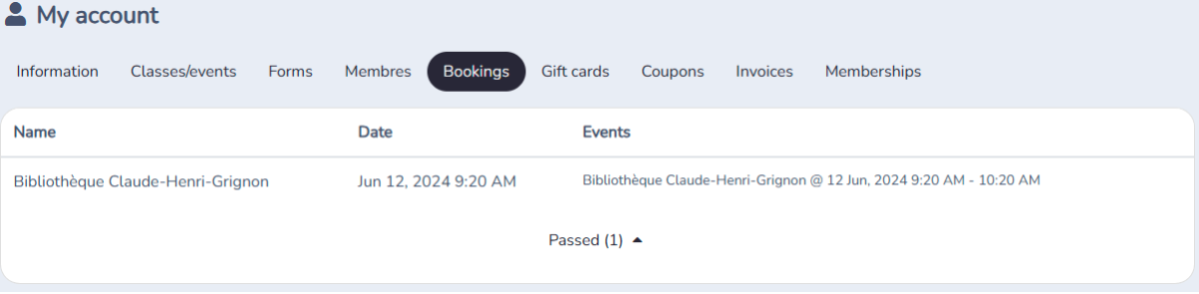
Reservations: Shows past and current reservations (e.g., room bookings).
Invoices and Subscriptions
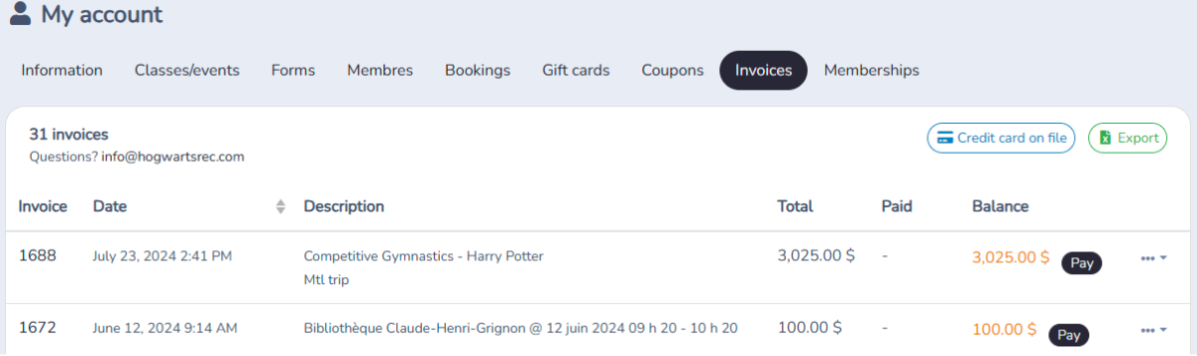
- Invoices: Displays all invoices, allows for online payment (integrated with Stripe), and enables invoice downloads.
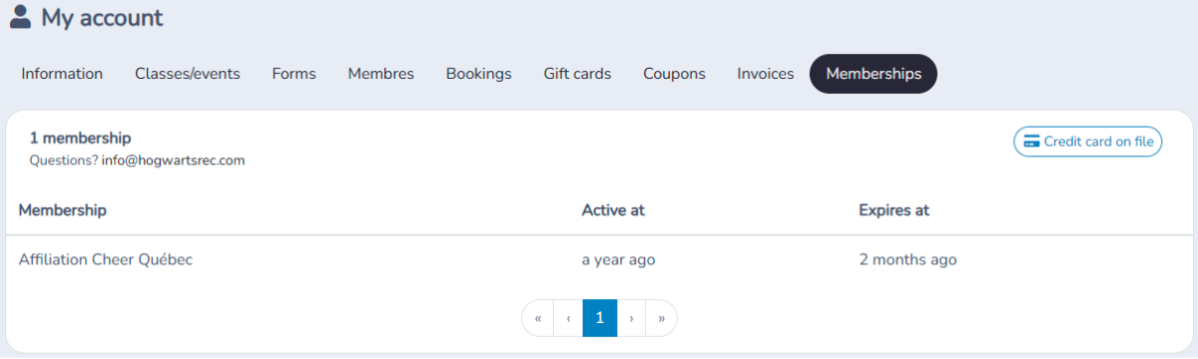
Subscriptions: Displays active subscriptions, including the activation date and expiration date. This includes monthly subscriptions, memberships, and federations.
Edit Information
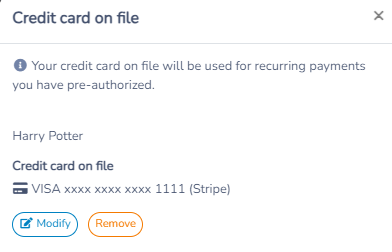
Modify credit card information:
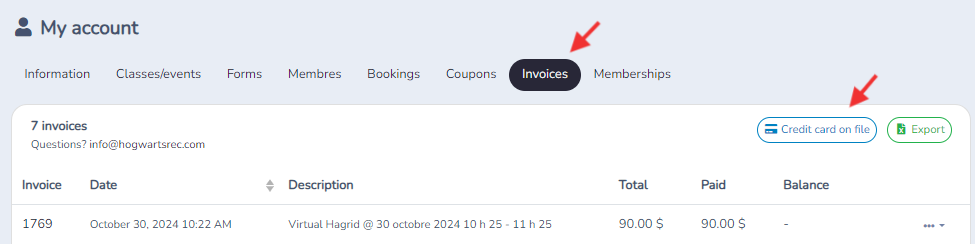
The customer can perform this operation themselves by going to the "Invoices" tab and selecting the "Credit Card on file" option.
Remove a credit card on file
Clients can add or replace their card under Invoices → Credit card on file, but they cannot remove it themselves. An administrator can remove it by opening any invoice for the client, editing Payment methods on file, and selecting Remove under Stripe credit card on file. Removing the card prevents scheduled payments from being processed with it.