Activity Messenger Help Center
Gift cards
A virtual gift card in Activity Messenger is a method of payment. It works just like regular gift cards in chain stores. It contains a unique 14-character code used at checkouts that accept gift cards. A gift card holds a balance. It can be used multiple times until the balance reaches 0.
- Method of payment: A gift card is a method of payment that can be used for purchases in the issuing organization when gift-card payment is allowed.
- Refund and credit to an account: A gift card can be given to hold store credit when you refund a client.
- Prepaid gift cards: You may sell prepaid gift cards allowing customer to purchase classes, memberships or products later.

Gift cards are only usable in the organization from which they were created. If you manage multiple organizations in Activity Messenger, please be aware of this limitation.
Creating a gift card for online sales
Creating the Gift Card
To get started, go to the E-commerce tab and select Products.
To add a new item, click the blue "+" button and fill in the required information, such as the name and price of the gift card.
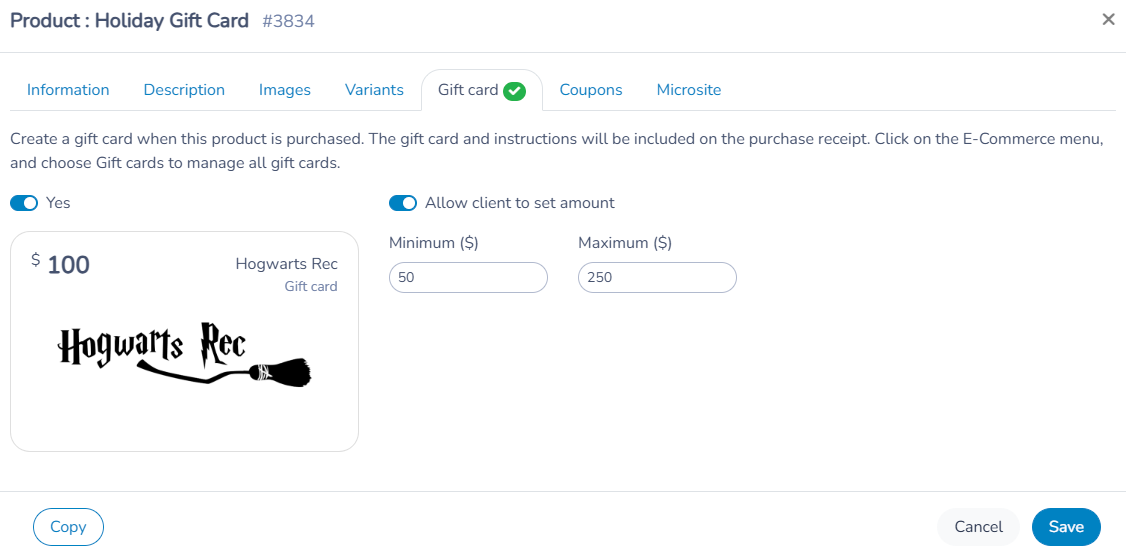
For pricing, you have the option to allow your customers to select an amount within a predefined range, setting a minimum and maximum value.
Don't forget to enable the "Gift Card" option to ensure this item is listed as a gift card in your store.
Finally, to personalize your gift card, feel free to add a logo and write an appealing description before saving your changes.
Gift Card sale
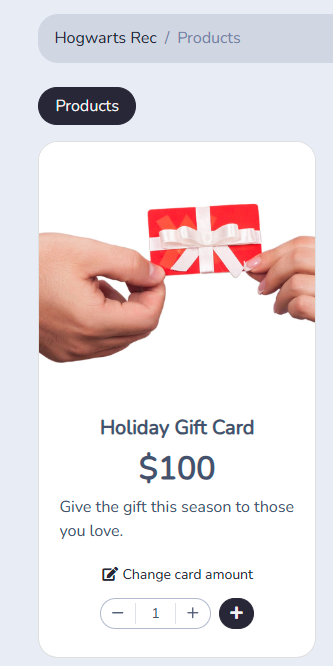
Online Store: Give your customers the option to purchase gift cards directly from your website. It's simple and convenient!
Customers can select their desired amount (e.g., $200), add the gift card to their cart, and complete their purchase using a credit card.
🔔 Please note that the online store option currently does not allow customers to gift a gift card to someone else. To offer this feature, you need to select the option to sell the gift card through a form.
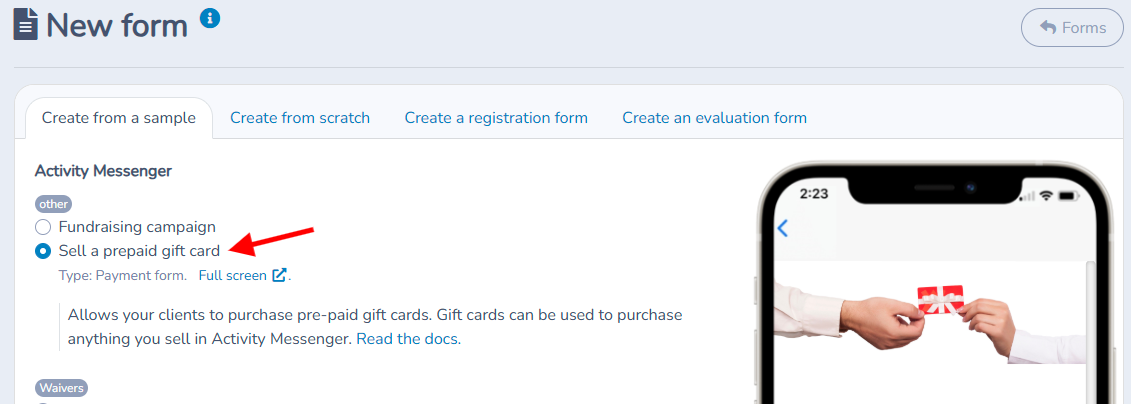
- Custom Form: To enhance the user experience, we recommend creating a specific form for selling gift cards. Simply select the "Gift Card Sale" option when creating a new form.
🔔 This feature allows customers to easily gift their gift card to someone else.
Customize the form according to your preferences.
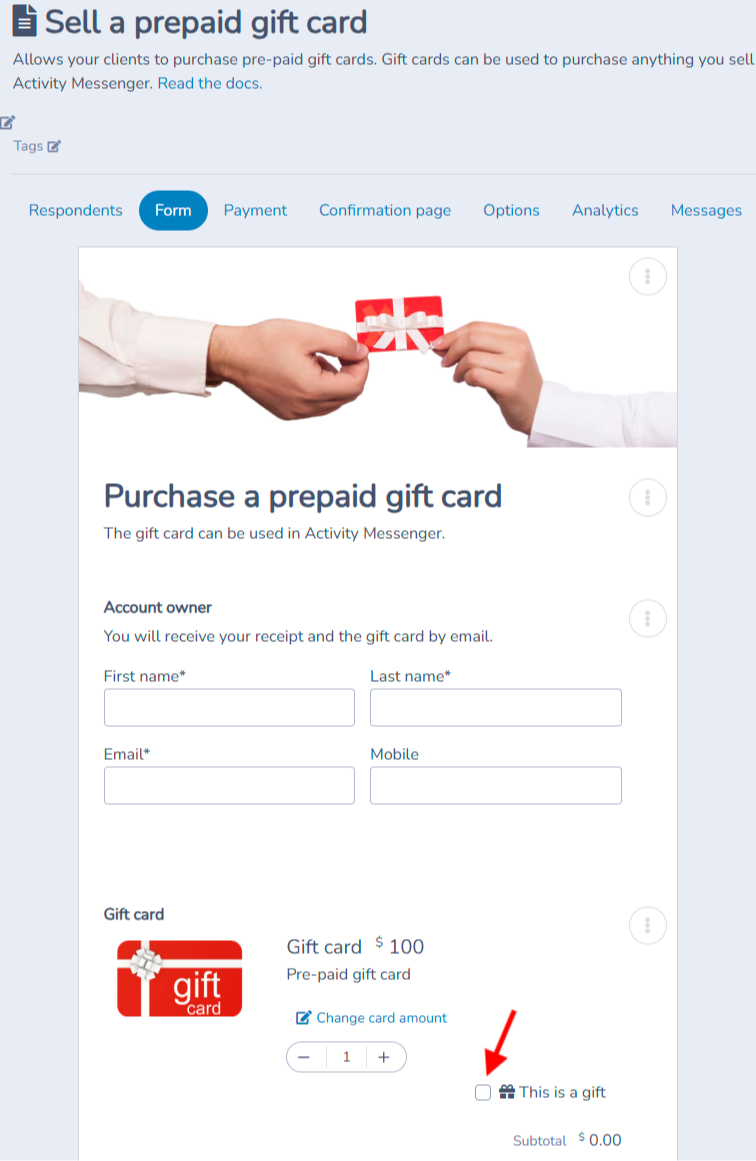
If the customer wants to gift the card to someone else, they can select the corresponding option.
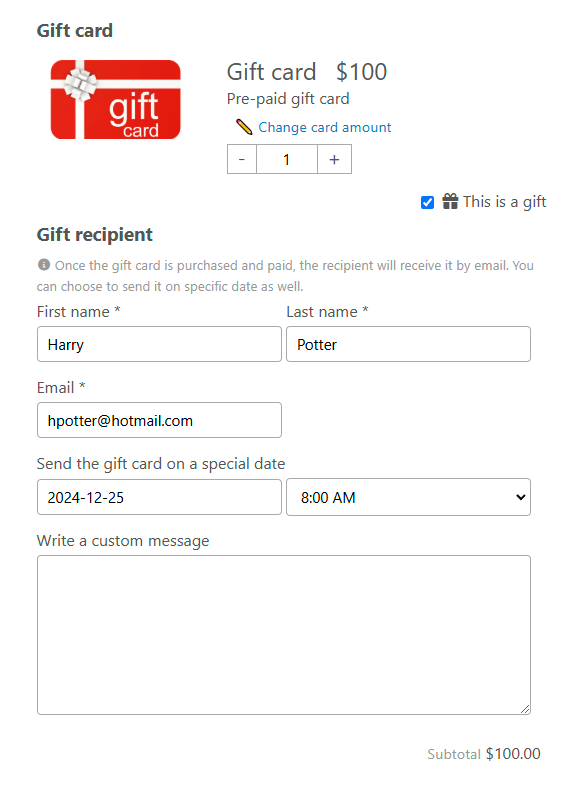
By filling out the form, if the customer chooses the option to gift the card, they can select the delivery date for the gift card and personalize their message according to their preferences.
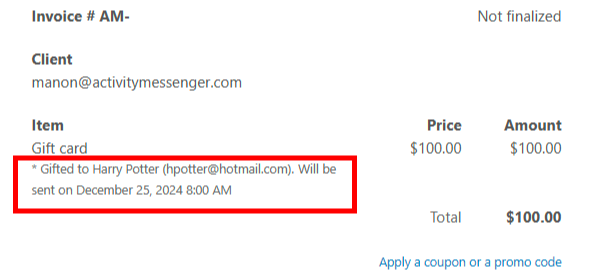
On their invoice, the customer will be able to see the date and time the gift card was sent to the recipient.
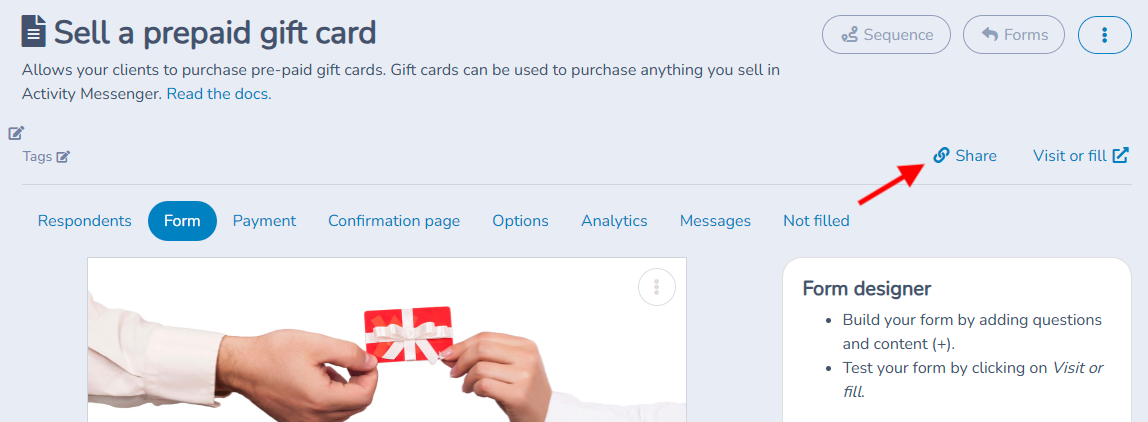
Once the form is created, share it via email or a QR code, allowing your customers to access it quickly. You can also integrate it into your website or micro-site.
Managing gift cards
Click on the menu E-Commerce and choose option Gift cards. You will land on the table of all gift cards in your organization.
You may find a gift card by typing in the client name, email or mobile number. You may archive gift cards with a balance of 0.
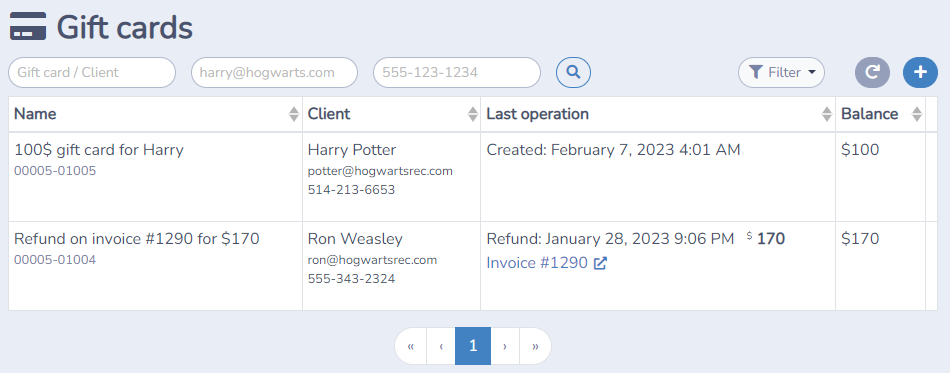
Open a gift card to access it. Click on the gift card to reveal the code. Click on the code to copy it to the clipboard.
Click on the Edit button to modify the gift card balance or to assign it to a new client.
Activity Messenger keeps a transaction log so you can easily trace the historical activity of the gift card.
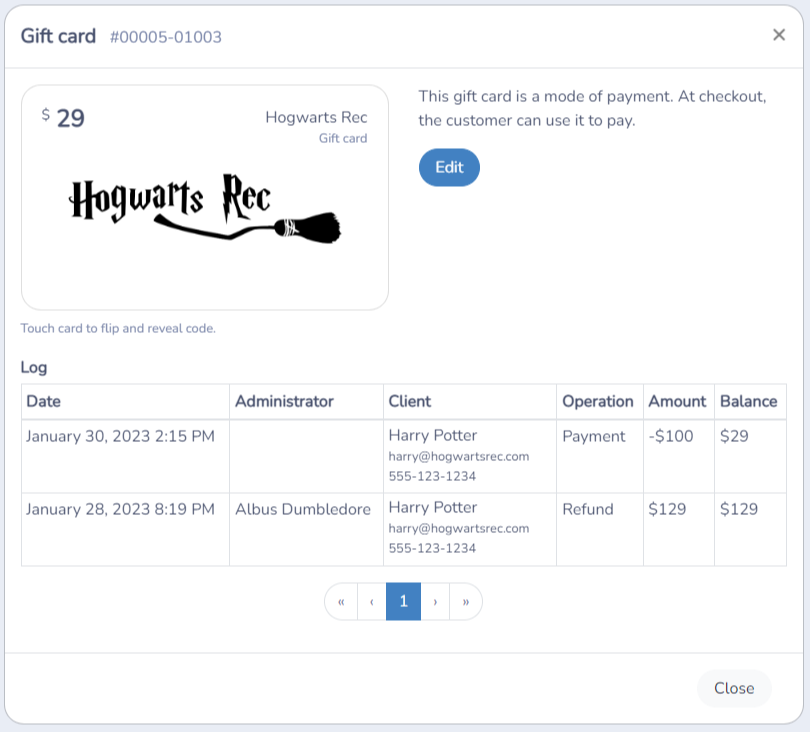
Consulting, creating and editing gift cards requires the Account owner or Administrator permission.
Creating a new gift card from scratch
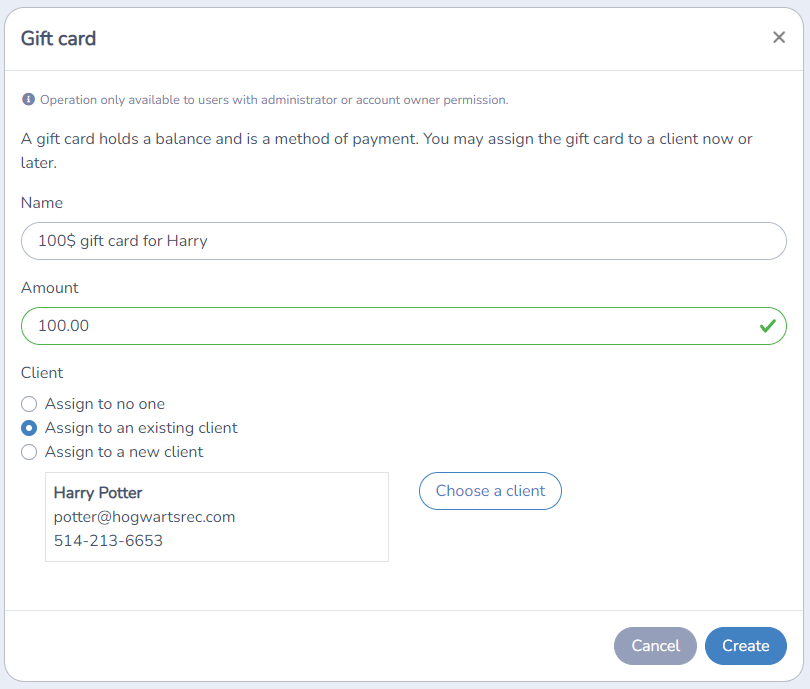
To create a new gift card from scratch, click on the (+) button. Give it a name and type in an amount. You may assign the gift card to an existing client, a new client or keep it unassigned.
Refund and credit to an account
A gift card can be given to hold store credit when you refund a client.
From any paid invoice, click on either "Cancel and refund" or on "Refund". Choose which invoice items to refund and toggle the option "Refund to a gift card".
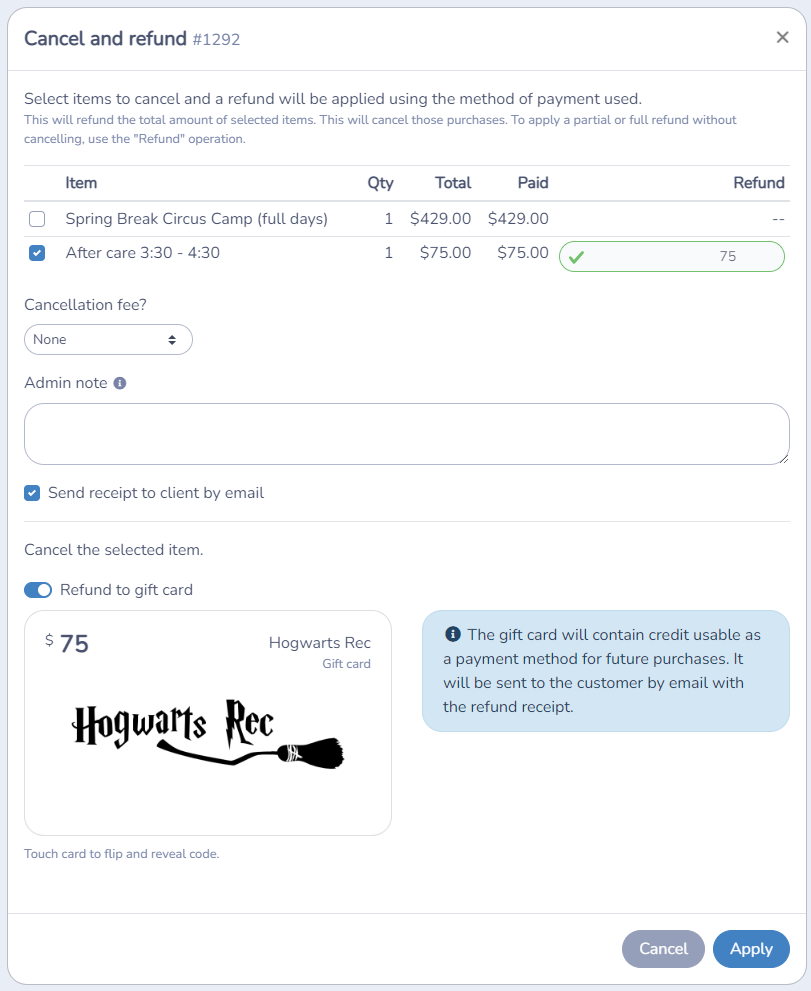
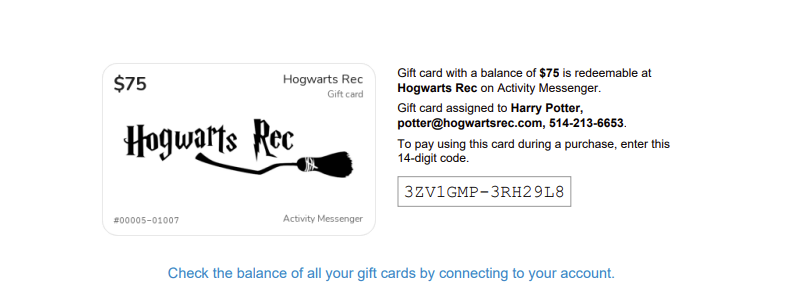
The gift card will be added on the 2nd page of the receipt PDF sent to the client by email, along with the instructions on how to use the gift card on a future purchase.
Prepaid gift cards
You may sell prepaid gift cards allowing customer to purchase classes, memberships or products later.
Click on the Forms menu, and choose option Create. Select the sample form "Sell a prepaid gift card" and click on Create. This will create a new Payment form with a Products question. Activity Messenger will automatically create a new product called "Gift card" for you.
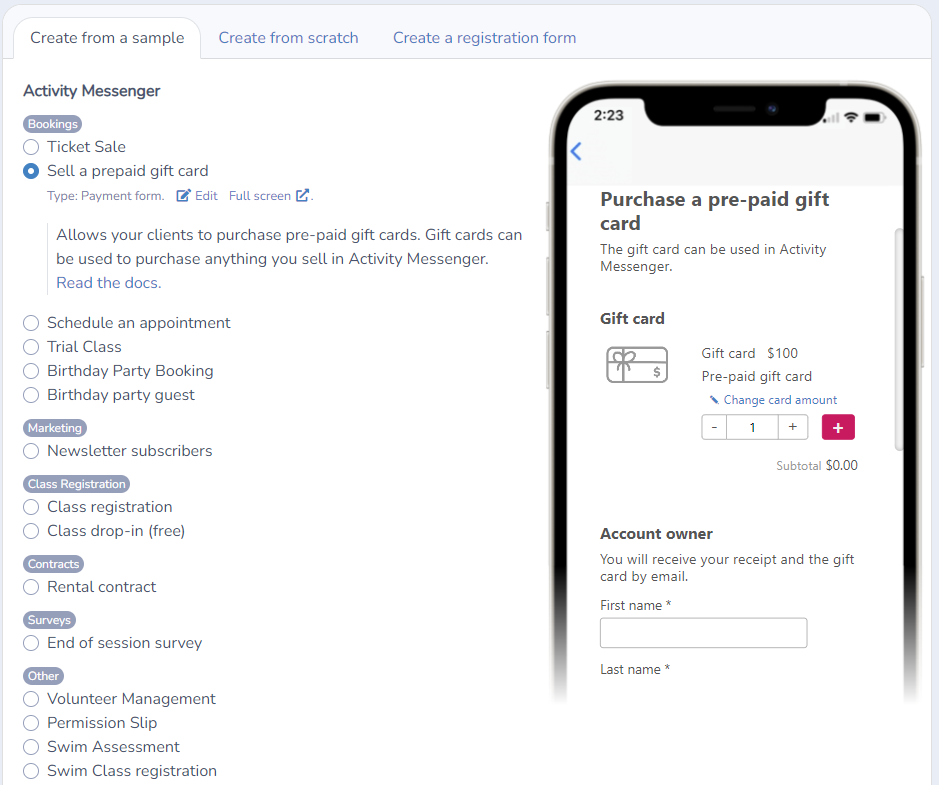
To modify the gift card product, edit the Products question and then click on the gift card and edit. The product popup will allow you to change the price (the amount on the card), add a sku, set a ledger code and even track inventory. Consult the help docs for selling products and tracking inventory to find out more about products.
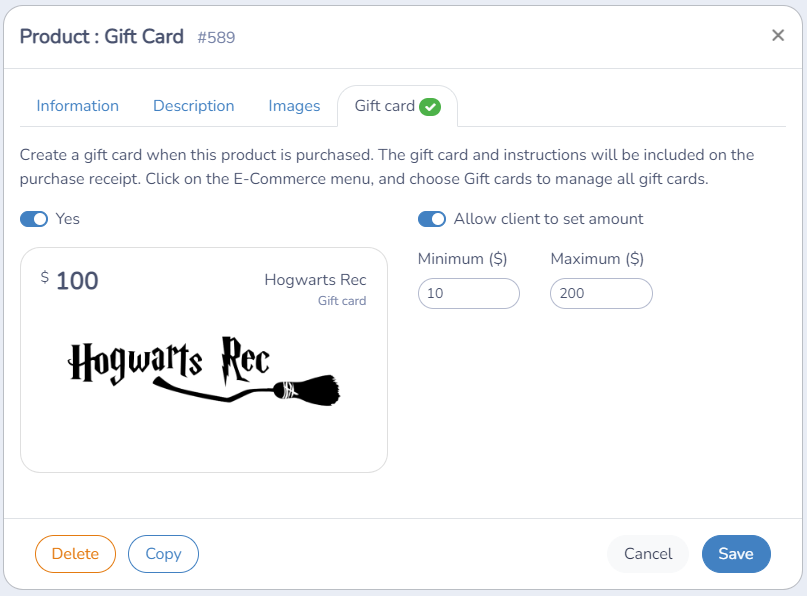
Click on the Gift card tab to configure settings. You can allow clients to modify the gift card amount within a minimum and maximum range.
Paying with a gift card
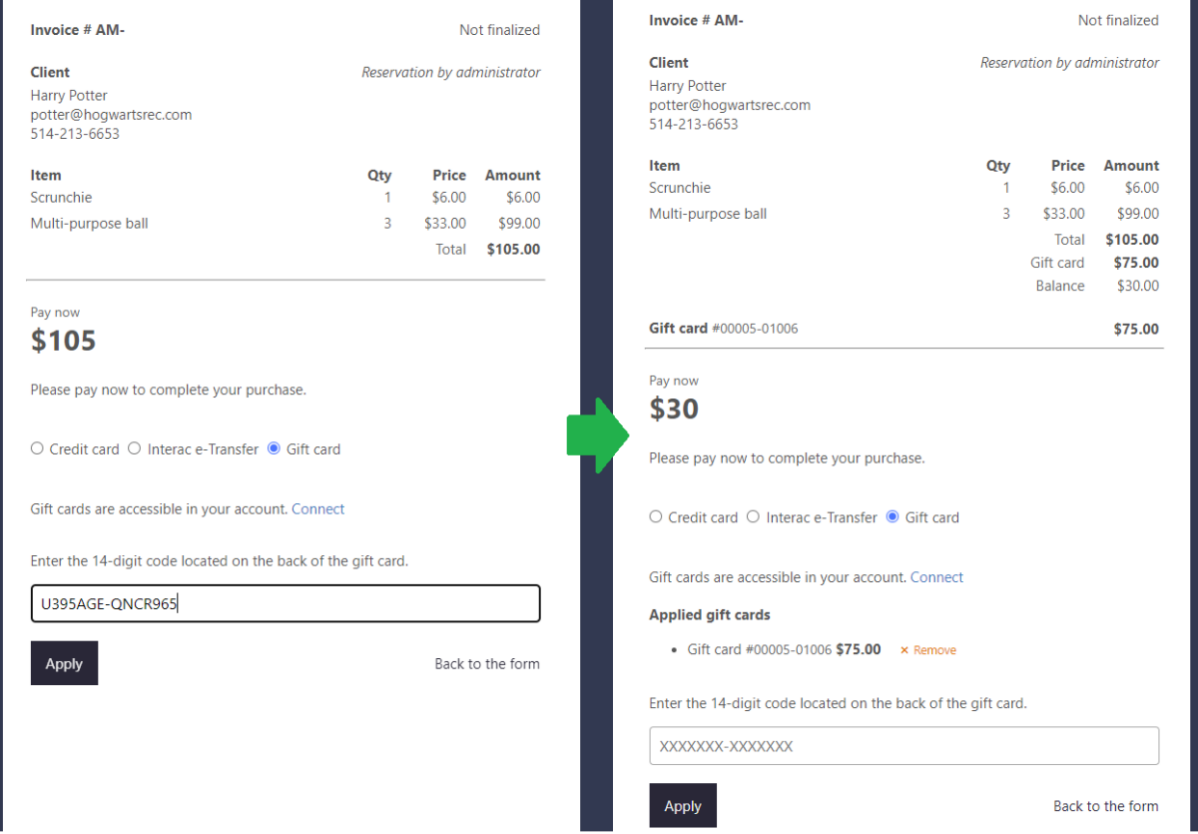
At checkout your client can choose to pay with a gift card. They can type in the 14-character code to apply the gift card as payment. If the gift card balance is less than the total of the invoice, they can pay the remaining amount due with another gift card, or with their credit card.
You cannot use a gift card to purchase a gift card. If you are purchasing a gift card, the option to pay with a gift card will not be available.
Client account
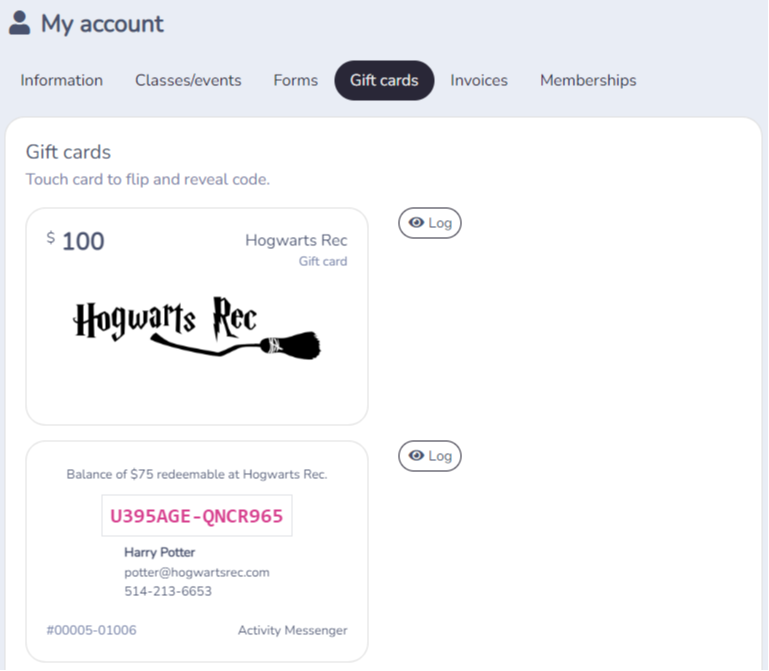
Your client can access their gift cards by going to their Client account. The Gift card tab will list all available and used gift cards. Your client can also consult each gift card history by clicking on the Log button.
The client can click (or tap) on a card to flip it and reveal the code. By clicking (or tapping) on the code, it will get copied to their clipboard. They can then paste to use it at checkout.
Although gift cards are assigned to a client email, anyone can use it so as long they have access to the 14-character code. As such, make sure to keep gift card codes secret.