
Home
Account setting
Staff
Lists
Forms
Templates (HTML emails/SMS messages)
Sending messages by SMS and email
Classes, events, attendance and Zoom
Automation
Create a birthday invitation and automation
Communication
Microsite
E-Commerce
Networks, Federations and Franchises
How to guides
Personal information and electronic message laws in Canada and the USA
Get support
Terms and conditions
RL-24
https://activitymessenger.com/
10410 Waverly, Montréal, H3L 2W4
Terms and conditions

Class discussions
If you are looking for a chat component for people connected to the same class, use Class/group discussions. It creates a shared group chat where registered participants, connected parents, instructors, and permitted staff can exchange messages. Everyone uses the same class conversation; it is not a private or one-to-one chat. Messages can apply to the whole class or to a specific class day.
Participants and parents open the chat from the Discussions tab in the client account. Only registered participants and parents connected to a registration can access it. Staff access depends on their class and attendance permissions.
# Enable discussions for a class
- Go to Classes and open All classes and events.
- Open the class you want to modify.
- On the Information tab, expand Advanced options.
- Find Class/group discussions and switch it to Yes.
- Save the class.
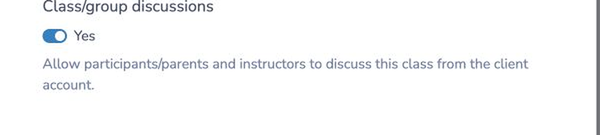
You can also enable Class/group discussions for multiple classes with the class bulk operation.
After discussions are enabled, a Class discussion option appears in the class menu and on the attendance page. The message and unread-message badges help staff see recent activity.
# Open a discussion as an administrator or instructor
You can open a discussion from either of these locations:
- Go to Classes > All classes and events, open the class action menu, and select Class discussion.
- Open the class attendance page and select Class discussion from its menu.
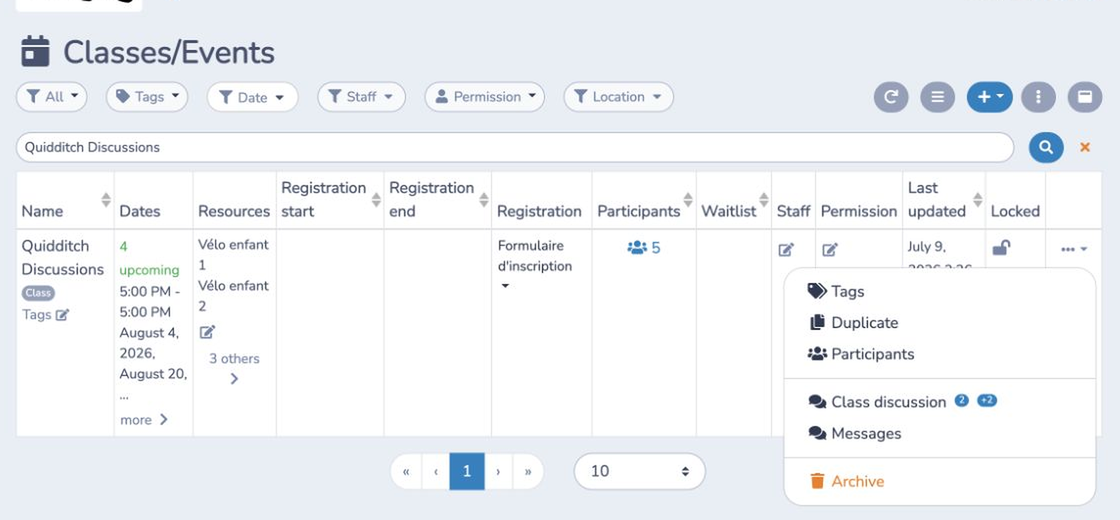
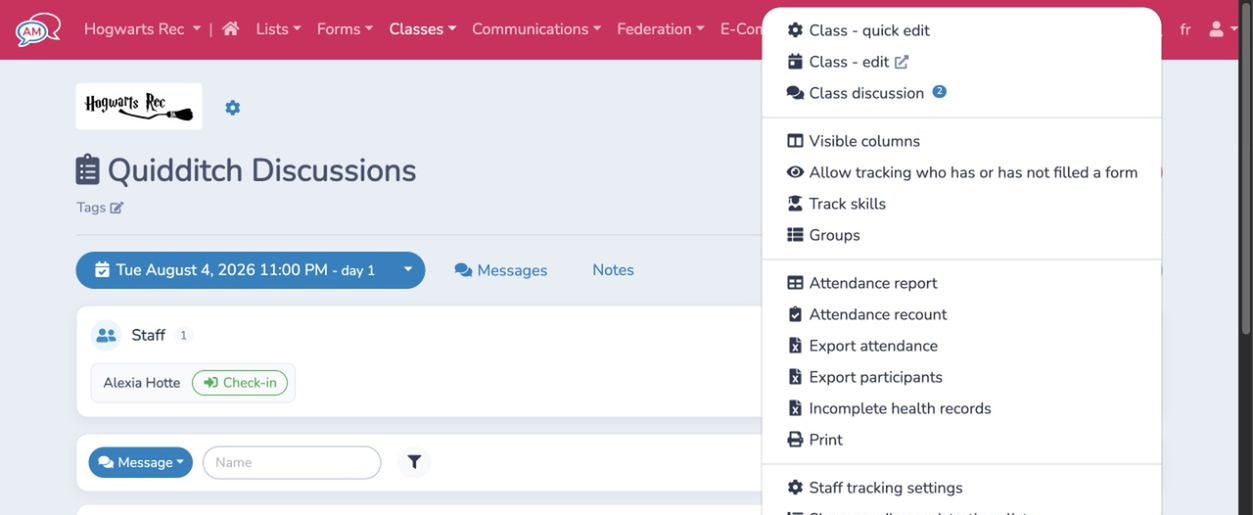
Administrators and users who can manage classes or access all attendance lists can open the discussion. A user with class access can open it when they are assigned to that class.
# Open a discussion as a participant or parent
- Sign in to the organization client account.
- Open the Discussions tab to see every available class discussion and its unread-message count.
- Select a class to open its discussion.
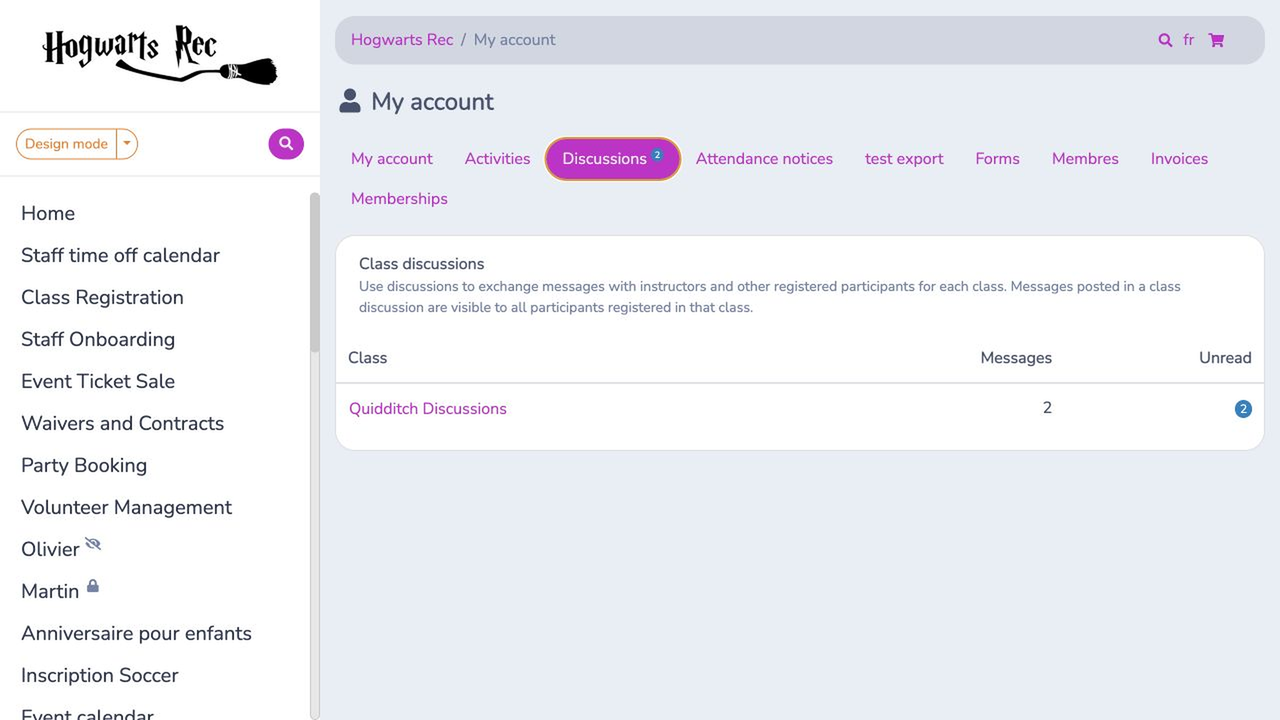
The discussion is available only while Class/group discussions is enabled and the participant or a connected family member has an active registration in the class. It is not available for a waitlist registration.
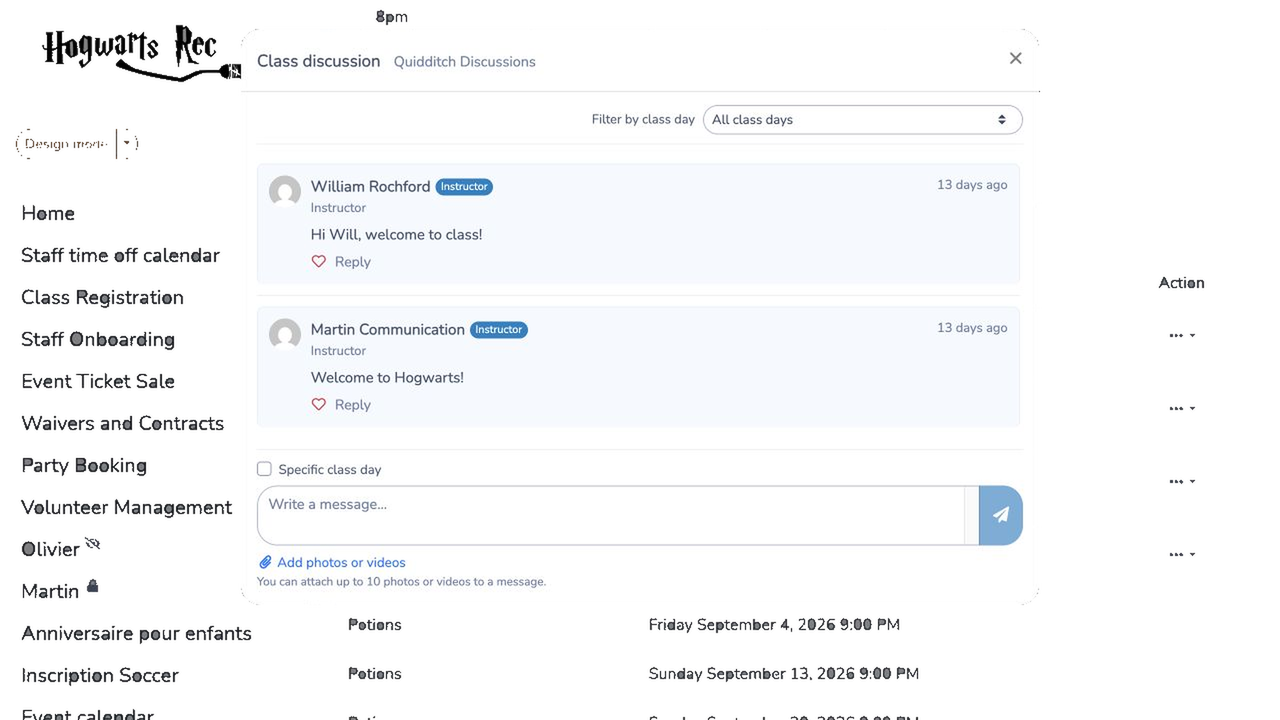
# Post a message
- Open the class discussion.
- Enter your message. Press Enter or select the send icon to post it.
- To add photos or videos, select Add photos or videos. You can also paste a supported image from the clipboard.
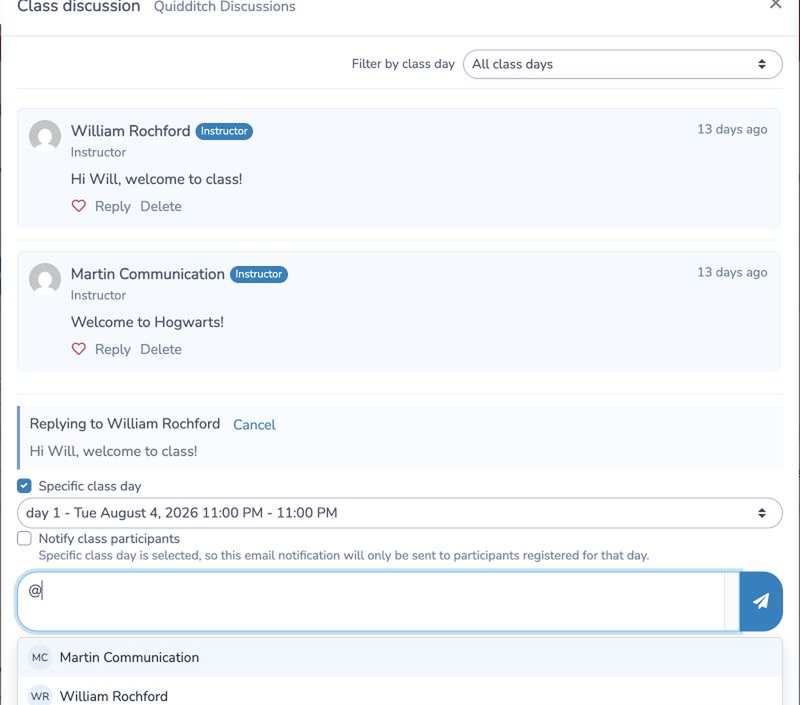
- To respond to an existing message, select Reply below that message.
- To mention someone who has already participated in the discussion, type
@followed by their name and select the suggested person.
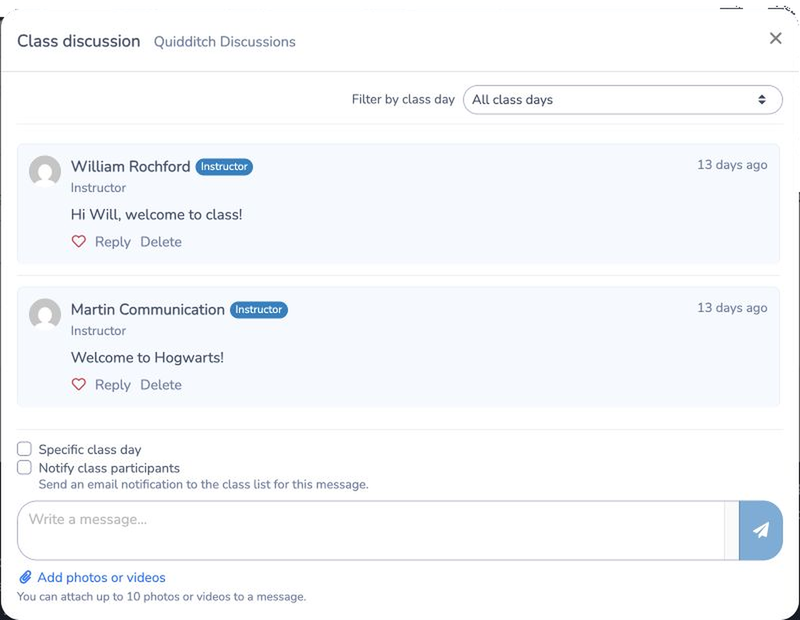
You can attach up to 10 photos or videos to one message. Each attachment can be up to 50 MB. Supported formats include JPEG, PNG, GIF, WebP, MP4, MOV, 3GP, WebM, and M4V.
Select the heart icon to like or unlike a message. Participants and parents can delete messages they posted. Staff members with access to the discussion can delete any message. Deleting a main message also removes its replies.
# Discuss a specific class day
When a class has multiple dates, select Specific class day before posting and choose the applicable date. The date is displayed with the message.
Use Filter by class day at the top of the discussion to display the messages for one date. Select All class days to return to the complete discussion.
# Notify participants
Posting a message does not automatically email every participant.
When staff create a message, they can select Notify class participants to email the class list. If Specific class day is selected, the notification is sent only to participants registered for that date.
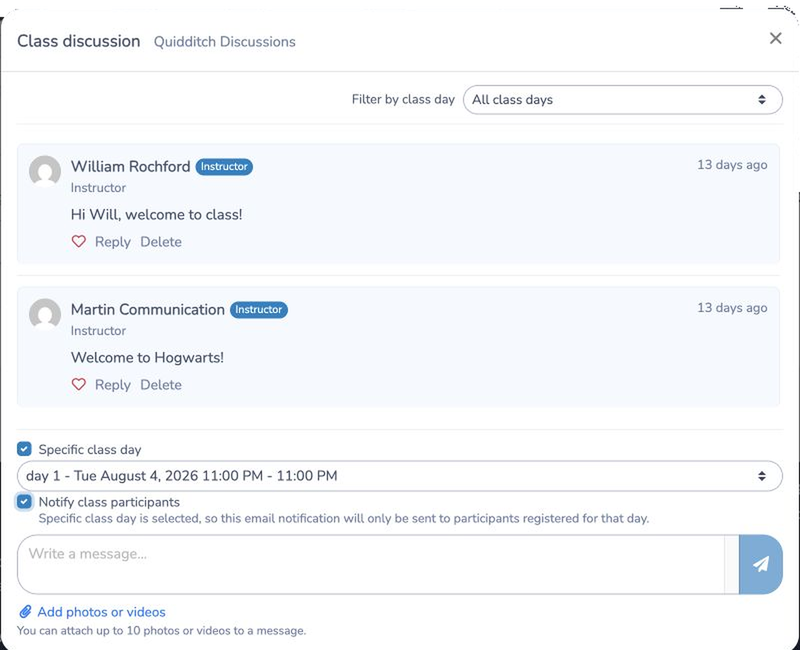
Additional notifications are sent in these situations:
- Assigned class staff are notified when a participant or parent posts a new message.
- The original author is notified when someone replies to their message.
- A person is notified when they are mentioned in a message.
Notification links open the relevant class discussion directly.
# Visibility and limits
- Messages are shared with the registered participants, connected parents, and permitted staff for that class. Do not post private information that should not be visible to the group.
- Participants must be connected to a valid class registration to access the discussion.
- Archived classes and classes with discussions disabled cannot be accessed.
- The discussion displays the 100 most recent messages for the selected view.
- A message can contain up to 2,000 characters. A message may contain attachments without text.