
Home
Account setting
Staff
Lists
Forms
Templates (HTML emails/SMS messages)
Sending messages by SMS and email
Classes, events, attendance and Zoom
Automation
Create a birthday invitation and automation
Communication
Microsite
E-Commerce
Networks, Federations and Franchises
How to guides
Personal information and electronic message laws in Canada and the USA
Get support
Terms and conditions
RL-24
https://activitymessenger.com/
10410 Waverly, Montréal, H3L 2W4
Terms and conditions

Dynamic pricing for classes and memberships
Dynamic pricing lets the same class or membership use a different price, tax configuration, or ledger code for each participant. Rules are evaluated separately for every participant when their invoice item is created.
For example, a class can keep its regular taxes for participants aged 15 and older while removing all taxes for participants aged 14 and younger. Multiple people registering on the same form can therefore receive different tax treatment.
# Before you begin
- Configure the default price, taxes, and ledger code on the class or membership. These values are used when no dynamic rule matches.
- Collect the participant's date of birth in the registration form before using an age rule. An age rule cannot match without a date of birth.
- Create the applicable taxes and ledger codes in your organization settings before selecting them in a rule.
Age is calculated when the registration is submitted.
# Configure a class rule
- Go to Classes > All classes and events.
- Open the class or event.
- On the Information tab, expand Advanced options.
- Find Dynamic pricing and select the edit icon.
- Switch Active to Yes.
- Choose a rule type, operator, and value. For an age exemption through age 14, choose Age, Less than or equal to, and enter
14. - Enter a Price only when the rule should replace the regular price. Leave it empty to keep the regular price.
- Select Taxes or Ledger code under Override values when the rule should change that value.
- Save the rules, and then save the class.
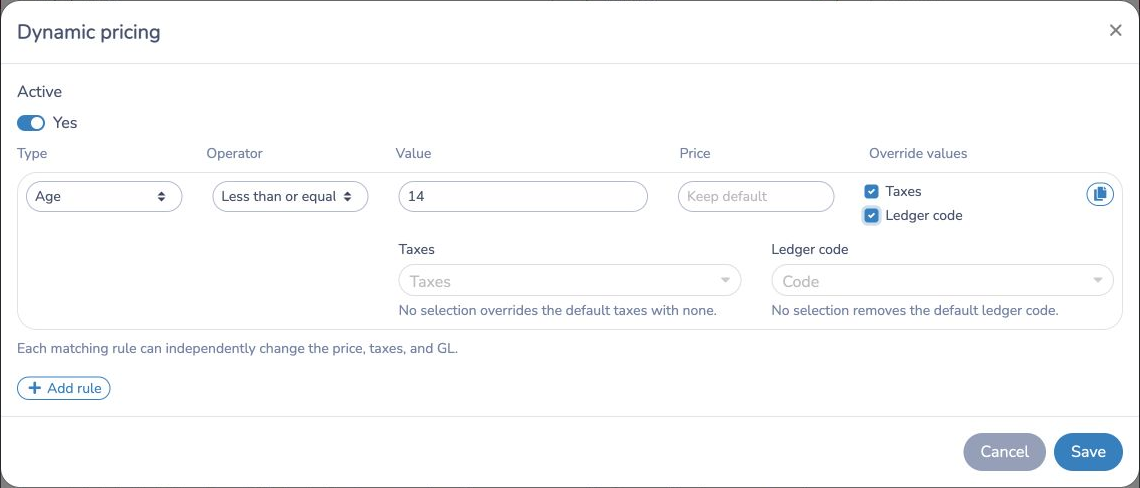
To make participants aged 14 and younger tax-exempt while participants aged 15 and older keep the regular taxes:
- Configure the applicable taxes as the class defaults.
- Add an Age / Less than or equal to / 14 rule.
- Leave Price empty.
- Select Taxes, but do not select any taxes in the rule.
The empty tax selection explicitly replaces the class taxes with no taxes for matching participants.
# Configure a membership rule
- Go to E-Commerce > Memberships.
- Open the membership.
- On the Information tab, find the price, taxes, and ledger code section.
- Find Dynamic pricing and select the edit icon.
- Configure and activate the rules in the same way as a class rule.
- Save the rules, and then save the membership.
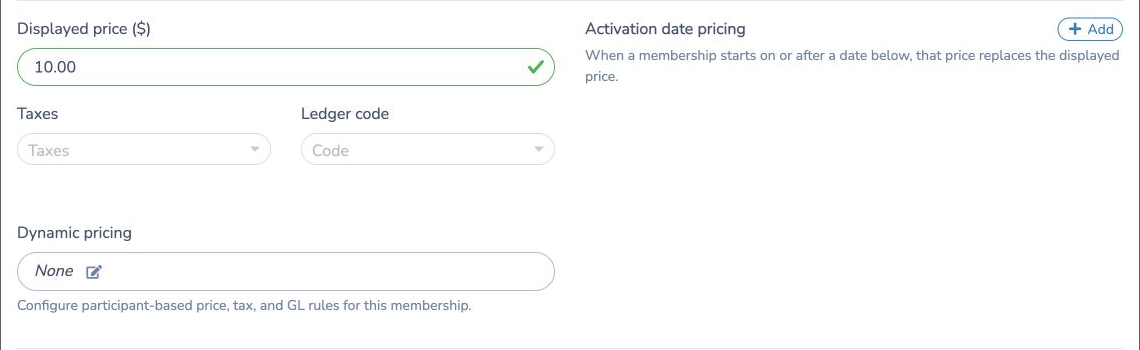
Membership rules belong to the membership itself. When a class registration uses Charge the participant for the membership if he doesn't have it, the automatically added membership uses its own dynamic price, tax, and ledger-code rules for the matching participant.
When a form registers multiple participants, the membership rule is evaluated separately for each participant who is charged for the membership.
# Understand price, tax, and ledger overrides
Each matching rule can change the price, taxes, and ledger code independently:
- Price left empty: Keep the regular price.
- Taxes not selected under Override values: Keep the regular taxes.
- Taxes selected with one or more taxes: Replace the regular taxes with the selected taxes.
- Taxes selected with no tax chosen: Replace the regular taxes with no taxes.
- Ledger code not selected under Override values: Keep the regular ledger code.
- Ledger code selected with a code: Replace the regular ledger code with the selected code.
- Ledger code selected with no code chosen: Remove the regular ledger code.
If no rule matches, all regular values remain unchanged. If several rules match, they are evaluated from top to bottom; a later matching rule can replace a value set by an earlier rule.
# Rule criteria
Class rules can use participant age or gender, registration date, or the class day of the week. Membership rules are most commonly based on participant age or gender.
The age operators are inclusive:
- Greater than or equal to includes the entered age.
- Less than or equal to includes the entered age.
- Between includes both entered ages.
- Equals matches only the entered age.
Dynamic pricing changes invoice items created after the rule is saved. It does not retroactively change existing invoices.