
Home
Account setting
Staff
Lists
Forms
Templates (HTML emails/SMS messages)
Sending messages by SMS and email
Classes, events, attendance and Zoom
Automation
Create a birthday invitation and automation
Communication
Microsite
E-Commerce
Networks, Federations and Franchises
How to guides
Personal information and electronic message laws in Canada and the USA
Get support
Terms and conditions
RL-24
https://activitymessenger.com/
10410 Waverly, Montréal, H3L 2W4
Terms and conditions

Admin: manage federation members
Use the season’s Members page to review requests and open each member’s details. Manage identity, affiliations, required forms and billing from that record. This guide follows the administrator’s daily workflow; season setup and the club client portal have their own guides.
# Consult and correct a member
Find and open a member
- In Federation, select the season name and open Members.
- Search by name, email, mobile number or member number. Use the club, affiliation and status filters to narrow the results.
- Select the member's row to open their details.
- Check the identity, club and season before making changes. Two people with similar names are not necessarily duplicates.
These instructions describe the federation administration member list. A club organization's Members tab can instead display its submission workspace.
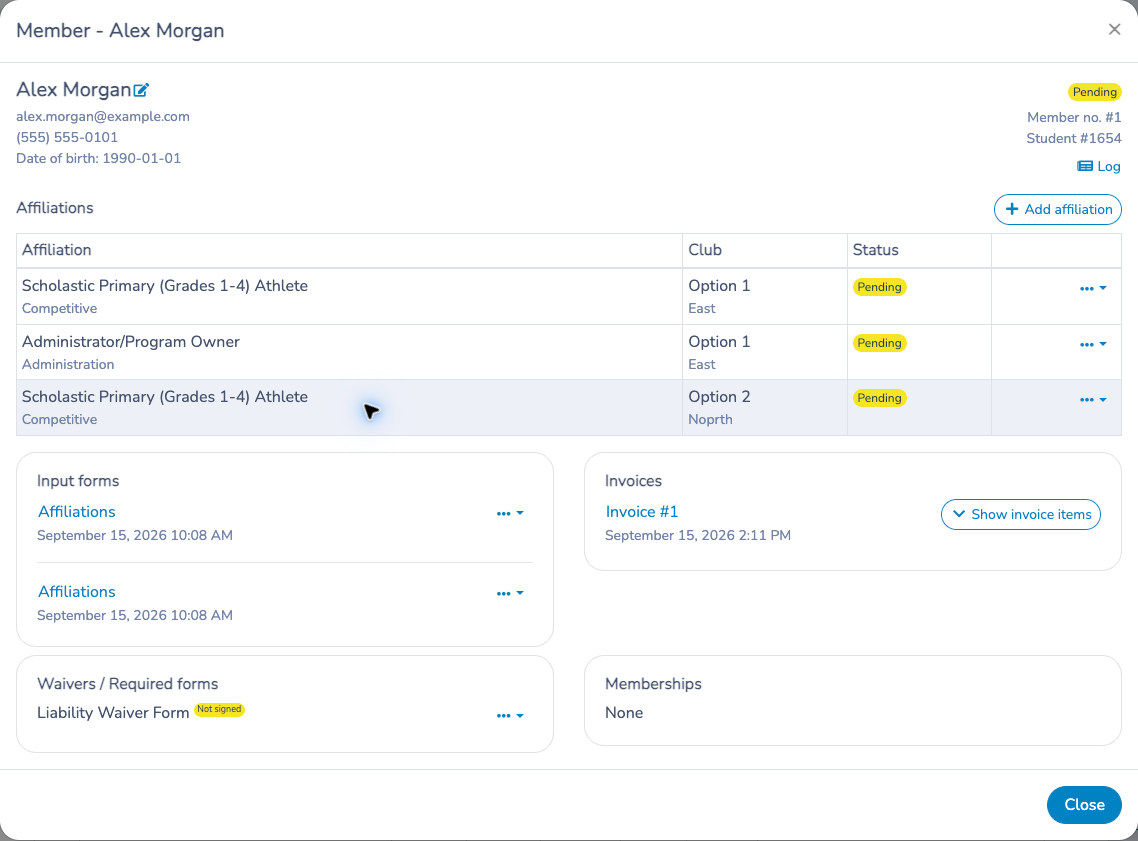
Read the member's file
The details bring together several parts of the record:
- Identity: contact information, date of birth, gender and member number. The edit control appears when you have permission.
- Affiliations: affiliation name, club, region where available, status and any unprocessed requests. Check the individual affiliation rather than relying only on the summary status in the list.
- Input forms: the submissions associated with the member. Forms owned by another organization may be visible as references without being openable from your organization.
- Invoices: related invoice numbers. Expand Show invoice items to inspect this member's linked charges and adjustments where billing access permits.
- Waivers / Required forms: submitted or missing requirements and the follow-up actions available to you.
- Memberships: linked memberships with their status and activation or expiry dates where available.
- Log: recorded member changes and affiliation operations. Use it to understand what happened before applying another correction.
An affiliation can be waiting on a required form while its invoice already exists. A paid invoice does not prove that the form requirement has been satisfied.
Correct member information
- Open the member's details and use the identity edit control.
- Correct the relevant fields and save.
- Reopen or refresh the member and verify the values.
- If you changed a date of birth or another eligibility field, review the affiliations separately. Editing identity information is not a request to recalculate an existing invoice or replace an affiliation.
Corrections update linked member information within the permitted scope. Do not assume you are changing only a display label on the current row.
Merge duplicate members
Use a merge when two or more records represent the same person. Do not merge people merely because they share an email address or a family contact.
- On the Members page, select at least two different members from the same manageable branch on the current page.
- Choose Merge accounts. Although the button uses this label, this workflow consolidates the selected federation member records.
- Choose the member record to keep. When your selection includes processed members, choose a processed record as the retained record.
- Open Choose fields if you need to retain values from different records. Compare names, contact information, date of birth and other available fields.
- Review the retained member and selected values, then confirm.
- Reopen the retained member and inspect affiliations, club associations, memberships, invoice items and the log.
The merge cannot be undone from this page. If the selection is unavailable or outside your permissions, refresh and review it rather than assuming the merge succeeded.
What merging changes
The merge brings eligible member identities and their related affiliation requests together. Matching affiliations in the same club context are consolidated; affiliations for different clubs retain their club context. Linked invoice-item references remain available. Duplicate linked memberships may also be consolidated.
Merging does not automatically credit duplicate charges. Review the invoices after the merge. If the same fee was charged twice, determine which charge should remain and issue the appropriate adjustment separately in the issuing organization.
For example, two records for the same person each have a $50 fee. Merging their identities does not turn those two charges into one $50 charge. Review the retained member's invoice items and, if one charge is erroneous, correct that charge using the billing workflow.
Follow up on required forms
Use the actions offered beside the requirement:
- Resend sends another invitation when an invitation template and an eligible requirement are available.
- Sync searches existing completed forms for a match. Review any candidates before assigning a form.
- Mark as filled is an administrative override that satisfies the requirement without a submitted form. It can activate an affiliation when all its requirements are satisfied.
An override does not create evidence that the member actually completed the form. Use the member's log and the form record when investigating why an affiliation became active.
# Review and process affiliation requests
- In the season’s Members tab, filter the list and review the pending requests, member identity, club and selected affiliation.
- Choose Process affiliations when available. Select Filtered rows (all pages), Checked rows only, or All pending affiliations. Check the scope explicitly: filtered rows can extend beyond the visible page.
- Review validation messages and possible duplicate matches before continuing. Correct the member information or resolve the match using the options shown; do not merge different people to clear a warning.
- Review any confirmation or invoice preview presented, then confirm only the intended scope.
- After processing, reopen affected members and check their affiliations, invoices, memberships and outstanding forms. Follow up on anything still pending.
Processing can create charges and linked memberships according to the season’s configuration. A request being processed does not establish that required forms are complete or that the invoice is paid.
# Manage affiliations and requirements
Choose an action based on whether you are changing member information, a pending request, a processed affiliation or a charge. These operations have different consequences.
Add an affiliation
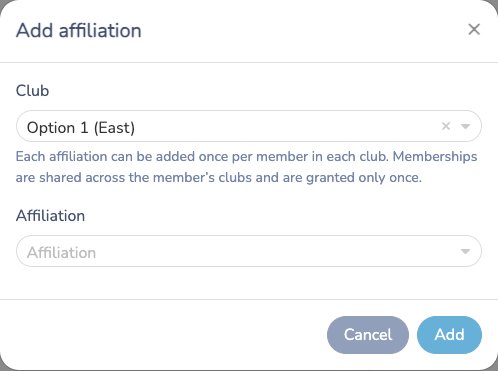
- Choose Add affiliation in the member's details.
- Select the club, then the affiliation offered for the season.
- Verify the club carefully: an affiliation already held for one club is different from an affiliation for another club.
- Confirm with Add.
- Review the result, linked invoices, required forms and memberships.
Adding from this dialog creates a request and starts processing it immediately. It can therefore create invoice items and linked memberships according to the configured fees. It is not merely a saved draft selection. An existing affiliation or request for the same club can prevent adding a duplicate.
Change a selection before submission
In an editable club submission, review the member's requested affiliations and save the corrected selection before submitting. For requests already submitted or processed, use the actions permitted for their current state. Do not assume that editing a club's working selection reverses an existing charge.
Withdraw, refuse or cancel a pending request
For an unprocessed request, the action label depends on context:
- A club or client-portal user can see Withdraw.
- A federation reviewing a request from another source organization can see Refuse.
- An organization acting on its own request can see Cancel.
Open the affiliation actions, choose the available request action and confirm. The request will no longer be processed. This is different from cancelling an affiliation that has already generated invoice items.
Cancel a processed affiliation
- Open the action menu for the correct affiliation and club.
- Choose Cancel affiliation.
- Read Invoice impact before confirming: review the cancellation credit, dependent discount changes, estimated net credit and listed invoice items.
- Confirm only after reviewing the complete effect.
- Refresh the member. Verify the cancelled affiliation, adjusted invoices and linked membership status.
Cancellation adjusts the linked invoice items belonging to the acting organization through a cancellation-without-refund operation. It can also remove dependent upgrade discounts and recalculate affected balances. It does not send money back to the payer.
Membership synchronization runs after the cancellation. A membership shared across clubs can remain active when another active affiliation still supports it; cancelling one club affiliation does not necessarily end that membership.
Handle a deletion request
A deletion request on an existing affiliation requires a decision:
- Keep resolves the deletion request without cancelling the affiliation.
- Cancel affiliation resolves the request by cancelling the affiliation and applying its invoice adjustments.
Review the invoice-impact preview for the cancellation path. Removing a source submission is not a substitute for reviewing this decision.
Force activation and missing requirements
Force activate marks an affiliation active even if requirements are missing. It does not collect payment or prove that the required forms were completed. Use this only when an authorized administrator intends that override.
To resolve a specific missing form, inspect the required-form actions instead: resend an invitation, synchronize an existing completed form, or use the administrative Mark as filled action where appropriate.
Example: changing a recreational affiliation to competitive
First check whether the season's configuration offers the competitive affiliation as an upgrade and which fees apply. Adding it can trigger processing and billing. Review the resulting invoice before cancelling the original affiliation: an upgrade discount on the competitive charge can depend on that original affiliation.
If the cancellation preview shows a $100 cancellation credit and $30 in dependent repricing, its estimated net credit is $70. This is an illustration of the preview calculation, not a guaranteed refund or a universal upgrade price. Review final taxes, balances and any separate payment refund on the invoice.
# Adjust charges from the member modal
Start in the member details modal to adjust affiliation charges. From this window, an administrator can expand the member’s invoice items, select the affected charges and open a credit or cancellation dialog. This keeps the correction tied to the right member, club and affiliation, even when an invoice covers several people.
Open the billing controls in the member modal
- Open Federation → season name → Members.
- Select the member’s row to open the member details modal. Check their identity and club.
- Stay in this modal. In its Invoices section, locate the relevant invoice and choose Show invoice items.
- Review the groups by affiliation and club. The panel shows this member's linked items and their linked adjustments, not every person's items on a shared invoice.
- Compare Charged, Credits applied and Balance remaining. Amounts in this member panel include taxes.
- Select the relevant items in this panel. Use Credit selected items or Cancel selected items, following the steps below. You do not need to open the full invoice to start these adjustments.
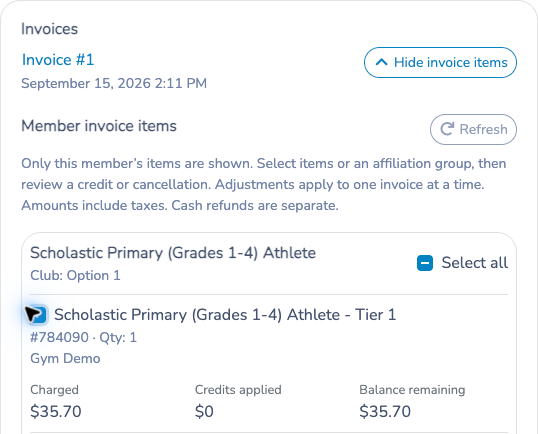
Open the full invoice separately only when you need payment details, its overall balance or a payment refund.
An invoice may cover several members. Do not use its total as the amount to credit for one member.

Check access and invoice state
You need invoice-detail access in the organization that issued the invoice, plus permission to credit or cancel invoices for the chosen operation. A parent federation's overview does not grant billing access to every child organization's invoices.
If the invoice belongs to another organization, switch to the issuing organization and reopen the member’s details there, where your access permits. A draft must be finalized before credits or cancellations can be issued from this panel. Deleted invoices and cancellation invoices do not offer these adjustment actions here.
Credit selected items
Use Credit selected items to reduce a charge while retaining the original item.
- In the member modal’s expanded Show invoice items panel, select the eligible items, or their affiliation group, on one invoice.
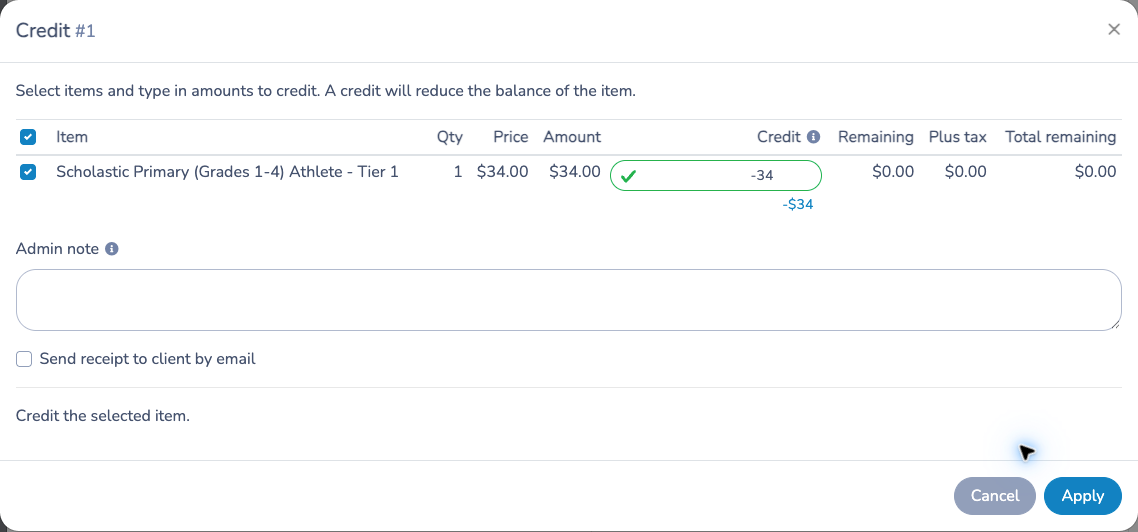
- Choose Credit selected items in that panel. A credit dialog opens over the member details.
- Review the amount for each selected item. The credit entry is before taxes; review the calculated taxes and totals before applying. A credit cannot exceed the item's eligible amount.
- Add an administrator note explaining the correction.
- Review Send receipt by email. In the member workflow this option starts off.
- Choose Apply. Back in the member details modal, review the updated items, credits and remaining balances. Use Refresh if needed.
This creates linked negative adjustment items on the same invoice and recalculates its balance. It does not cancel the affiliation and is not a cash refund. A paid invoice may need a separate payment/refund decision after the accounting adjustment.
For example, to reduce an erroneous fee while the member remains affiliated, use a credit and then verify the affiliation remains appropriate. Do not cancel the affiliation simply to reduce its price.
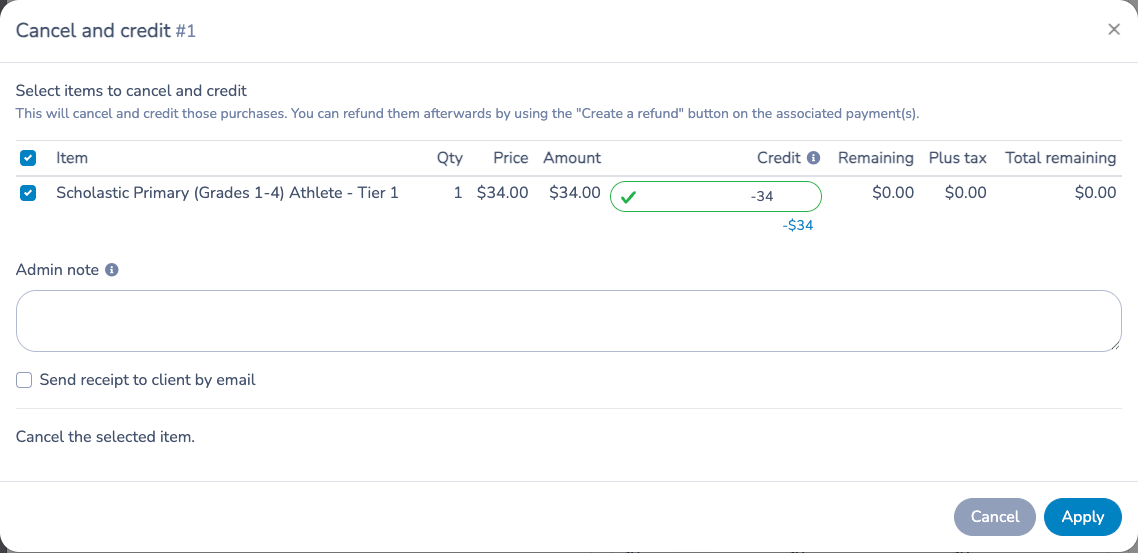
Cancel selected invoice items
Use Cancel selected items when the selected charges themselves should be cancelled.
- In the member modal’s expanded invoice-items panel, select eligible items from one invoice.
- Choose Cancel selected items in that panel to open the cancellation dialog.
- Review the cancellation amounts and any quantity or recurring options shown.
- Add an administrator note and review the email option, which starts off in this member workflow.
- Apply, then return to the member details modal and review the updated items. Inspect the resulting cancellation record when checking the full invoice.
This uses the invoice cancellation-without-refund workflow. It is not the member's Cancel affiliation action. If the intention is also to end the affiliation, inspect and manage that affiliation explicitly rather than assuming an invoice adjustment does it.
Cancel the affiliation itself
In the same member details modal, go to Affiliations, open the affected affiliation’s … menu and choose Cancel affiliation when the affiliation must end. Its invoice-impact preview can include cancellation of linked items and removal of dependent upgrade discounts. Review all listed items, not just the first fee.
The estimated net credit subtracts dependent repricing from the cancellation credit. Removing a discount can reduce the credit and increase a different item's charge. The operation uses cancellation without refund; returning money is a separate step.
Adjust one invoice at a time
Selection applies to one invoice at a time. If the member has charges on several invoices, review each separately. Charges issued by different organizations require work in each issuing organization with the appropriate permissions.
For example, a member has a national fee and a provincial fee on different invoices. Crediting an item on the national invoice does not automatically credit the provincial invoice. Confirm the intended correction with each issuing organization.
Review billing after a merge
A member merge preserves links to the related invoice items. It does not decide which charges are legitimate and does not automatically refund or credit duplicates. Inspect the retained member's charges, check existing credits and adjust only the remaining erroneous amount.
Final checks
After an adjustment, verify the selected items, taxes, credit/cancellation record, invoice balance, existing payments and any intended receipt email. Then check the member's affiliation and membership statuses separately.
If the payer must receive money back, use the appropriate payment refund workflow on the invoice. A credit entry or cancellation record alone is not proof that funds were returned.
# Alternative: submissions from a club’s own admin workspace
Prepare your club's members and requested affiliations before sending them for the season. This guide covers clubs using their own Activity Messenger organization. It does not describe the federation's client portal.
Before you begin
Your club needs access to the federation season and an editable submission. Prepare the source lists containing your members. If using membership mapping, make sure the relevant memberships and season affiliations are available.
From Federation, select the season name, then open its Members tab for your club organization. Where a separate Submissions tab is available, use it to open the submission workspace. Available tabs depend on your organization's access.
1. Configure the member list
- Select Configure.
- Choose the existing lists that contain the members to include. Use Manage lists if you need to prepare or maintain a source list.
- Optionally set Member date range. This filters by when a member was added; it is not a date-of-birth filter. Leave it blank to include all matching members.
- Configure membership mappings as described below, then save.
2. Map memberships to affiliations
Map one membership at a time to one or more season affiliations. Optional age and gender filters narrow the members matched by a rule. An affiliation's own age requirement still applies: members who do not satisfy it will not receive that affiliation through the mapping.
For example, map a recreational membership to the season's recreational affiliation. Review the resulting members after saving; the mapping does not replace the review step.
Saving applies the configuration and refreshes the member list. Review the refreshed list before submitting.
3. Review members
Check member information and requested affiliations. Use the available search and filters to locate records that need attention. Correct missing or invalid information and review possible matches before proceeding.
When available, Skip selected excludes eligible selected members from the submission, and Include selected includes eligible members again. Some records cannot be changed because of their submission state; follow the message shown for that member.
4. Submit and confirm
- Select specific members and choose Submit selected, or choose Submit all when no members are selected.
- The system checks whether the submission is ready. If it reports errors, correct them and try again.
- Review the member count, affiliation count and any draft invoice preview in Confirm submission.
- Confirm with Submit when the scope is correct, or cancel to continue reviewing.
Search filters are useful for review. To explicitly limit submission to particular people, select those members and use Submit selected.
Understand the invoice preview
The preview estimates invoice items for the current submission. Displaying it does not create an invoice. If the preview cannot be calculated, the interface may still allow submission after you review the member counts. An empty preview indicates no projected invoice items, not that all future charges have been ruled out.
# Monitor the season
Use the federation dashboard to review totals by season, affiliation and club. Compare pending and active counts, charges and payments; use the available report filters and exports for follow-up. A summary total is not a substitute for inspecting a member’s details or the issuing organization’s invoice when investigating a discrepancy.