
Home
Account setting
Staff
Lists
Forms
Templates (HTML emails/SMS messages)
Sending messages by SMS and email
Classes, events, attendance and Zoom
Automation
Create a birthday invitation and automation
Communication
Microsite
E-Commerce
Networks, Federations and Franchises
How to guides
Personal information and electronic message laws in Canada and the USA
Get support
Terms and conditions
RL-24
https://activitymessenger.com/
10410 Waverly, Montréal, H3L 2W4
Terms and conditions

Generate documents from a PDF template
In addition to image-based certificates and badges, Activity Messenger can merge form responses and recipient data into a single-page or multi-page PDF. Use this option for incident reports, health records, waivers, event documents, and other standardized printable forms.
Create the PDF document
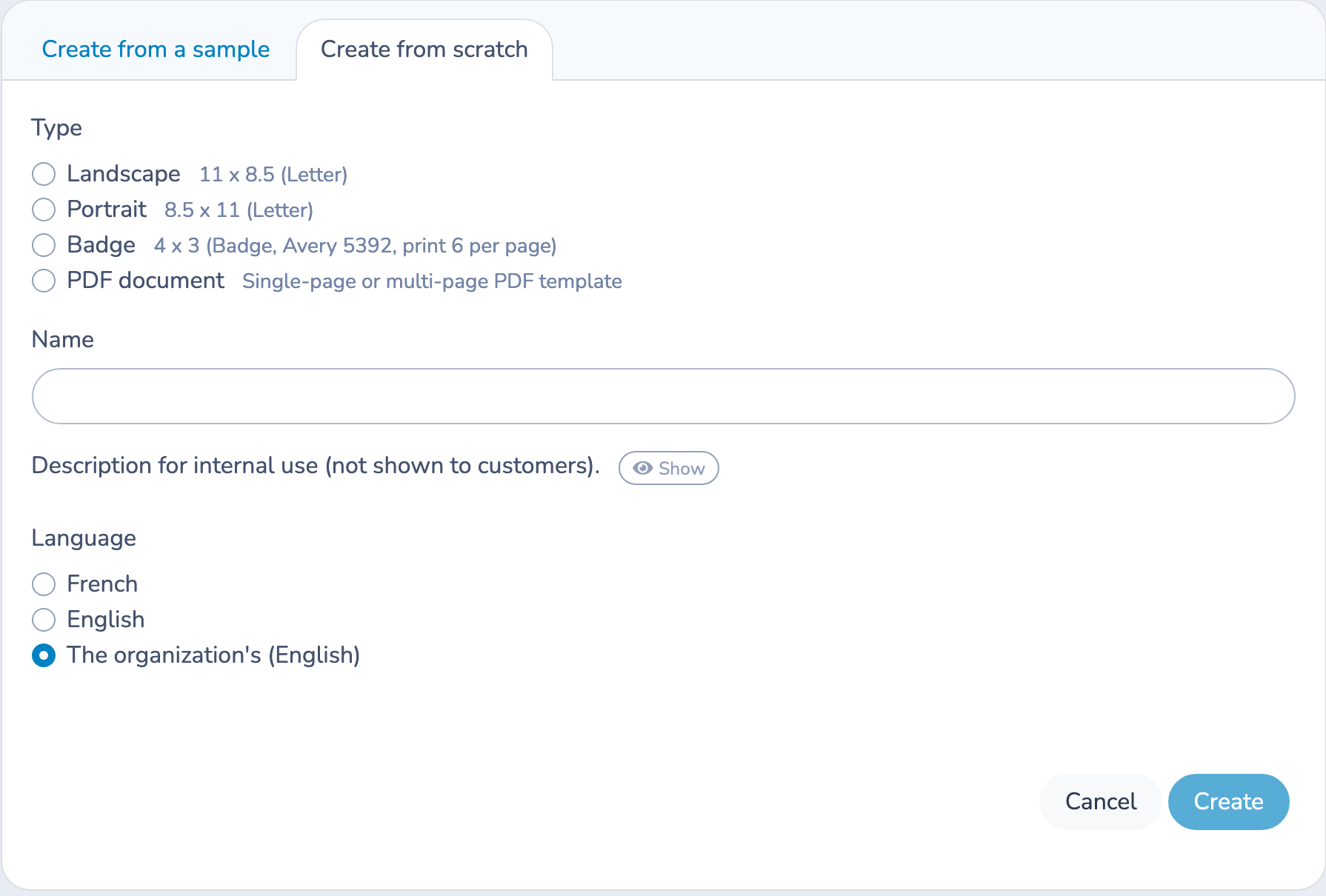
- Open More, select New certificate, then select Create from scratch.
- Choose PDF document.
- Enter an internal name, choose the document language, and select Create.
In the editor, open PDF template and select Upload a PDF template. The template may contain up to 100 pages, including pages with different sizes or orientations.
Use Previous and Next to move between pages. Open Text block, add a block to the current page, and position it over the location where the completed value should appear. Format the text and use the placeholder picker to insert participant, contact, organization, registration, or form-response data.
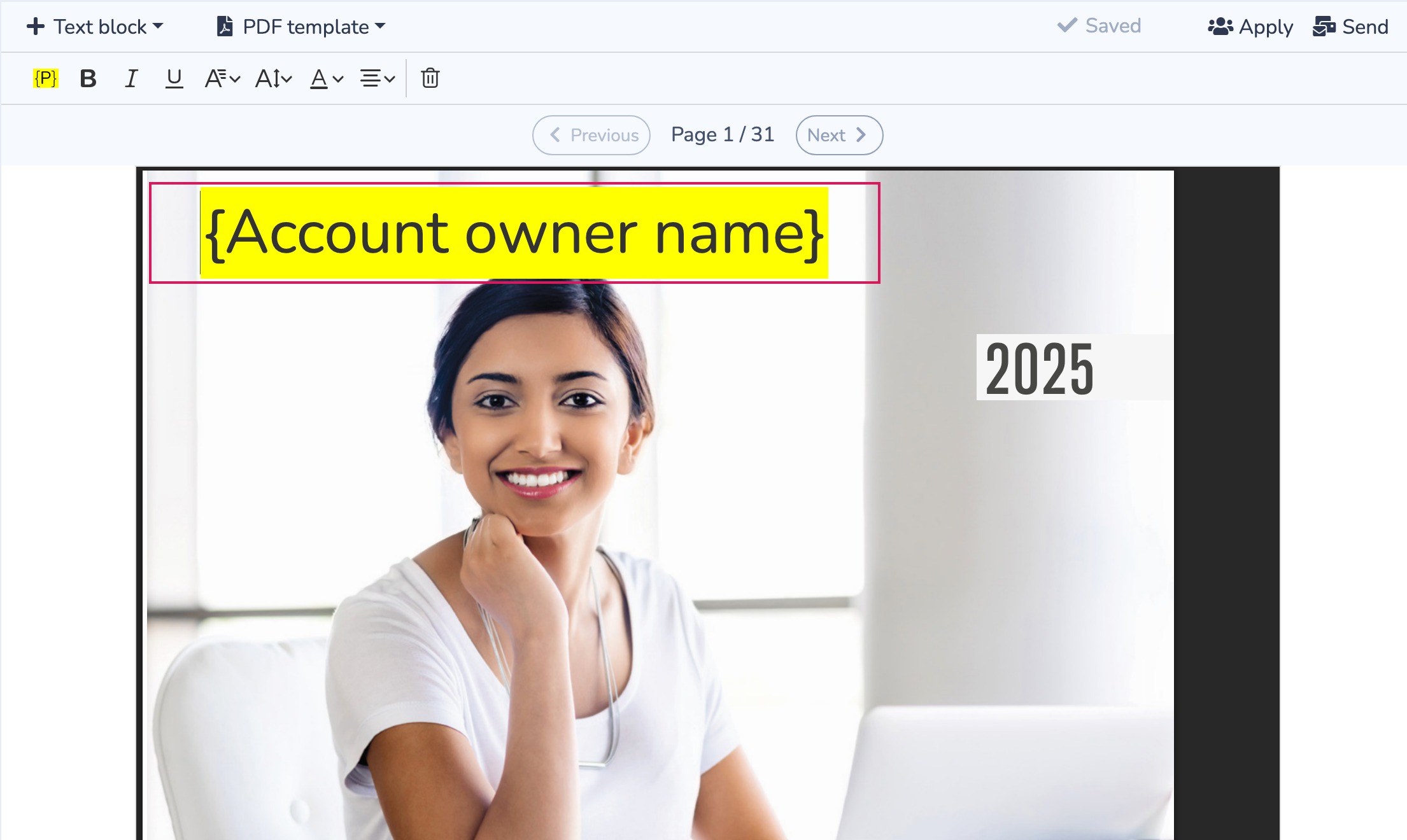
Each text block belongs to the page on which it was created. Existing fillable fields in the uploaded PDF are not mapped automatically; add Activity Messenger text blocks over the required locations.
Preview and download a completed PDF
- Save the document and select Apply.
- Choose the list or form containing the recipients.
- Select a recipient to populate the form responses and other placeholders.
- Review every page, then select Print to open the generated PDF in a new tab.
- Use the browser's PDF controls to download or print it.
To generate multiple documents, select Prepare PDF for the required recipient range, then select Download PDF. Large lists are divided into batches of up to 50 completed documents.
Send the completed PDF by email
Select Send, compose the message, and choose the recipient list or form. When an email is sent to an Activity Messenger recipient, their completed PDF is attached to the message.
Send a test to a test recipient and inspect the attachment before a bulk send. A manually entered email address that is not connected to a recipient does not provide recipient or form-response data and does not receive a personalized PDF attachment.
Add a participant barcode
Add Participant barcode from the placeholder picker to place the recipient's barcode on a PDF document or event badge. The barcode is generated for an actual recipient, so test it from Apply after selecting someone from the list rather than from the blank template preview.
Important checks
- A PDF template can contain no more than 100 pages.
- Empty placeholder values remain empty in the completed document.
- Review long answers, font size, wrapping, and placement; text is not automatically resized to fit a printed box.
- After replacing the PDF template, review every page, especially if its page count, dimensions, or orientation changed.
- Use a recipient connected to the form response when the document depends on form answers.
- Test both the downloaded PDF and the emailed attachment before generating or sending a large batch.
Related guide
For image-based certificates, bulk printing, and event badges, see Generating certificates.