
Home
Account setting
Staff
Lists
Forms
Templates (HTML emails/SMS messages)
Sending messages by SMS and email
Classes, events, attendance and Zoom
Automation
Create a birthday invitation and automation
Communication
Microsite
E-Commerce
Networks, Federations and Franchises
How to guides
Personal information and electronic message laws in Canada and the USA
Get support
Terms and conditions
RL-24
https://activitymessenger.com/
10410 Waverly, Montréal, H3L 2W4
Terms and conditions

Finding and creating staff profiles
Staff profiles and forms centralize employee information, including information collected for payroll, uploaded documents, encrypted fields, electronic signatures and finalized PDFs. Start under User management to find or create an employee account, then complete that person's staff profile.
# Find staff profiles in the current menu
- If you can manage account users, open User management > Users & Permissions.
- If you have staff-management access, open User management > Staff management. This may open Staff roles or Qualifications first. Use Users & Permissions, or Staff profiles if that is the tab available to you, to reach the people list.
- Open the employee's row to view their staff record. The Information tab contains their profile answers; Forms contains their connected form submissions.
Your organization needs the Staff management feature for the staff-management pages. Profile visibility is not restricted to Account Owner users: Organization Owner, Human Resources, and users granted the relevant staff-profile viewing permission can have access. The profiles and tabs available depend on your permissions.
Viewing staff profiles does not automatically grant permission to create users, change account permissions or remove users. Those actions require account-management access and the applicable action permissions. Access to the shared profile designer is also separate from viewing an individual's profile.
# Create two employee profiles for payroll
First search the people list for each employee. If an account already exists, open that row and complete its profile instead of creating a duplicate.
- Open User management > Users & Permissions and select Add a user.
- In Single, enter the first employee's Name and Email. Enter their mobile number if required by your organization's authentication settings; otherwise it is optional.
- Select the appropriate Permission from the choices you are allowed to assign. Choose access appropriate to the employee's work; an employee does not need Account Owner access just to have a profile.
- Decide whether to Send an invitation email. It is enabled by default. Leave it unchecked if you intend to invite the employee later.
- If Add to staff resources is offered, enable it when the person needs to be assigned and scheduled. A staff account/profile and a scheduling resource are related but distinct.
- Select Invite if sending an invitation, or Add if not. After the account is added, open its row and complete the staff profile in Information. Save the profile answers using the form's save control.
- Repeat for the second employee, using that person's own account information. Reopen each row to check that the saved information belongs to the correct person.
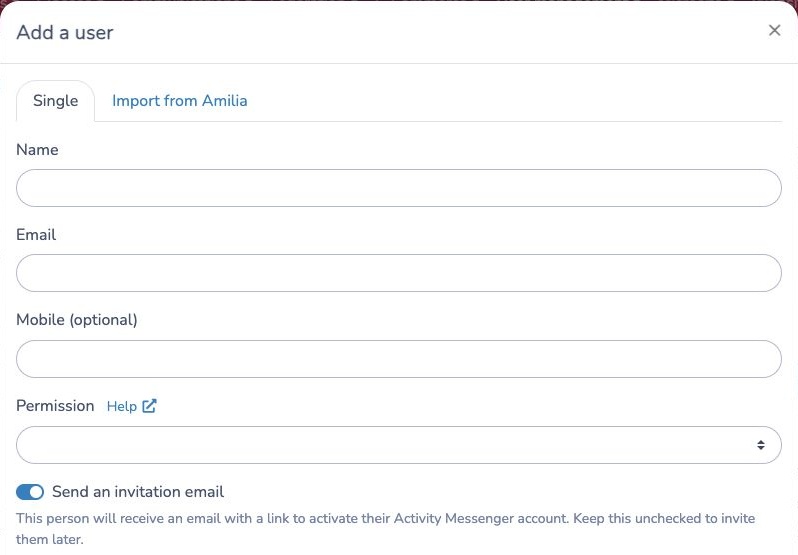
For example, create one account for Alex and another for Morgan, then complete each person's profile separately. Use your organization's configured fields and staff forms to collect the information needed for payroll. The fields vary by organization; creating two profiles does not itself configure or run payroll.
Staff payroll is a separate item under User management, shown when payroll is enabled for your organization. If it is missing, ask your organization administrator to check payroll availability and your access. Do not use the payroll menu as the starting point for creating an employee account.
# “I can't find Staff” or “I don't see Add a user”
- There is no Staff menu: look for User management. The current menu name has changed.
- Staff management opens roles or qualifications: switch to the available people tab, Users & Permissions or Staff profiles.
- You can see profiles but not Add a user: you may have HR or profile-viewing access without account-management access. Ask the person who manages account users to create the two accounts or review the access needed for your duties.
- Staff management or profiles are missing: have an administrator check that Staff management is enabled and that you have the relevant profile-viewing permission. Account Owner is not the only permission that can allow profile visibility.
- You actually see the older interface: older screens or older instructions may use Staff > Staff and Volunteers. Follow that path only if those labels are visible in your workspace.
- The menu still does not match: tell support which menu labels you see, whether Users & Permissions, Staff profiles and Add a user are visible, and what access you have. A screenshot of the menu without employee data can help identify the difference.
# Configure the shared staff profile
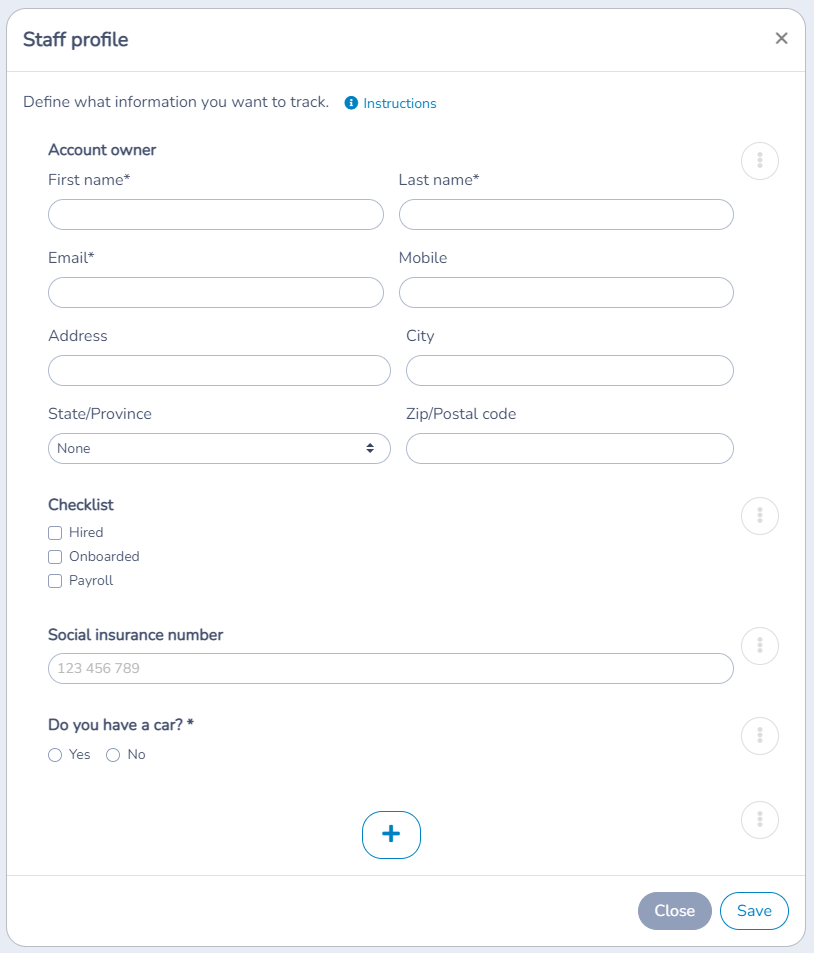
With permission to configure the shared profile, open the people table's Actions > Staff profile. This edits the shared form, rather than creating one employee's account. The profile designer lets you define and reorder fields, such as date of birth and confidential payroll information. Sensitive fields use encrypted storage. Use + to add custom questions such as Yes/No, free text or emergency contacts.
# Remove a staff member
Removal requires the appropriate user-management permissions. In the current people table, use Remove staff member for the intended person and review the confirmation before proceeding. If the action is unavailable, ask an administrator with the required access.
# Manage displayed columns
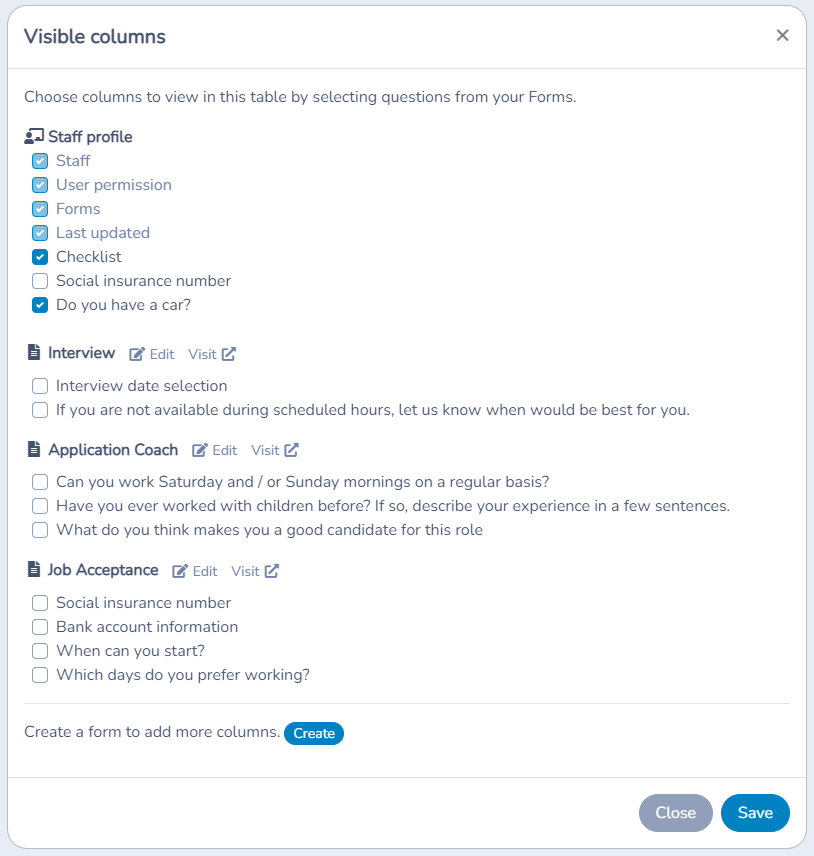
Use Actions > Visible columns to select the columns to display. You can choose fields from the profile and from staff forms, making it easier to review information related to payroll, work hours or other administrative needs.
# Create and manage staff forms
Open User management > Manage forms, under Staff forms, when your permissions allow it. Keep staff forms, such as payroll information and timesheets, separate from client forms. Customize them for your organization.
Watch the existing staff-form demonstration. This older demonstration may show previous menu labels.

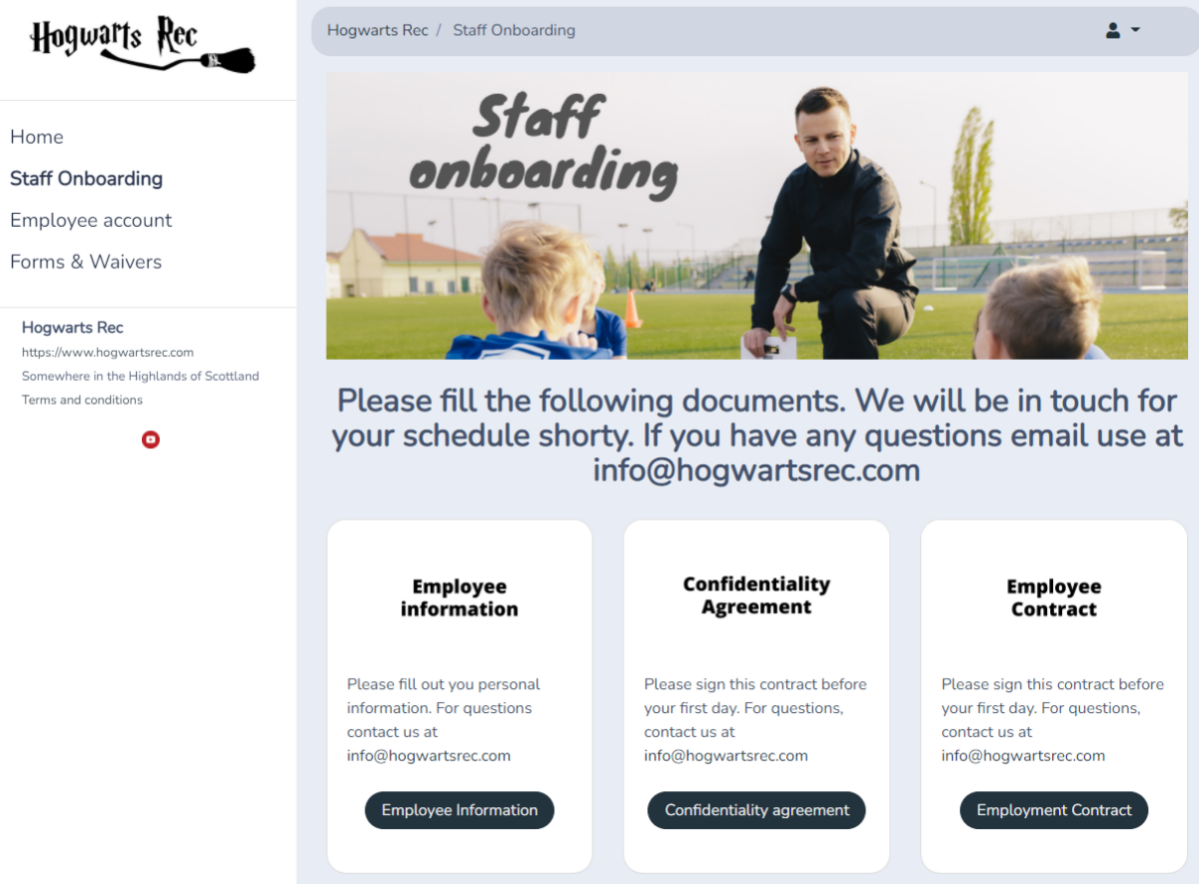
For background, read the staff onboarding and management article or watch the recorded webinar. Older examples may use previous navigation labels; use the current paths above to locate the feature.