
Home
Account setting
Staff
Lists
Forms
Templates (HTML emails/SMS messages)
Sending messages by SMS and email
Classes, events, attendance and Zoom
Automation
Create a birthday invitation and automation
Communication
Microsite
E-Commerce
Networks, Federations and Franchises
How to guides
Personal information and electronic message laws in Canada and the USA
Get support
Terms and conditions
RL-24
https://activitymessenger.com/
10410 Waverly, Montréal, H3L 2W4
Terms and conditions

Client portal: manage your club’s members
Use your federation’s client portal to import affiliation forms, consult your club’s members and review season totals. Your federation determines the forms and actions available to your club.
# Open your club’s season
- Sign in through the client portal link supplied by your federation.
- In My account, open Federation.
- Check the club, region and Season before working with forms or members.
- Use Form imports, Overview or Members for the task you need.

If the Federation section or the expected season is missing, ask your federation to check your club’s access. Clubs using their own Activity Messenger administration workspace should instead follow Admin: manage federation members.
# Select the form before importing
- Open Form imports.
- Change the All form filter to the affiliation form designated by your federation. Form names vary by season and federation.
- Choose Import. The button appears only when import is enabled for the selected form. Payment forms cannot be imported through this workflow.
Add opens the selected form when available. Export downloads the existing responses for an eligible selected form; it is different from the blank import sample.
# Prepare and review the spreadsheet
- In the import dialog, choose Sample to download the Excel template for this form.
- Fill in one submission per row, following the template’s columns. Use the current season’s template rather than assuming an older file has the same fields.
- Copy the prepared data and paste it into Data.
- Review the displayed rows and highlighted cells. Use the row edit button to correct a complete row, or correct the spreadsheet and paste again.
- Resolve validation errors before choosing Import.
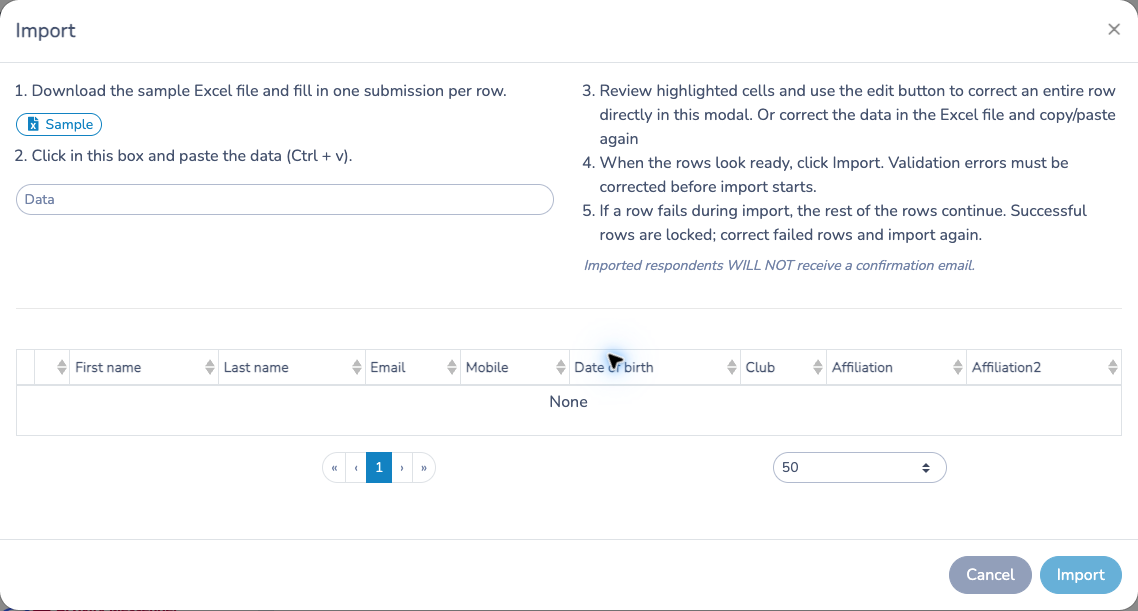
The columns depend on the selected form. For example, a federation may request identity details, a club and multiple affiliation selections. Use the values expected by that form.
# Import and handle failed rows
When the rows are ready, choose Import. If a row fails during import, the remaining rows continue. Successful rows are locked in the dialog; correct failed rows and retry them there. Do not restart the whole batch without checking what already succeeded.
Imported respondents do not receive a confirmation email. Do not rely on the import to notify members that their affiliation is active.
Return to Form imports and review the resulting submissions. Search by name and use the form filter to find a response. Available row actions depend on the form and your access.
# Review members and season totals
In Members, search by name, email, mobile number or member number. Use the affiliation and status filters to narrow the list, then open a member’s row to inspect the available details. The federation controls which correction, merge and processing actions your club can use.
In Overview, review member counts, active and pending counts, the amount and the paid amount. Use Data, Group by and Split by to change the report, and the chart controls to change its presentation.
Importing forms, processing affiliations and paying invoices are separate steps. A successful import does not by itself prove that an affiliation is active or an invoice is paid. Follow the federation’s requirements and check the resulting member status and billing records.
# Manage your club’s members
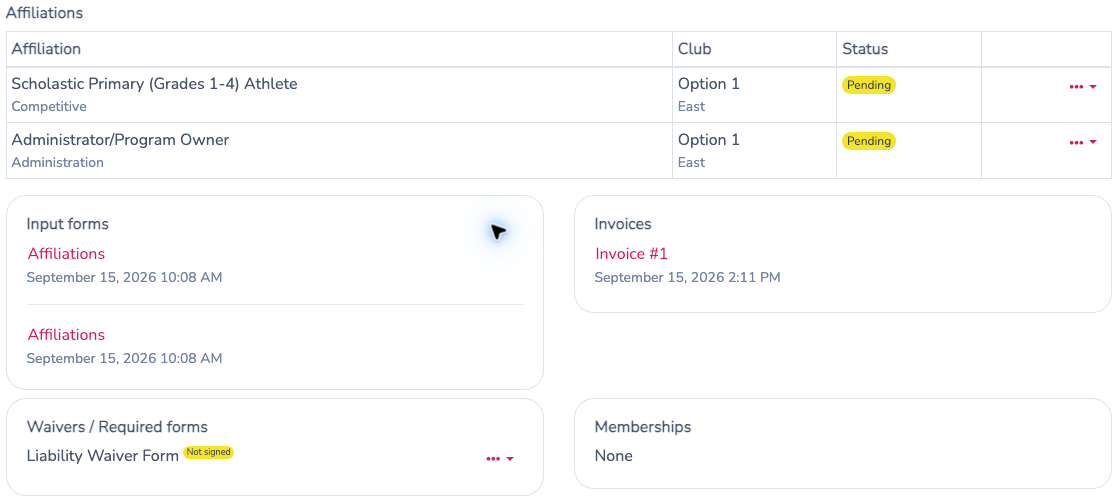
Open Members and select a member’s row. Check identity, the club and individual affiliation statuses before taking action. Available controls depend on your federation’s permissions for this season.
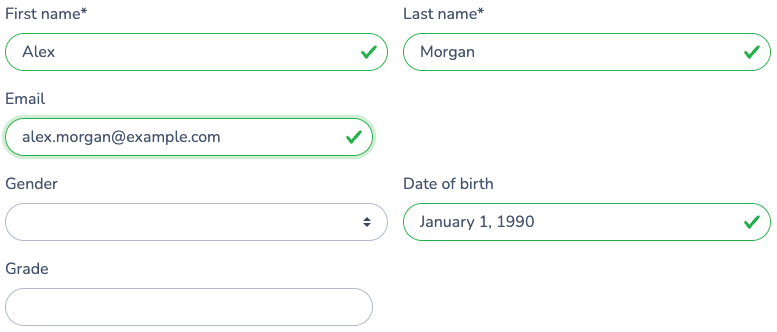
- Correct identity: use the edit control if available, save, and review the record. A corrected birth date does not itself recalculate an existing invoice.
- Manage affiliations: inspect the affiliation and club before adding, withdrawing or requesting cancellation. Adding an affiliation can start processing and create charges; review the result. A pending request and an already processed affiliation have different actions.
- Follow missing forms: use the permitted invitation action to resend a required form. If the requirement still appears missing after completion, contact the federation rather than repeatedly submitting another affiliation.
- Merge duplicates: if enabled, select records representing the same person and use Merge accounts. Review the retained record and field choices before confirming. A merge does not automatically credit duplicate charges. Ask the federation for a billing review when needed.
If a control is absent, ask the federation to review the season’s club permissions. The portal does not automatically grant the federation administrator’s billing-adjustment rights.
# Process affiliations when your club is authorized
If Process affiliations is available in Members, review the requests first. Choose Filtered rows (all pages), Checked rows only, or All pending affiliations and verify the intended scope. In the client portal, the operation remains limited to the club’s permitted records. Resolve validation and duplicate messages and review any confirmation or invoice preview before proceeding.
After processing, check the member’s status and outstanding requirements. Do not treat the form-import list as proof that processing, activation or payment is complete.
# Follow invoices and request corrections
Use the portal’s Billing section to consult available invoices and payments. Compare the invoice with the relevant member and affiliation. Before paying, report an incorrect club, affiliation or duplicate fee to the federation with enough detail to identify the record.
The administrator can review and adjust the member’s linked invoice items from the member details modal. Deleting an imported form, merging a member or seeing a pending affiliation does not prove that a charge was cancelled or money refunded. Confirm the resulting invoice balance and any refund separately.