
Home
Account setting
Staff
Lists
Forms
Templates (HTML emails/SMS messages)
Sending messages by SMS and email
Classes, events, attendance and Zoom
Automation
Create a birthday invitation and automation
Communication
Microsite
E-Commerce
Networks, Federations and Franchises
How to guides
Personal information and electronic message laws in Canada and the USA
Get support
Terms and conditions
RL-24
https://activitymessenger.com/
10410 Waverly, Montréal, H3L 2W4
Terms and conditions

Send automated email alerts as text messages
Email-to-text lets an alarm, monitoring service, scheduling system, or other automated system send an email that Activity Messenger forwards as an SMS. It replaces carrier-specific email gateways such as Bell Text via Email, which Bell decommissioned on December 31, 2025. Instead of sending to a carrier address such as mobilenumber@txt.bell.ca, the system sends to your organization-specific Activity Messenger address: mobilenumber@organization-alias.msg.am.lol.
Email-to-text is intended for one-way operational alerts. SMS delivery can be delayed or fail, so do not use it as the only channel for life-safety or other time-critical notifications.
# Before you begin
You need:
- The Email-to-text module enabled for your organization.
- Permission to manage the organization's settings.
- A stable email address used by the source system.
- Each destination as a 10-digit North American mobile number.
Every forwarded alert uses your organization's SMS balance. Replies to the SMS are not returned to the system that sent the email.
# Security checks before an email becomes an SMS
Activity Messenger applies several independent checks. An email is sent as an SMS only when all of them pass:
- Approved sender: The address in the email's visible
Fromheader must exactly match an entry in the approved sender list. - Authenticated email: Amazon SES must report
PASSfor spam, virus, and DMARC checks. DMARC confirms that the visible From domain aligns with either the authenticated SPF envelope-sender domain or the DKIM signing domain. - Valid envelope recipient: The SMTP envelope recipient supplied by SES must have the exact
10digits@organization-alias.msg.am.lolformat. The Lambda-to-Activity Messenger request also signs the SES message ID, envelope recipient, timestamp, and unmodified email content. A missing, expired, or altered signed value is rejected before the email is parsed. - Approved recipient: The 10-digit number extracted from the envelope recipient must exactly match an entry in the approved telephone number list.
The SMTP envelope sender, also called the return path or MAIL FROM address, is recorded separately. It does not have to be identical to the visible From address. This is normal for automated email services that use a separate bounce address. A difference by itself is not a failure, but the message must still pass DMARC alignment and the visible From address must still be approved.
If the addressing envelope is missing, altered, or does not match the required destination format, Activity Messenger does not create a sent message or send an SMS. Failures caught after the signed request is accepted—such as failed SES security verdicts or an unapproved sender or number—appear as rejected attempts in the Email-to-text log. A malformed or invalidly signed request can be rejected before a log entry is created; if no attempt appears in the log, contact Activity Messenger support with the sending time and destination address.
# 1. Turn on and configure Email-to-text
Go to Settings > General > Email-to-text, then turn on Email-to-text. The remaining settings appear when the module is active.
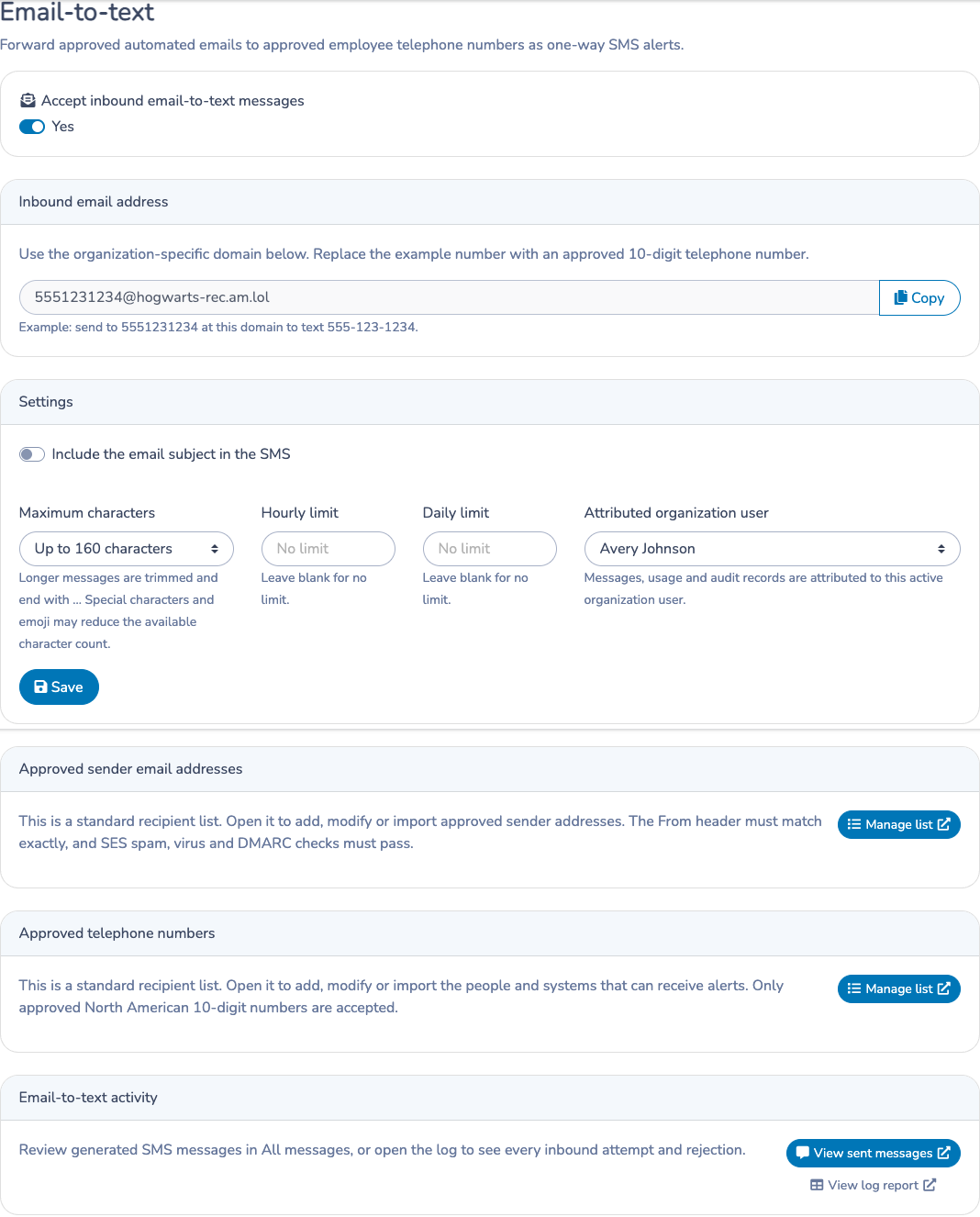
Choose the options that suit your alerts:
-
Email-to-text alias: Choose a short alias made of lowercase letters, numbers, and hyphens. It must be unique across Activity Messenger. Changing it makes the previous inbound address stop working immediately, so update every sending system when you change it.
-
Include the email subject in the SMS: Add the subject before the email body. Leave this off if the body contains everything the recipient needs.
-
Maximum characters: Choose an approximate maximum from 160 to 765 characters, or choose unlimited. Some special characters and emojis use more space. When text exceeds the selected limit, Activity Messenger trims it and adds an ellipsis (
...). -
Hourly limit and Daily limit: Optionally cap the number of emails converted to SMS. Leave a field blank for no limit.
-
Attributed organization user: Choose the organization user who will own the sent messages, usage, and audit records created by this module.
Click Save.
# 2. Approve the system's sender address
In the Approved sender email addresses card, click Manage list. Add the exact email address that appears in the source system's From field. An optional name helps administrators identify the system later.
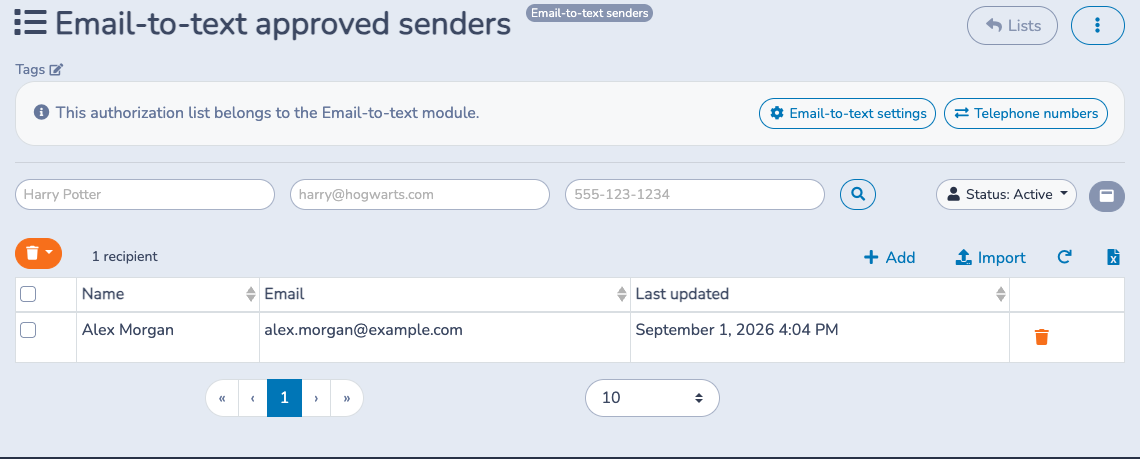
Activity Messenger uses a standard recipient list for approved senders. You can add entries individually or import them from an Excel or CSV file. Only approved addresses are accepted. Incoming messages must also pass the email service's spam, virus, and DMARC checks.
# 3. Approve the destination telephone numbers
Return to the Email-to-text settings and, in the Approved telephone numbers card, click Manage list. Add every mobile number that may receive an alert. A name is optional but makes the list and reports easier to understand.
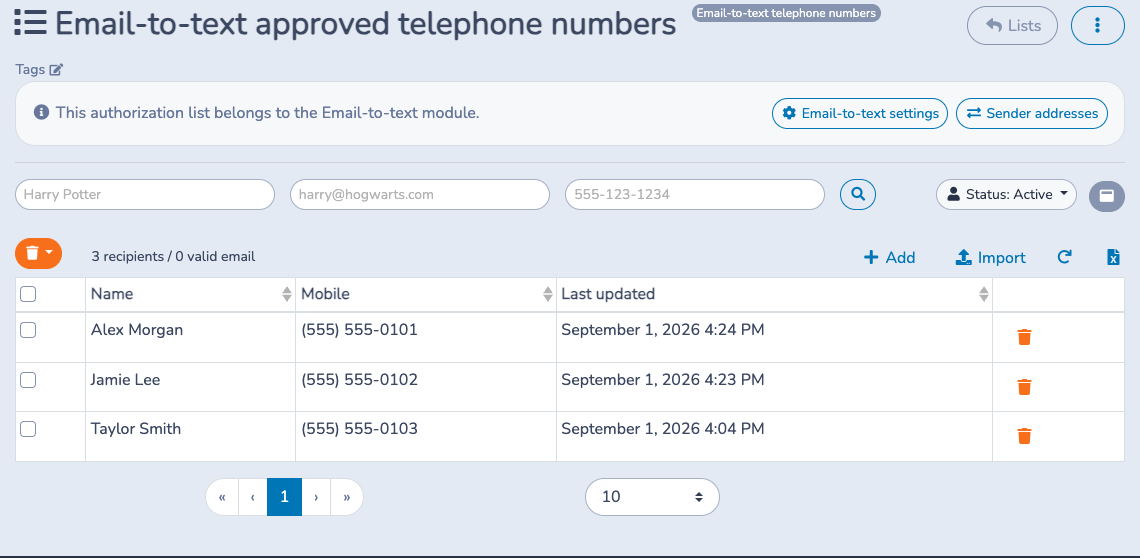
Use a 10-digit North American mobile number. The list displays the number in a familiar format, but the email destination must contain digits only.
# 4. Send an alert
Address the email to the destination mobile number followed by your organization's Email-to-text domain:
5555550101@your-organization.msg.am.lol
The number before @ must:
- Contain exactly 10 digits, with no
+1, spaces, parentheses, or dashes. - Appear in the approved telephone number list.
The email must come from an approved sender address. Activity Messenger converts the message body to plain text, optionally adds the subject, applies the selected character limit, and sends the SMS. Attachments are not forwarded.
You may address one email to multiple approved Email-to-text addresses. Each destination is processed as a separate SMS and creates its own message record.
# 5. Review sent alerts and rejected attempts
Use either of these views:
- All messages: From the Email-to-text settings, click View sent messages. This opens All messages with the Email-to-text filter selected. Accepted alerts create sent-message records here.
- Email-to-text log: Click View log report, or go to Reports > Financial reports > Other > Email-to-text log. The log includes accepted and rejected inbound emails, the sender and destination, status details, any rejection reason, and links to messages that were created. You can select a date range and export the report to Excel.
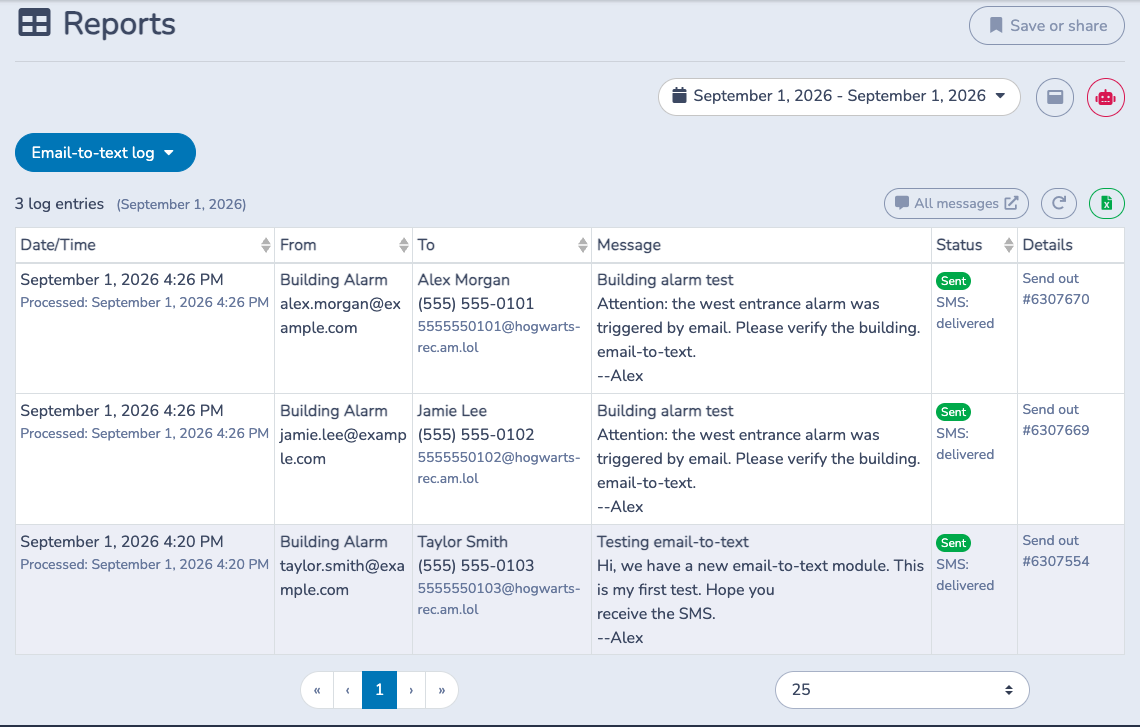
A rejected email does not create a sent message, but it remains visible in the Email-to-text log for troubleshooting.
# Troubleshooting
If an alert does not arrive, check the Email-to-text log first.
- Sender not approved: Add the exact From address used by the automated system. Some systems use a different address for automated notifications than for normal email.
- Telephone number not approved: Add the 10-digit destination to the approved telephone number list and verify the address contains digits only.
- Authentication, spam, or virus failure: Review the source system's sending-domain configuration. The message must pass the inbound email security checks.
- No log entry: Confirm that the destination used exactly 10 digits and the organization's Email-to-text domain. A malformed envelope recipient or a failed signed-envelope integrity check can be rejected before an Email-to-text log entry is created.
- Hourly or daily limit reached: Increase the relevant limit or leave it blank for no limit.
- Empty message: Make sure the email contains readable text in its body.
- SMS delivery failure: Open the related sent message for its delivery status and verify that your organization has sufficient SMS balance.